
-
Smart Drawing is a function allowing to generate drawing during measuring points.
-
Two modes are available:
-
Single lines: allows creation of single lines between points and drawing of circle, rectangles and squared objects.
-
Multiple lines: allows the simultaneous creation of multiple line features, including lines with the same code, making it easier to survey complex layouts.
-
-
To access the tools click on lower button of the left side panel in points survey window.
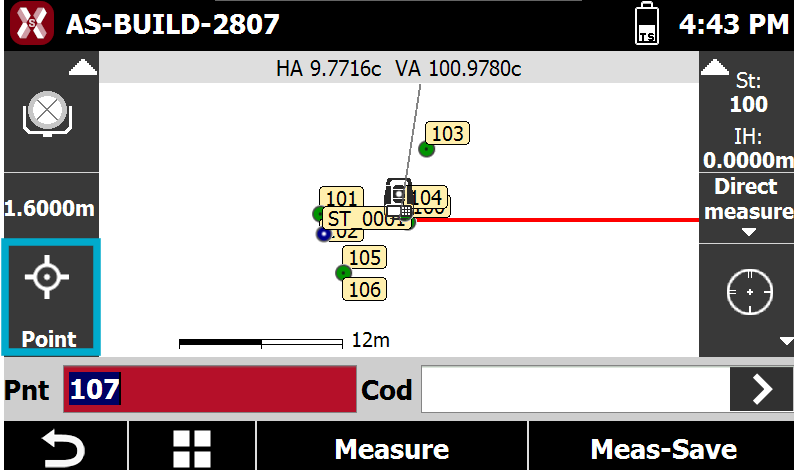
Single lines
-
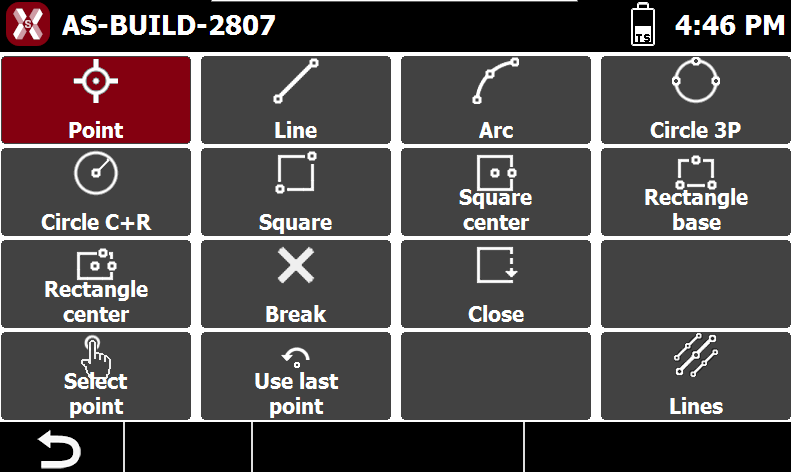
The Smart Drawing toolbar is displayed by pressing the corresponding button in the survey window. It provides a set of tools for creating and managing graphical elements directly during the survey.
-
Point: records a single point.
-
Line: creates line segments connecting measured points.
-
Arc: creates arcs using measured points.
-
Circle 3P: creates a circle by measuring three points on its circumference.
-
Circle C+R: creates a circle by measuring its center and one point on the circumference.
-
Square: creates a square by measuring two opposite corners.
-
Square Center: creates a square by measuring the center point and the midpoint of one side.
-
Rectangle Base: creates a rectangle by measuring two points of the base and a third point on the opposite side.
-
Rectangle Center: creates a rectangle by measuring the center point, the midpoint of one side, and a third point on the opposite side.
-
Break: interrupts the drawing of the current line and starts a new segment.
-
Close: closes the current line by connecting the last point to the first point.
-
Selection Point: allows you to select the required point from the points currently displayed on the screen.
-
Use Last Point: uses the most recently recorded point as the requested point for the current operation.
-
-
When you select a tool, in Smart Drawing button is visualized the request related to the point to measure.

-
When it’s selected a survey code, it’s automatically activated the tool corresponding to the type of drawing set in the code.
Multiple lines
-
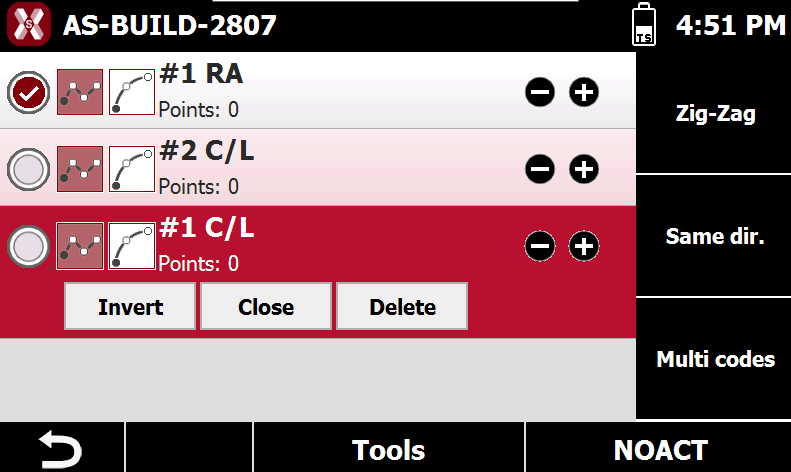
Multiple Lines mode allows you to create and manage multiple line features simultaneously based on the point code and line number assigned to each measured point.
-
Lines are classified as Active or Non-Active:
-
Active lines are lines currently being surveyed and whose geometry has not yet been completed.
-
Non-Active lines are lines that have already been completed and finalized.
-
-
A line is initially created as an Active line and is progressively extended as new points are measured. Once the line is completed, it becomes a Non-Active line.
-
If additional points need to be added later, a Non-Active line can be reactivated and modified. After the required points have been measured and added, the line can be completed again and returned to the Non-Active state.
Adding a New Line
-
To create a new line, specify the code to assign to it. The selected code must be a Line type code. The software automatically assigns the first available line number for that code, considering the lines already present in the project.
-
Alternatively, a new line can be created directly from the survey window. When a point is measured using a code of Line type, the corresponding line is created automatically.
Selecting a Line
-
Select a line from the list to make it active for the next measurements. When returning to the survey window, the code associated with the selected line becomes the current survey code.
-
A line can also be selected directly from the graphic view.
Ending a Line (Deactivating)
-
Once the geometry of a line has been completed, it is no longer necessary to keep it in the list of Active lines. The line can be ended and moved to the Non-Active lines list.
-
Press

Deleting a Line
-
To permanently delete a line, select it and choose Delete from the context menu.
Reversing a Line
-
By default, new points are always added to the end of the selected line. In some situations, it may be necessary to continue the line from its starting point instead.
-
To reverse the direction of a line, select it from the list and choose Invert. Any subsequent points will then be added according to the new direction.
Closing a Line
-
When surveying a closed feature, such as a parcel boundary, a building outline, or any closed contour, the line can be closed automatically.
-
Select the line and choose Close. The software creates a segment between the last and the first vertex, closes the geometry, and automatically moves the line to the Non-Active lines list.
Multiple Codes
-
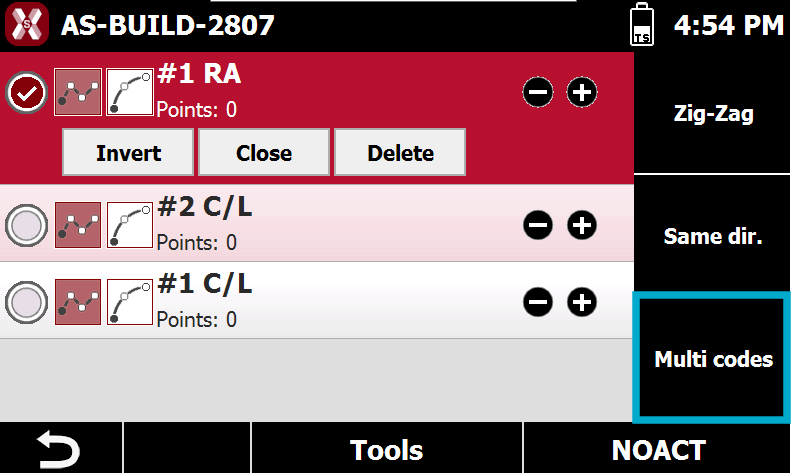
In some surveying situations, a measured point must belong to several lines that are currently active. Press Multi codes.
-
Select the lines to which the next measured point must be added. When the point is recorded, it is automatically inserted as a new vertex in all selected lines.
Automatic Coding
-
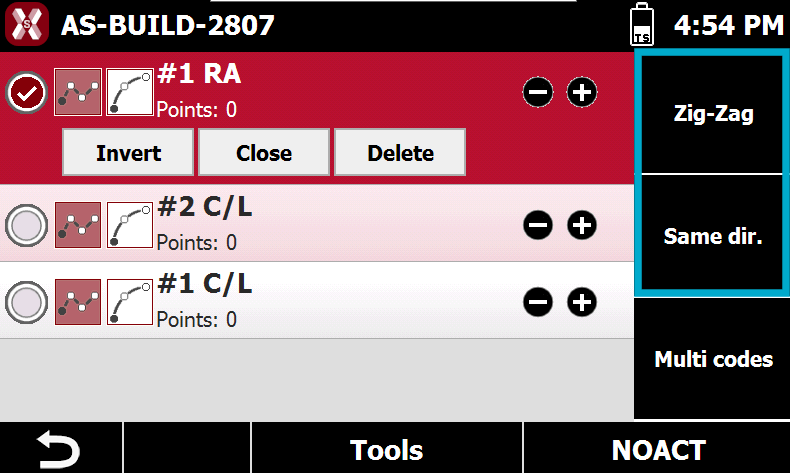
The Automatic Coding system speeds up surveys where features are measured according to a regular and repetitive pattern, such as road surveys where the centerline and side elements must be surveyed in sequence.
-
Define the list of lines to be surveyed and choose one of the available operating modes. Once activated, the software automatically proposes the next line according to the specified order, eliminating the need to manually select the line before each measurement.
-
The following automatic coding modes are available:
-
Zig-zag: measurements are performed alternately from left to right and from right to left. The survey sequence alternates continuously between the defined lines. After reaching the last line in the list, the software reverses the order and continues in the opposite direction.
-
Same direction: measurements are always performed in the same direction, either left to right or right to left. The survey sequence always follows the same predefined order. After reaching the last line in the list, the sequence restarts from the first line.
-
-
After enabling automatic coding, the software proposes the code of the first line in the sequence. Once a point has been measured, the code of the next line is automatically proposed, and the process continues according to the selected mode.
-
During the survey, you can:
-
Stop the sequence permanently.
-
Skip the current code and move to the next one.
-
Pause the sequence temporarily to measure additional points that do not belong to the automatic coding sequence.
-
-
This workflow significantly reduces operator interaction and improves