-
The software operations are subjected to a series of parameters and options that are fully customizable by the user.
-
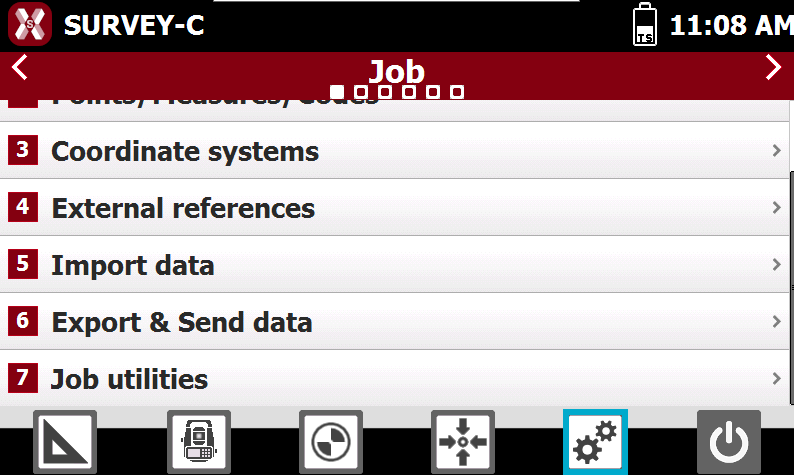
To open the settings press Setting icon from within a job.
-
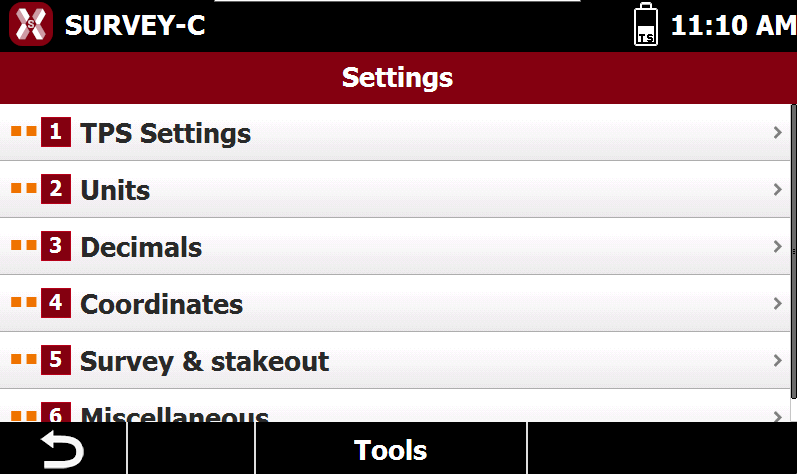
The Settings page shows different settings.
TPS Settings
-
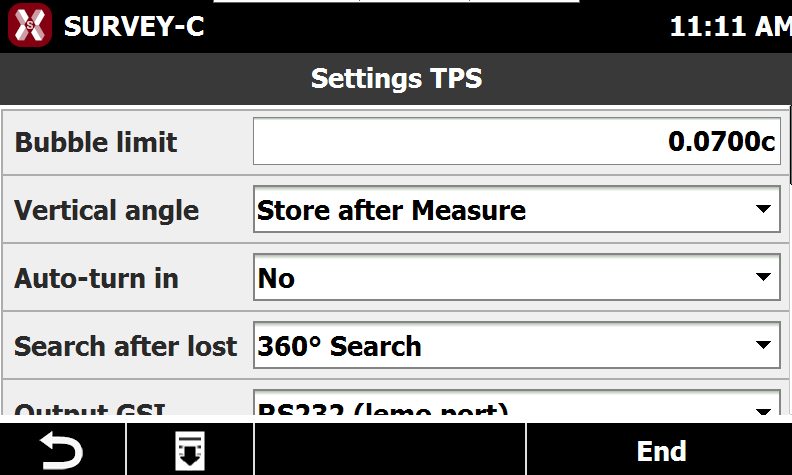
The TPS Settings page allows to define the total station settings.
-
Bubble limit: defines the limits for the electronic bubble.
-
Vertical angle: this option allows changing the vertical angle before saving the measure both when surveying both when making stakeout.
-
Save after measure: the vertical angle of the measure is saved
-
Save current value: the current value of the vertical angle is saved.
-
-
Auto-turn in: when this option is active the total station turns automatic toward the stakeout point when selected.
-
Search after lost: enables the automatic search of prism after it’s lost by the total station. The automatic search modes of the lost prism are:
-
None: no action is done.
-
360° search: a 360° search of the prism is started.
-
Win + 360°: a search by window in the zone where the prism was lost is started and then a 360° search.
-
-
Output GSI: if enabled allows to output the GSI messages with total station reading.
-
RS232 (lemo port): GSI data is stream out on RS232 port.
-
Bluetooth: GSI data is stream out by Bluetooth.
-
Bluetooth (handle): GSI data is stream out by total station Bluetooth handle.
-
-
GSI version: the GSI version streamed out in Output GSI setting.
-
Angle update: defines the total station angle update.
-
Units
-
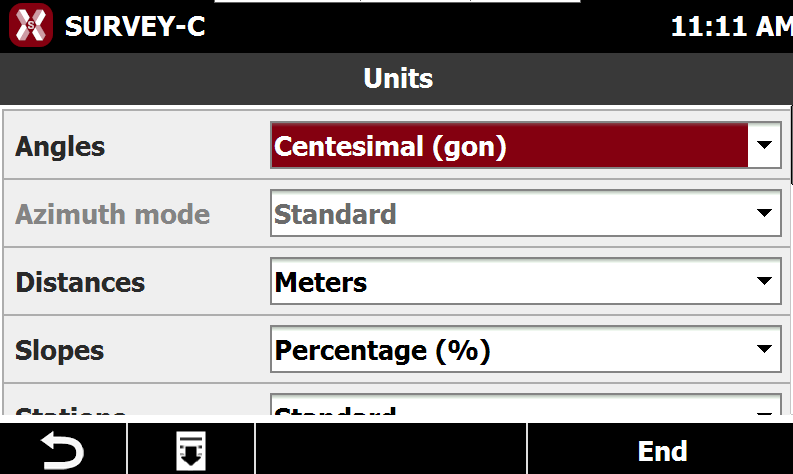
The Units page allows to set the units of measure to use for every type of data.
-
Angles: defines the unit for angle values.
-
Distances: defines the unit for distance values.
-
Slopes: defines the unit for slopes.
-
Stations: indicates how stations are specified along a road alignments.
-
Lat/long: defines the latitude and longitude unit.
-
Decimals
-
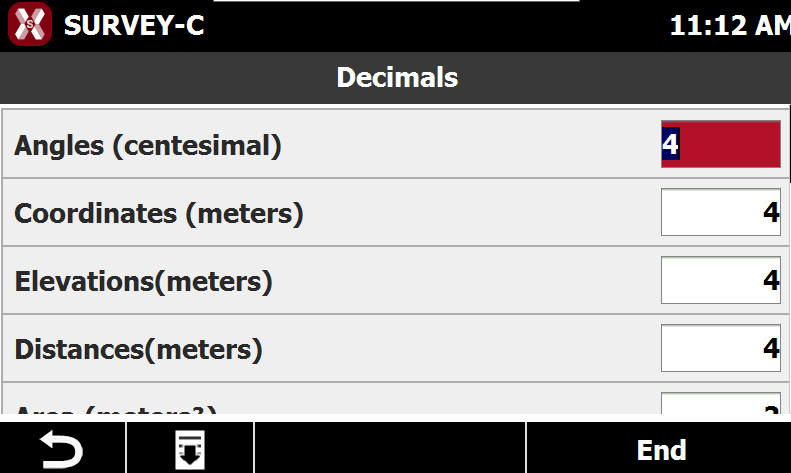
The Decimals page configures the number of decimals to show for every type of data.
-
Each field displays the unit configured in Units.
-
Angles: number of decimals for angle values.
-
Coordinates: number of decimals for coordinate values.
-
Elevations: number of decimals for elevation (height) values.
-
Distances: number of decimals for distance values.
-
Area: number of decimals for area values.
-
Slopes: number of decimals for slope values.
-
Lat/long: number of decimals for latitude and longitude values.
-
Coordinates
-
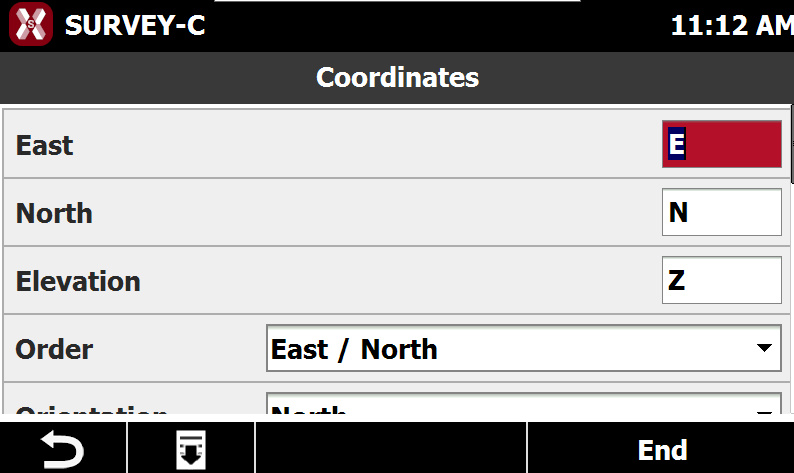
The Coordinates page allows to set the symbols to mark the abscissa, the ordinates and the elevations and their order.
-
East: symbol for abscissa axis (east).
-
North: symbol for ordinates axis (north).
-
Elevation: symbol for elevations.
-
Order: allows to define if the order of the coordinates is east/north or north/east.
-
Orientation: sets direction of the ordinates: the default direction of the ordinates is toward north but in some countries it’s inverted.
-
Survey and stakeout
-
The Survey and stakeout setting allows to define specific settings for survey and stakeout operations.
TPS Survey tolerance
-
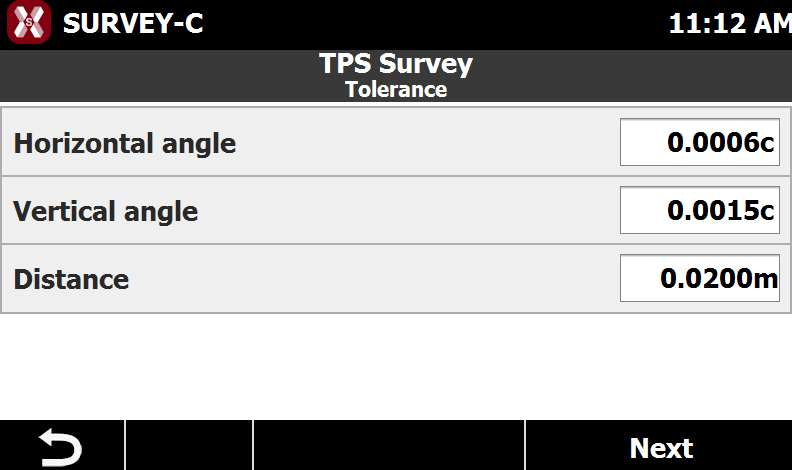
The TPS Survey tolerance page defines the angle and distance acceptable error.
-
Horizontal angle: maximum acceptable error on horizontal angle in multiple measures and in measures on Face 1 and Face 2.
-
Vertical angle: maximum acceptable error on vertical angle in multiple measures and in measures on Face 1 and Face 2.
-
Distance: maximum acceptable error on distance in multiple measures and in measures on Face 1 and Face 2.
-
Average coordinate
-
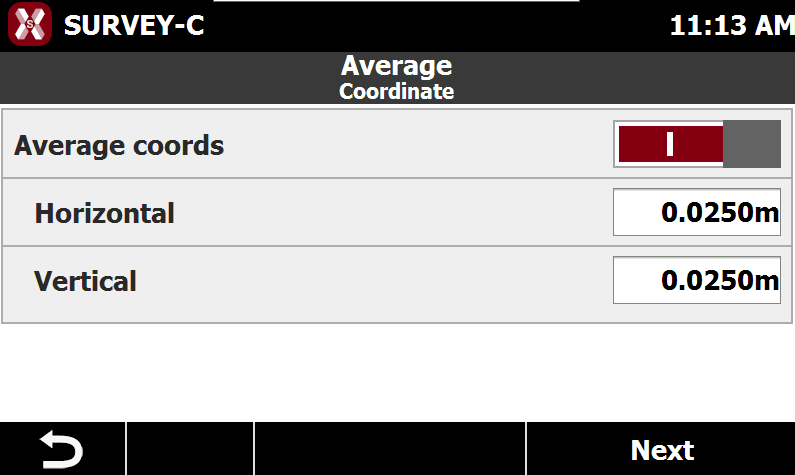
The Average coordinate page defines the acceptable error when averaging coordinates.
-
Average coords: activates calculation of the average of coordinates of a point when it’s measured more times.
-
Horizontal: tolerance on distances. If a measure differs, referring to average value, more than tolerance it’s considered out of tolerance and highlighted in the list of measures.
-
Vertical: tolerance on elevation. If a measure differs, referring to average value, more than tolerance it’s considered out of tolerance and highlighted in the list of measures.
-
Codes
-
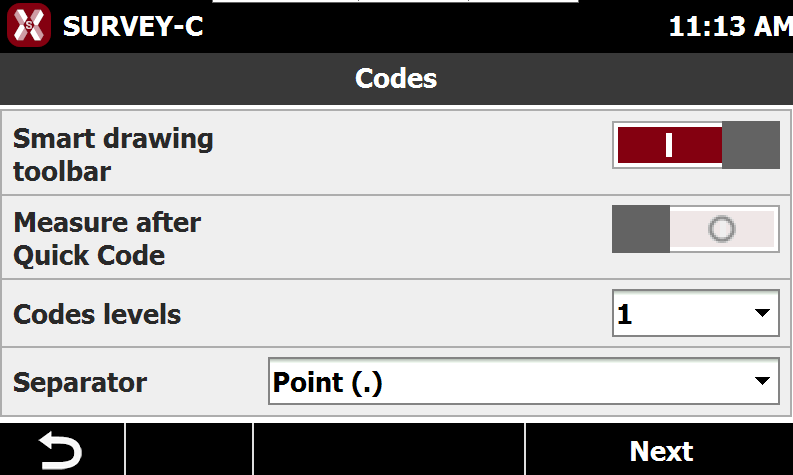
The Codes page defines settings related to survey codes.
-
Smart drawing toolbar: enables the visualization of the smart drawing toolbar to draw during the survey.
-
Measure after quick code: if enabled, automatically the instrument measures after the selection of the Quick Code.
-
Codes levels: sets the request level of codes (only for Text survey mode). It’s possible to set up to 3 levels of codes.
-
Separator: separator character used to distinguish the single codes inside the complete code (composed code).
-
Stakeout parameters
-
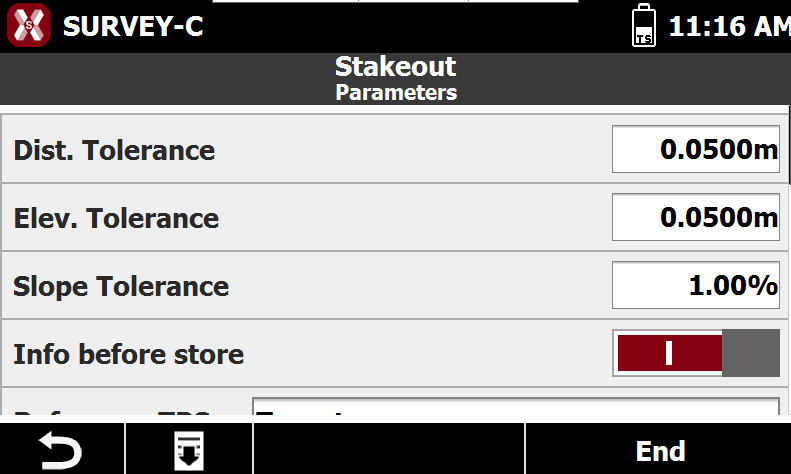
The Stakeout parameters defines specific settings for the stakeout.
-
Distance Tolerance: specifies the maximum horizontal distance between the current position and the target position for the point to be considered staked out. When the distance is less than or equal to this tolerance, the software indicates that the stakeout position has been reached.
-
Elevation Tolerance: defines the maximum acceptable difference between the current elevation and the target elevation. When the difference is less than or equal to this tolerance, the software indicates that the correct elevation has been reached.
-
Slope Tolerance: defines the maximum acceptable difference between the current slope and the project slope.
-
Info Before Store: allows verification of the stakeout position before saving the new point. If this option is disabled, the stakeout point is saved without confirmation.
-
Reference TPS: defines the reference direction used to guide the operator to the stakeout position when using a total station. Available options include:
-
Target: guidance is provided as if the operator is at the target point, facing the total station.
-
Total station: guidance is provided as if the operator is at the total station.
-
North: guidance is provided relative to North.
-
-
Complete Drawing: enables the visualization of drawing elements in the graphic window during stakeout.
-
Stakeout CAD: defines what stakeout mode is activated when an element is selected to stakeout in the CAD view:
-
None: the stakeout is not active.
-
Stakeout object: the object is staked out using Stakeout object mode.
-
Reference line: the object is staked out using Reference line mode.
-
-
Miscellaneous
-
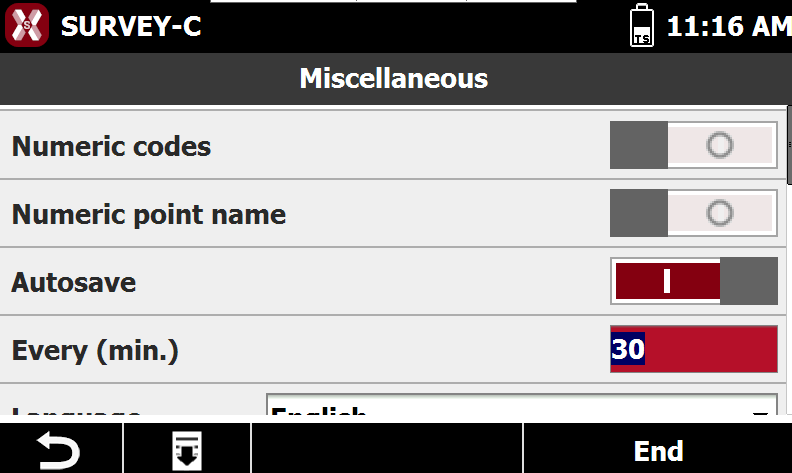
Miscellaneous page define general software settings.
-
Numeric codes: enables the preferential use of numeric codes for survey coding.
-
Numeric point name: enables uses of only point name as numeric.
-
Autosave: enables automatic saving of the current job. Each autosave operation creates a backup copy of the job by changing the file extension.
-
Every (min.): specifies the time interval, in minutes, between autosave operations.
-
Language: defines the language used by the software. After changing the language, restart the software to ensure correct operation. To install additional languages install the related country package.
-
Auto start: enables the automatic start of X-PAD software when the total station is turned on.
-
Tag photo: enables the tagging information when a sketch is saved.
-
Save settings as default
-
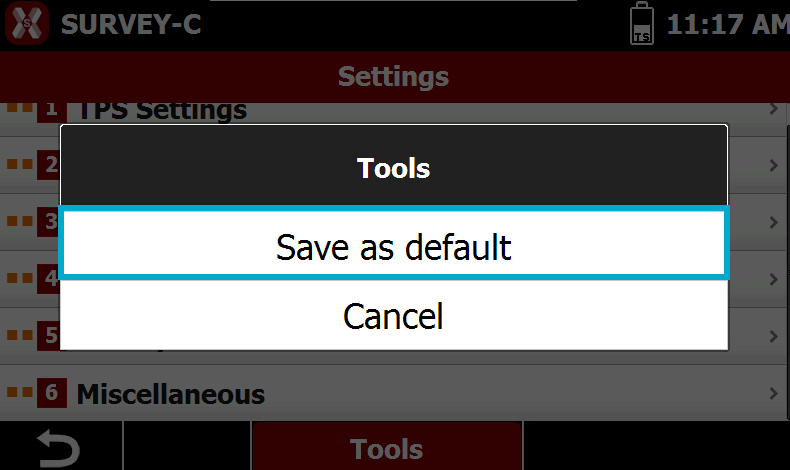
To save the settings as default from the Settings page press Tools.
-
Select Save as default.