
Create a new code
-
To create a new code select New from the survey codes list.
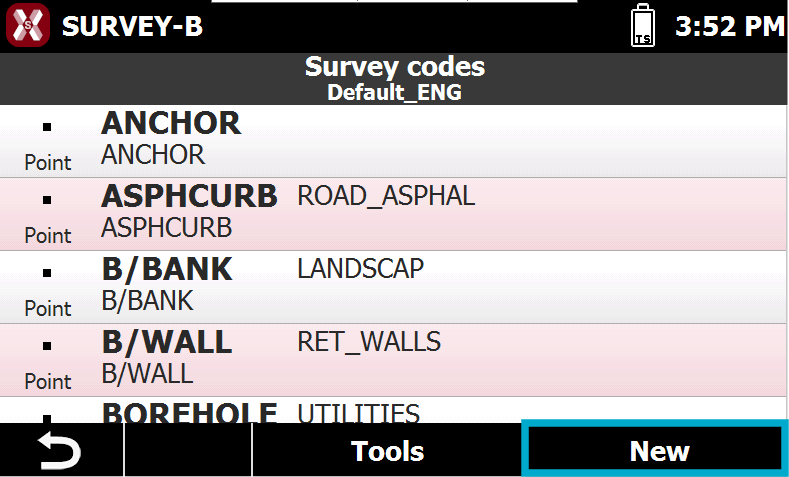
-
Data of the code are organized in pages.
Main data
-
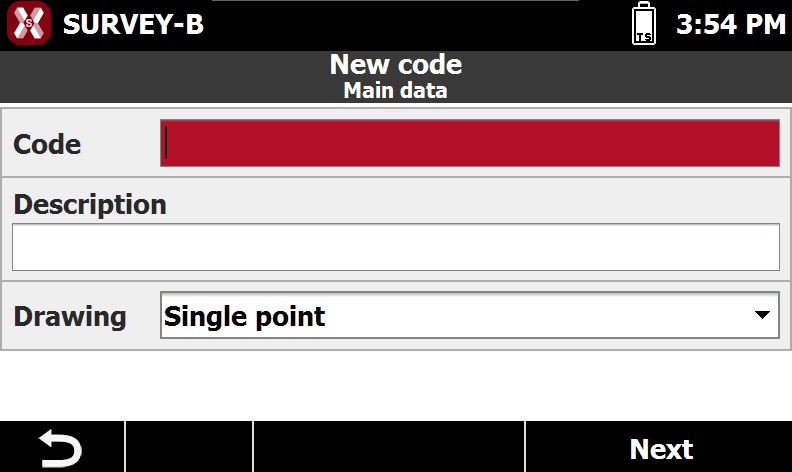
The page allows to enter the ID of the code, the description and the type of drawing associated.
-
Code: short code name.
-
Description: extended description of the code.
-
Drawing: the code defines how the measured object is graphically represented. When a drawing is selected, the software selects automatically the corresponding Smart Drawing Tool. the available types are:
-
Single point: The measured object is represented by a single point. Example: tree, lighting pole.
-
Line: the measured object is represented by a polyline. Example: road edge, wall.
-
Diagonal square: the measured object has a square shape and is defined by measuring two opposite corner points.
-
Square center: the measured object has a square shape and is defined by measuring the center point and the midpoint of one side.
-
Rectangle base: the measured object has a rectangular shape and is defined by measuring the two endpoints of the base and one point on the opposite side.
-
Rectangle center: the measured object has a rectangular shape and is defined by measuring the center point, the midpoint of one side, and a third point on the opposite side.
-
-
Layer
-
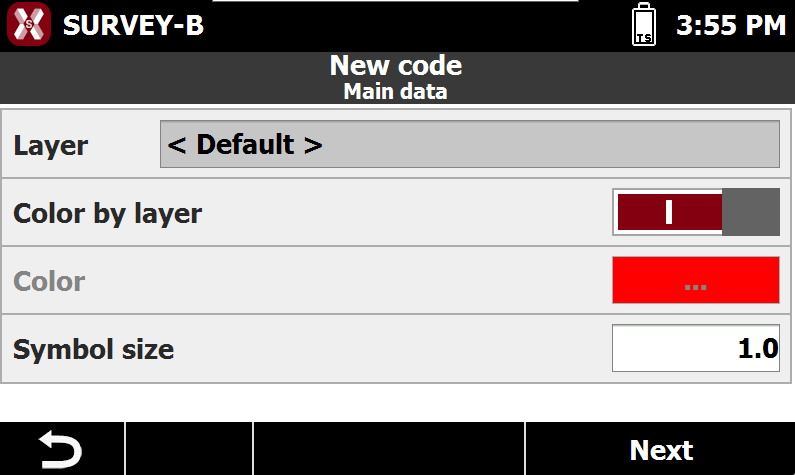
The following page allows to enter the layer and other graphical features of the code.
-
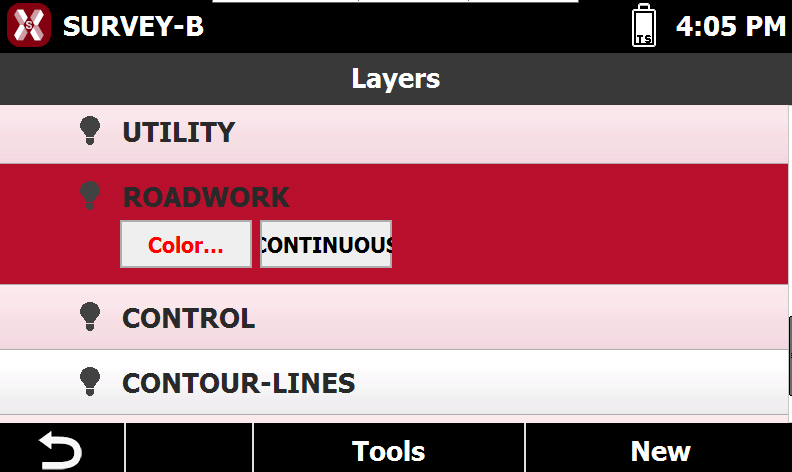
Layer: layer associated to point. Tap to select a different layer from the Layer manager. In the Layer manager is also possible to create new layers entering the color and the line type associated with the layer.
-
Color by layer: specifies whether to use the layer color for drawing the point symbol.
-
Color: color to use to draw the point symbol (if the layer color is not used).
-
Symbol size: dimension of the symbol.
-
Symbol
-
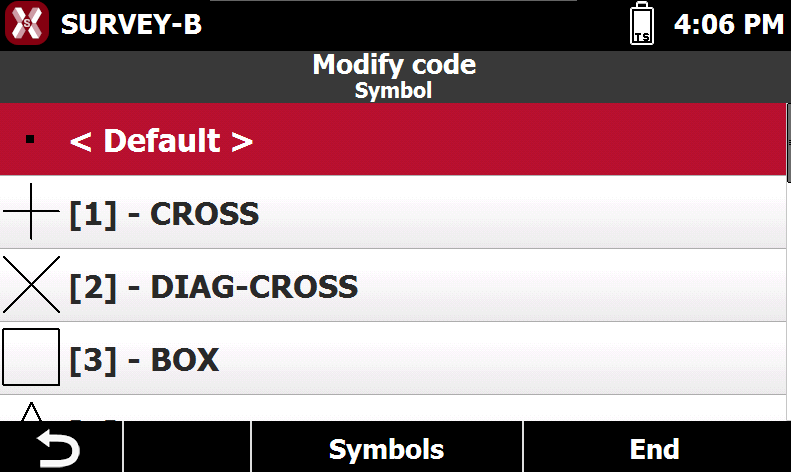
The page allows to select a symbol and access the Symbol manager.
-
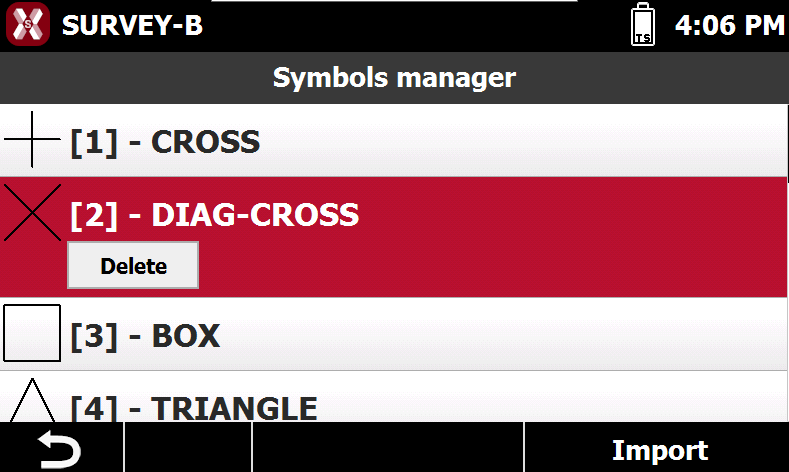
Symbol: specifies the symbol used to represent the point associated with the code. Press Symbols to open the Symbol Manager. In the Symbol Manager, select a symbol to delete it or press Import to import new symbols from a DXF file. For each block contained in the DXF file, the maximum dimension is calculated and a corresponding scale factor is automatically applied to ensure correct symbol representation. Warning: blocks intended to be used as symbols must be composed of basic entities such as lines, polylines, arcs, and circles, and should have limited dimensions.
-
Edit a code
-
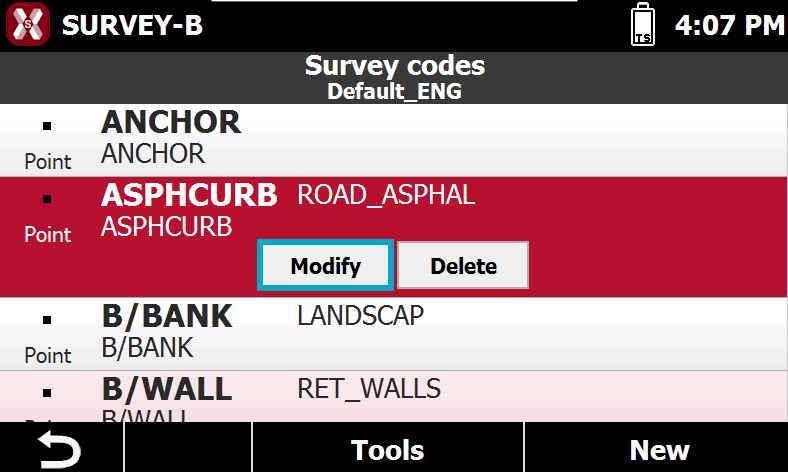
To edit a code select the code from the table and select Edit from the menu.
-
The content of the window is the same still seen for creation of a new code.