-
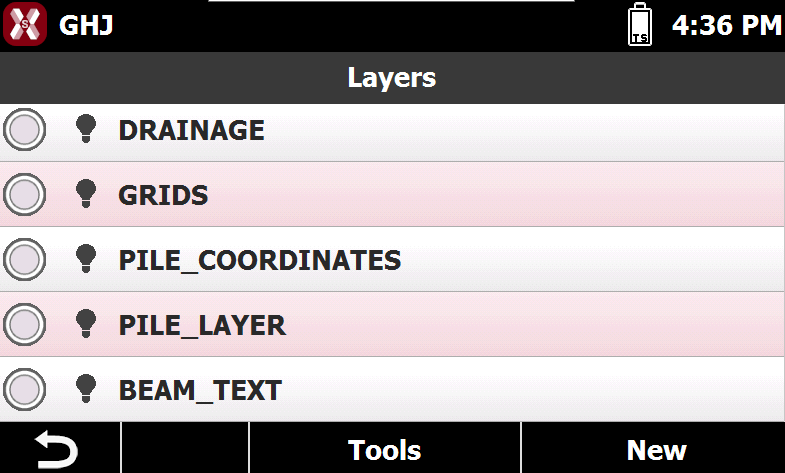
The Layers manager allows to manage the layers in the project.
-
Press Layers from CAD or from a code page to open the list of layers.
Set the current layer
-
When working in CAD, the current layer is marked by symbol

-
To set current layer it’s sufficient to select the corresponding symbol

Create a new layer
-
To create a new layer press New. If layer manager was opened from a code page, press Modify and then press New.
-
Enter the name of the new layer.
Making a layer visible/invisible
-
Visible layers are marked by symbol

-
Instead layers non visible are marked by symbol

-
To change the visibility status of a layer tap on the symbol.
Make all layers visible/invisible
-
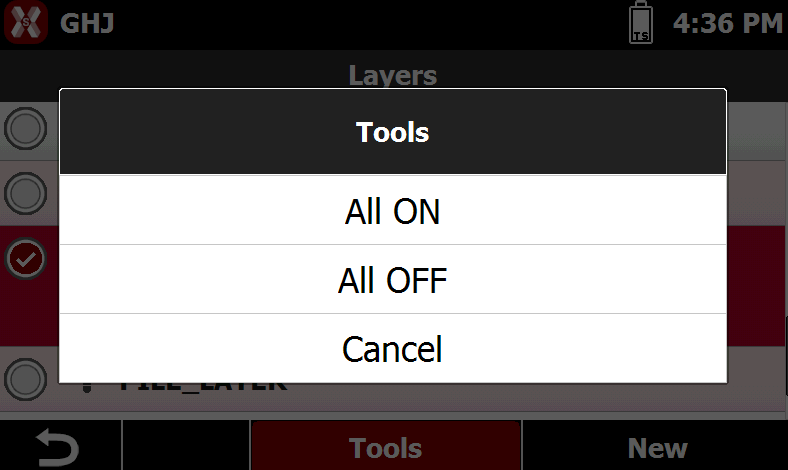
To make all layer visible or invisible press Tools.
-
All ON: all layers are set visible.
-
All OFF: all layers are set invisible.
-
Change layer color
-
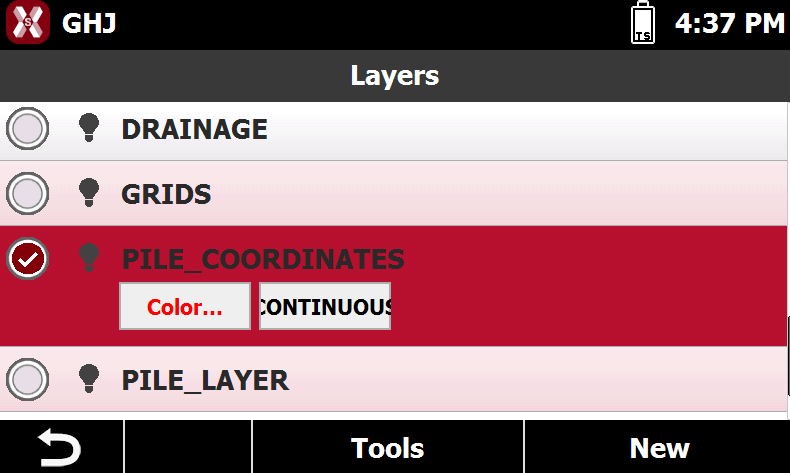
To change a layer color select a layer and press Color.
-
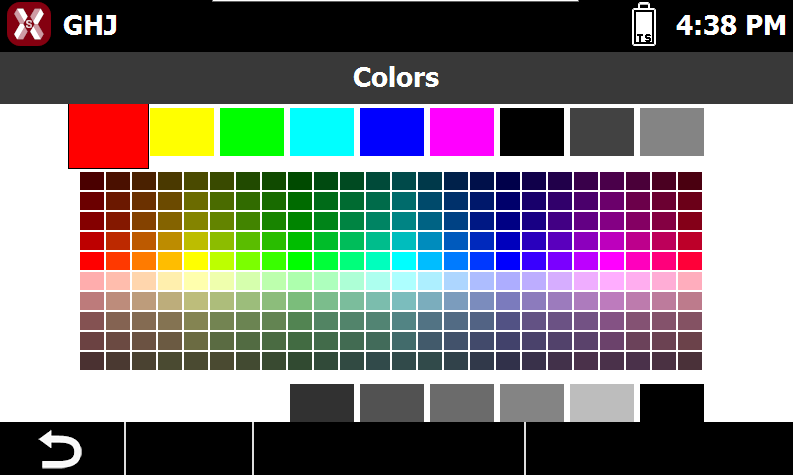
Select the new color from the table.
Change a layer line type
-
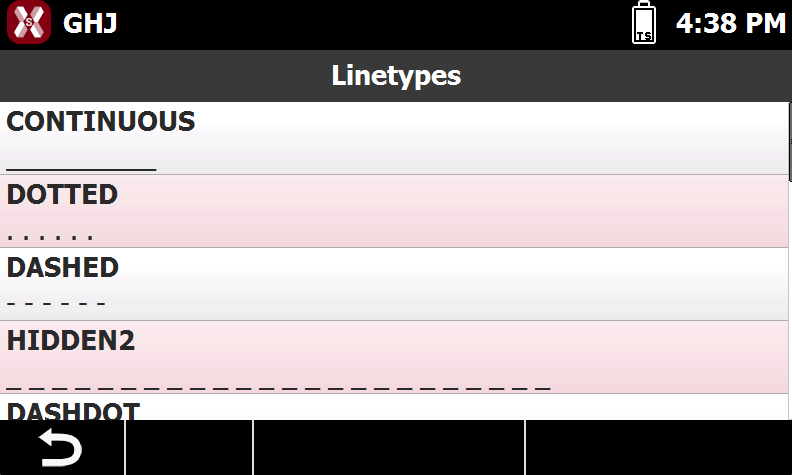
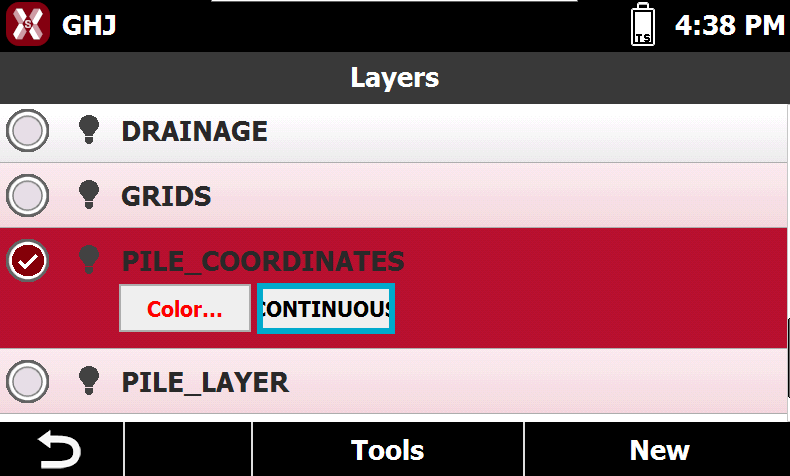
To change a layer color select a layer and press the current line type.
-
Select from the list the new line type.