
-
Functioning of CAD is ruled by a parameters and options fully customizable by the operator and editable in every moment.
-
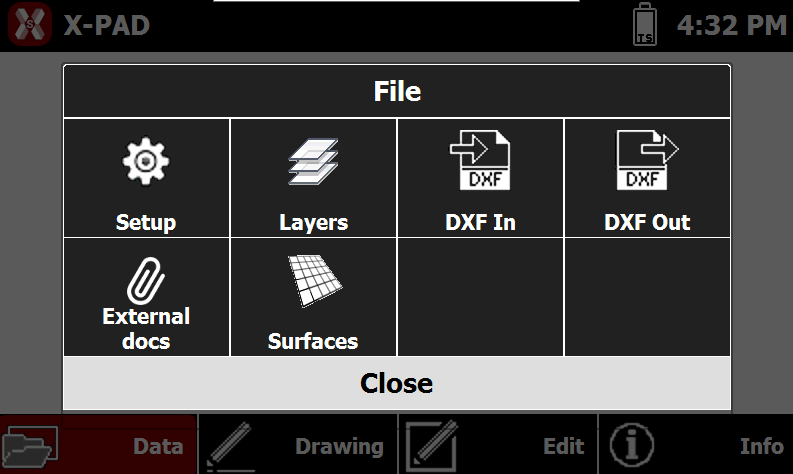
To access CAD settings and tools press Data.
-
This opens a table with available tools.
CAD setup
-
To open the CAD setup press Setup.
-
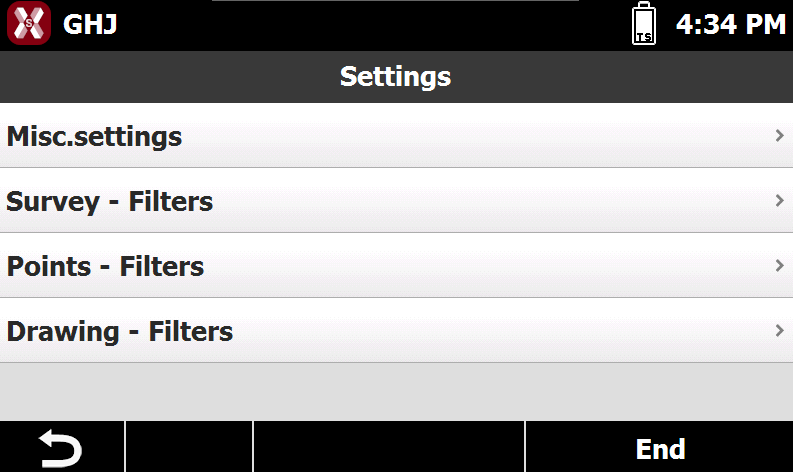
This opens the Settings page.
Misc settings
-
Press Misc.settings to open the general CAD settings.
-
Snap confirmation: if enabled, asks for a confirmation when creating elements using CAD snap.
-
Survey filter
-
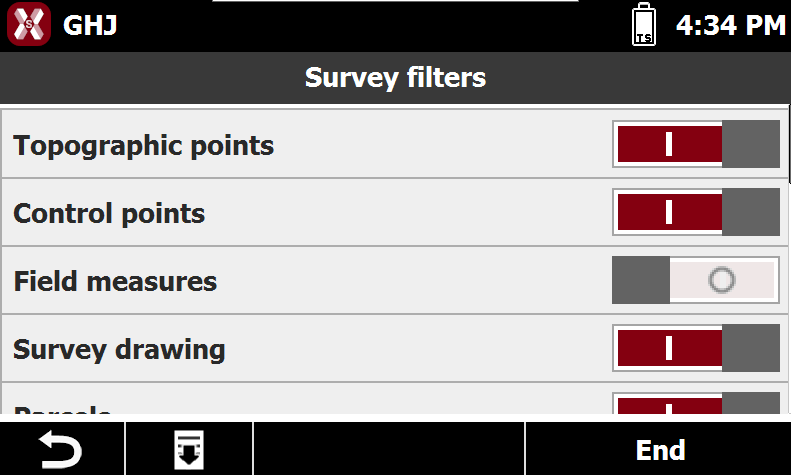
Press Survey - Filters to manage visualization filters for survey data.
-
Topographic Points: enables or disables the visualization of topographic points in the CAD view.
-
Control Points: enables or disables the visualization of control points in the CAD view.
-
Field Measures: enables or disables the visualization of observations acquired in the field.
-
Survey Drawing: enables or disables the visualization of drawing elements created during the survey.
-
Parcels: enables or disables the visualization of parcel boundaries.
-
Points filter
-
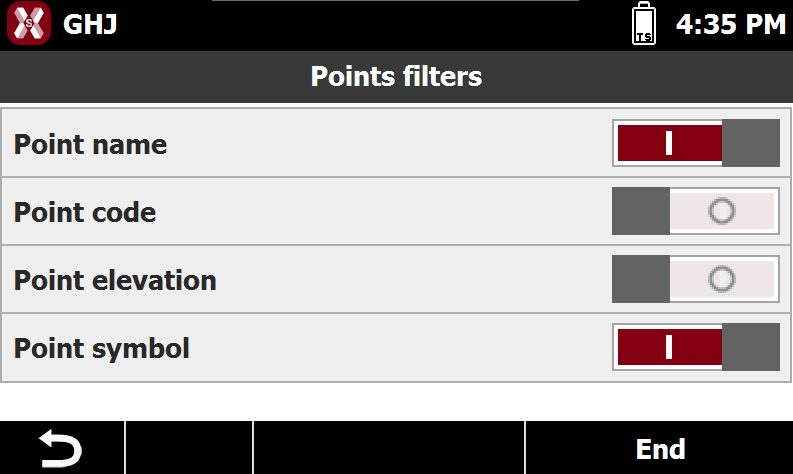
Press Points - Filters to manage visualization filters for point labels.
-
Point name: enables or disables the visualization of the point name label in the CAD view.
-
Point code: enables or disables the visualization of the point survey code label in the CAD view.
-
Point elevation: enables or disables the visualization of the point elevation in the CAD view.
-
Point symbol: enables or disables the visualization of the point symbol in the CAD view.
-
Drawing filter
-
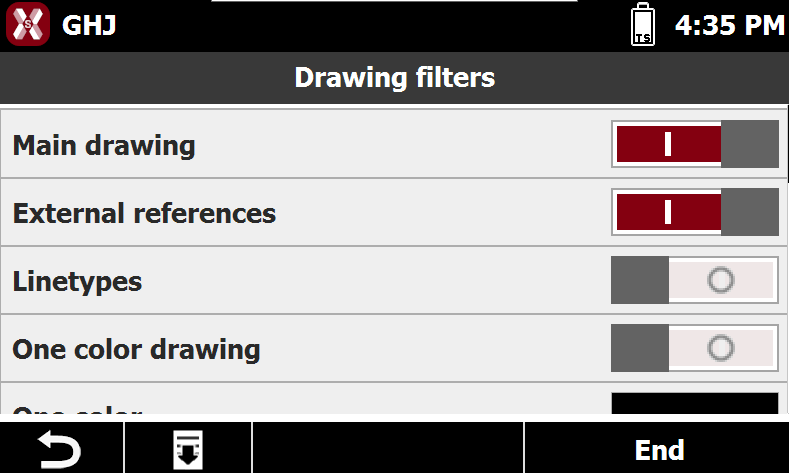
Press Drawings - Filters to manage visualization filters for drawings.
-
Main Drawing: enables or disables the visualization of the main drawing in the CAD view.
-
External References: enables or disables the visualization of external reference files in the CAD view.
-
Linetypes: enables or disables the visualization of linetypes applied to drawing elements.
-
One Color Drawing: enables or disables the display of the entire drawing using a single color.
-
One Color: defines the color to be used when One Color Drawing is enabled.
-
Double Weight Line: enables or disables the display of lines with double thickness for improved visibility.
-
Layers
-
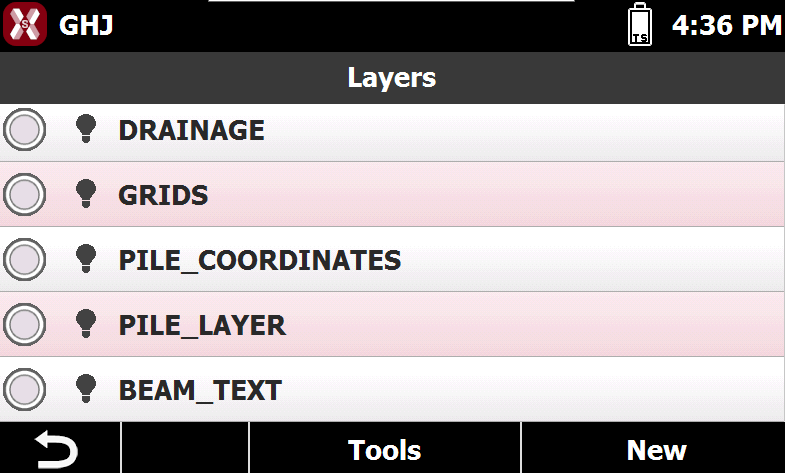
Press Layers to open the layer manager.
Set the current layer
-
The current layer is marked by symbol

-
To set current layer it’s sufficient to select the corresponding symbol

Create a new layer
-
To create a new layer press New.
-
Enter the name of the new layer.
Making a layer visible/invisible
-
Visible layers are marked by symbol

-
Instead layers non visible are marked by symbol

-
To change the visibility status of a layer tap on the symbol.
Make all layers visible/invisible
-
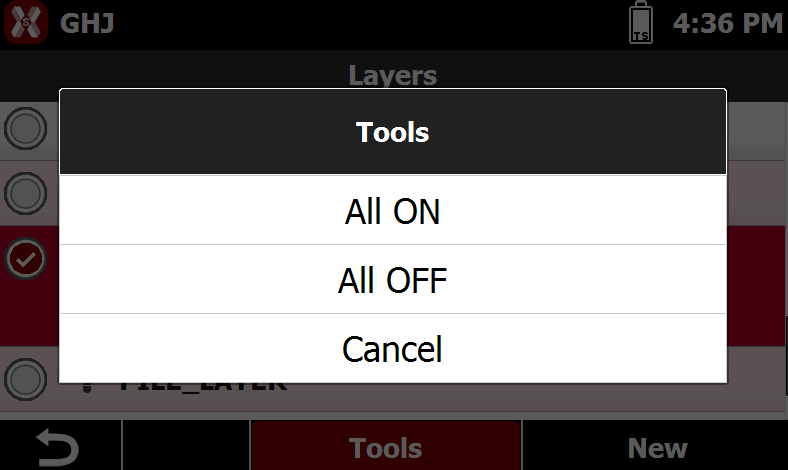
To make all layer visible or invisible press Tools.
-
All ON: all layers are set visible.
-
All OFF: all layers are set invisible.
-
Change a layer color
-
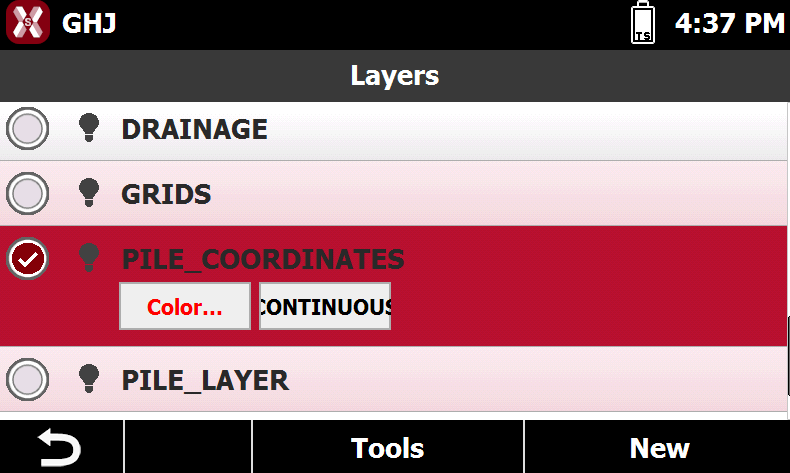
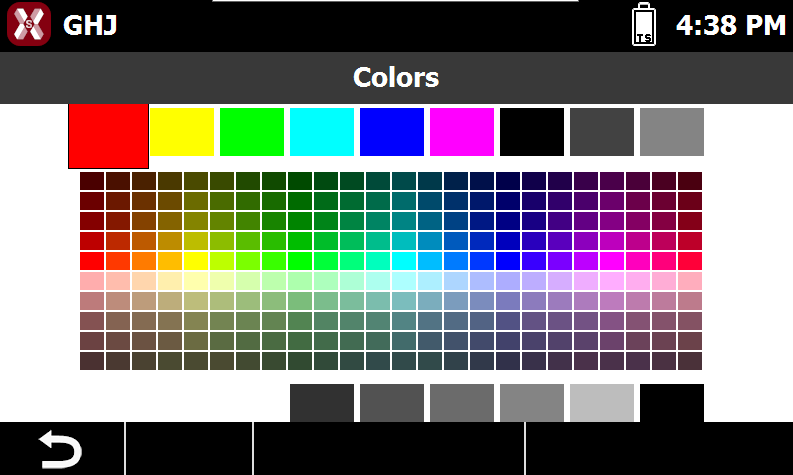
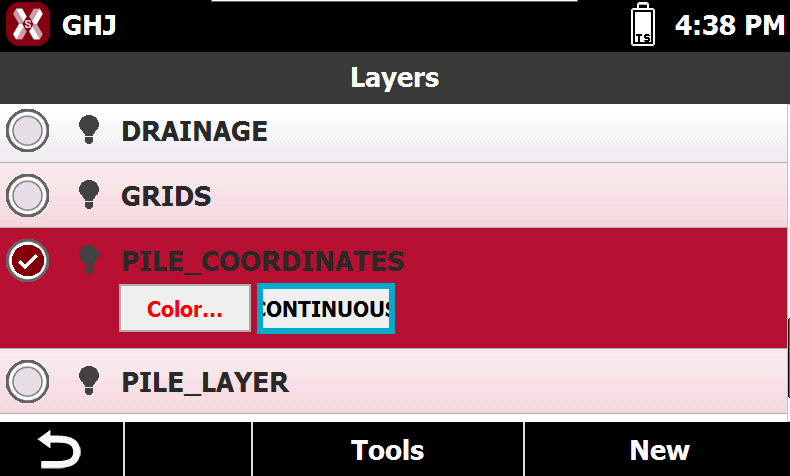
To change a layer color select a layer and press Color.
-
Select the new color from the table.
Change a layer line type
-
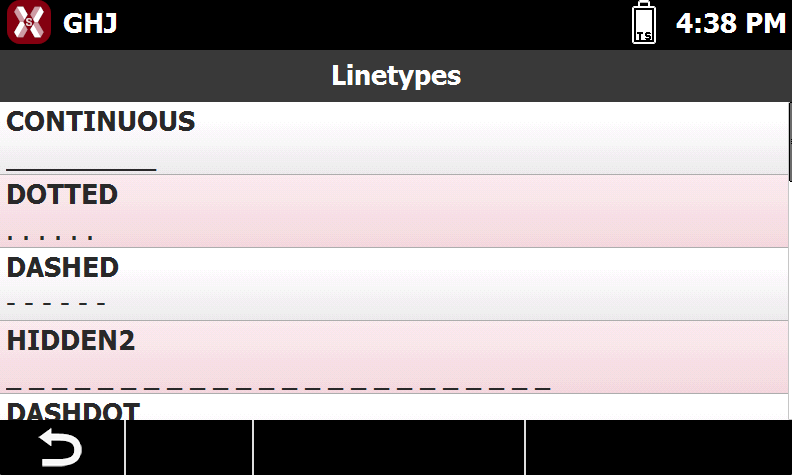
To change a layer color select a layer and press the current line type.
-
Select from the list the new line type.
DXF In/Out
-
The commands DXF In and DXF Out allow to import and export the drawing in DXF format.
-
Refer to … for more information.
-
DXF In: imports a drawing in DXF format.
-
DXF Out: exports the drawing in DXF format.
-
External docs
-
The command External docs allows to manage external references.
-
Refer to External references page.
Surfaces
-
The command Surfaces allows to manage surfaces visualization.
-
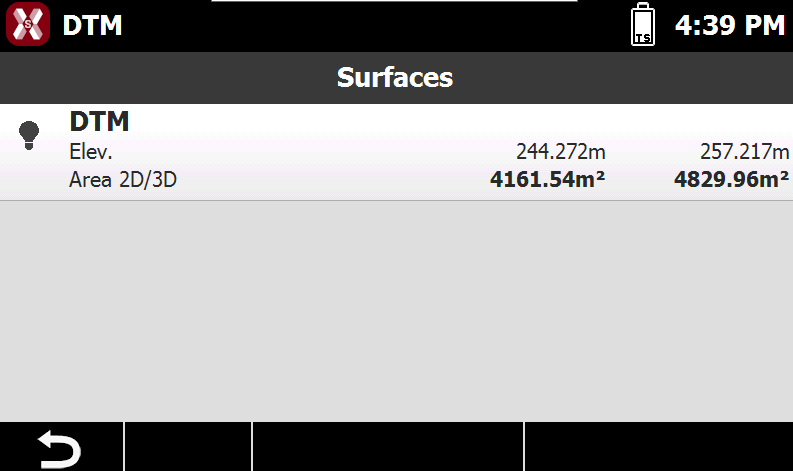
Press Surfaces to visualize the list of available surfaces.
-
Visible surfaces in CAD are marked by symbol
-
Instead surfaces not visible are marked by symbol
-
To change the visibility status of a surface tap on the symbol.