
Visualization commands
-
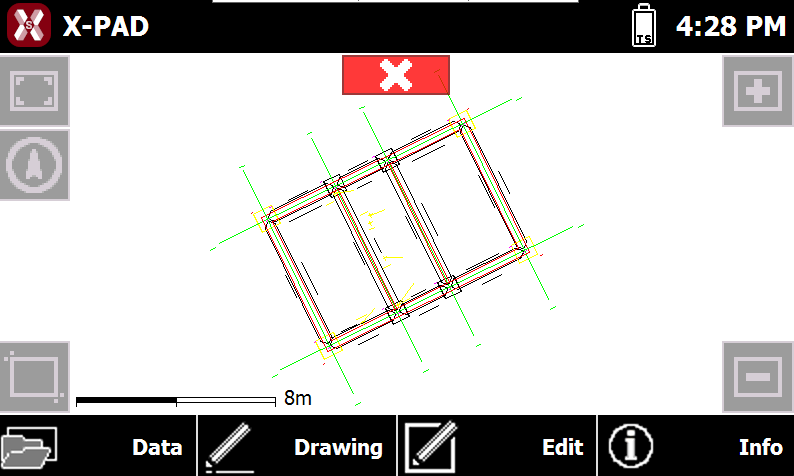
Clicking on the graphic visualization space they appear the buttons for visualization of the drawing.
-
Zoom All

-
Zoom Window

-
Zoom In

-
Zoom Out

-
Navigation

-
Pan: allows shifting the view by selecting and dragging within the graphic area.
-
Object snap
-
When is active a drawing or editing command it’s possible to select the object snap.
-
The object snap allow to identify precise positions on drawing objects.
-
When using a drawing or editing function press Snap to enable/disable the different object snaps.
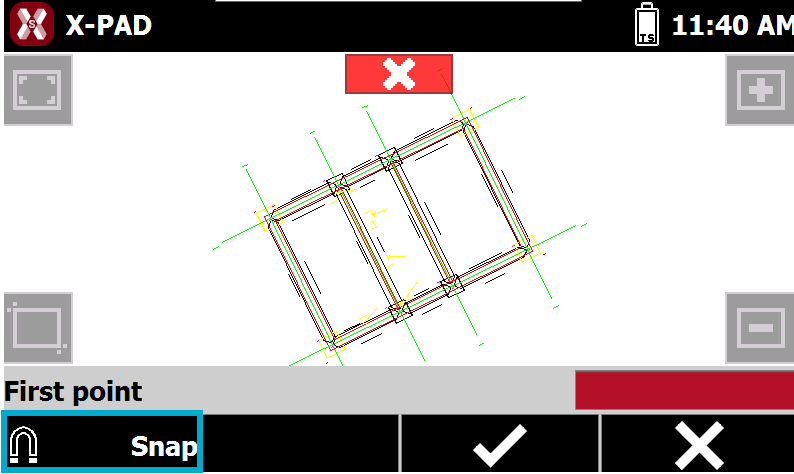
-
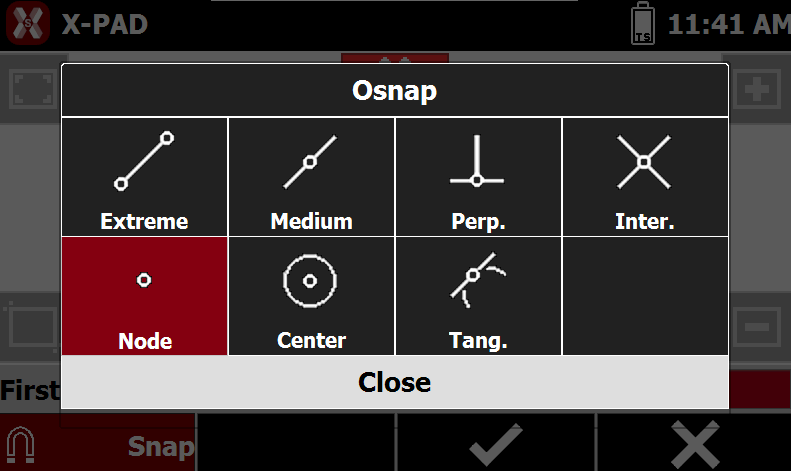
This opens the table where activate the different Osnap.
-
Extreme: end point of objects such as lines and arcs.
-
Medium: midpoint of objects such as lines and arcs.
-
Perpendicular: point on the normal to a line, arc, or circle, defined with respect to a reference point.
-
Intersection: intersection point between objects such as lines and arcs.
-
Node: insertion point of a topographic point.
-
Center: center of an arc or circle.
-
Tangent: point of tangency of an arc or circle, defined with respect to a reference point.
-
-
At the request of the point acquisition command in the CAD view, press the desired drawing object near the position to be identified. A symbol is displayed at the detected location, indicating the snap type used to determine the position.
Topographic points contextual toolbar
-
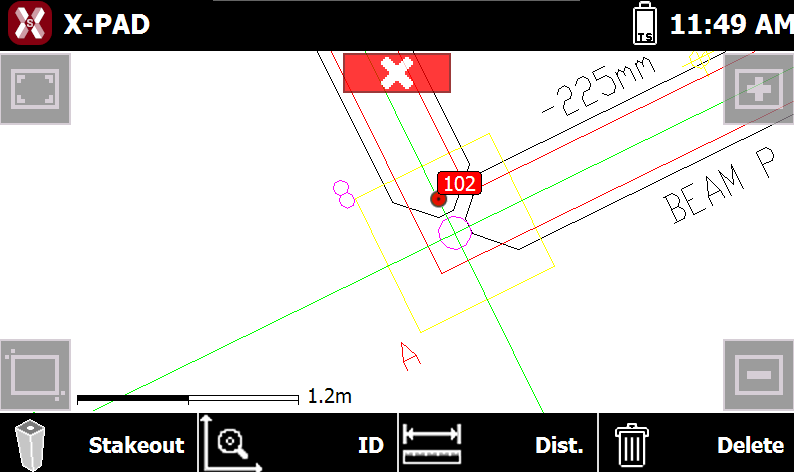
Selecting in CAD a topographic point displays the following toolbar.
-
Stakeout: executes the stakeout procedure on the selected point. For further information, refer to the Stakeout of points chapter.
-
Edit: opens the window to view and edit the point data.
-
Distance: calculates the distance from the selected point to another object specified in the graphic window.
-
Delete: deletes the selected point.
-
CAD objects contextual toolbar
-
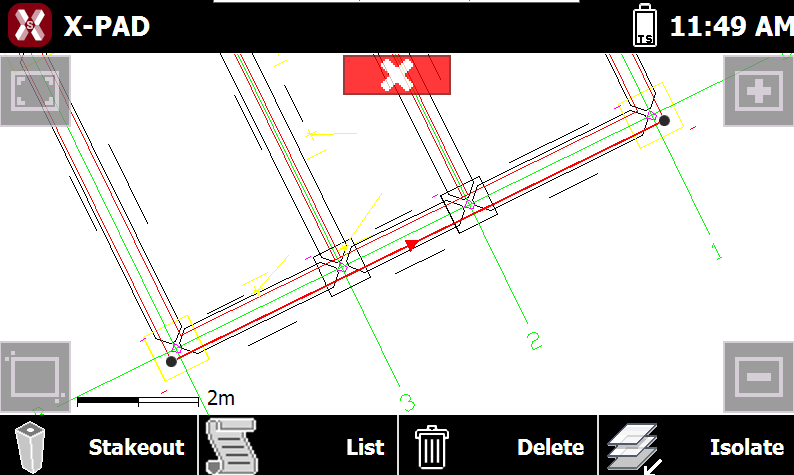
Selecting in CAD an object displays the following toolbar.
-
Stakeout: executes the stakeout procedure on the selected point. Allows to select if proceed with Stakeout object or Reference line function.
-
List: displays information about the selected object.
-
Delete: deletes the selected point
-
Isolate: turns off all layers except the one associated with the selected object. To restore the previous view, select an object and use the Restore command
-