-
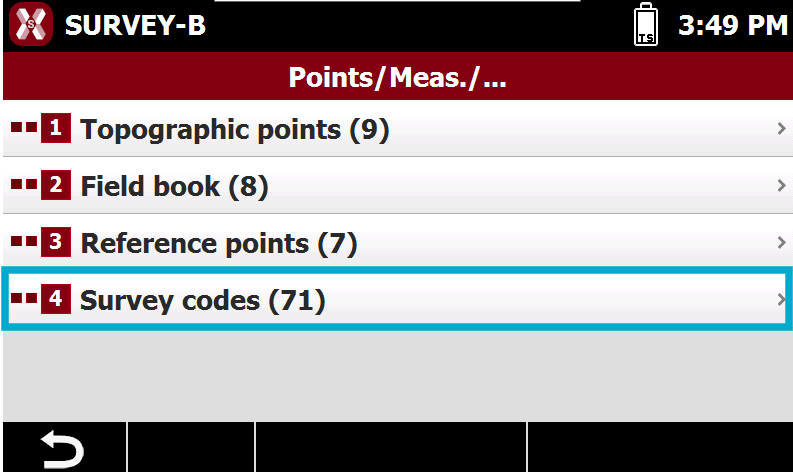
The table Survey codes can be opened from Job page, selecting Points/Measures/Codes.
-
Then select Survey codes.
-
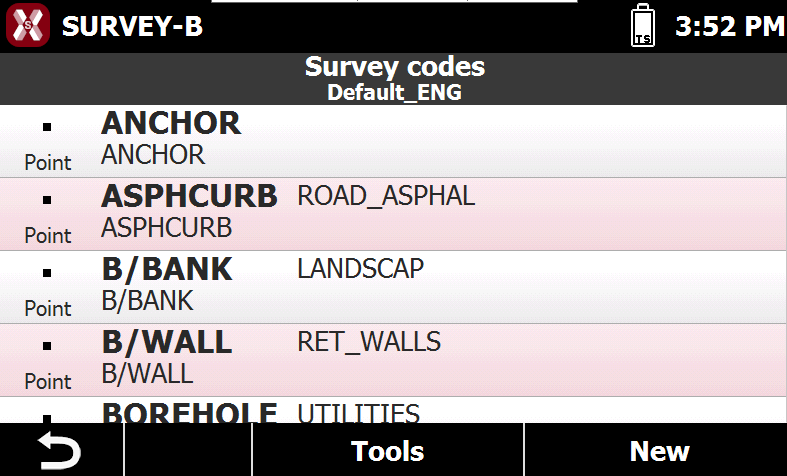
The table Survey codes reports the list of survey codes of the current library.
-
For every code besides its value it’s reported the symbol and the extended description.
Codes libraries are saved in distinct files inside folder Program Files\X-PAD Survey\Codes
It is possible to assign to a job a code list in the creation page.
Delete codes
-
It is possible to delete single or multiple codes.
Delete a single code
-
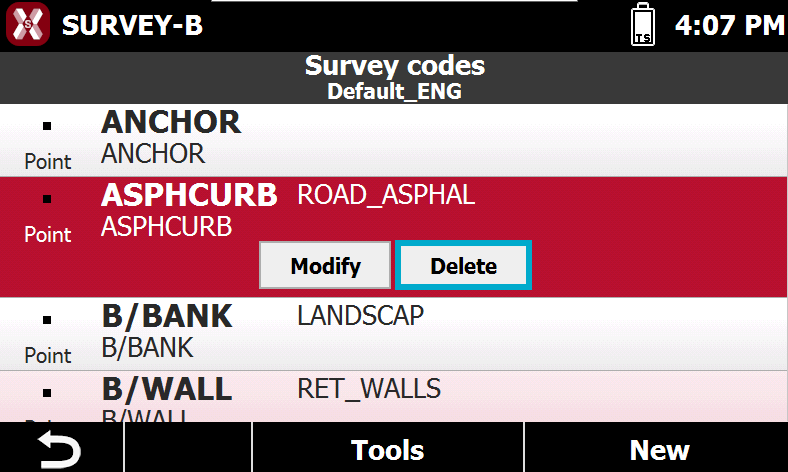
To delete a code select the code from the table and select Delete from the menu.
Delete multiple codes
-
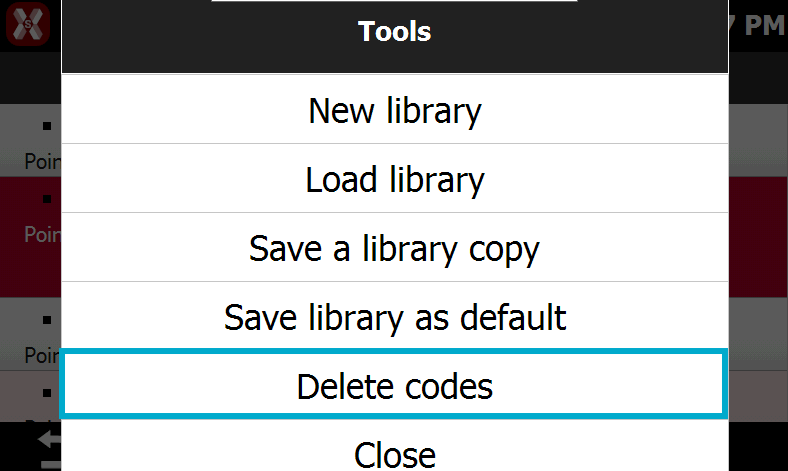
To delete multiple codes press Tools from the codes table and select Delete codes.
-
Select from the list the codes to delete and press Delete.
Create a new codes library
-
A codes library allows to save multiple codes, to be used in different jobs.
-
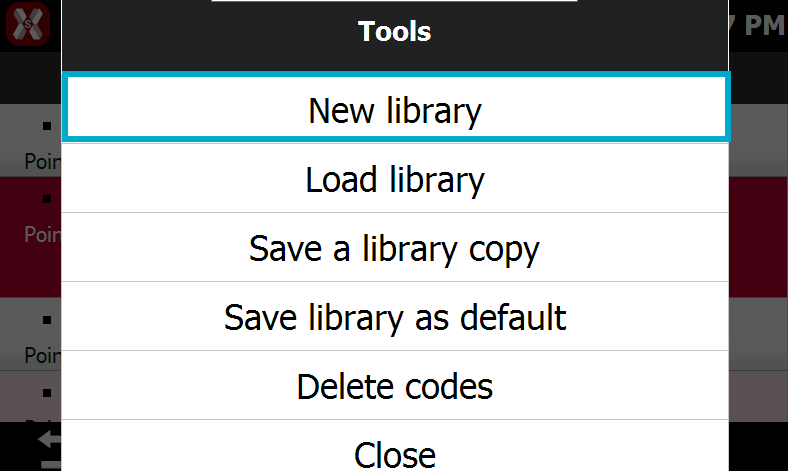
To create a new codes library from the codes list press Tools and select New library.
-
Enter the new library name to create a new empty library.
Load an existing codes library in X-PAD format
-
A codes library can be saved in X-PAD format as .xml file. This code library file can be shared in other X-PAD software as well (for example Leica X-PAD on field controller).
-
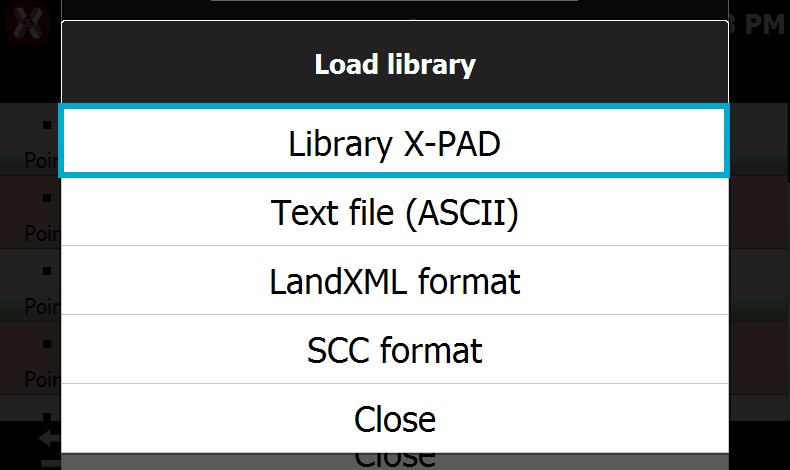
To load an existing codes from the codes list press Tools and select Load library.
-
Select Library X-PAD and select the file from the device memory.
Load an existing codes library in Text file format
-
A codes library can be loaded from a formatted text file.
-
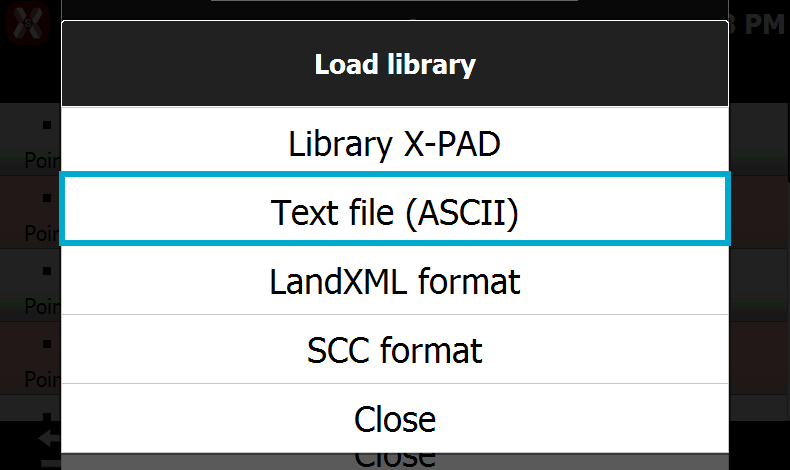
To load an existing codes from the codes list press Tools and select Load library.
-
Select Text file (ASCII) and select the file from the device memory.
-
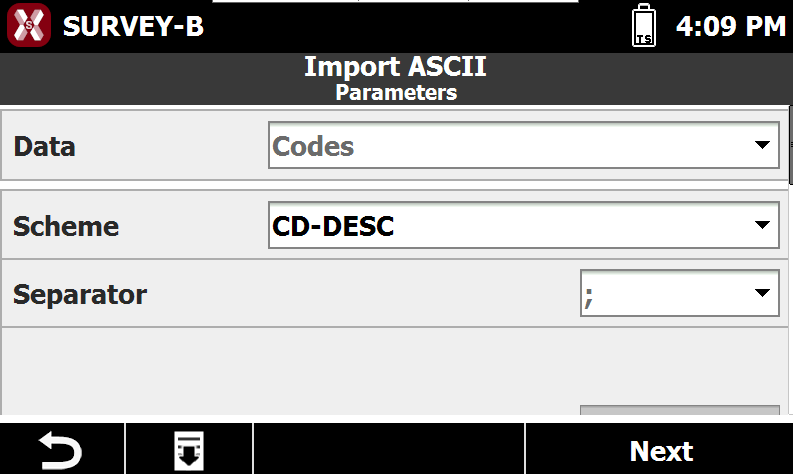
Select the import parameters.
-
Scheme: select a predefined scheme or select Customized.
-
Separator: sets the separator character in case of Customized scheme.
-
Heading rows: the number of heading rows in case of Customized scheme.
-
-
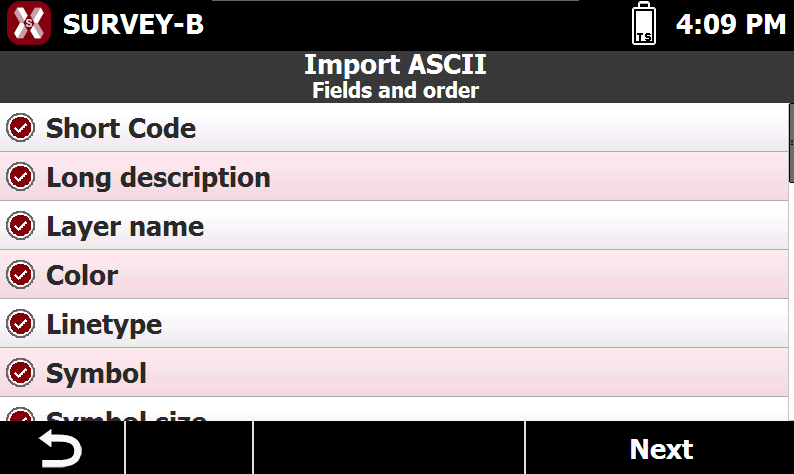
In case the scheme is Customized, select which fields are present in the file and in which order. Tap on a field to enable/disable or select Move down or Move up to change the order.
-
Short code: the name of the code.
-
Long description: the description of the code.
-
Layer name: the name of the layer.
-
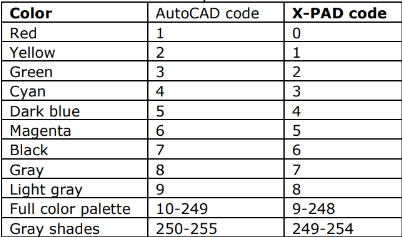
Color: the color of the layer. Has to be identifies as “AutoCAD color code” - 1.
-
Line type name: the name of the line type.
-
Symbol: corresponds to the number of the symbol in the symbol manager. “0” corresponds to a point.
-
Symbol size: the size of the symbol. If nothing is entered by default the size will be 0.1 .
-
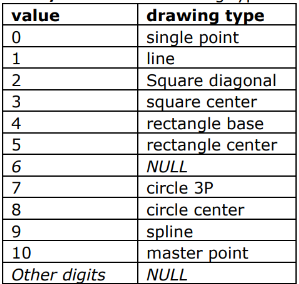
Point/line: the drawing type.
-
Ignore: allows to ignore this specific field.
-
-
Check the import preview and press Next.
-
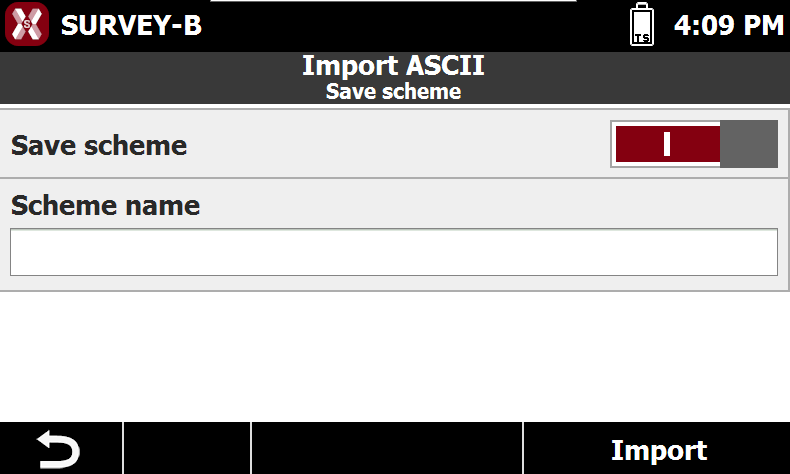
The Save scheme page allows to save the importation scheme with a name to select it in future.
-
Save scheme: enables/disables the saving of the importation scheme.
-
Scheme name: the name to the scheme to save.
-
Load an existing codes library in LandXML format
-
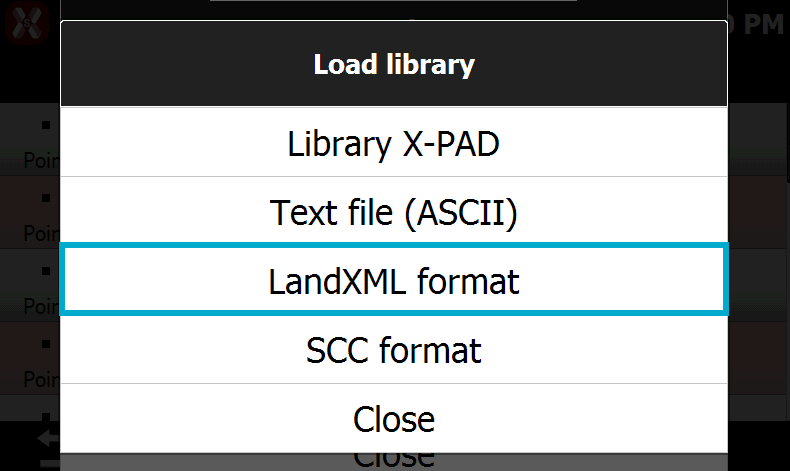
To load an existing codes library from an LandXML file press Tools and select Load library.
-
Select LandXML format and select the file from the device memory.
Load an existing codes library in SCC format
-
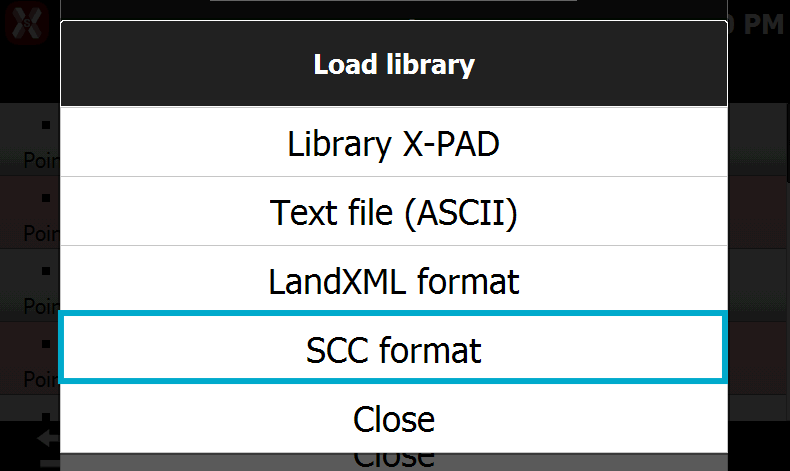
To load an existing codes library from an SCC file press Tools and select Load library.
-
Select SCC format and select the file from the device memory.
How to prepare a SCC file
-
The SCC file can be prepared in Excel to import a code list in X-PAD.
-
The line is FTR (survey code), the column values are:
-
FTR.
-
Code ID.
-
Code decription.
-
Layer.
-
(empty)
-
(empty)
-
Smart drawing, according to this list.
-20250929-145131.png?cb=3fb8fb8a17fce68fab30ffbb093fa7a0)
-
(empty)
-
Line type.
-
Color for the code identified by the Hex code.
-
Number of associated to the code.
-
-
Below example shows the import of a list of 4 codes. These codes have no GIS attributes.

Save codes libraries
-
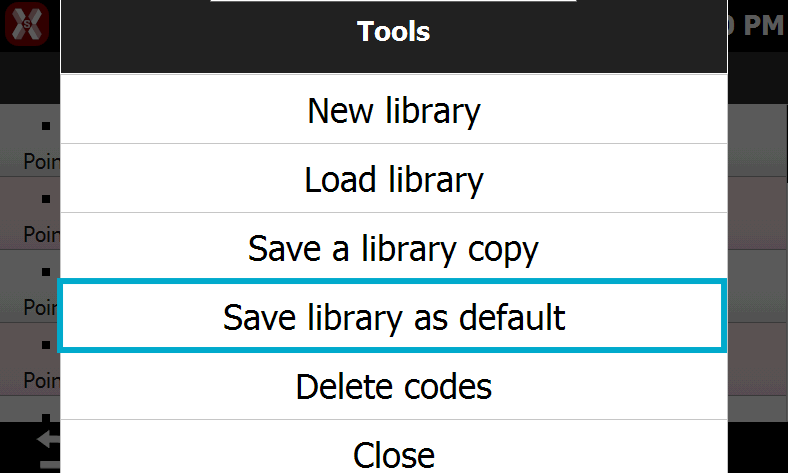
A codes library can be saved as copy or saved as default for all new jobs.
Save a library copy
-
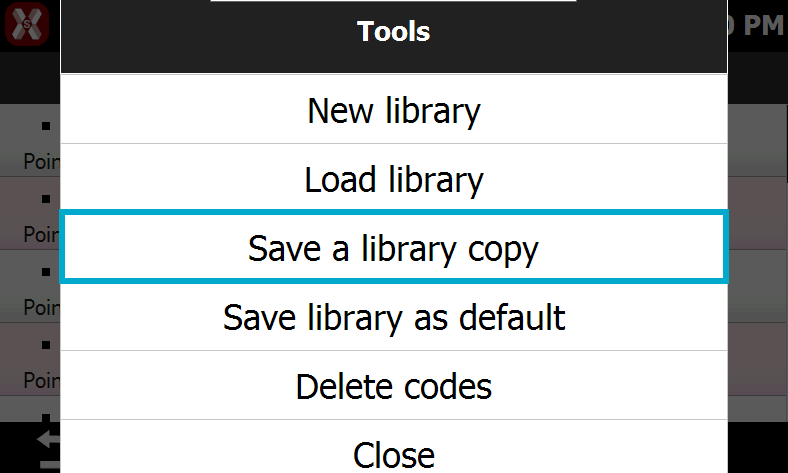
To save a copy of the current codes library press Tools and select Save a library copy.
-
Enter the name of the new library.
Save library as default
-
To save the current codes library as default for all new jobs press Tools and select Save library as default.