-
When X-PAD is started,after the electronic level page, it automatically opens the jobs list from the latest used site.
-
To open the jobs inside a specific site, open the corresponding site.
-
When a site is opened, it visualizes the list of jobs.
Jobs manager
-
The Jobs page is visualized when X-PAD is started.
-
To open the Jobs page from an opened job select New/Open job from the Job page.
-
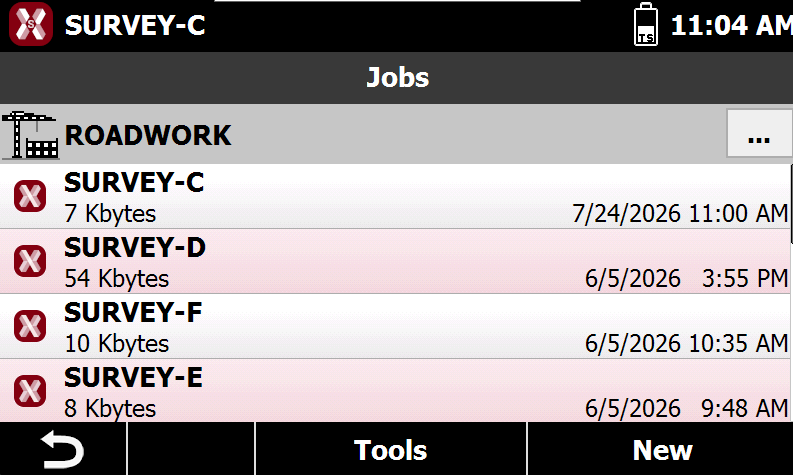
The Jobs page shows the list of available jobs within the current site.
-

-
Tools: opens the jobs tools.
-
New: creates a new job.
-
-
Select a job to open it.
Create a new job
-
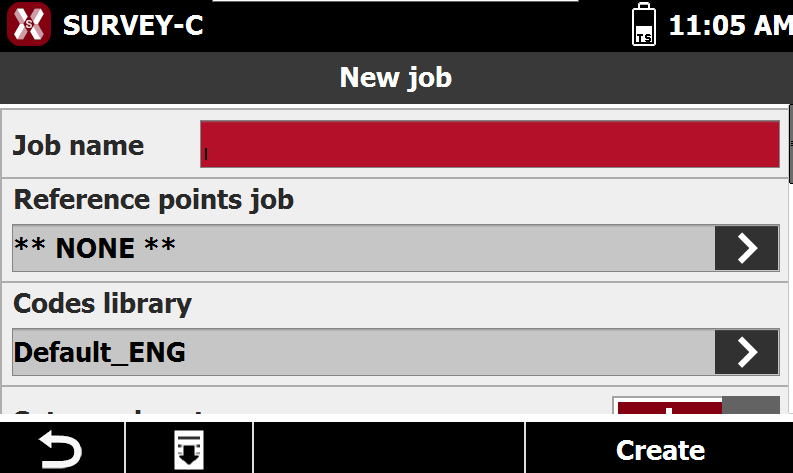
To create a job press New from the Jobs manager.
-
Job name: name of the job to create.
-
Reference points job: you can create a link between the new job and an existing job; when you open the job, the points present in the reference job will be loaded in the new job as reference points and they can be used for all the operation of orientation of the total station.
-
Codes library: a survey codes library to link with the job. The library contains a list of codes, descriptions and symbols that can be used to describe the measured points.
-
Set coordinate system: if enabled, allows to select a coordinate system when the job is created.
-
Note: descriptive notes of the job.
-
-
Press Create to create and open the job.
Order the job list
-
To sort the list of jobs open the Job manager.
-
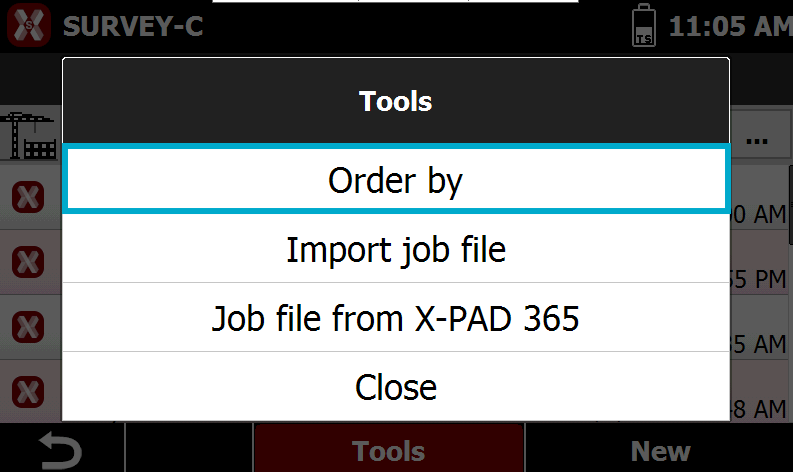
Press Tools and select Order by.
-
Select the order method.
-
Date ascending: the jobs are sorted from oldest to newest.
-
Date descending: the jobs are sorted from newest to oldest.
-
Name ascending: the jobs are sorted from A to Z.
-
Name descending: the jobs are sorted from Z to A.
-
Import job file
-
It is possible to import a job file in the .gfd or .xpad format.
When importing/exporting a job file from instrument to a field controller running Leica X-PAD it is recommended to transfer the data using the X-PAD Exhange format (.xpad) ensures better data transfer.
-
To import a job file open the Job manager.
-
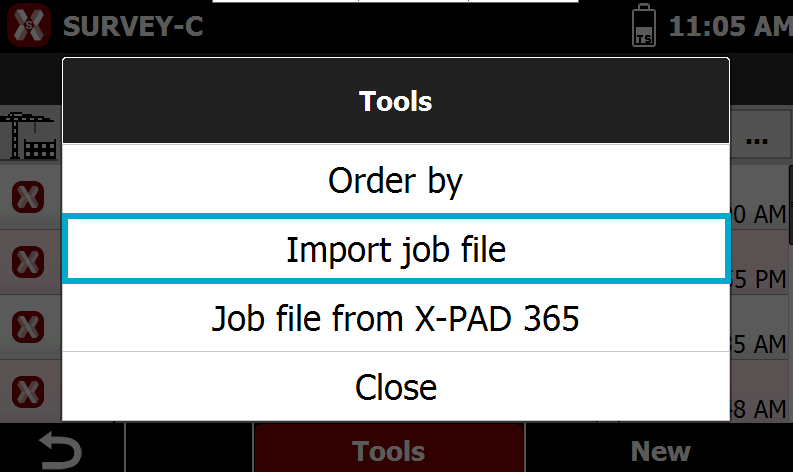
Press Tools and select Import job file.
-
Select a job file in .gfd or .xpad format from a folder to import it.
Job properties
-
It is possible to edit the properties of a job.
-
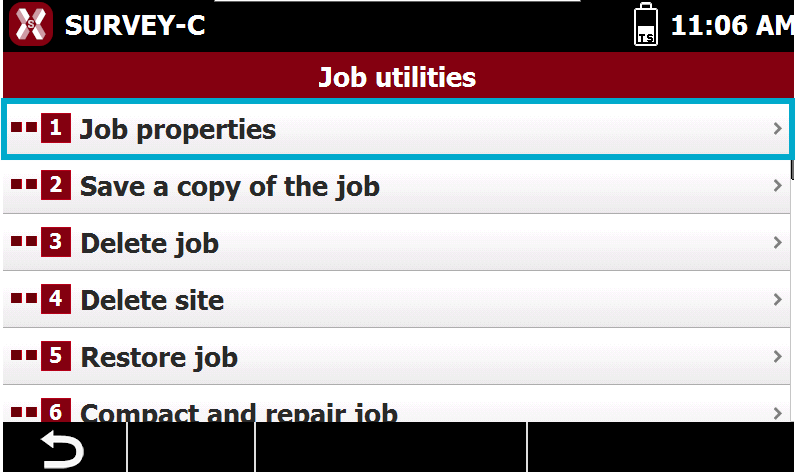
Open the Job page and select Job utilities.
-
Select Job properties.
-
The software visualizes the current job properties that is possible to edit.
-
Reference points job: you can create a link between the new job and an existing job; when you open the job, the points present in the reference job will be loaded in the new job as reference points and they can be used for all the operation of orientation of the total station.
-
Codes library: a survey codes library to link with the job. The library contains a list of codes, descriptions and symbols that can be used to describe the measured points.
-
Note: descriptive notes of the job.
-
Save a copy of the job
-
The function Save a copy of the job creates a copy of the current job.
-
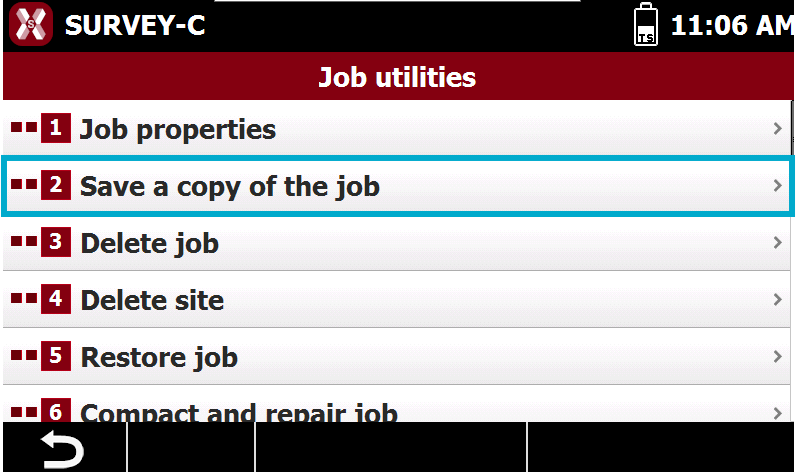
Open the Job page and select Job utilities.
-
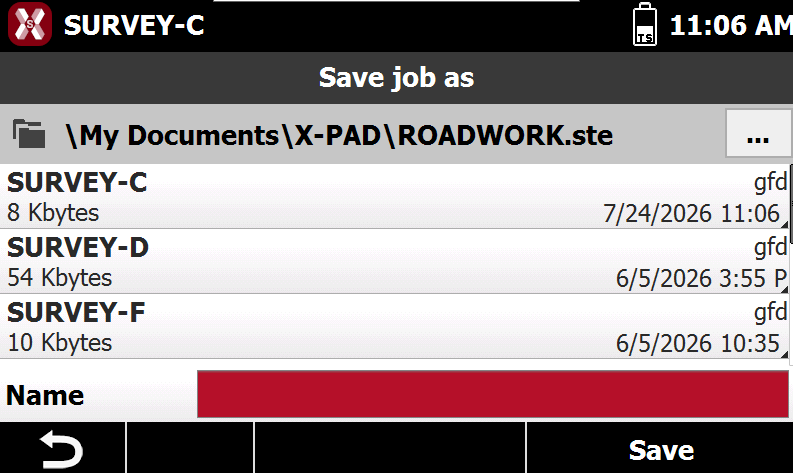
Select Save a copy of the job.
-
Enter the new job name and select the site where to save the job.
Delete a job
-
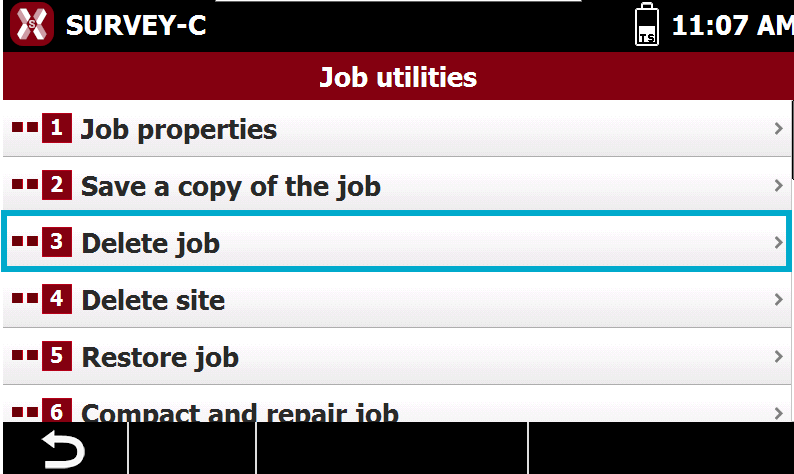
The function allows to permanently delete a job.
-
Open the Job page and select Job utilities.
-
Select Delete job.
-
Select a job and press Yes to confirm.
Restore a job
-
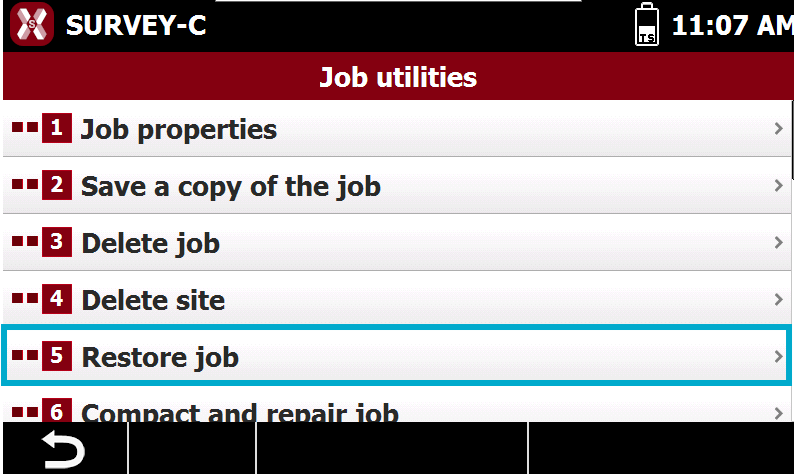
This function allows to import the .raw file of a job which is damaged and cannot be opened anymore, restoring the original job.
The .raw file is a file which is automatically created when performing measurements and operations in a job file.
-
Open the Job page and select Job utilities.
-
Select Restore job.
-
Select a .raw file to restore the job and create a new job.
Compact and repair a job
-
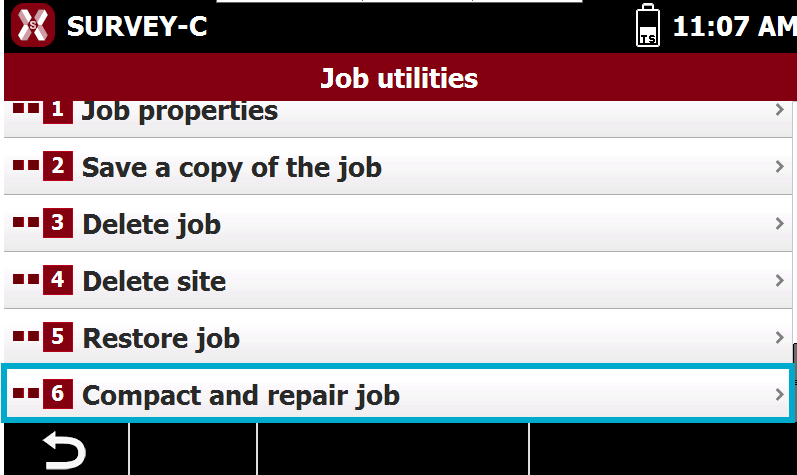
The function allows to repair a job which has errors opening it.
-
Open the Job page and select Job utilities.
-
Select Compact and restore.
-
Select a .gfd file from memory to restore it.
-
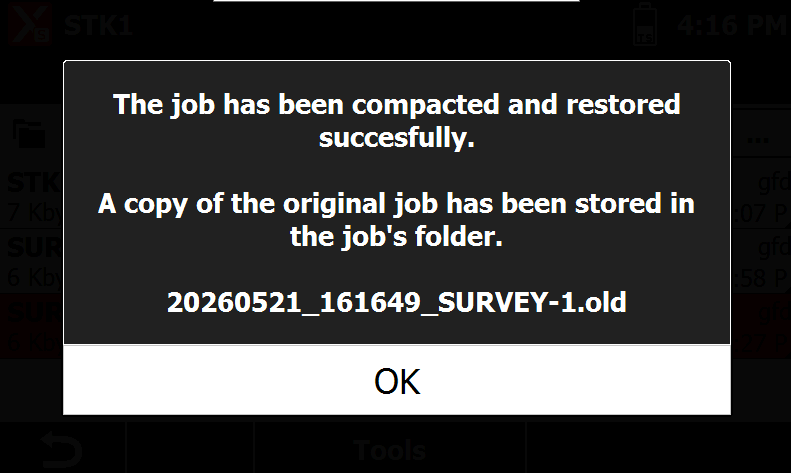
If operation is successful the software shows the result.