
-
Jobs are organized in Sites.
-
You can create new sites and manage existing sites.
Sites manager
-
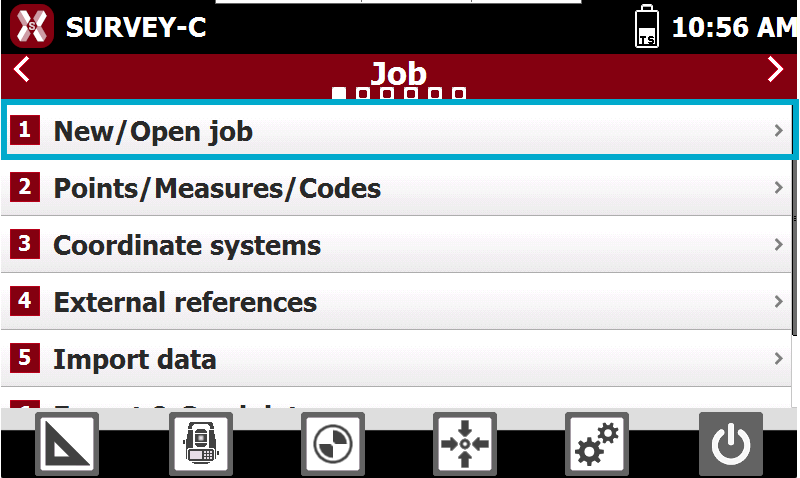
To open the list of sites select New/Open job from the Job page.
-
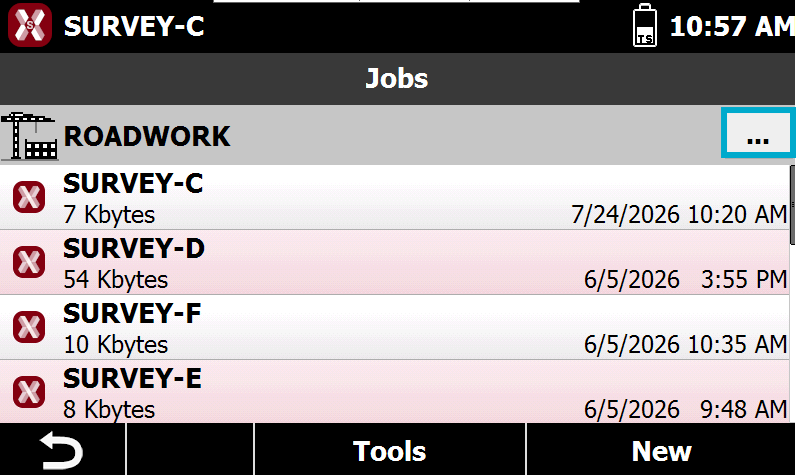
X-PAD shows the list of jobs in the current Site.
If no site has been created, all jobs are created in the Default site.
-
To open the sites list click

-
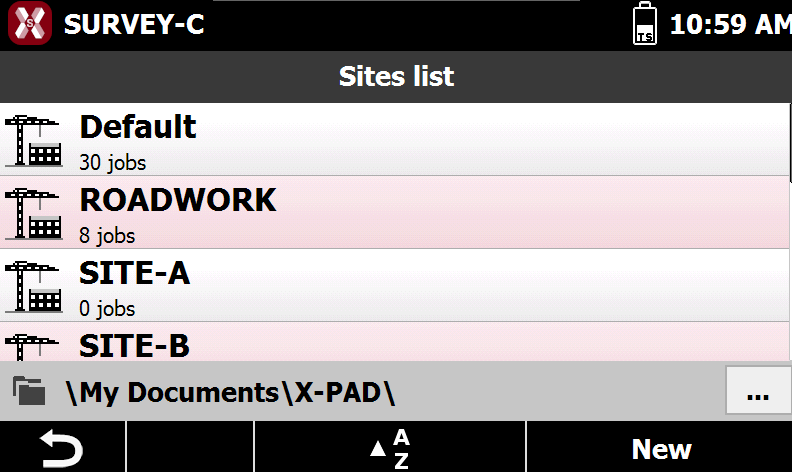
The list of the sites present in the device is shown. For every site, the number of jobs present is indicated.
-
New: creates a new site.
-
A/Z: sort the list of sites.
-
-
Set the current site
-
To select a site as current site open the Site manager.
-
Select the line corresponding to the site to setup as current site and visualize the jobs within selected site.
Create a new site
-
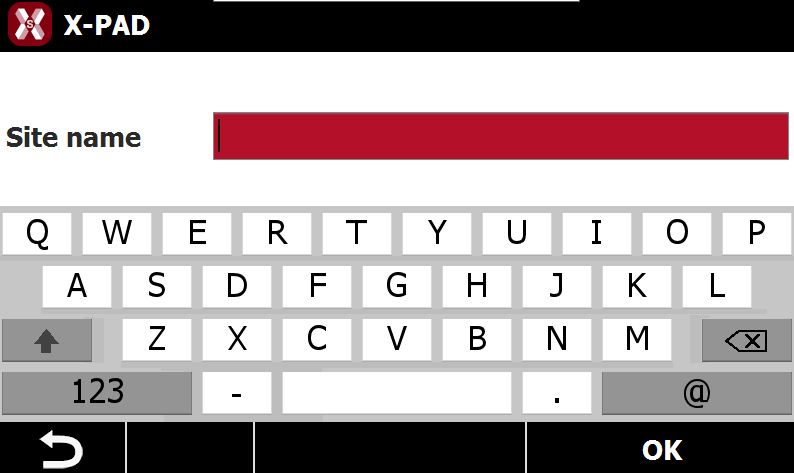
To create a new site open the Site manager.
-
Press New.
-
Enter the Site name and press OK
Delete a site
Deleting a site will delete all site data.
-
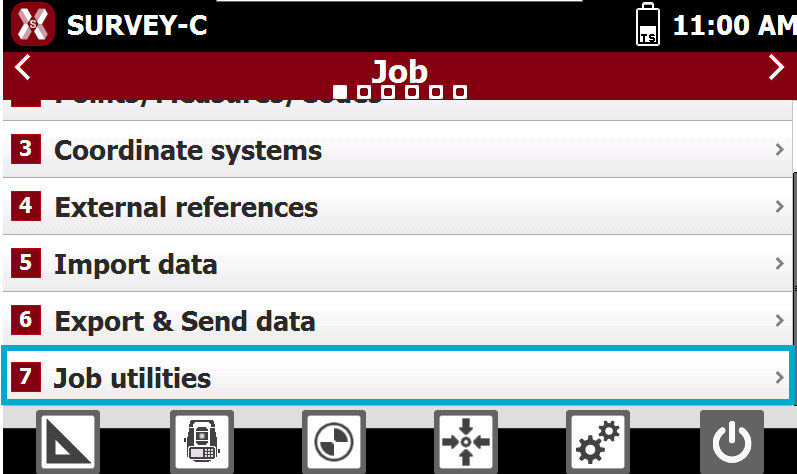
To delete a site from Job page select Job utilities.
-
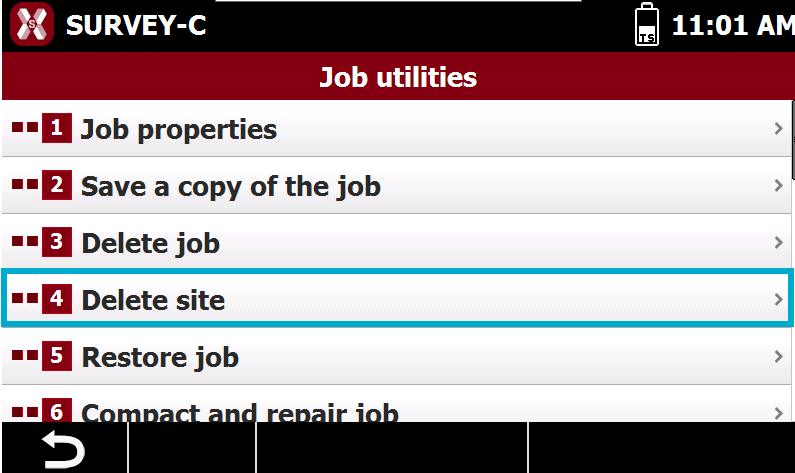
Select Delete site.
-
Select a site from the list and press Yes to delete it permanently.