
-
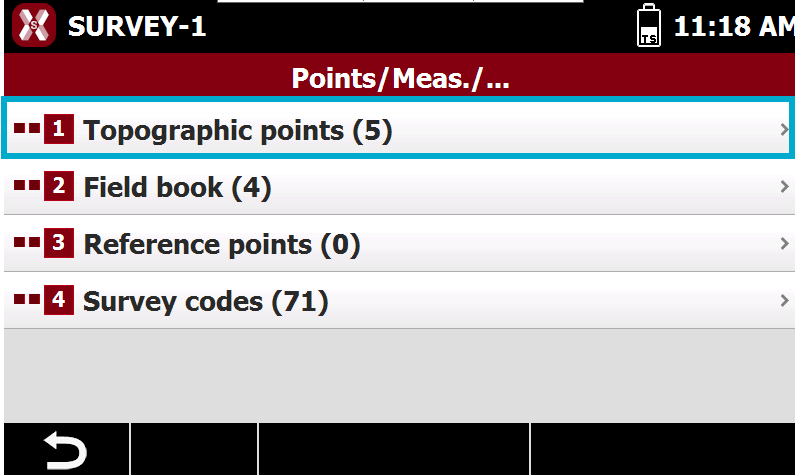
To open the list of points select Topographic points from Points/Measures/Codes page.
-
Select Topographic points.
-
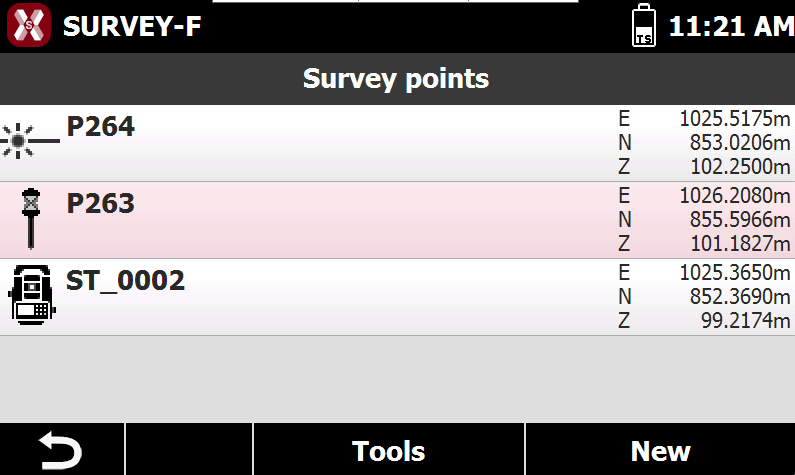
The table displays all topographic points in the job.
-
Points are listed in order of insertion, with the most recently added point shown first.
-
For each point, an icon indicates its origin, along with its name, code, and coordinates.
-
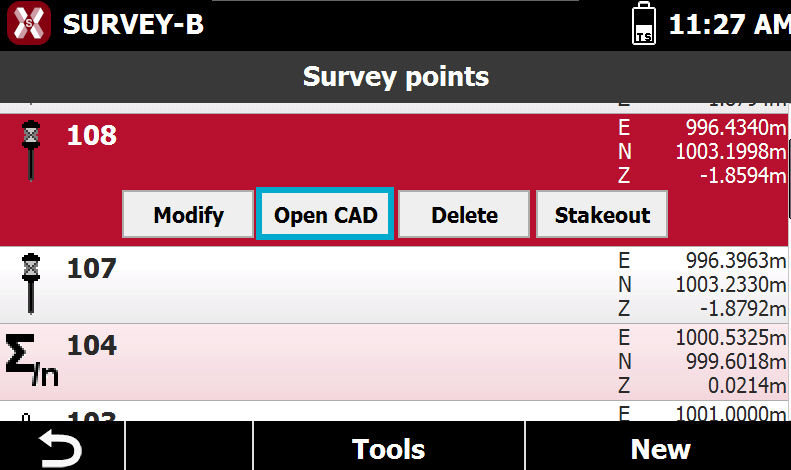
Selecting a point opens a menu with commands for performing specific operations.
Visualize a point i CAD
-
To visualize a topographic point position in software CAD select a point from the list and press Open CAD.
-
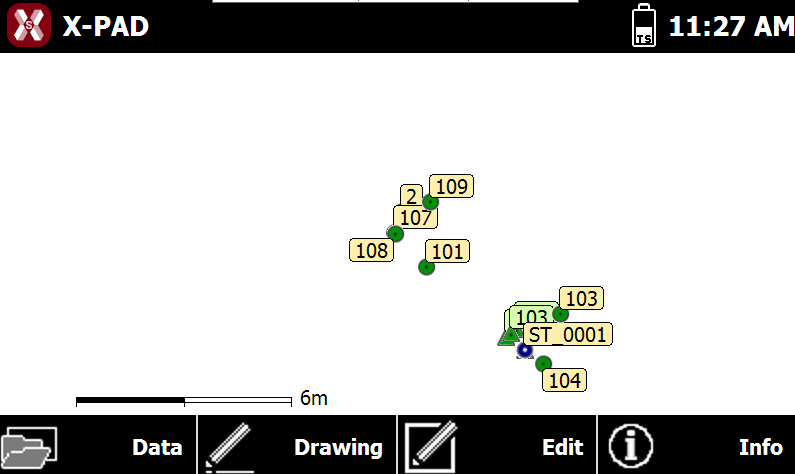
The point is visualized in software CAD at the center of the graphic view.
Point stakeout
-
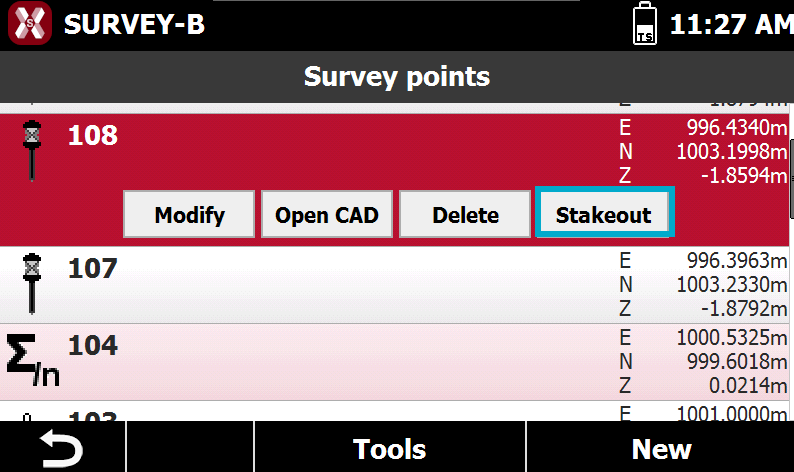
It is possible to stakeout a point with Stakeout point function selecting a point from the point list.
-
Select the point and press Stakeout.
-
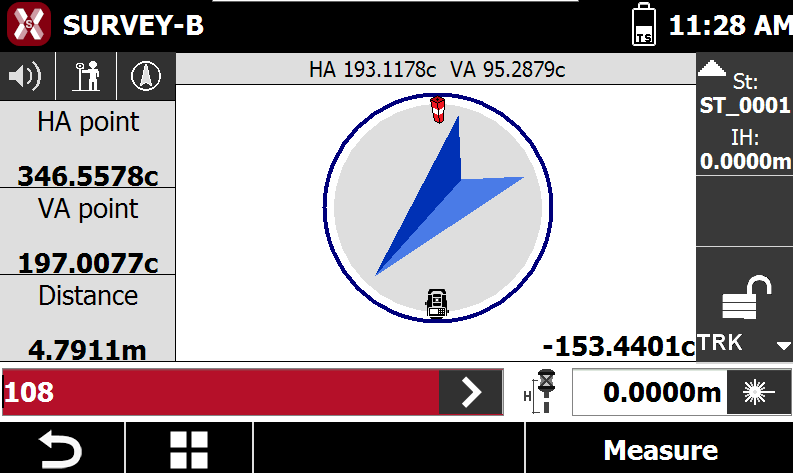
This opens the stakeout interface with indications to stakeout the selected point.
Delete topographic point
The operation is permanent.
Delete a single point
-
To delete a single topographic point select it from the point list.
-
Press Delete to permanently delete the point.
Delete a group of points
-
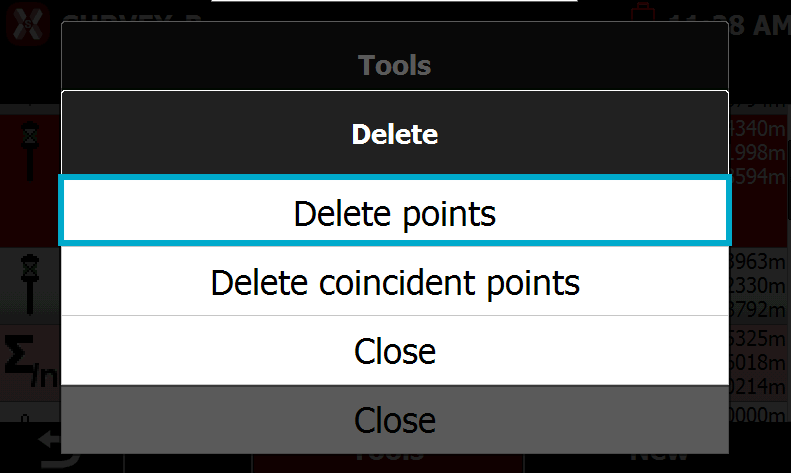
To delete a group of topographic points, from the point point list press Tools and select Delete.
-
Select Delete points and select the points to delete from the list of points.
Delete coincident points
-
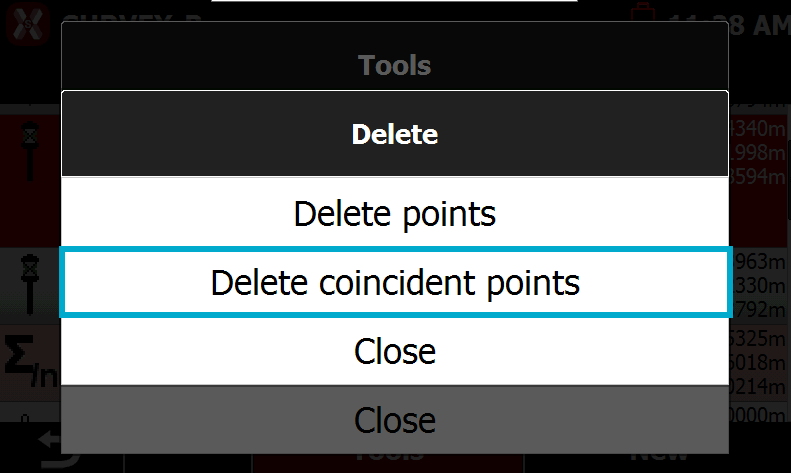
This command deletes topographic points with identical coordinates.
-
To delete coincident topographic points, from the point point list press Tools and select Delete.
-
Select Delete coincident points.
Change coordinate visualization
-
It is possible to change the coordinate visualization from ENZ to Latitude, longitude and elevation.
-
To change coordinate visualization select Tools and press Display LLH.
Find a point
-
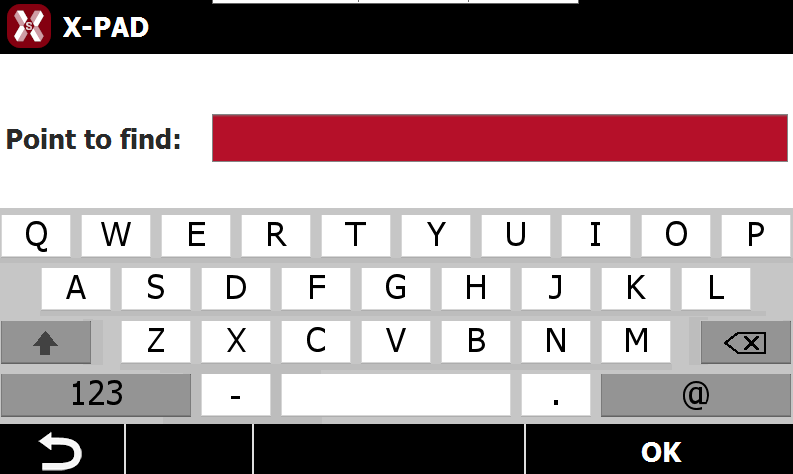
To search for a specific topographic point in the list press Tools ad select Find point.
-
Enter the point name to find.
-
The point, if available, is selected from the list.
Invert coordinates
-
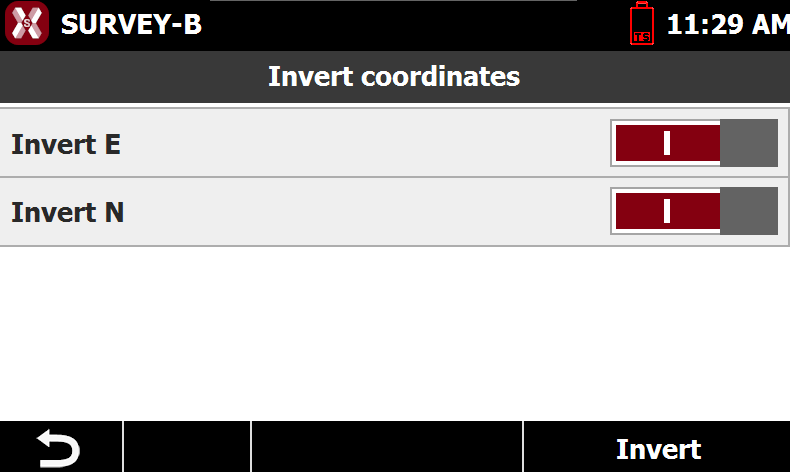
The command is used to invert East and North coordinate sign.
-
Press Tools and select Edit.
-
Press Invert coordinates.
-
Invert E: inverts the sign of east coordinate.
-
Invert N: inverts the sign of north coordinate.
-
-
Press Invert to confirm.
Reset stakeout state
-
After that a point has been stakeout, an icon is visible in CAD to identify the status. The point is also not available to be stakeout again when changing the next point to stakeout.
-
Using the command Reset stakeout state it is possible to reset this state.
-
Press Tools from the point list and select Edit.
-
Press Reset stakeout state to reset the stakeout status for all points.
Set elevation to 0
-
This command is used to set the elevation of all topographic points to 0.
-
To set the elevation to 0 from the point list press Tools and select Edit.
-
Press Set elevation to 0 to set 0 as elevation for all the points.