
-
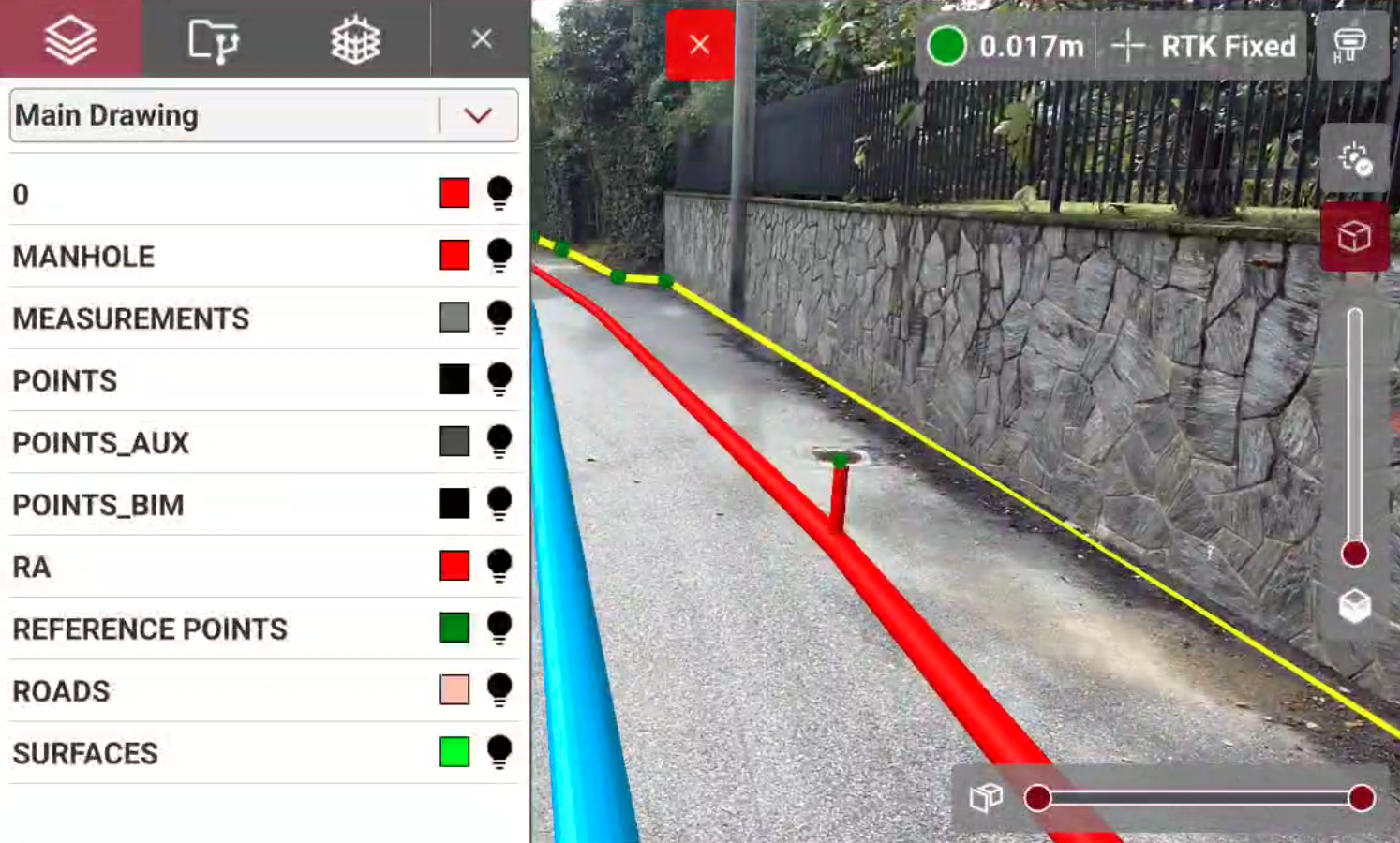
The Project Manager is a panel that allows access to the management and modification of the several types of entities that can be displayed in the augmented reality view.
-
Press

-
This opens a new panel with different tabs.
-
Available tabs are:
-
Layer

-
Project entities

-
IFC models

-
Layer management
-
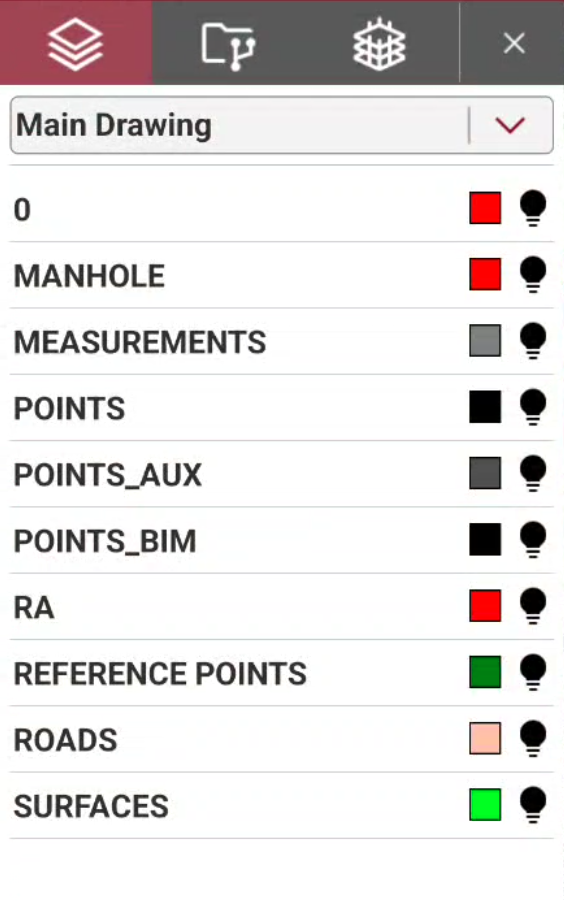
The Project Manager layer panel allows to manage the layers in AR.
-
Open the Layers

-
The tab shows the layers in the current drawing.
Drawing and external reference layer list
-
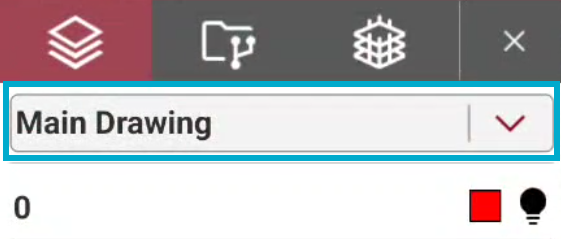
In case an external reference is loaded with layers (for example a DXF/DWG file) it is possible to manage the external reference layers.
-
To change the list of layers tap on the top bar to open the drop-down list.
Making a layer visible or invisible
-
Visible layers are marked by

-
Invisible layers are marked by

-
Select the symbol to change the visibility of a layer.
Project entities management
-
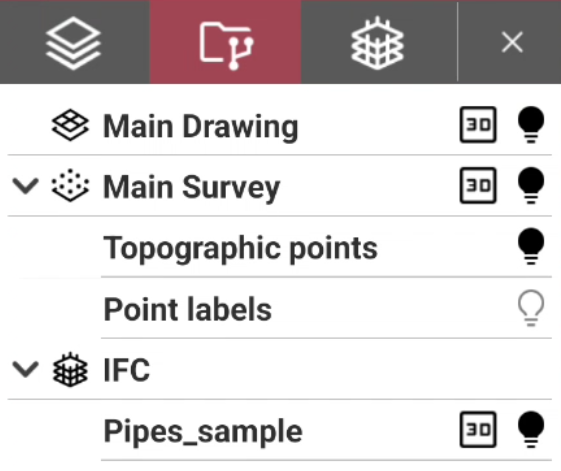
The Project entities management shows the entities (project drawing, survey data, IFC models, external documents, etc..) loaded in the project.
-
The panel allows to show/hide different entities and change their visualization mode.
-
Open the Project entities management

Making an entity visible or invisible
-
Visible entities are marked by

-
Invisible entities are marked by

-
Tap on the symbol to change the visibility.
Change visualization mode
-
Entities can be visualized in 2D or 3D. If an entity is visualized in 2D, it is projected on current elevation plane.
-
3D: the entity is visualized in 3D. Press to change the visualization in 2D.
-
2D: the entity is visualized in 2D. Press to change the visualization in 3D.
IFC management
-
The Industries Foundation Classes (IFC) format is the reference for the BIM methodology.
-
The file has a data structure divided into classes. Each class has objects. Using an IFC file as an external reference makes all the classes and objects in the file available in the CAD window.
-
In the IFC panel of the Project Manager, the display state of a class or objects for each IFC file linked can be changed.
-
Open the IFC model
-
This opens the external references panel showing loaded IFC models.
![Screenshot_20260818-104935[1]-20260818-084936.png](/__attachments/a_921844c7c6c6c87cbb435b64d58aed546231859cb89d2e0eb3a5f1c36e3f291d/Screenshot_20260818-104935%5B1%5D-20260818-084936.png?cb=c800382288247c362ca353e008ecd714)
-
Use the drop-down list to select the IFC model, in case more IFC files have been loaded in the job.
Making a class or object visible or invisible
-
The IFC file has a data structure divided into classes. Each class has objects.
-
Visible classes and objects are marked by
-
Invisible classes and objects are marked by