
-
In Stakeout functions the software offers a CAD view where the current instrument position is visible with the measured points and all graphic entities.
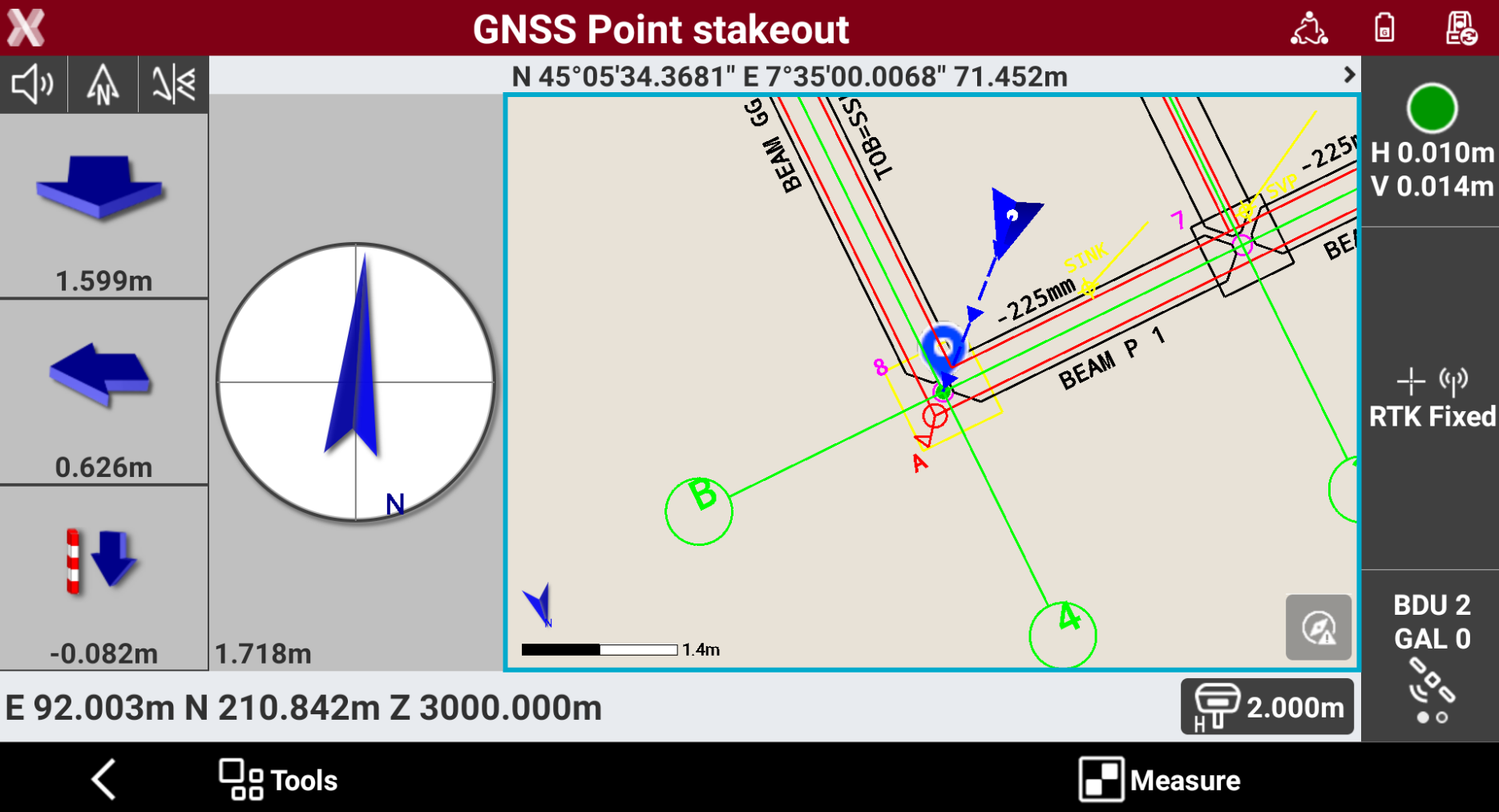
Drawing display
-
The CAD buttons are the same as available in the main CAD window.
-
Tap on the graphical windows of the drawing display. The buttons and commands for displaying the drawing are activated.
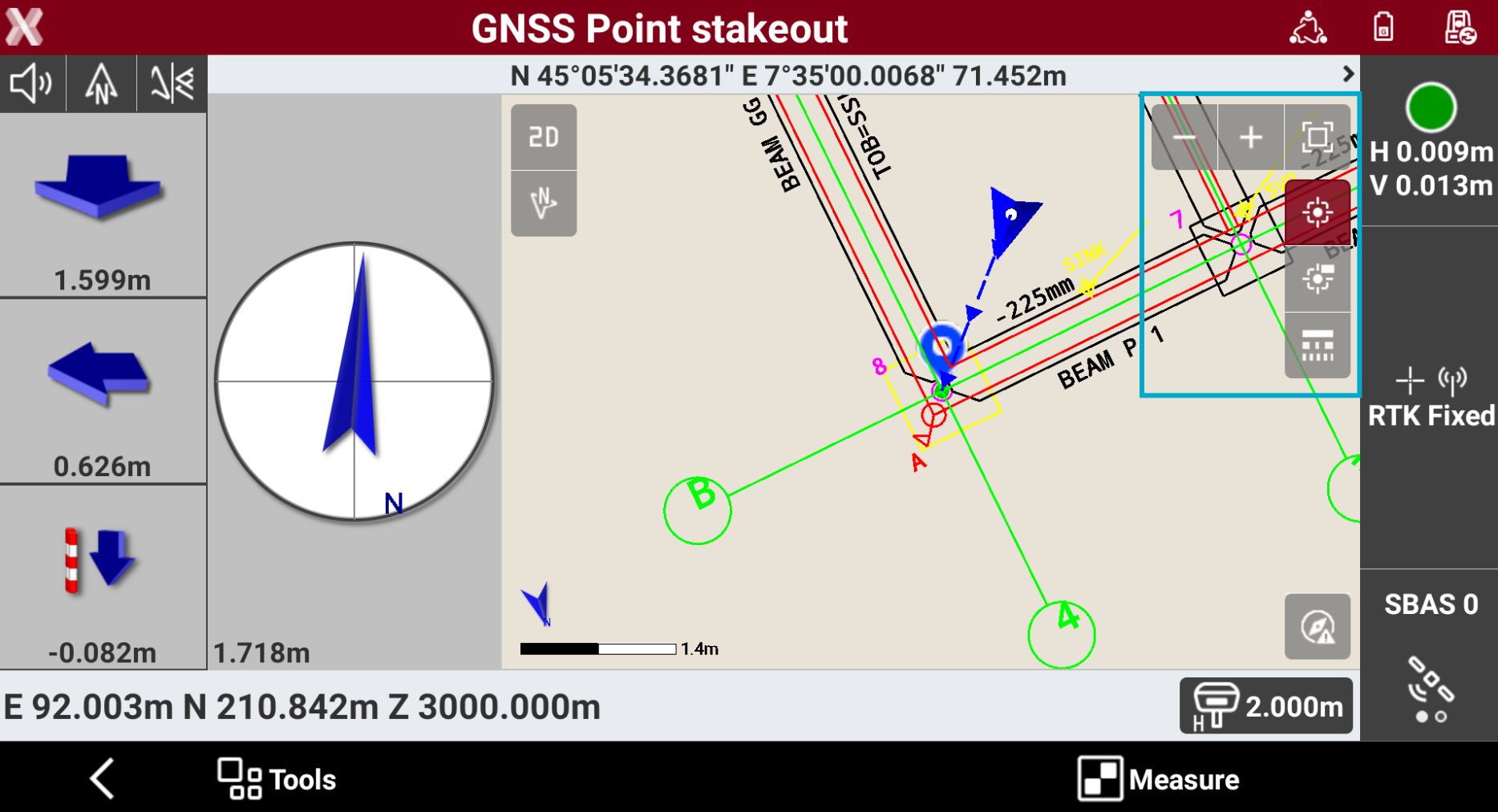
-
Zoom all

-
Zoom window

-
Zoom in

-
Zoom out

-
Points

-
Points labels

-
Linetype

-
Working area

-
Controller not calibrated


-
Operating in CAD
-
Pan: shifting of the view is always active. Click in the graphic area and drag the view.
-
Pinch out : tap in the graphic area using two fingers and spread them on the screen.

-
Pinch in: tap in the graphic area using two fingers and merge them on the screen.

-
Double click: opens the main CAD.