
-
The graphic interface when using a Stakeout function with a total station is explained in this chapter.
-
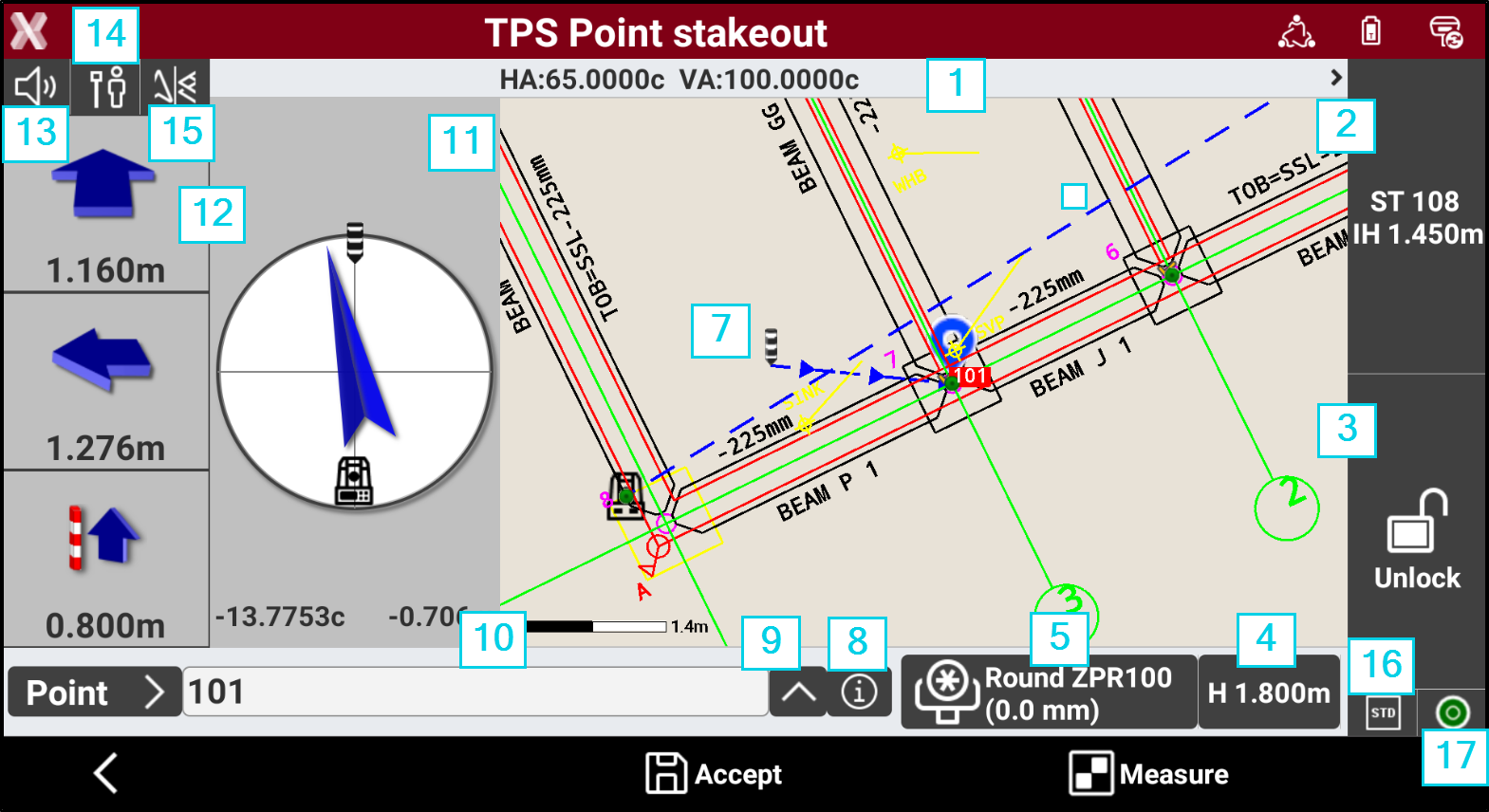
Whether staking out a point, an element or a position by offset, the software provides indications to reach the position to stakeout using a common scheme.
-
Angles: the current instrument angles and measured slope distance.
-
Station: the current station name and height of the instrument.
-
Status of locking of the prism (robotic station): shows the status of the locking of the prism when working with a robotic total station. Press to open the Robotic total station control panel. If the total station is not robotic press to access the Mechanical total station control panel that allows managing the parameters for the functioning of the mechanic total station.
-

-

-

-
-
Elevation of the target: elevation of the target. Click to modify the elevation.
-
Current target: The type of current target. Click on the panel to Set the target type.
-
Graphic area: graphic view with visualization of the current position and of the position to reach. Blue: all parameters of operation satisfy the preset level of accuracy. Red: the accuracy parameters are not met. The blue line indicates the direction to the point to stakeout. See CAD view in survey and stakeout functions.
-
Stakeout direction: graphical visualization of the direction to the point to stakeout from the latest measured position.
-
Info: press to open the information of the point to stakeout and enter a code.
-
Change ID: press to change point ID to stakeout.
-
Point ID: ID of the point to stakeout.
-
Compass: the compass visualizes the direction to stakeout the position.
-
Numeric indications to reach position: indications to reach the point to stakeout. First value refers to distance forward or backward. Second value refers to distance right or left. Third value specifies the elevation difference. It is possible to change the reference.
-
Audio indications: the software guides by vocal information allowing, most of all when you are far from the point, to arrive near the point without having to look always on the controller. A tone tells when the desired position is reached considering the defined tolerance limits. Click to turn off/on the audio indications.
-
Stakeout reference: changes the Stakeout reference for TPS.
-
View mode: changes the Stakeout view mode for TPS.
-
EDM mode: the current EDM mode.
-
Electronic level status: the instrument electronic level status. Press to open the Electronic level page.
-
Green

-
Red

-
Grey

-