
-
To stakeout a point or geometry with a total station open the corresponding function.
Stakeout procedure with robotic total station
-
Follow the indications until the stakeout page is opened.
-
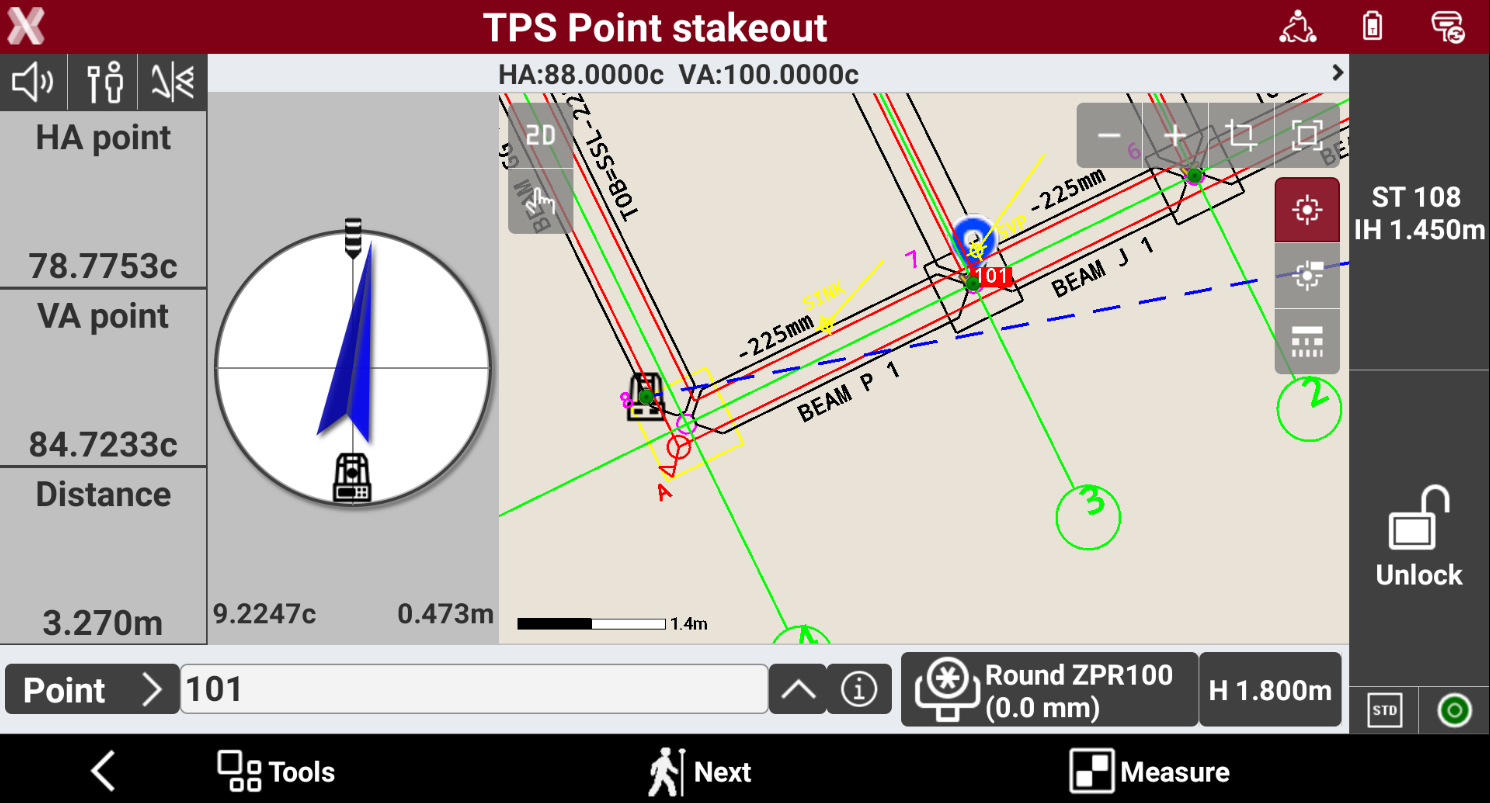
If Turn to stakeout point in TPS Settings is activated, the instrument automatically rotate to the point to stakeout.
-
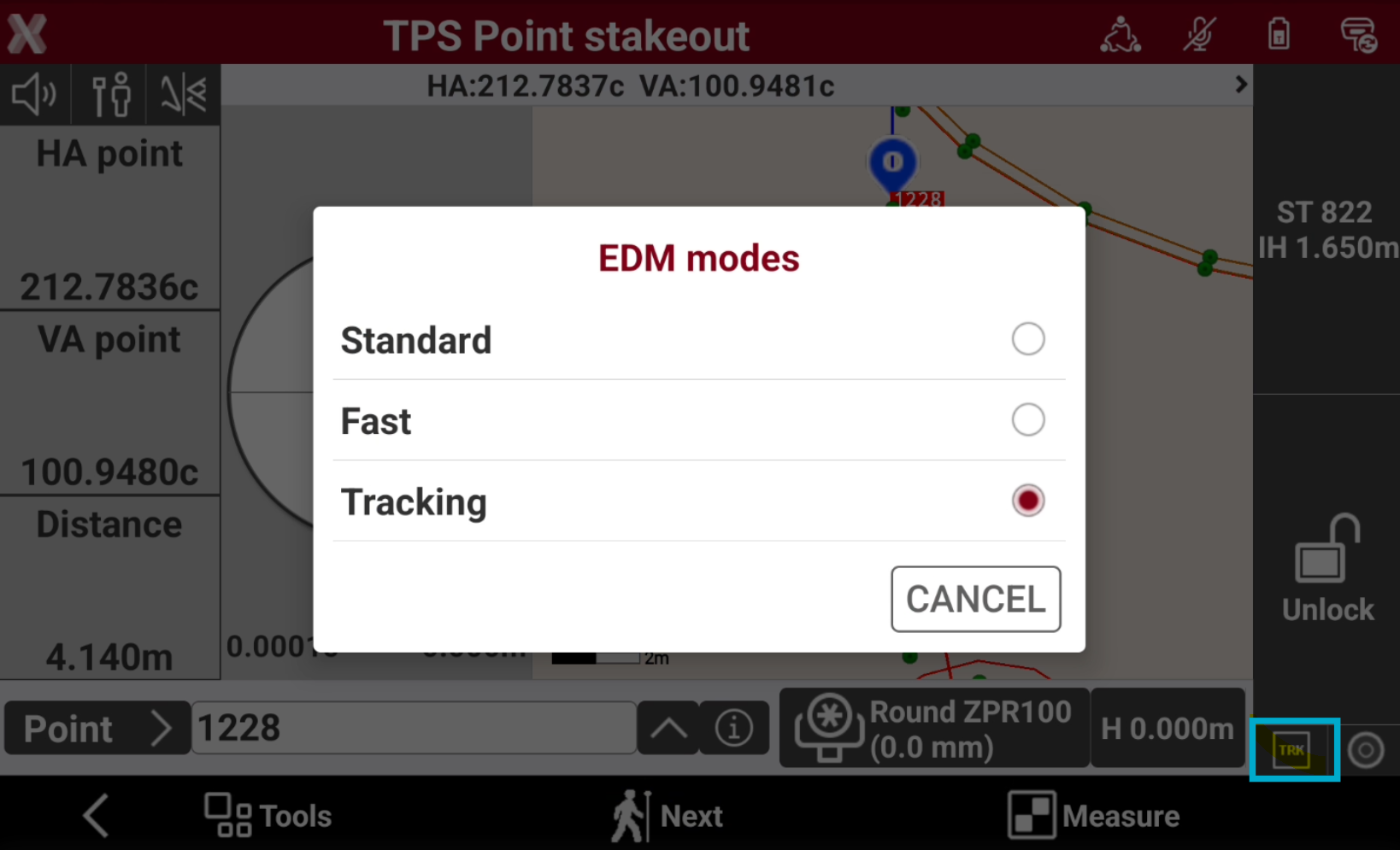
Change the EDM mode to work in Tracking mode.
-
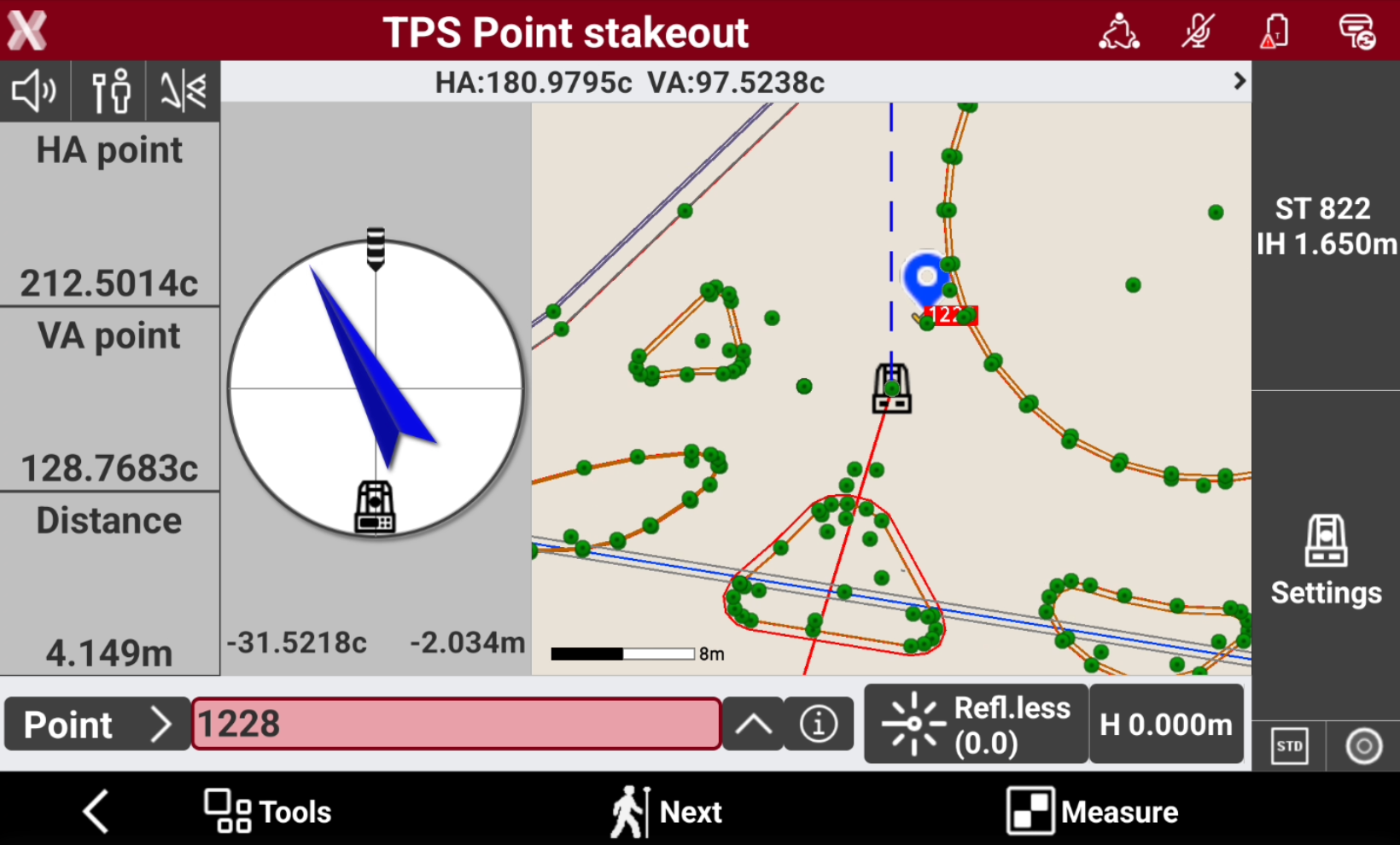
Using the compass you can adjust the horizontal angle to be aligned with the point to stakeout.
-
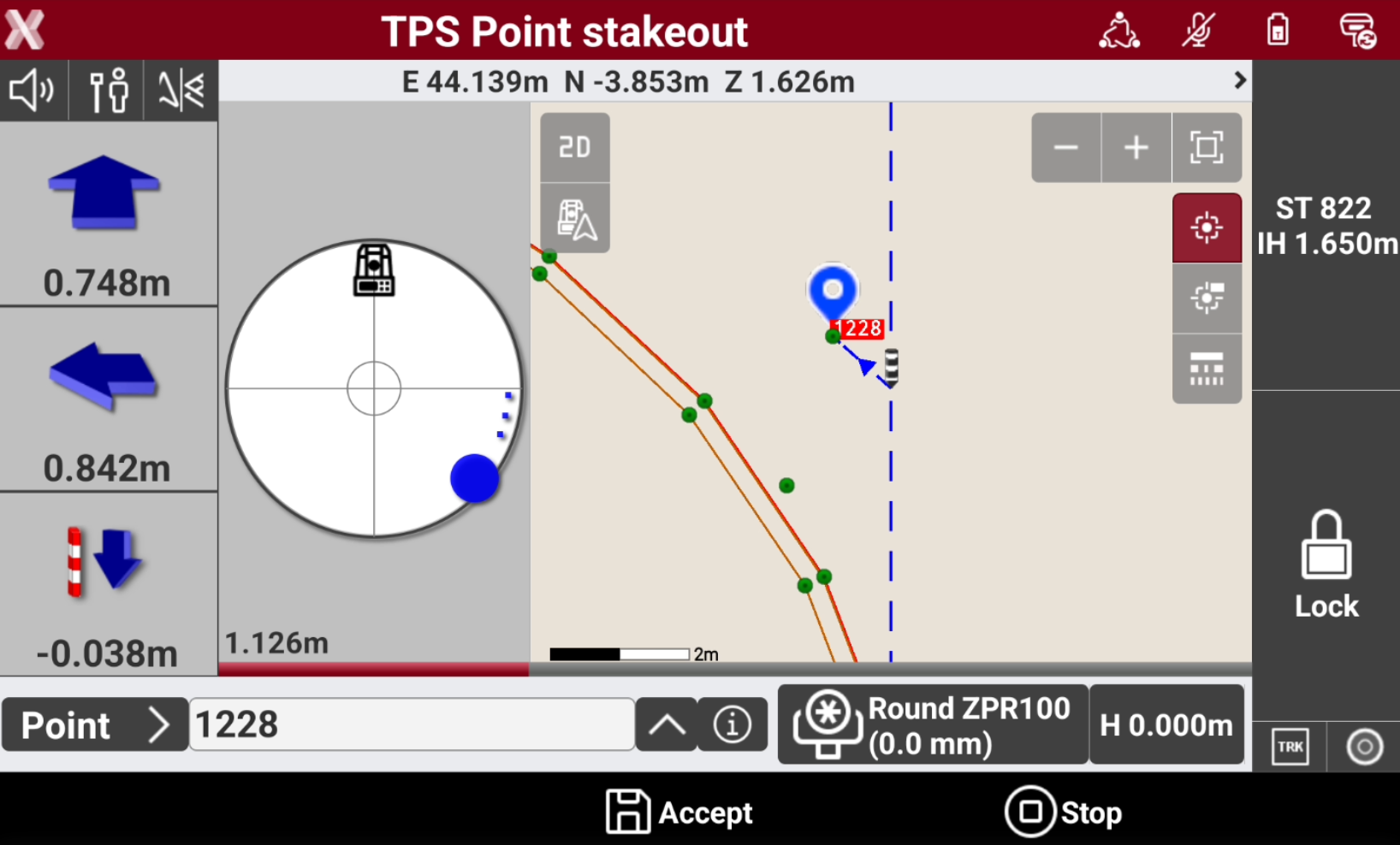
Press Measure to measure the distance and start to obtain indications on the stakeout direction.
-
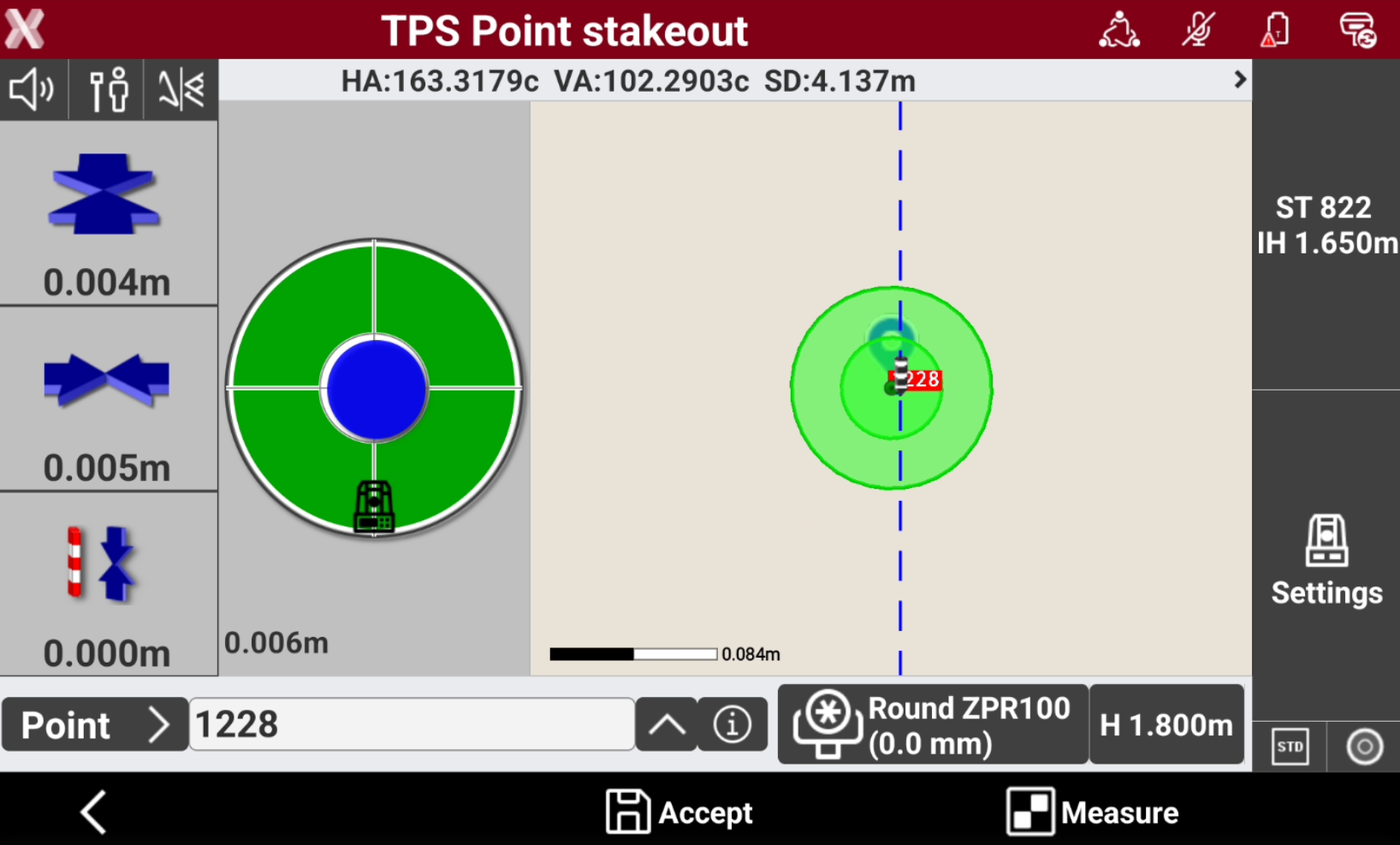
The left panel shows the indications to the coordinate to stakeout referred to the selected Stakeout reference for TPS.
-
Depending on the View mode selected, the interface shows the compass with the direction or the CAD view or both.
-
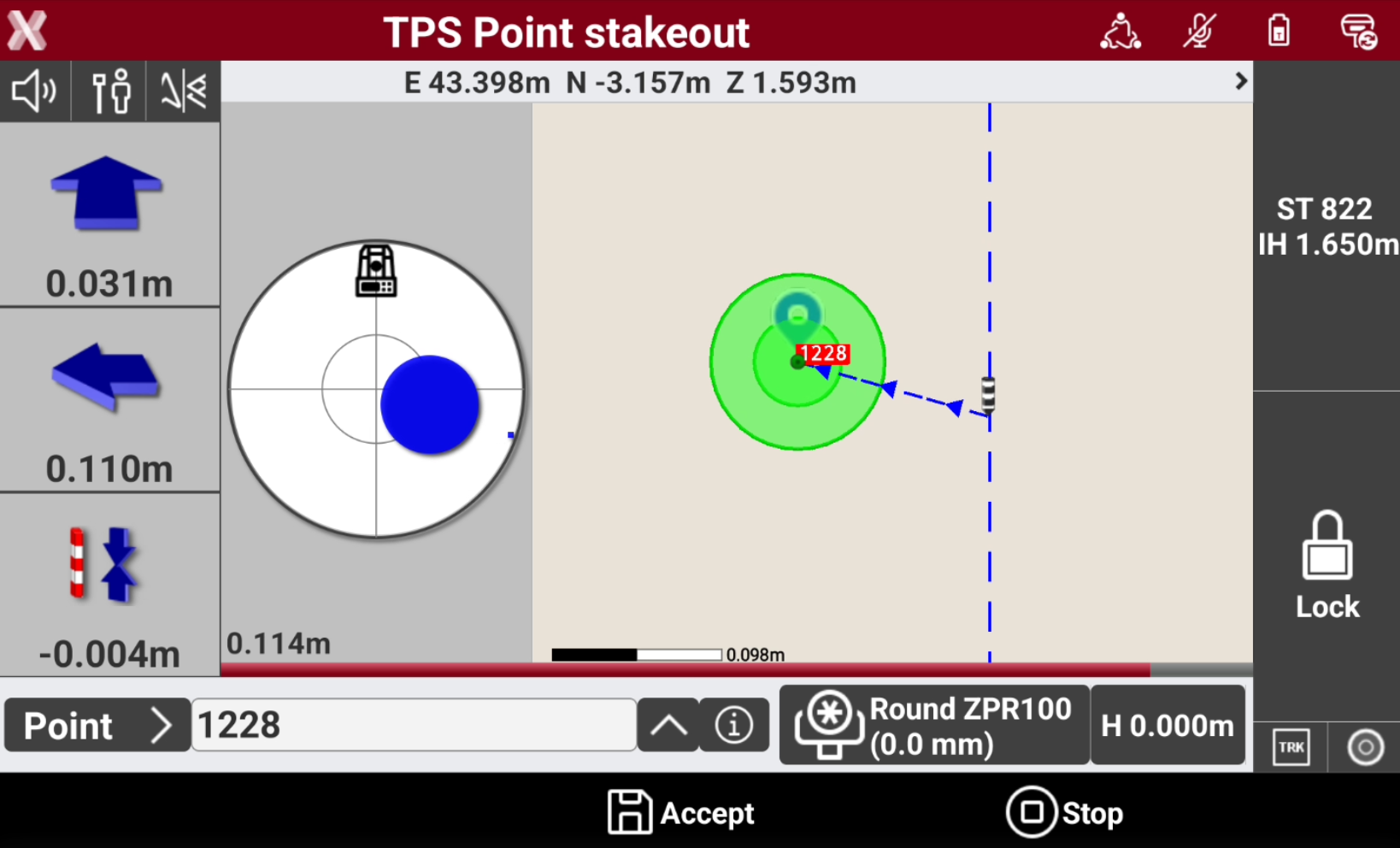
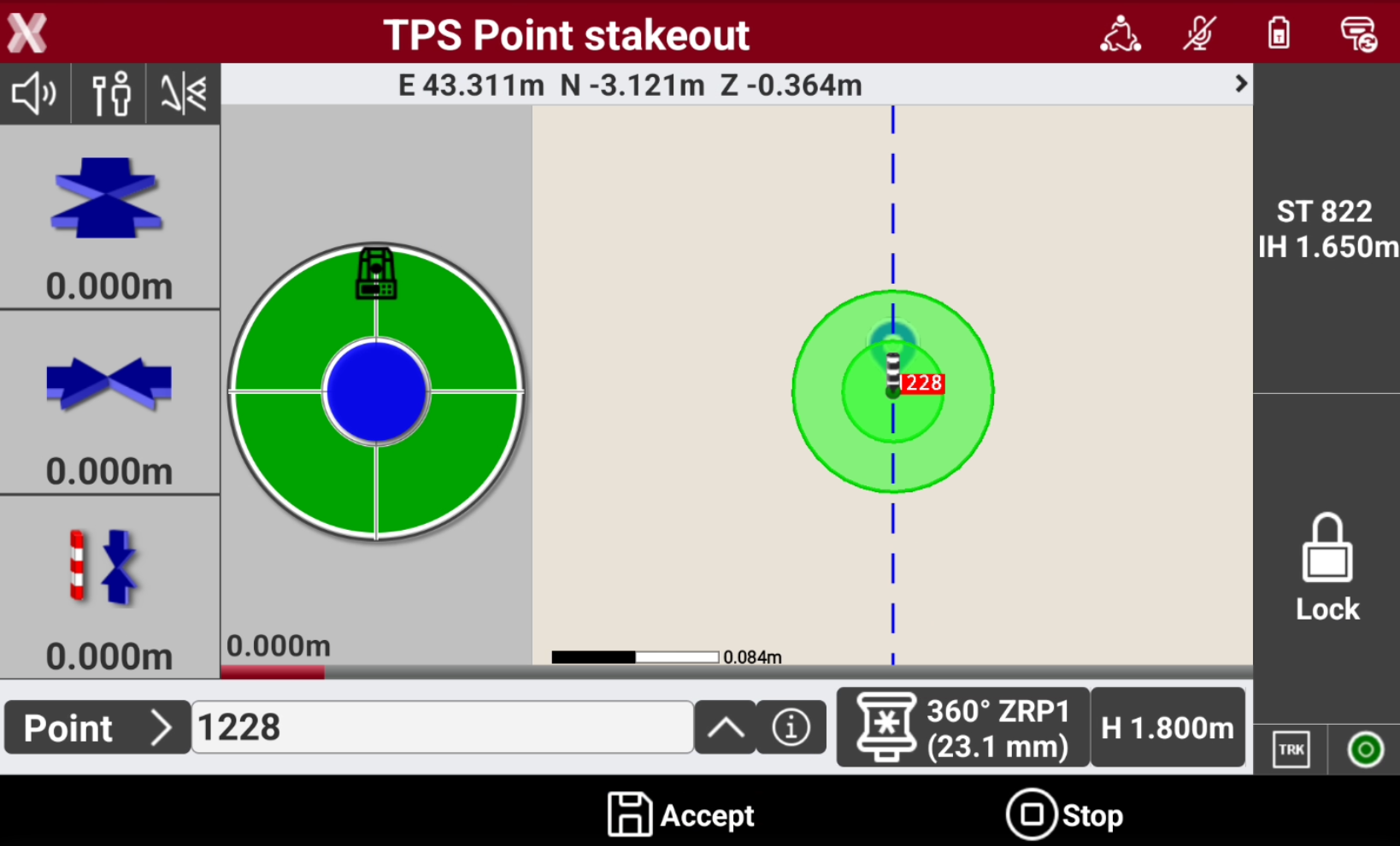
Approaching the point, the compass view changes to offer a better view to precisely stakeout the point and the CAD view automatically increase the zoom level.
-
If the stakeout distance is within the defined tolerance the compass view is in green.
-
Press Accept to save the reading.
Stakeout procedure with manual total station
-
Follow the indications until the stakeout page is opened.
-
If Turn to stakeout point in TPS Settings is activated and instrument is a Servo or a Robotic total station, the instrument automatically rotate to the point to stakeout.
-
Otherwise using the compass indication align with the point to stakeout.
-
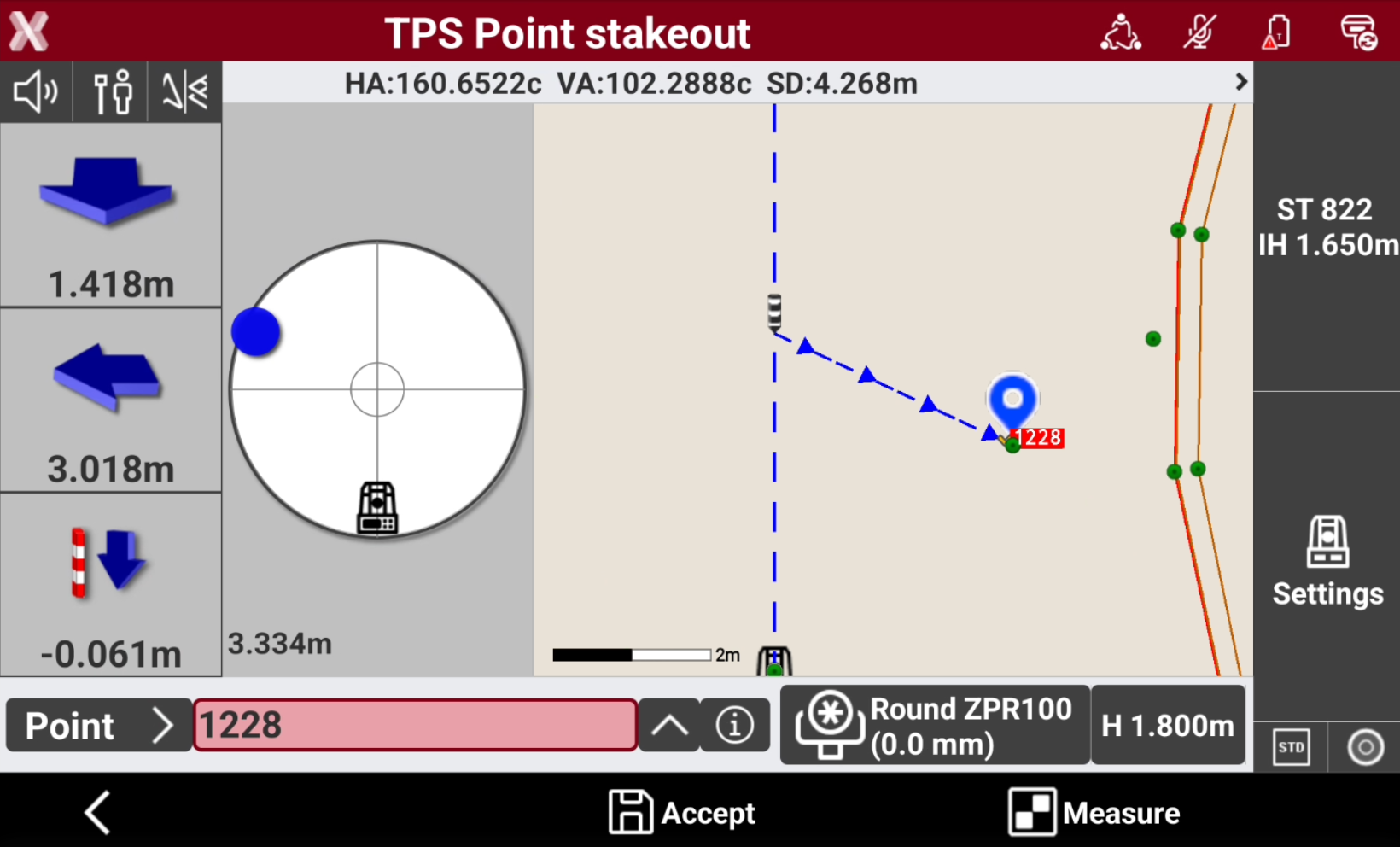
Press Measure to measure the distance and start to obtain indications on the stakeout direction.
-
The left panel shows the indications to the coordinate to stakeout referred to the selected Stakeout reference for TPS.
-
Depending on the View mode selected, the interface shows the compass with the direction or the CAD view or both.
-
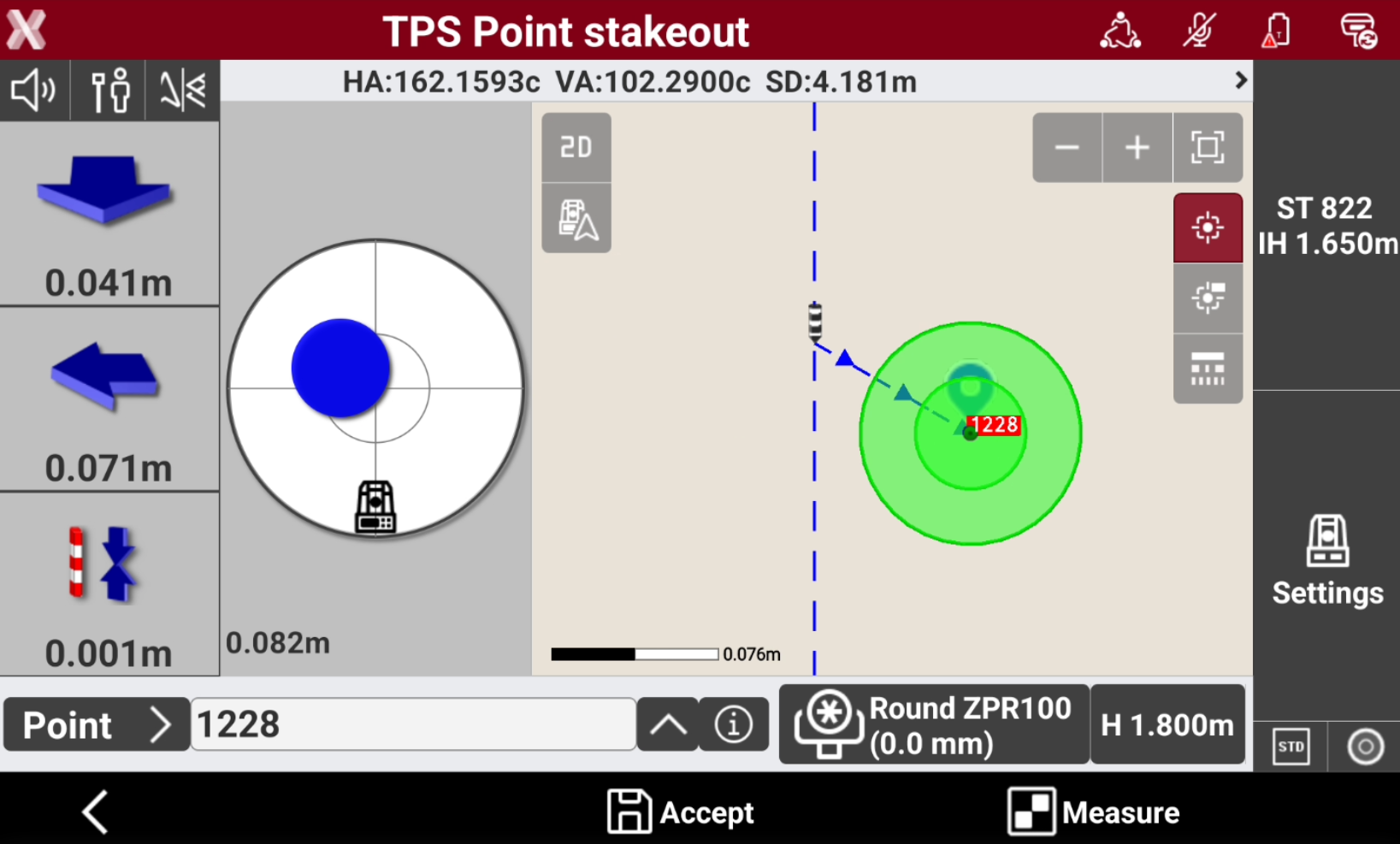
Approaching the point, the compass view changes to offer a better view to precisely stakeout the point and the CAD view automatically increase the zoom level.
-
If the stakeout distance is within the defined tolerance the compass view is in green.
Record the stakeout measurement
-
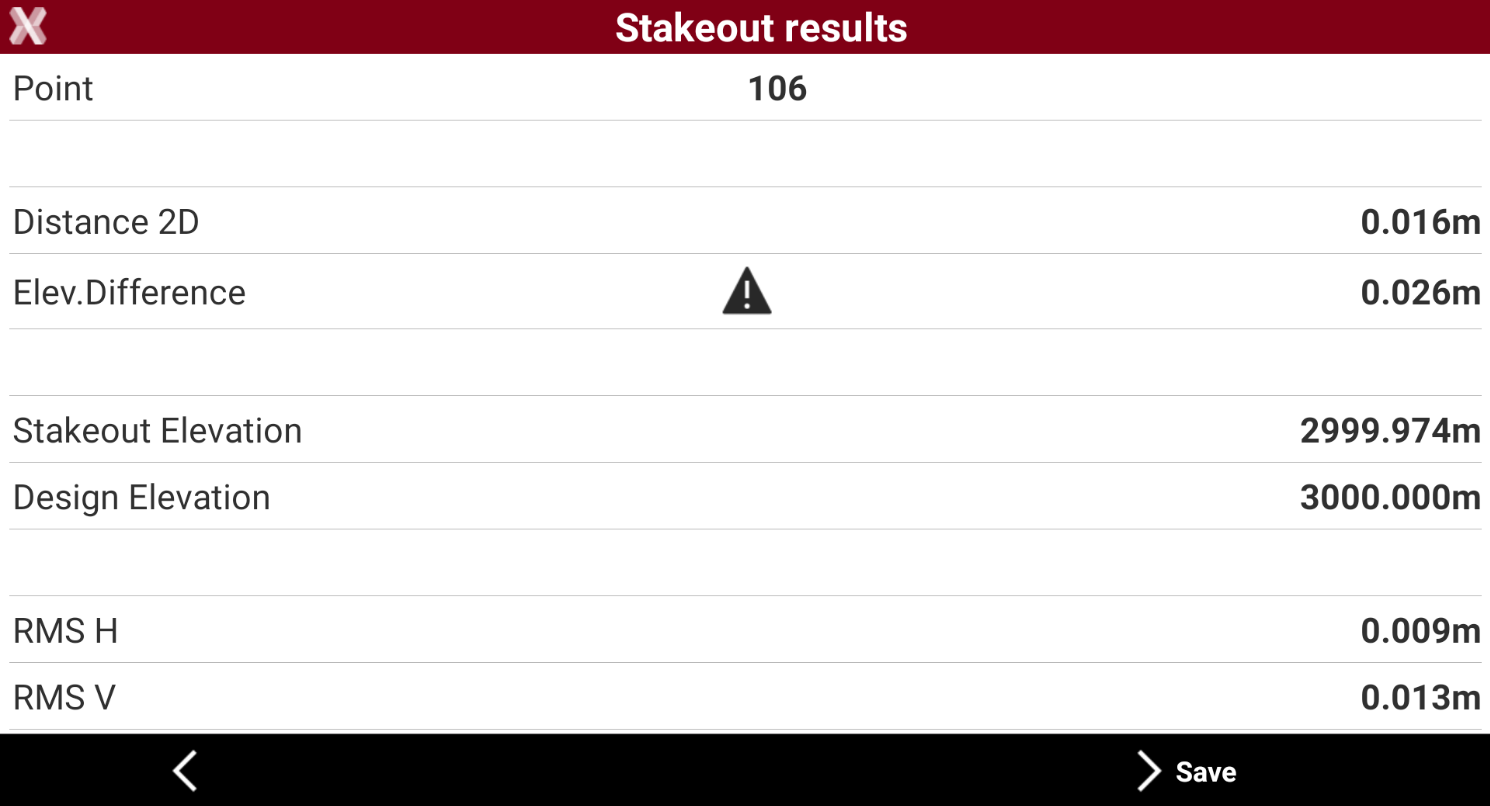
Press Accept in Tracking mode or Measure in Standard mode to record the stakeout measurement and display the Stakeout results.
-
If Confirm before Store option is enabled in the Settings, the software displays the Stakeout results.
-
Press Save to proceed to save the point.