-
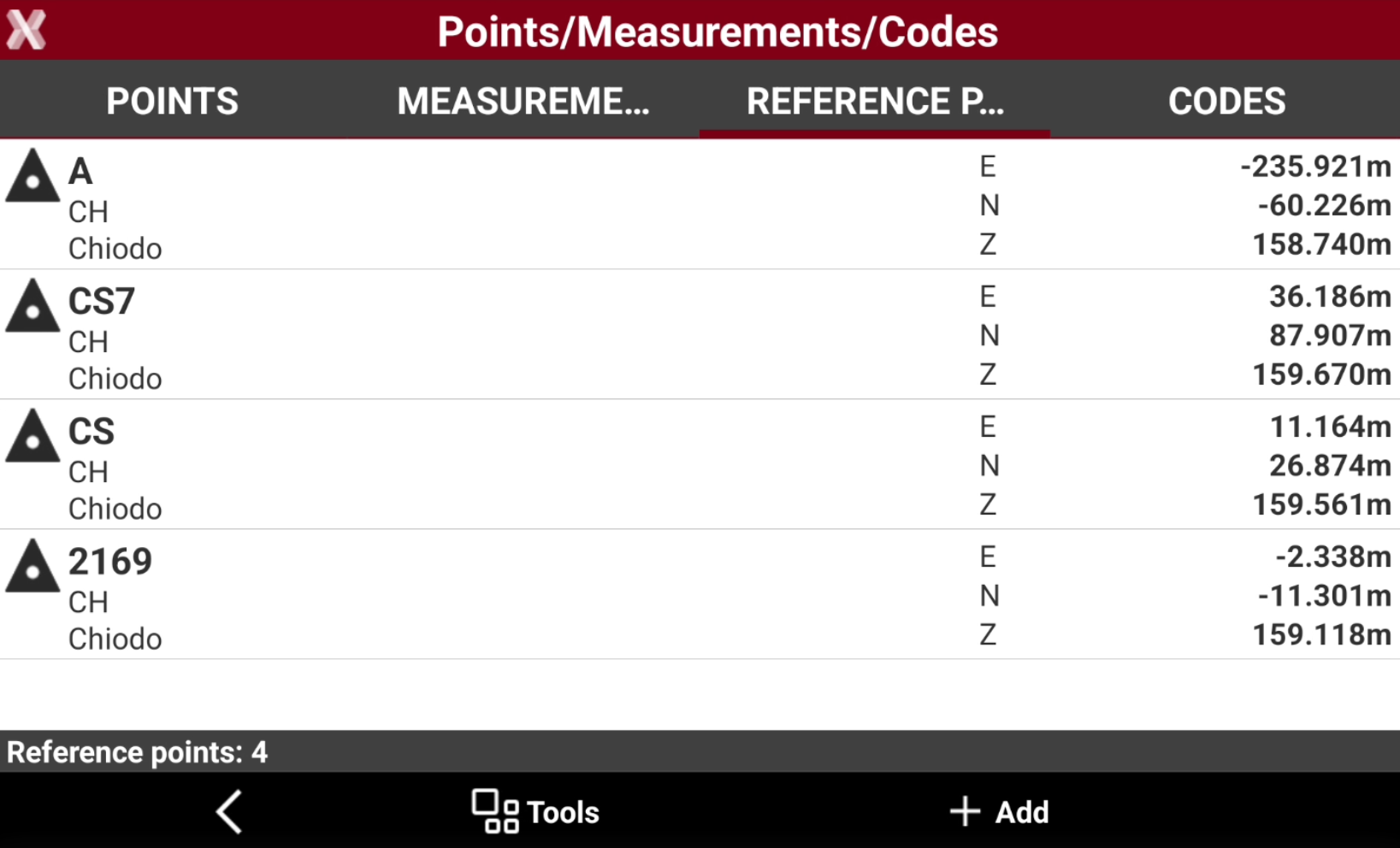
The Reference points list shows the reference points stored in the current job.
-
The icon represents the type of topographic point:
-

-

-
Change points visualization
-
From the Reference points list page it is possible to change how points are visualized.
-
From the Reference points page select Tools
-
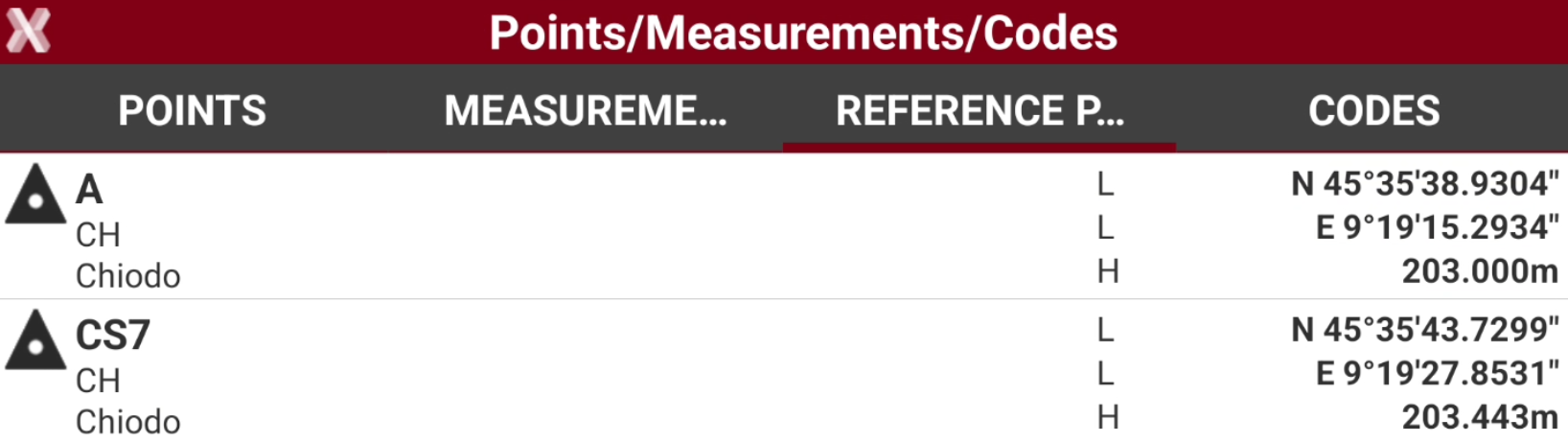
Select View LLH to display points with geodetic coordinates, if available.
-
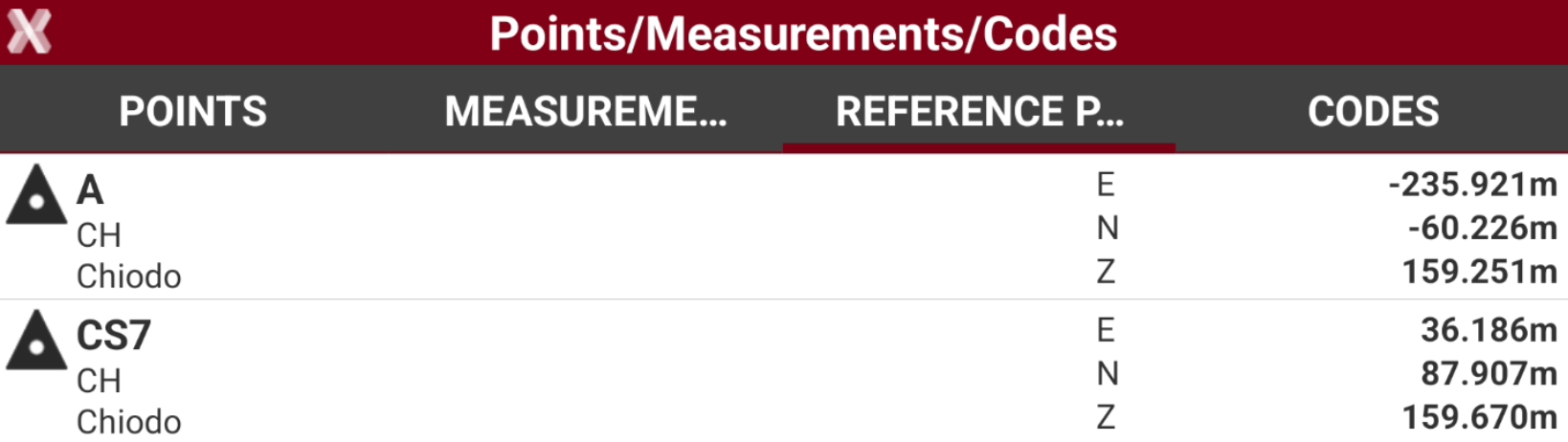
Select View ENZ to display points with plane coordinates, if available.
-
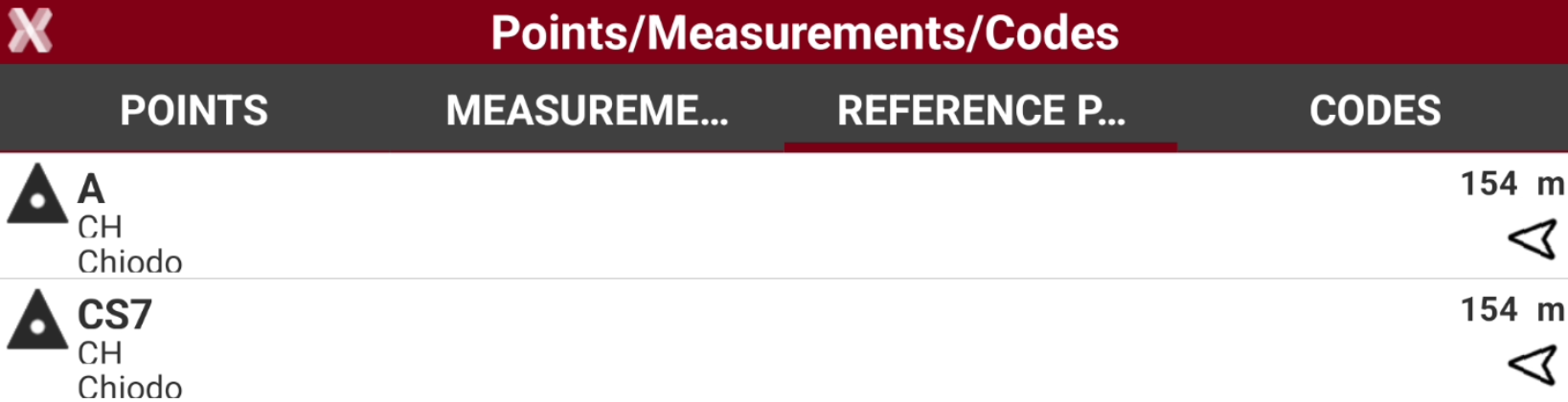
Select View Distance & Direction to display points with the distance and direction from the current position. For the calculation, the software can use the GNSS receiver connected or the GNSS sensor of the controller.
Delete points
-
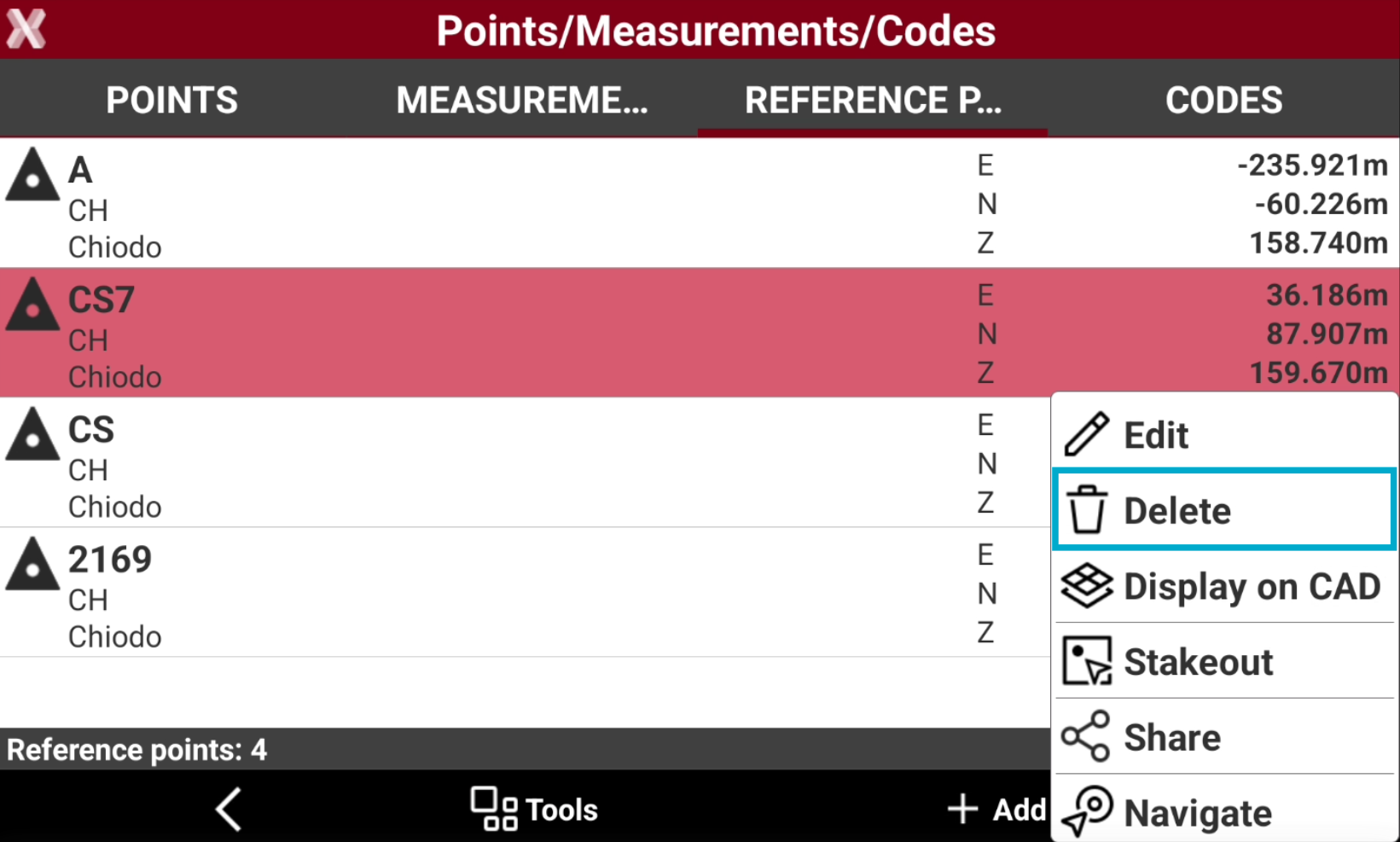
To delete a single reference point, from the Reference Points tab tap on a point and select Delete.
-
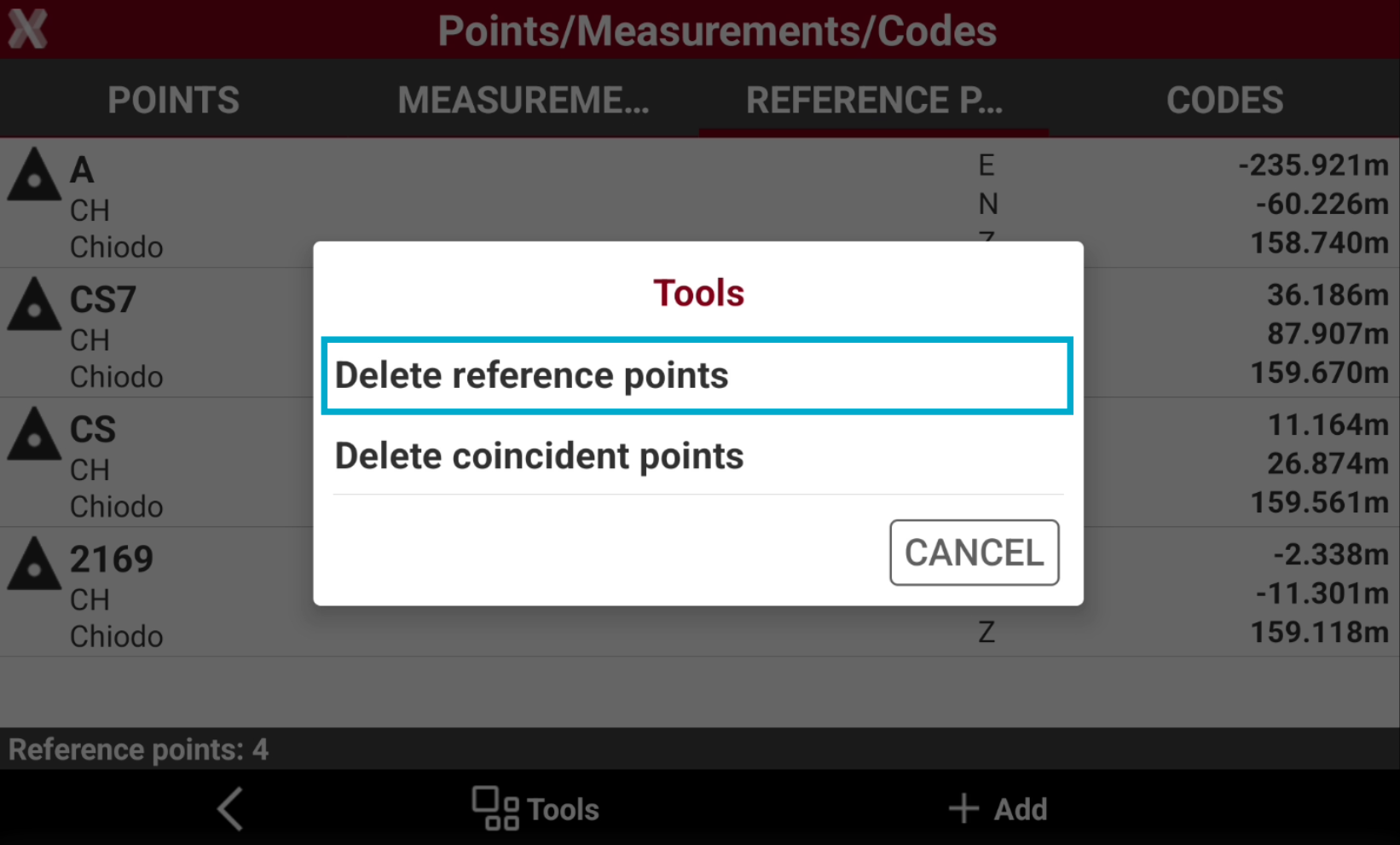
To delete a multiple topographic point, from the Points tab select Tools and select Delete.
-
Select Delete reference points.
-
Select the items to delete from the list, or tap on Tools option to apply a Selection rules or select/deselect all the points.
-
Press Delete to delete the points.
A deleted point cannot be restored.
Delete coincident points
-
This tool allows to delete points with the same coordinates.
-
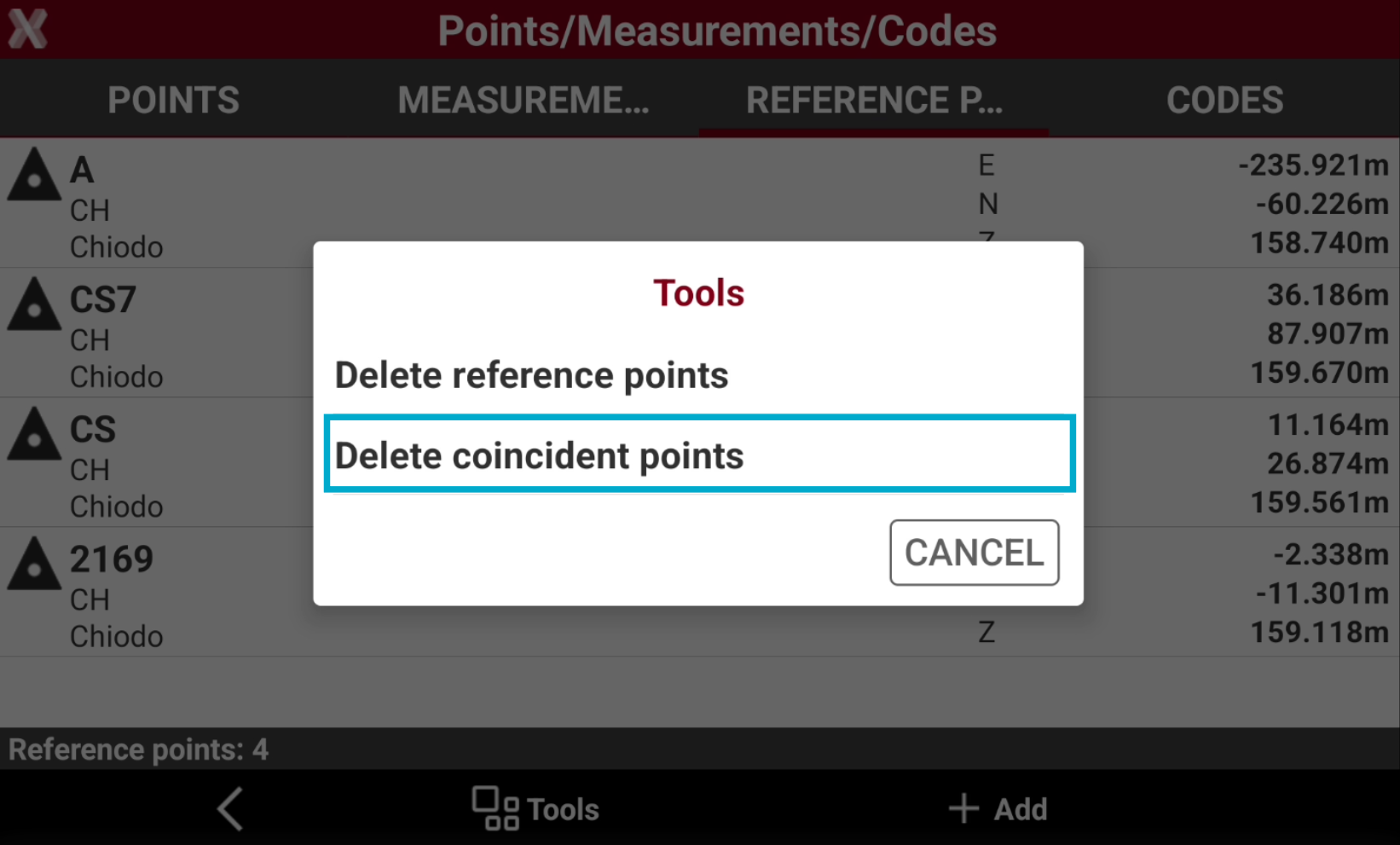
To delete a coincident point, from the Reference Points page select Tools and select Delete.
-
Select Delete coincident points.
-
Select Delete coincident points. Tap on YES to delete the coincident points.
A deleted point cannot be restored.
Visualize a point in CAD
-
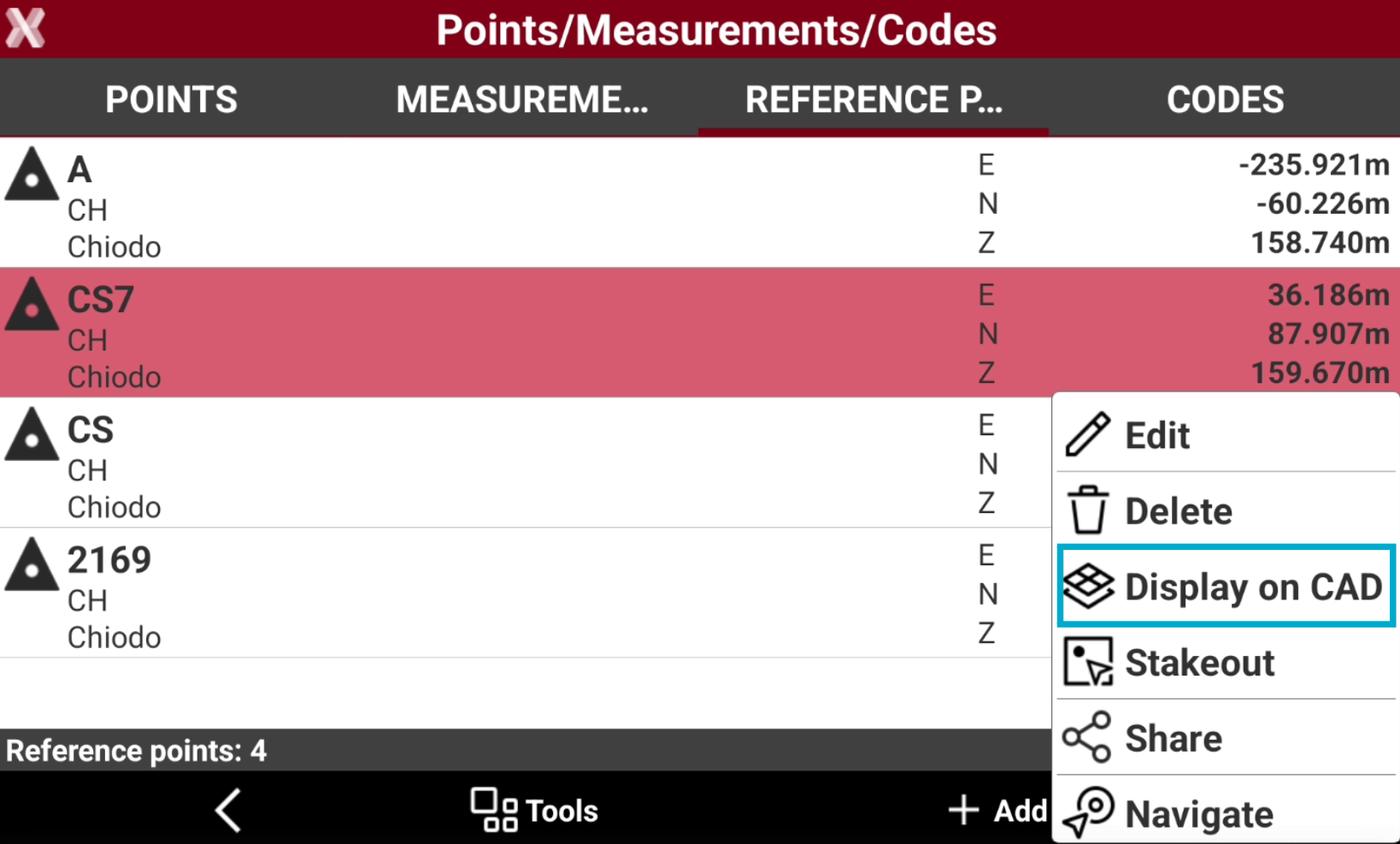
From the reference points list is possible to visualize the point position on CAD .
-
Select a point from the list to open the context menu and select Display on CAD.
-
The CAD is opened and the point is visualized in the center of the graphic window.
Stakeout a point
-
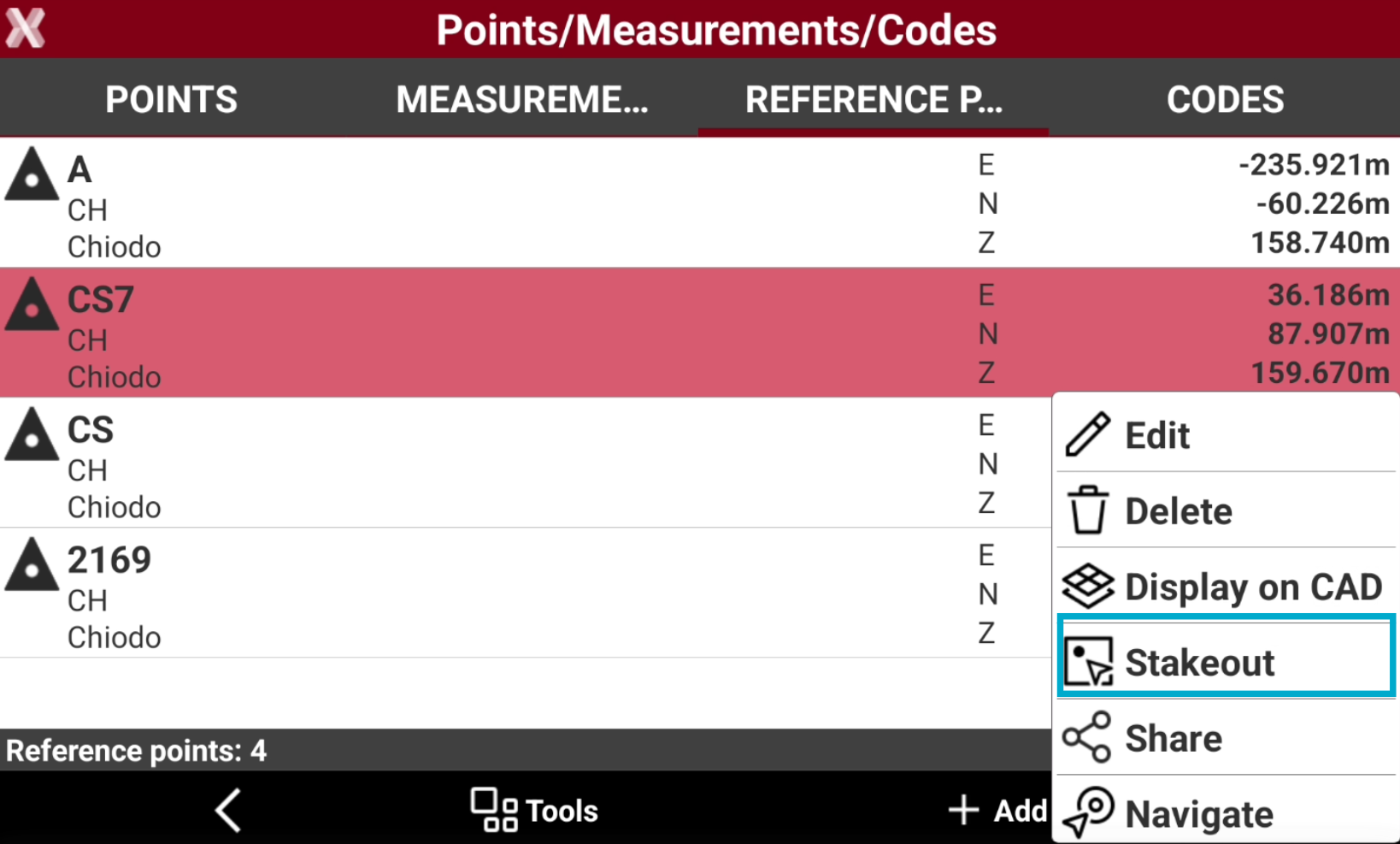
From the point list is possible to select and stakeout a point using the current instrument profile.
-
Select a point from the list to open the context menu and select Stakeout.
-
The point is stakeout using the Stakeout points function.
Share a point
-
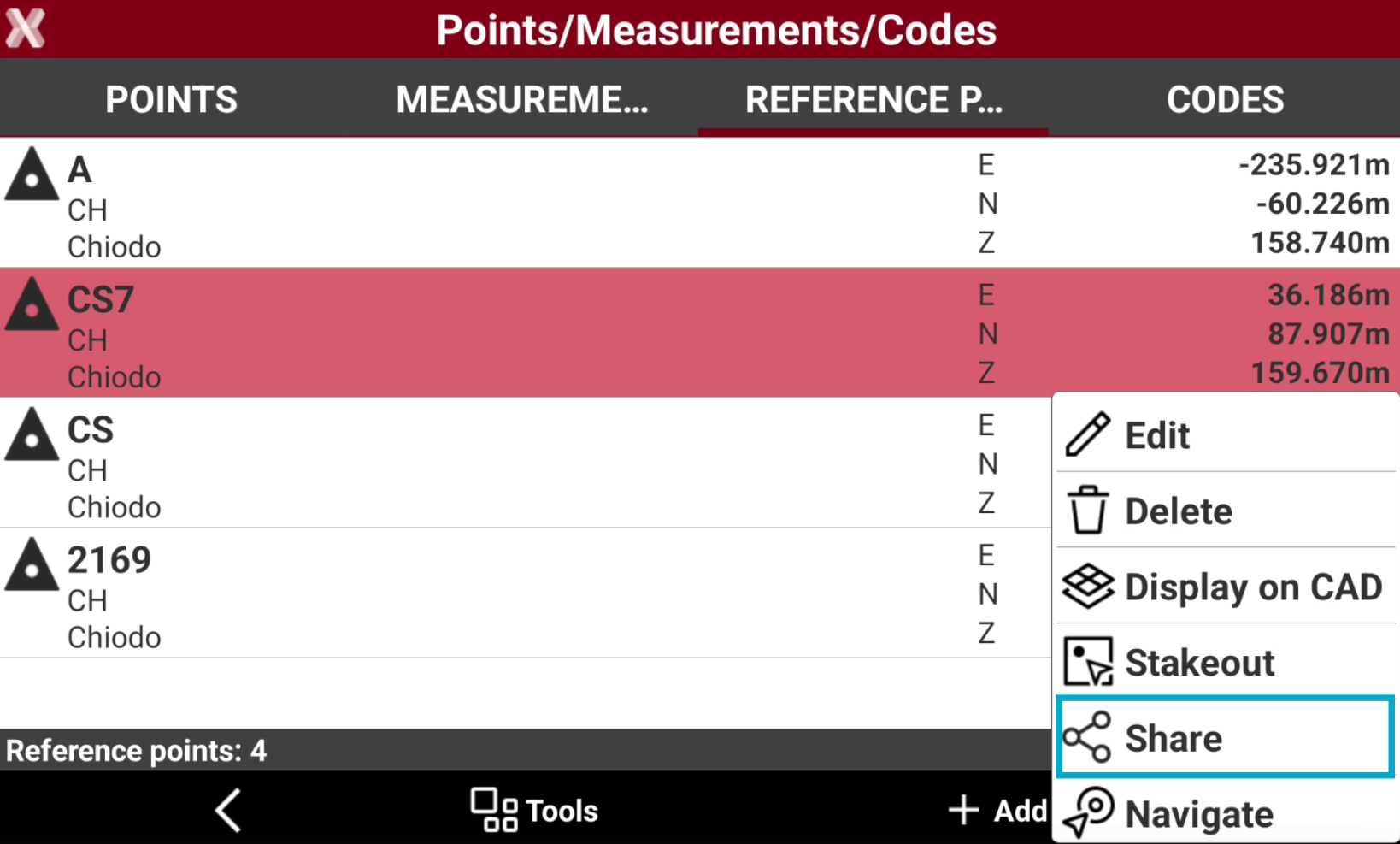
It is possible to share a point from the point list.
-
For the selected point, the information related to coordinates (geographic and plane), code, description and eventually the photo/sketch associated is sent.
-
Select a point from the list to open the context menu and click Share.
-
The point information are shared using available 3th party Android applications.
Rotate to point
-
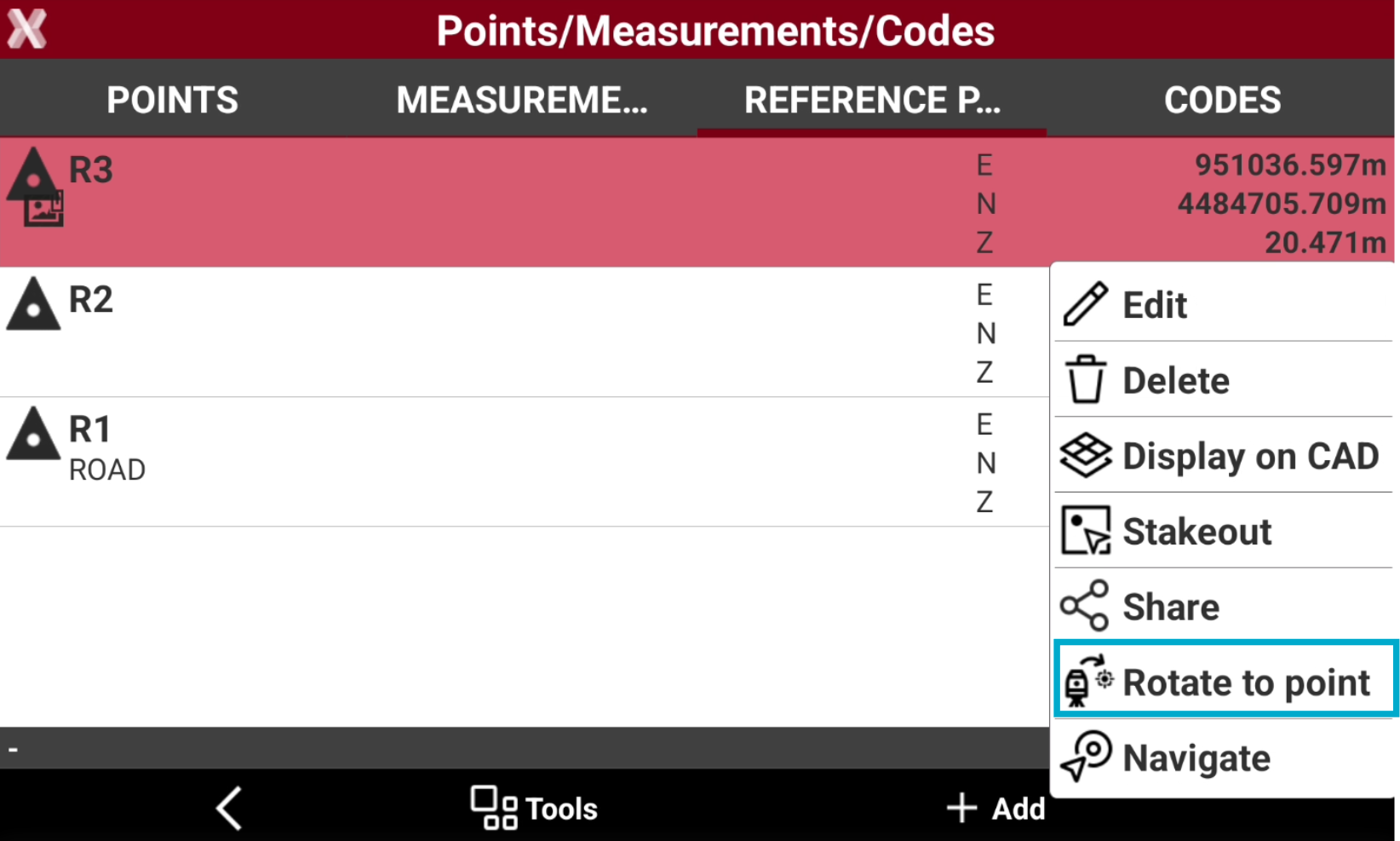
If the current instrument is a robotic total station, the command Rotate to point allows to automatically rotate the total station in the direction of the selected point.
-
Select a point from the list to open the context menu and select Rotate to point.
-
If the instrument is a motorized total station, it rotates to point direction.
Navigate to point with Google Maps
The function is available if selected point has a valid WGS84 coordinate.
-
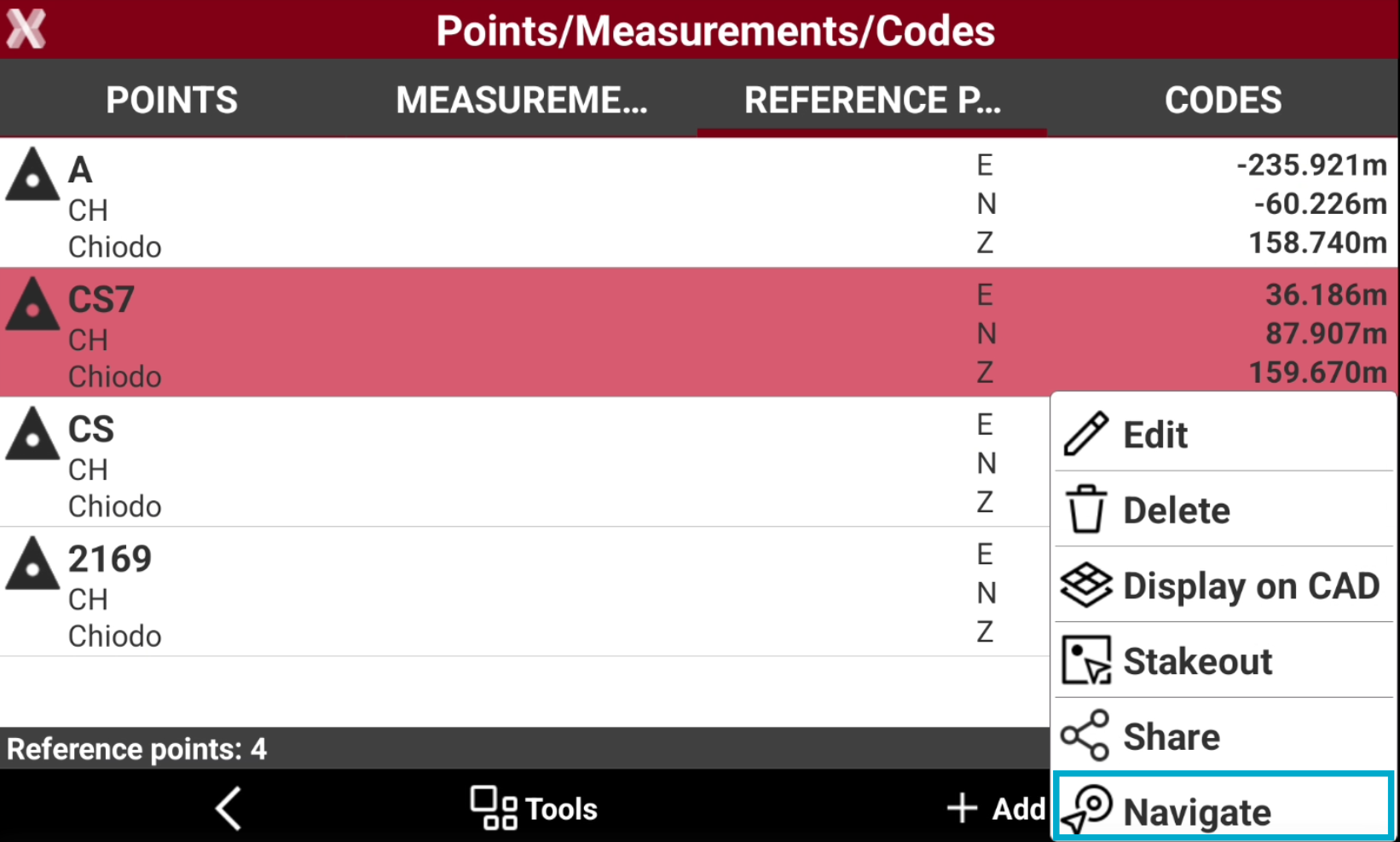
Select a point from the list to open the context menu and select Navigate.
-
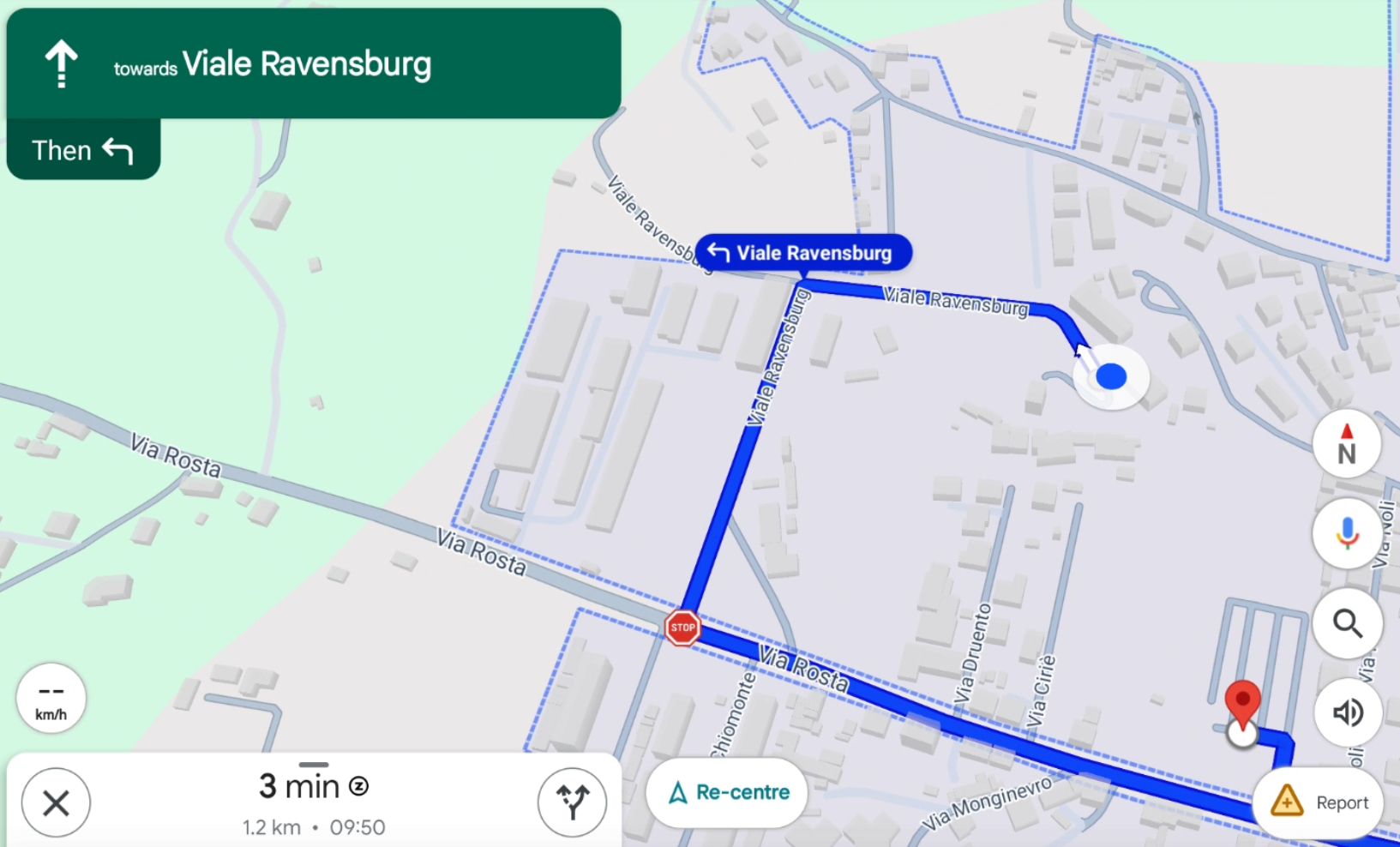
The software opens Google Maps with the directions to navigate to the point position.
Search point
-
The function Find point is used to search in the Point list a specific point.
-
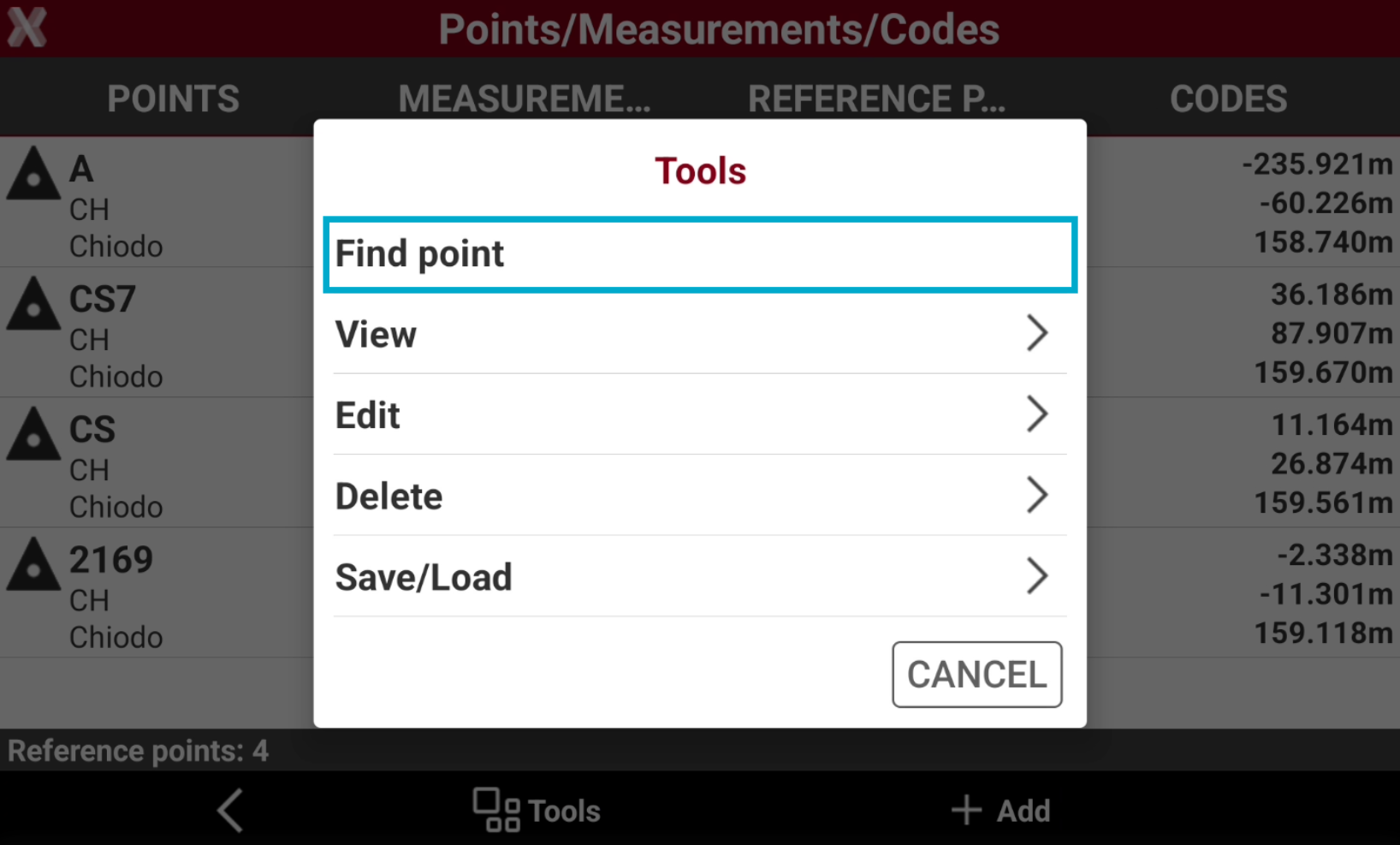
Select Tools to open the list of available tools.
-
Select Find point.
-
Enter the point ID to find.
Invert coordinates
-
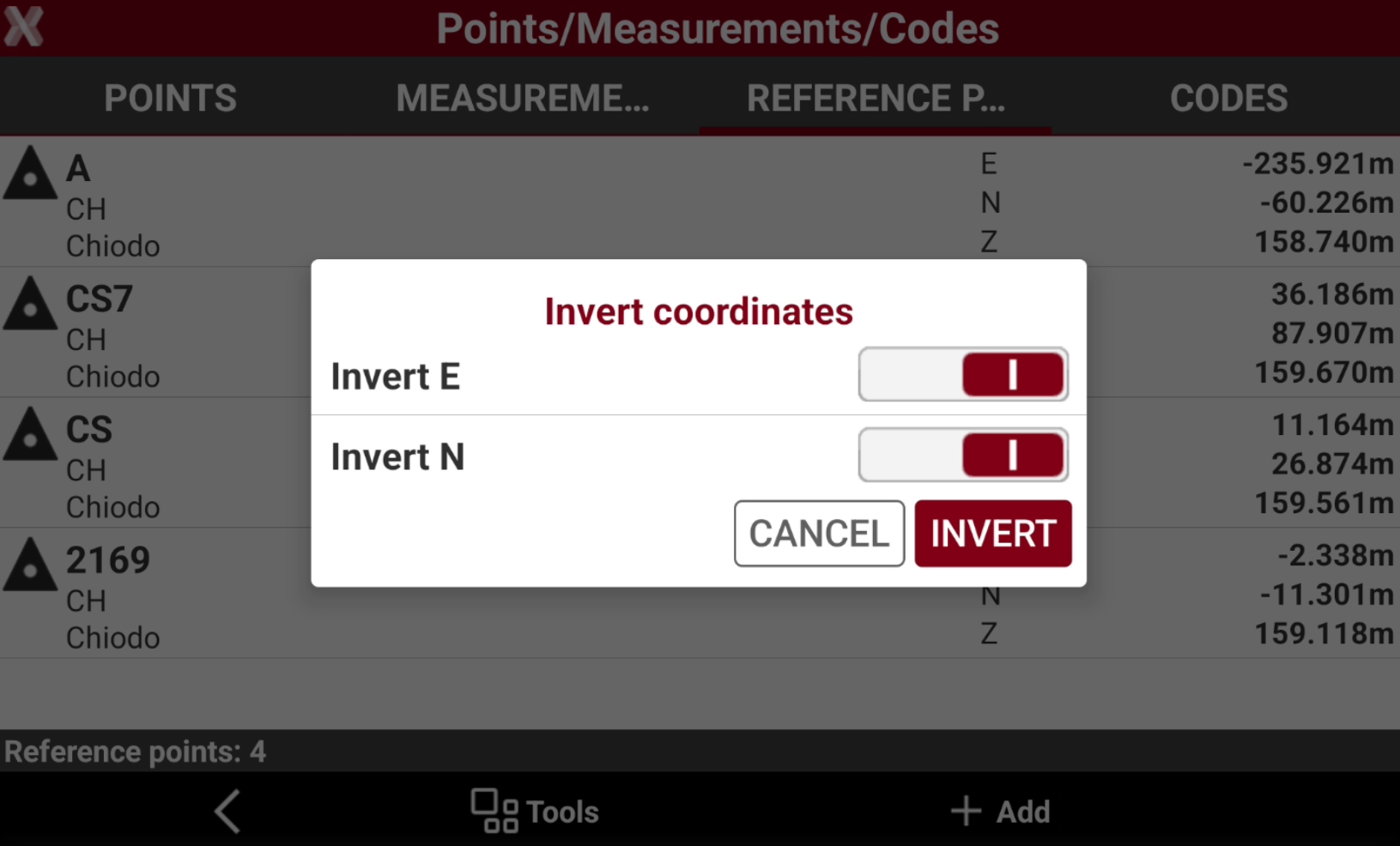
The command Invert coordinates inverts the sign of east and north coordinate.
-
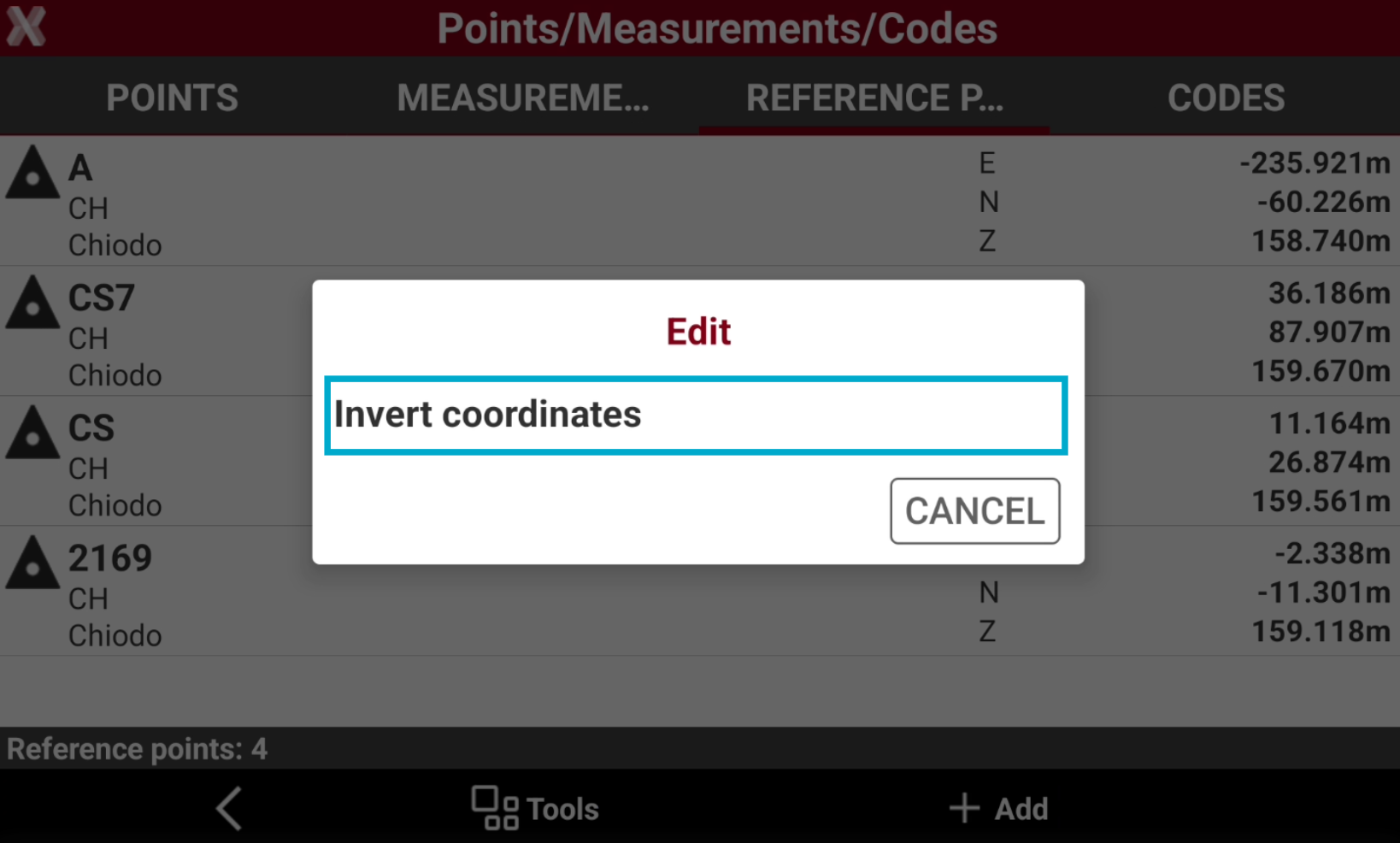
From Tools select Edit and select Invert coordinates.
-
Select the coordinates to invert the sign.
-
Invert E: inverts the sign of E coordinate for all points.
-
Invert N: inverts the sign of N coordinate for all points.
-
-
Select Invert to confirm the operation.
Measure elevation
-
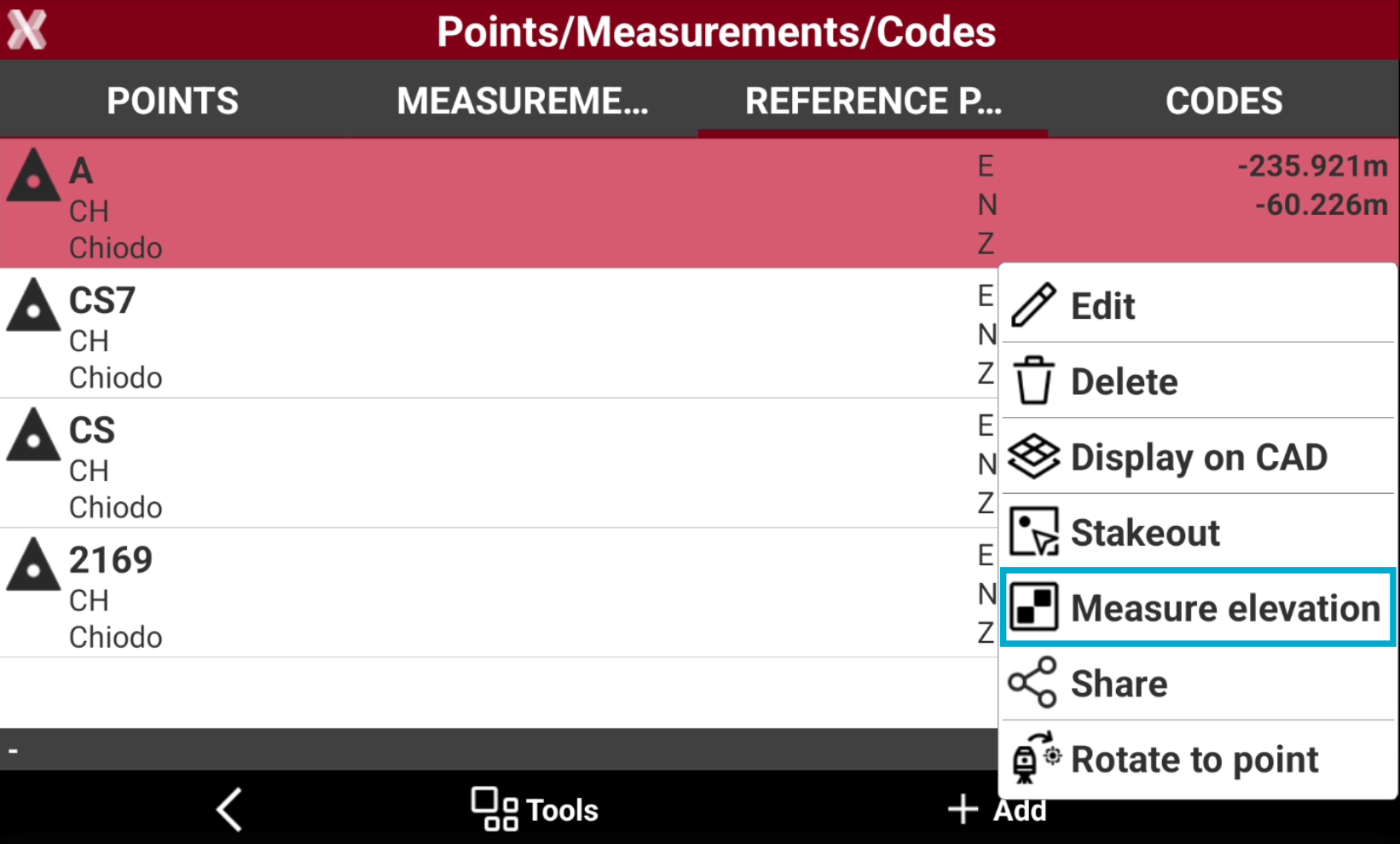
If a reference point has not the elevation value, it is possible to update reference point elevation with a new measurement using the current total station profile.
-
From the Reference points tab select a point from the list to open the context menu and select Measure elevation.
-
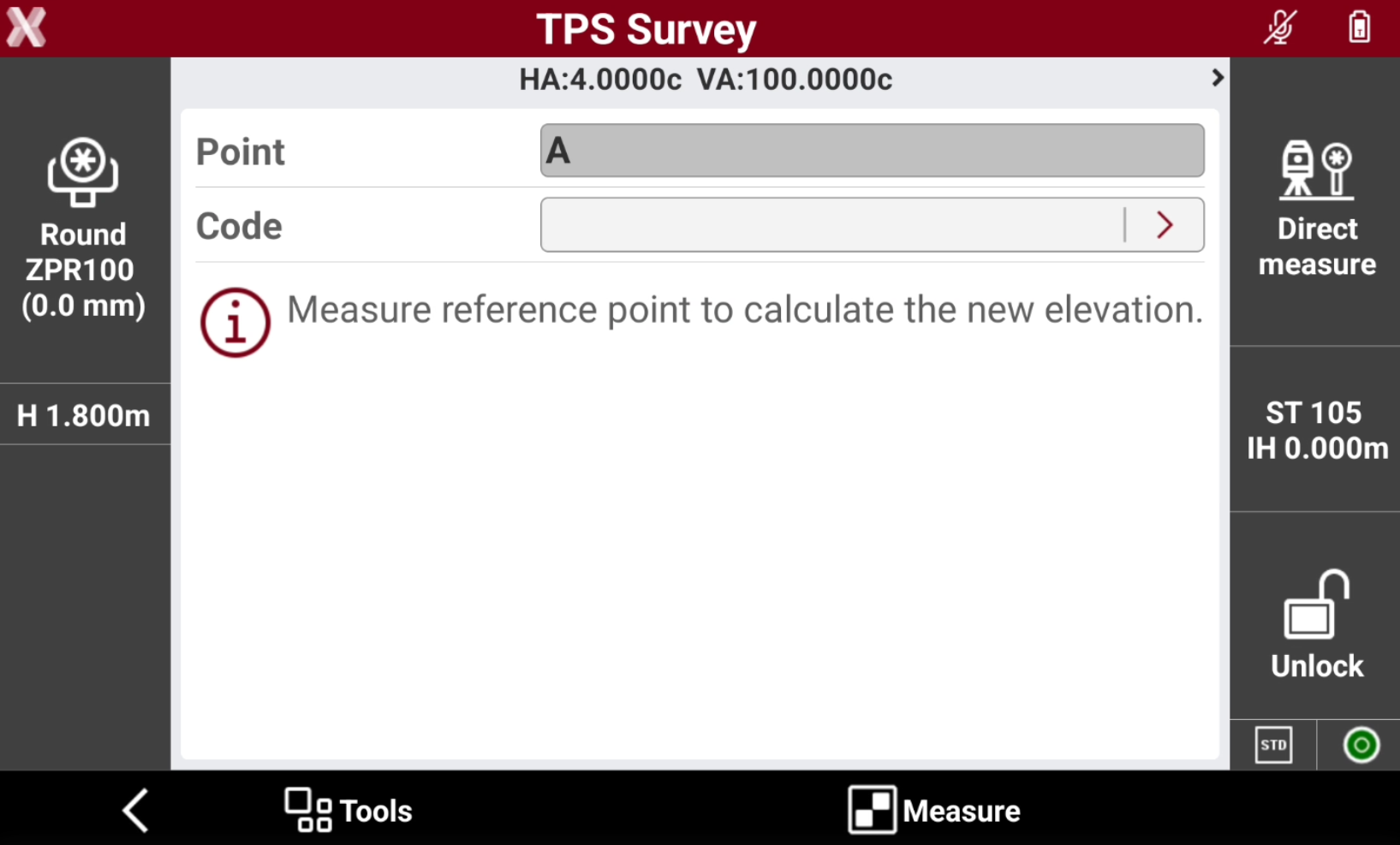
This open the measure page. Press Measure to measure the reference point to calculate the new elevation.