
Reference points from a reference job
-
When a job is created it is possible to select another job as Reference job.
-
All points in the Reference job are used automatically as Reference points in the created job.
-
During the job creation, select a different job as Reference job.
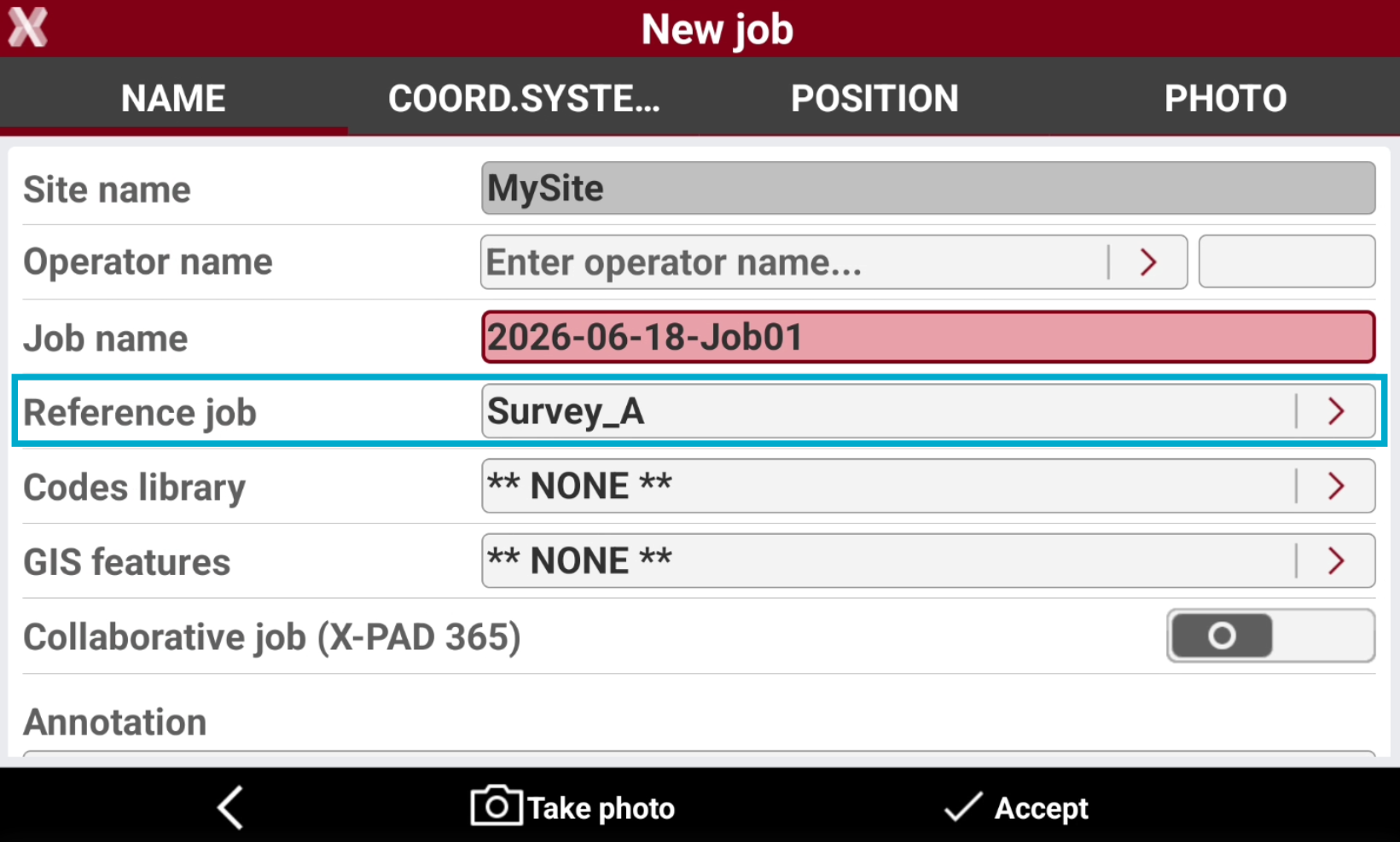
-
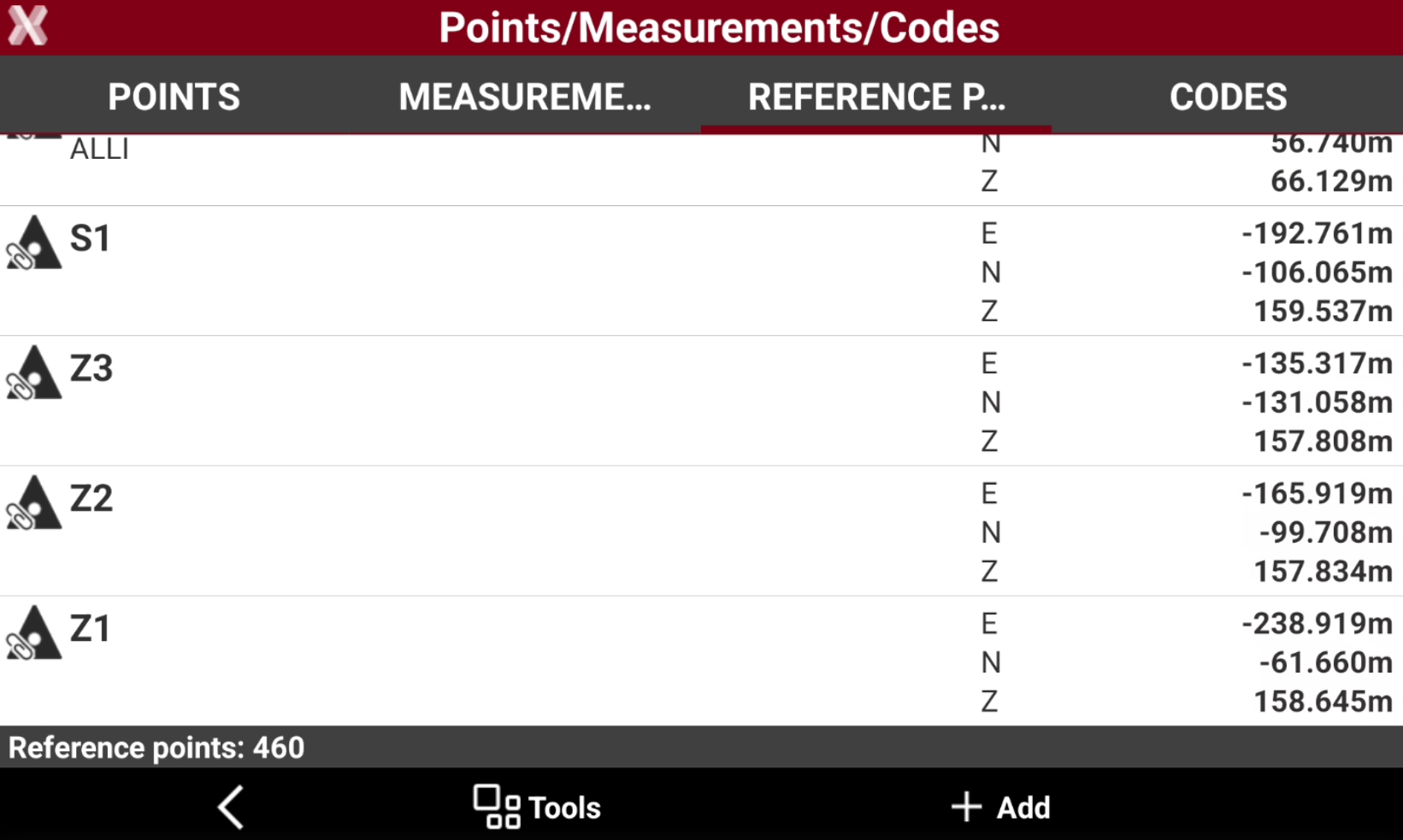
The points in the selected reference job are imported in the job Reference point list.
-
These points are identified by the icon

Import reference points from an external file
-
The Reference points list can be populated with points imported from external files.
-
When importing a file in some formats it is possible to select if import the data as Reference point. With this selected the imported points are loaded in the Reference points list.
-
This selection is available for example when importing an ASCII file and a GSI file.
Move points to reference point table
-
It is possible to transfer topographic points from the Reference points list to the Topographic points list.
-
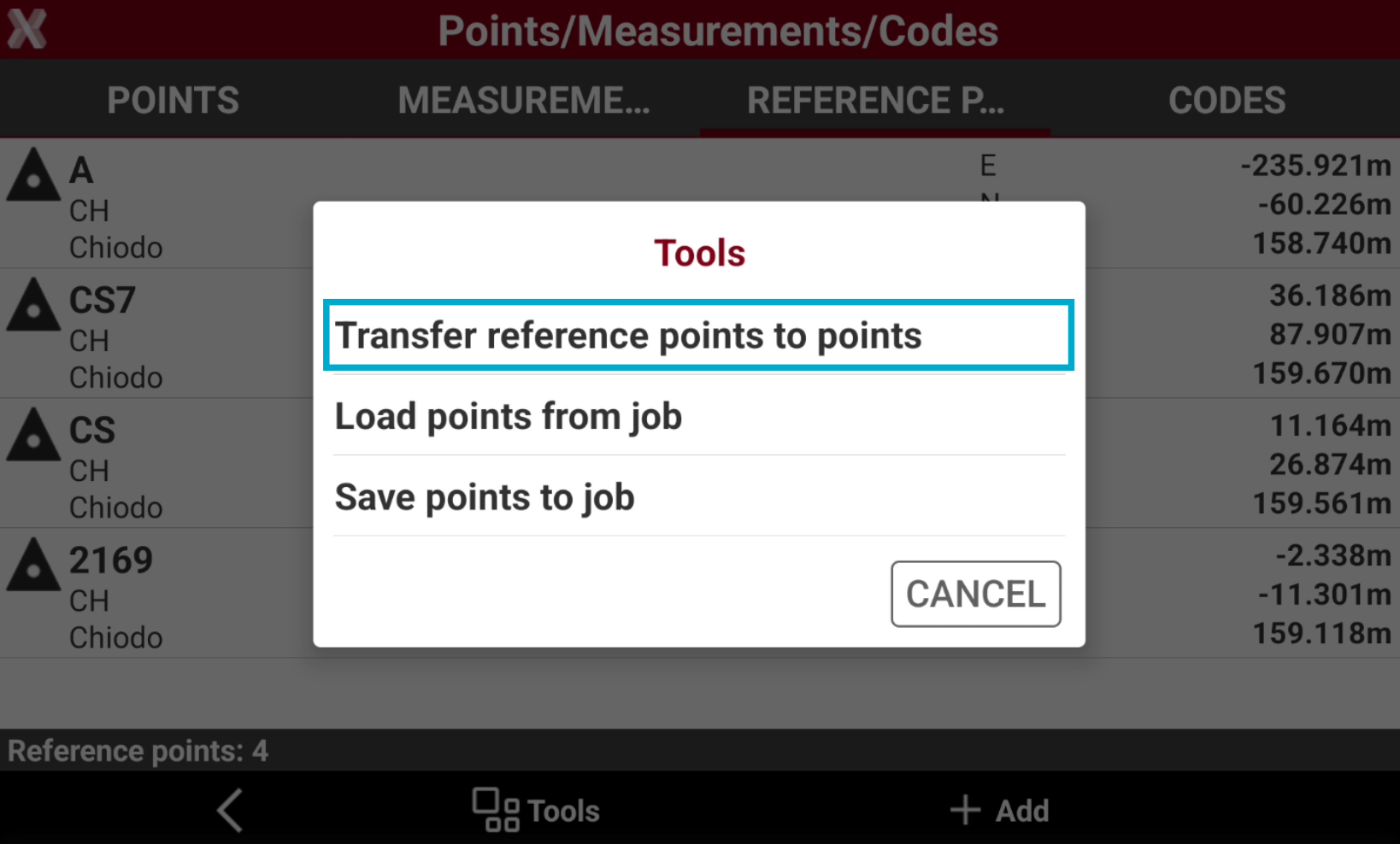
Press Tools and select Save/Load.
-
Select Transfer reference points topoints.
-
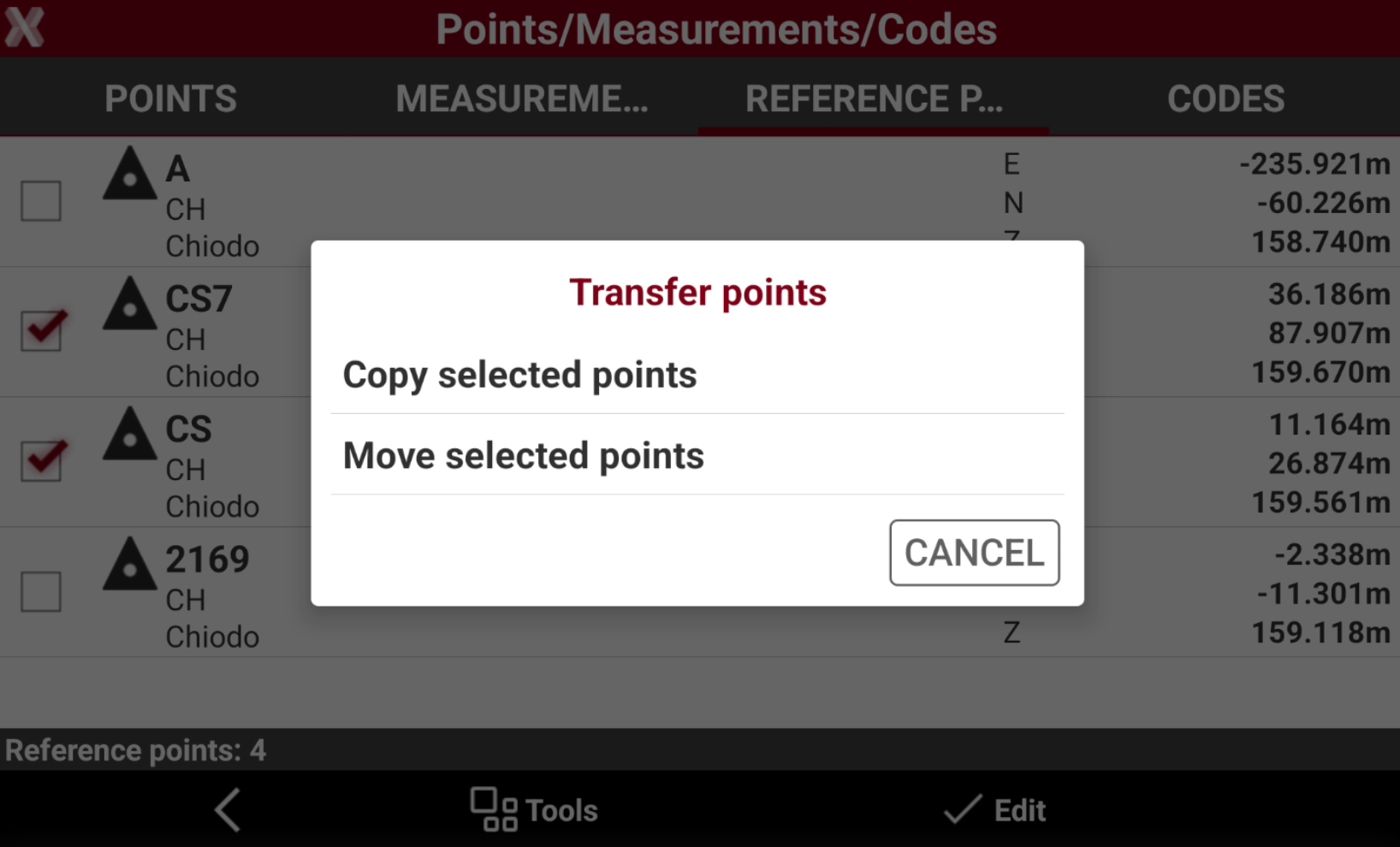
Check the points from the list, or select Tools to use Selection rules or select/deselect all the points.
-
Select Edit and confirm the transfer method.
-
Copy selected points: the selected points are copied in the reference points list.
-
Move selected points: the selected points are moved in the reference points list. Selected points are deleted from the points list.
-
-
The points are now available in the Topographic points table.
Import points from another job
-
This function imports reference points in the current job from a different job available in the controller even from a different job site.
-
From Tools select Save/Load.
-
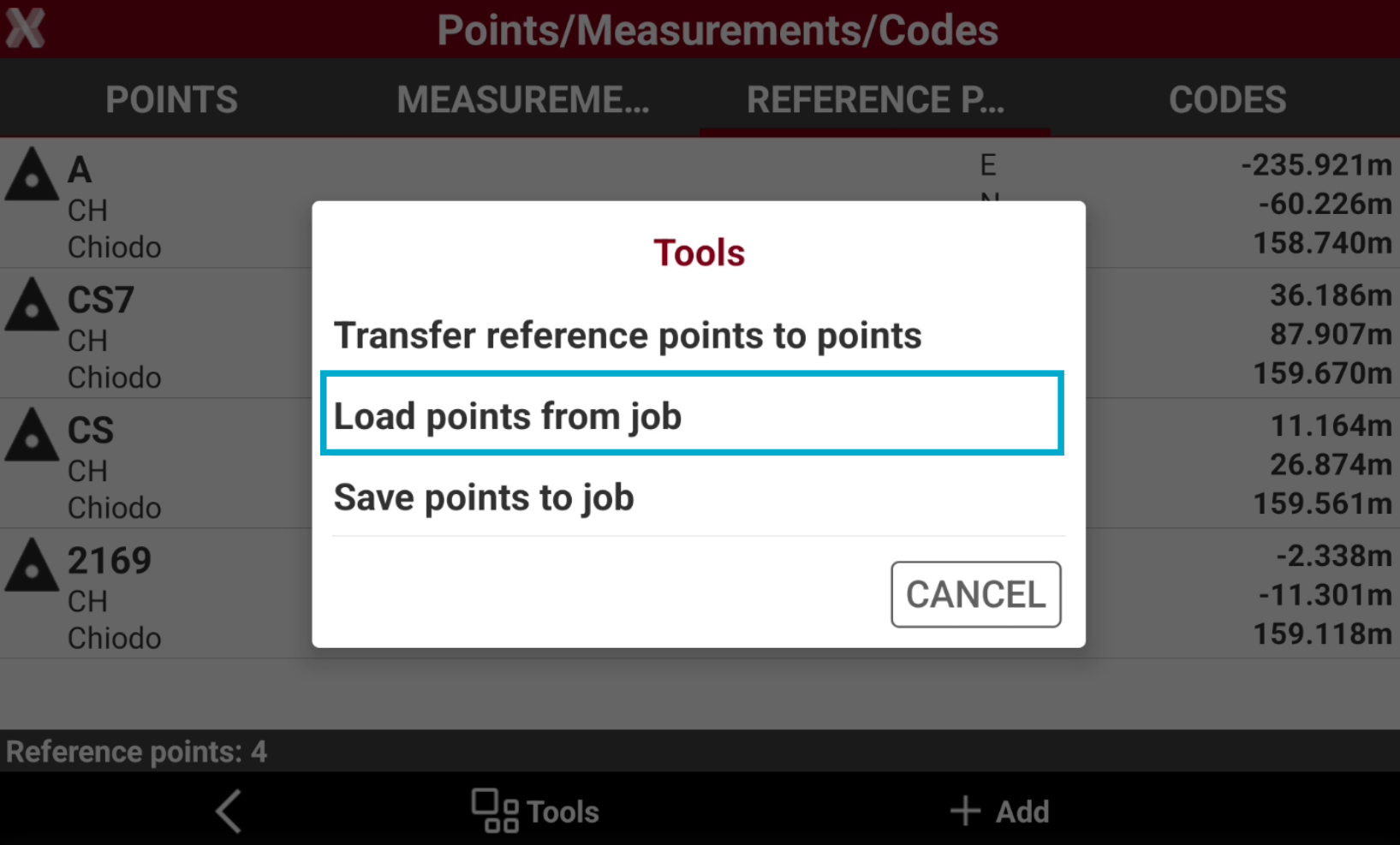
Select Load points from job.
-
Select the job from the list of available job.
-
Check the points from the list to import, or click Tools to use Selection rules or select/deselect all the points.
-
Click Accept to import the selected reference points in the current job.
Export points to another job
-
This function exports reference points from the current job to a different job available in the controller even from a different job site.
-
From Tools select Save/Load.
-
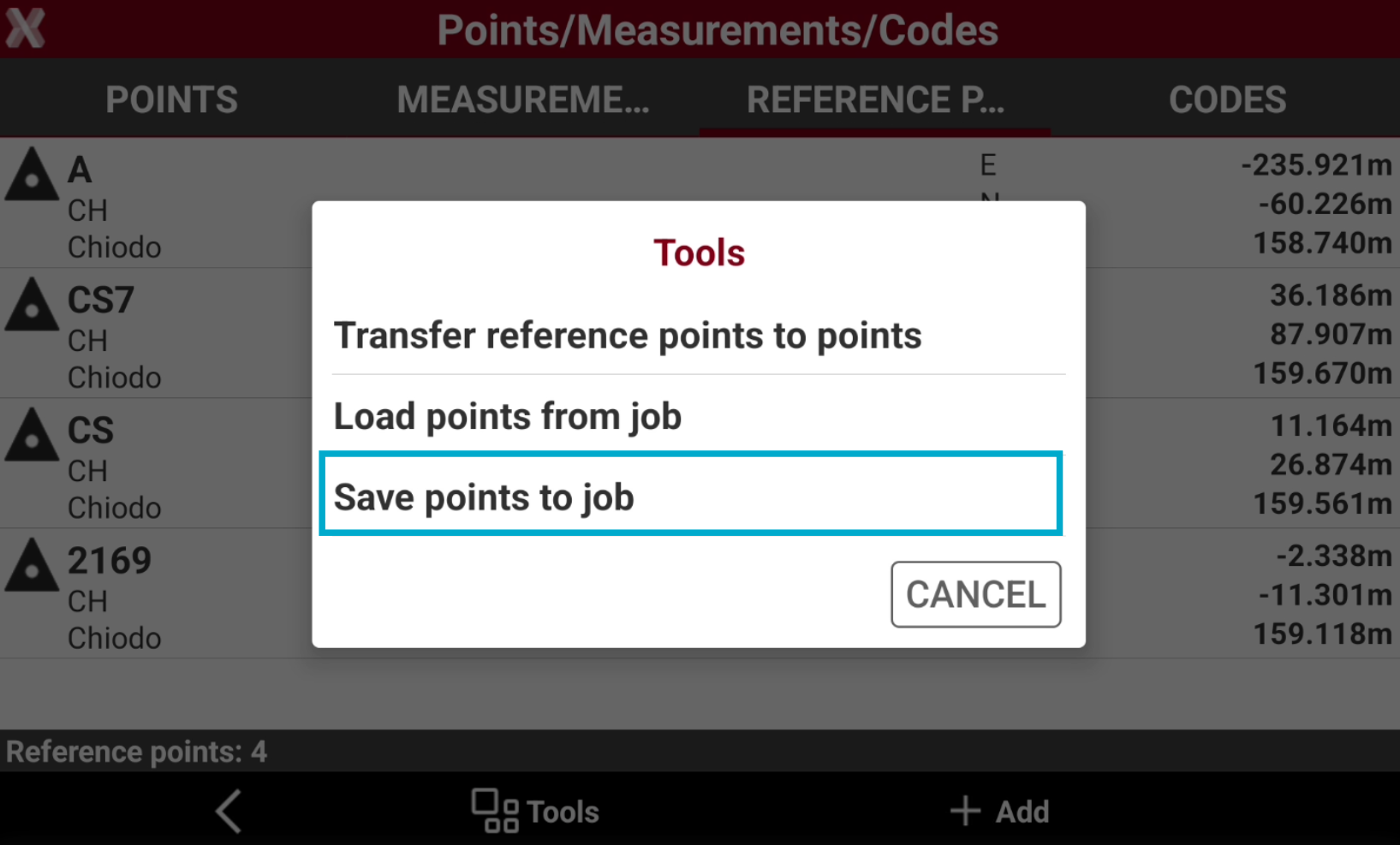
Select Save points to job.
-
Check the points from the list, or select Tools to use Selection rules or select/deselect all the points.
-
Select the job from the list of available job to export the points to the selected job.