
-
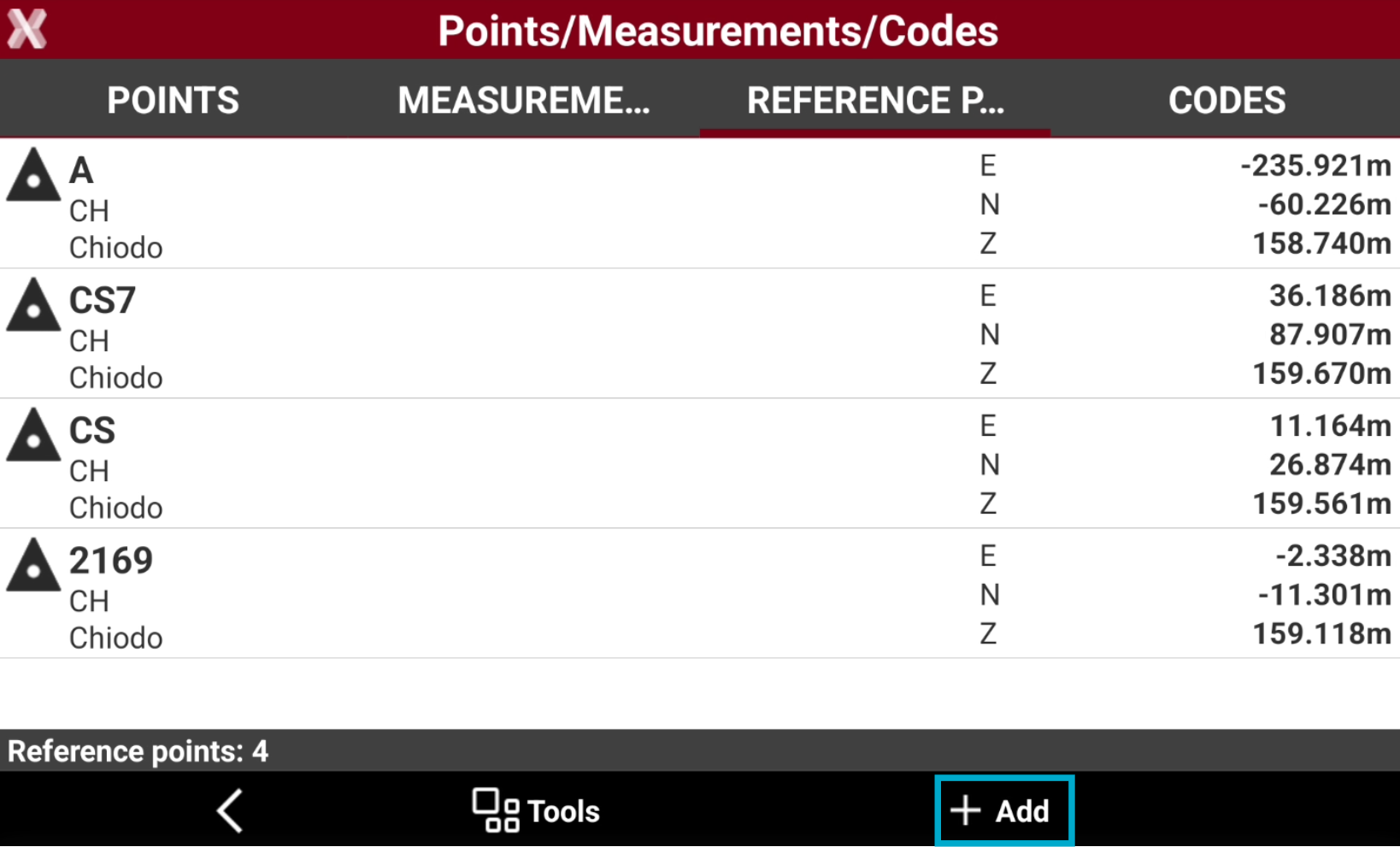
From the Reference points list it is possible to create manually a point selecting Add button.
-
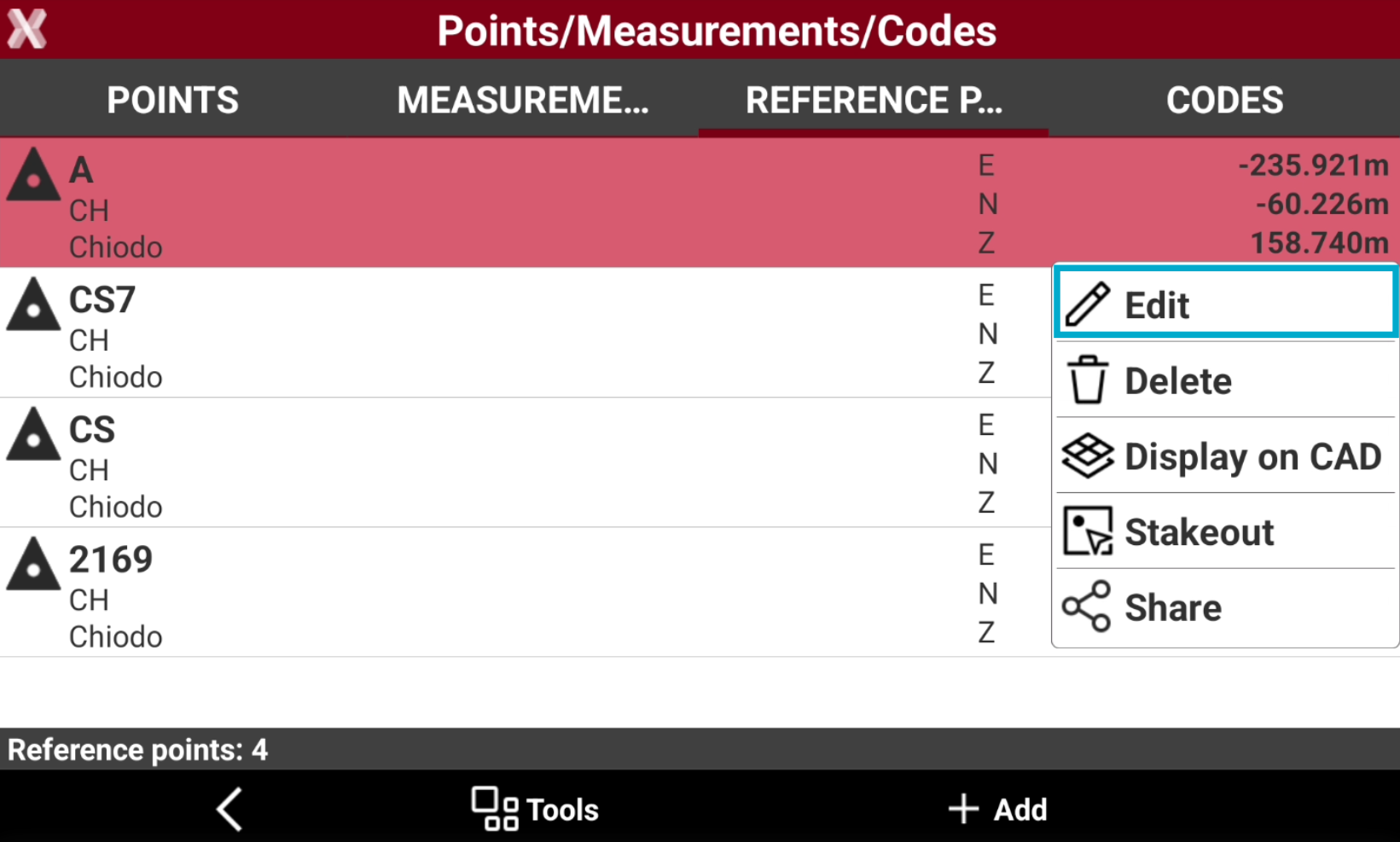
Or editing an existing point selecting Edit from the point context menu.
Coordinates page
-
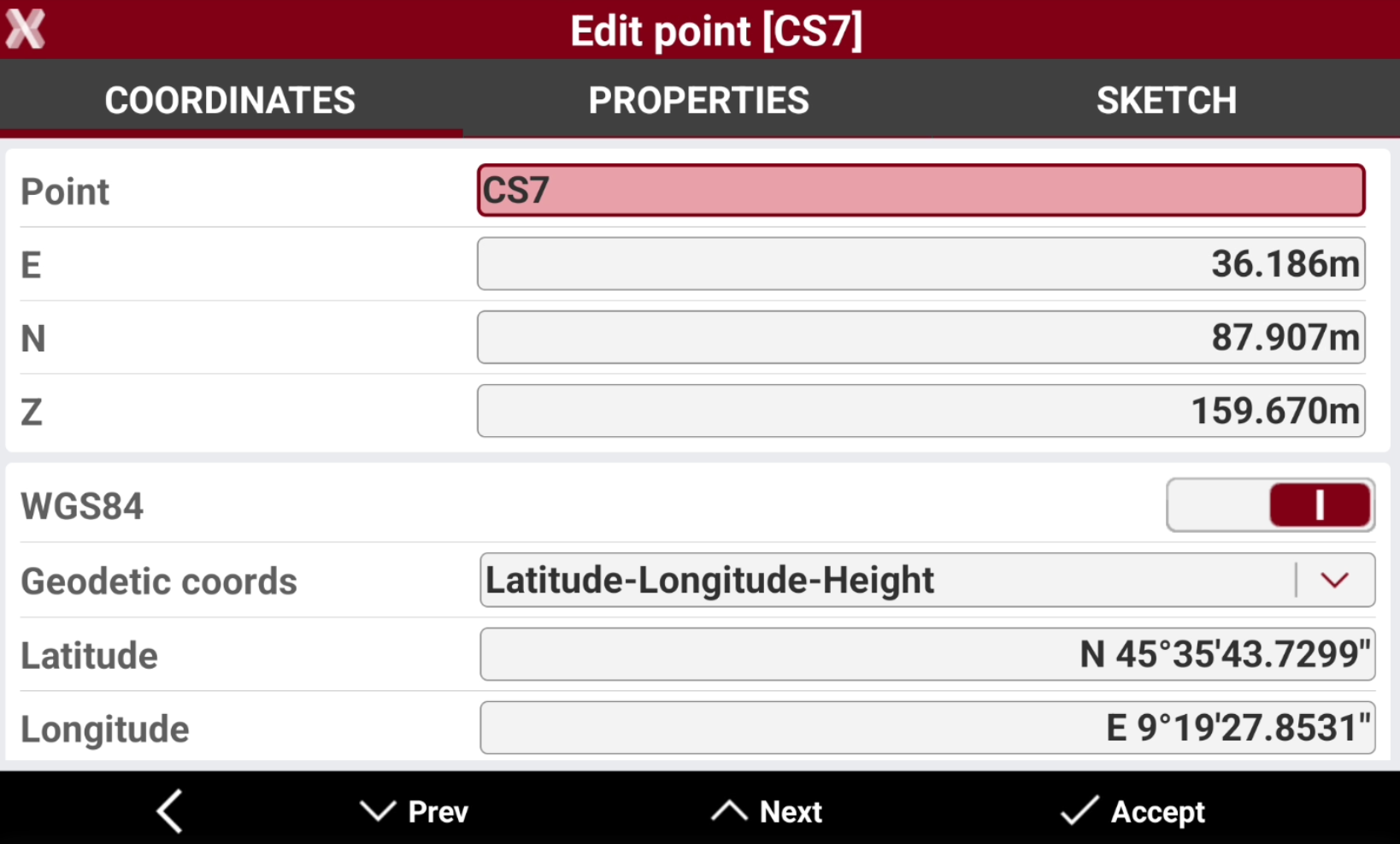
Coordinates page include coordinate information of the topographic point. A topographic point may have plane coordinates and WGS84 coordinates.
-
Point: name of the point.
-
E, N, Z: plane coordinates of the point.
-
WGS84: allows entering the geographic coordinates of the point. If a coordinate system is assigned, the WGS84 coordinate is calculated based on entered plane coordinates, and vive-versa.
-
Geodetic coords: allows to choose the input method for the WGS84 coordinate.
-
Latitude, longitude and height: the coordinate is entered from its latitude, longitude and height.
-
ECEF XYZ: the coordinate is entered from its earth centered coordinate.
-
-
-
Click

Properties page
-
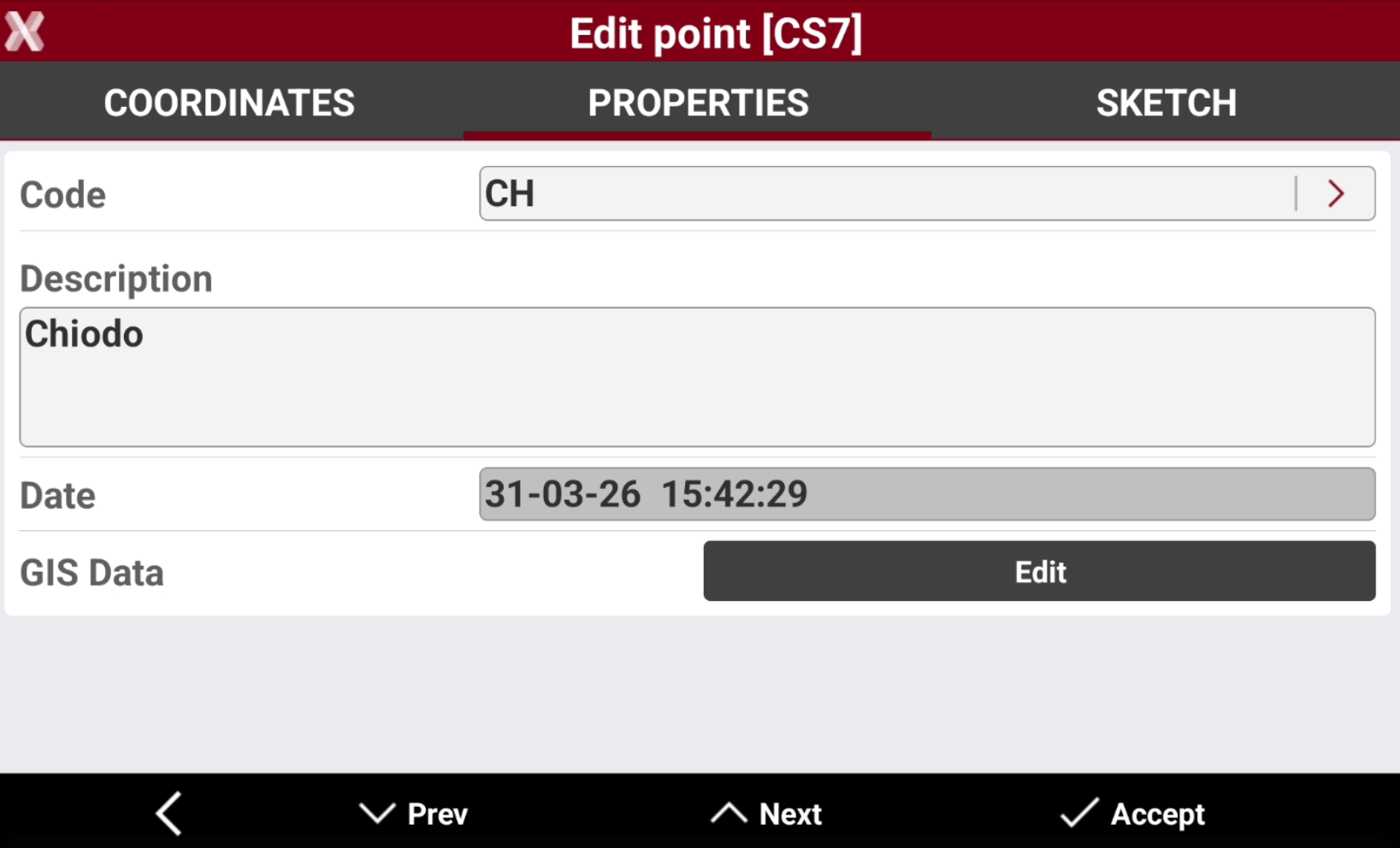
Properties page allows to enter the point properties, as code, description and GIS features.
-
Code: survey code of the point. The icon allows to access the codes library and to select a code from the list.
-
Description: extended description of the point.
-
Date: date and time of storing the point.
-
GIS Data: if the GIS module is activated and one or more codes with GIS information has been associated to the point, the Edit button can be used to insert and modify the corresponding GIS properties.
Sketch page
-
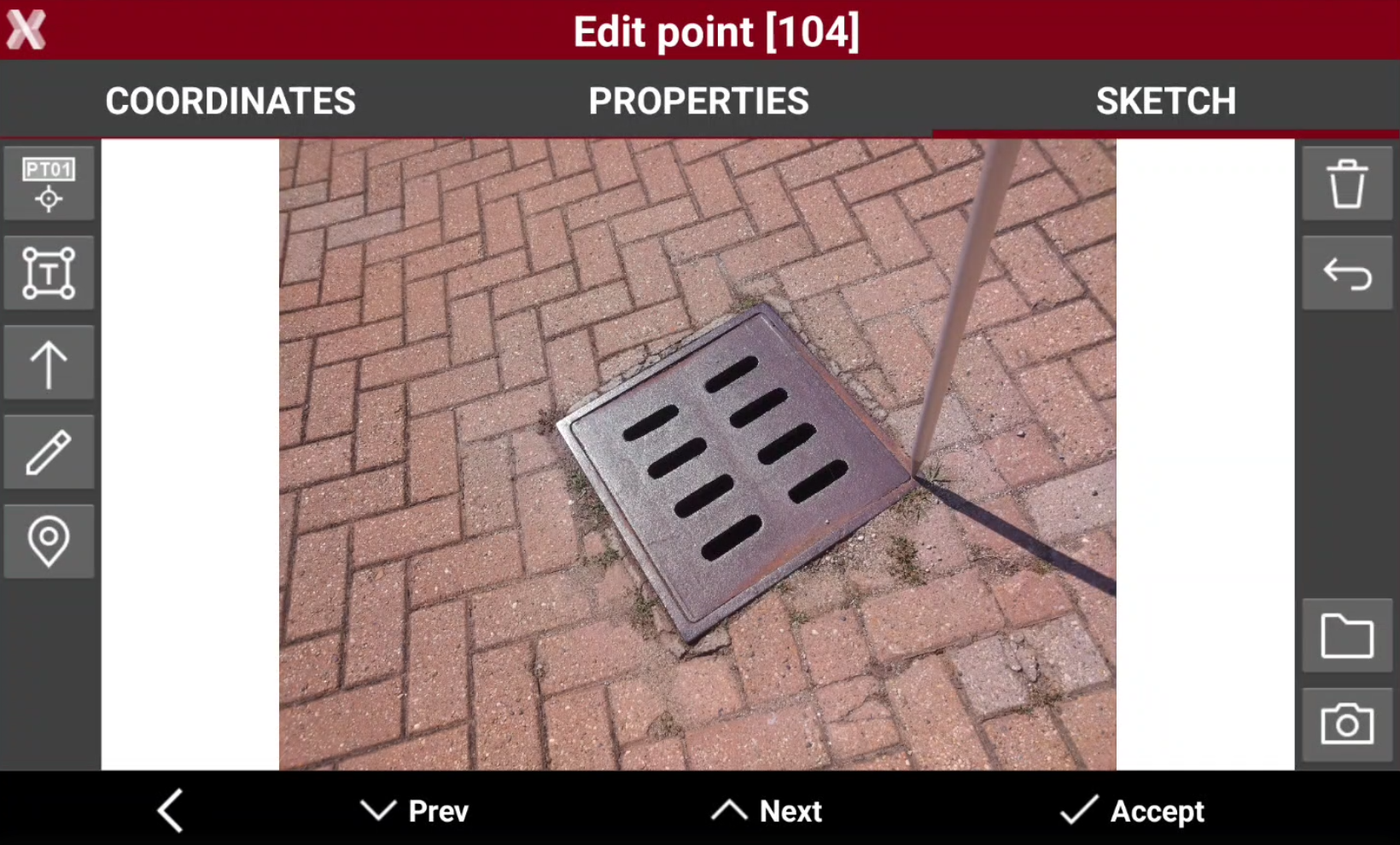
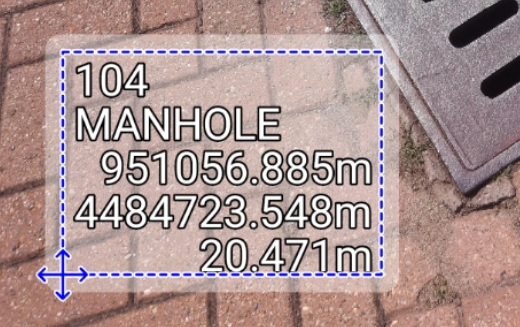
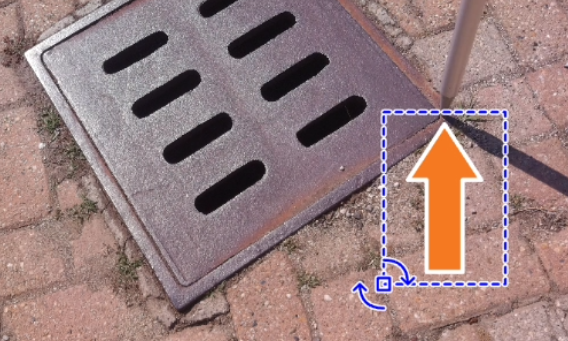
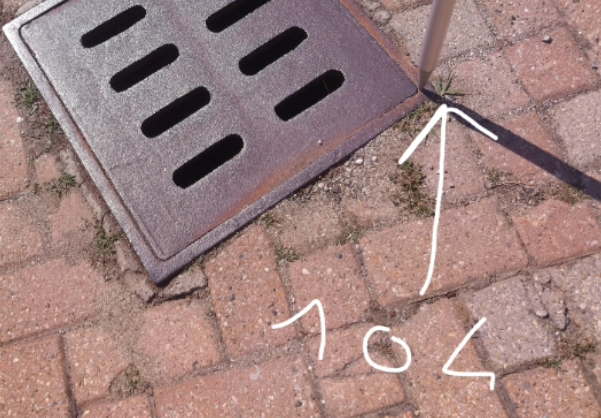
Sketch page allows to take a photo, load a photo or draw on the image to have a picture of the topographic point.
-


-

-


-

-

-

-

-
