
The information contained in this chapter covers the standard first steps for using the software. For detailed descriptions of all features, advanced workflows, configuration options, and reference information, refer to the complete User Manual. The full manual provides comprehensive documentation for all functions and capabilities available in the software.
-
This page explains the basic steps on how survey points and lines using a GNSS receiver.
To visualize in CAD the measured points and lines, a GNSS localization has to be defined. If a localization is not defined, when the first point is measured, X-PAD asks to create a single point localization based on measured point.
-
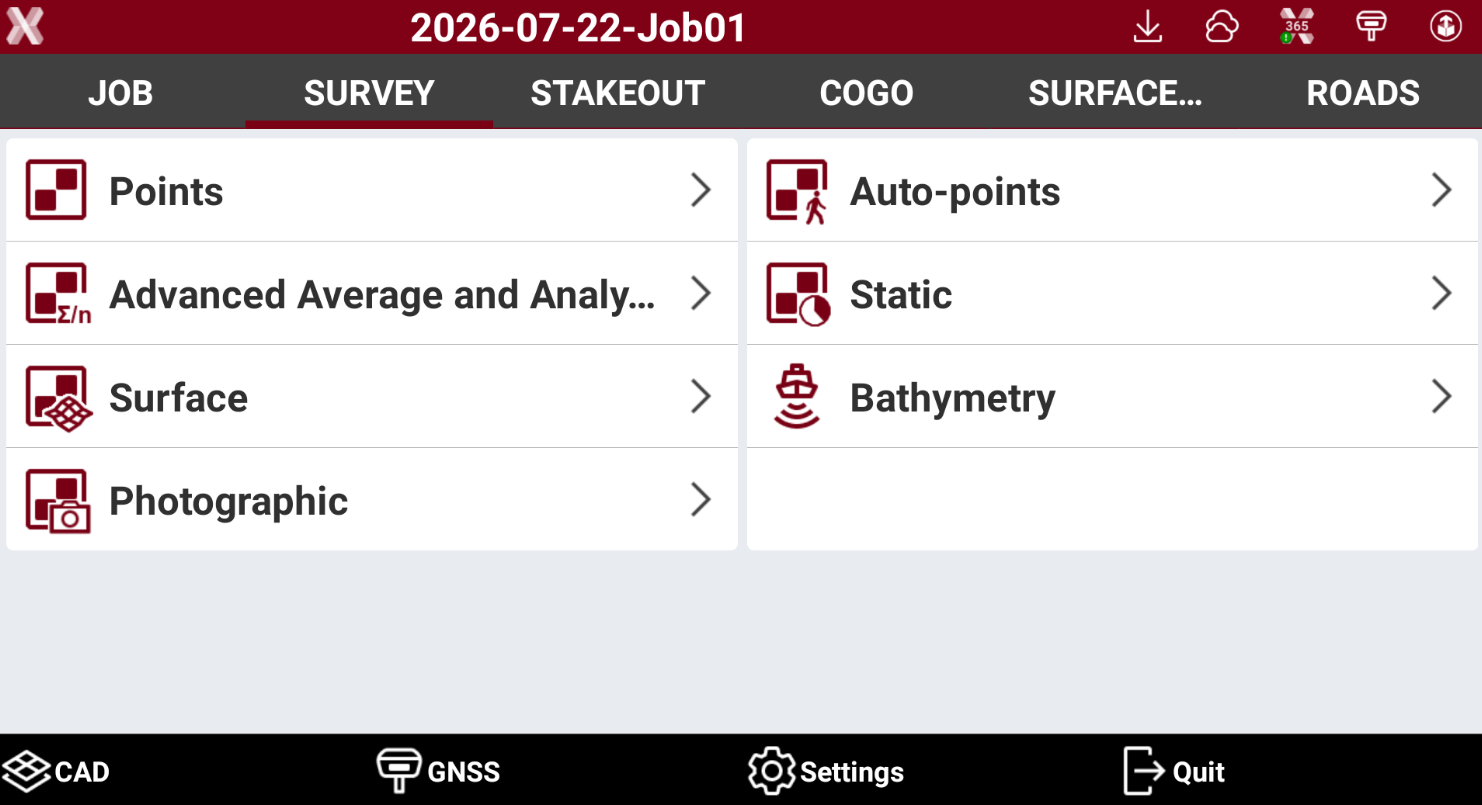
The survey functionalities are listed in the Survey page.
-
The main application to survey points as lines is Points. Press Points to open the function.
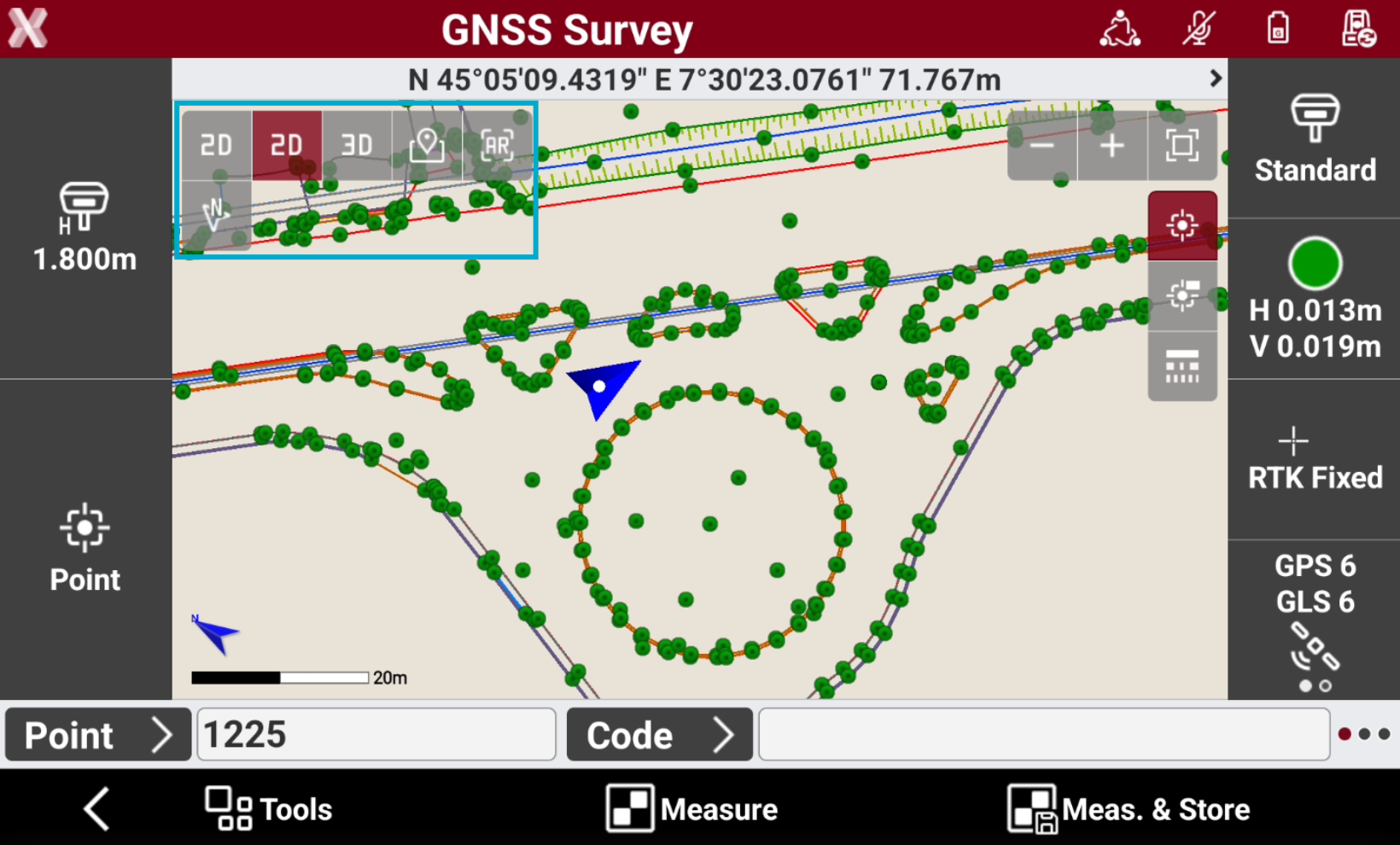
GNSS Survey interface
-
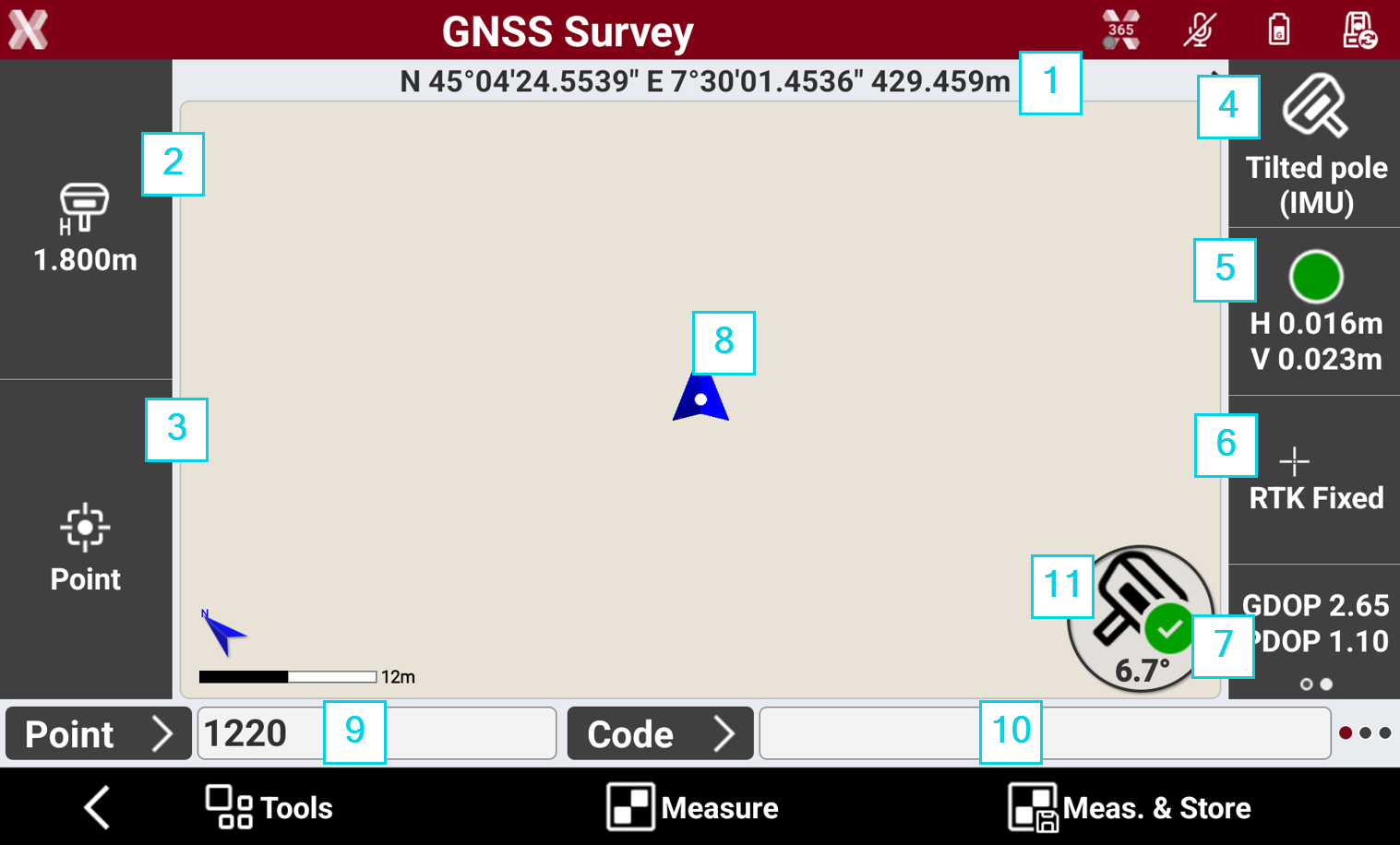
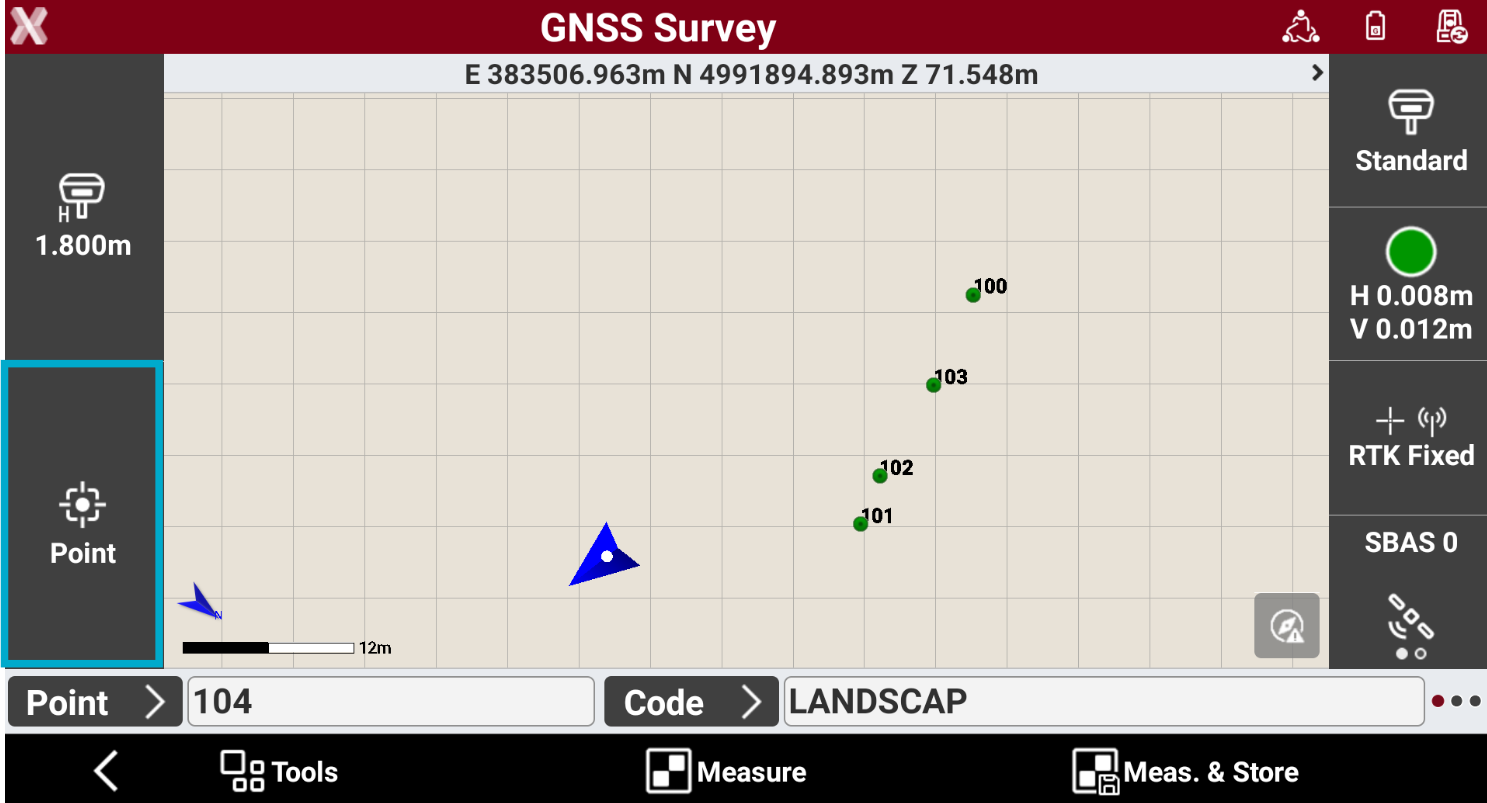
The Survey points interface is explained below.
-
Coordinates: the geographic coordinates (latitude, longitude, elevation) of the receiver. Tap on the bar to change the visualization from geographic coordinates to plane coordinate and to distance and slope from the previous visualization mode.
-
Antenna height: height of the GNSS receiver. Press to change the height.
-
Smart drawing: displays the current status of the function Smart Drawing. Press to open open Smart Drawing Tools.
-
GNSS Measure mode: opens to select the GNSS measure mode. This allows to measure points using different methods, for example to measure hidden points.
-
Accuracy: the color of the icons indicates if the precision level set in the GNSS Settings has been reached. The epochs are acquired only when the level of precision has been reached (horizontal and vertical precision, minimum number of satellites, maximum values of DOP, electronic bubble). Below the icon, the current precision values for coordinates (H) and for elevations (V) are displayed.
-
Receiver status: opens the GNSS Status page to show the status information of the GNSS receiver.
-
Satellite/DOP: shows the number of satellites tracked, for constellations GPS, GLONASS, BeiDou, SBAS. Press to display the DOP values.
-
Current position: indicates the current position.
-
Blue: All parameters of operation satisfy the preset level of accuracy.
-
Red: The accuracy parameters are not met.
-
-
Point ID: visualizes the ID of the next point measured, tap in the field to enter a new point ID. The ID follows the rule set in Points name page in GNSS Settings. Press Point button to open the Topographic points list.
-
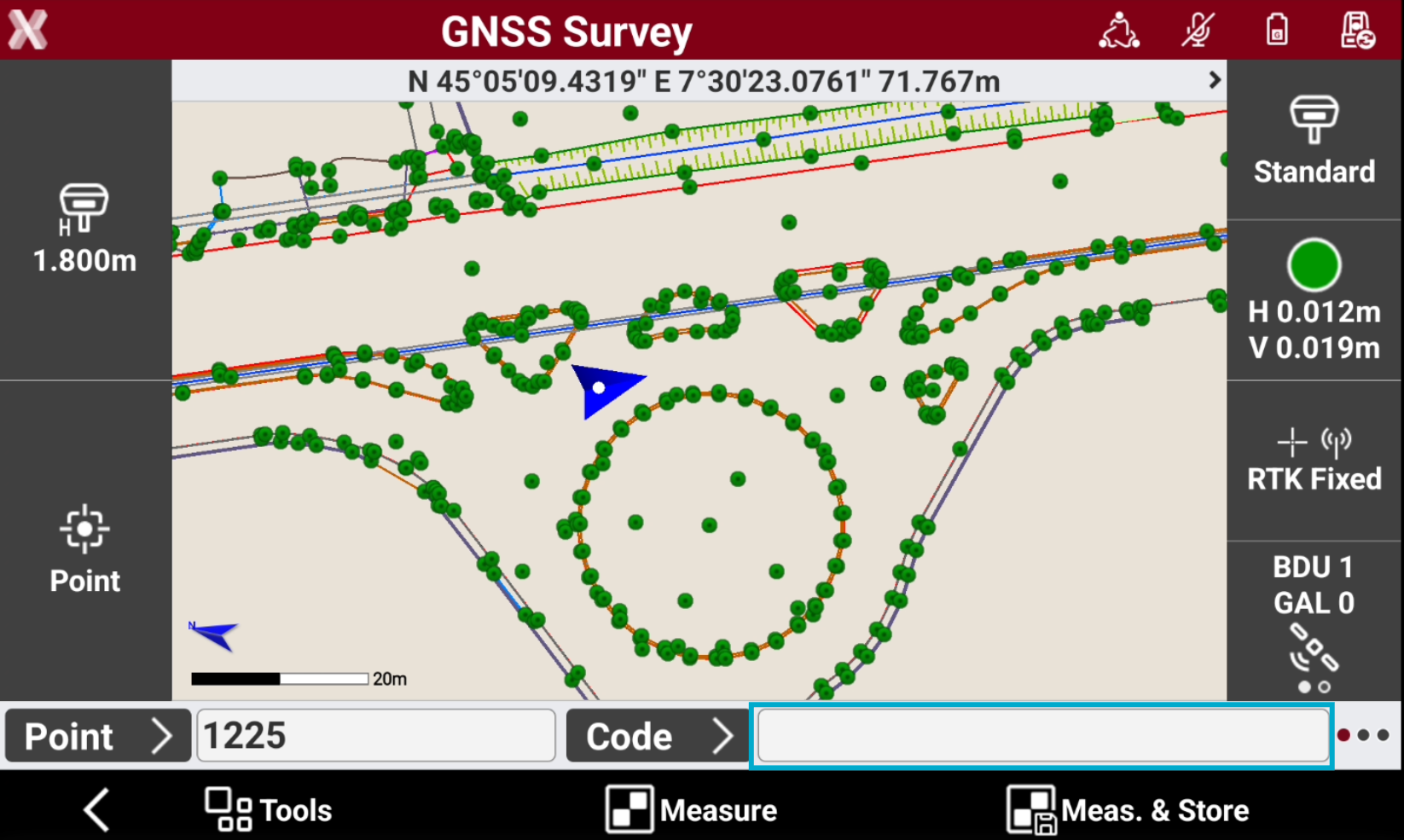
Code: visualizes the survey code, tap in the field to enter a new survey code. Press Code button to open the Survey codes list, or change visualization to Quick codes toolbar.
-
Pole mode: available if the GNSS receiver has IMU. Selects the pole working mode.
-
Pole vertical: the pole tilt is not compensated.
-
Tilted pole: the pole tilt is compensated. The icon shows the current pole tilt angle.
-
E-bubble: activates the e-bubble using the sensors of the GNSS receiver. The pole tilt is not compensated but visualizes on screen the pole bubble.
-
Measure points
-
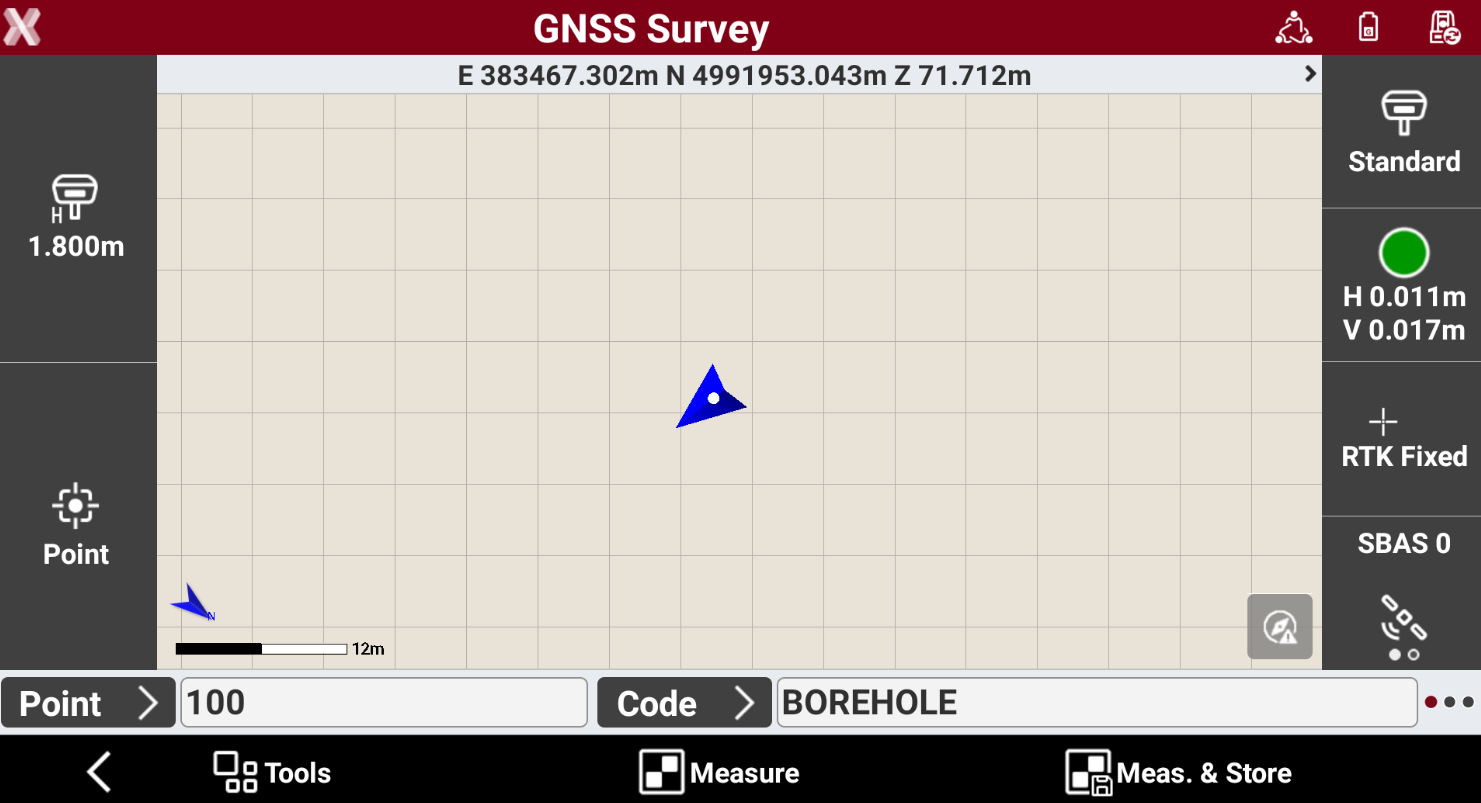
If the GNSS receiver accuracy is in tolerance (the precision set in the GNSS Settings has been reached) and estimated GNSS error is within our requirements it is possible to measure the points.
-
Verify that pole height is correct, otherwise press the antenna height icon to change the pole height.
-
Press Measure & Store to quickly measure and record the result in the job.
-
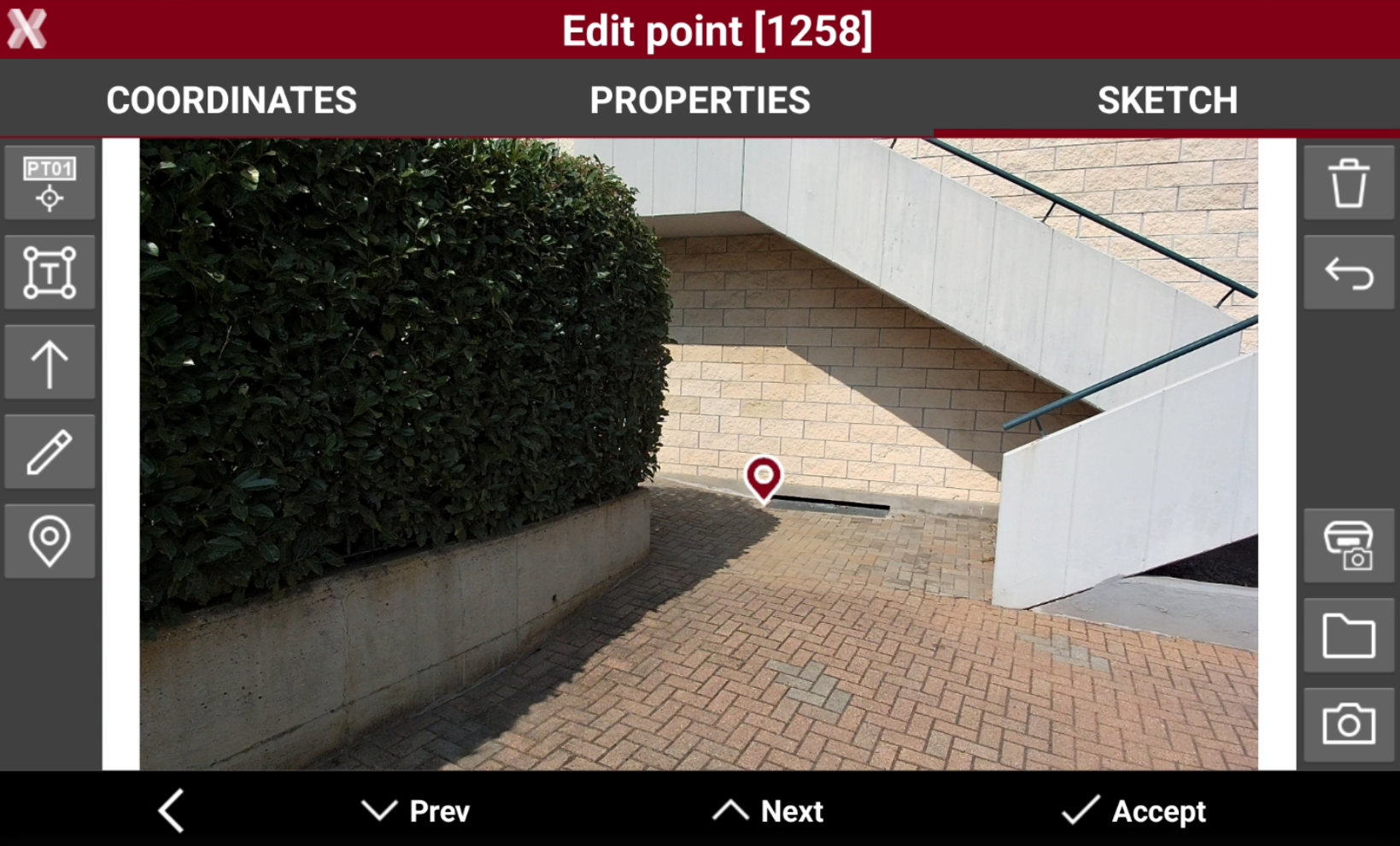
Press Measure to measure the point and review the result, with the possibility to include additional information and a photo.
-
The point is measured with the ID defined in Point field and the survey code defined in Code field.
Working with survey codes
-
When performing a survey, it is common practice to assign survey codes to measured points.
-
Survey codes help organize survey data and allow entities to be automatically classified and exported to the correct layers.
-
There are different ways to assign survey codes to a topographic point:
-
Manual insertion of code: type code directly in the field Code.
-
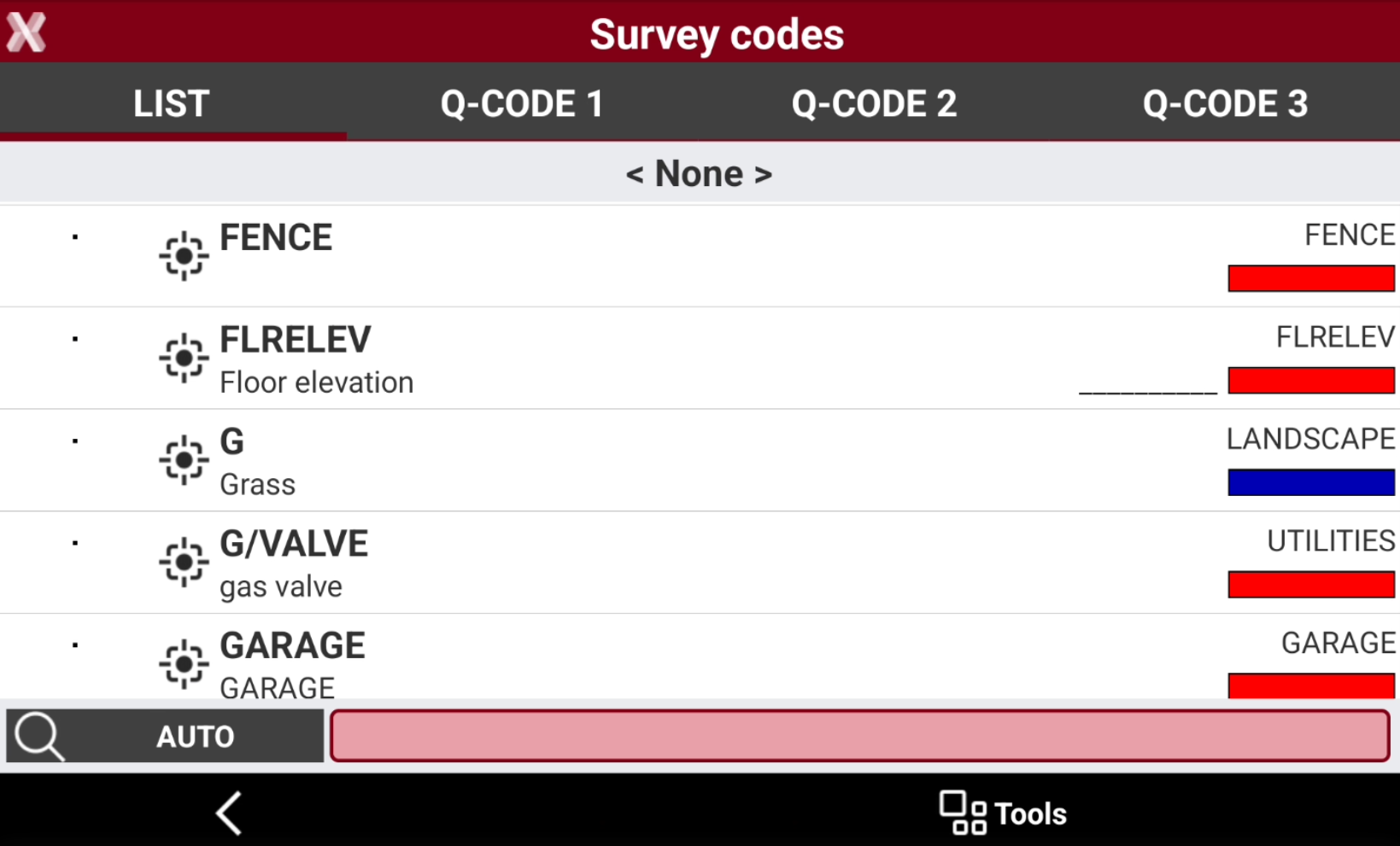
Selection from a table of codes: press Code button to open the codes list. This opens the Survey codes list. On the List page, the survey codes are displayed. Search and select a code from the list.
-
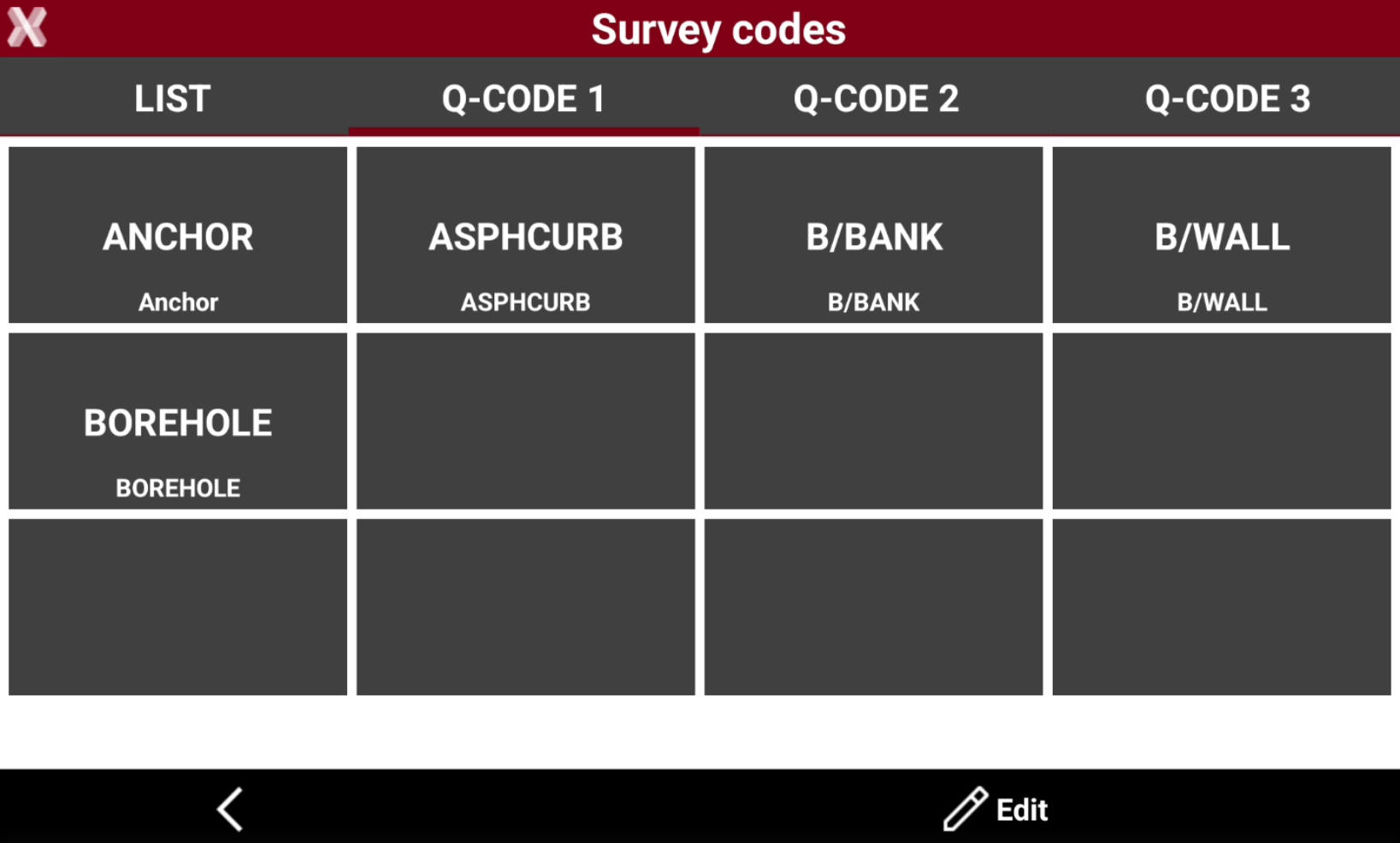
Using quick codes table: Press Code to open the codes list. On the Q-Code 1, Q-Code 2, Q-Code 3 page it is possible to customize and quickly select the defined favourite codes.
-
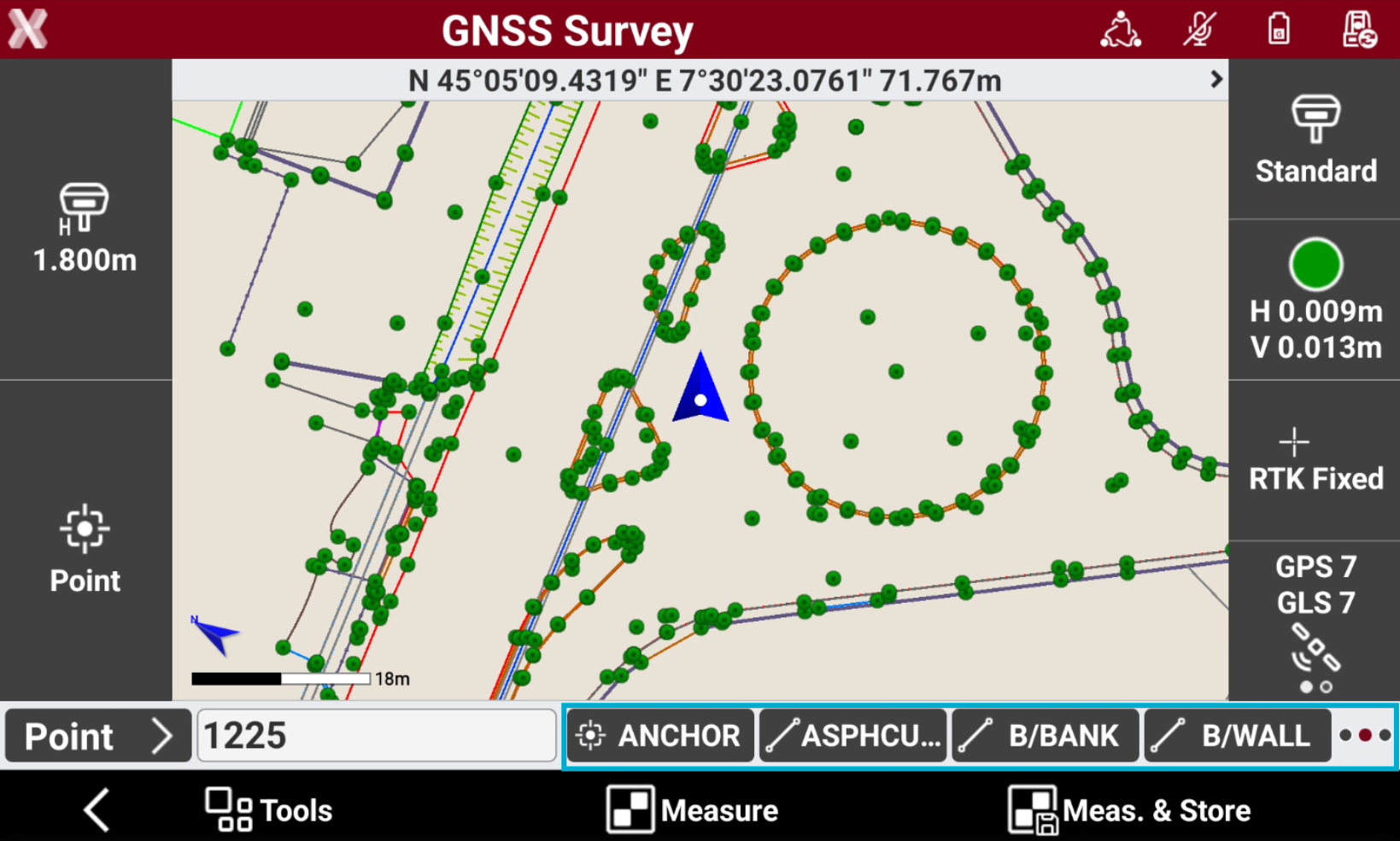
Using quick codes toolbar: scroll the code bar to the left. The toolbar shows the quick codes. Press Setting button to customize the codes to display in the toolbar.
-
Drawing during the survey
-
X-PAD has powerful and intuitive tools to draw during the survey, called Smart Drawing Tools.
-
These tools helps to create the final drawing directly in the field.
Combine Smart Drawing tools with Survey codes and layers to have the final drawing on the final layers completed in the field.
A more advanced method to survey lines called Advanced linework is also available.
-
To start to draw press the Smart Drawing Tools button.
-
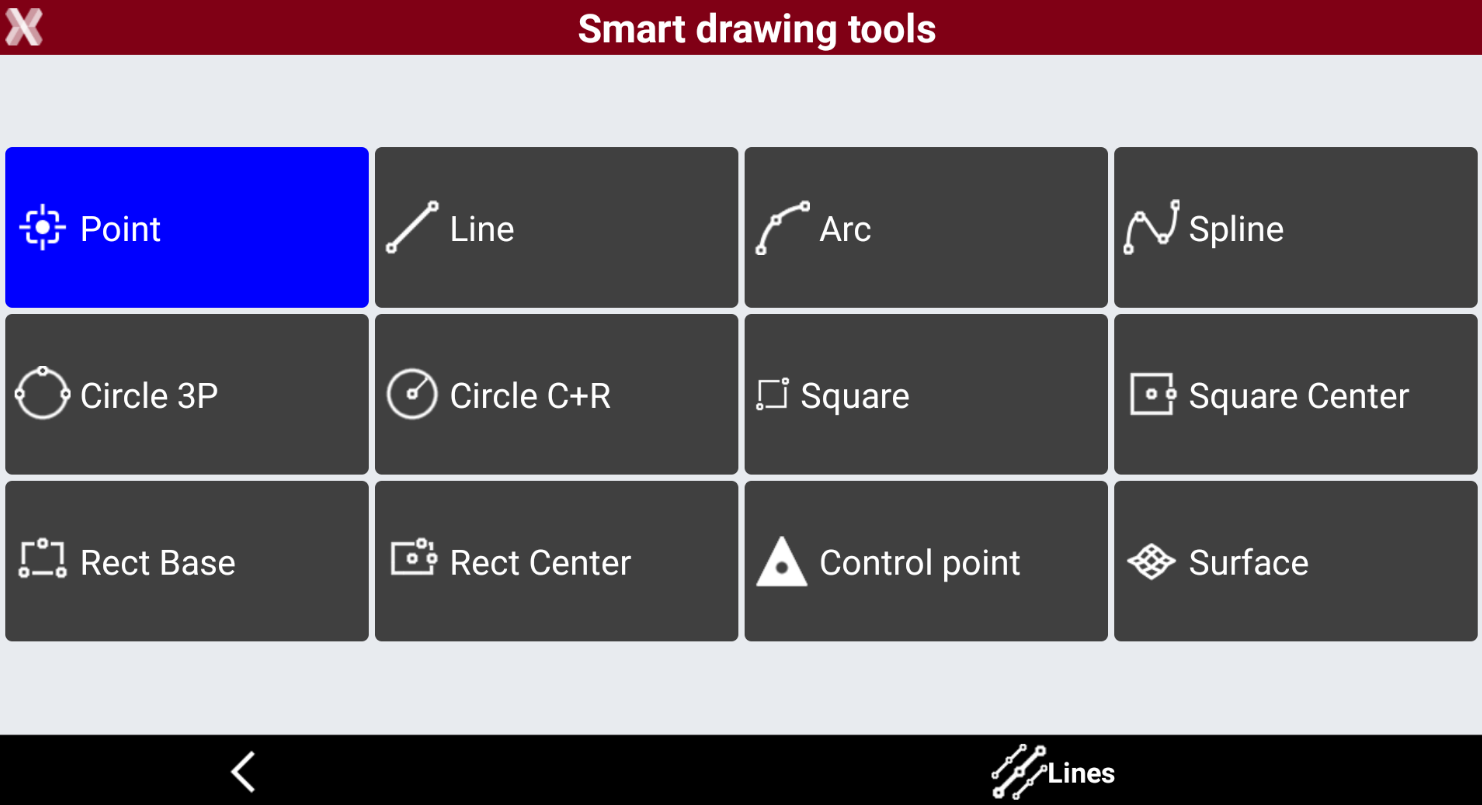
This opens the list of drawing elements to select.
-
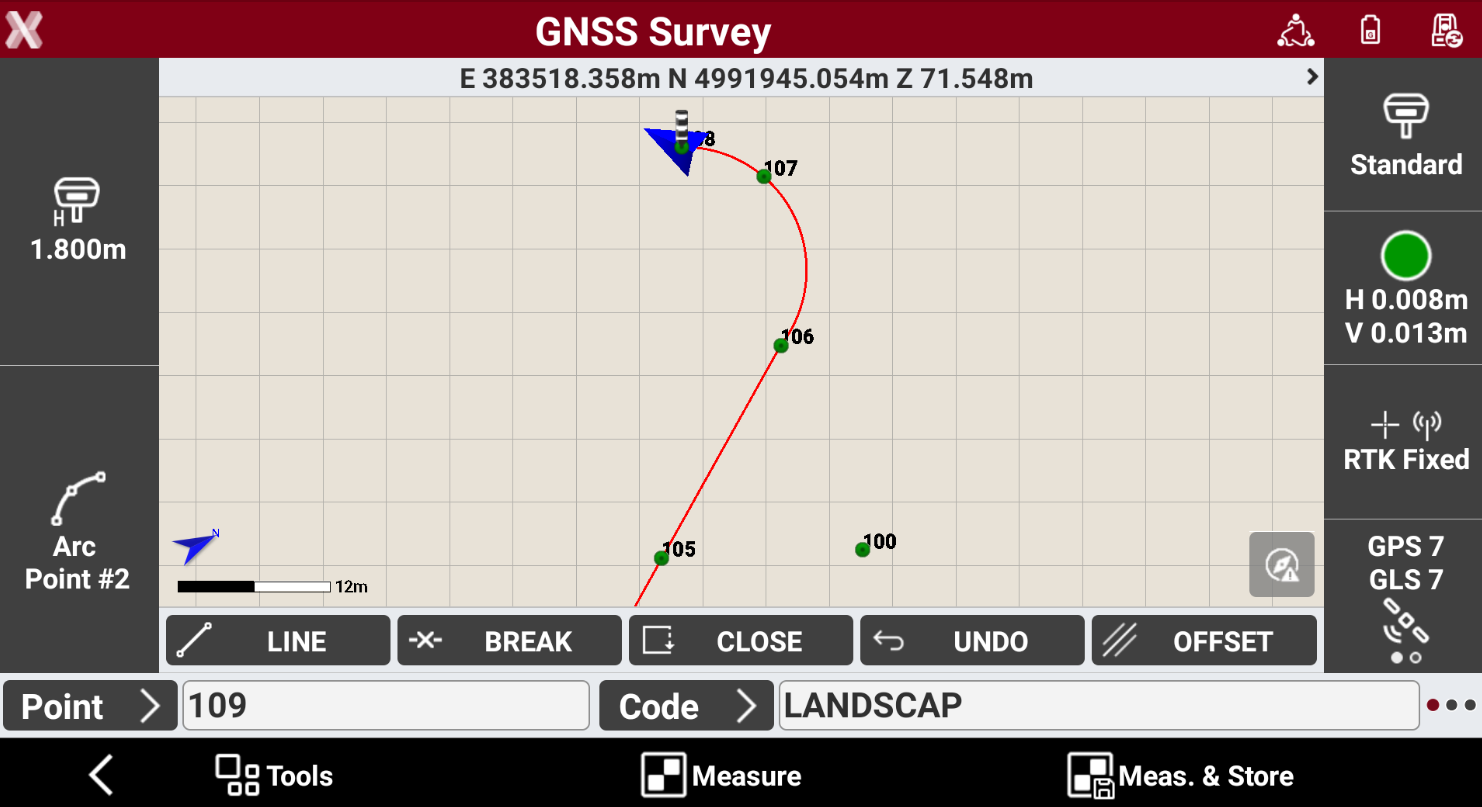
Select the desired drawing element to draw when measuring points.
-
When a tool is selected, the Smart Drawing Toolbar appears with a set of actions to manage the current drawing. For example to continue a line with an arc, or create offset lines.
Drawing display
-
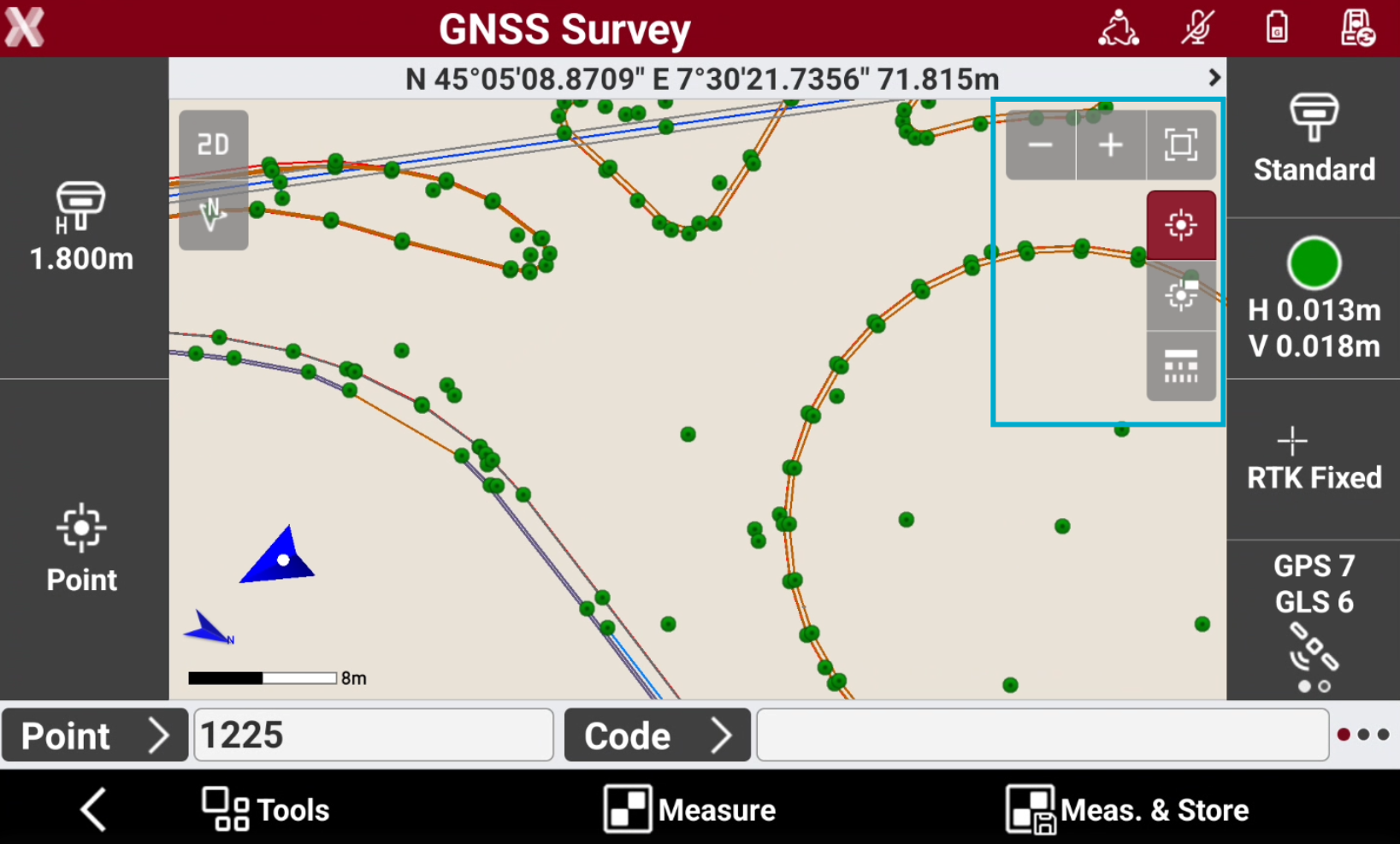
The commands to change the drawing display are available on top-right of CAD window.
-
Tap on the graphical windows of the drawing display. The buttons and commands for displaying the drawing are activated.
-
Zoom all

-
Zoom window

-
Zoom in

-
Zoom out

-
Points

-
Points labels

-
Linetype

-
Working area

-
Controller not calibrated

-
Display mode
-
Tap on screen to open the toolbar and change the display mode.
-
2D

-
3D

-
Maps

-
Augmented reality

-
GPS direction

-
GPS north direction

-
Manual view

-
Operating in CAD
-
Pan: shifting of the view is always active. Tap in the graphic area and drag the view.
-
Pinch out : tap in the graphic area using two fingers and spread them on the screen.

-
Pinch in: tap in the graphic area using two fingers and merge them on the screen.

-
Double click: opens the main CAD.