The information contained in this chapter covers the standard first steps for using the software. For detailed descriptions of all features, advanced workflows, configuration options, and reference information, refer to the complete User Manual. The full manual provides comprehensive documentation for all functions and capabilities available in the software.
-
After a GNSS receiver rover profile has been created it is possible to start to work.
-
Check in Settings and GNSS & Total stations that the current instrument profile is for the rover in use.

-
Open the application we want to use. The rover starts automatically to get RTK corrections depending on the selected source.
-
If connection to the RTK source has been properly configured, the receiver should get RTK corrections and change its status to RTK Fixed, with a centimeter accuracy. It is not necessary to start the internet connection but corrections are automatically received.
GNSS Status
-
When working with GNSS receiver in the different software applications, the graphic user interface could change but on the right side are always visible the main GNSS information, providing the main GNSS receiver information, such as RTK status, accuracy and tracked satellites.
-
Tap on this bar to access additional GNSS information.
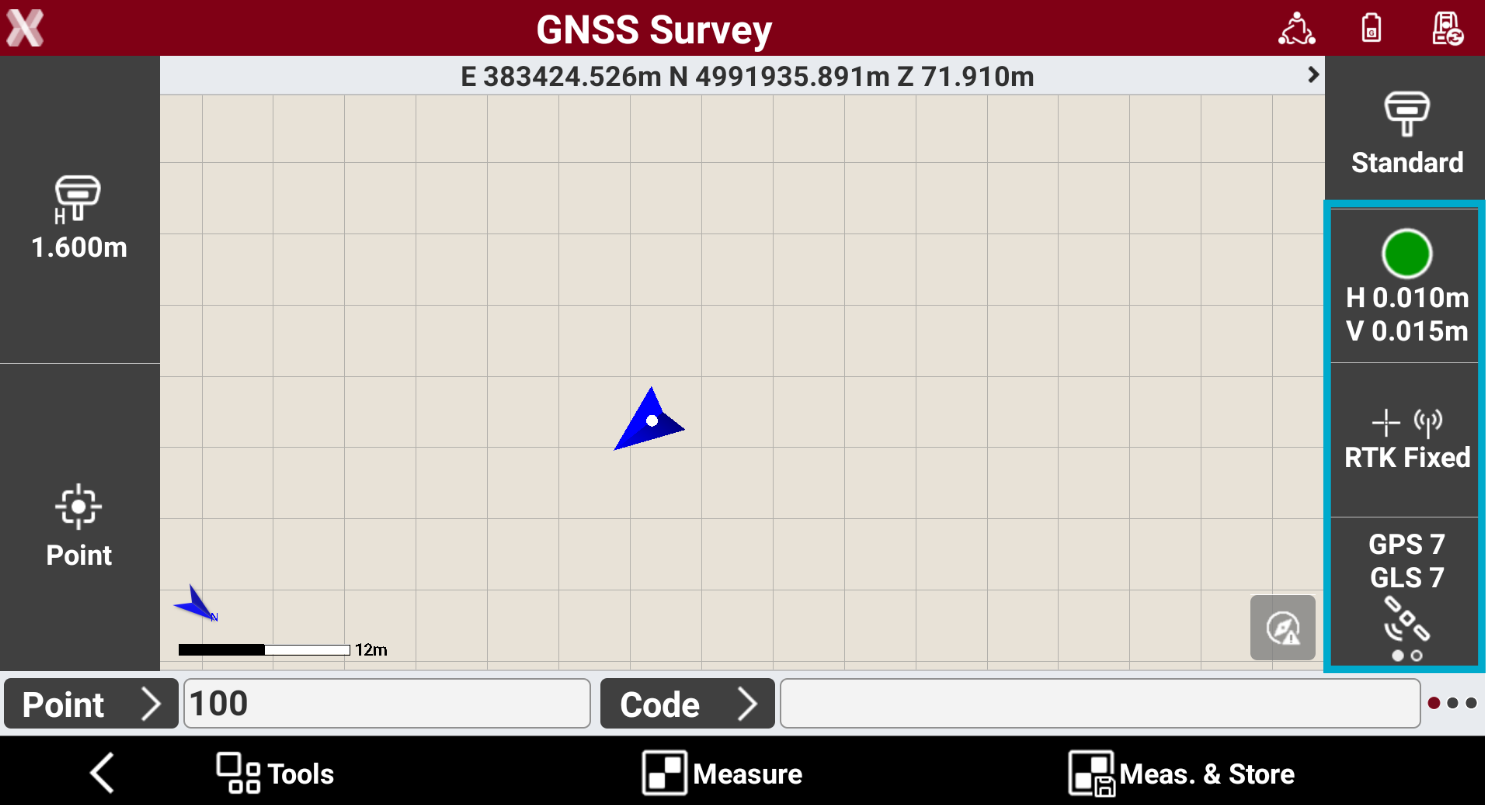
The GNSS Status page can also be opened from main X-PAD page pressing GNSS button.
-
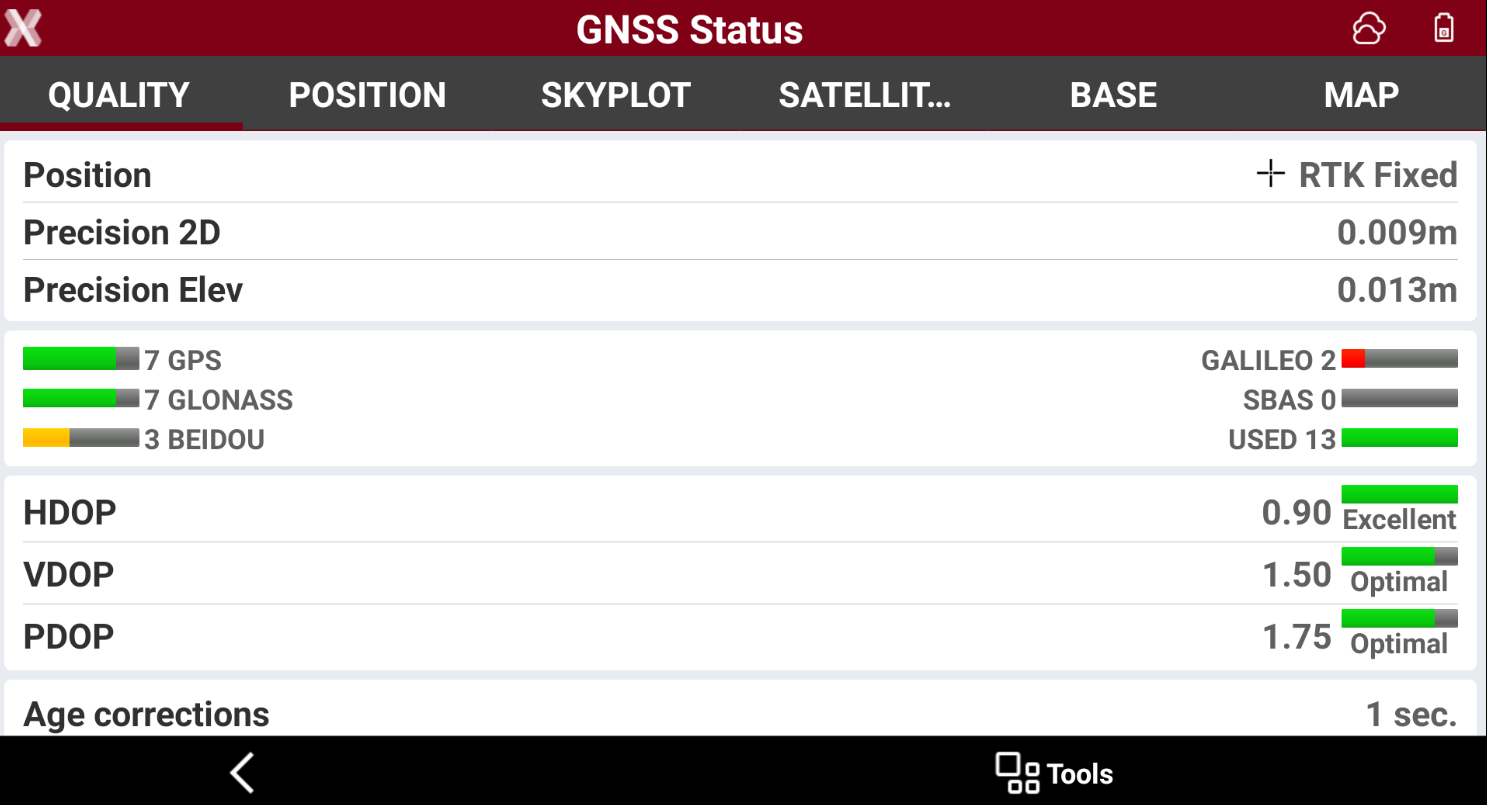
The GNSS Status page has different tabs providing different real time information.
-
Quality: provides information on the GNSS receiver quality, such as estimated accuracy, tracked and used satellites, DOP and the latency of the corrections receiver by internet or UHF.
-
Position: WGS84 and local position.
-
Skyplot: the skyplot with satellites.
-
Satellites: the list of tracked and used satellites.
-
Base: information on the GNSS base connected.
-
Map: visualization of the rover and base position on an online map.
-
Working with IMU
-
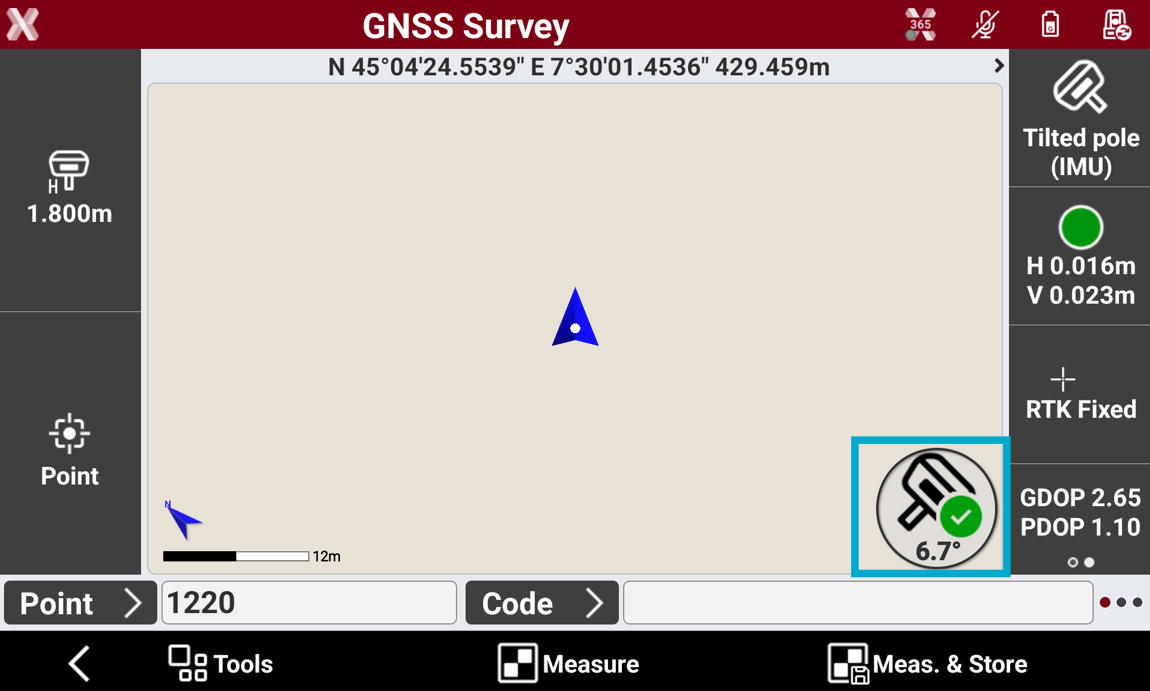
When working with a GNSS receiver with IMU it is possible to compensate the pole tilt, to allow measurements with the pole tilted.
-
Press the bottom-left icon to select if to work with pole vertical or the pole tilted.
-
When the pole tilted option is active, initially the IMU is not inizialized. After the GNSS status is fix, move and shake the antenna to inizialize the IMU.
-
When IMU is ready, the current pole tilt is visualized.