
The information contained in this chapter covers the standard first steps for using the software. For detailed descriptions of all features, advanced workflows, configuration options, and reference information, refer to the complete User Manual. The full manual provides comprehensive documentation for all functions and capabilities available in the software.
-
The first time application is started it is necessary to create a profile to connect the topographic instrument, such as a GNSS receiver or a total station.
-
This page shows the steps to create the most common profiles for GNSS receiver or total station.
Create a GNSS network rover profile
A GNSS network rover profile is a setup for a GNSS receiver where RTK data is received from a network of reference stations, like for example SmartNet. The connection requires an internet connection, which is provided from a SIM card inside the GNSS receiver or internet from the controller.
-
To create a new instrument press Setting.
-
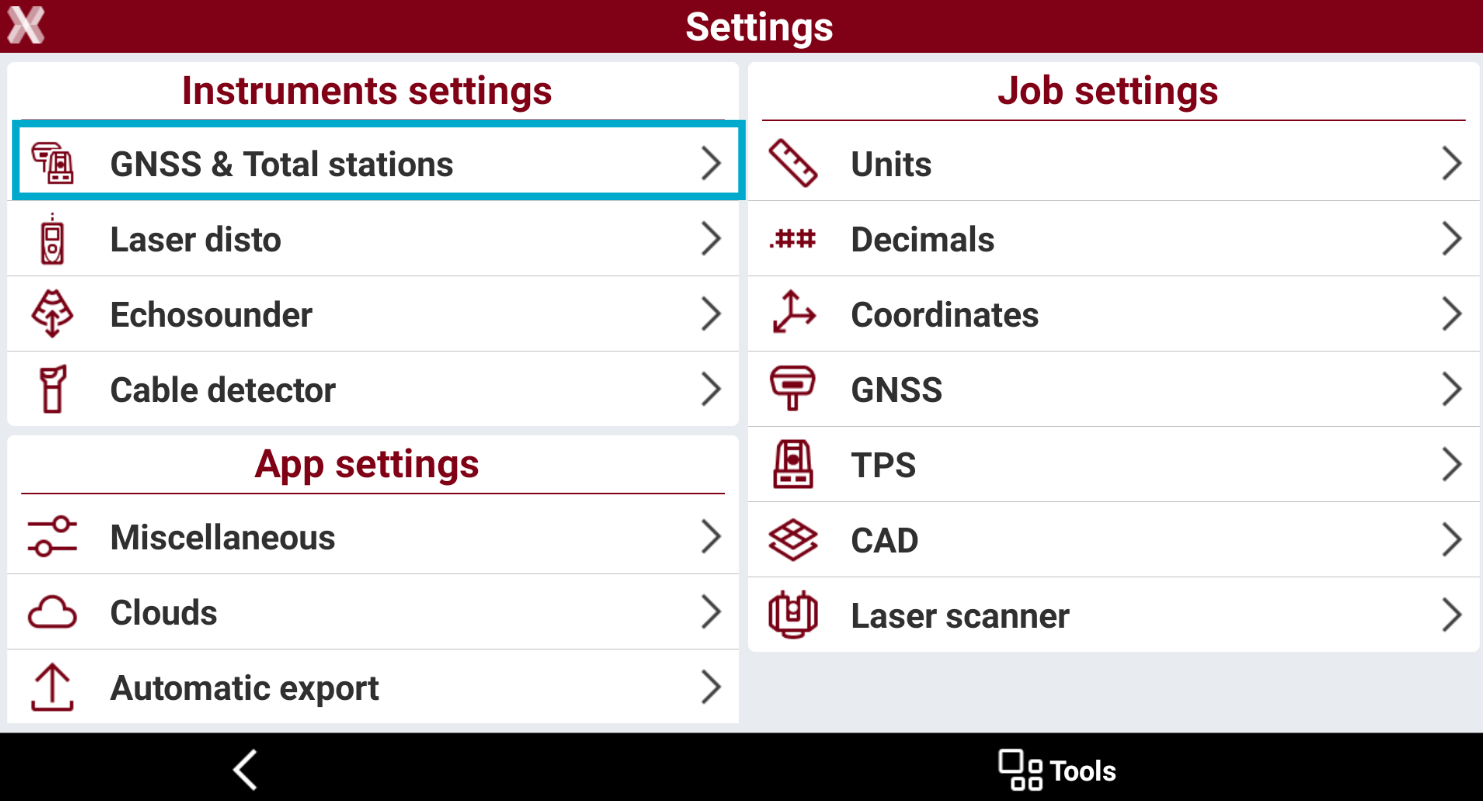
Press GNSS & Total stations to open the list of available profiles.
-
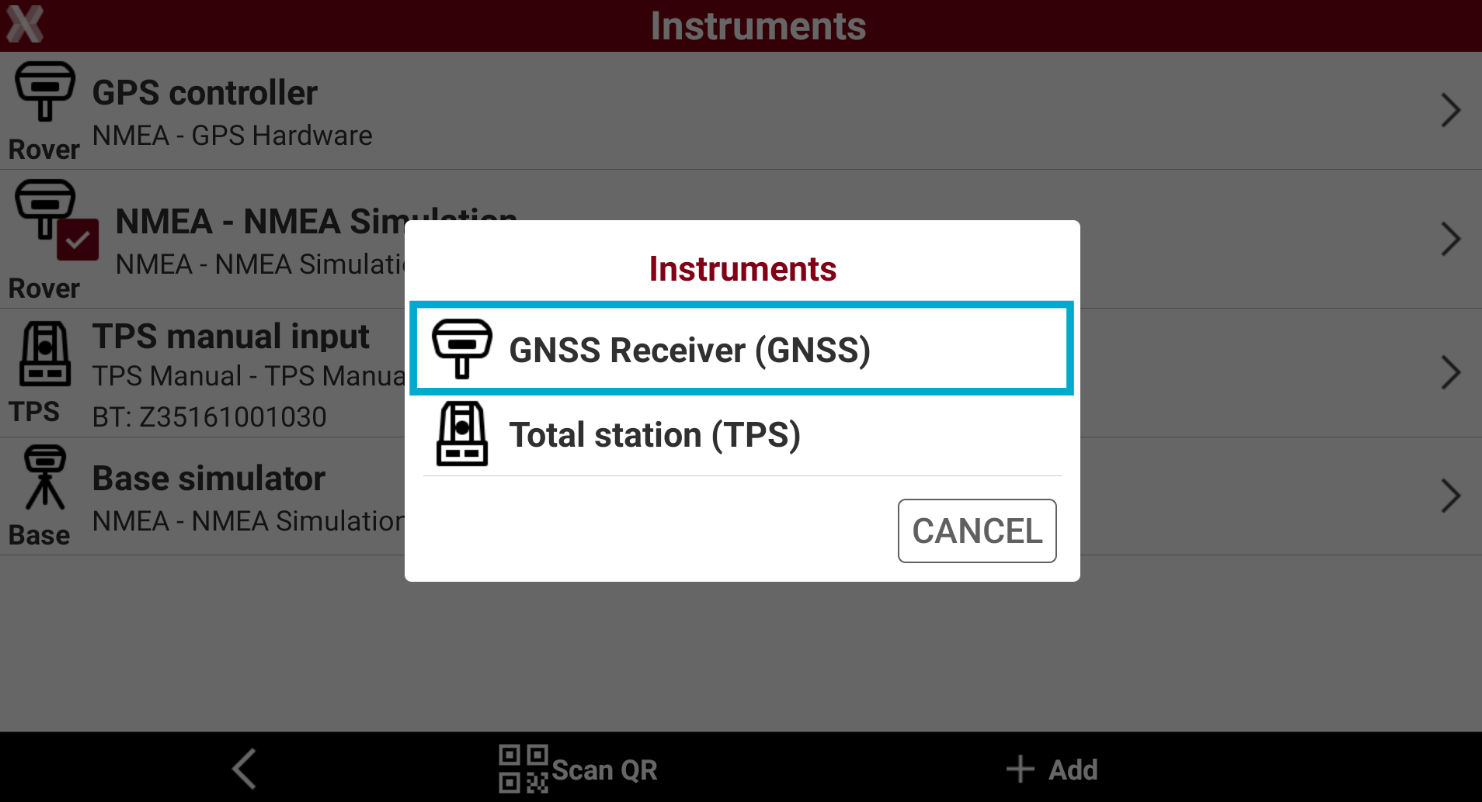
Press Add to create a new profile. Select GNSS Receiver.
-
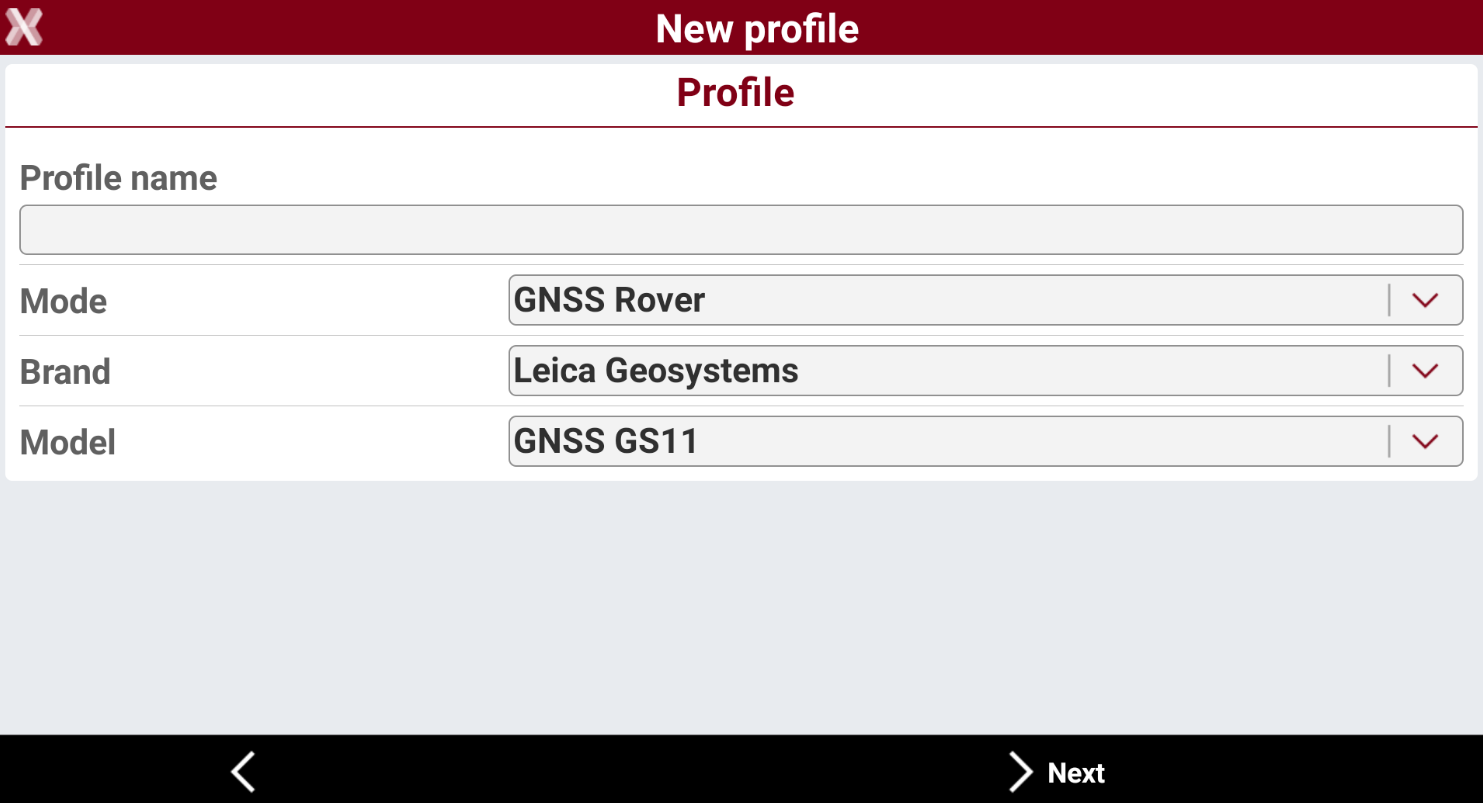
Enter the name of the profile. Select Rover as mode and select the correct brand and model of the GNSS receiver.
-
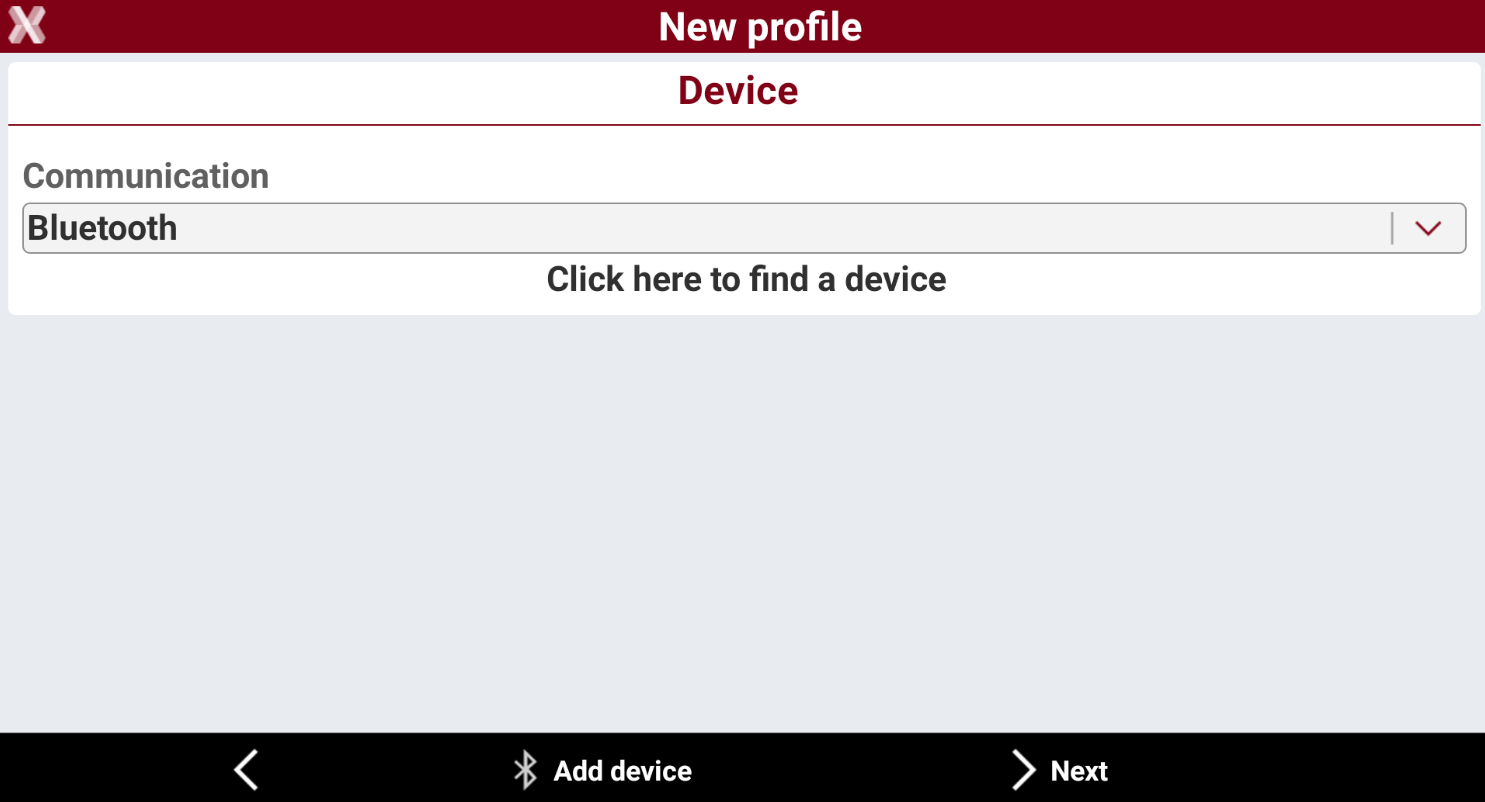
Select how the device is connected to the field controller, usually the connection is by Bluetooth or Wi-Fi.
-
Press Add device to search and pair the device. The device address is usually its serial number.
-
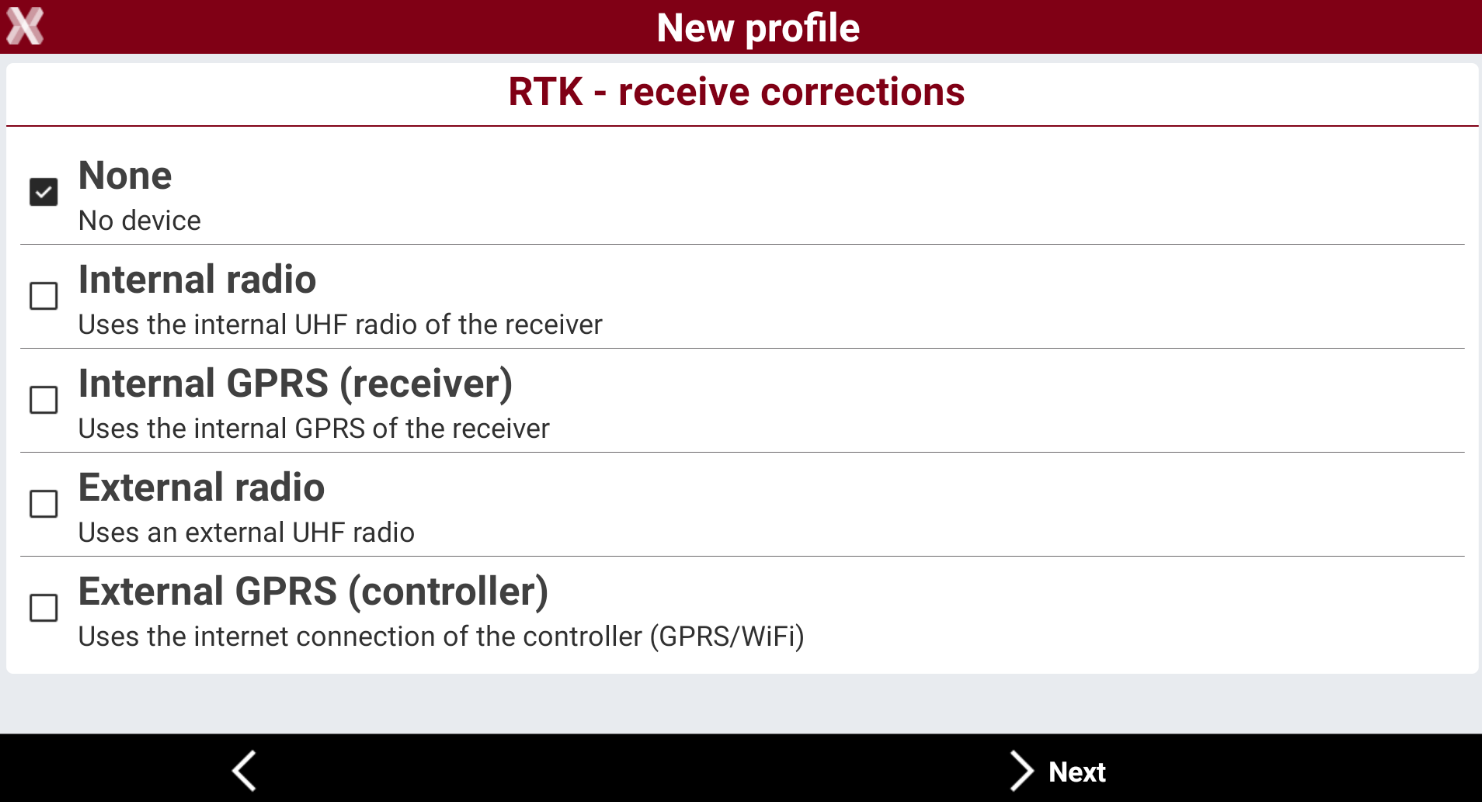
Select how corrections are received.
-
Select Internal GPRS if the receiver has a SIM card.
-
Select External GPRS if instead a SIM card or internet is available on the field controller.
-
-
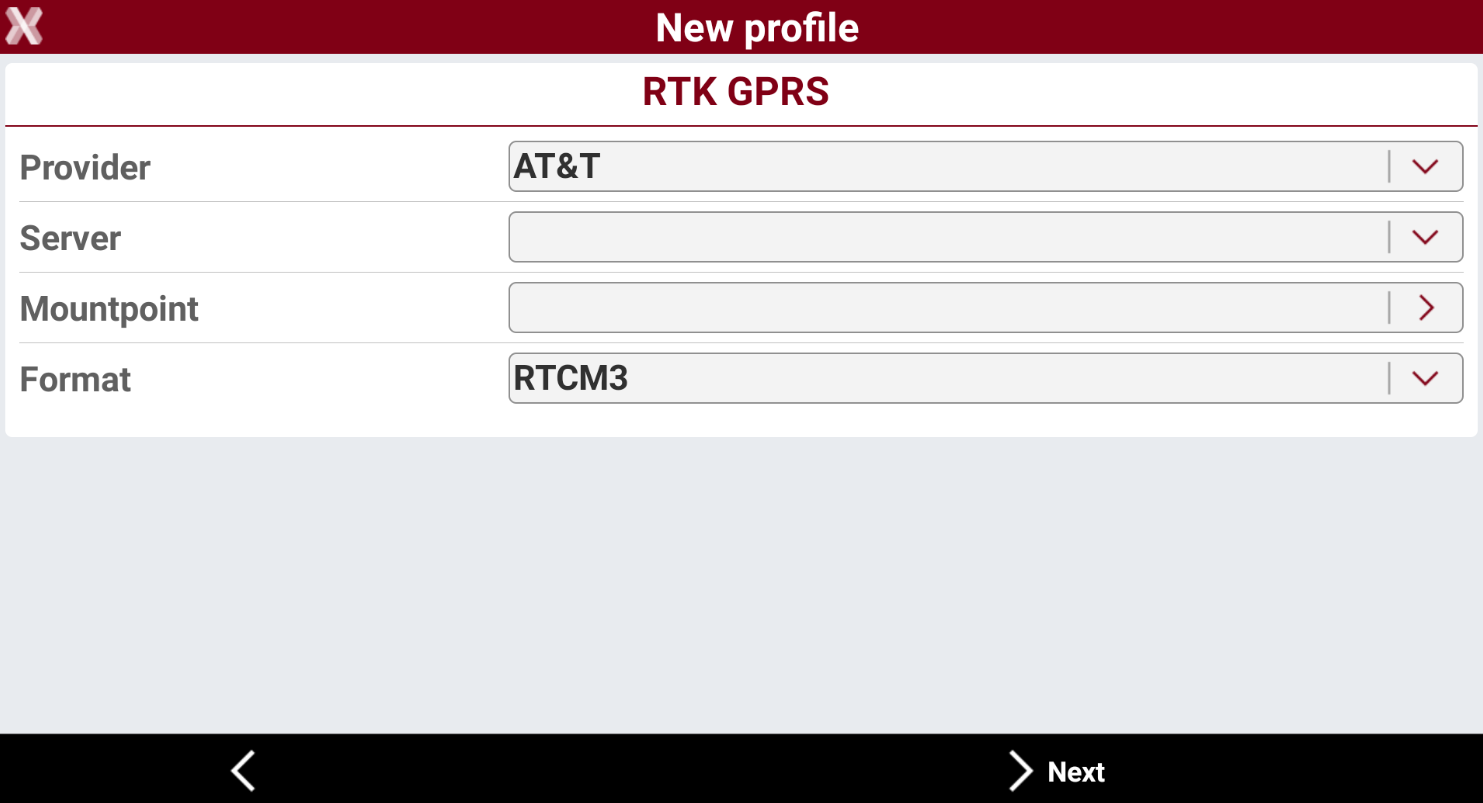
Select the RTK corrections source.
-
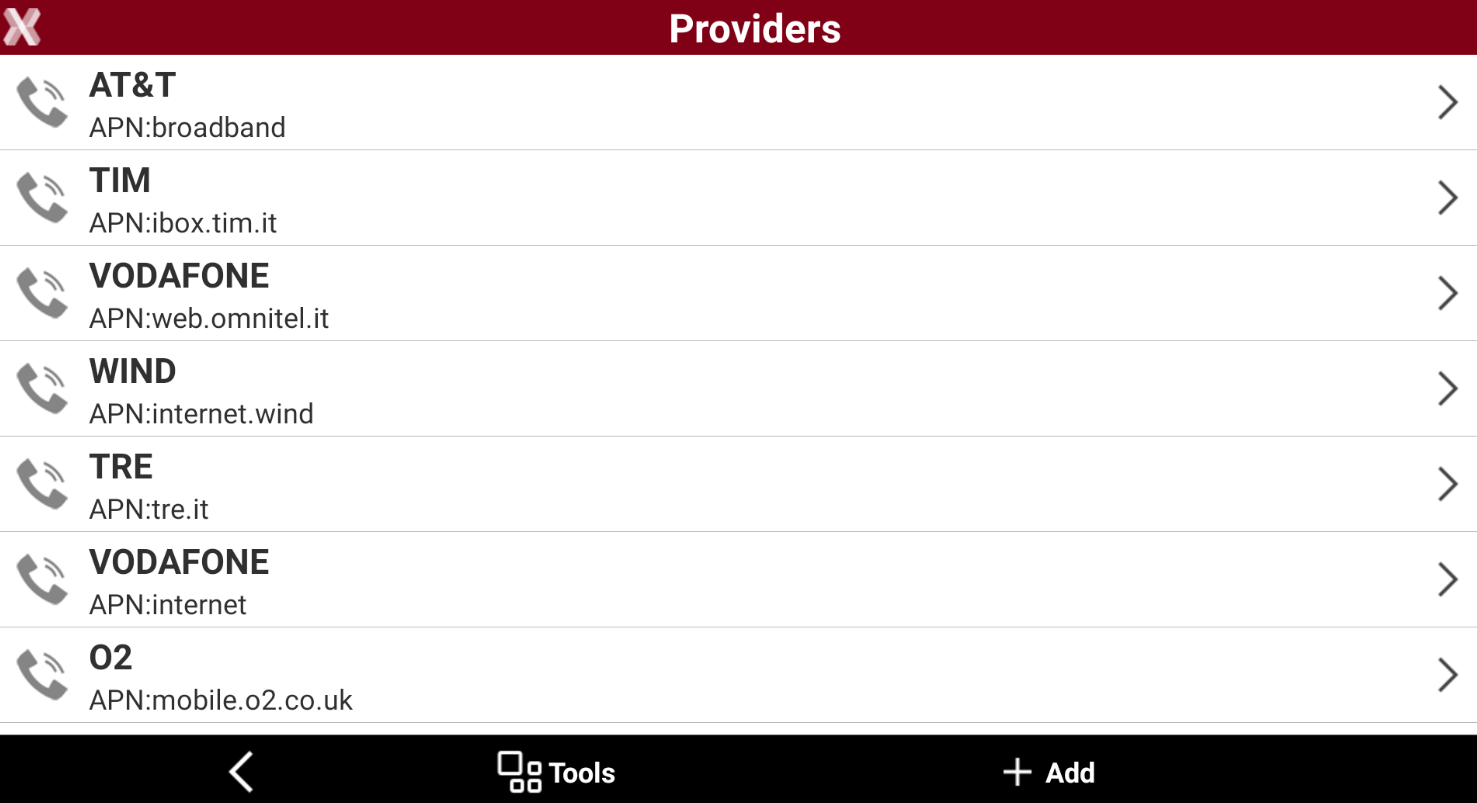
If Internal GPRS was selected, the field Provider is available. This field requires to enter the APN information of the SIM card inside the GNSS receiver. Open the Provider list, and select Providers… at the end of the list to add a new provider pressing Add.
-
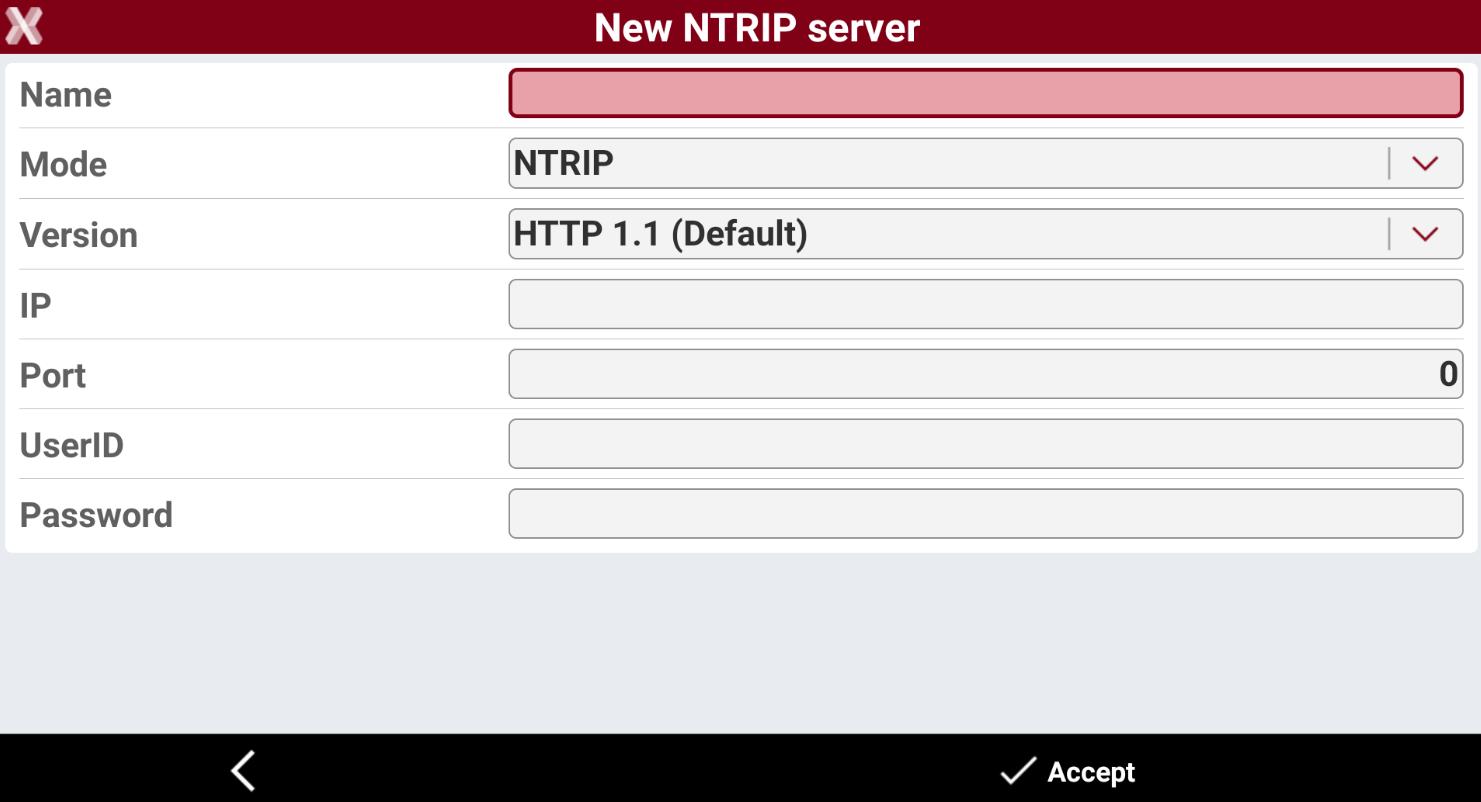
The field Server lists the RTK networks to connect. Open the list and select NTRIP servers… to create a new server pressing Add.
-
Enter the name of the CORS network, the IP address or the hostname, the port and the provided username and password to access the service.
-
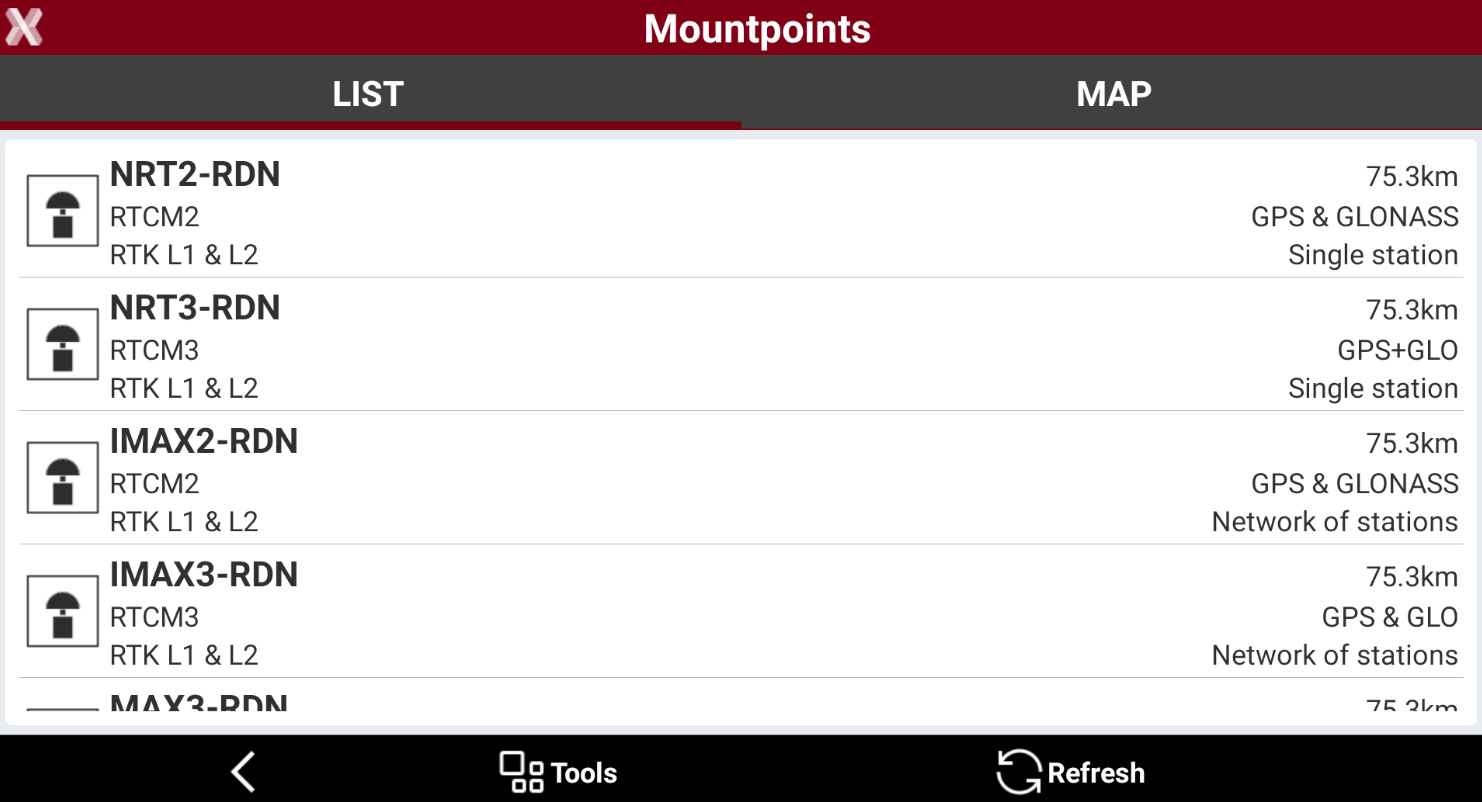
The last step is to select the Mountpoint. The mountpoint list is the list of the products provided from the selected NTRIP server.
-
Press > on the Mountpoint field and press Refresh to load the list of mountpoints.
-
Finally select the format of RTK corrections in the formats field. The format to select depends on the selected mountpoint. Usually mountpoints providing GPS+GLONASS corrections use RTCM3 and mountpoint providing full constellation corrections use RTCM3 MSM. This information is usually also indicated when the mountpoint is selected.
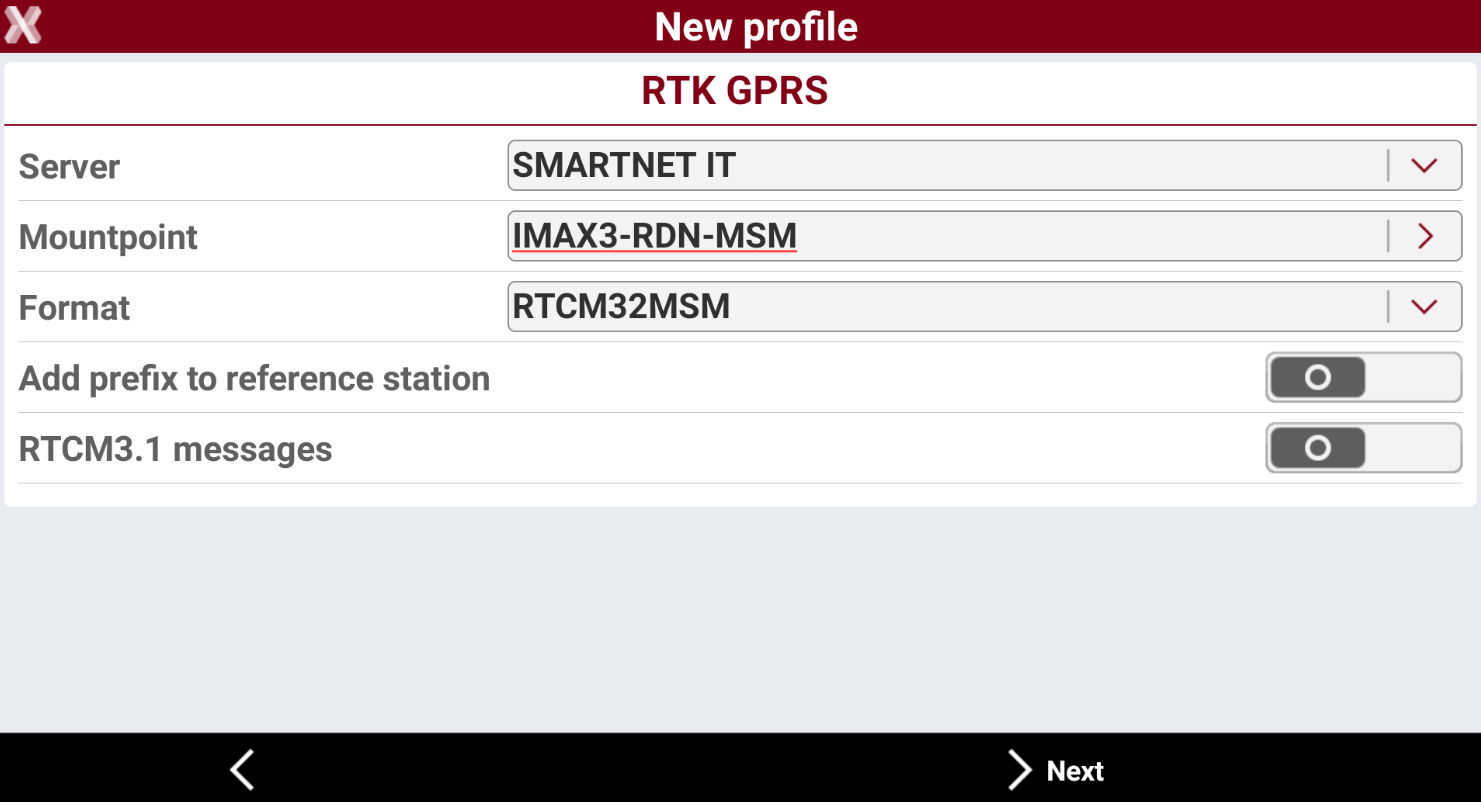
If working with a GNSS receiver multi-constellation, select a mountpoint that provides corrections in RTCM3 MSM format.
-
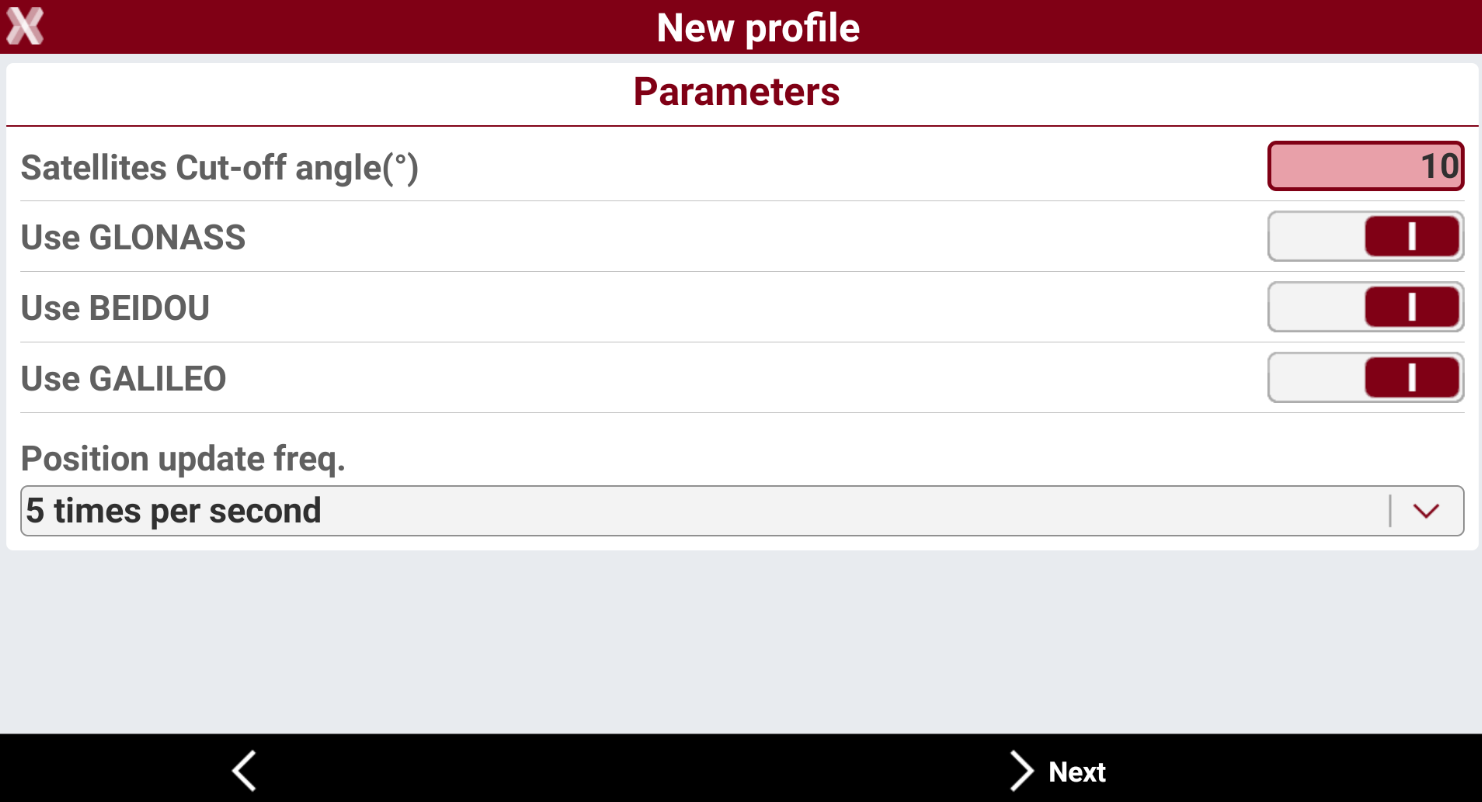
The next page allows to define the cut-off angle and the constellations to be used. Usually enables all GPS, GLONASS, BEIDOU and GALILEO constellations.
-
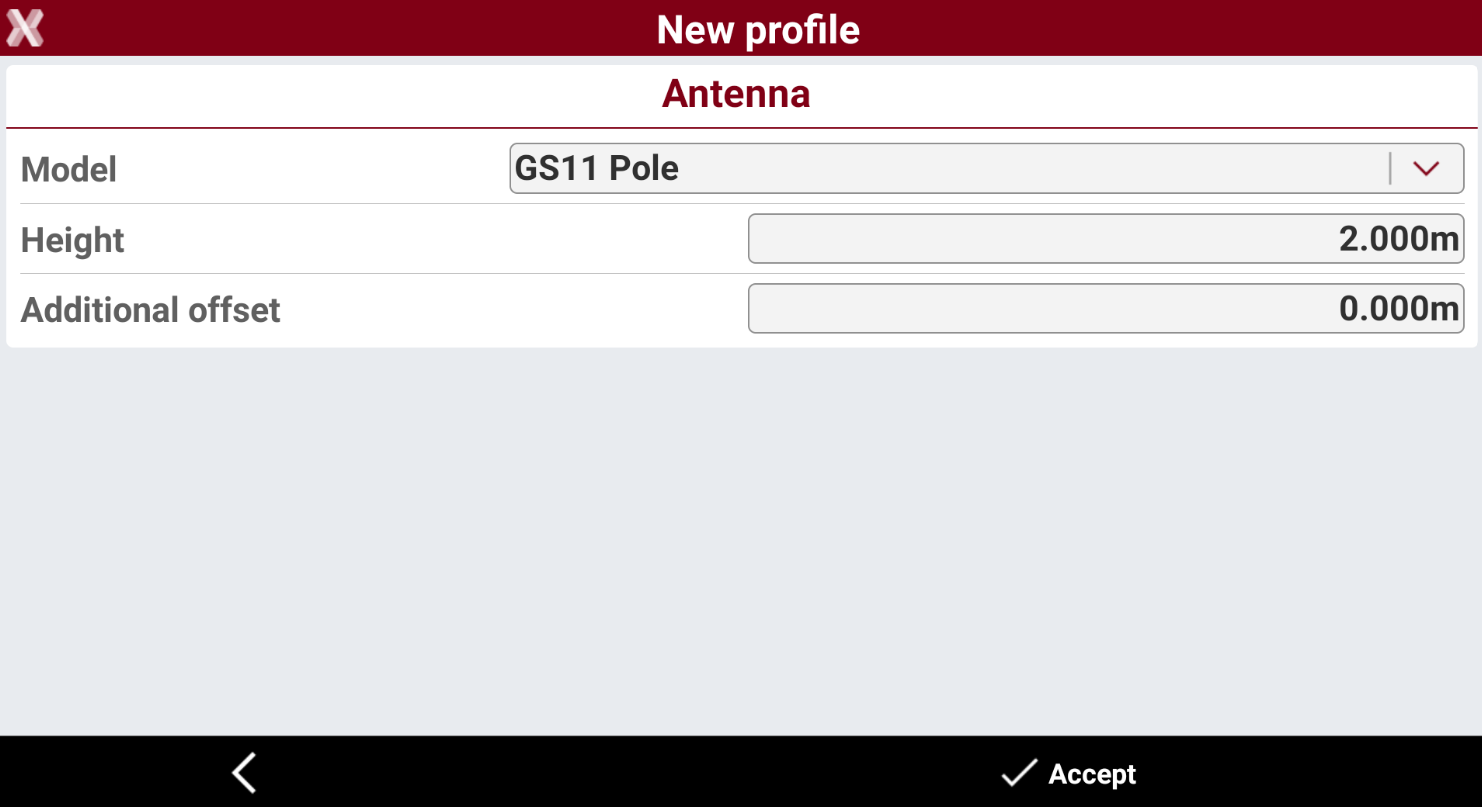
The last configuration page allows to define the pole height. The pole height can be anyway be changed in the survey and stakeout page.
-
Press Accept to create the profile. The profile is created and its the current one used.

Create a UHF rover profile
A UHF rover profile is a setup for a GNSS receiver where RTK data is received from a single base using UHF communication.
-
To create a new instrument press Setting.
-
Press GNSS & Total stations to open the list of available profiles.
-
Press Add to create a new profile. Select GNSS Receiver.
-
Enter the name of the profile. Select Rover as mode and select the correct brand and model of the GNSS receiver.
-
Select how the device is connected to the field controller, usually the connection is by Bluetooth or Wi-Fi.
-
Press Add device to search and pair the device. The device address is usually its serial number.
-
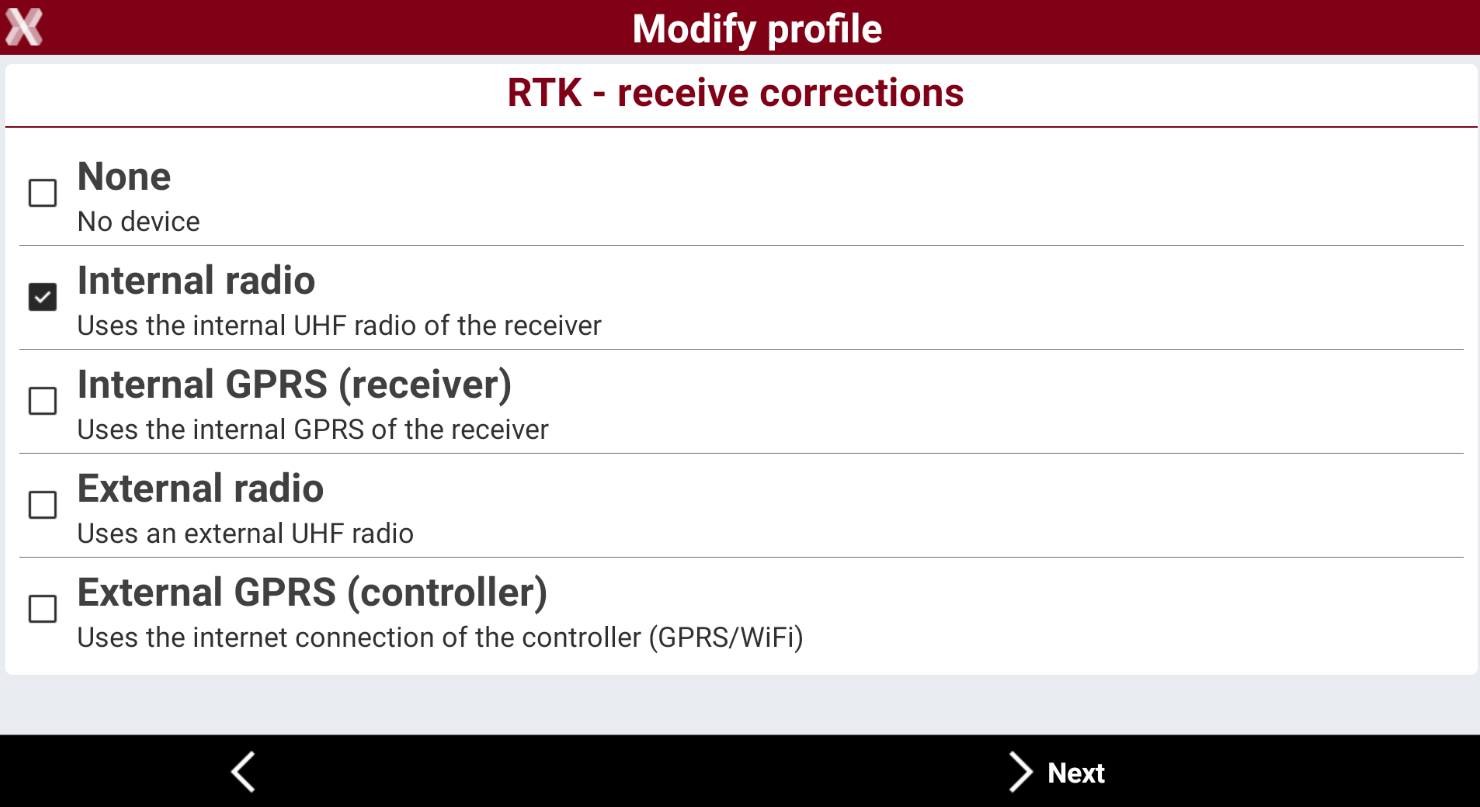
Select Internal radio as mode to receive RTK corrections.
-
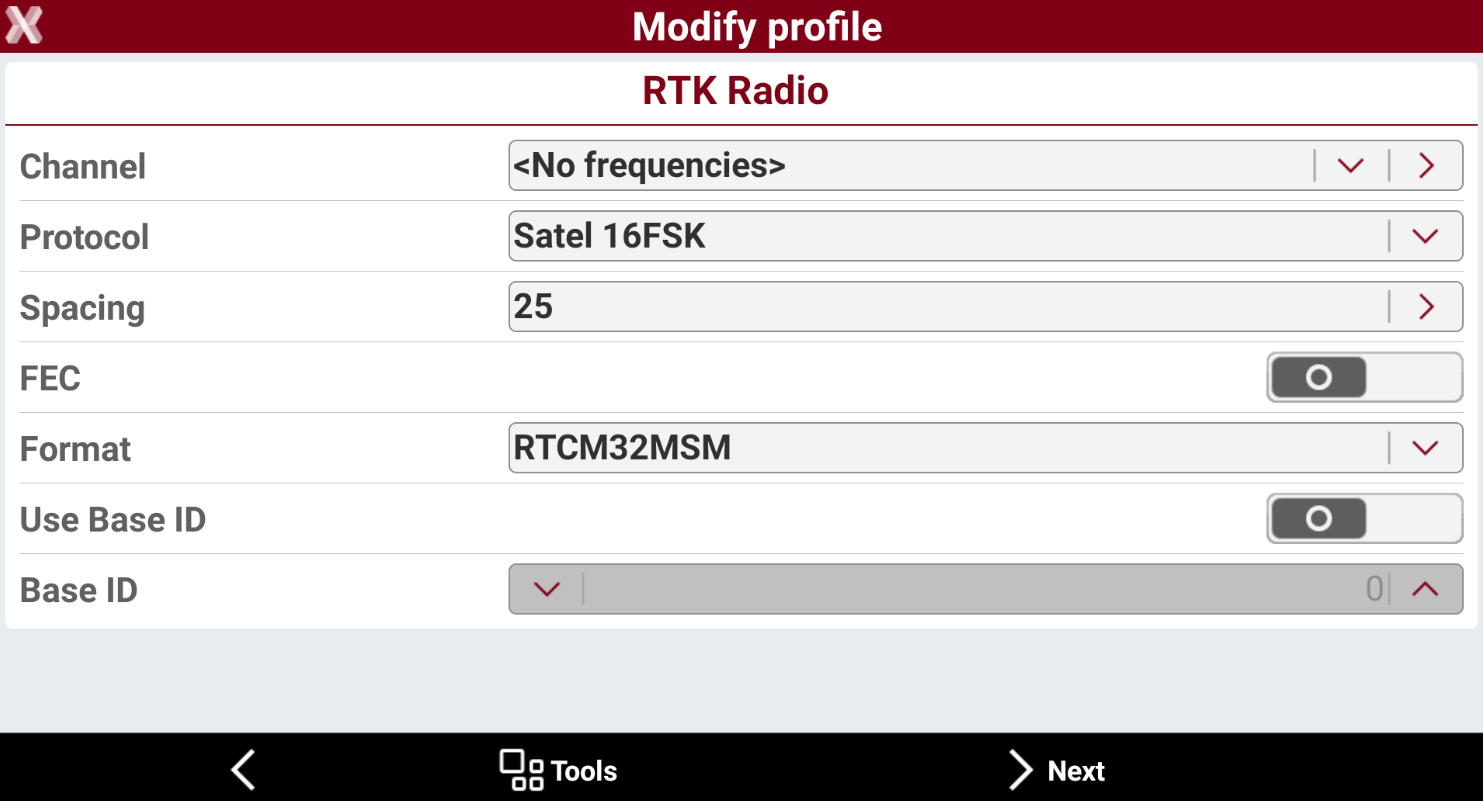
Select the UHF settings.
-
In Channel field select the channel and frequency to be used.
Contact your distributor or the technical support for more information on how to change or add new channels.
-
Select the other UHF parameters such as Protocol, Spacing and FEC.
To properly communicate with the UHF base the frequency, spacing, protocol, FEC and format must be the same.
-
Select the format of RTK corrections in the Format field.
If working with a GNSS receiver multi-constellation, select RTCM3 MSM format.
-
The next page allows to define the cut-off angle and the constellations to be used. Usually enables all GPS, GLONASS, BEIDOU and GALILEO constellations.
-
The last configuration page allows to define the pole height. The pole height can be anyway be changed in the survey and stakeout page.
-
Press Accept to create the profile. The profile is created and its the current one used.

Create a UHF base profile
A UHF base profile is a setup for a GNSS base receiver where RTK data is transmitted using UHF communication. The RTK data transmitted is then received from a UHF rover.
-
To create a new instrument press Setting.
-
Press GNSS & Total stations to open the list of available profiles.
-
Press Add to create a new profile. Select GNSS Receiver.
-
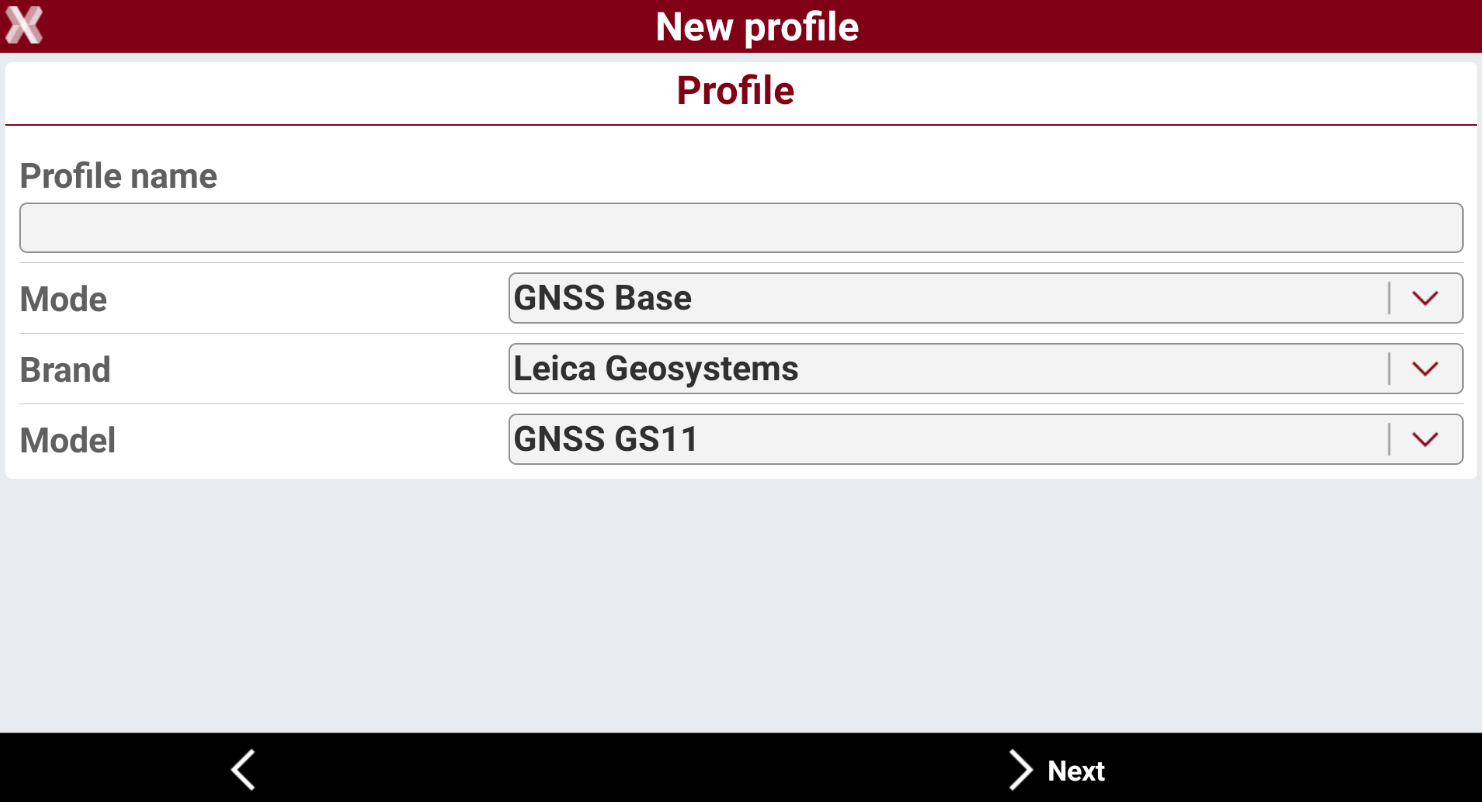
Enter the name of the profile. Select Base as mode and select the correct brand and model of the GNSS receiver.
-
Select how the device is connected to the field controller, usually the connection is by Bluetooth or Wi-Fi.
-
Press Add device to search and pair the device. The device address is usually its serial number.
-
Select Internal radio as mode to transmit RTK corrections.
-
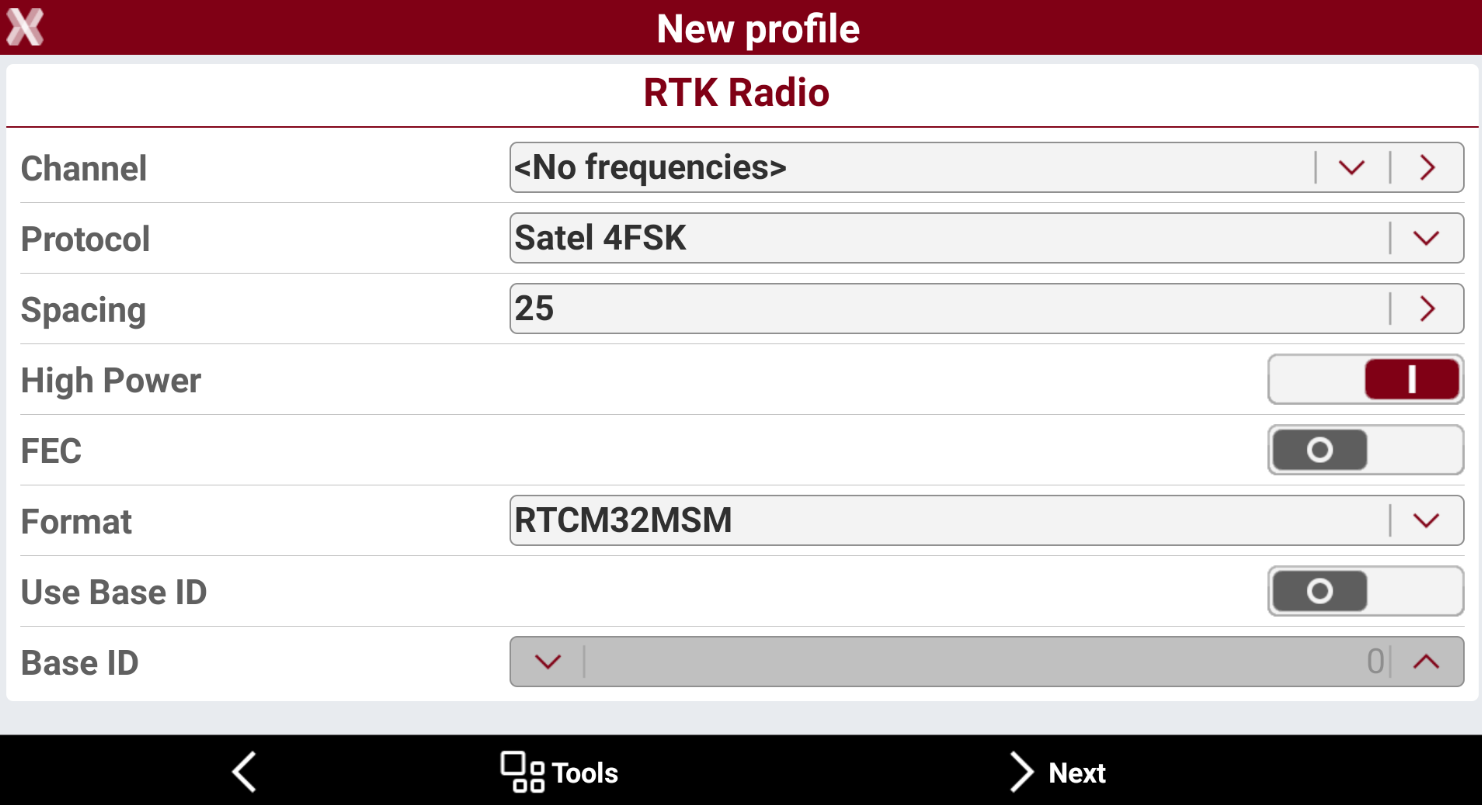
Select the UHF settings.
-
In Channel field select the channel and frequency to be used.
Contact your distributor or the technical support for more information on how to change or add new channels.
-
Select the other UHF parameters such as Protocol, Spacing and FEC.
To properly communicate with the UHF base the frequency, spacing, protocol, FEC and format must be the same.
-
Select the transmission power. If High Power is enabled the internal UHF transmits using its maximum power.
-
Select the format of RTK corrections in the Format field.
If working with a GNSS receiver multi-constellation, select RTCM3 MSM format.
-
The next page allows to define the cut-off angle and the constellations to be used. Usually enables all GPS, GLONASS, BEIDOU and GALILEO constellations.
-
The last configuration page allows to define the pole height. The pole height can be anyway be changed in the survey and stakeout page.
-
Press Accept to create the profile. The profile is created and its the current one used.
