
The information contained in this chapter covers the standard first steps for using the software. For detailed descriptions of all features, advanced workflows, configuration options, and reference information, refer to the complete User Manual. The full manual provides comprehensive documentation for all functions and capabilities available in the software.
-
Before to start any field task as survey as-build or coordinates stakeout, it is necessary to create a Job.
-
Jobs are organized in Sites.
Create a new job site
-
Jobs are organized in Sites. At site level it is possible to define different information (coordinate system, codelist, etc…) that will be used by all jobs in the site.
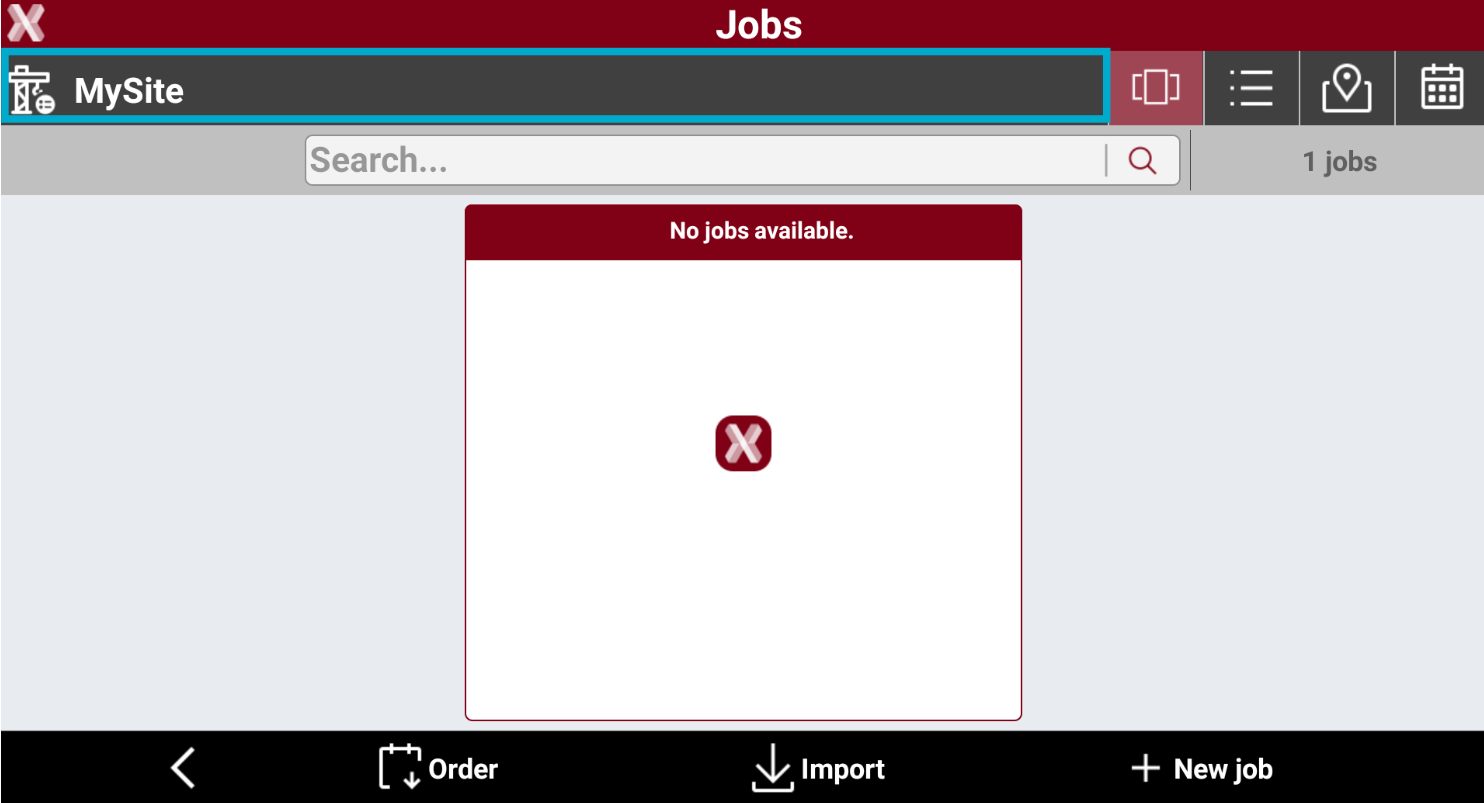
In a new installation the default MySite is already created.
-
To create a new site tap on the Sites bar.
-
The page lists the available sites.
-
Then select New site.
-
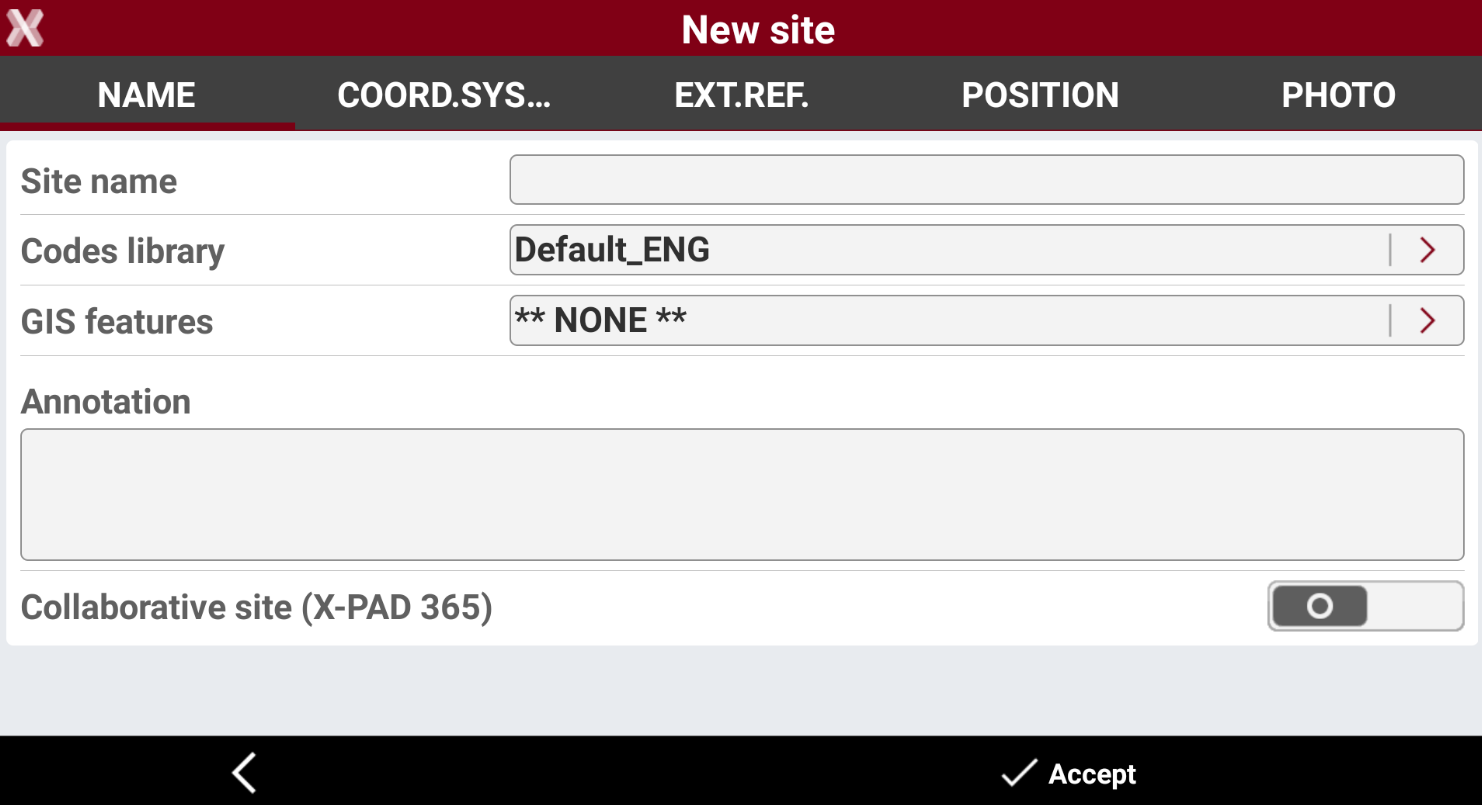
Enter the parameters for the new site.
-
Name: enters the new site name and the default codes library and GIS features library. If entered these libraries are then used by default from all jobs in the site.
-
Coordinate system: enters the cartographic system to be used by default from all jobs in the site.
-
External reference: enters the external reference documents to be loaded by default from all jobs in the site.
-
Position: allows to enter the job site position.
-
Photo: allows to take a photo of the job site.
-
-
Press Accept to create the site.
Create a new job
-
After the Site has been selected or created, press New job to create a new job.
-
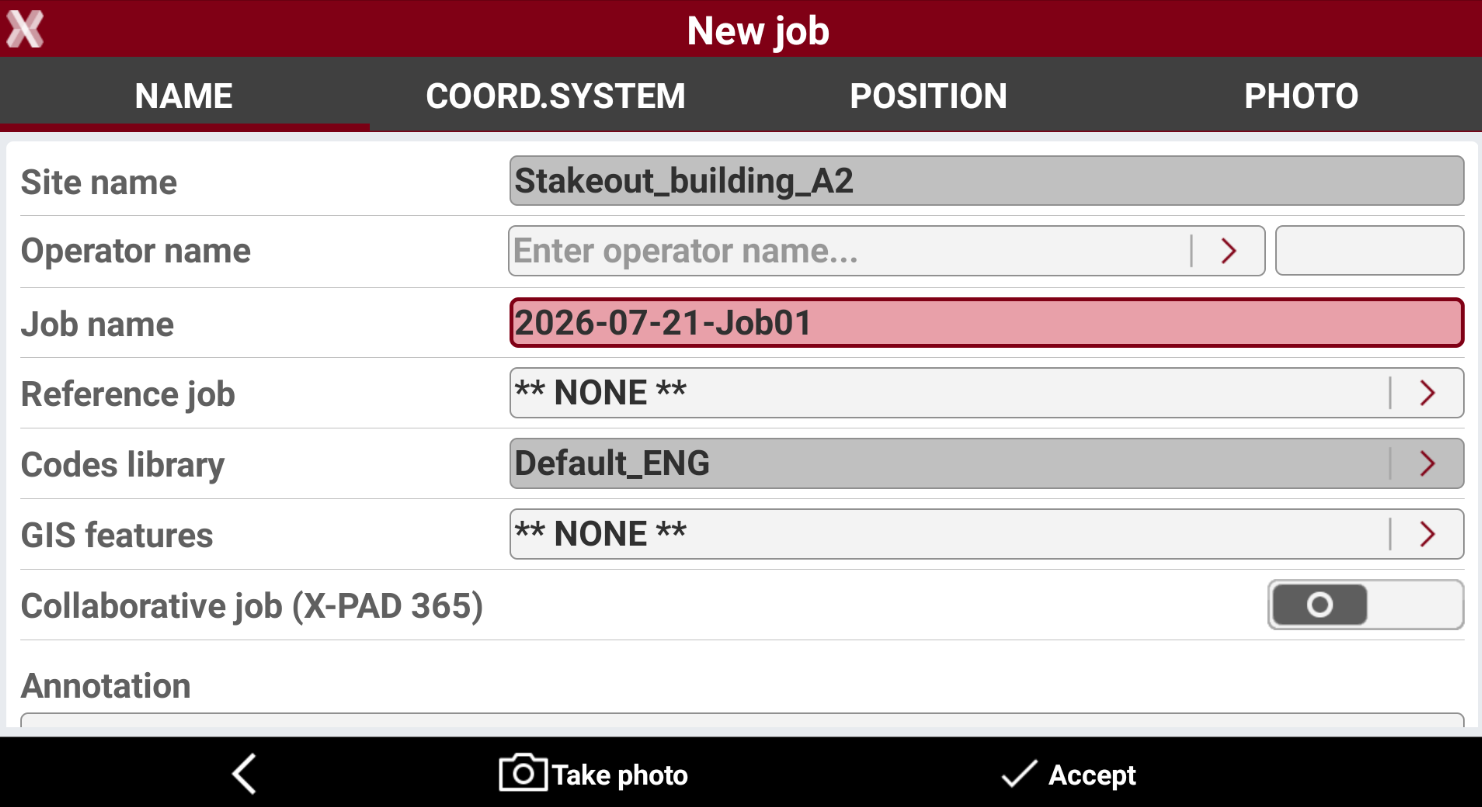
Enter the parameters for the new job.
-
-
Name: enters the new job name and the name of operator. The page allows also to load a codes library and GIS features library and another job to be used as reference (these files can also be selected later from within the job).
-
Coordinate system: shows the coordinate system if was defined before or defined at site level.
-
Position: allows to enter the job position.
-
Photo: allows to take a photo of the job.
-
-
Press Accept to create the job. The job is opened.