The information contained in this chapter covers the standard first steps for using the software. For detailed descriptions of all features, advanced workflows, configuration options, and reference information, refer to the complete User Manual. The full manual provides comprehensive documentation for all functions and capabilities available in the software.
-
Survey codes allow the precise identification of points and to automate many operations to complete a drawing of the survey.
-
For every code, information can be added:
-
Description: an extended description associated with a survey code. This field can also be automatically populated with additional information, such as stakeout differences.
-
Symbol and layer: based on the survey code, points are represented in CAD with a certain symbol and on a certain layer.
-
GIS feature: the GIS feature is composed by a group of properties freely definable by the user. When a code or a GIS feature is associated to a point it is possible to integrate the point with the information corresponding to properties defined by the feature.
-
-
Different libraries of codes can be defined and used in different jobs. The current library can be exchanged with a different one.
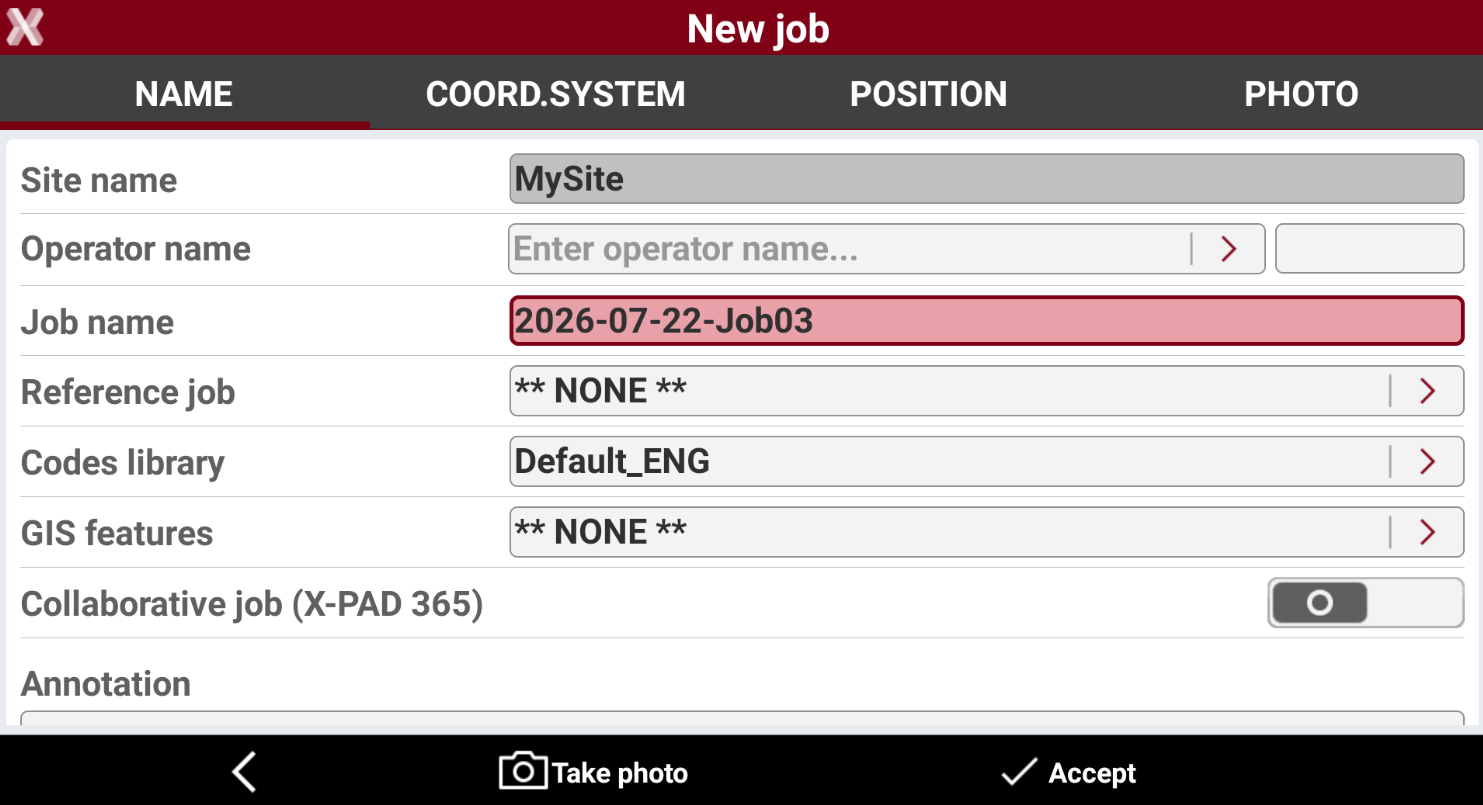
X-PAD includes the default codes library Default_ENG.
Create a new codes library
-
Open any job and from Job page select Points/Measurement/Codes.
-
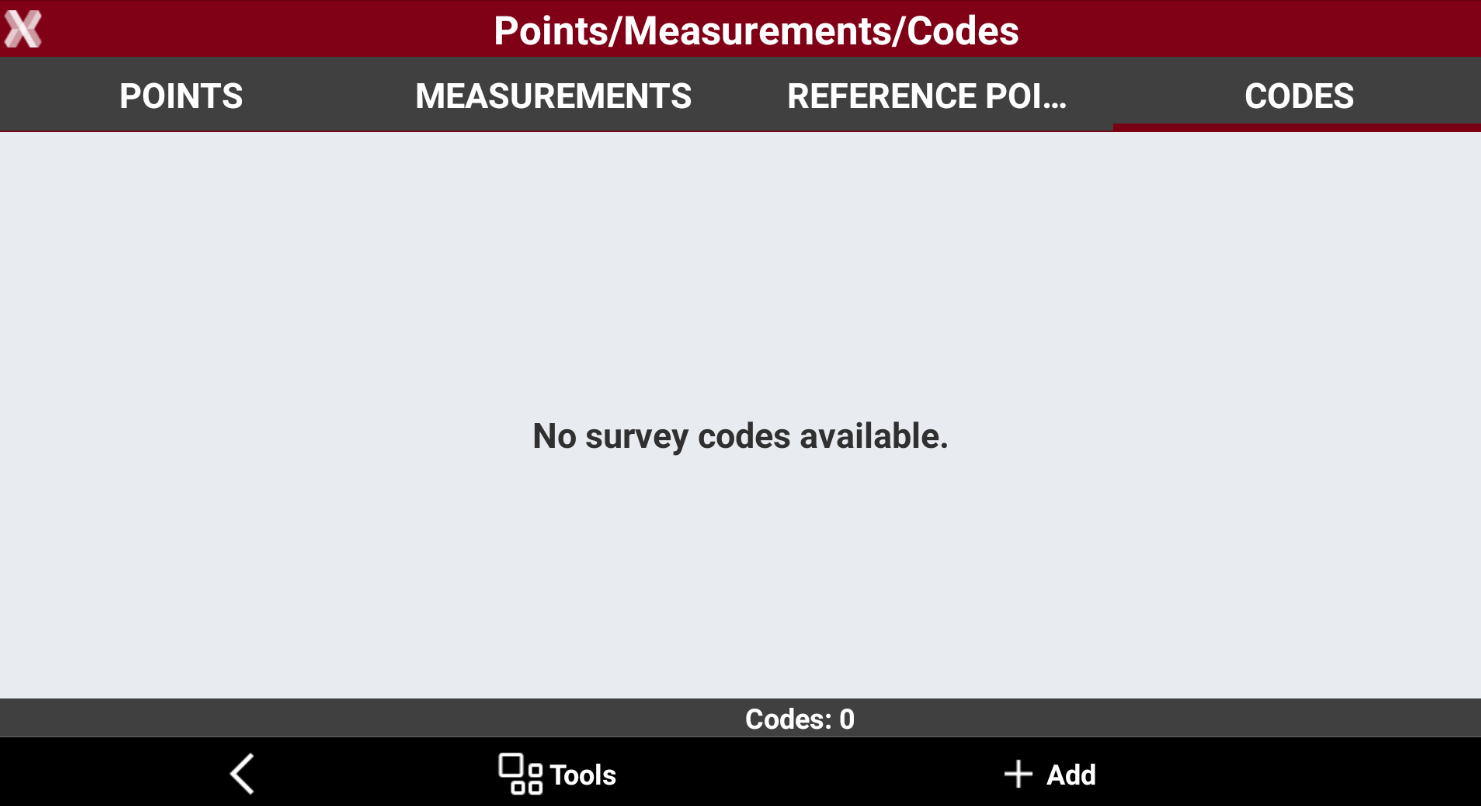
Open the Codes page.
-
Press Tools and select New library to create a new codes library.
A code library can also be imported from X-PAD format, text format, LandCML or SCC format. Refer to Import/export codes libraries for more information.
-
Press Add to start to create the first survey code.
In GNSS Settings and TPS Settings, in the Survey page, it is possible to enable the option Add new codes to library. With this option enabled, a new code entered during the survey is automatically included in the library.
-
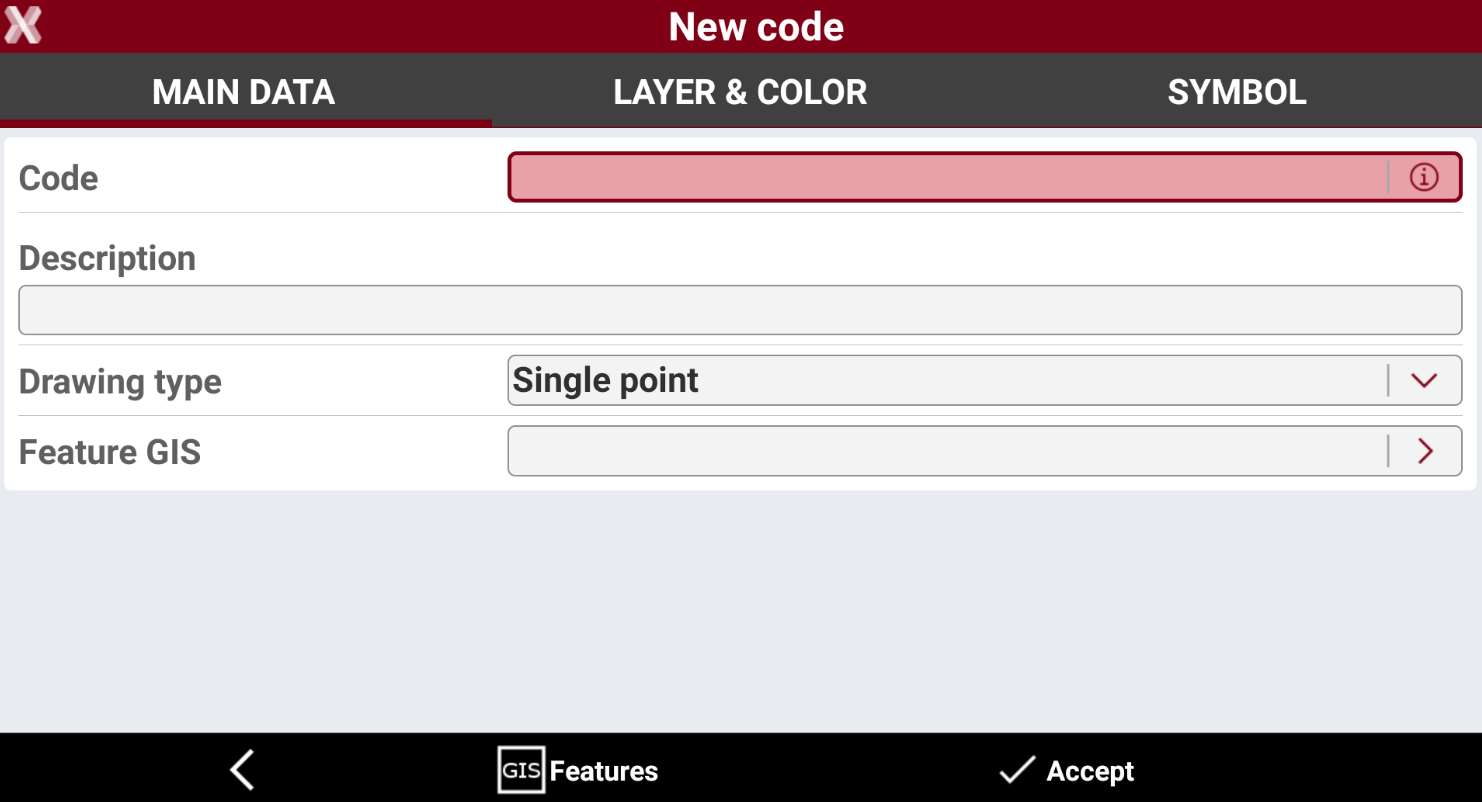
The New code page allows to define the code information.
-
Main data: enters code name, code description, corresponding GIS feature and the corresponding drawing type. The selected Drawing type enabled the corresponding drawing tool when the code is selected, however during the survey a code can be used with any different Drawing type.
-
Layer & Color: enters the layer, color, line type and symbol size assigned to the code. It is recommended to define the list of layers so when data is exported, it is already organized in layers.
-
Symbol: it is possible to assign a symbol to each code.
-
-
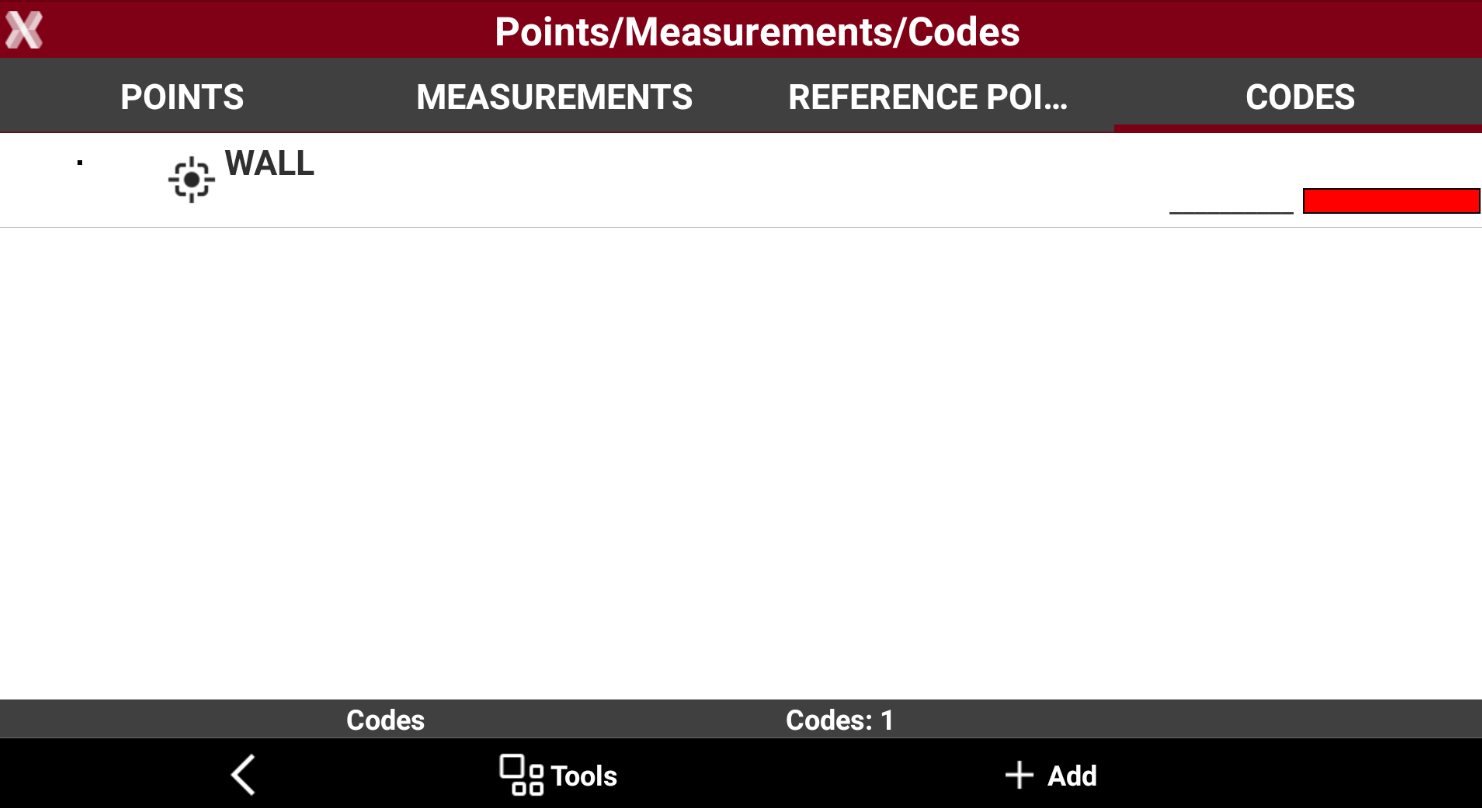
Press Accept to add the code to the new library.
Save library as default
-
To save a codes library as default, from Codes page press Tools.
-
Select Save library as default.
-
From now on, when a new job is created, the library is already assigned.