
The information contained in this chapter covers the standard first steps for using the software. For detailed descriptions of all features, advanced workflows, configuration options, and reference information, refer to the complete User Manual. The full manual provides comprehensive documentation for all functions and capabilities available in the software.
-
After a robotic total station profile has been created it is possible to start to operate with total station.
-
Check in Settings and GNSS & Total stations that the current instrument profile is for the total station we want to use.

Station setup
-
The first step when working with a total station is the Station setup.
-
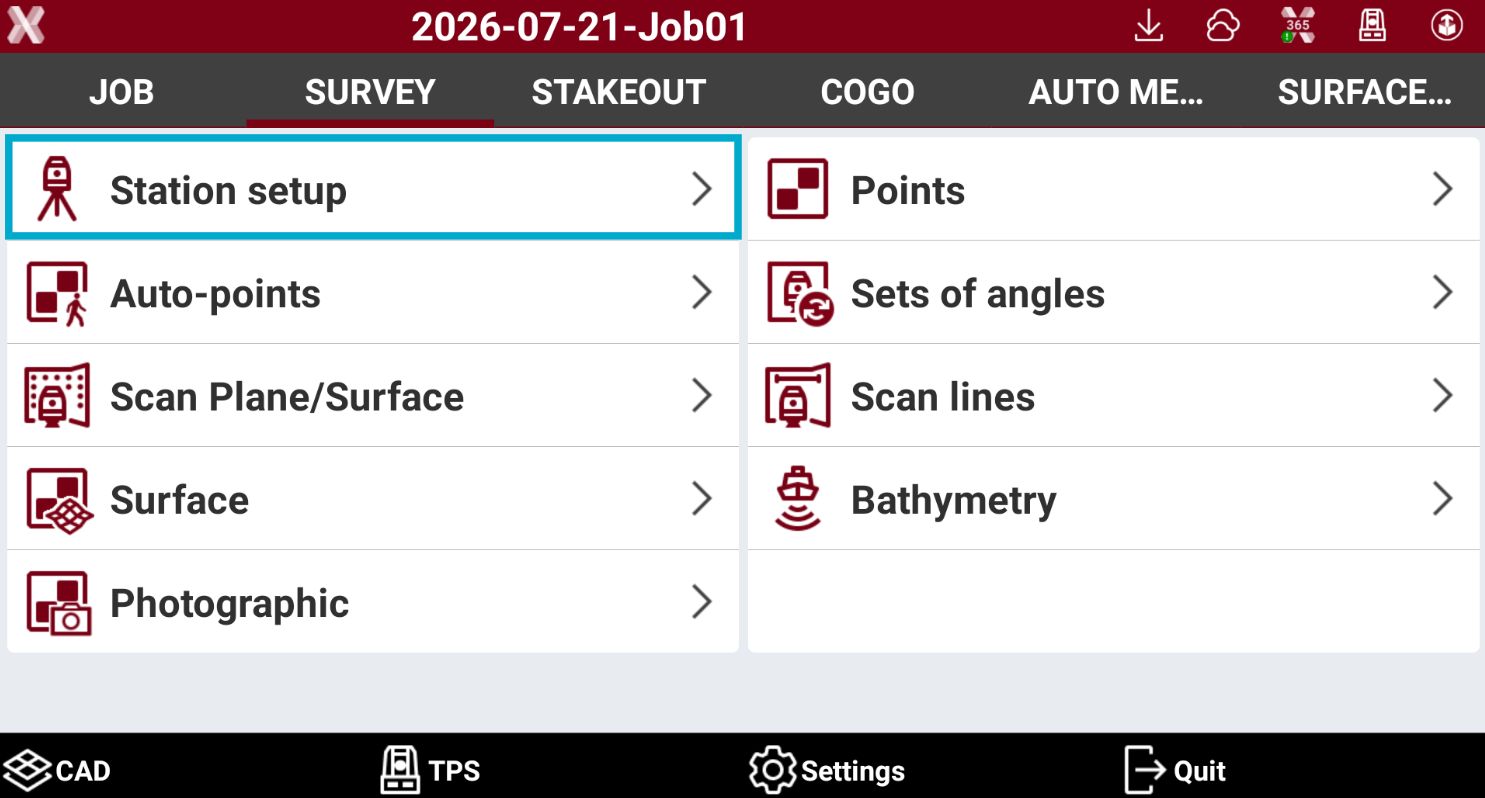
To perform a Station setup open Survey page and select Station setup.
-
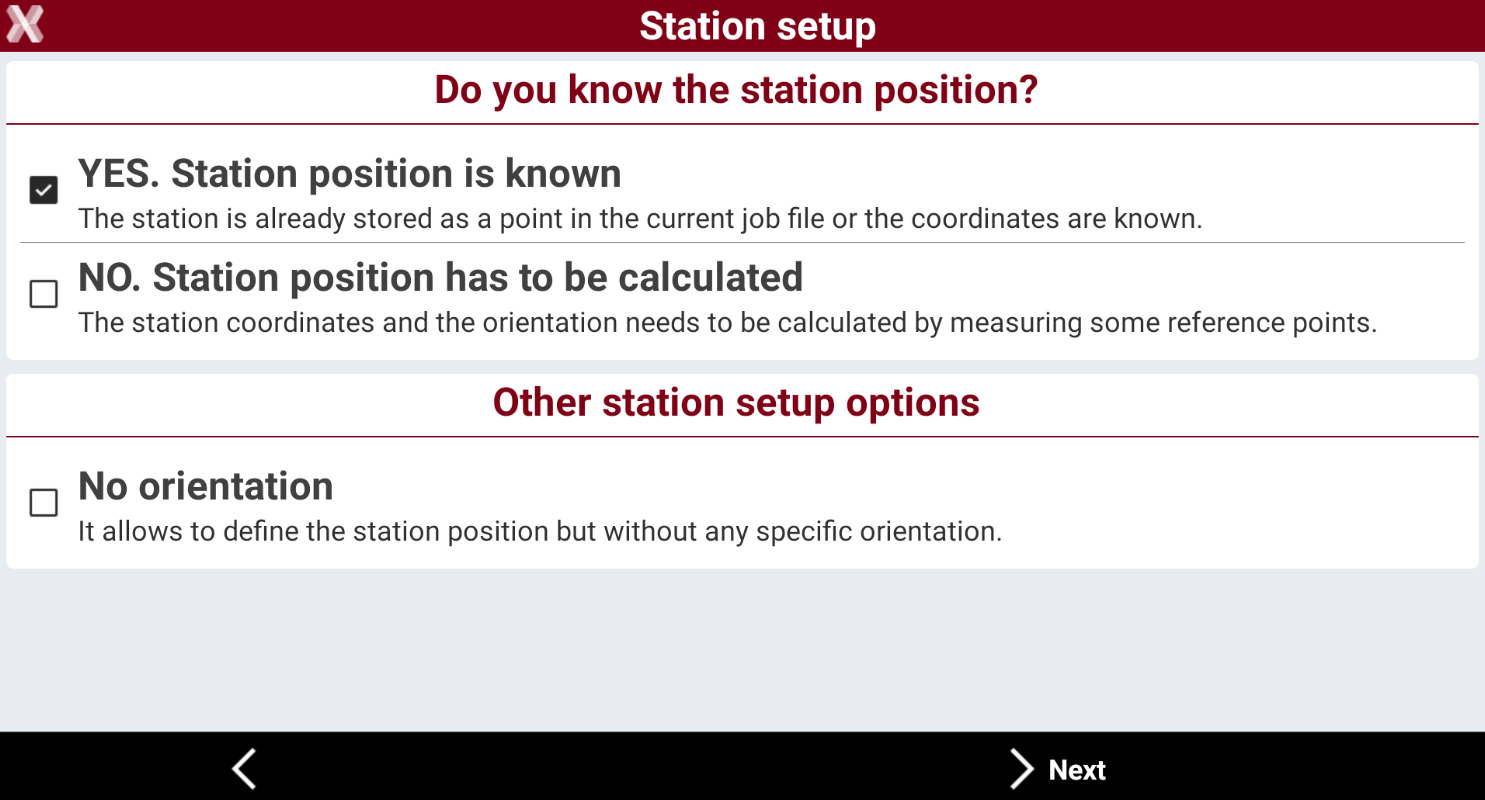
Select the orientation method from the list of available orientations.
-
The software provides different setup methods.
-
Yes. Station position is known: the coordinate of the station are known.
-
Backsight to known point: orientation is done from a known position measuring a known control point.
-
Backsight by azimuth: orientation is done from a known position measuring a known azimuth.
-
Orientation to multi points: orientation is done from a known position measuring multiple known control points.
-
Backsight to known point & traverse: this orientation method offers a guidance when measuring stations for a traverse.
-
-
No. Station position has to be calculated: the station coordinates must be calculated measuring reference points.
-
Free station: the total station position and orientation is calculated from measurements of known control points.
-
Auto free station: the method is used with robotic total stations measuring automatically known control points and calculating the station position and orientation.
-
Reference axis: the station position and orientation is calculated using a reference axis.
-
2 reference axis: the station position and orientation is calculated using two reference axis.
-
Batter boards: the station position and orientation is calculated using three reference axis.
-
Free station 3D: the total station position and orientation is calculated from measurements of known control points using a 3D transformation.
-
-
No orientation: it allows to define the station position but without any specific orientation.
-
For more information on each orientation method refer to Station setup.
-
Select the orientation method and press Next.
-
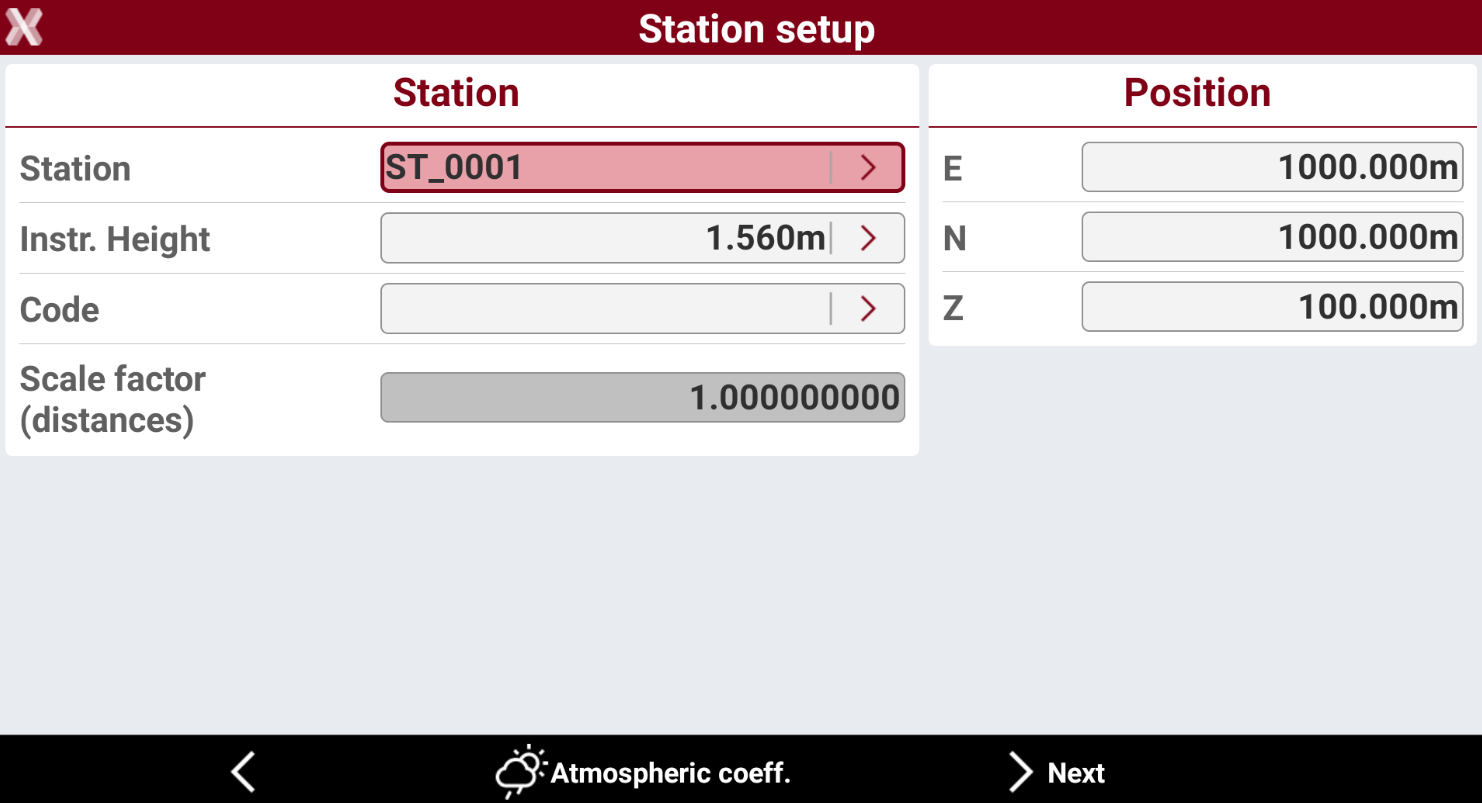
Enter the station information. Press Atmospheric coefficient to define the atmospheric PPM. See Atmospheric coefficients for more information on how to change the atmospheric PPM.
-
Press Next and proceed to complete the setup according to the selected method.
-
When the setup is completed it is possible to proceed with the desired application.
Basic steps with a robotic total station
-
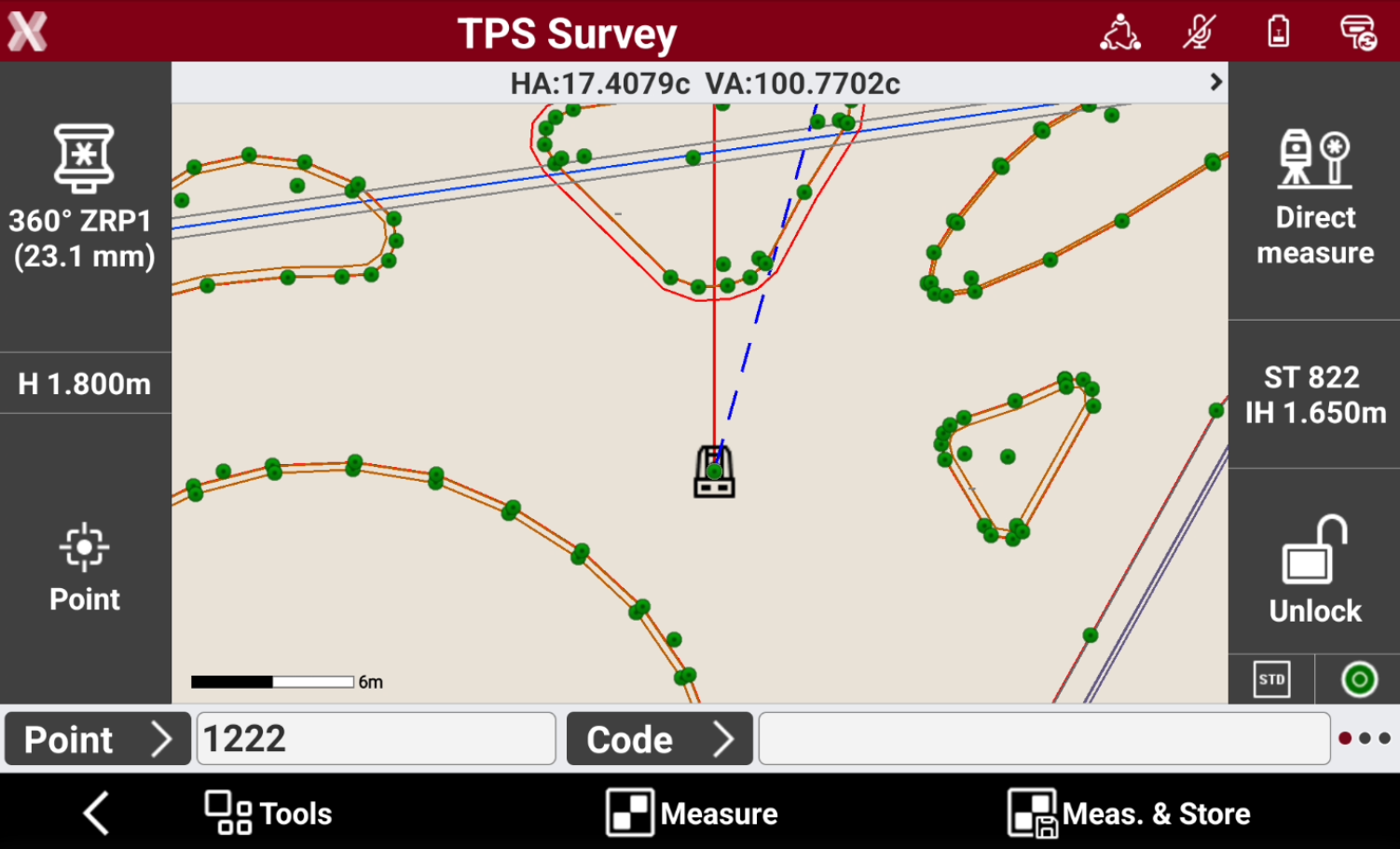
In the different software applications it is possible to control the total station. The interface is very similar among the different applications.
Electronic compensator
-
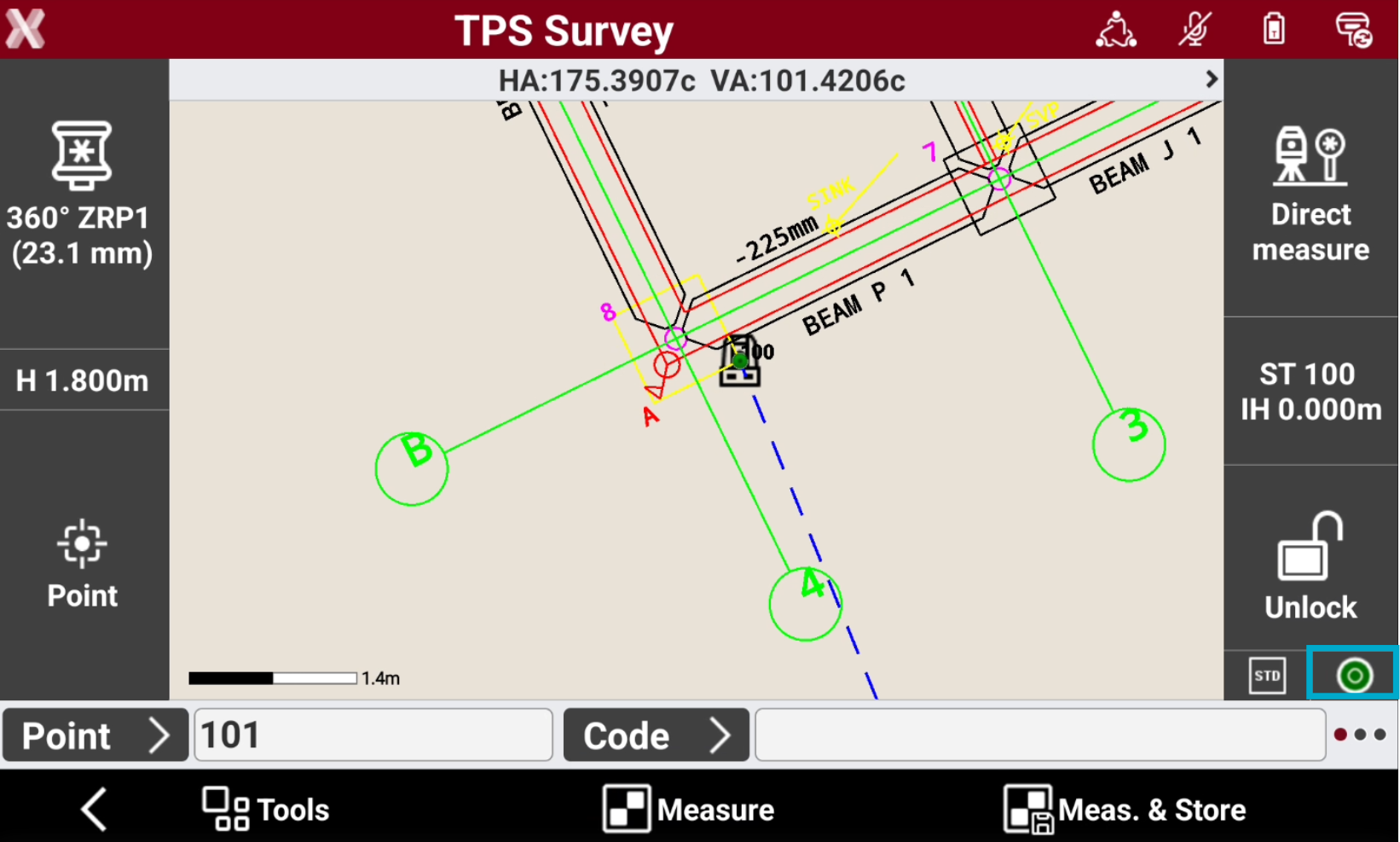
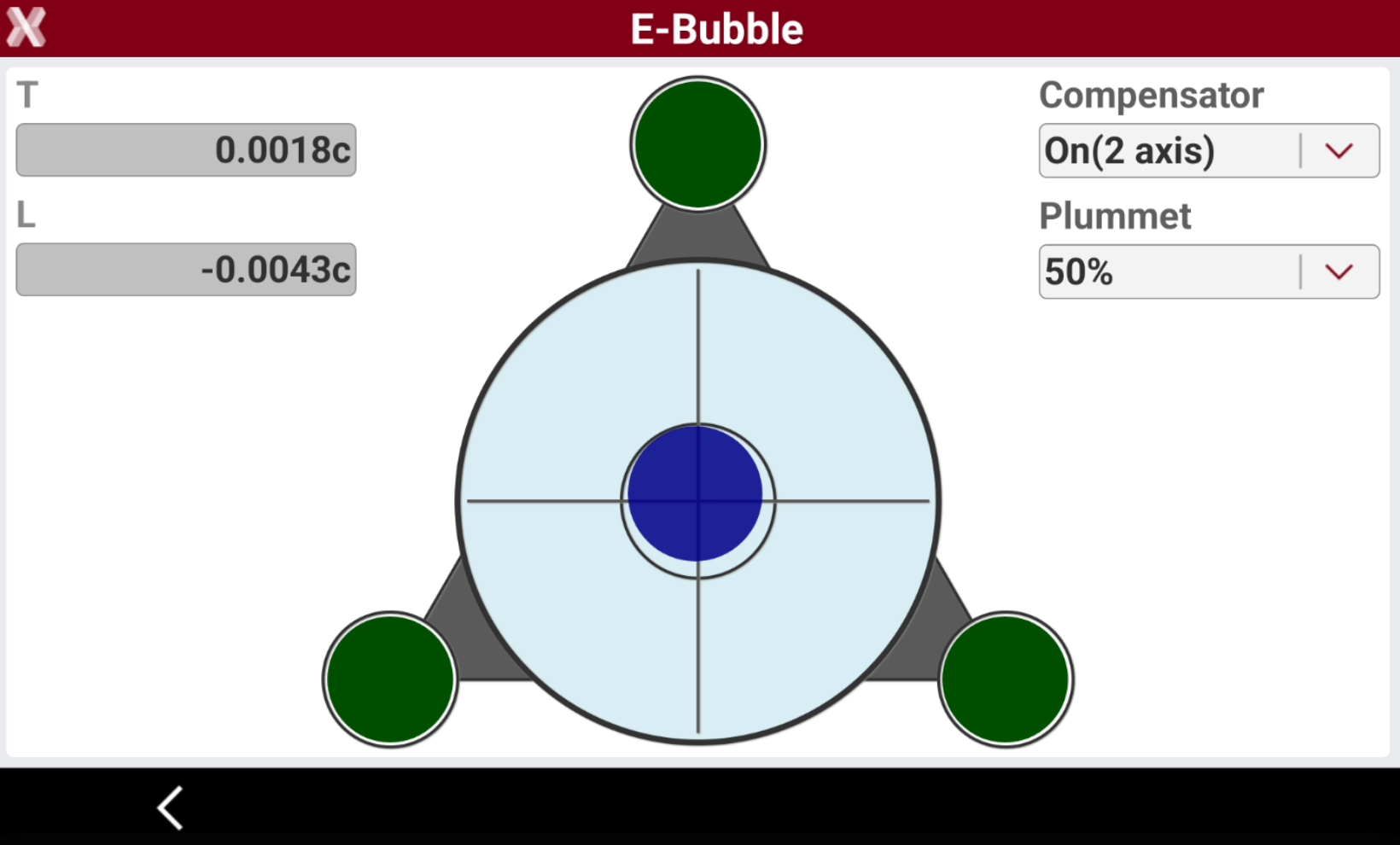
Press the electronic level icon to open the E-Level page.
-
Check that the compensator is turned on and instrument is leveled. The icon color shows in real time the compensator status.
Select the target
-
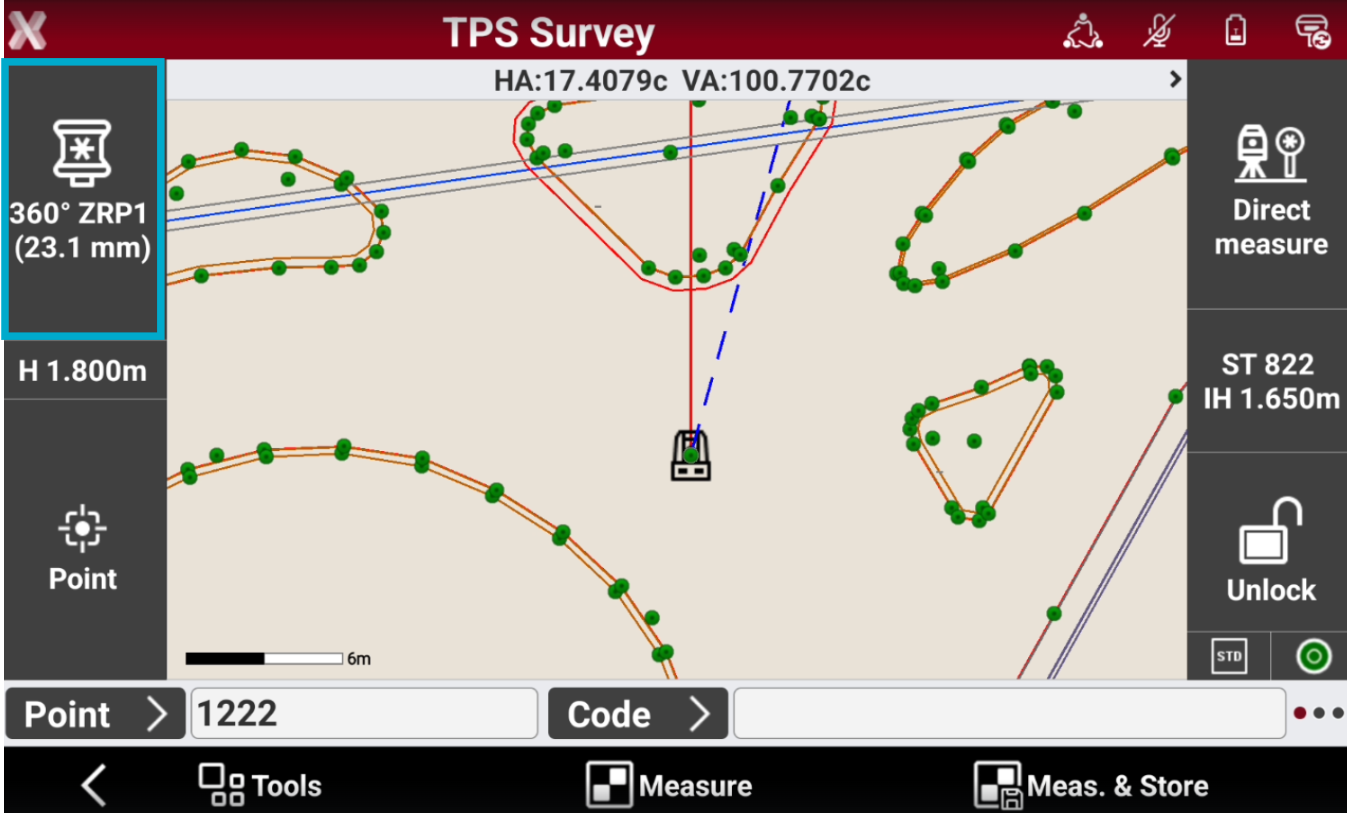
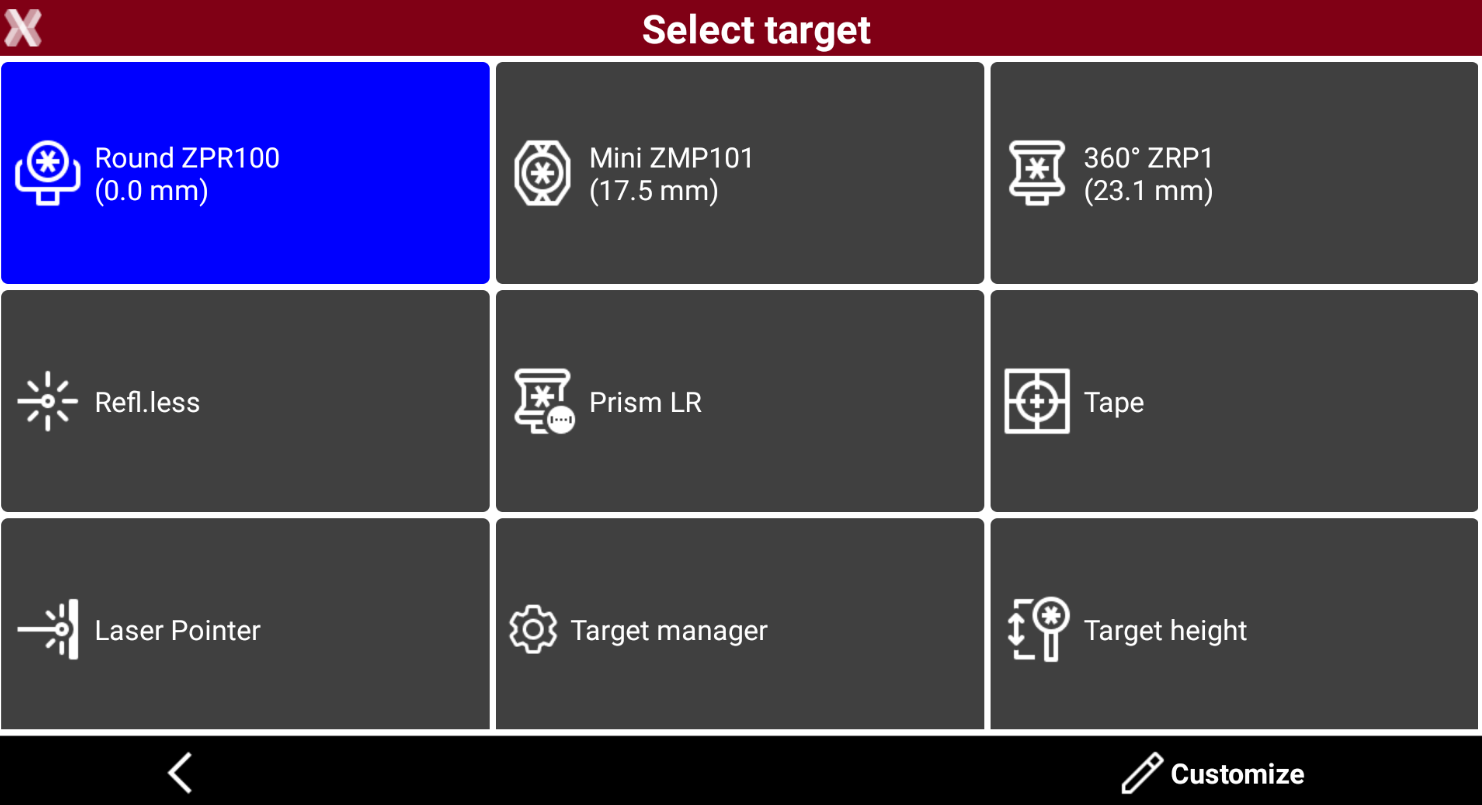
Press the prism icon to open the prism list and select the correct target, as well as the target height.
-
If the target is not available press Customize to add it or Target manager to create a new target. See Measure mode and target for more information.
Search and lock the prism
-
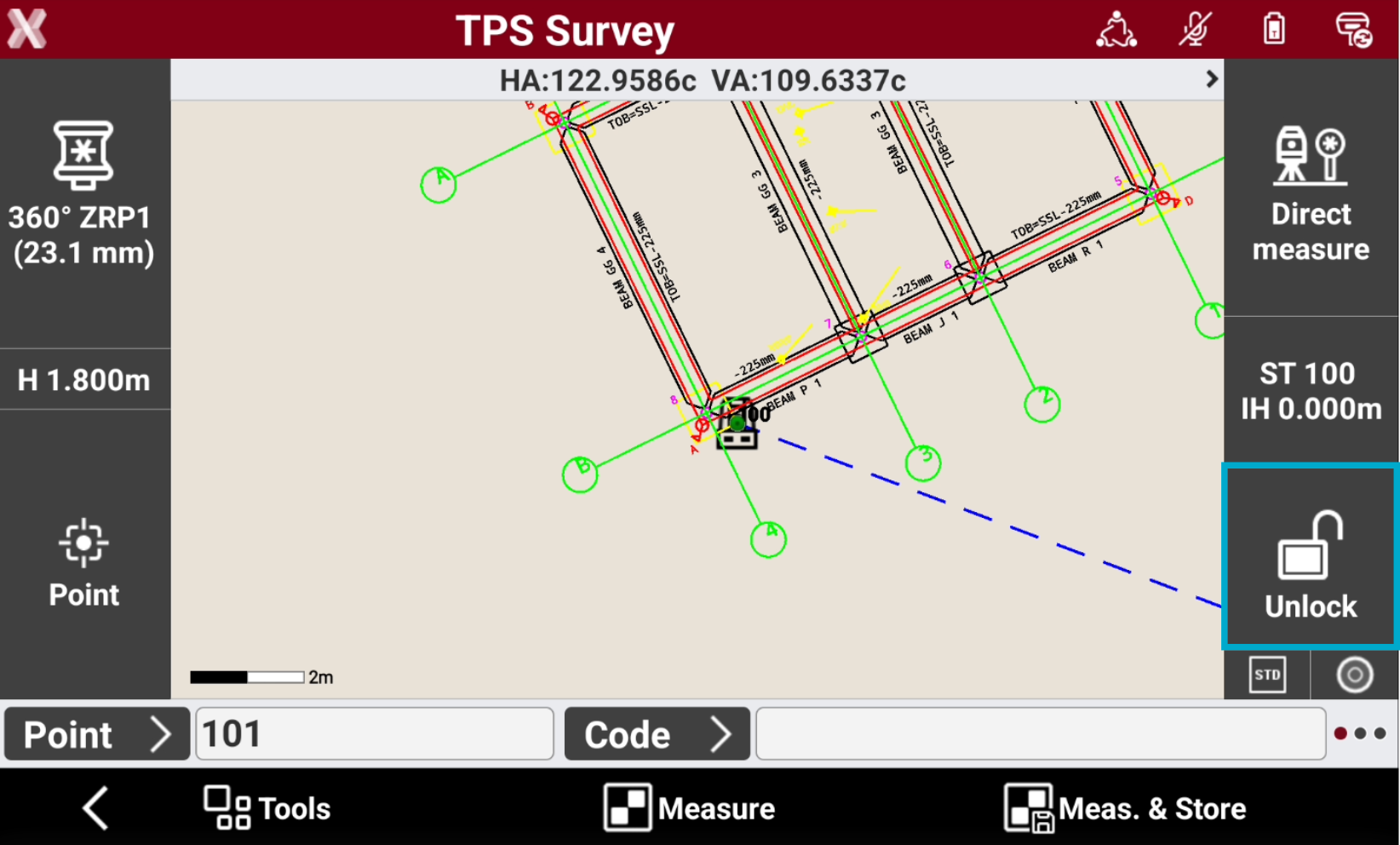
Initially the prism is not locked. If the prism is not locked, the software shows the status Unlock.
-
Long-press the Unlock icon to start the search of the prism, ore press it to open the Robotic control panel.
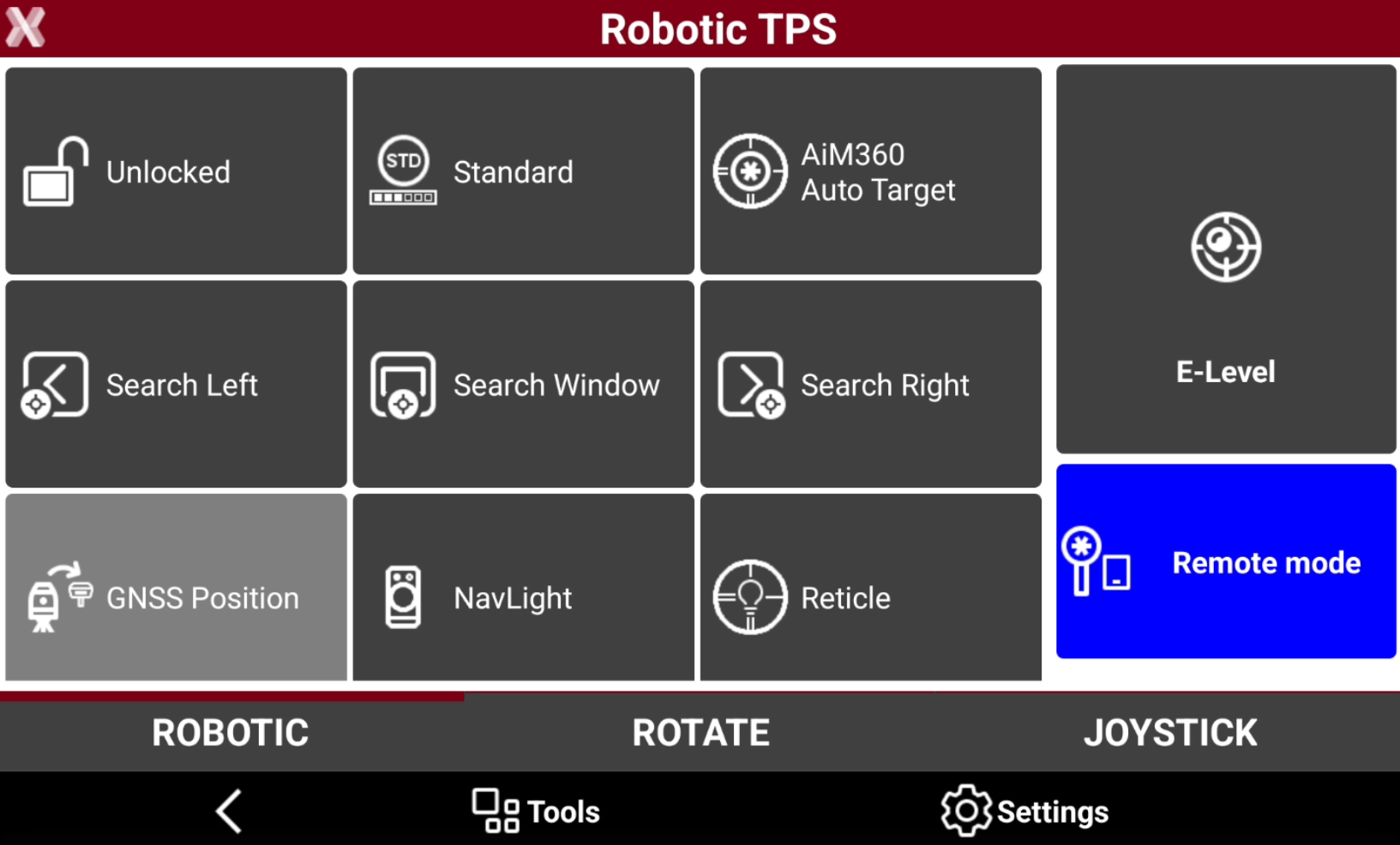
When working with a robotic total station from pole side, the Remote mode has to be turned on.
-
In the Robotic control panel it is possible to access different functionalities to rotate or automatically search the prism.
-
Unlocked: press the button to search the prism around the current direction using ATR and, with a full robotic, perform a 360° search.
-
Search Left: to search a prism on the left.
-
Search Right: to search a prism on the right.
-
Search Window: to search a prism within the search window. Requires to define a search window.
-
GNSS Position: to search a prism using the GNSS position, for example in an X-POLE configuration or using GeoTrail.
-
-
In Rotate page it is possible to use commands to rotate the instrument in specific directions and in Joystick page using commands to rotate the instrument with arrows.
-
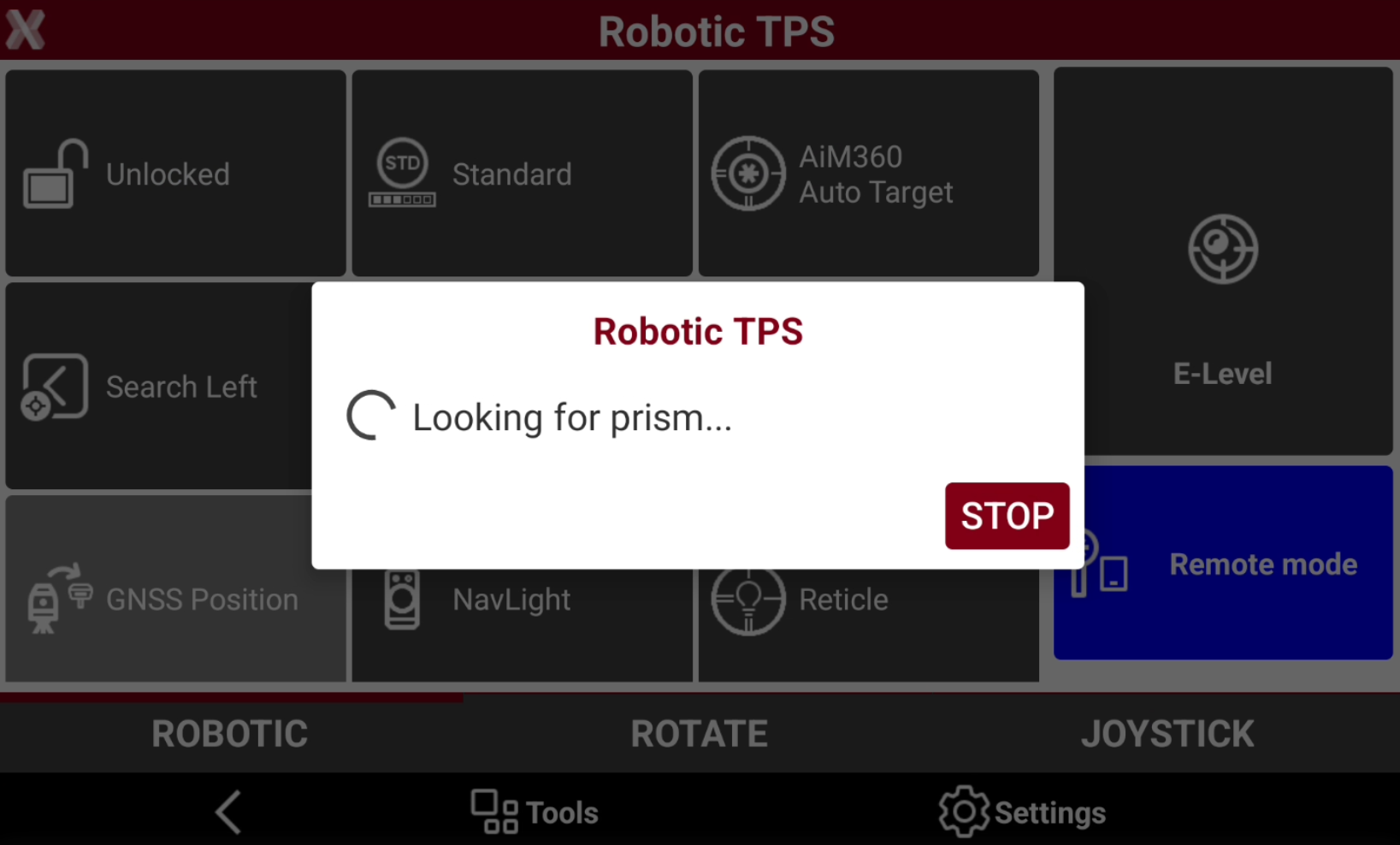
The instrument rotates and lock the prism.
-
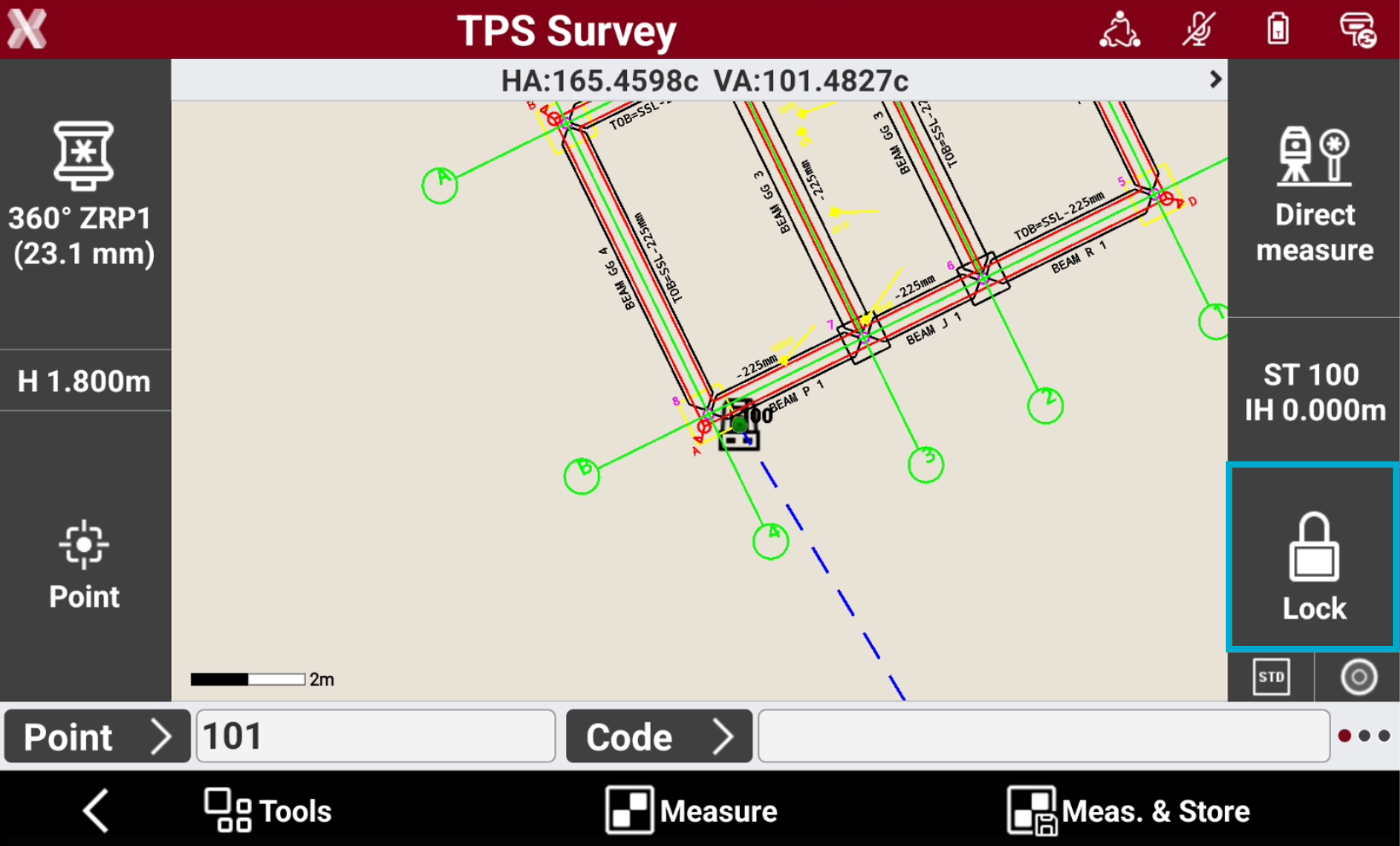
When prism is located, the instrument enters in tracking mode following the prism. The icon is now Lock.
-
Now it is possible to measure.
If during the task the prism is unlocked, X-PAD automatically searches the prism using the strategy defined in TPS Settings.