
The information contained in this chapter covers the standard first steps for using the software. For detailed descriptions of all features, advanced workflows, configuration options, and reference information, refer to the complete User Manual. The full manual provides comprehensive documentation for all functions and capabilities available in the software.
-
This page explains the basic steps on how stakeout using a GNSS receiver.
To visualize in CAD the measured points and lines, a GNSS localization has to be defined. If a localization is not defined, when the first point is measured, X-PAD asks to create a single point localization based on measured point.
-
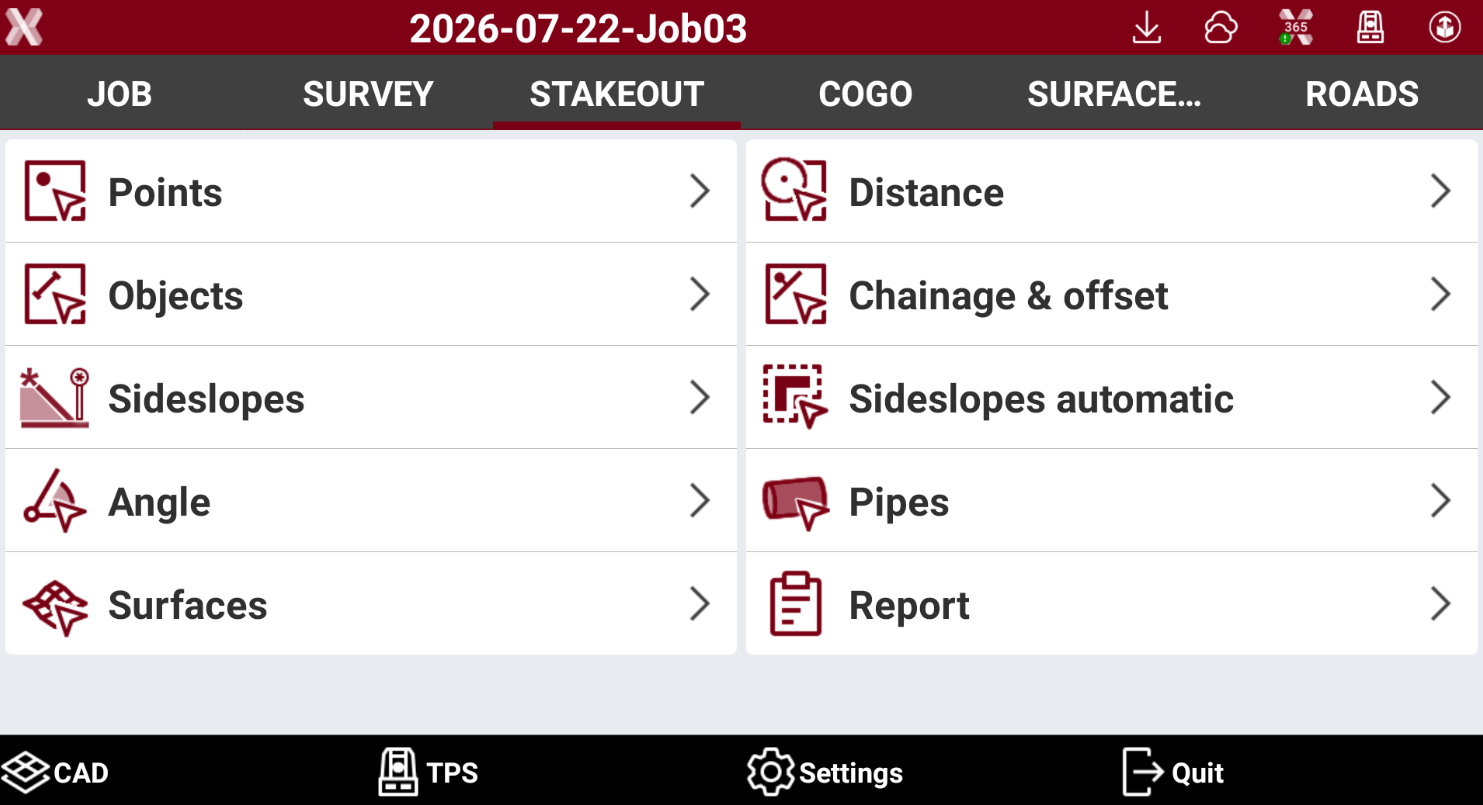
The stakeout functionalities are listed in the Stakeout page. The software offers different stakeout functions, from stakeout single points, to stakeout polylines and complex elements.
-
The stakeout interface is consistent across all stakeout functions, providing a similar workflow regardless of the selected stakeout method.
-
Points: stakes out individual topographic points by selecting them from a point list, choosing a point graphically, or entering its coordinates manually.
-
Distance: stakes out a point at a specified distance from a reference point.
-
Objects: stakes out graphical entities such as polylines, arcs, and other drawing elements.
-
Chainage & offset: stakes out a position along a polyline, arc, or drawing element by specifying a chainage and offset value.
-
Sideslopes: stakes out a side slope from a selected polyline, arc, or drawing element using a specified slope value.
-
Sideslopes automatic: automatically stakes out excavation or embankment side slopes.
-
Angle: stakes out a direction based on a specified angle from a reference direction.
-
Pipes: assists in pipe installation by providing guidance based on the specified alignment direction and pipe slope.
-
Surfaces: stakes out a Digital Terrain Model (DTM) surface.
-
Stakeout procedure
-
Depending on the stakeout method, enter the required parameters.
-
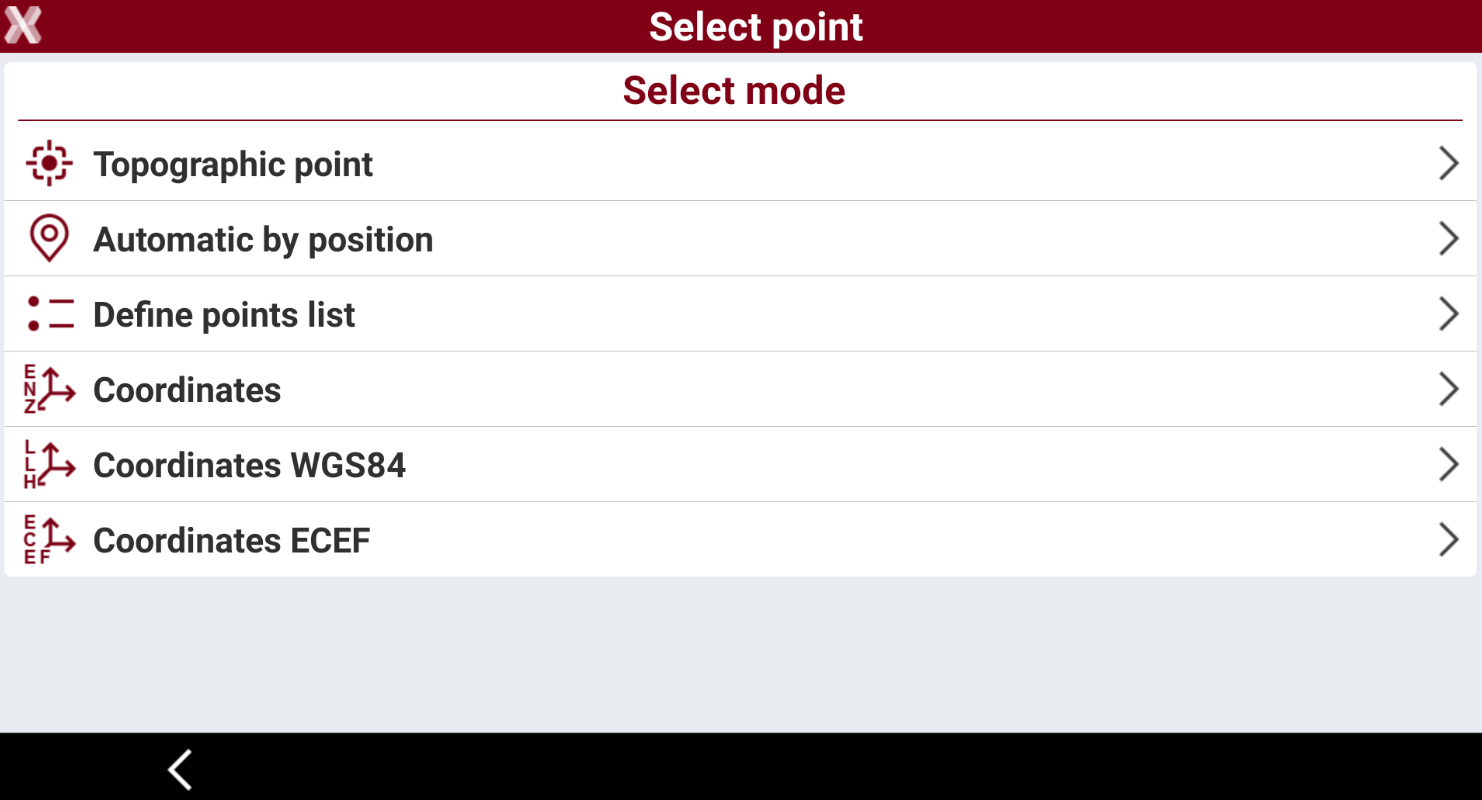
For example when selecting Points enter how to select the point to stakeout
-
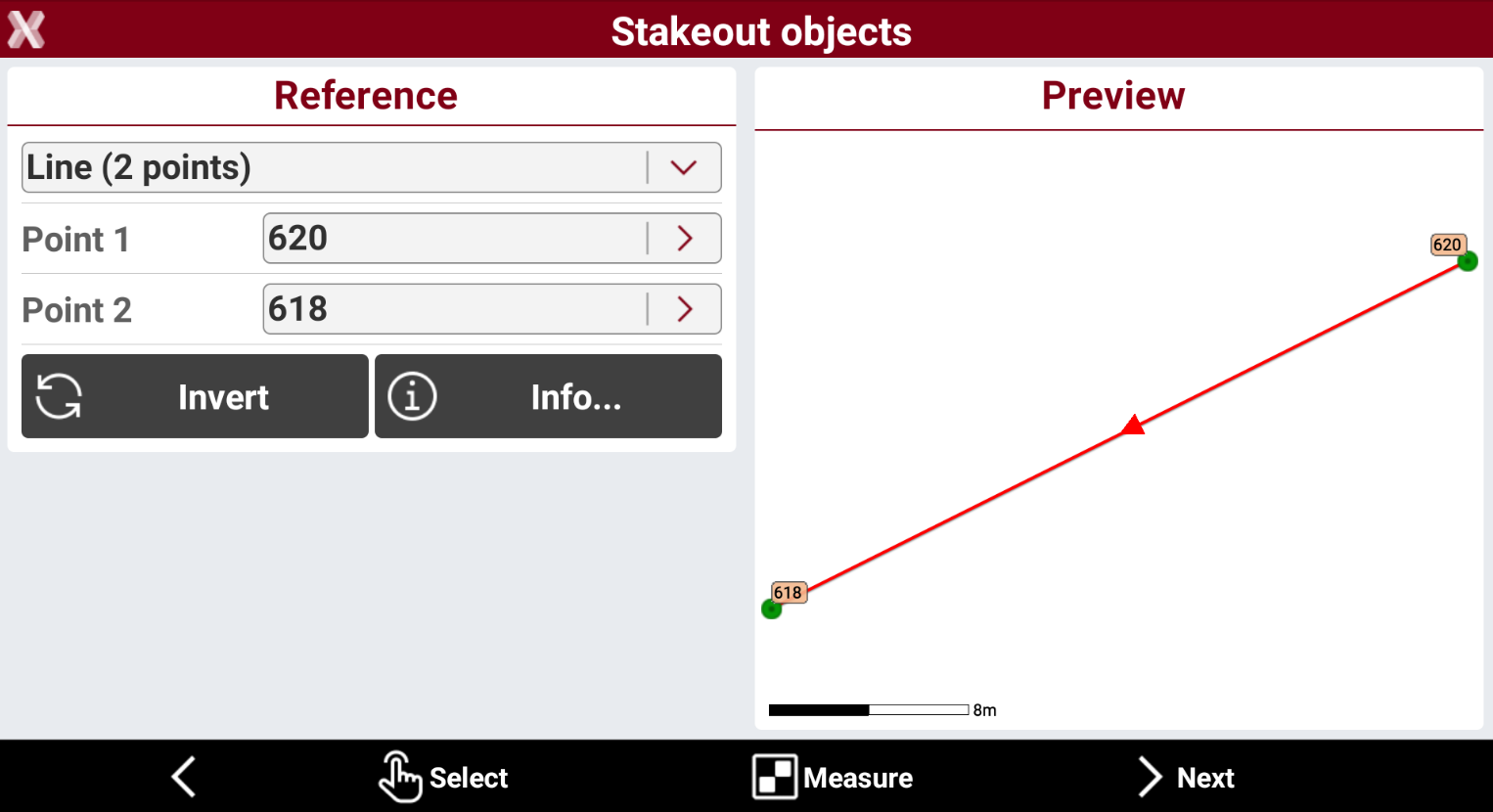
Or when selecting Objects select the reference element to stakeout.
-
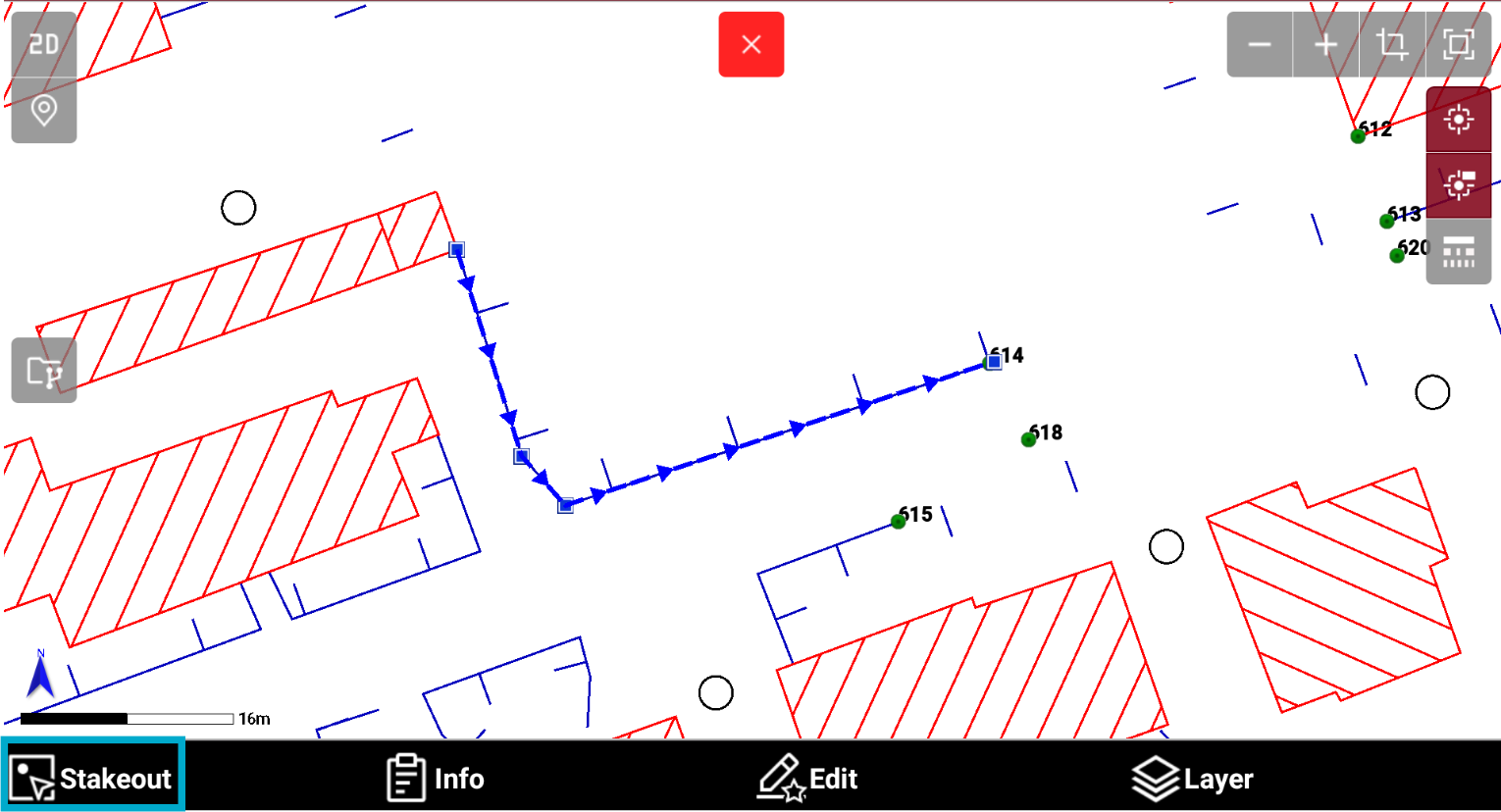
It is also possible to stakeout an entity from CAD. In this case select the element and press Stakeout button.
-
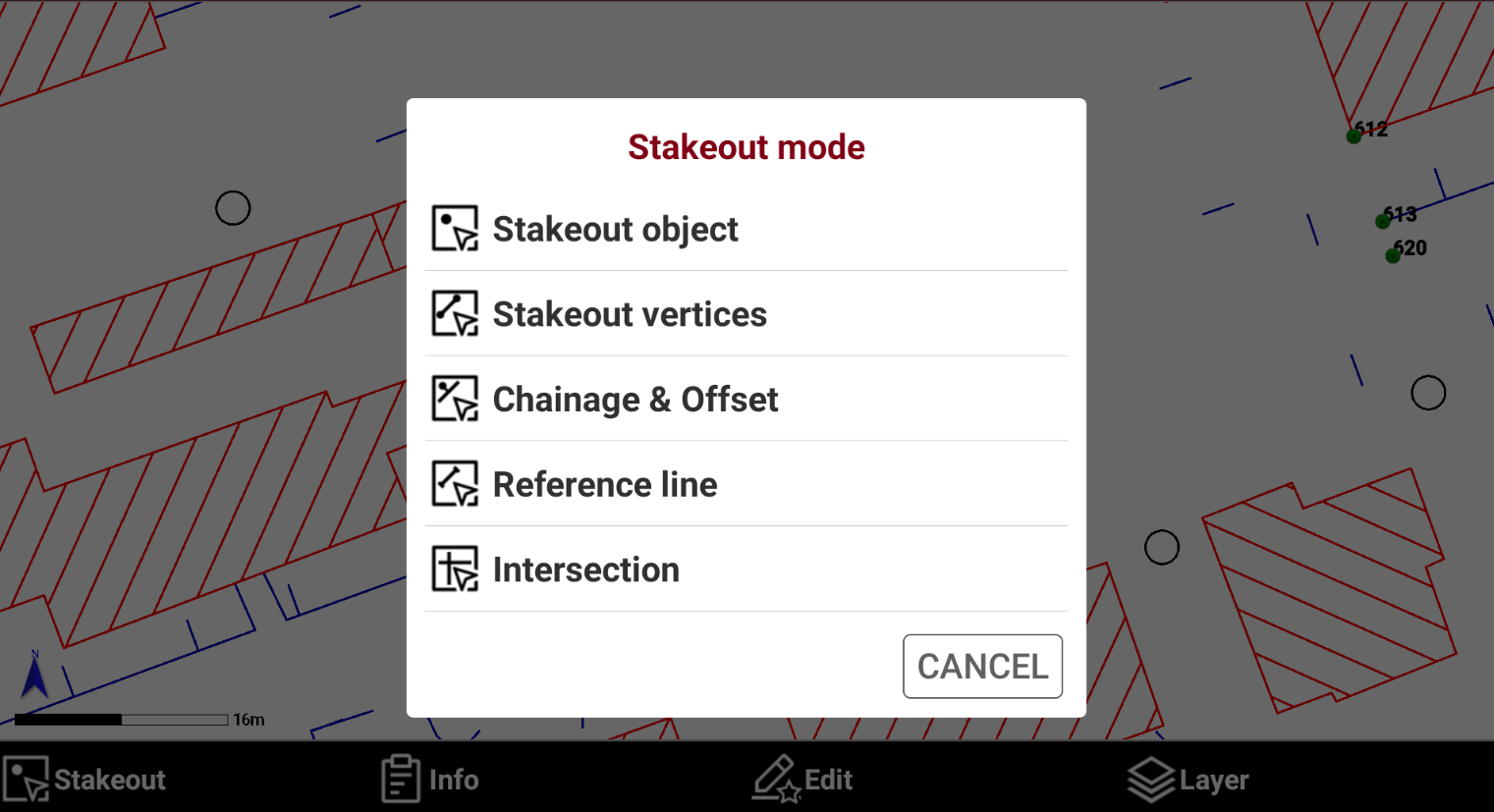
And select the Stakeout mode.
-
After the point to stakeout has been defined, the GNSS Point stakeout page is opened.
Stakeout interface
-
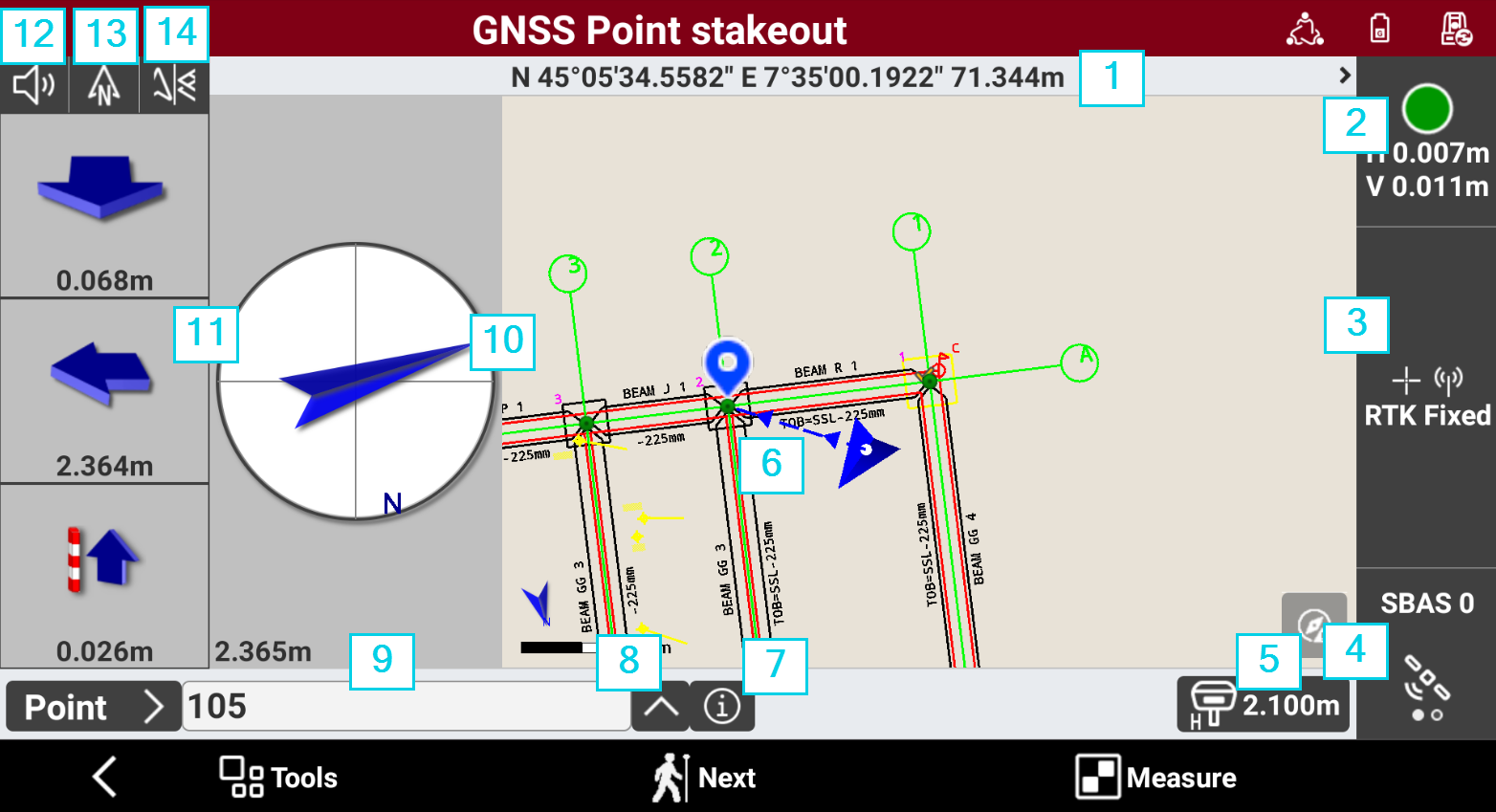
Whether staking out a point, an element or a position by offset, the software provides indications to reach the position to stakeout using a common scheme.
-
Coordinates: the geographic coordinates (latitude, longitude, elevation) of the receiver. Press to display the plane coordinates (East, North, elevation). Press again to switch back to the geographic coordinates.
-
Accuracy: the color of the icons indicates if the precision level set in the survey parameters, has been reached. The epochs are acquired only when the level of precision has been reached (horizontal and vertical precision, minimum number of satellites, maximum values of DOP, electronic bubble). Below the icon, the current precision values for coordinates (H) and for elevations (V) is displayed.
-
Receiver status: opens the GNSS Status page to show the status information of the GNSS receiver.
-
Satellite/DOP: shows the number of satellites tracked, for constellations GPS, GLONASS, BeiDou, SBAS. Click to display the DOP values.
-
Antenna elevation: elevation of the antenna of the receiver. Click to modify the elevation.
-
Graphic area: graphic view with visualization of the current position and of the position to reach. Blue: all parameters of operation satisfy the preset level of accuracy. Red: the accuracy parameters are not met. The blue line indicates the direction to the point to stakeout.
-
Info: tap to open the information of the point to stakeout and enter a code.
-
Change ID: press to change to next point to stakeout.
-
Point ID: the ID of the point to stakeout.
-
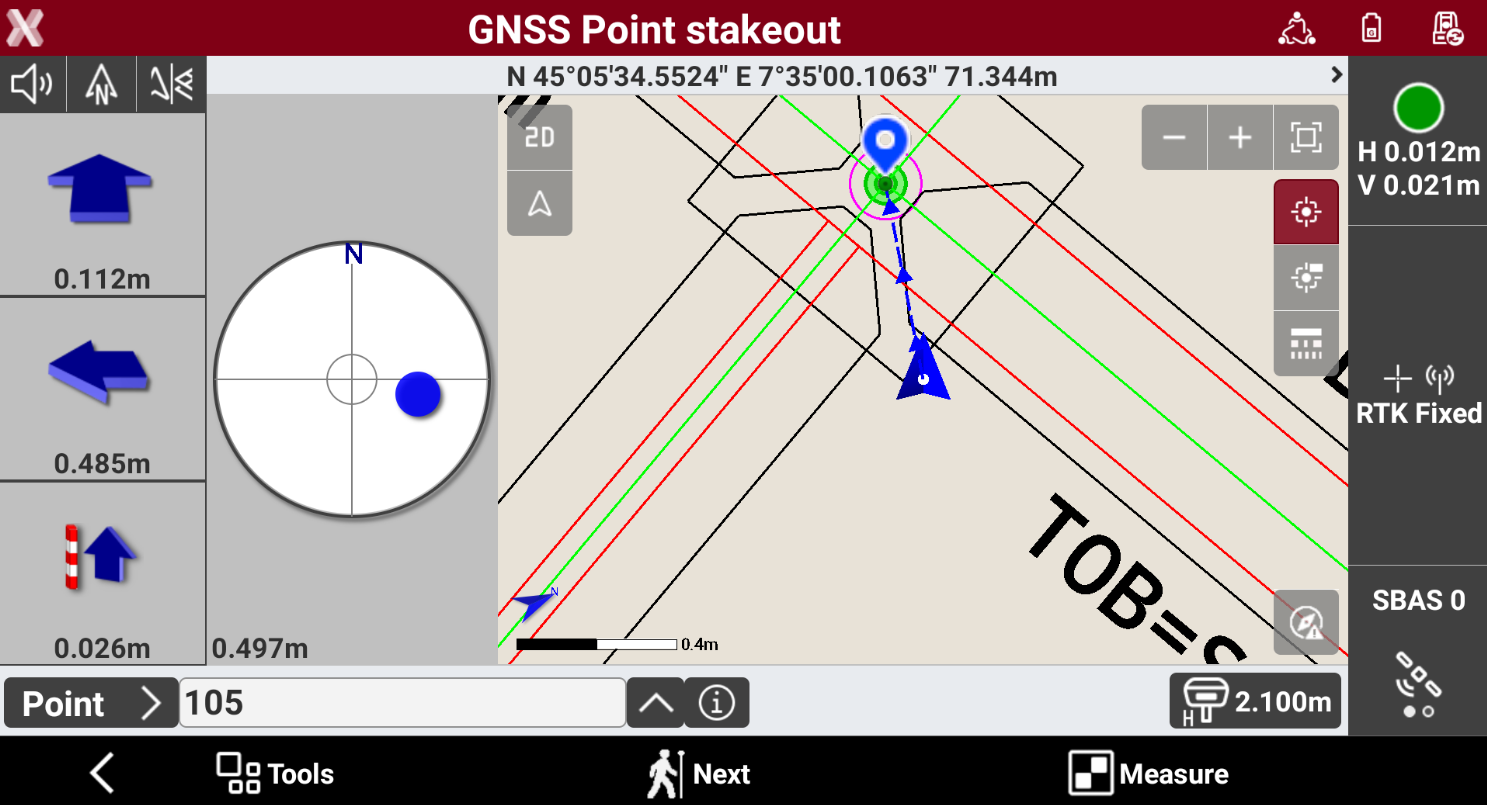
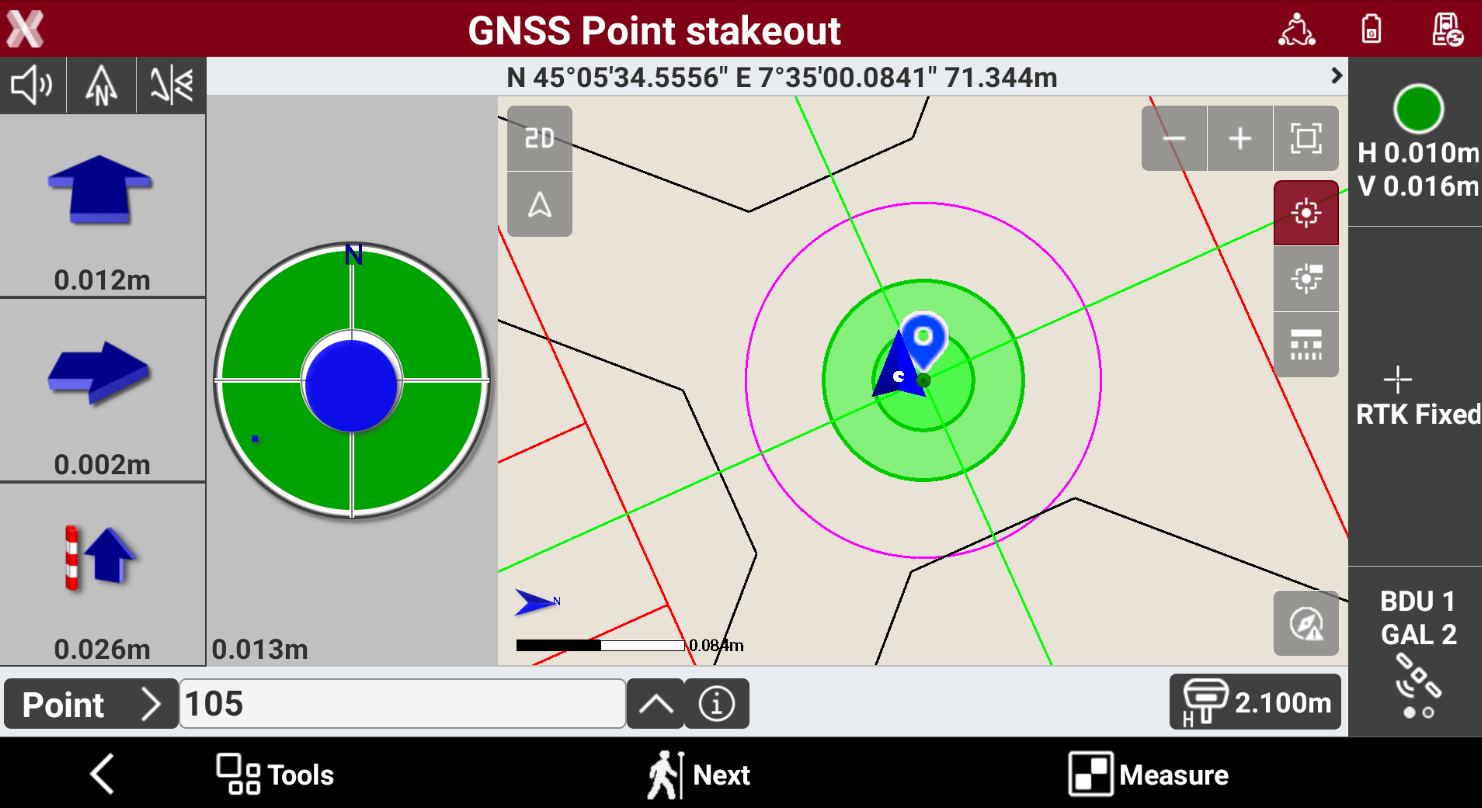
Compass indication: shows a compass indicating, with respect to the current direction, the direction of the position to reach. In the lower part is the distance of the point. Blue: when more than a meter distance from the position to reach. Red: when the receiver has not reached yet the precision check defined In the stakeout settings, define the distance limit stating when to use this type of visualization. The value of default is set in meter. When the distance from the position to reach is less than one meter this view mode appears. Indications provided and position indicated refer to North or to the sun. The background becomes green, when the position is reached within the tolerance values.
-
Numeric indications to reach position: indications are referred to North, to Sun or to Reference point. First value refers to distance forward or backward. Second value refers to distance right or left. Third value specifies the elevation difference.
-
Audio indications: the software guides by vocal information allowing, most of all when you are far from the point, to arrive near the point without having to look always on the controller. A tone tells when the desired position is reached considering the defined tolerance limits. Click to turn off/on the audio indications.
-
Stakeout reference: changes the Stakeout reference for GNSS receivers.
-
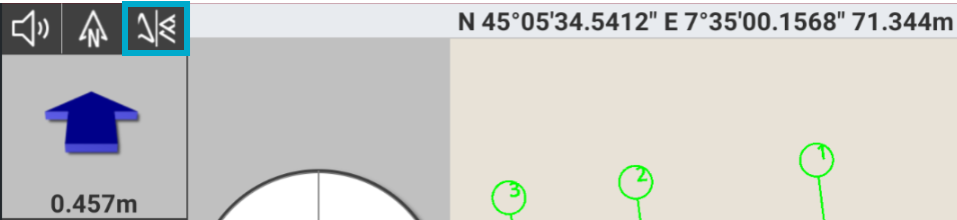
View mode: changes the Stakeout view mode for GNSS receivers.
Stakeout points
-
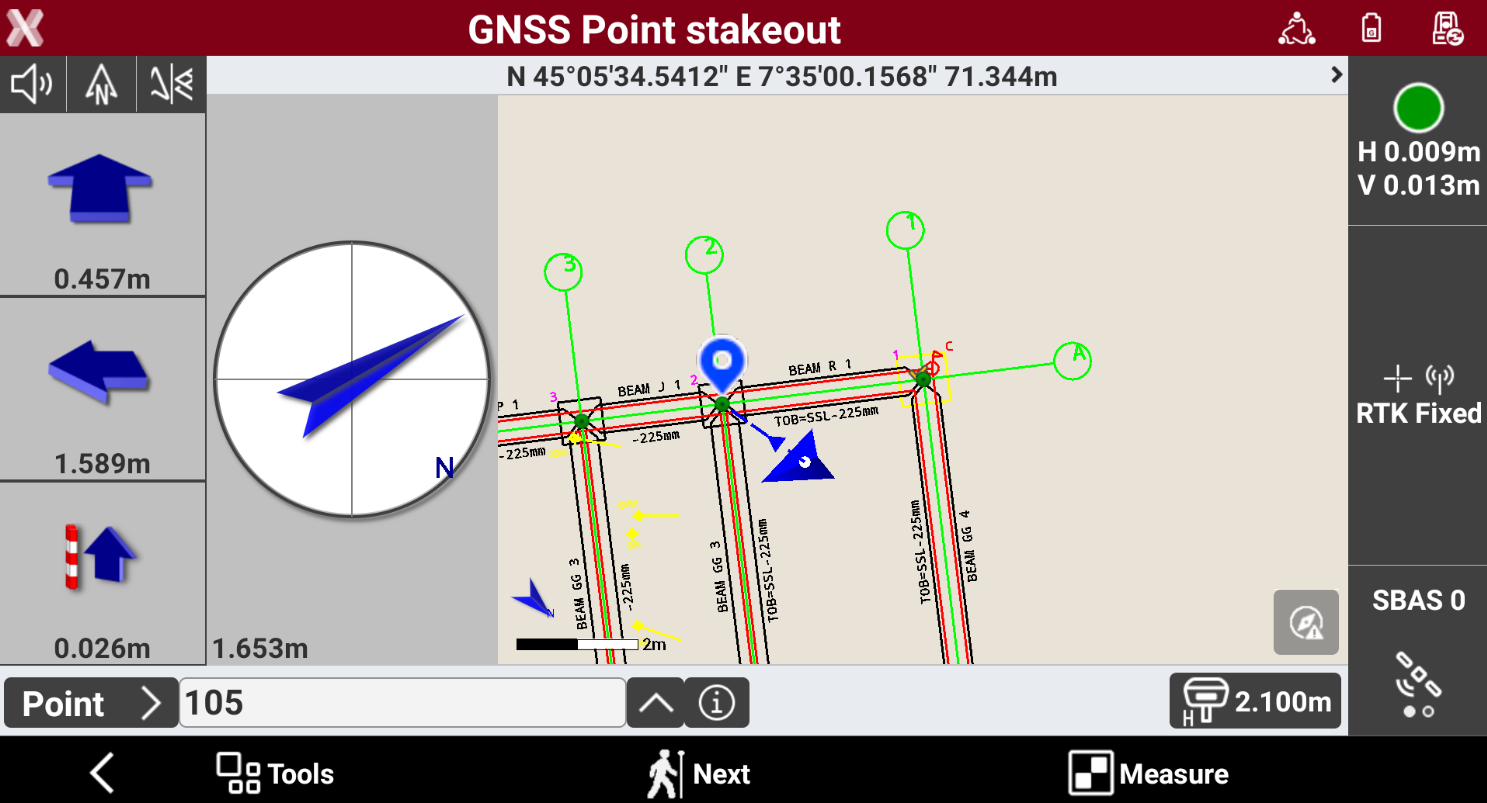
Follow the indications until the Stakeout page is opened.
-
The left panel shows the indications to the coordinate to stakeout referred to the selected Stakeout reference for GNSS receivers.
-
To change stakeout reference press the corresponding icon.
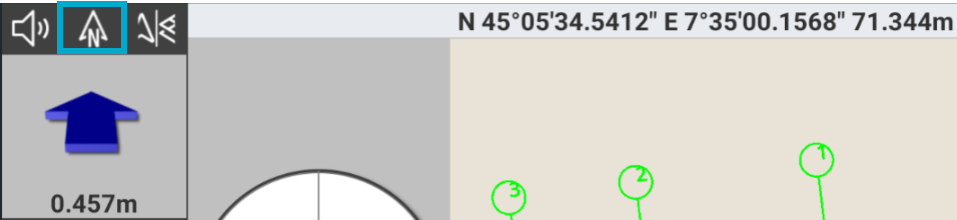
Available references are:
-
Current direction: the direction to the point to stakeout is defined by the current walking direction. In case of working with IMU receiver, the direction is indicated by the IMU.
-
North: the direction to the point to stakeout is the north. Turn to north to read the distance values correctly.
-
Sun: the direction to the point to stakeout is the sun position. Turn to sun to read the distance values correctly.
-
Reference point: allows to select from CAD or from the point list a point to be used as reference point for stakeout directions. Turn to reference to read the distance values correctly.
-
Previous: allows to use the latest stakeout point for stakeout directions. Turn to previous stakeout point to read the distance values correctly.
-
Reference line: allows to select from CAD a line to be used as reference point for stakeout directions.
-
-
Depending on the View mode selected, the interface shows the compass with the direction or the CAD view or both. Press the corresponding icon to change the view.
-
Approaching the point, the compass view changes to offer a better view to precisely stakeout the point and the CAD view automatically increase the zoom level.
-
If the stakeout distance is within the defined tolerance the compass view is in green.
-
Press Measure to record the stakeout measure. Then the software automatically moves to the next point to stakeout.
-
Or select the next point to stakeout pressing Next or directly selecting the point in CAD.
Stakeout objects
-
Follow the indications until the Stakeout page is opened.
-
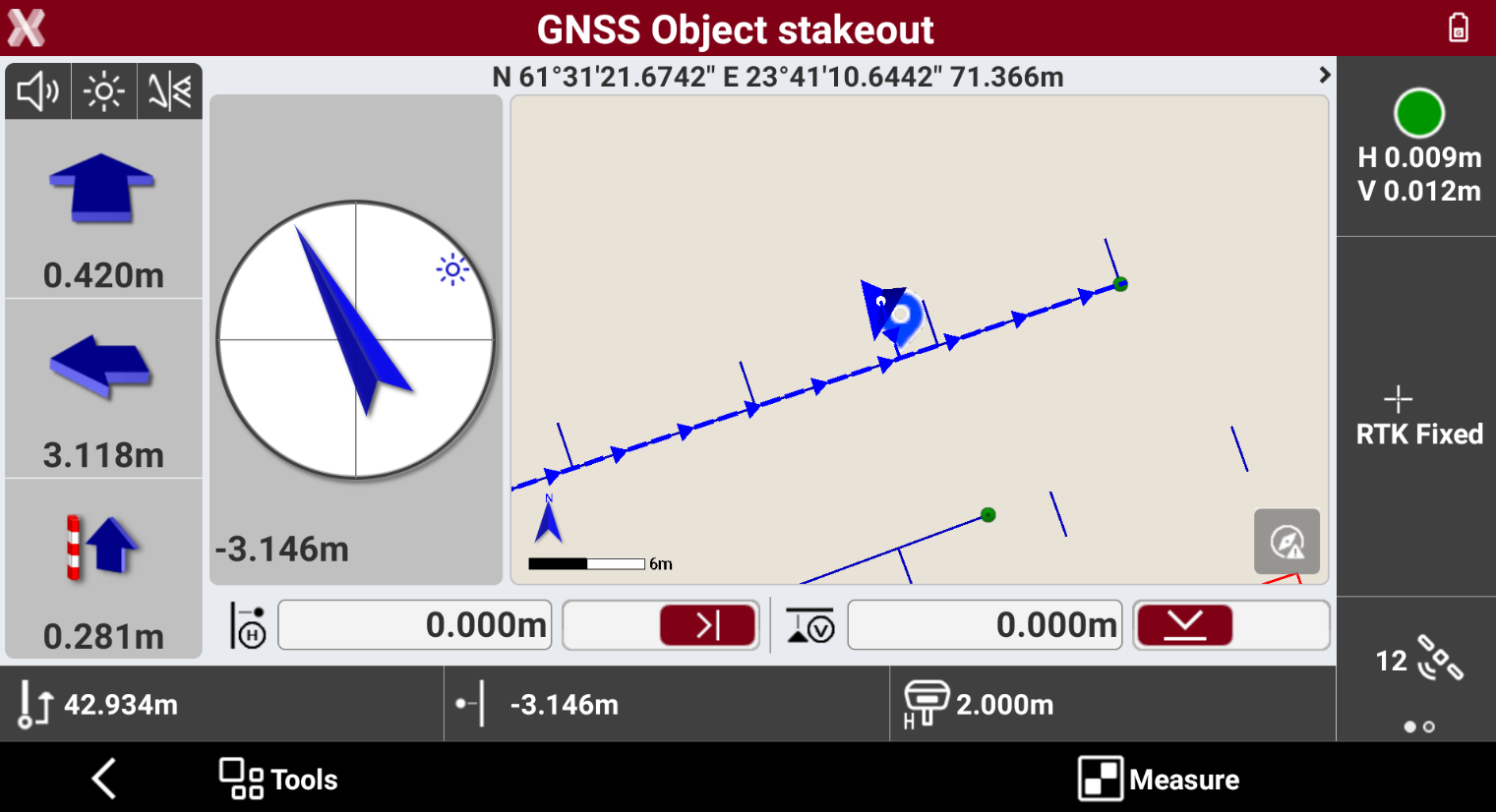
The left panel shows the indications to the coordinate to stakeout referred to the selected Stakeout reference for GNSS receivers.
-
The bottom bar shows the current chainage and offset from the selected reference element.

-
This bar offers the possibility to apply an horizontal or vertical offset to the reference element.

-
To change stakeout reference press the corresponding icon.
Available references are:
-
Current direction: the direction to the point to stakeout is defined by the current walking direction. In case of working with IMU receiver, the direction is indicated by the IMU.
-
North: the direction to the point to stakeout is the north. Turn to north to read the distance values correctly.
-
Sun: the direction to the point to stakeout is the sun position. Turn to sun to read the distance values correctly.
-
Reference point: allows to select from CAD or from the point list a point to be used as reference point for stakeout directions. Turn to reference to read the distance values correctly.
-
Previous: allows to use the latest stakeout point for stakeout directions. Turn to previous stakeout point to read the distance values correctly.
-
Reference line: allows to select from CAD a line to be used as reference point for stakeout directions.
-
-
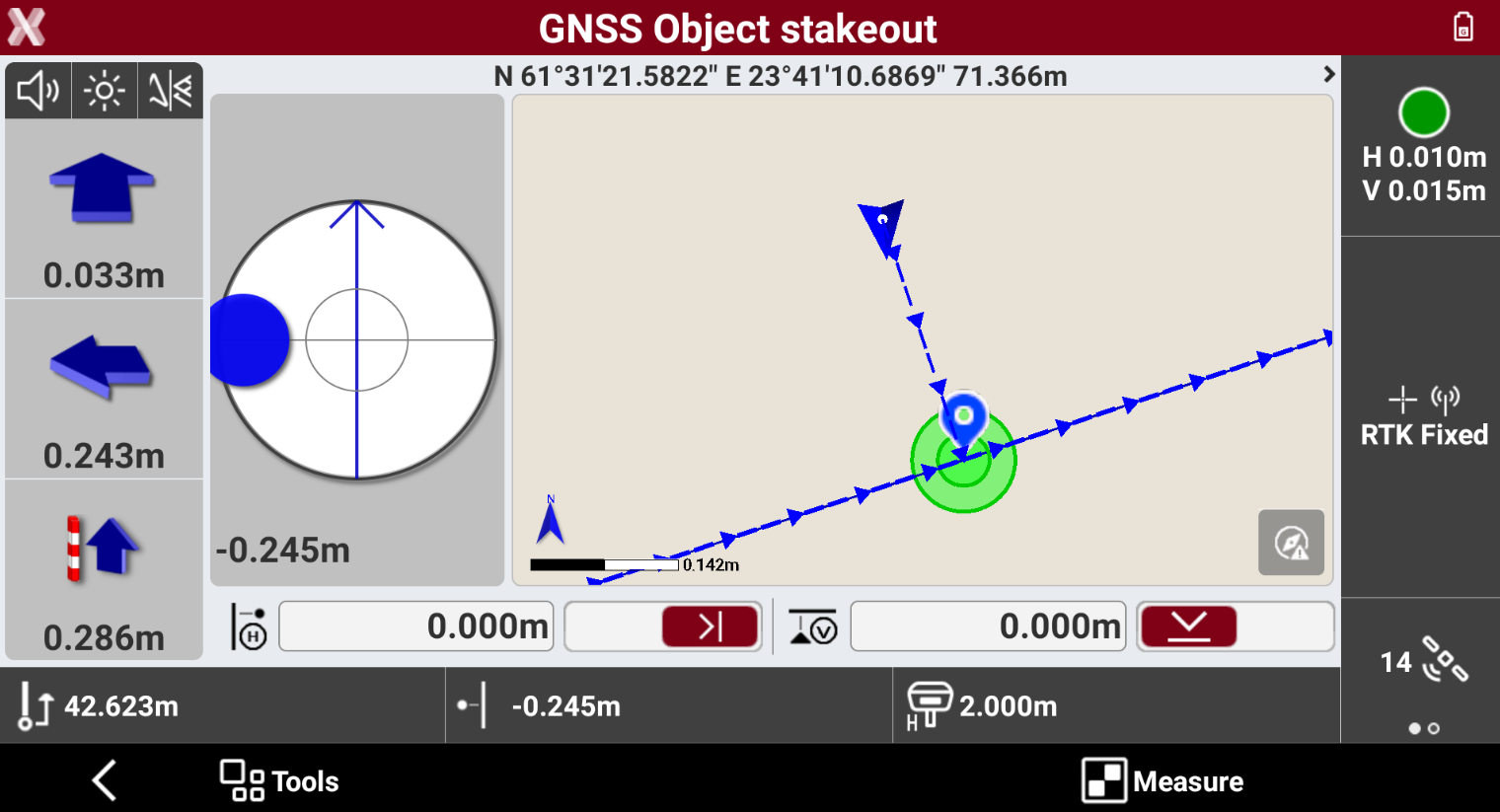
Depending on the View mode selected, the interface shows the compass with the direction or the CAD view or both. Press the corresponding icon to change the view.
-
Approaching the point, the compass view changes to offer a better view to precisely stakeout the point and the CAD view automatically increase the zoom level.
-
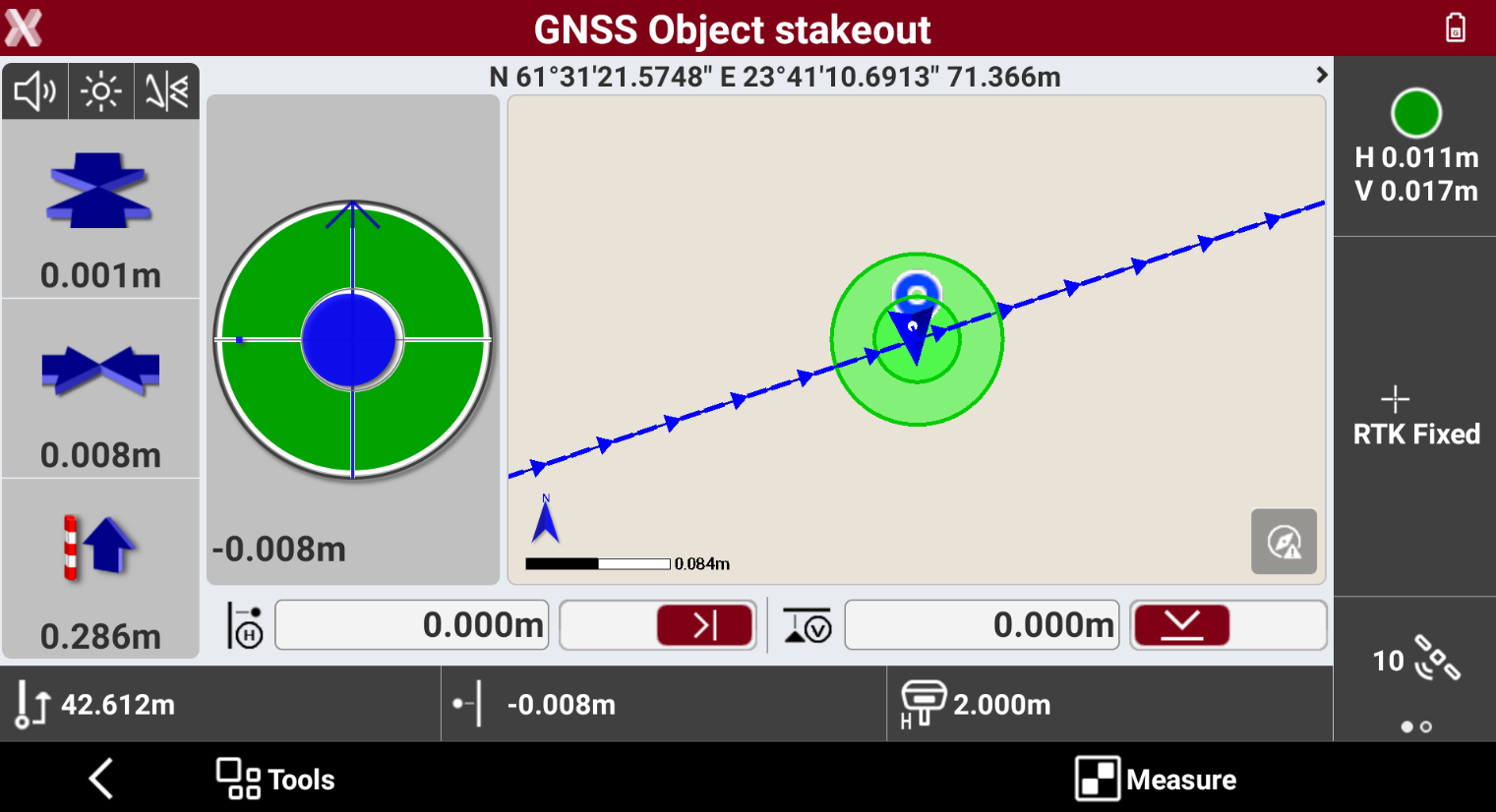
If the stakeout distance is within the defined tolerance the compass view is in green.
-
Press Measure to record the stakeout measure.