
The information contained in this chapter covers the standard first steps for using the software. For detailed descriptions of all features, advanced workflows, configuration options, and reference information, refer to the complete User Manual. The full manual provides comprehensive documentation for all functions and capabilities available in the software.
-
Before to start to work with the software it is recommended to download local software customization and define major settings.
Country package
-
A country package include customized geoid, grid files and other resources for your country.
-
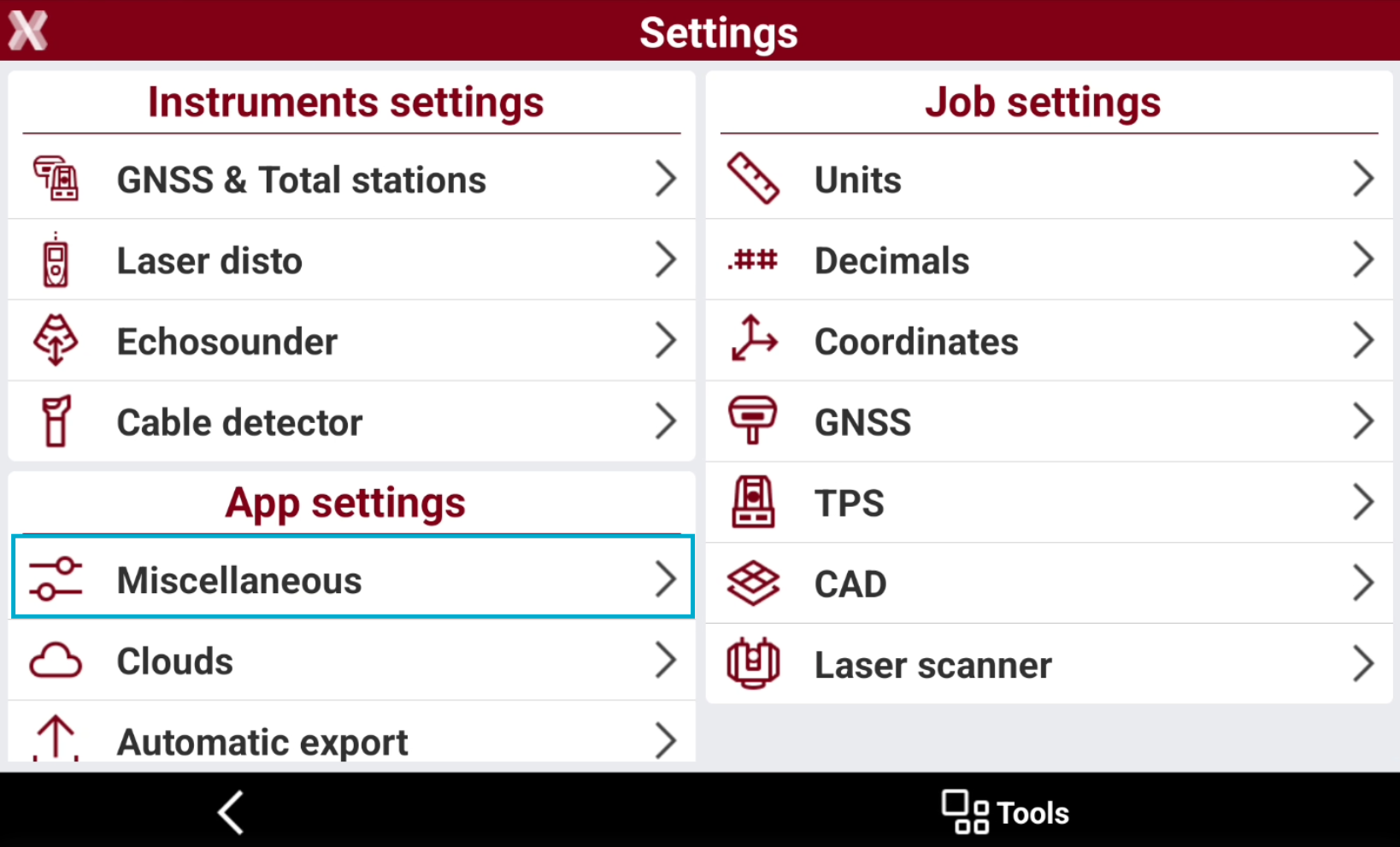
To download and install a localization press Settings.
-
Select Miscellaneous.
-
Select Install next to Localization package.
-
This page shows the already downloaded packages. Select Download to download a new package.
-
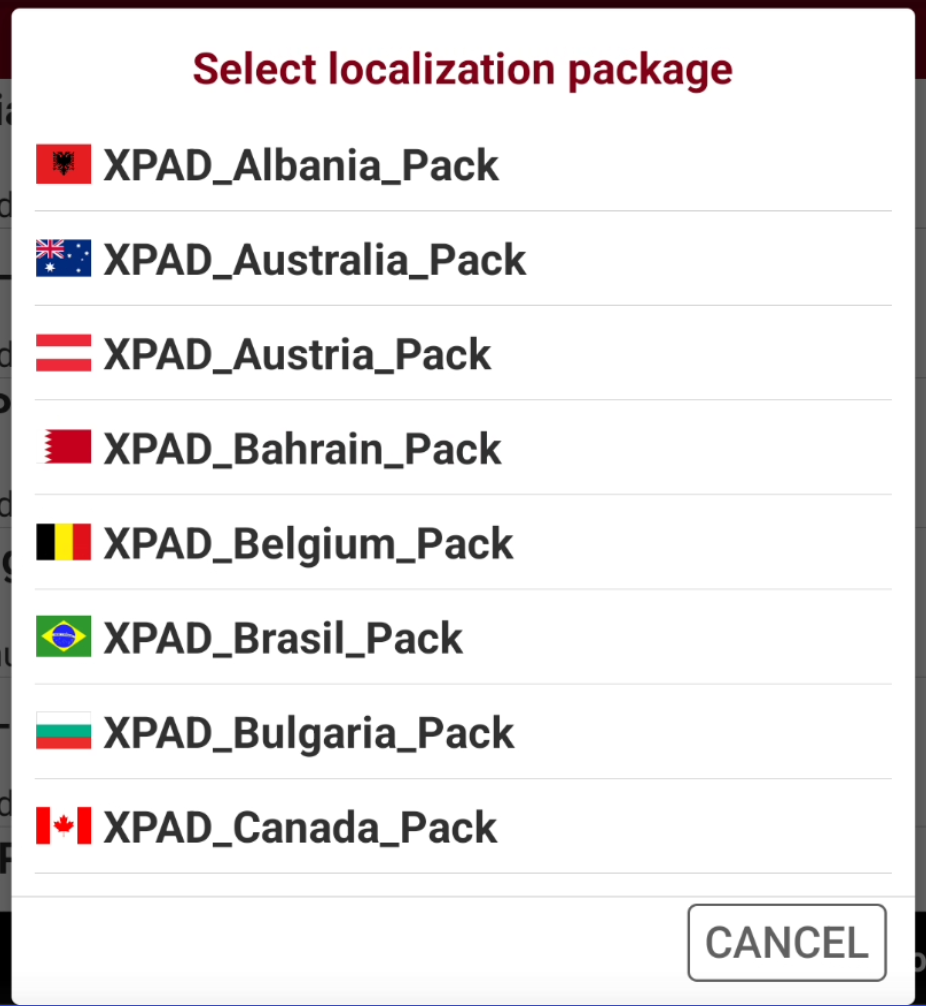
Select the country from the list to download the related data.
-
The software downloads the selected localization package.
-
Select YES to install the selected package.
-
Select YES to delete the downloaded country package file from controller memory, select NO to keep the file in the memory.
-
Cloud settings
-
The software allows to import and export to cloud storages. In case you have an account it is recommended to configure your access to cloud storage.
-
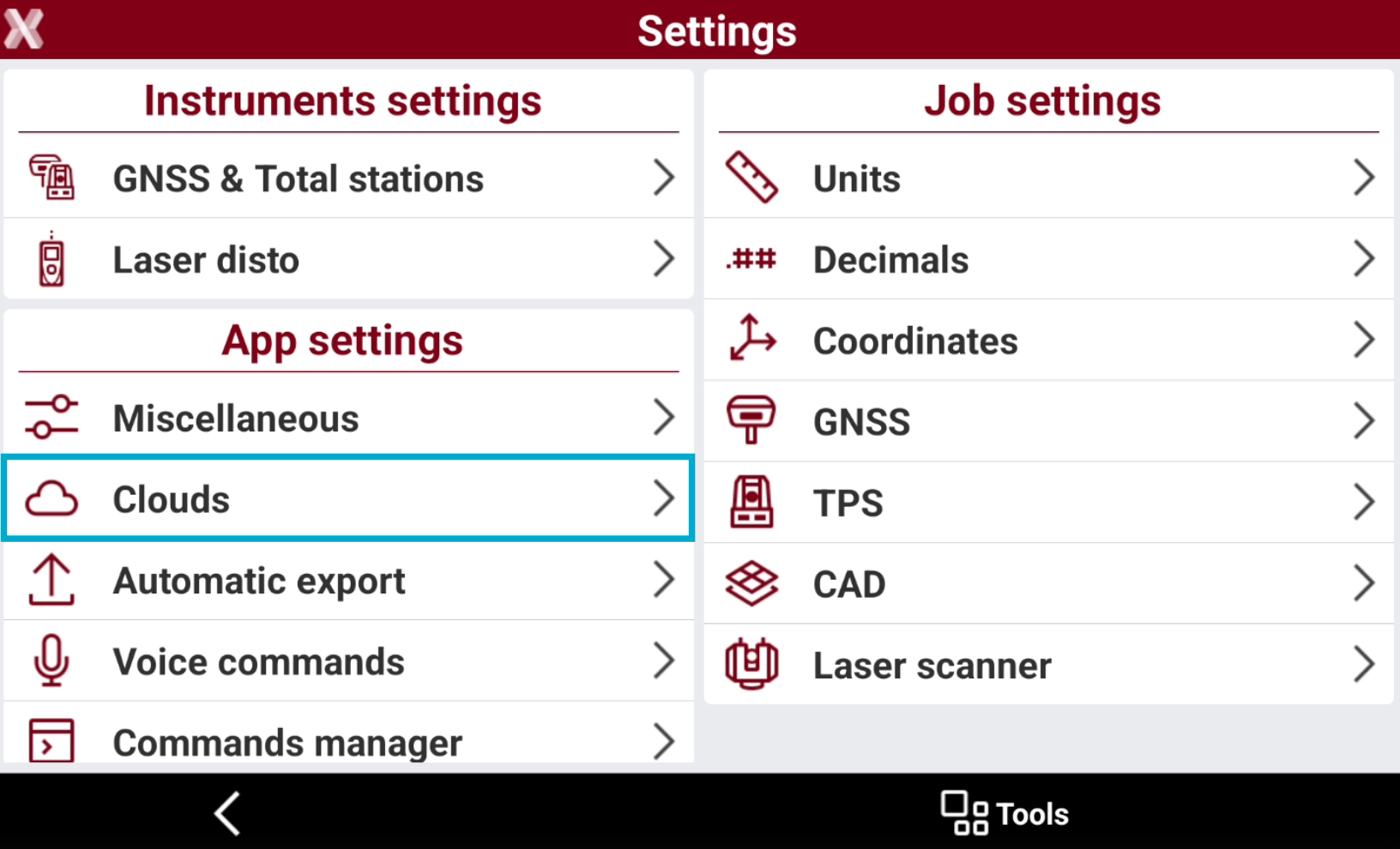
From Settings page select Cloud.
-
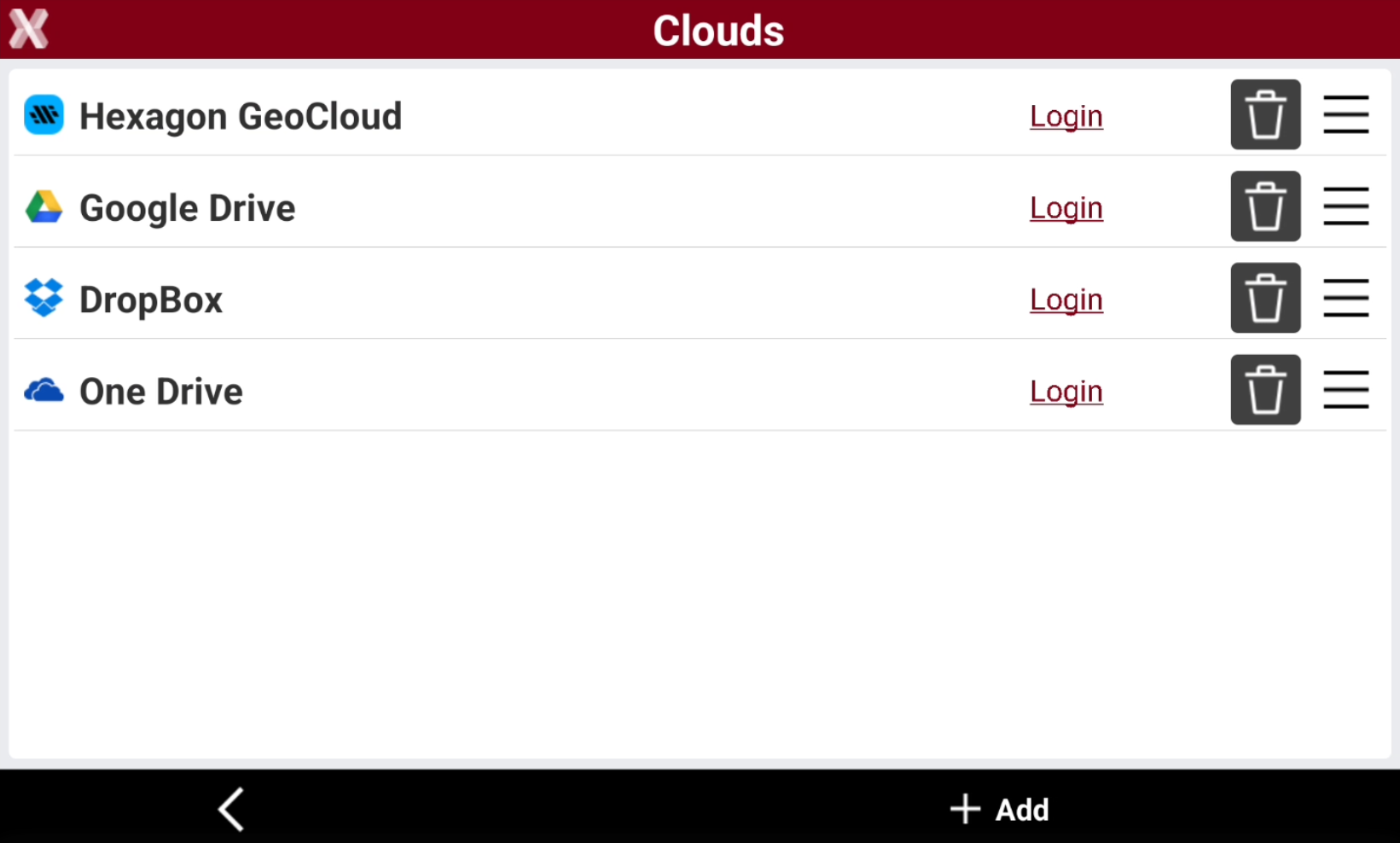
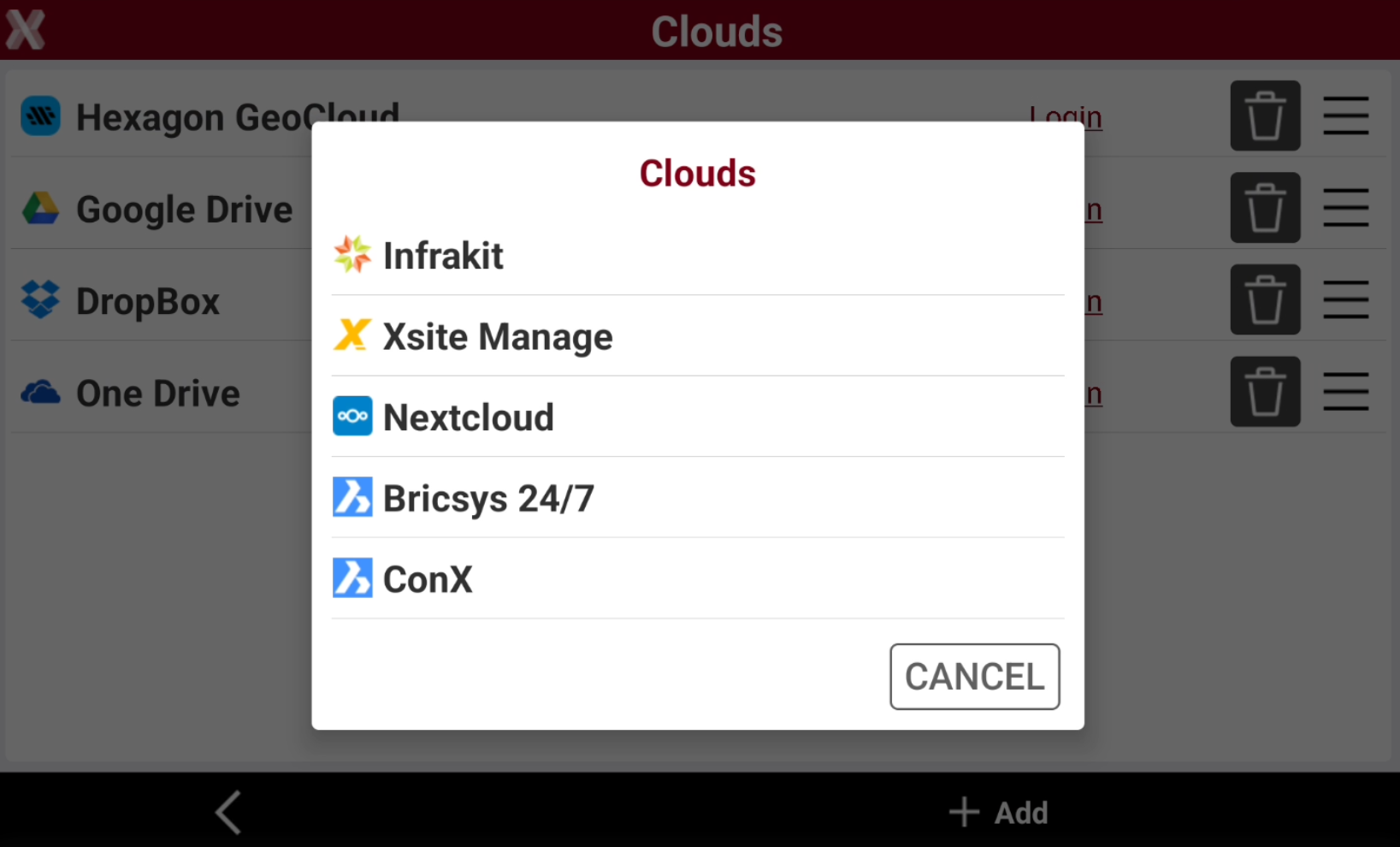
The page shows the list of cloud services.
-
Press Add to add new cloud services to the list.
-
Press Login to login in selected cloud service. The authorization after the first login is maintained also in different X-PAD sessions; the same authorization is maintained for the time established by the server and it not required at each X-PAD session.
Change and save job settings
-
X-PAD allows to change different settings, for example the unit, the number of decimals, coordinate orders, etc…
-
The software comes with the most used settings, but it is possible that you would like to change the settings.
-
All settings are listed in Settings page.
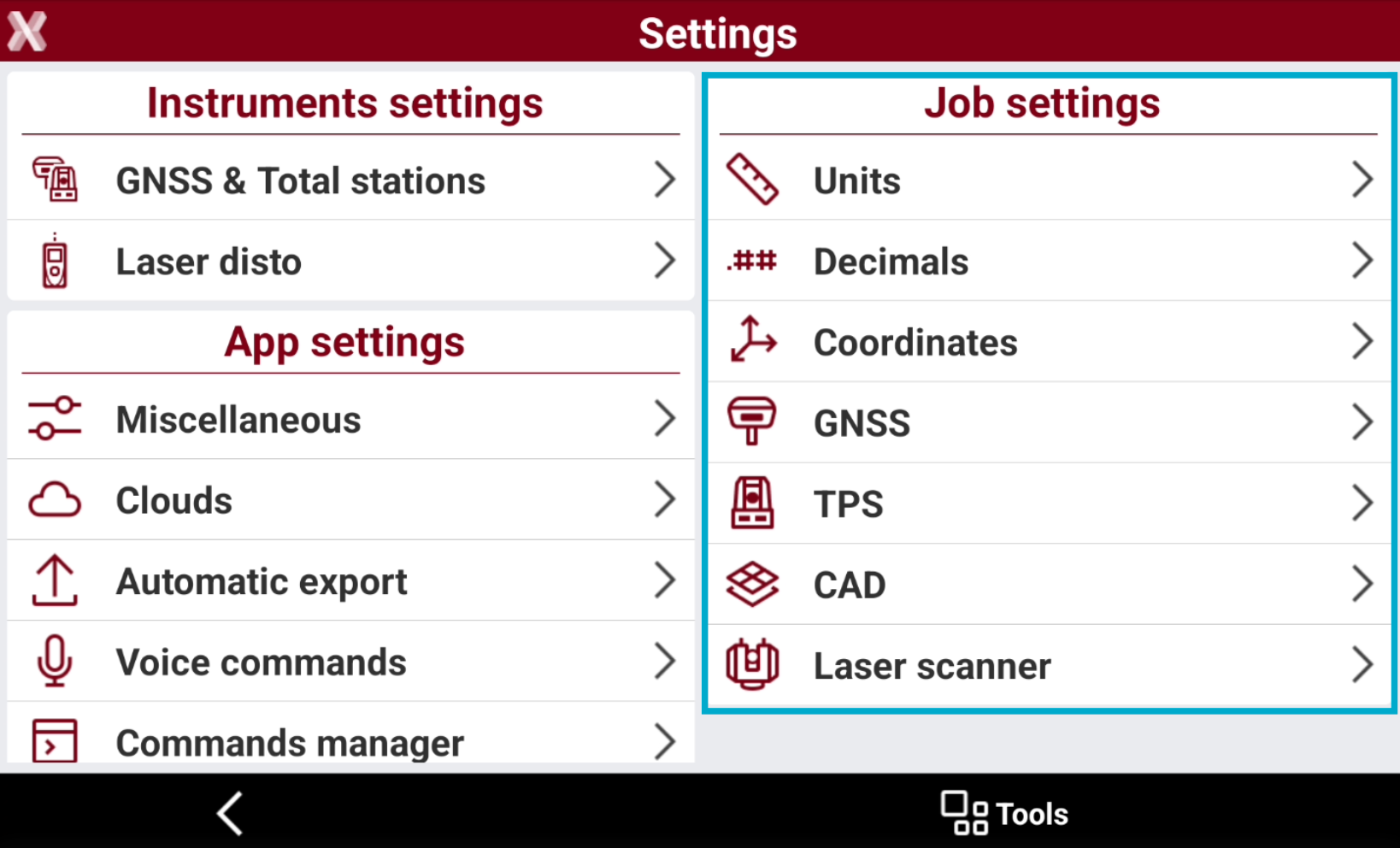
See Job and App settings for more information.
-
After settings have been changed press Tools and select Save settings as default to be saved permanently when app is closed.