
The information contained in this chapter covers the standard first steps for using the software. For detailed descriptions of all features, advanced workflows, configuration options, and reference information, refer to the complete User Manual. The full manual provides comprehensive documentation for all functions and capabilities available in the software.
-
The first time application is started it is necessary to create a profile to connect the topographic instrument, such as a GNSS receiver or a total station.
-
This page shows the steps to create the most common profiles for GNSS receiver or total station.
Create a total station profile
-
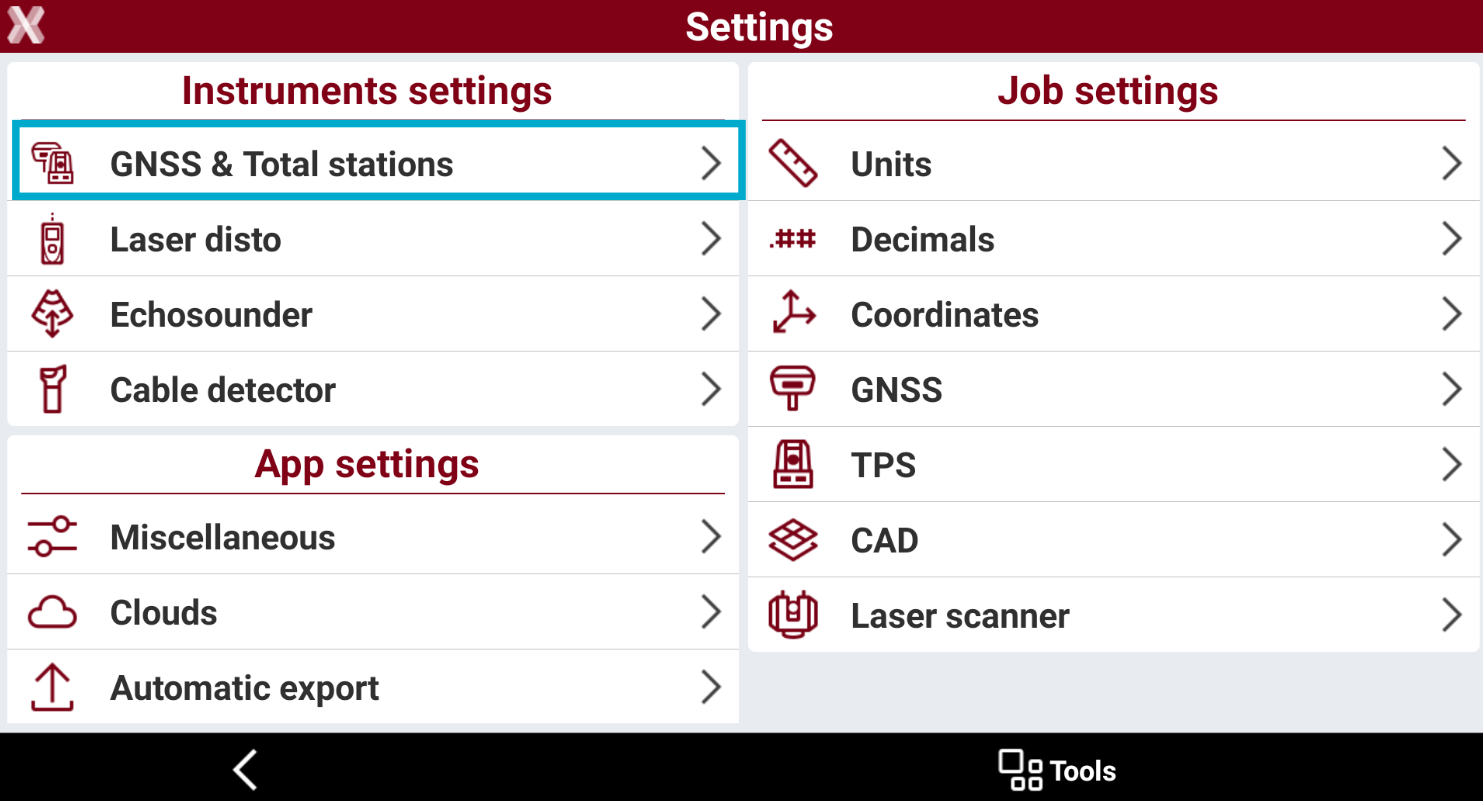
To create a new instrument press Setting.
-
Press GNSS & Total stations to open the list of available profiles.
-
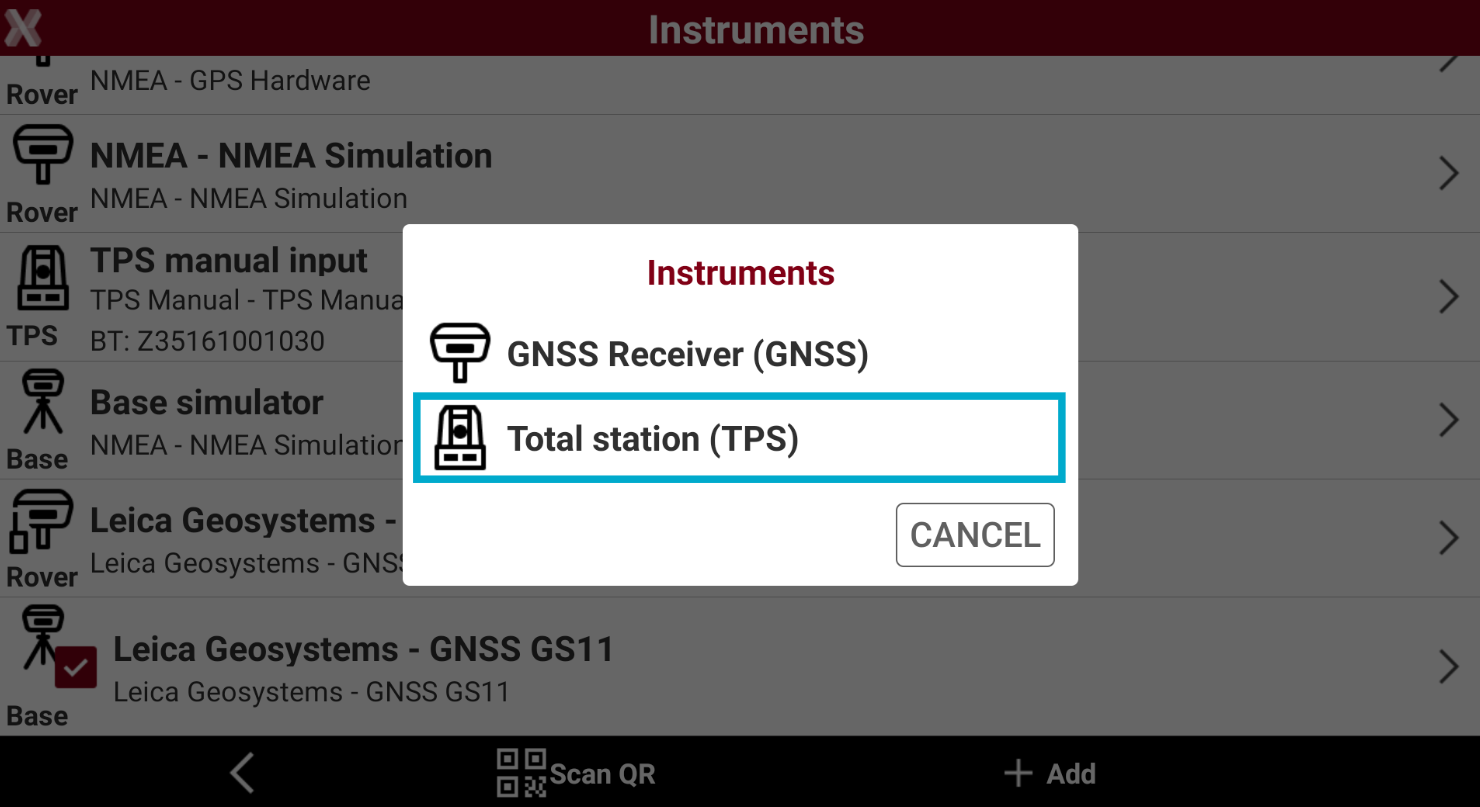
Press Add to create a new profile. Select Total station.
-
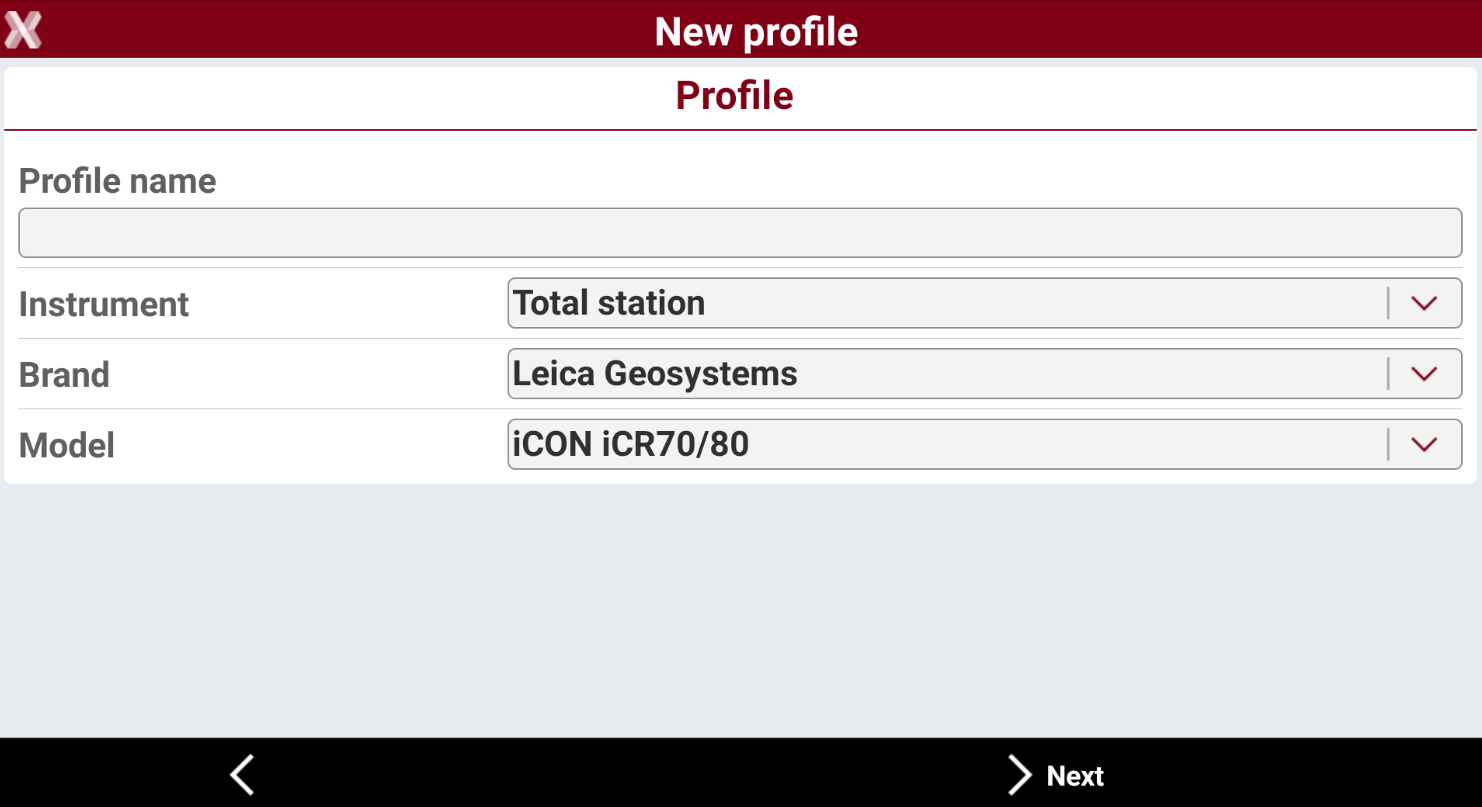
Enter the name of the profile. Select the correct brand and model of the total station.
-
Select how the device is connected to the field controller, usually the connection is by Bluetooth.
-
Press Add device to search and pair the device. The device address is usually its serial number.
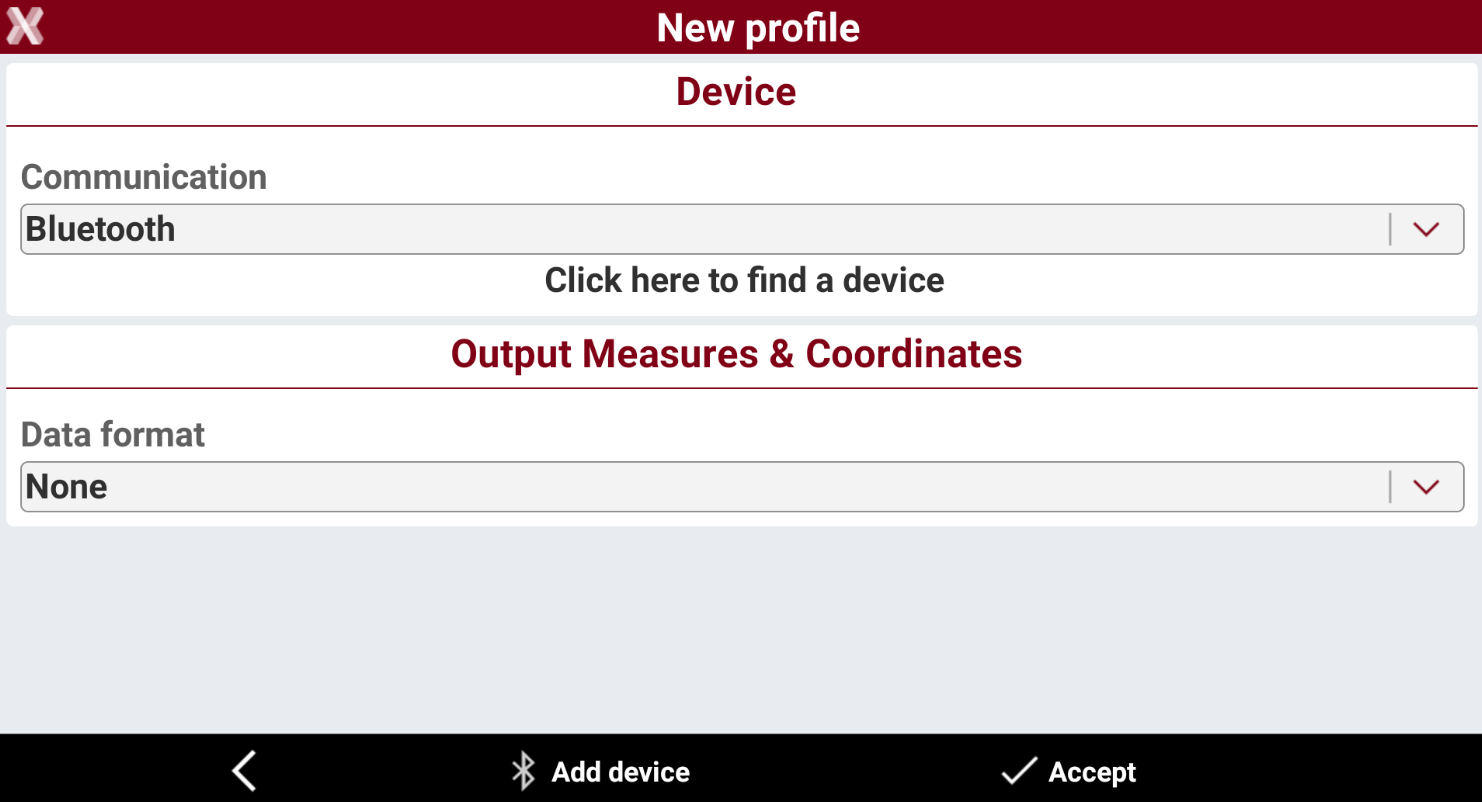
For robotic total station with a long-range Bluetooth antenna, be sure to connect to the antenna and not to its internal Bluetooth.
-
Press Accept to create the profile. The profile is created and its the current one used.
