
The information contained in this chapter covers the standard first steps for using the software. For detailed descriptions of all features, advanced workflows, configuration options, and reference information, refer to the complete User Manual. The full manual provides comprehensive documentation for all functions and capabilities available in the software.
-
Leica X-PAD allows to export measured data in different formats.
-
Data can be exported to controller internal memory, cloud storage or shared using Android functionalities.
Select the exporting format file
-
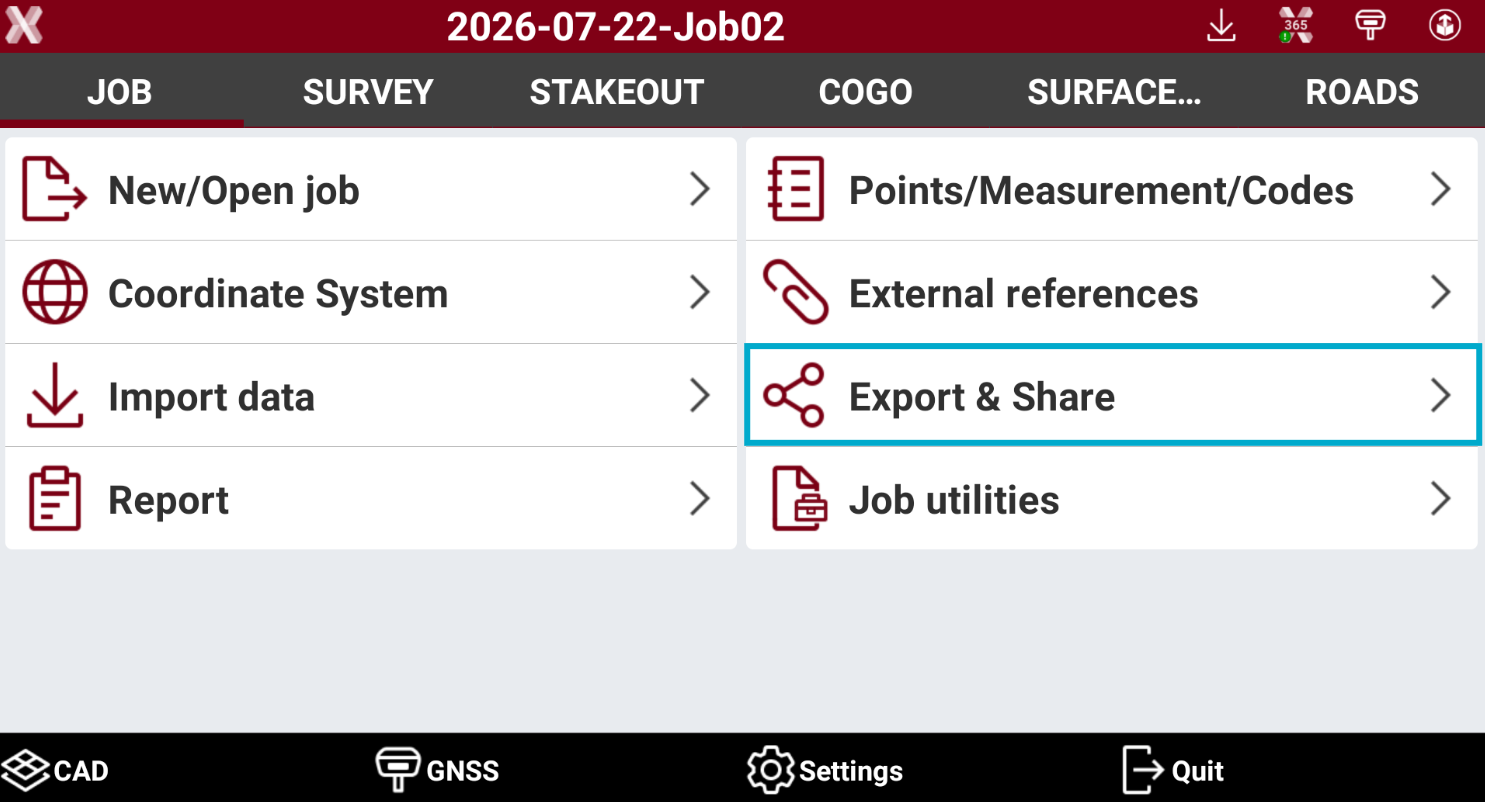
To export the data from the current job select Export & Share from the Job page.
-
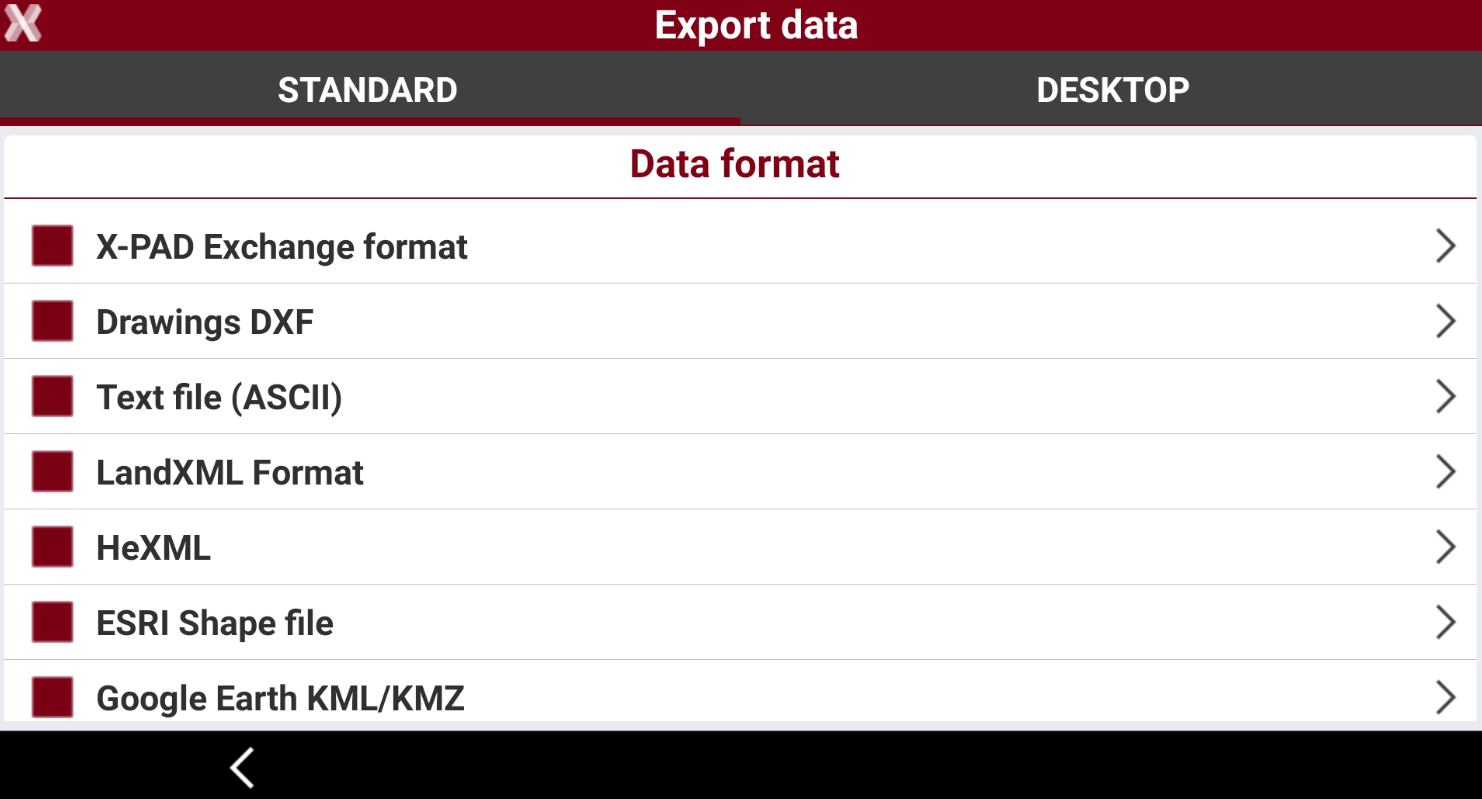
Select the data format to export. Each data format export different entities, please check Export a job for more information.
-
Select the export parameters, the parameters depend on the selected format. Press Accept to export the data.
-
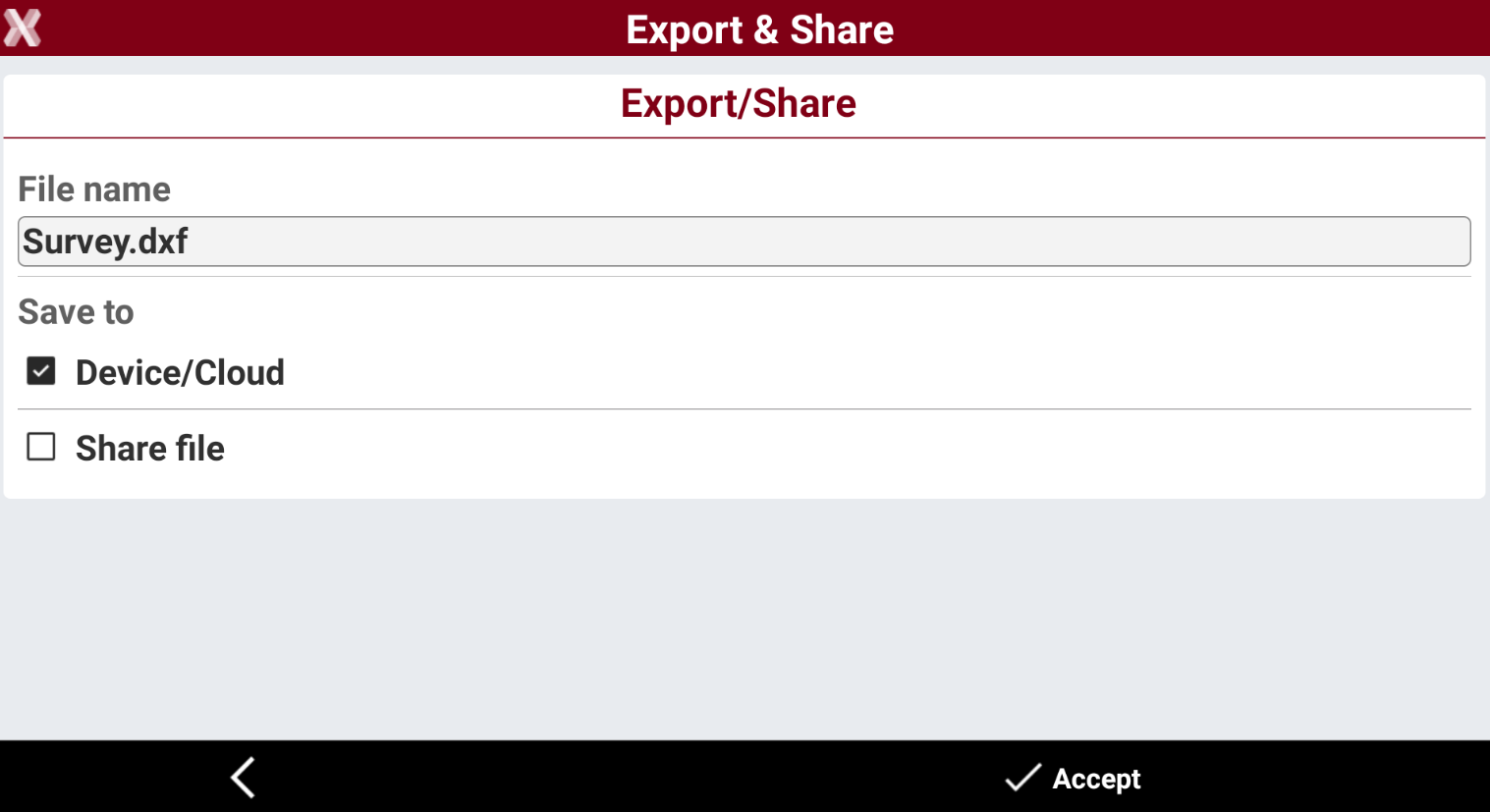
Enter the name of the file to export and select where to save the data.
-
Device/Cloud: saves the file in the device, USB pen drive or in a cloud storage.
-
Share file: shares the file using compatible 3th party Android applications.
-
Open with: if the exported file is in a format like PDF, it is possible to open it using a compatible Android application.
-
Export to internal memory
-
To export to controller internal memory select Device/Cloud and press Accept.
-
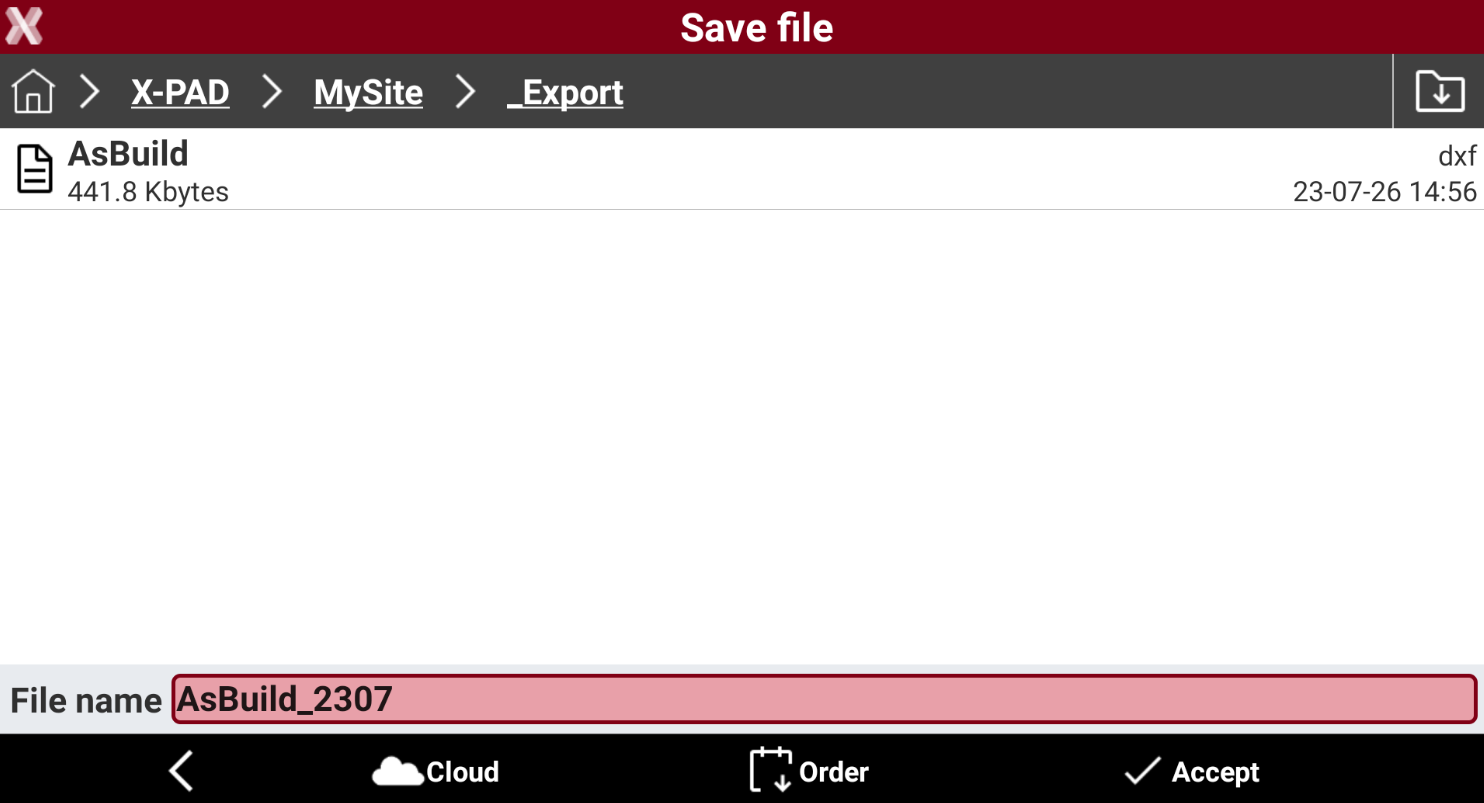
By default the data is exported in the Export folder of the current site.
-
Use the top bar to navigate in the internal memory folders.

-
Press USB icon to open the USB memory, in case a USB pen drive is connected to the controller.

-
Press Download icon to open the internal memory Download folder.

-
Press Accept to save the file in the selected folder.
Export to cloud storage
-
To export to a could storage select Device/Cloud and press Accept.
-
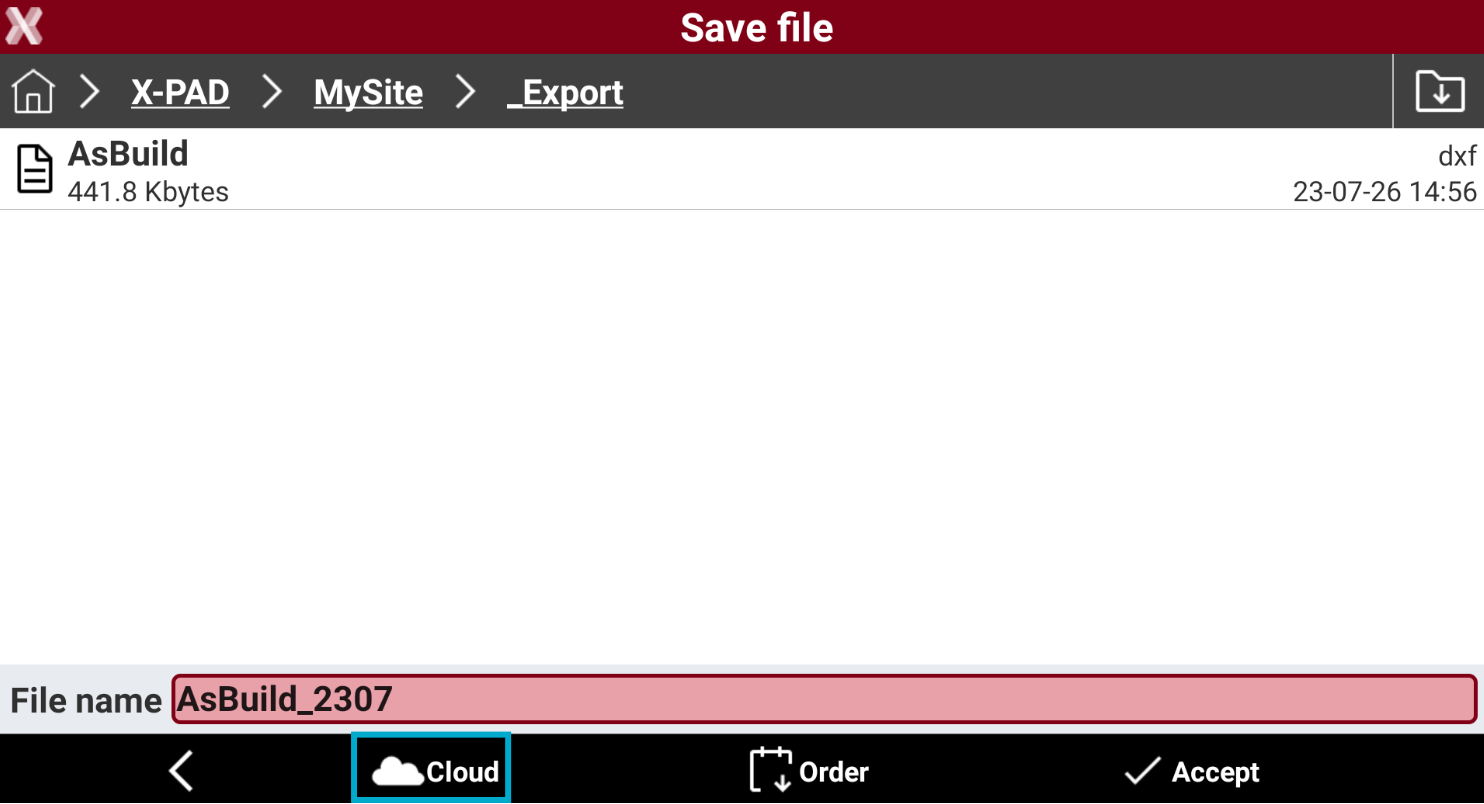
Press Cloud button.
-
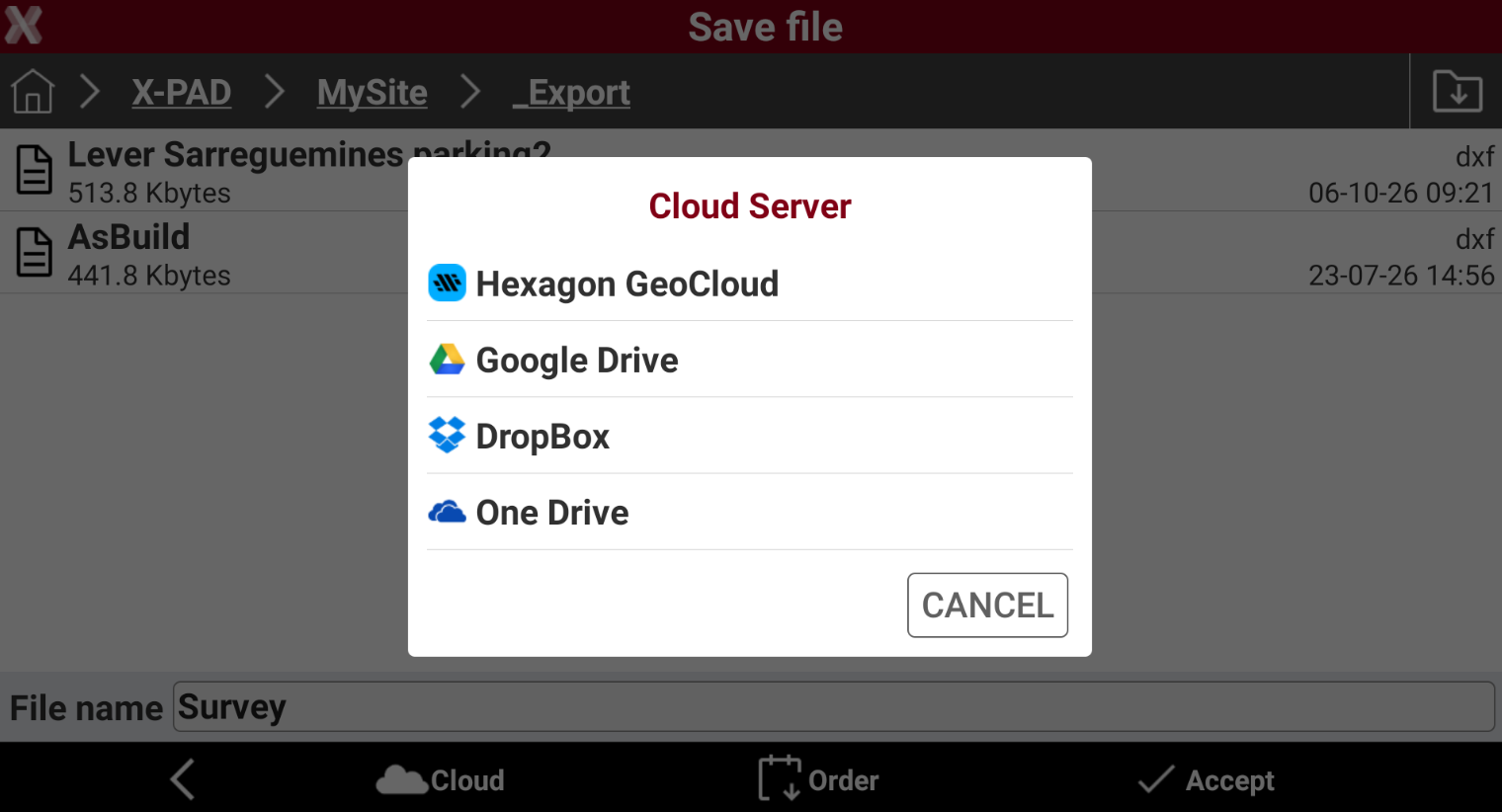
Select the cloud storage from the list of available clouds.
-
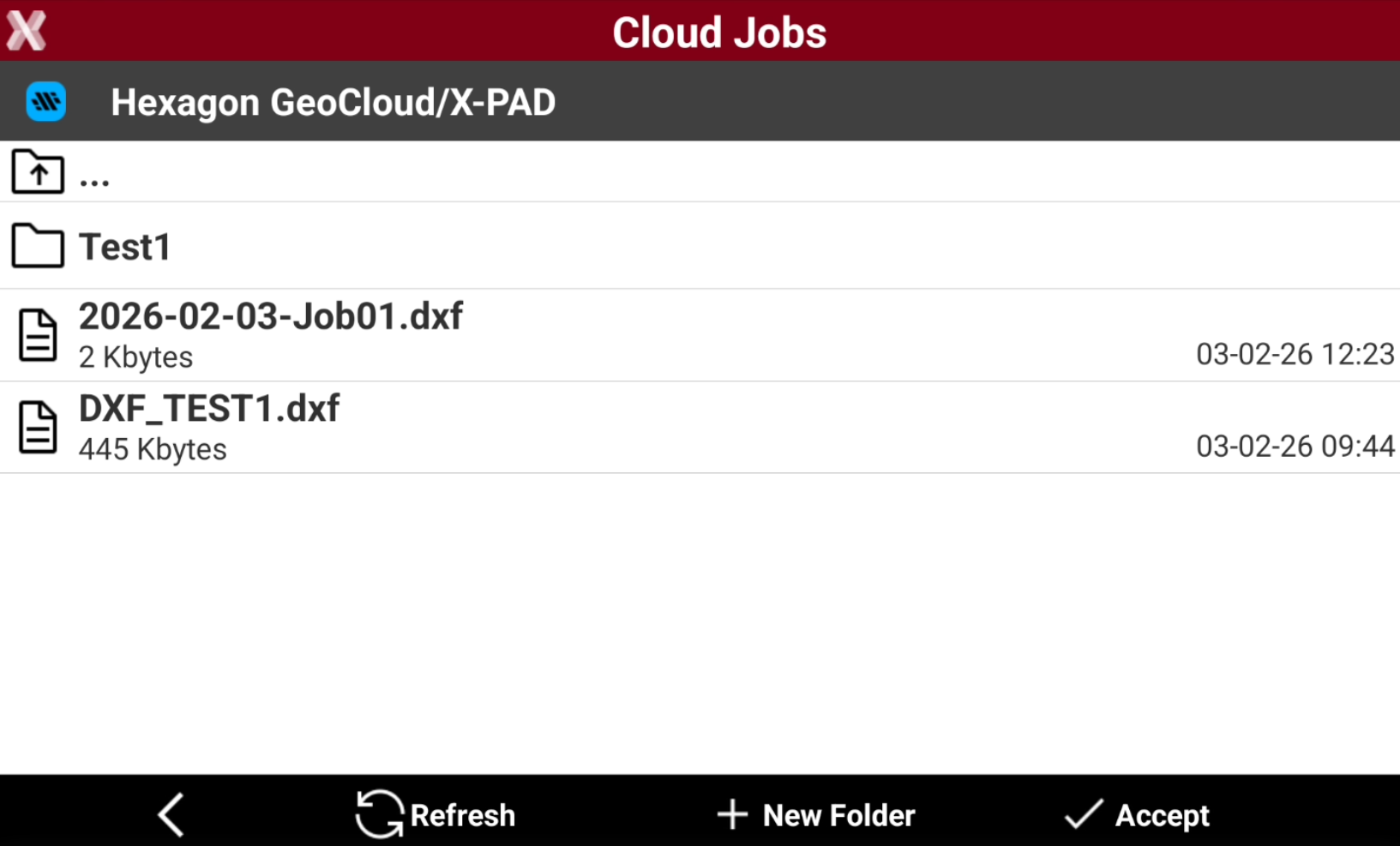
The software opens the folder in the cloud storage.
-
Tap

-
Press Accept to save the file.
Share a file
-
To share the file using Android applications select Share file.
-
The software lists the compatible 3th party Android application that can be used to share the file.
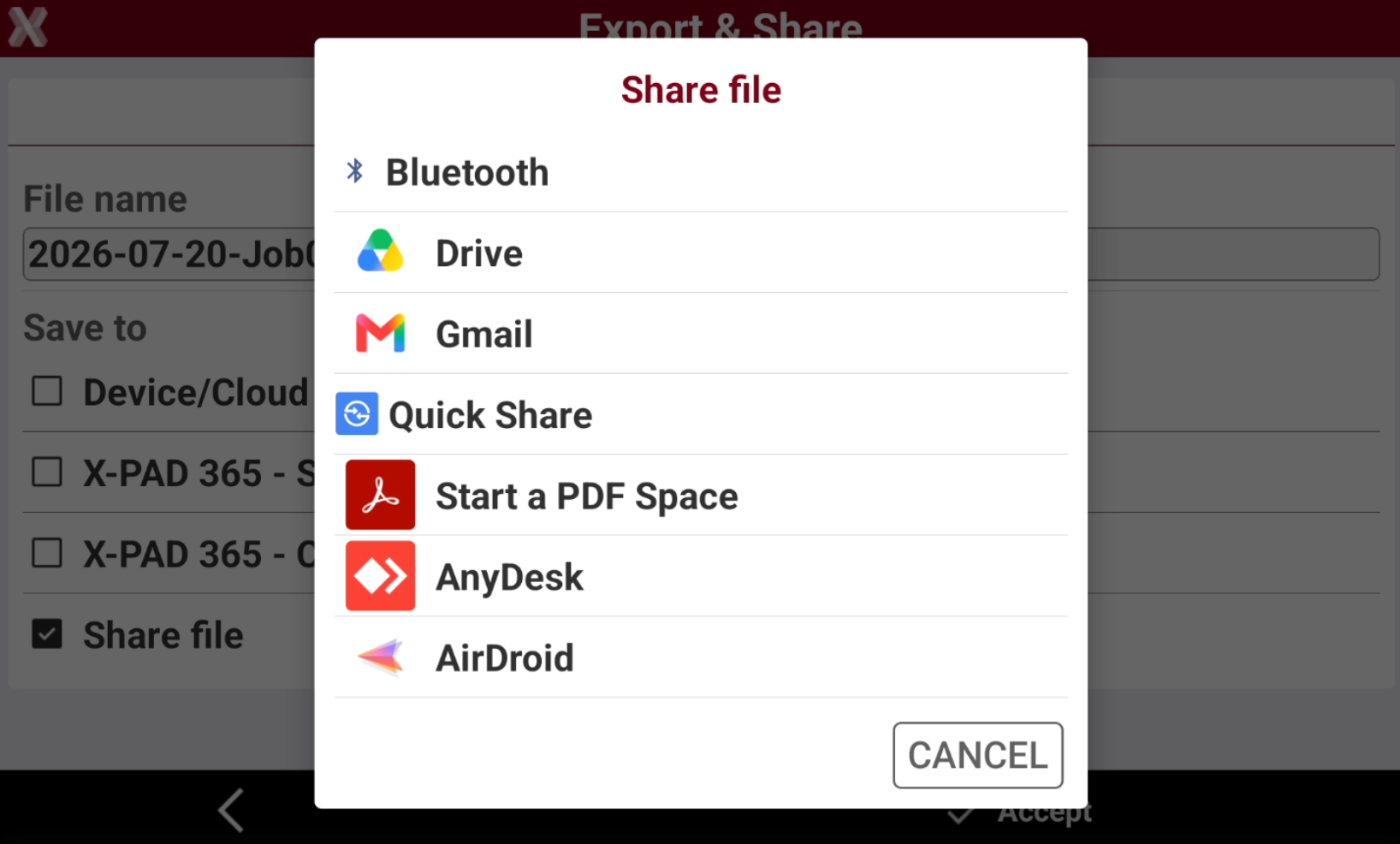
The applications in this list depends on which applications are installed on the Android controller.
-
Select the application to share the file.
-
For example to share a file by email select an email client. The software creates automatically an email with the exported file as attachment.