The information contained in this chapter covers the standard first steps for using the software. For detailed descriptions of all features, advanced workflows, configuration options, and reference information, refer to the complete User Manual. The full manual provides comprehensive documentation for all functions and capabilities available in the software.
-
This chapter explains the main specific functionalities when working with a GNSS receiver equipped with cameras and laser, for example the Leica GS11 GNSS receiver.
-
The main functionalities using the cameras are:
-
Display imported and measured data in augmented reality.
-
Measure on the images.
-
Takes images for documentation.
-
Visual stakeout.
-
-
The main functionalities using the laser distancemeter are:
-
Measure single hidden points using laser distancemeter.
-
Measure continuously with laser distancemeter to measure points to generate surfaces, face scan or cross sections.
-
Laser stakeout.
-
Camera functionalities
Display objects in augmented reality
-
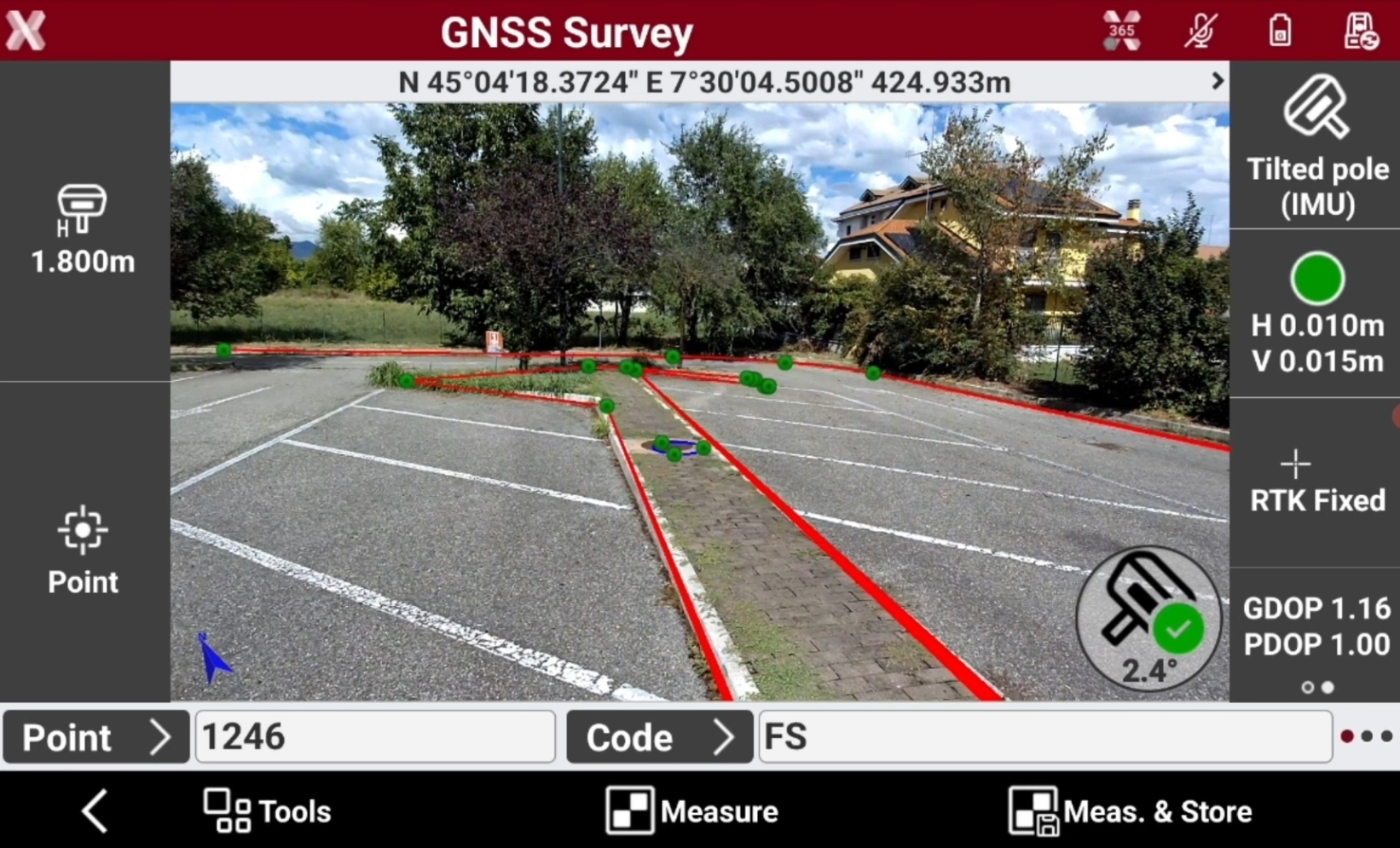
X-PAD, when working with a GNSS receiver with camera, allows to visualize and overlap any entity (measured data, imported data, surfaces, IFC models, etc…) on the image from the camera, using the augmented reality.
-
The software automatically aligns the camera view to the CAD entities.
-
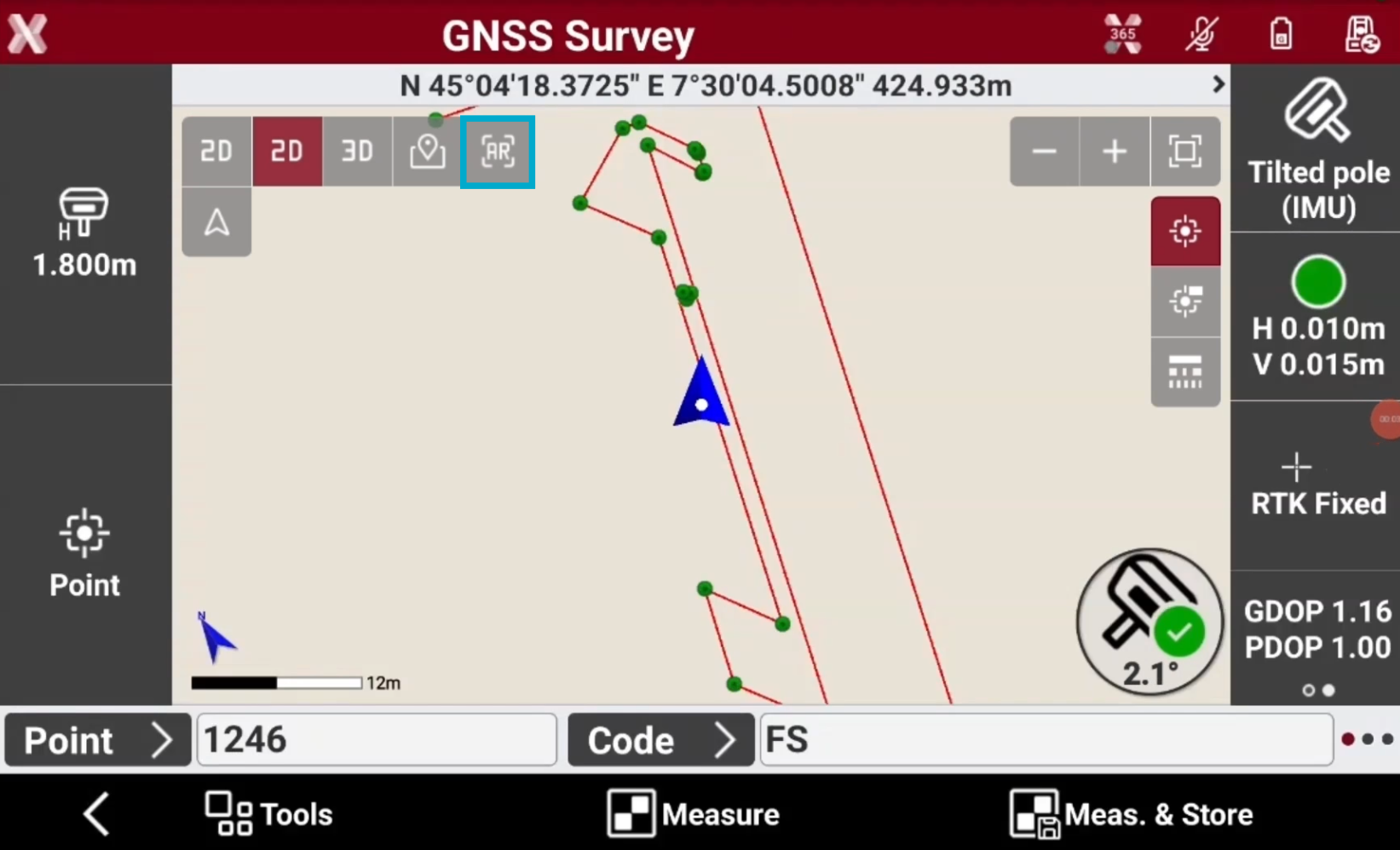
The autmented reality view is available in different software applications (for example survey points or CAD) selecting AR from the different view modes.
-
When AR mode is activated, the entities are overlapped to the camera view.
-
Press the icon

Takes images for documentation
-
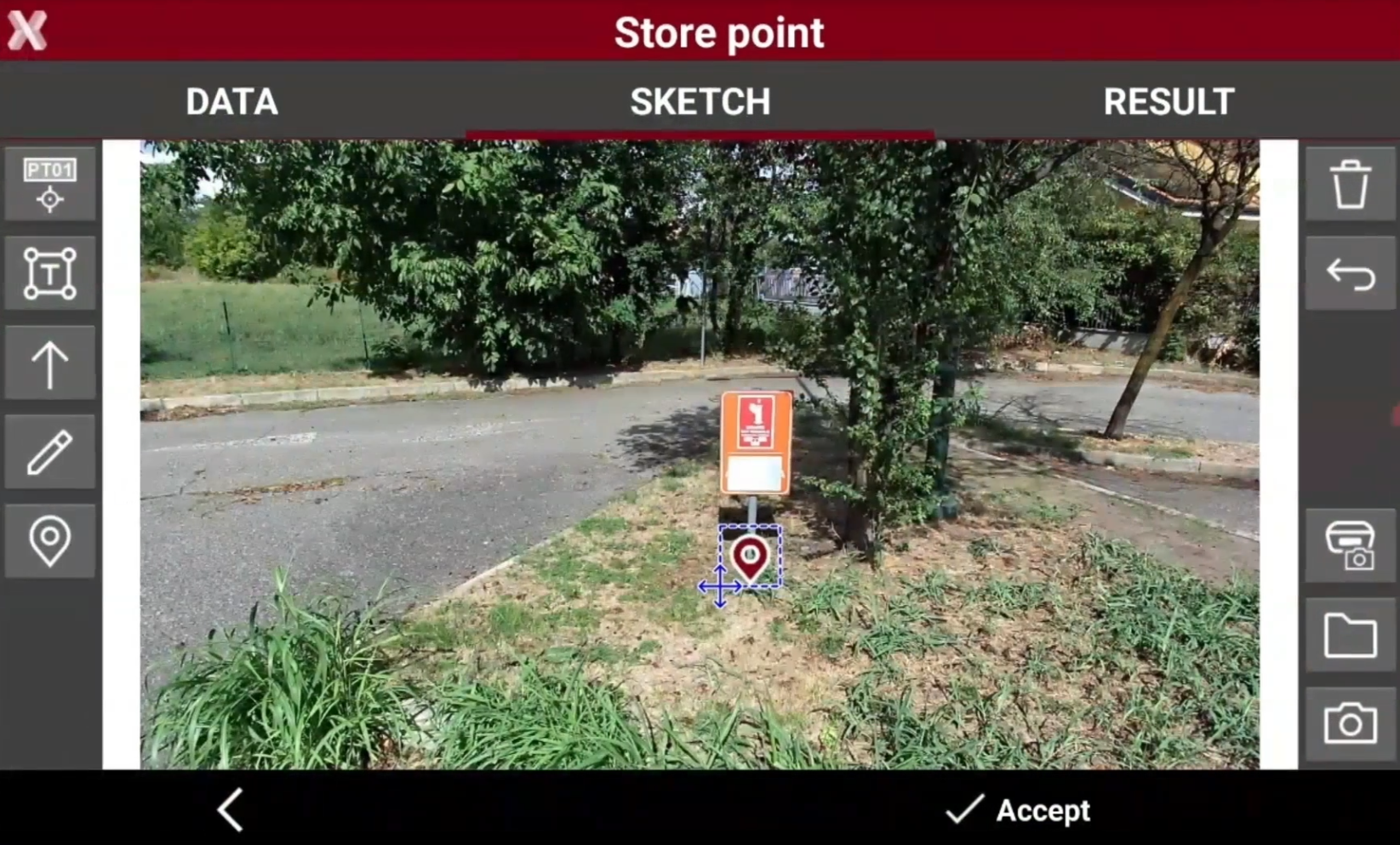
The front and the top-down camera can also be used to takes photo for documentation.
-
Using a GNSS receiver with cameras, when a photo of a point is measured, the software automatically creates a marker on the measured coordinate, without the need to manually create and place it.
-
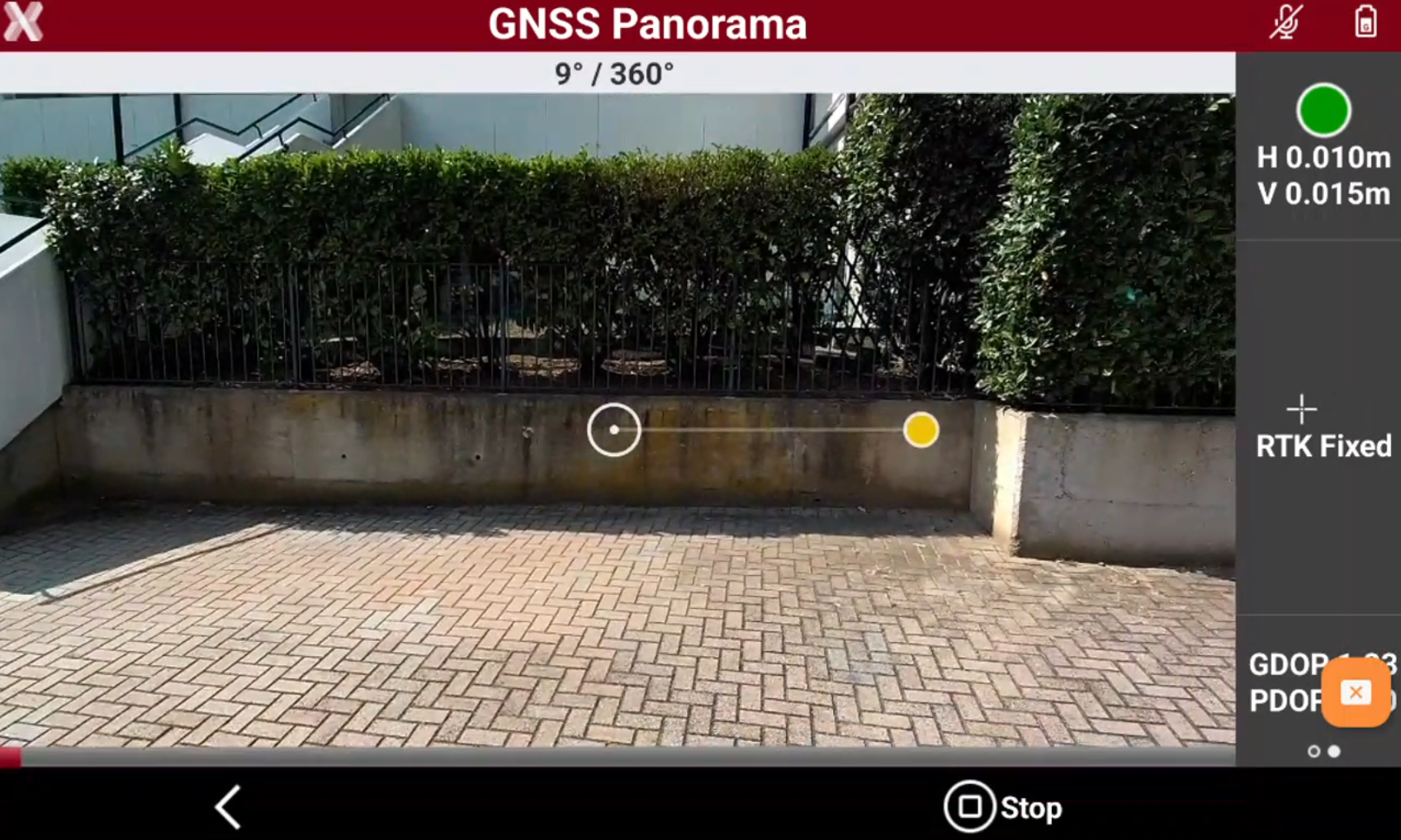
In addition in Photographic Survey it is possible to create a Panorama view where GNSS receiver takes a 360° picture of the job site for documentation.
Measure on images (quick)
-
Using the GNSS receiver camera it is possible to takes pictures and measure on the image to quickly capture points and coordinatates.
-
This method automatically records 5 photos which are not stored at the end of the operation. It is possible to measure on the taken 5 images.
-
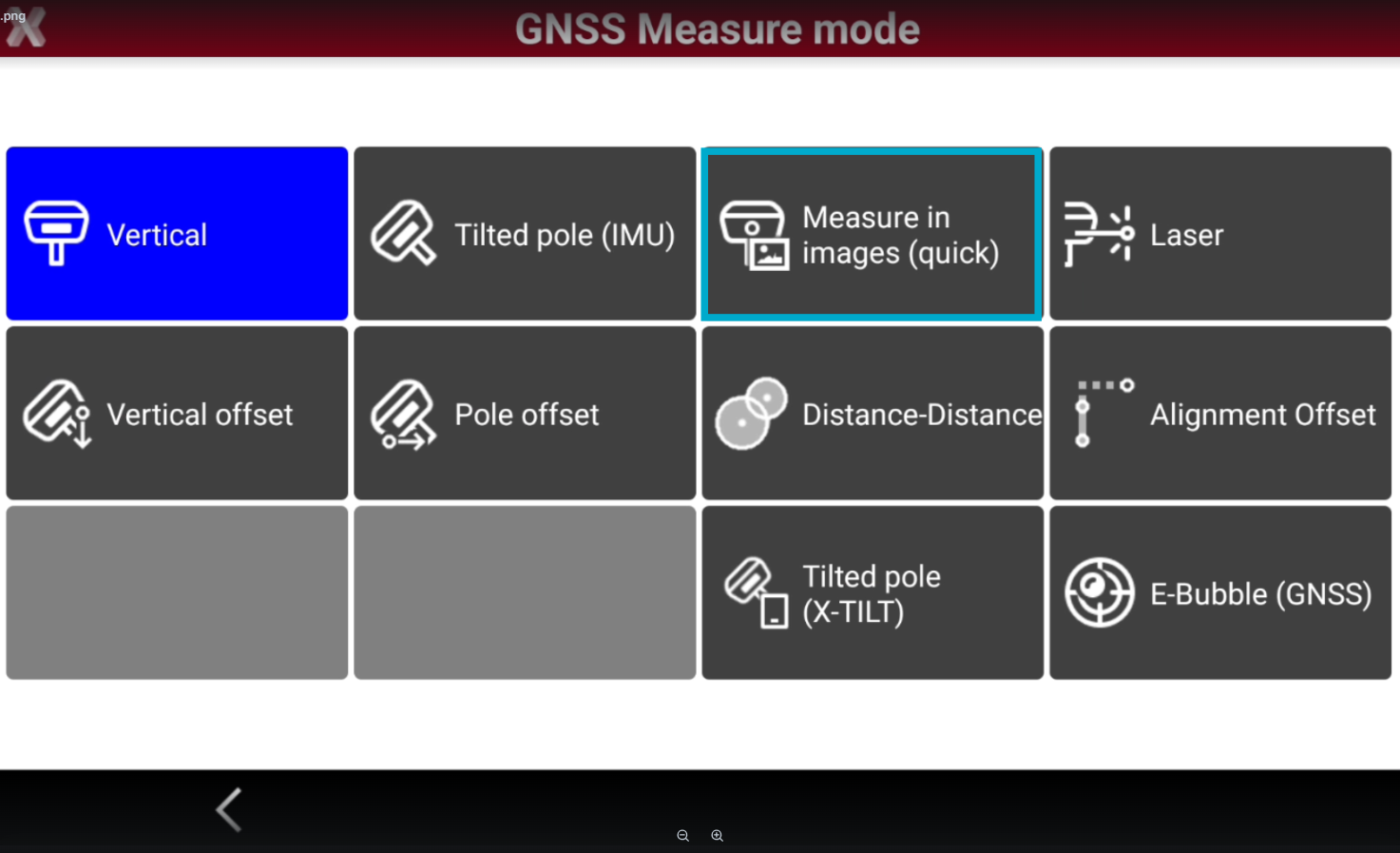
From survey application open the GNSS Measure mode page and select Measure in images (quick).
-
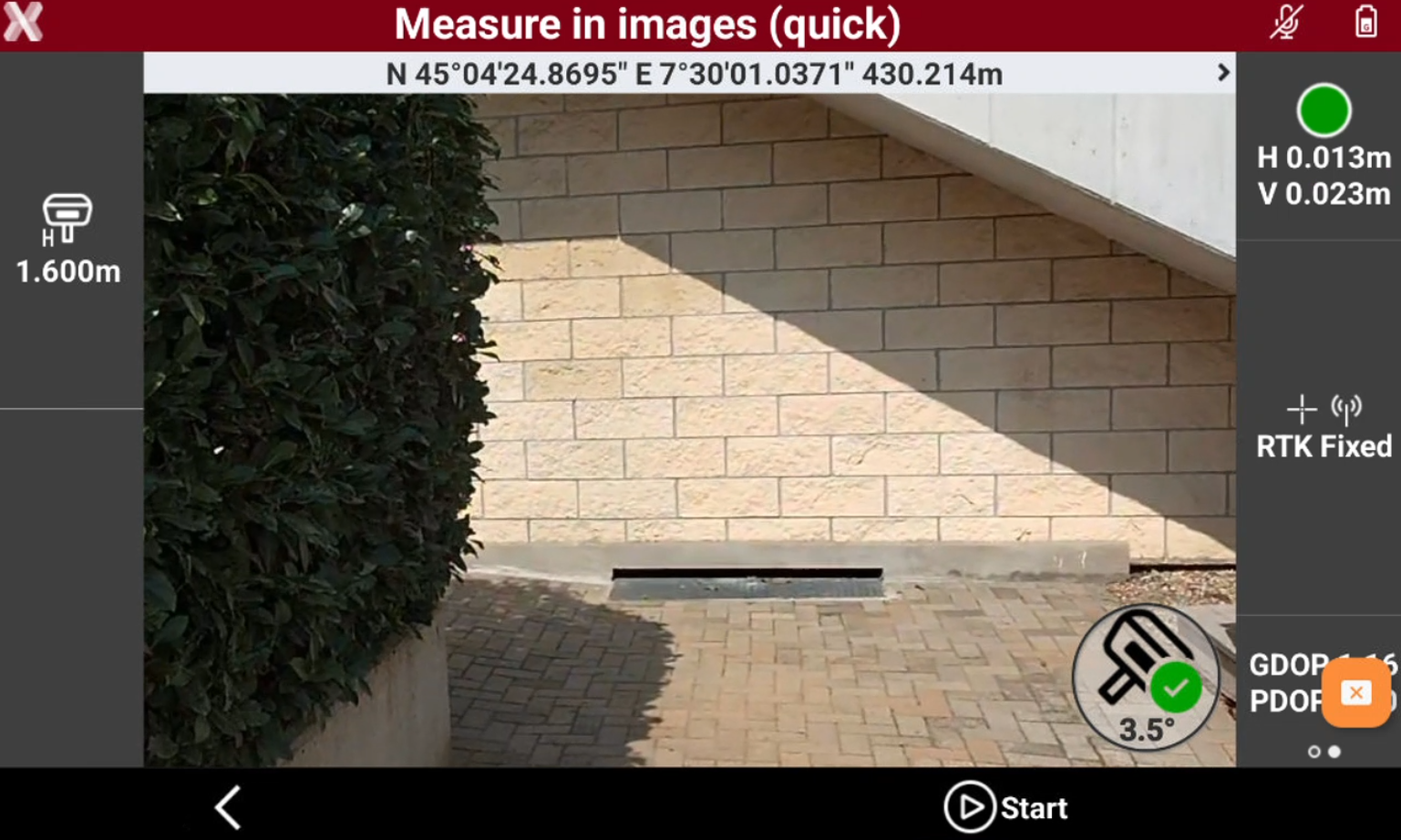
Press Start and move around the object to measure.
-
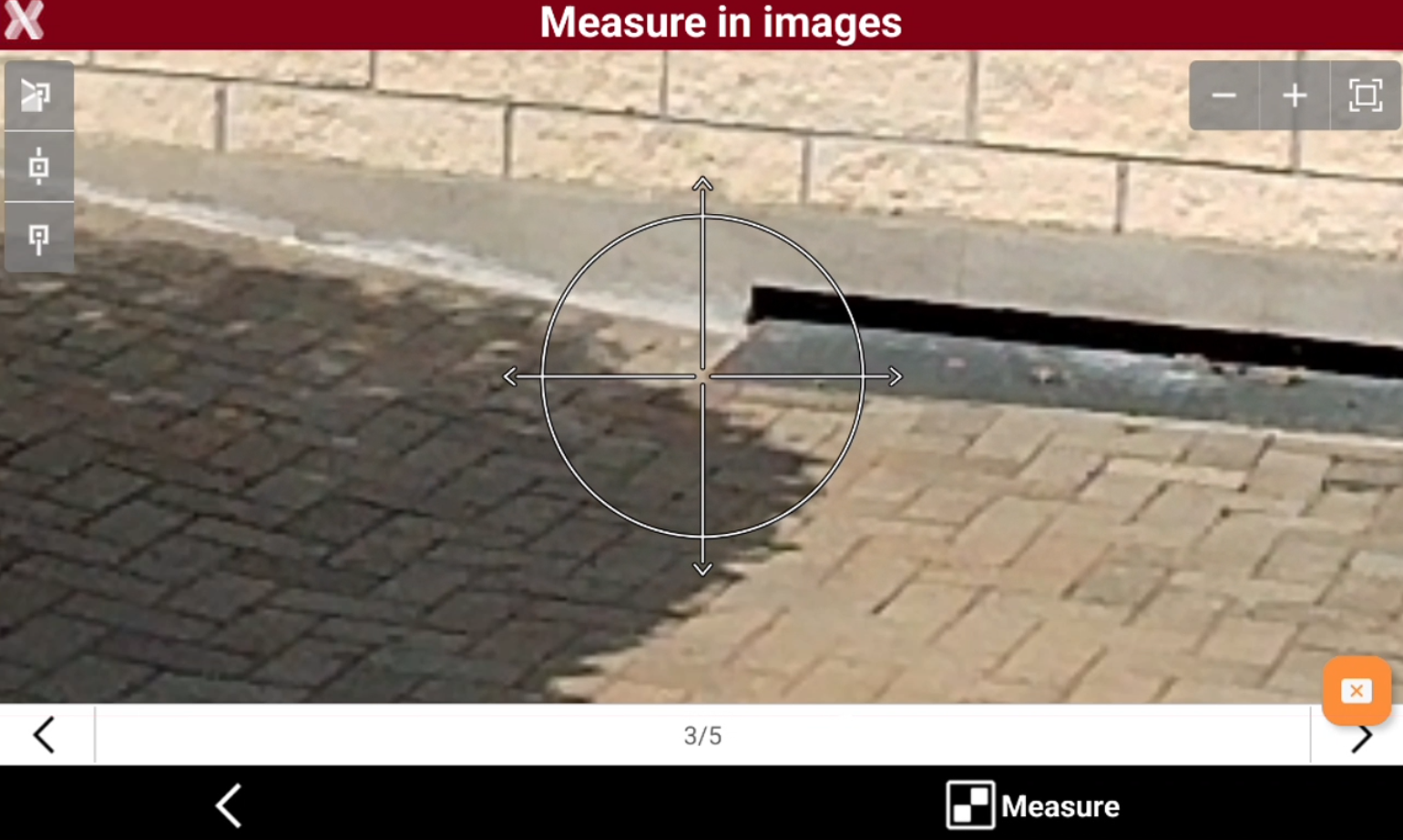
After 5 photos have been taken, zoom on the photo to measure the points pressing Measure.
-
The software calculates the topographic point and visualize the point coordinates and the estimated error.
Photographic survey
-
This method allows to take more than 5 photos and measure on them. The photos are not deleted after the session is complete. This allows to measure on the photos anytime.
-
From survey application open the GNSS Measure mode page and select Measure in images (quick).
-
To open the Photographic survey open the Survey page and select Photographic survey.
-
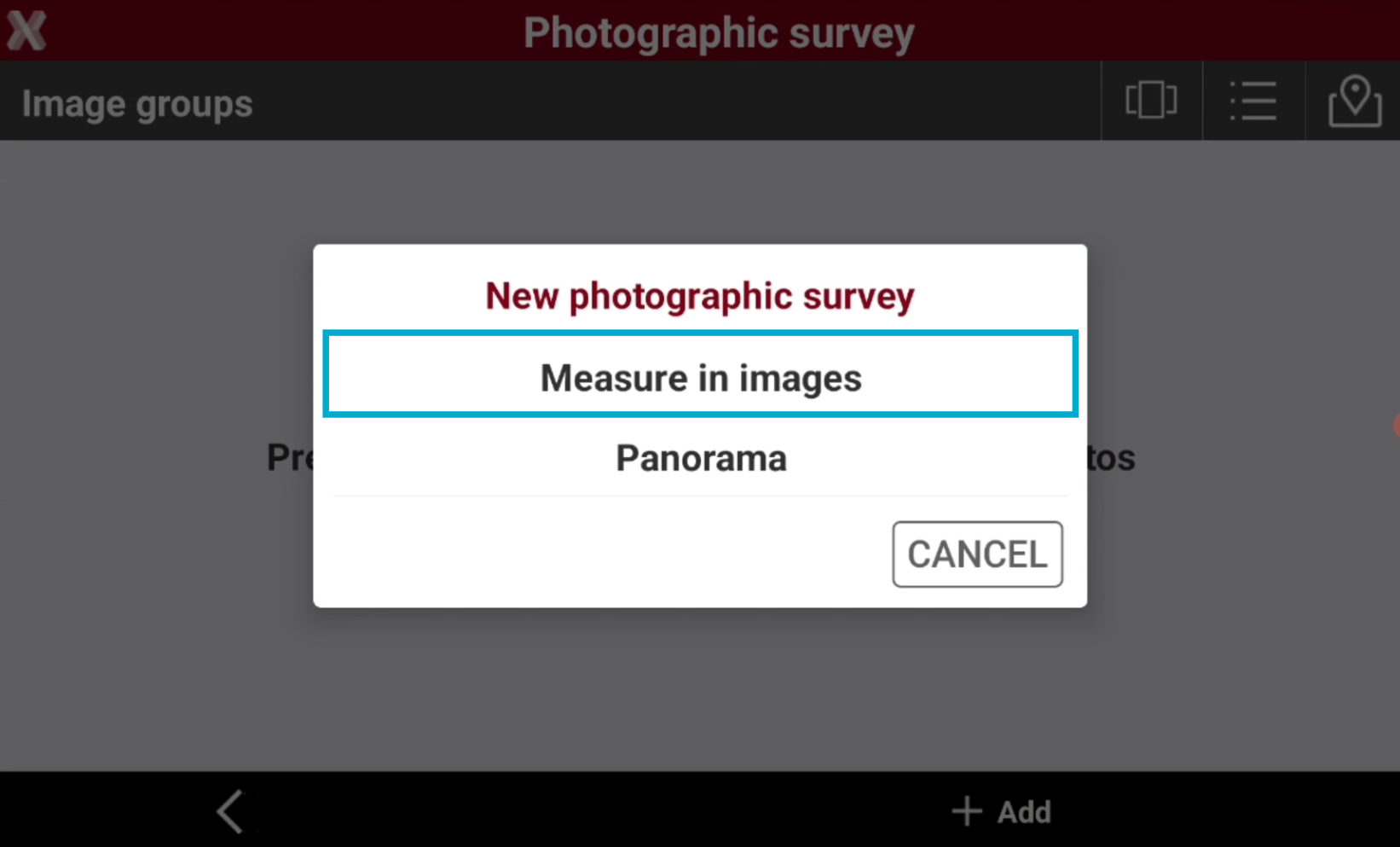
Press Add and select Measure in images.
-
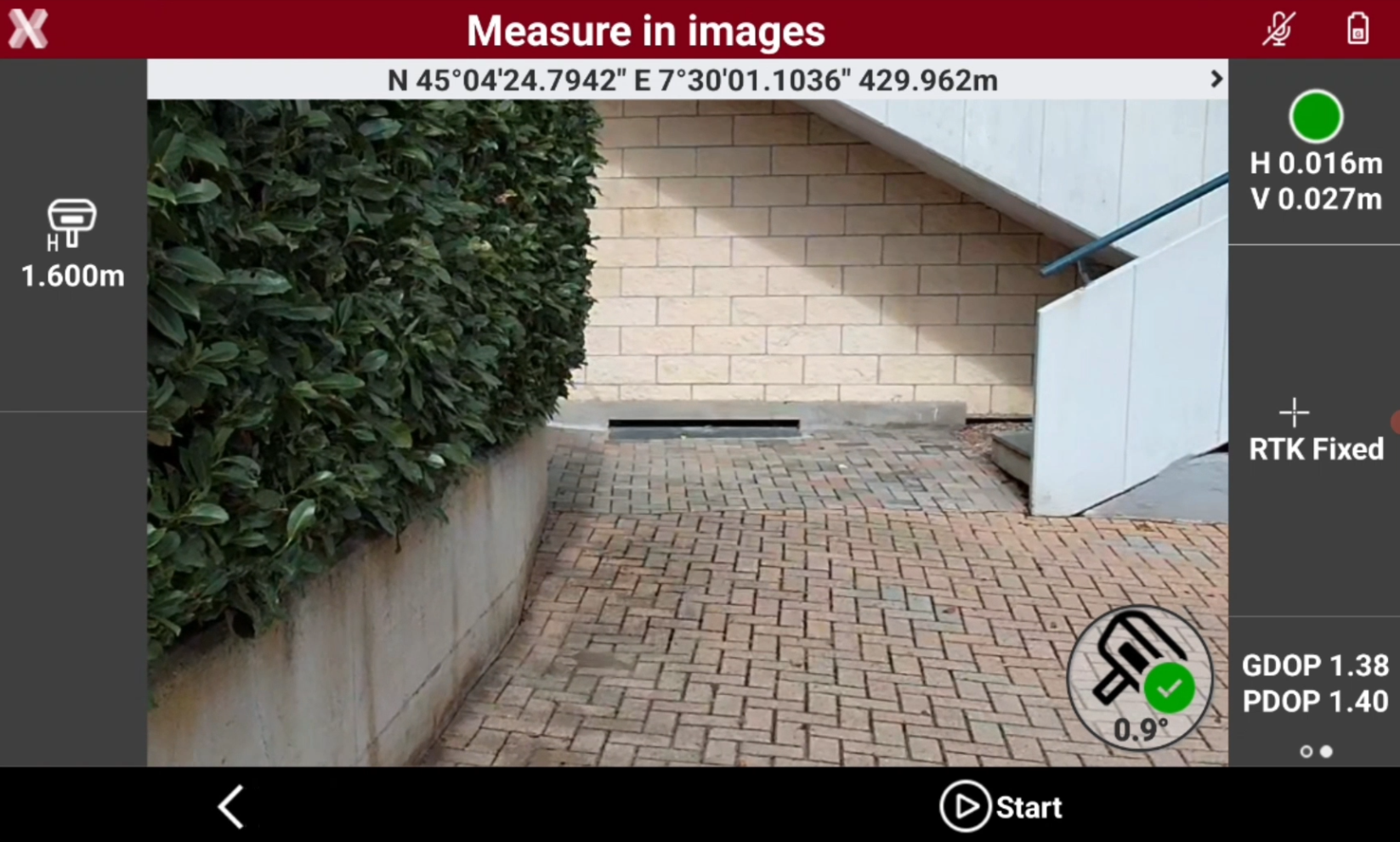
Press Start to acquire the photos.
-
After a minimum of 5 photos, press Stop to stop recording the images.
-
Enter a name for the photographic session.
-
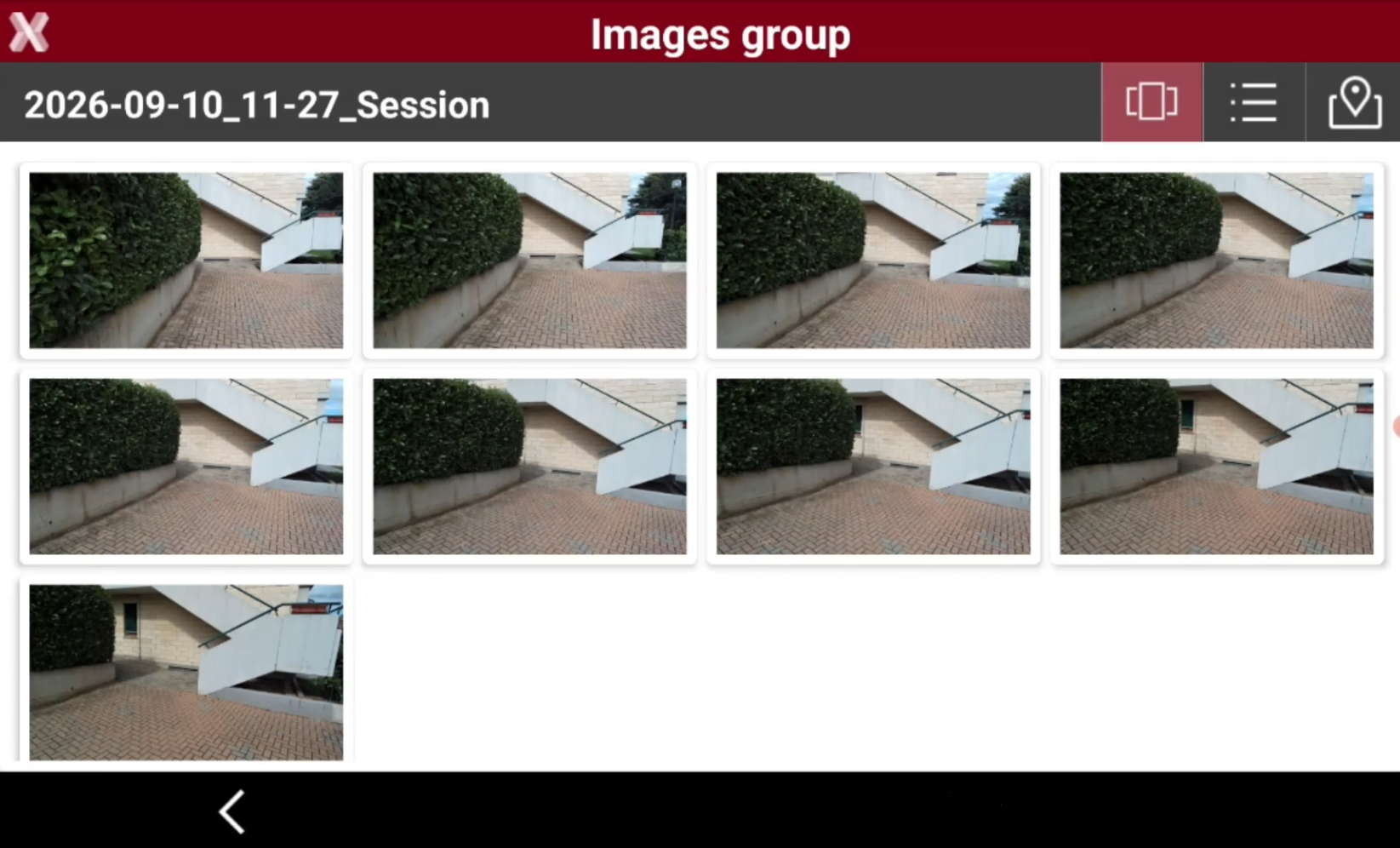
The photographic session is visualized and recorded in the project.
-
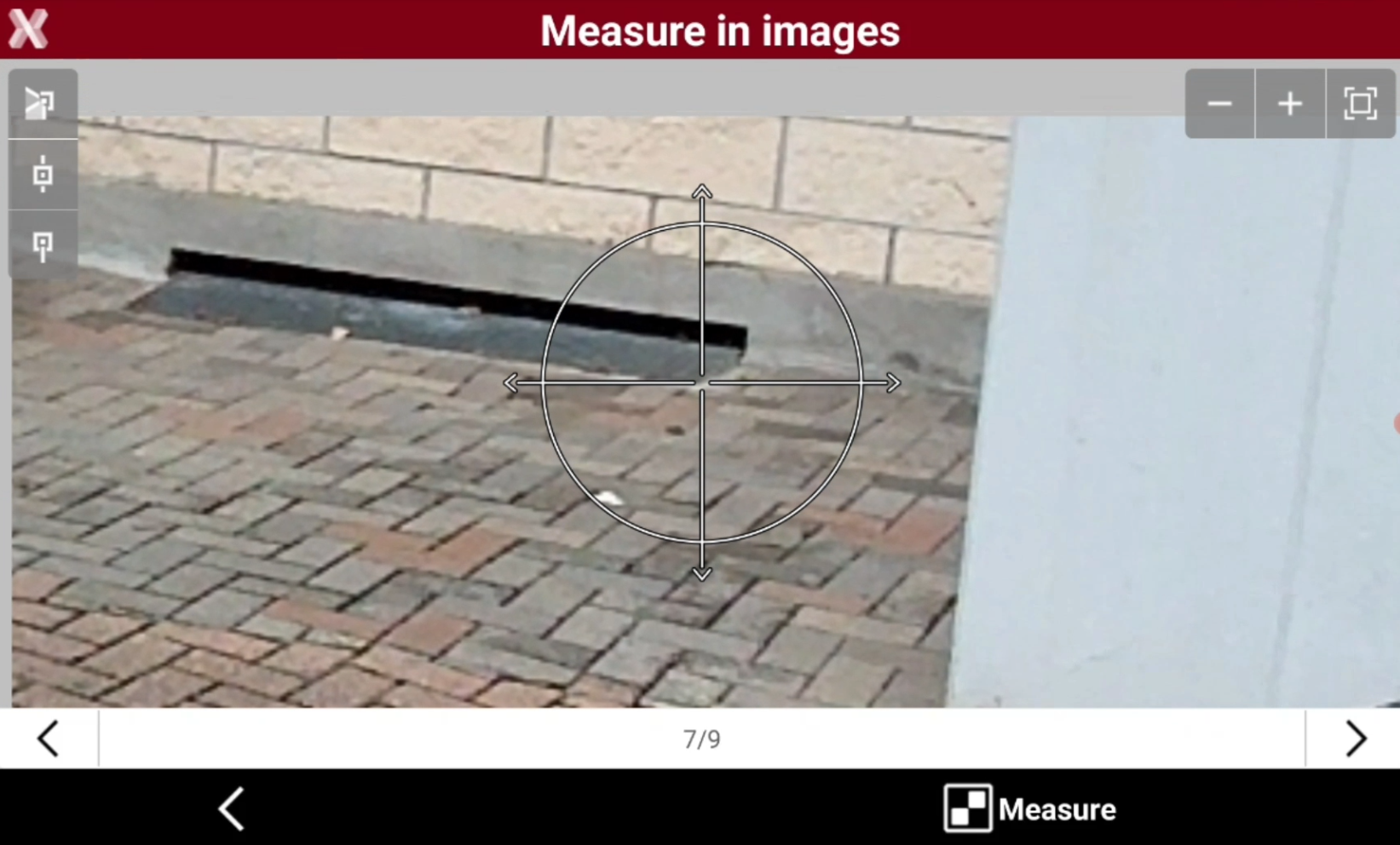
Tap on an image to open it and measure on the image.
-
The software calculates the topographic point and visualize the point coordinates and the estimated error.
Visual stakeout
-
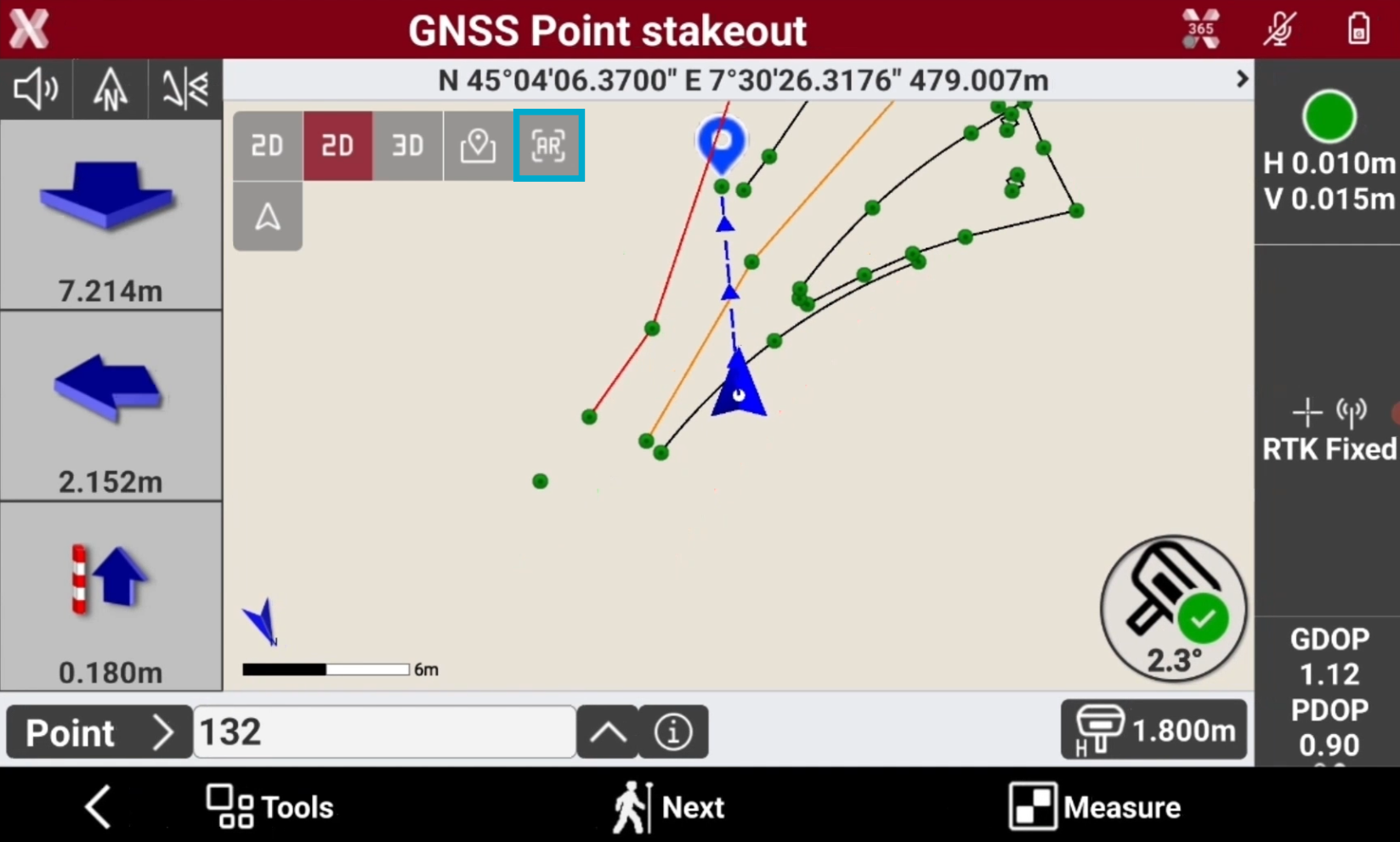
During the stakeout it is possible to activate the AR mode to visualize indications to stakeout using augmented reality.
-
To activate the AR view tap on screen and select AR as view mode.
-
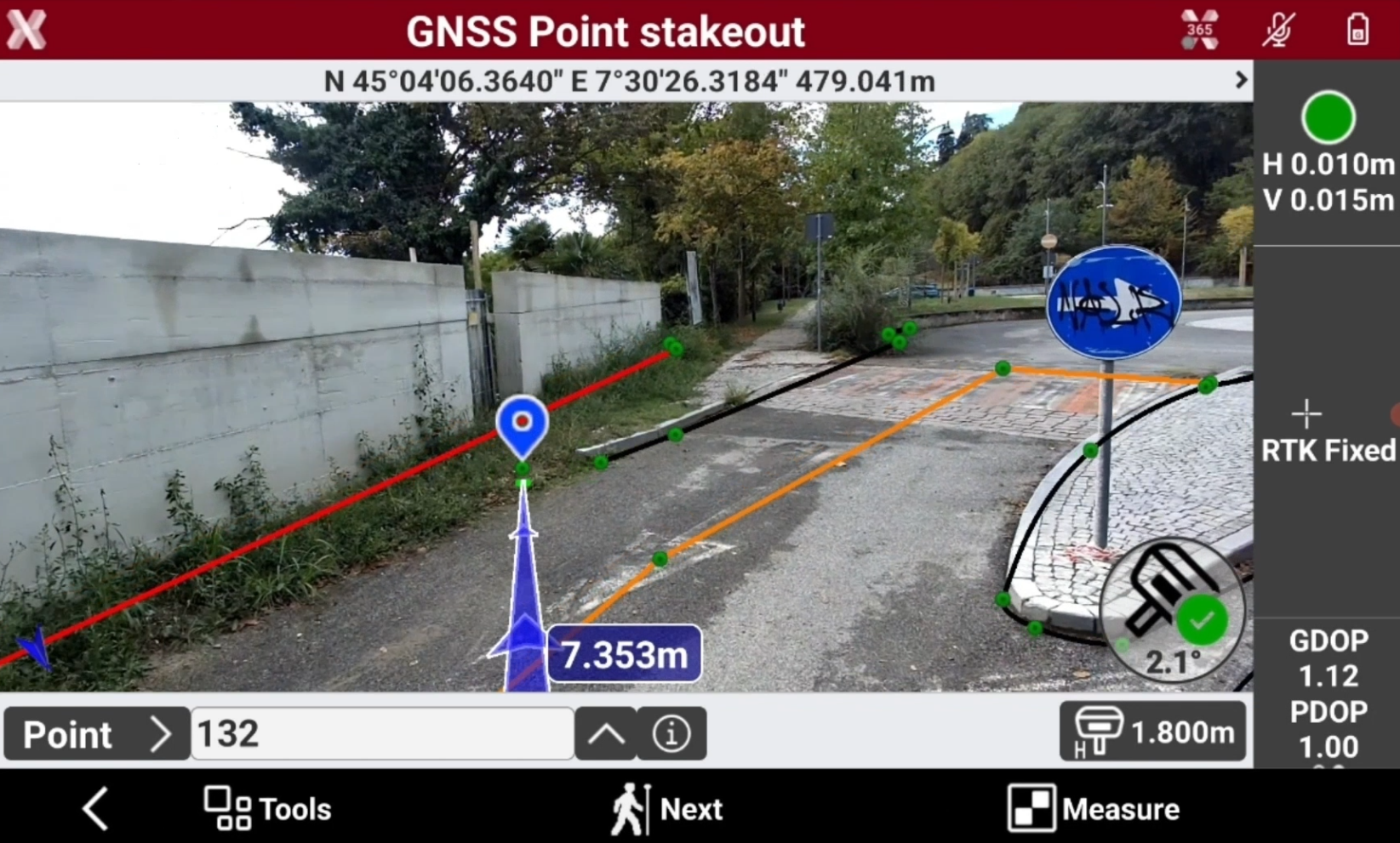
The software visualizes the CAD entities in the augmented reality view as well as indications to stakeout the point.
-
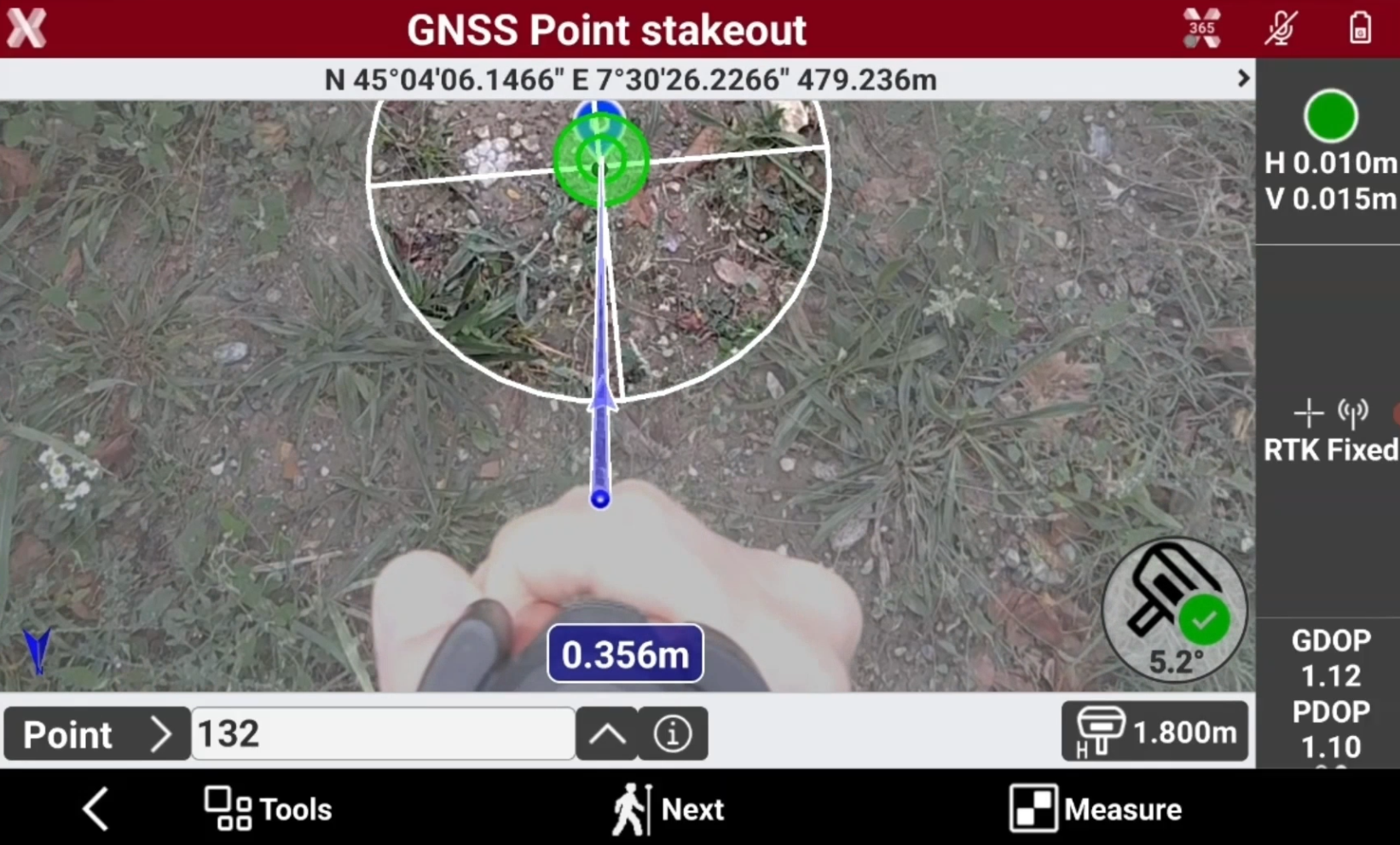
When the point is close, automatically the software changes to top-down camera to stakeout the point precisely.
X-Plore
-
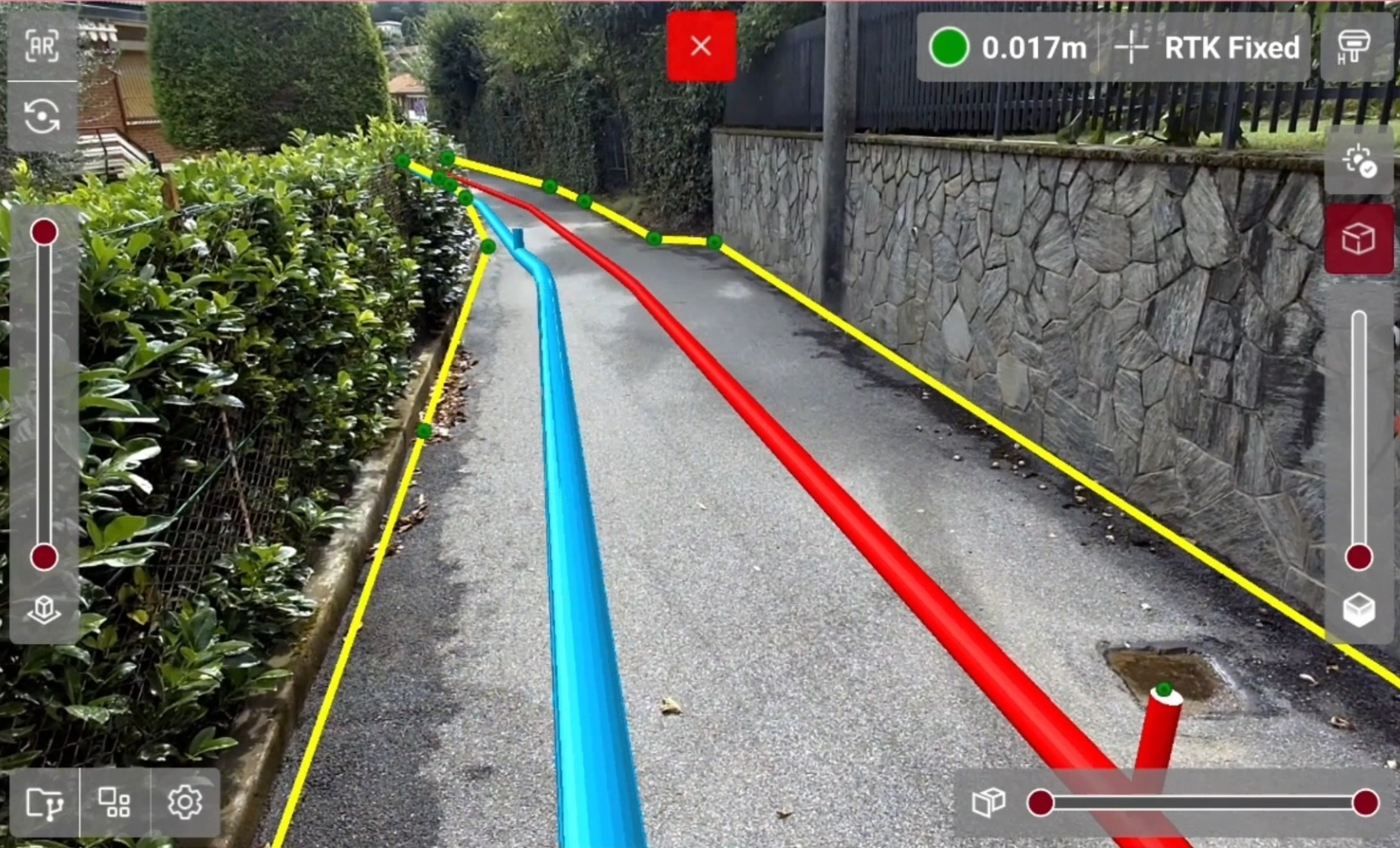
X-PLORE is a function that allows to visualize CAD entities, IFC models, surfaces using augmented reality.
-
The function offers different tools and visualization modes.
-
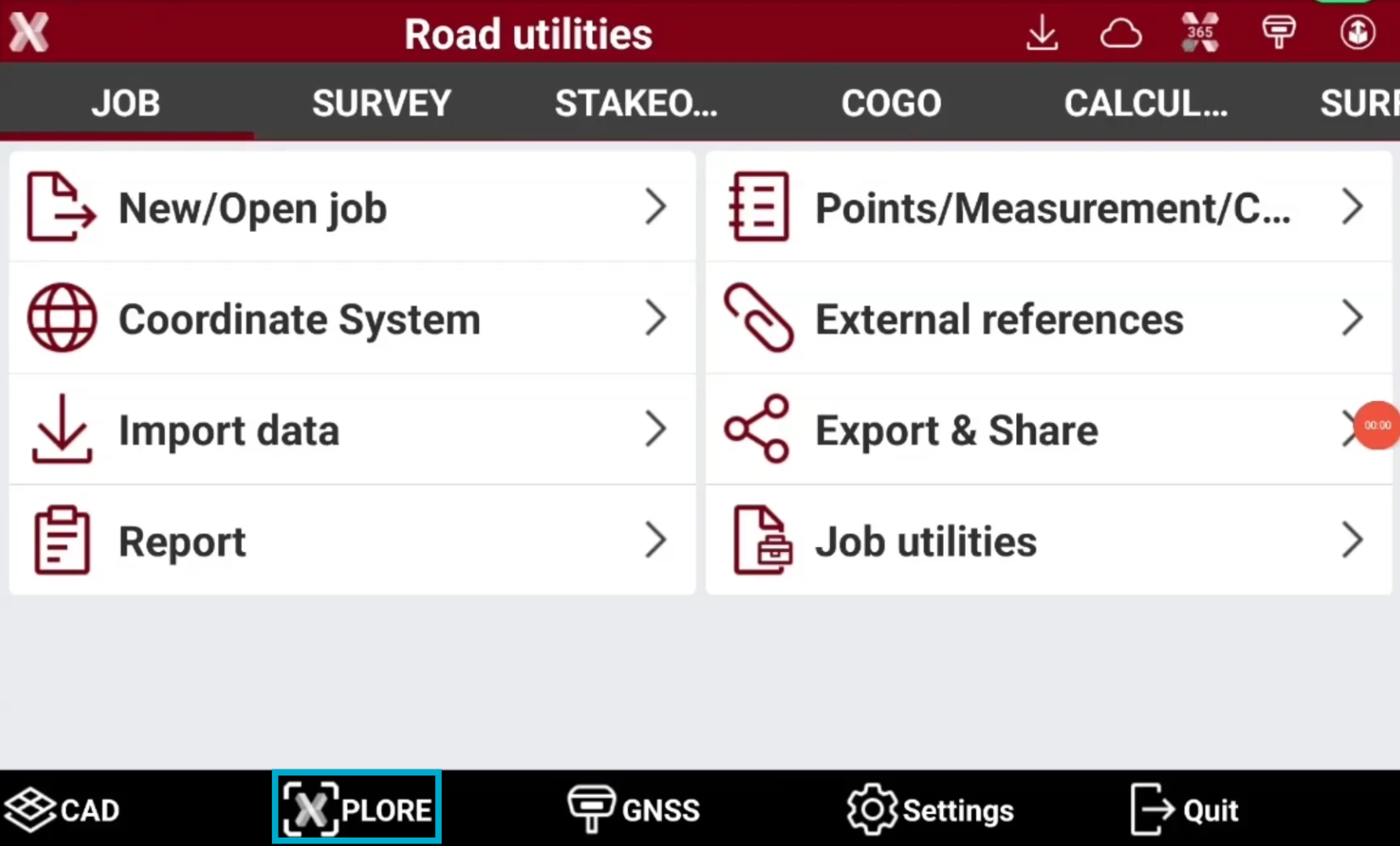
To open X-PLORE press the corresponding button in the software toolbar.
-
The application visualizes all CAD entities in a full-screen AR view, using the GNSS receiver cameras.
-
It is possible to use the sliders to change transparency or set cutting planes by distance or elevation.
-
Pressing Tools it is possible to access specific commands to localize IFC models, manage imported entities and convert polylines in 3D pipes.
Laser measurements
Measure points
-
When working with GNSS receiver with laser distancemeter it is possible to quickly measure inaccessible points using the laser.
-
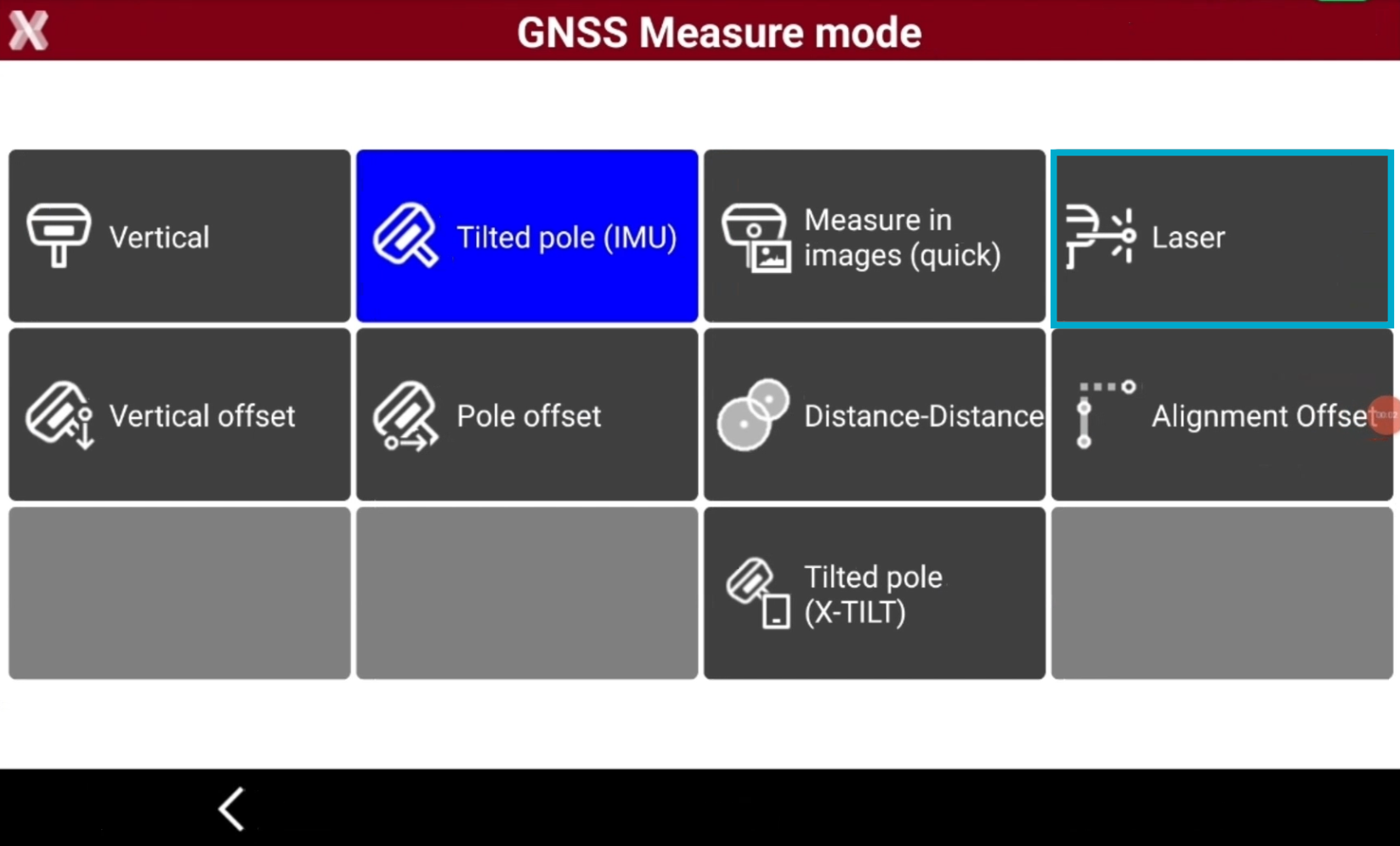
From survey application open the GNSS Measure mode page and select Laser.
-
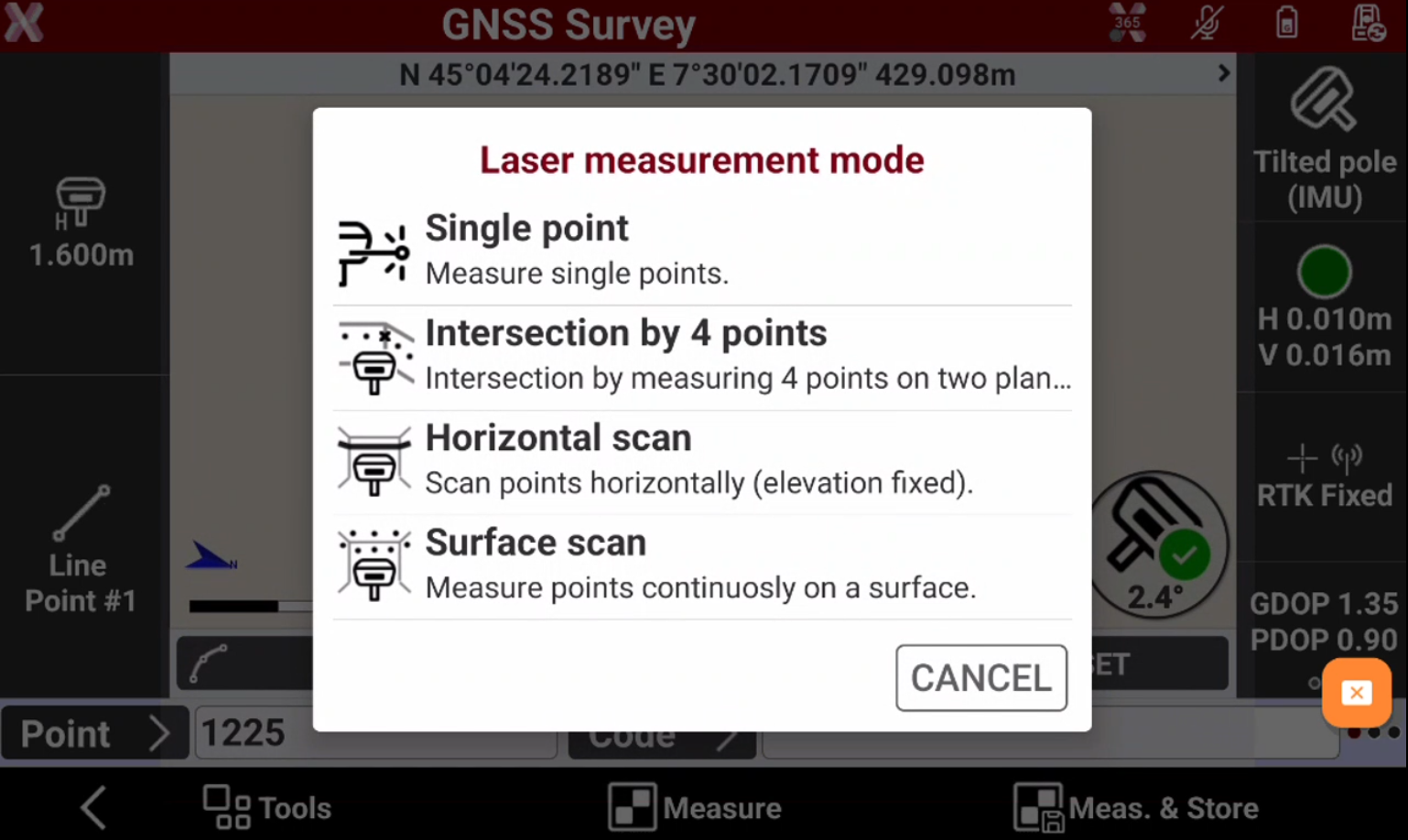
When Laser mode is selected, the software allows to measure points using different methods:
-
Single point: measures single points with laser distancemeter.
-
Intersection by 4 points: calculates a new point as intersection by measuring with distancemeter 4 points on 2 different planes.
-
Horizontal scan: scans points horizontally at a fixed elevation using distancemeter.
-
Surface scan: measures points continuously on a surface.
-
-
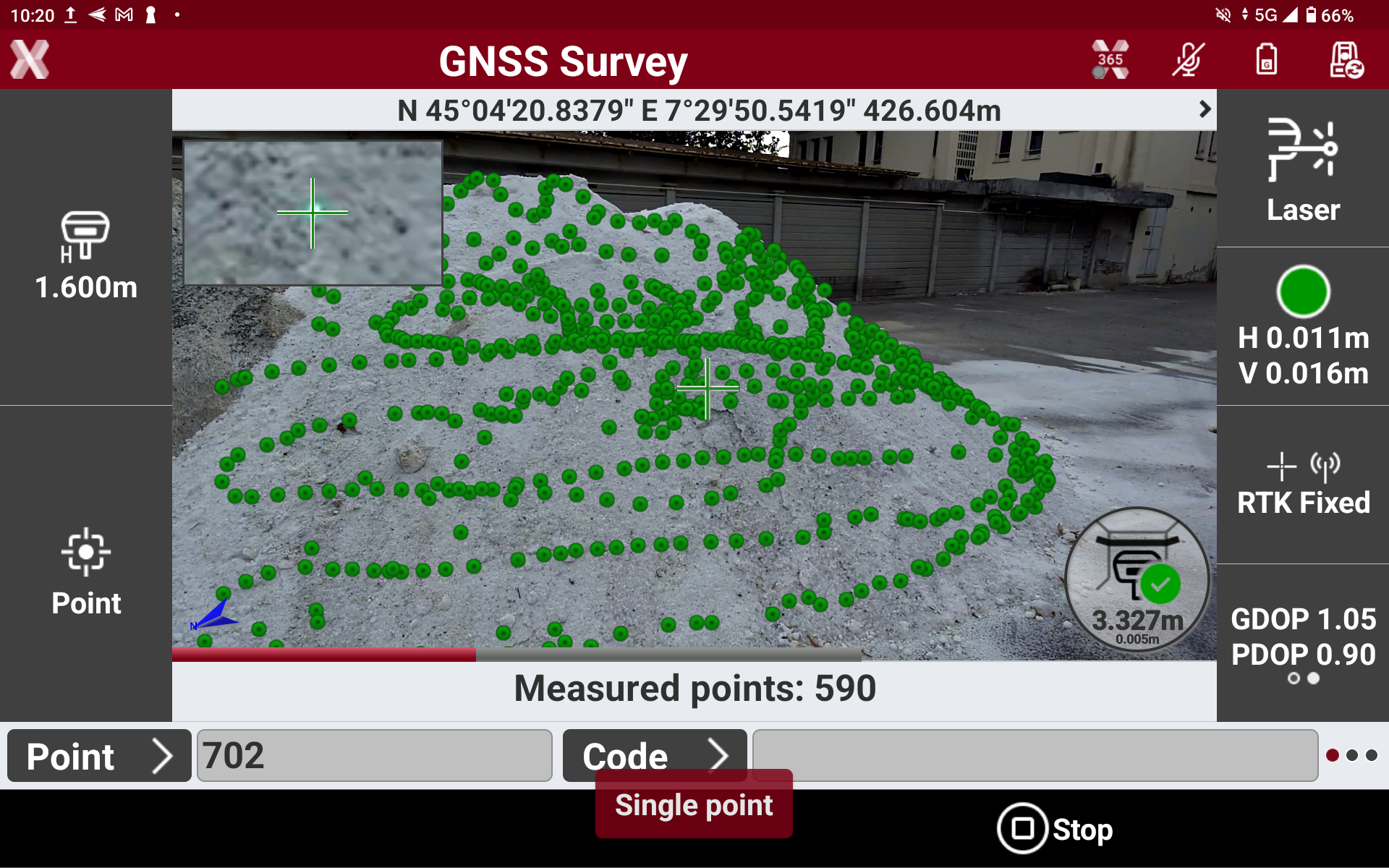
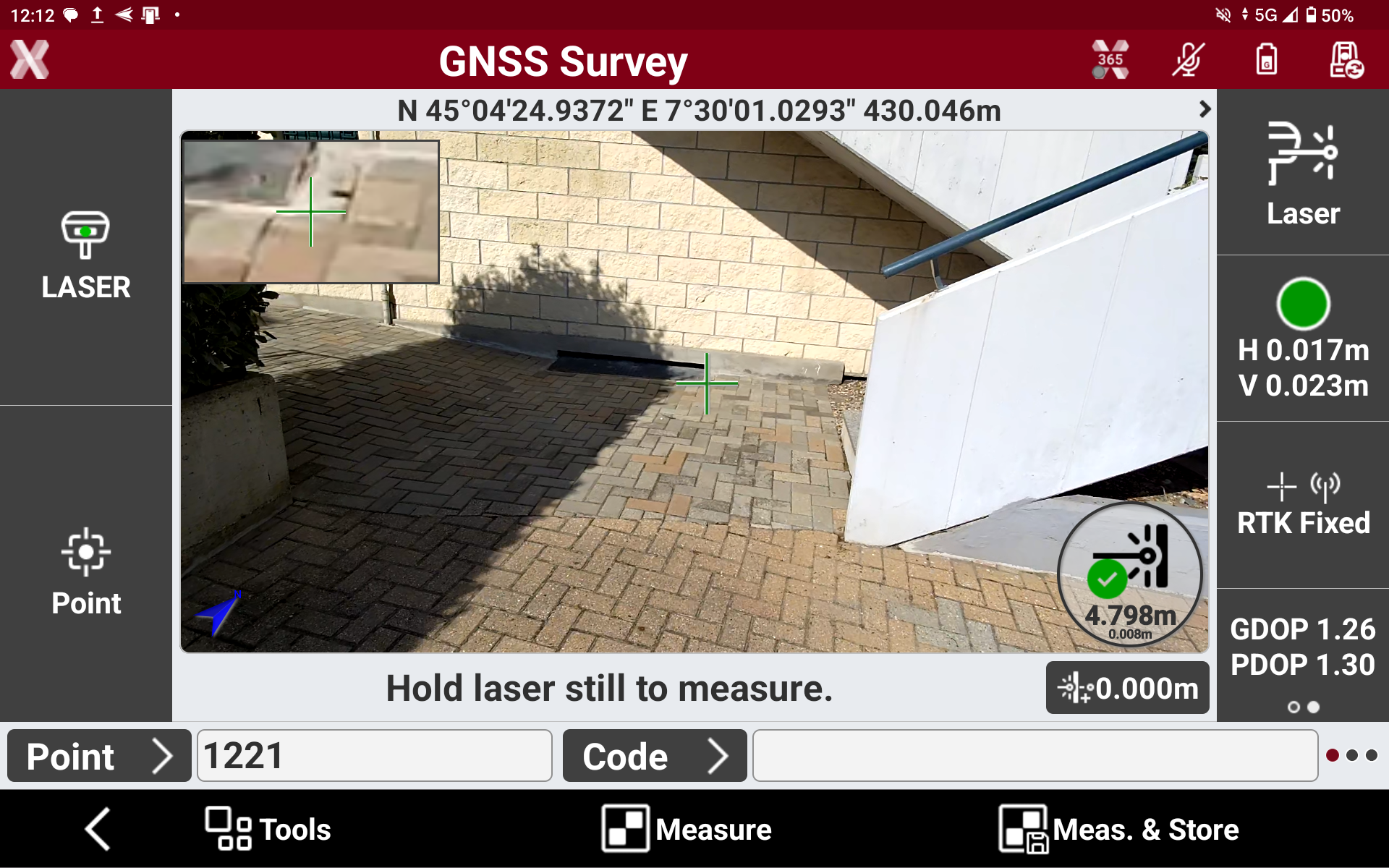
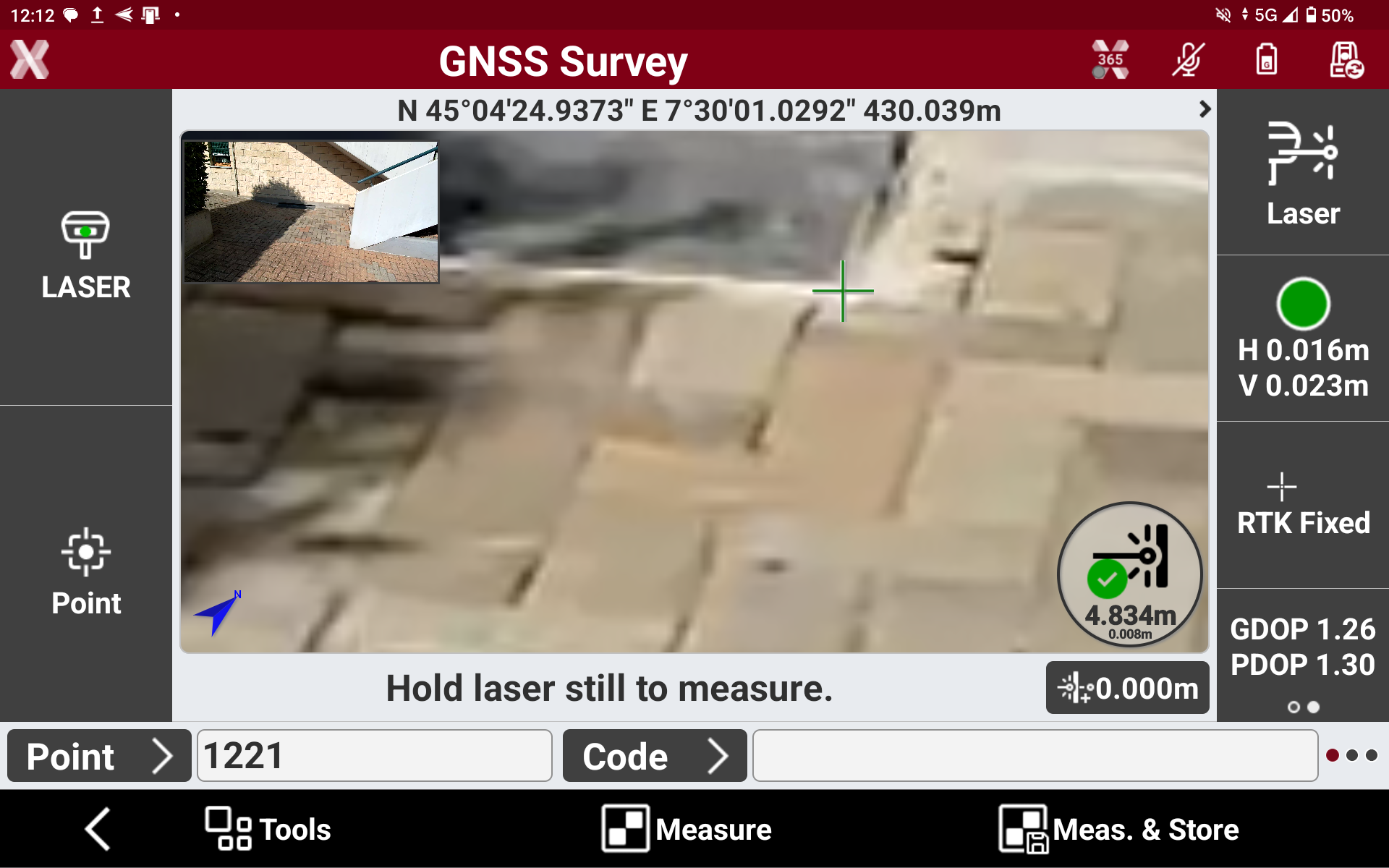
When measuring with laser distancemeter, Leica X-PAD activates the GNSS receiver camera to identify the point to measure not only with the green laser beam but also on the image.
-
Measure the points aiming with the green laser.
-
The GNSS receiver laser distancemeter emits a green laser beam that can be easily recognized on the surfaces.
-
The point to measure is represented on the GNSS receiver camera by a cross. If the cross is green, the point can be measured.
-
On the top-left of the screen the aiming area is zoomed to help to visualize the point to measure in case the green beam cannot be visualized on the surface. Press on the zoom screen to swap between standard view and zoomed view.
-
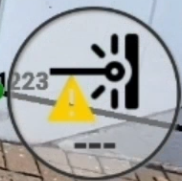
On the bottom-right of the screen it is visualized the laser beam status with point distance and estimated laser distancemeter error.
-
Measure possible: if the icon is green and the software displays distance and accuracy, the point can be measured with the laser.

-
Measure not possible: if the icon is yellow the point cannot be measured with the laser.
-
-
-
When measuring continuously with the laser, for example with Horizontal scan or Surface scan method, it is not required to be stable on a position but it is possible to move around the object to measure.