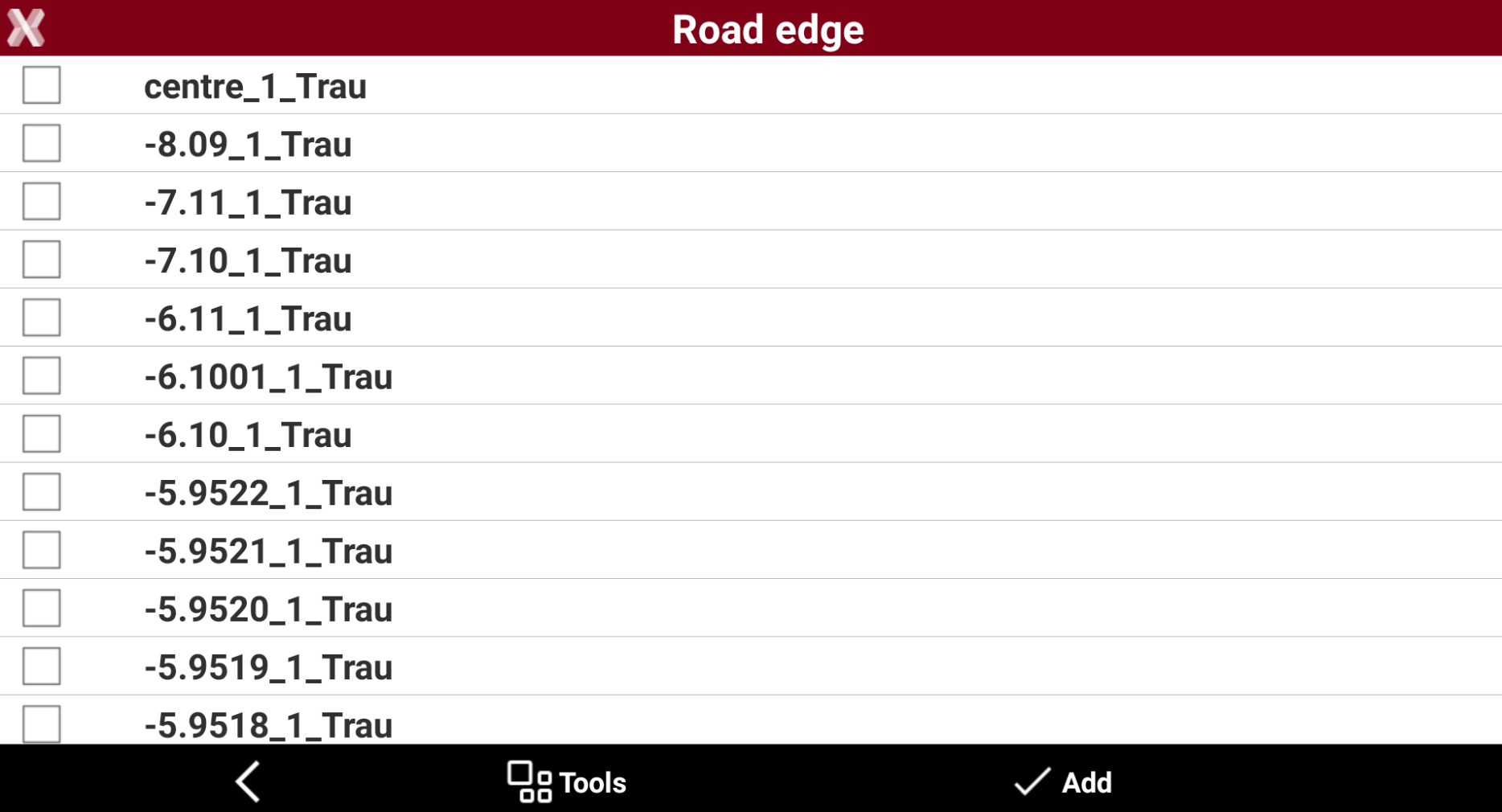
road
-
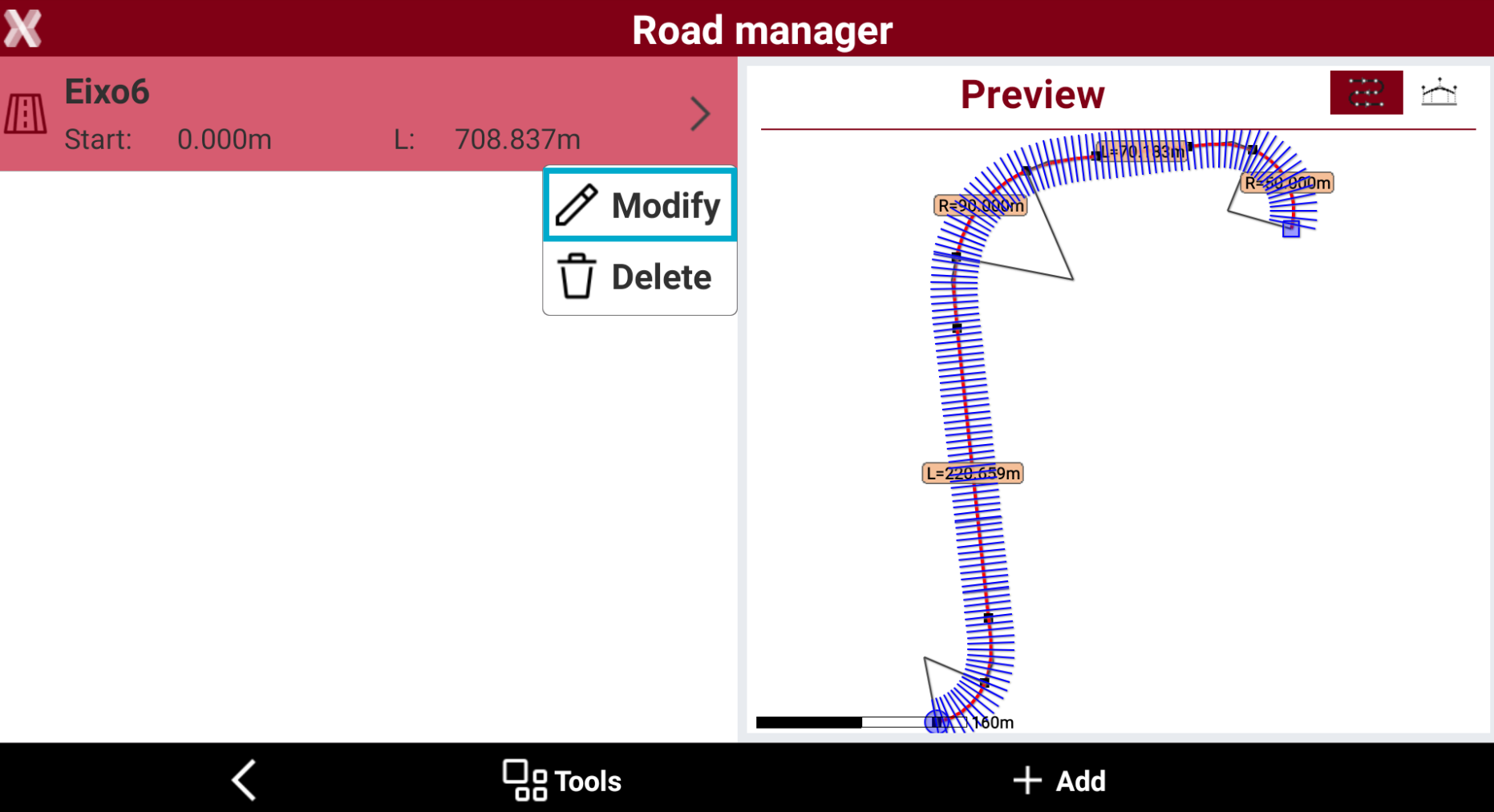
The available roads are listed in the Road Manager.
-
To edit a road, from Road Manager tap on the road to edit.
-
Select Modify from the context menu.
-
This opens the road editing page.
The stations unit can be changed in Units.
Road information
-
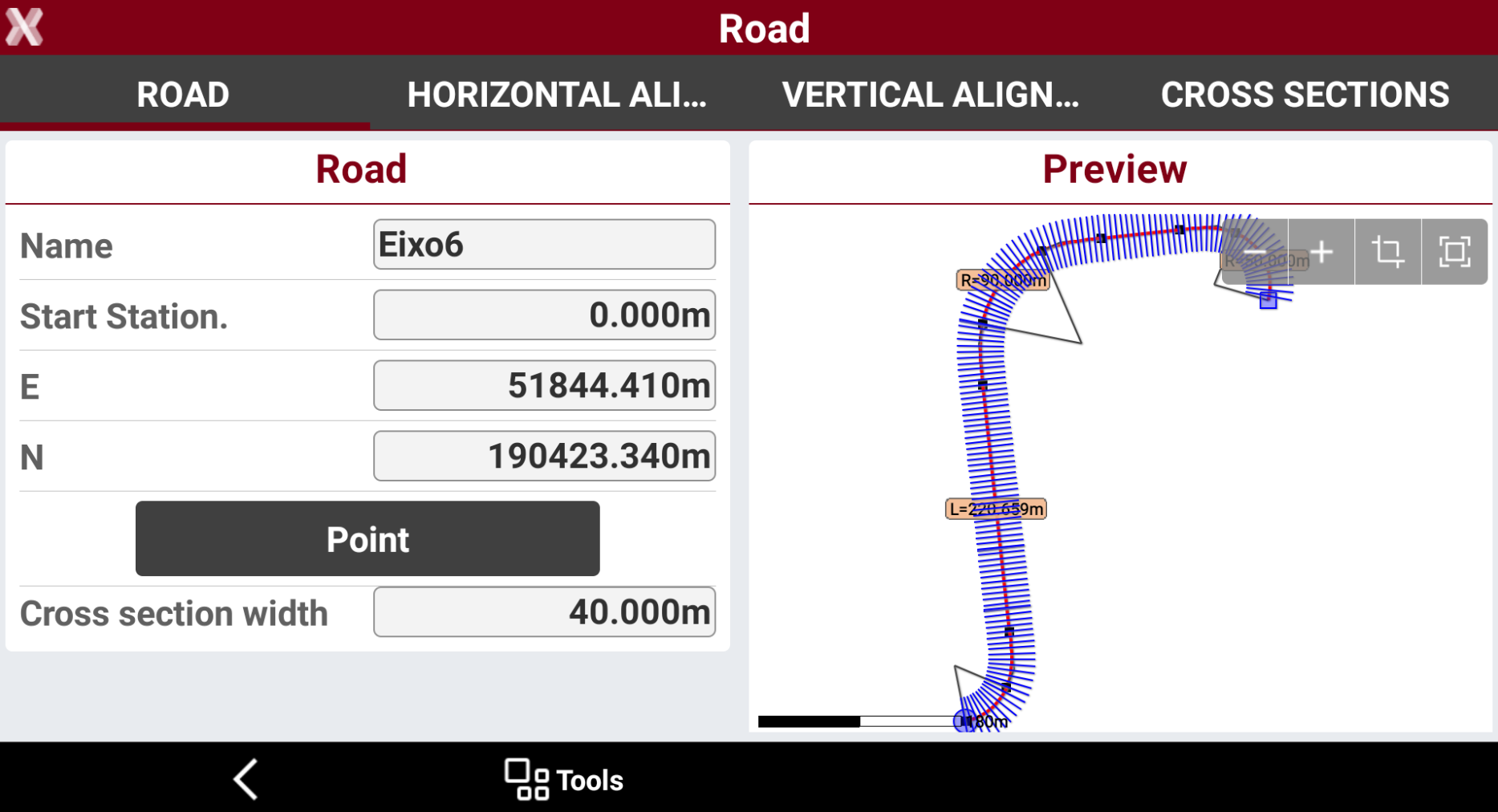
The Road page includes the main information regarding the road.
-
Name: the name of the road.
-
Start Station: the starting station of the road.
-
E, N: the coordinate of the starting station.
-
Point: select the starting point from CAD or from the list of available points.
-
Cross section width: defines the cross section width, used by the software to to draw cross sections along the horizontal axis.
-
-
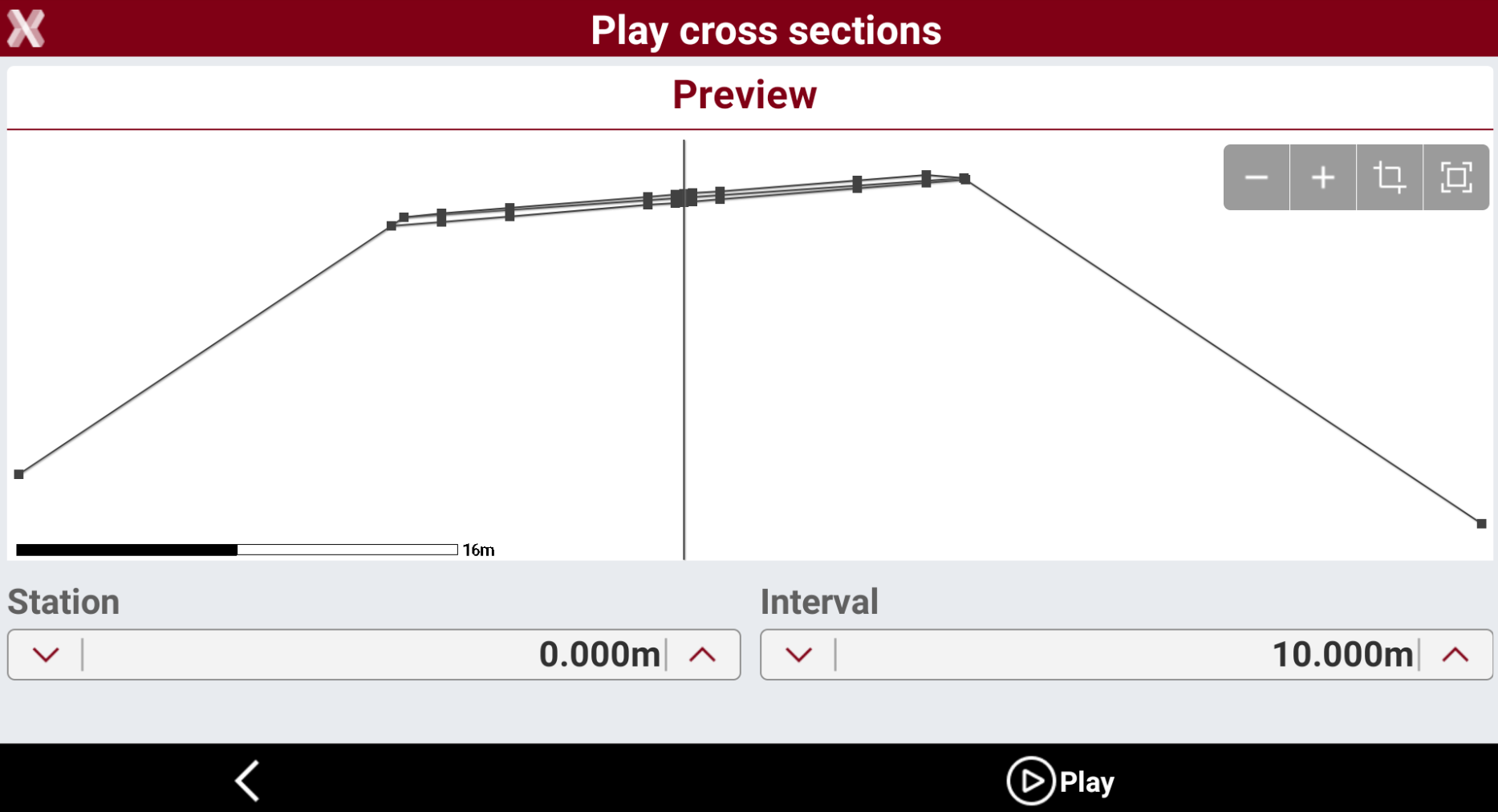
Press Tools and Play to open the Play cross sections page.
-
The page shows the cross sections at the change of station.
-
Station: enter the starting station.
-
Interval: the station interval to show the different cross sections.
-
-
Press Play to automatically show the cross sections at the change of station.
Horizontal alignment
-
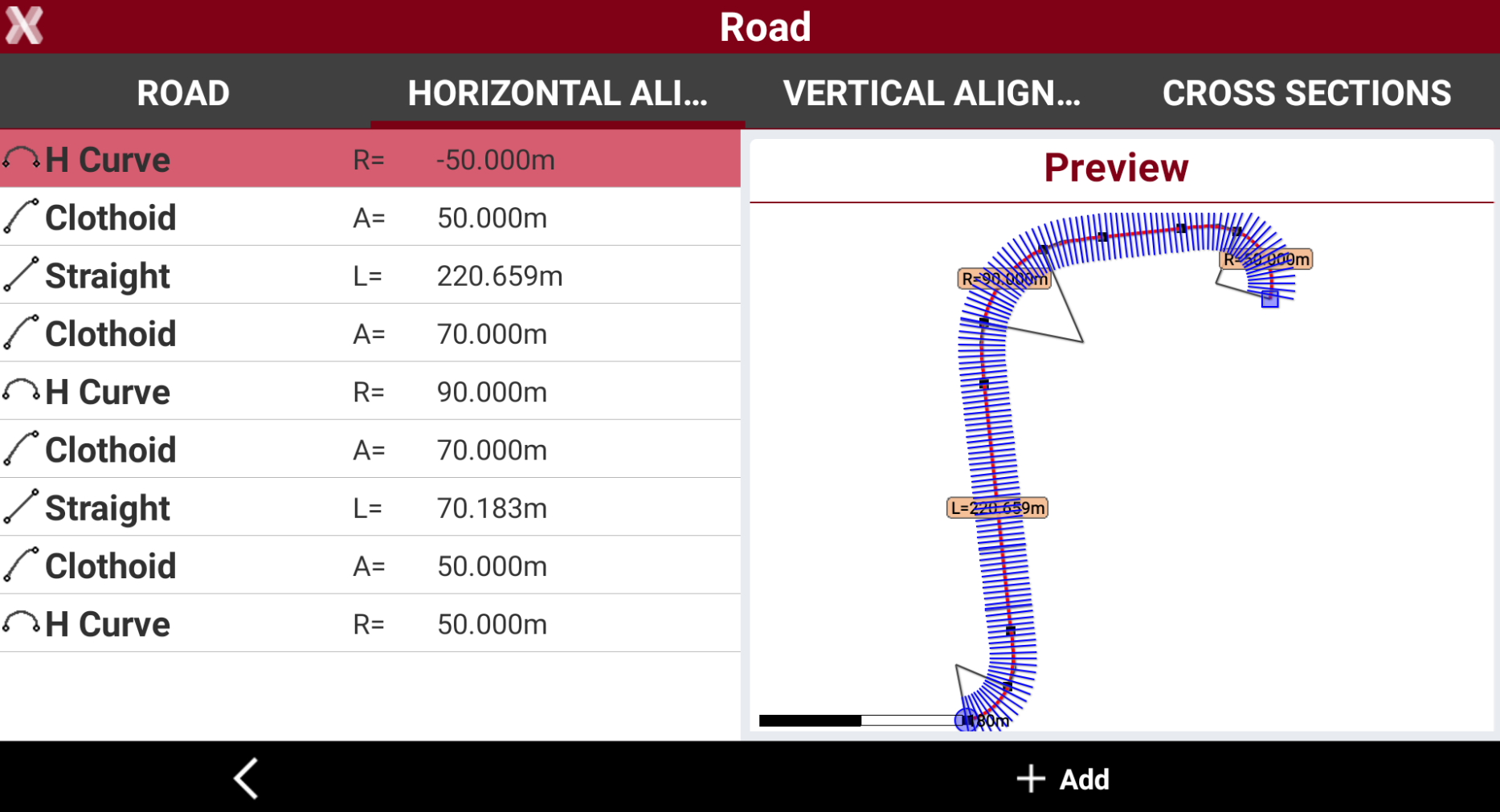
The page lists the horizontal alignment elements.
-
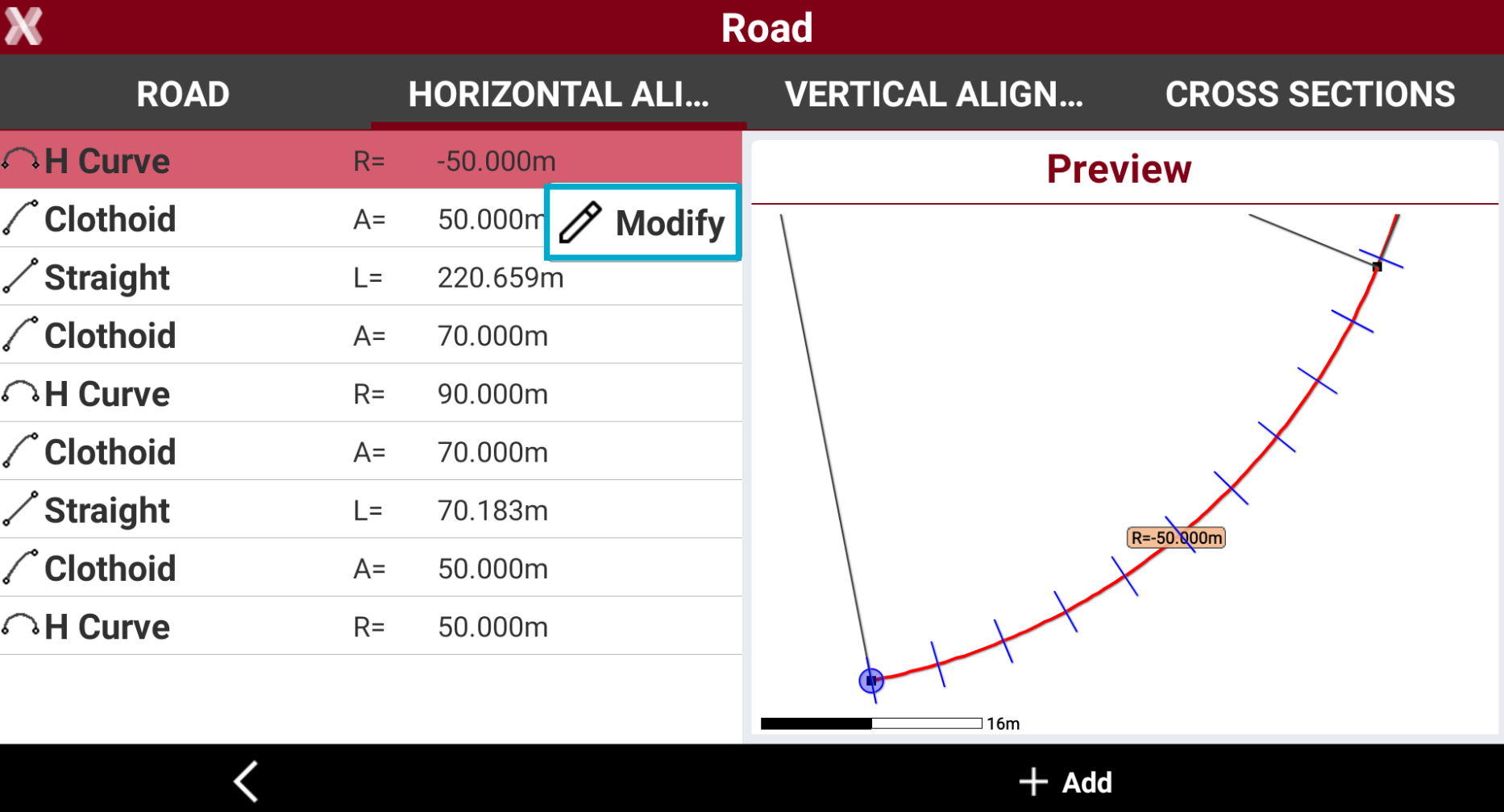
Tap on an element to zoom in the preview panel.
-
Press Modify from the context menu to edit the selected element.
-
Press Add to add an horizontal alignment element, in case the road has to be designed in the field.
Refer to Design a road step-by-step for more information on how edit or add an horizontal alignment.
Vertical alignment
-
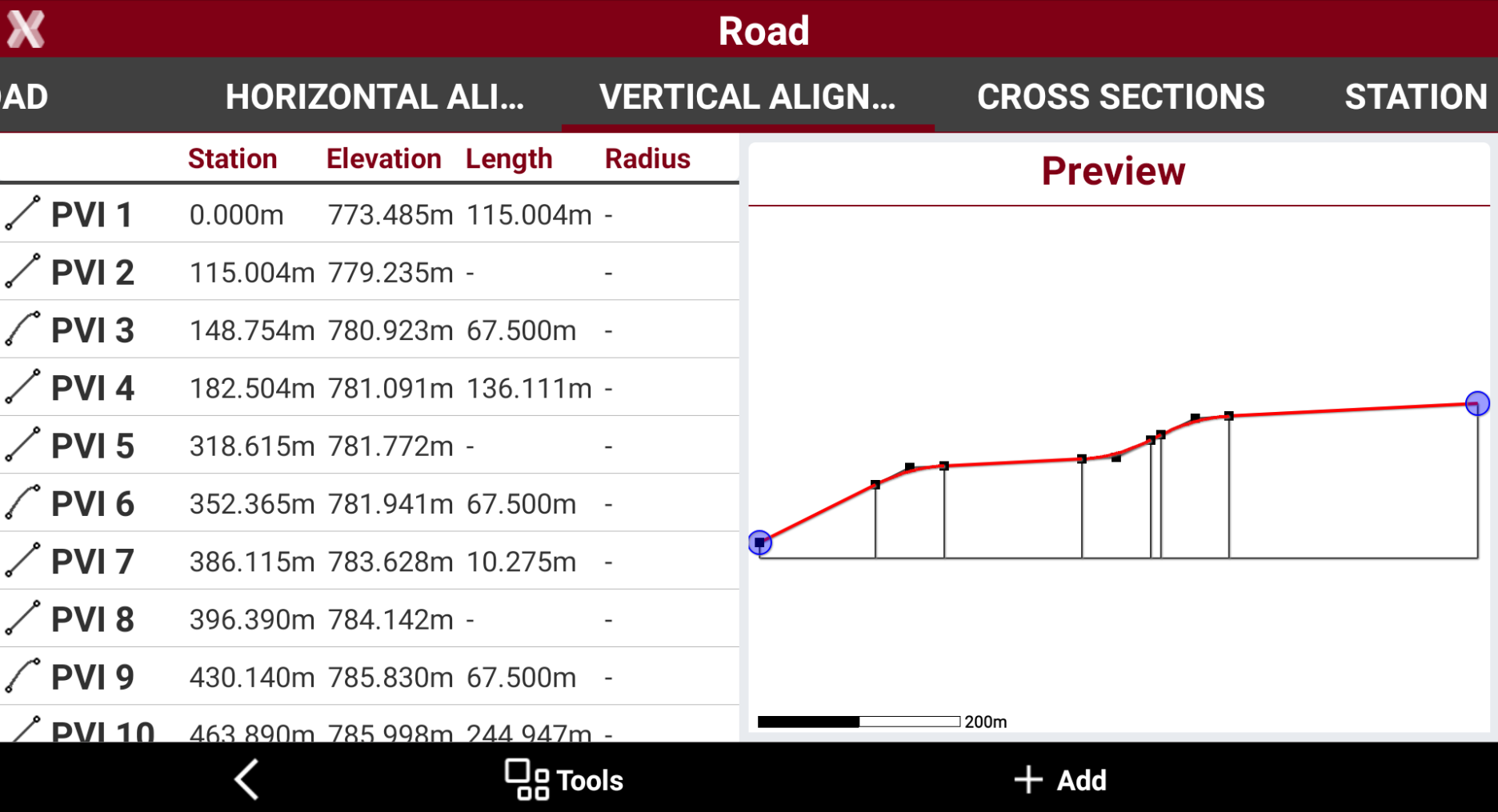
The page lists the vertical alignment elements.
-
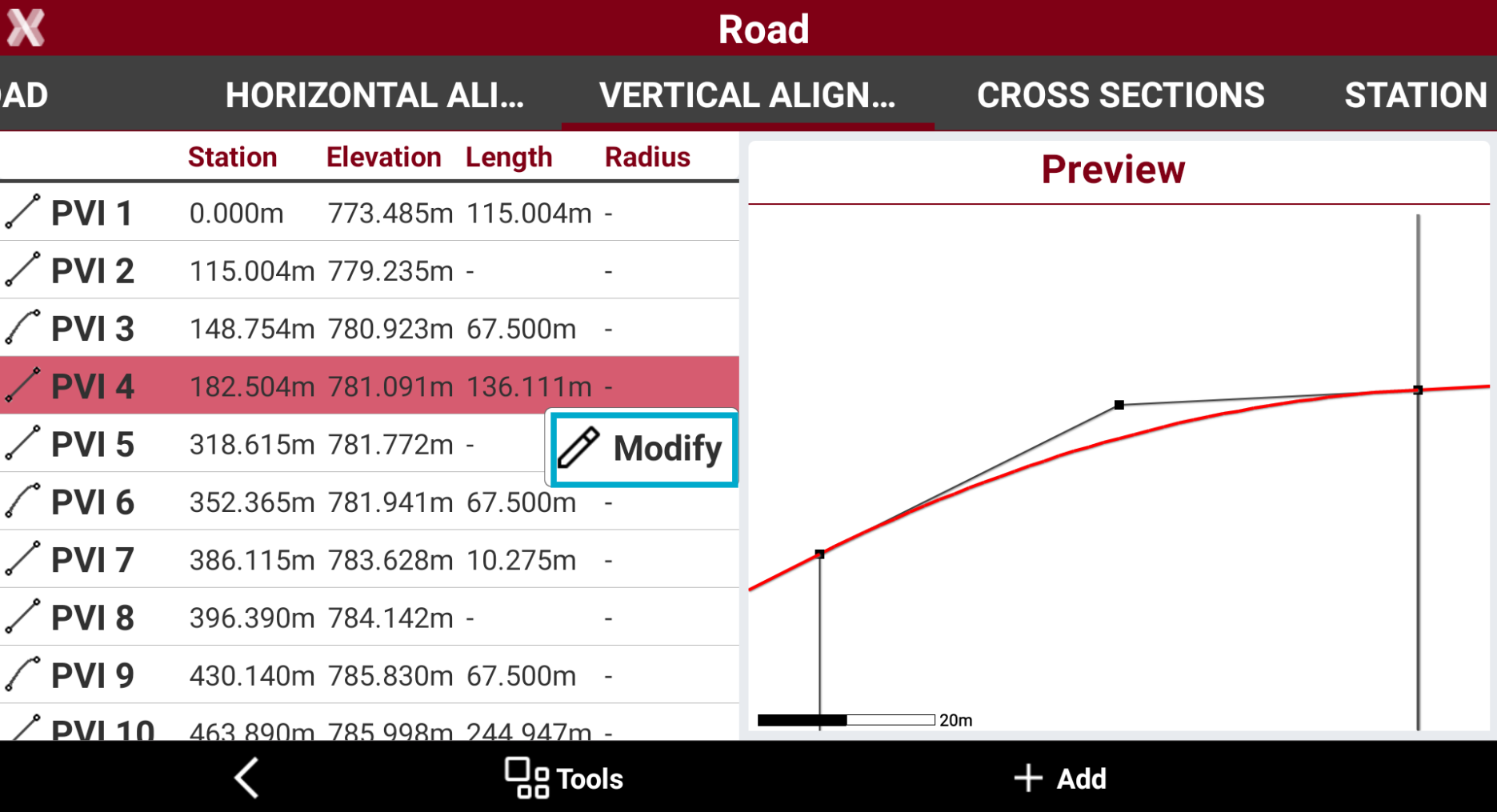
Select an element to zoom in the preview panel.
-
Press Modify to edit the selected element.
-
Press Add to add a alignment element, in case the road has to be designed in the field.
Refer to Design a road step-by-step for more information on how edit or add a vertical alignment.
-
Press Tools and select Vertical element list to show the list of vertical alignment elements.
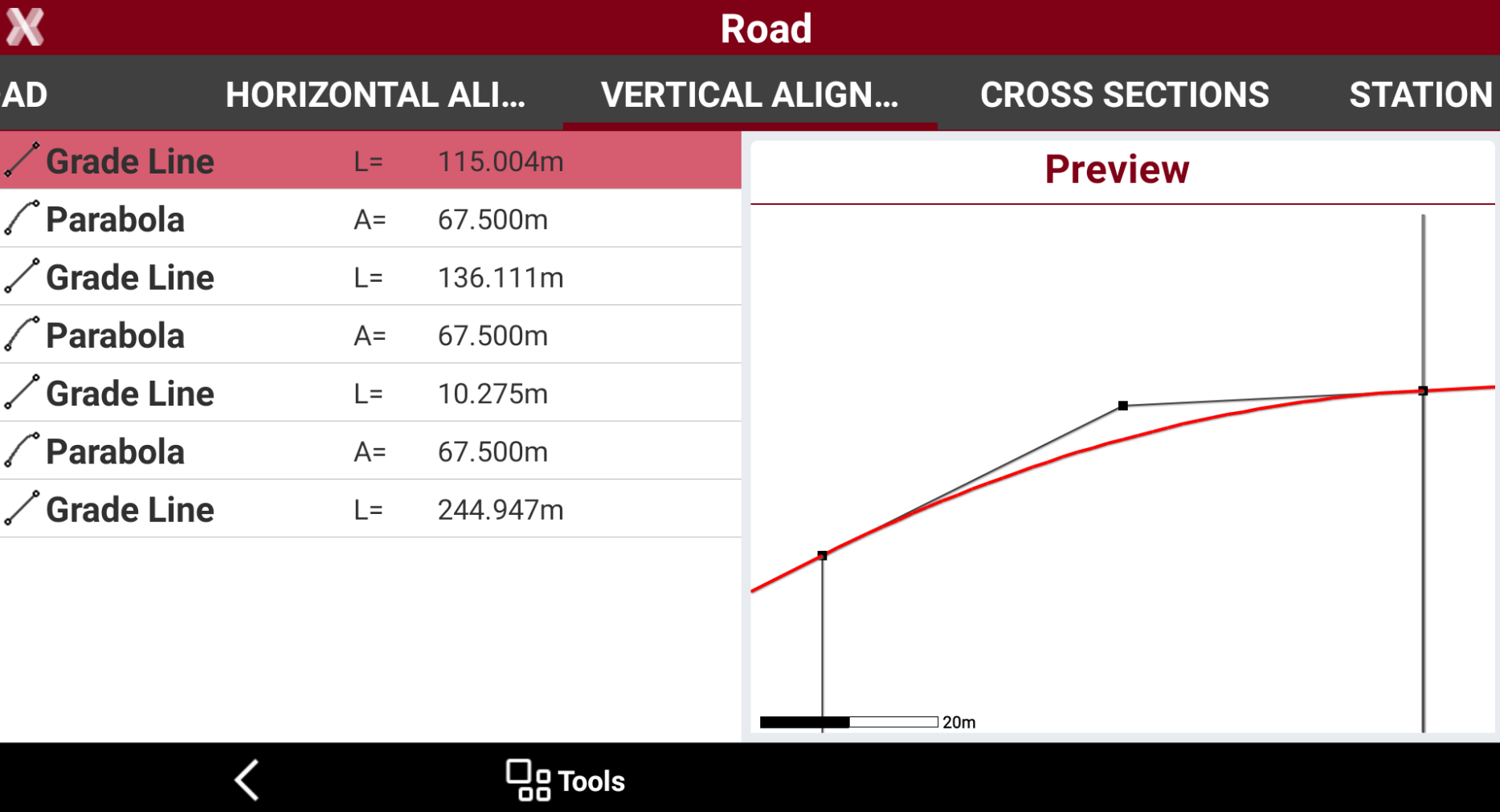
-
Press Tools and select PVI list to show the list of PVI.
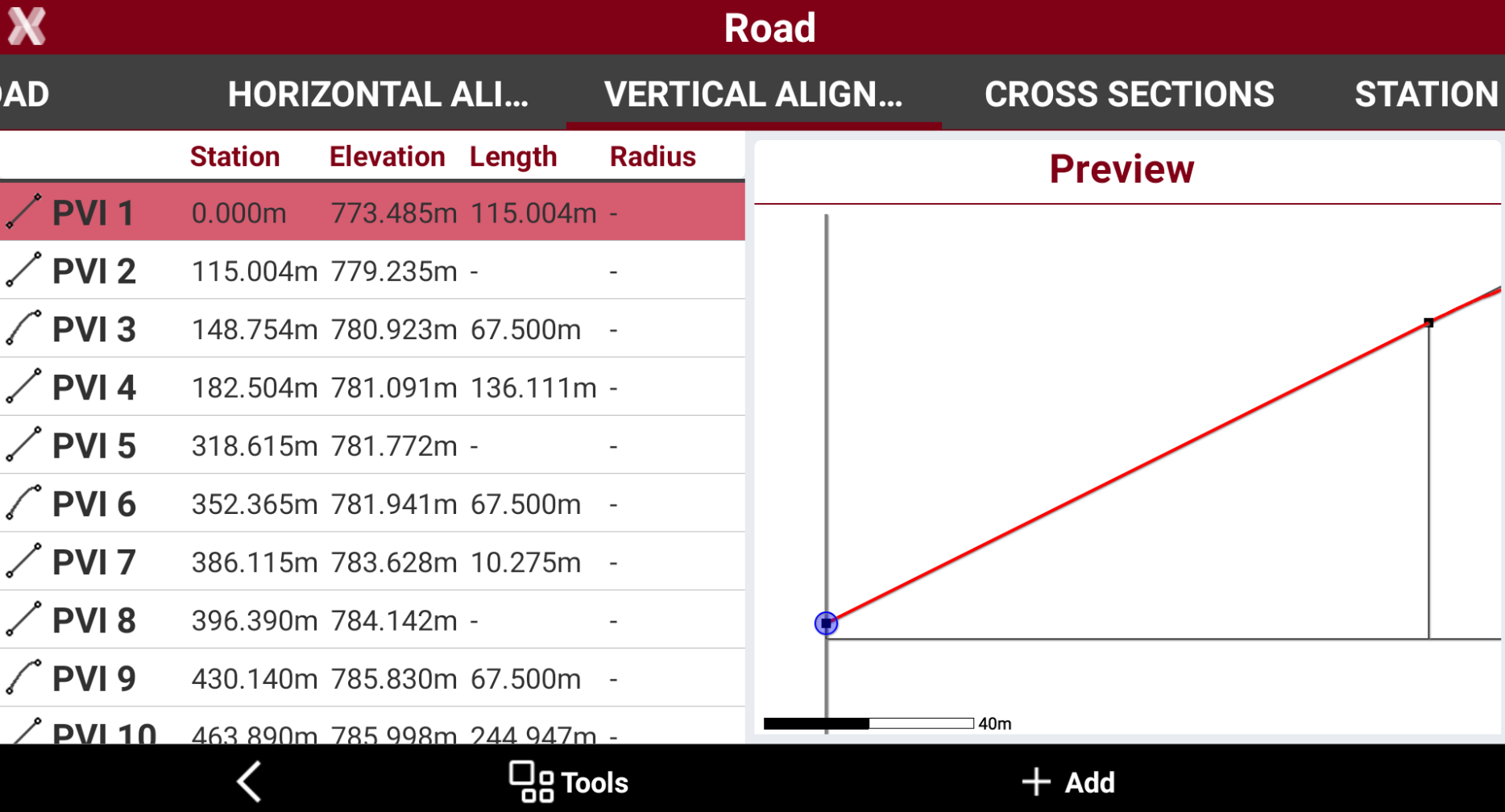
Cross sections page
-
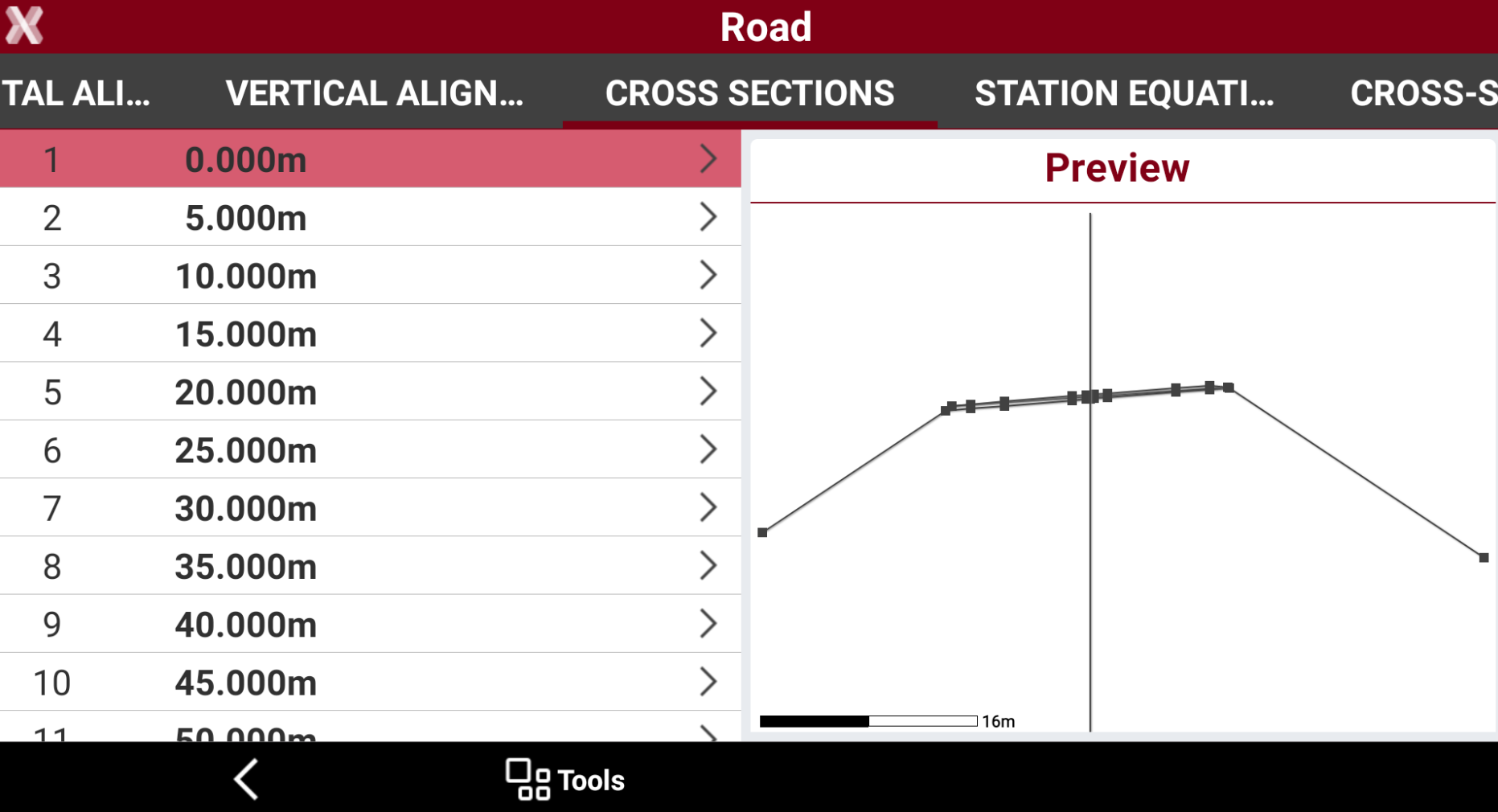
The Cross Sections page lists the imported cross sections.
-
Tap on a specific cross section to display the cross section in the preview panel.
-
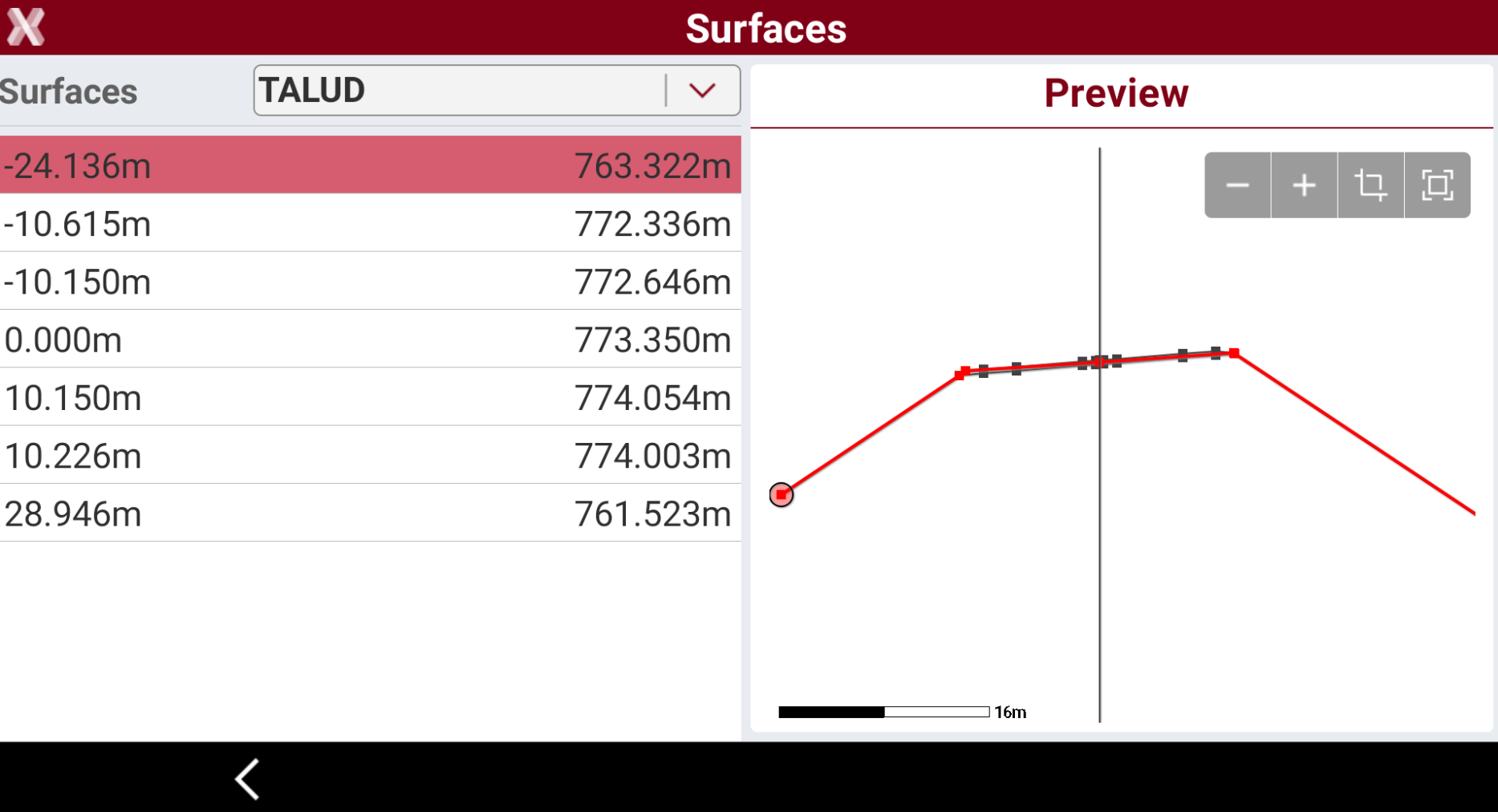
Tap on a specific cross section to open the context menu and select View to show the list of cross section vertexes and layers.
-
Tap on Surfaces drop-down list to change layer.
-
The left panel lists the vertexes of the cross section with horizontal offset and elevation.
Station equation page
-
Forward and backward station equations are available to adjust stations along an alignment. Chainage or station equations are used to adjust the alignment chainage or station.
-
The most common reason for doing so is the insertion or removal of curves during the design process.
-
Inserting or removing a curve would require recalculating the chainage or station of an entire alignment. Using chainage or station equations eliminates this need.
-
Chainage or station equation can create either a gap or an overlap as shown in the following diagrams.
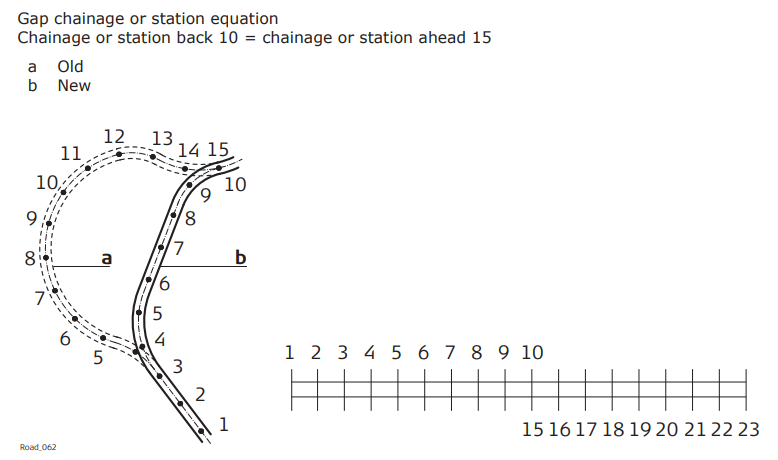
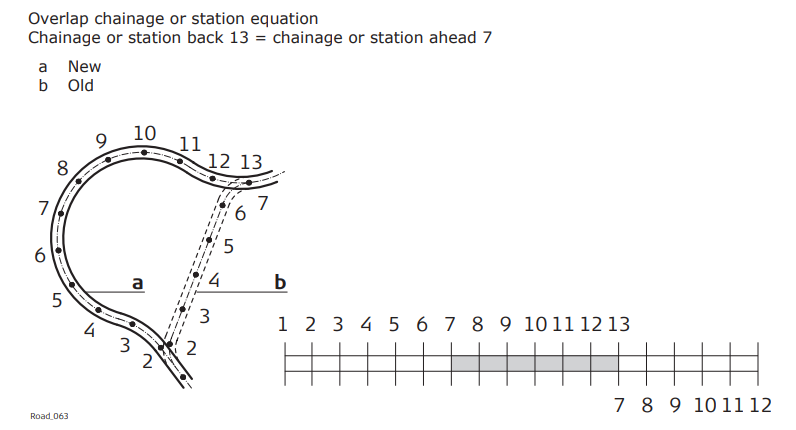
-
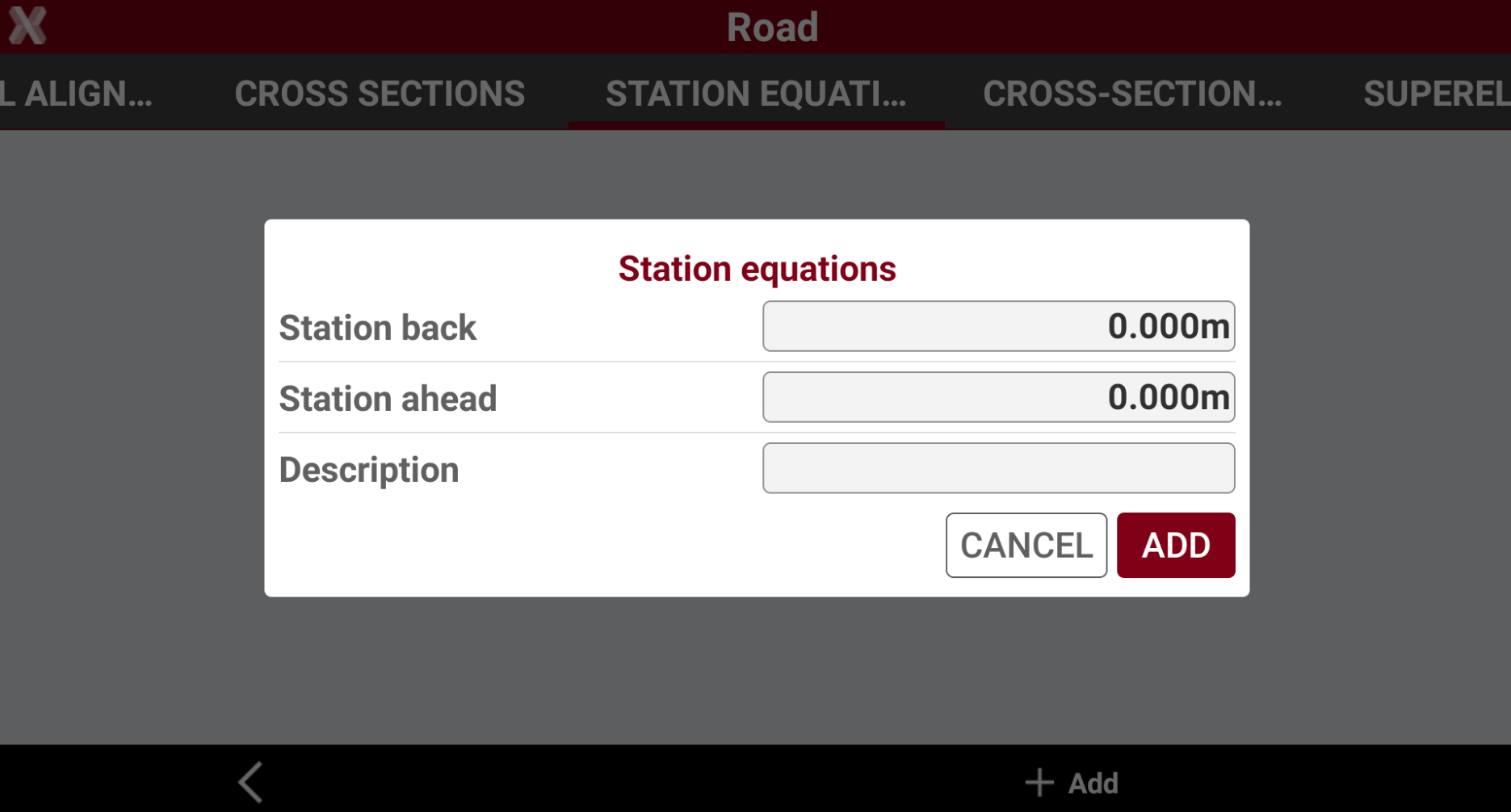
Press Add to create a new station equations.
-
Station back: the previous station that is replaced by the station ahead.
-
Station ahead: the station ahead.
-
Description: field for a description.
-
-
Press Add to add the new station equation.
Cross section templates
-
The page lists the cross section templates that have been manually assigned to the selected road.
-
This allows to apply cross sections to a road when designing a road.
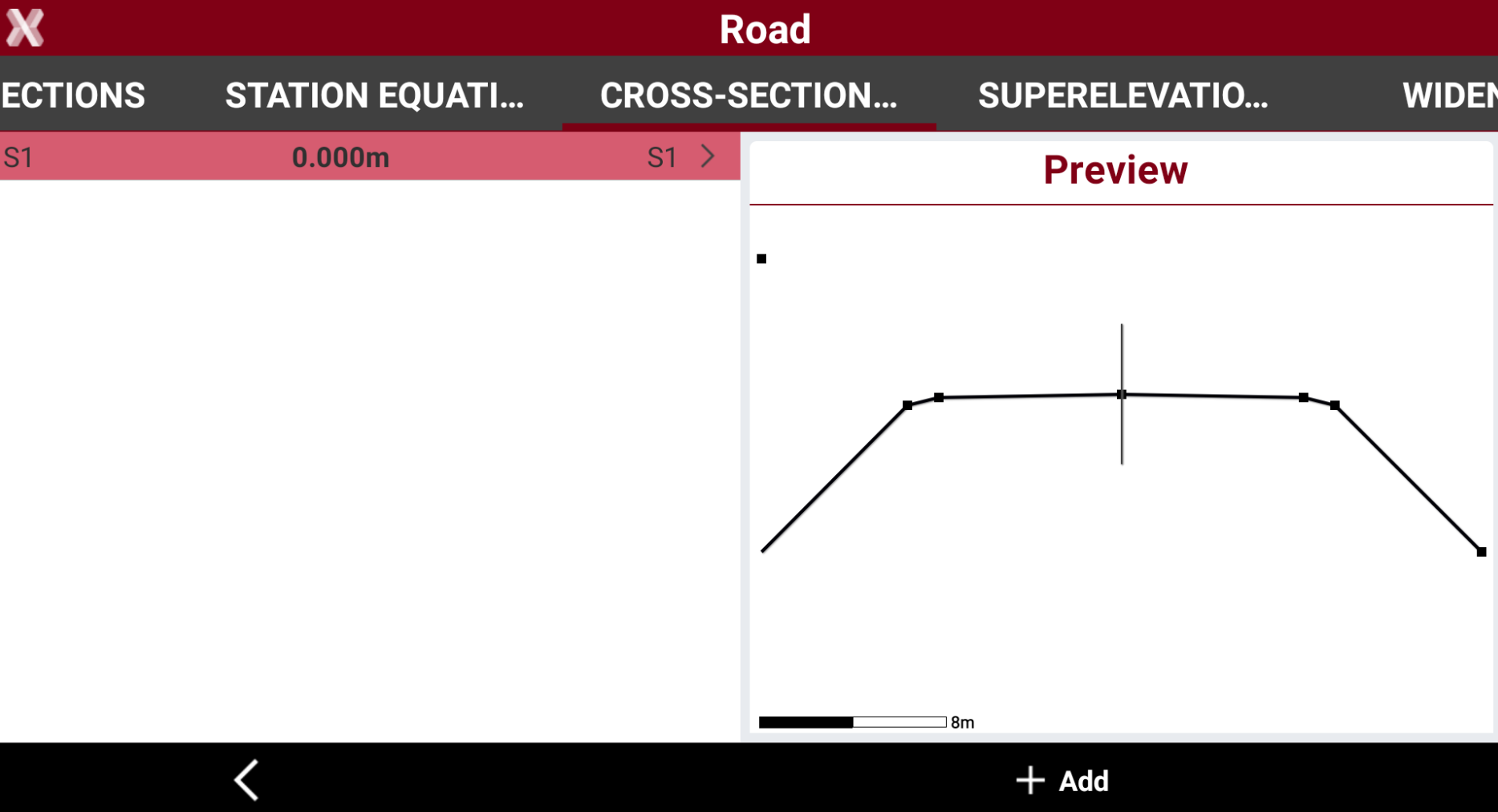
The cross section templates are designed in X-Sections template page.
-
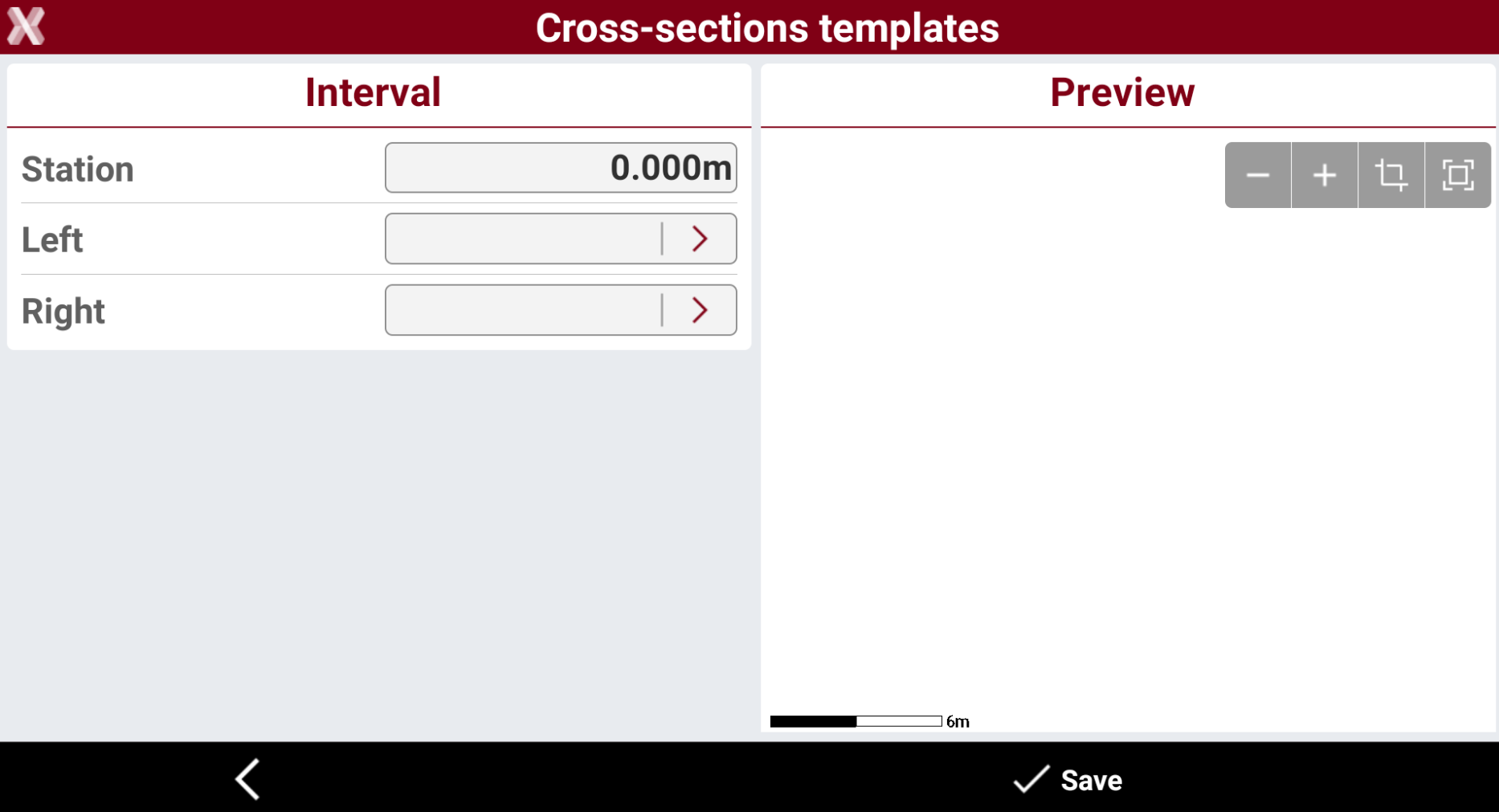
Press Add to add a new template.
-
Station: the station where to apply this cross section.
-
Left: the template to use for the left side of the road. Click to select a template from the list of available templates defined in X-Sections template.
-
Right: the template to use for the right side of the road. Click to select a template from the list of available templates defined in X-Sections template.
-
-
Press Save.
-
The selected template will be used from the selected station until the following station where a different template is selected.
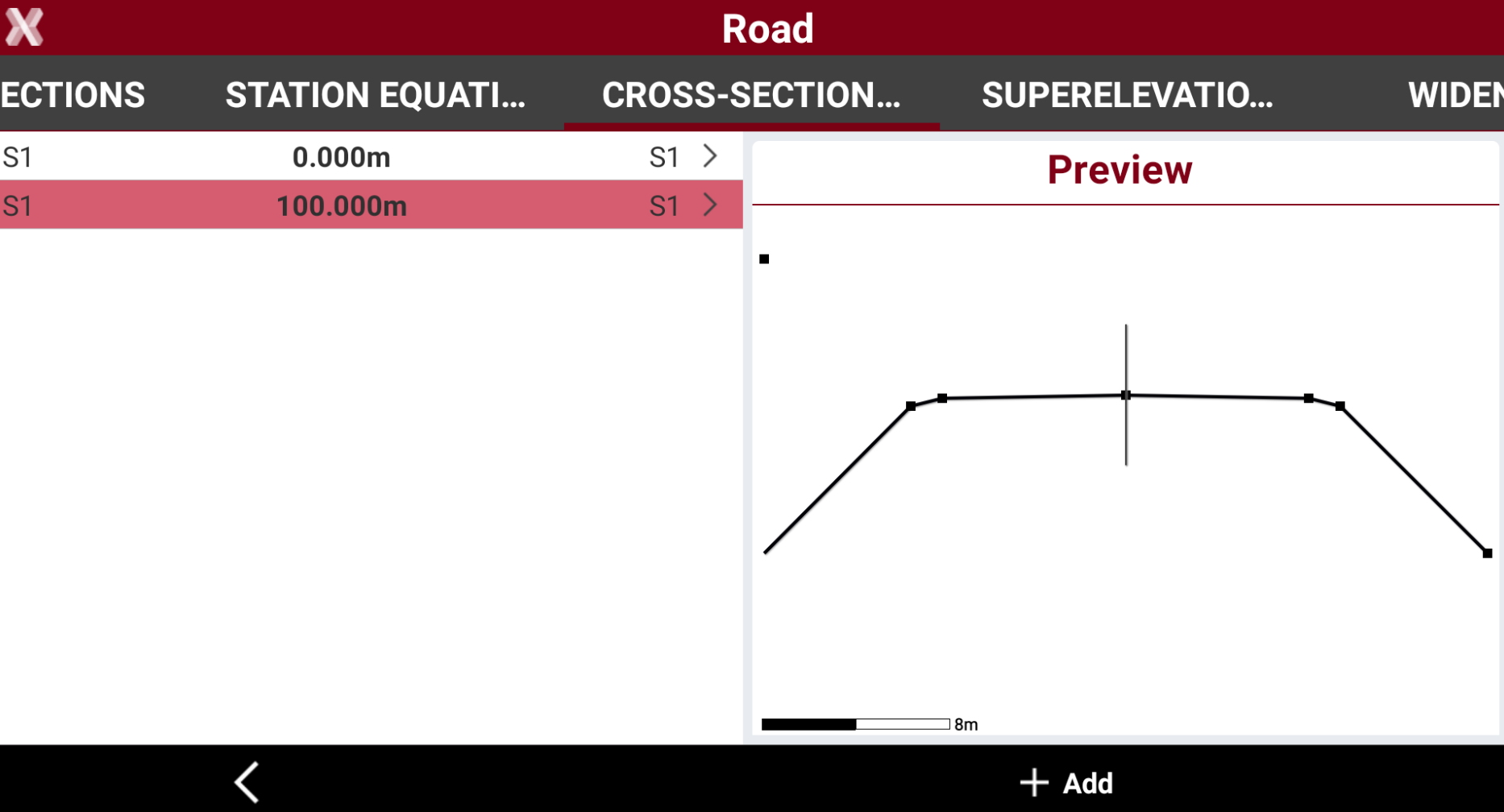
Refer to Design a road step-by-step for more information on how to design cross sections.
Cross sections templates can be rotated or modified using Superelevation and Widenings options.
Superelevation page
-
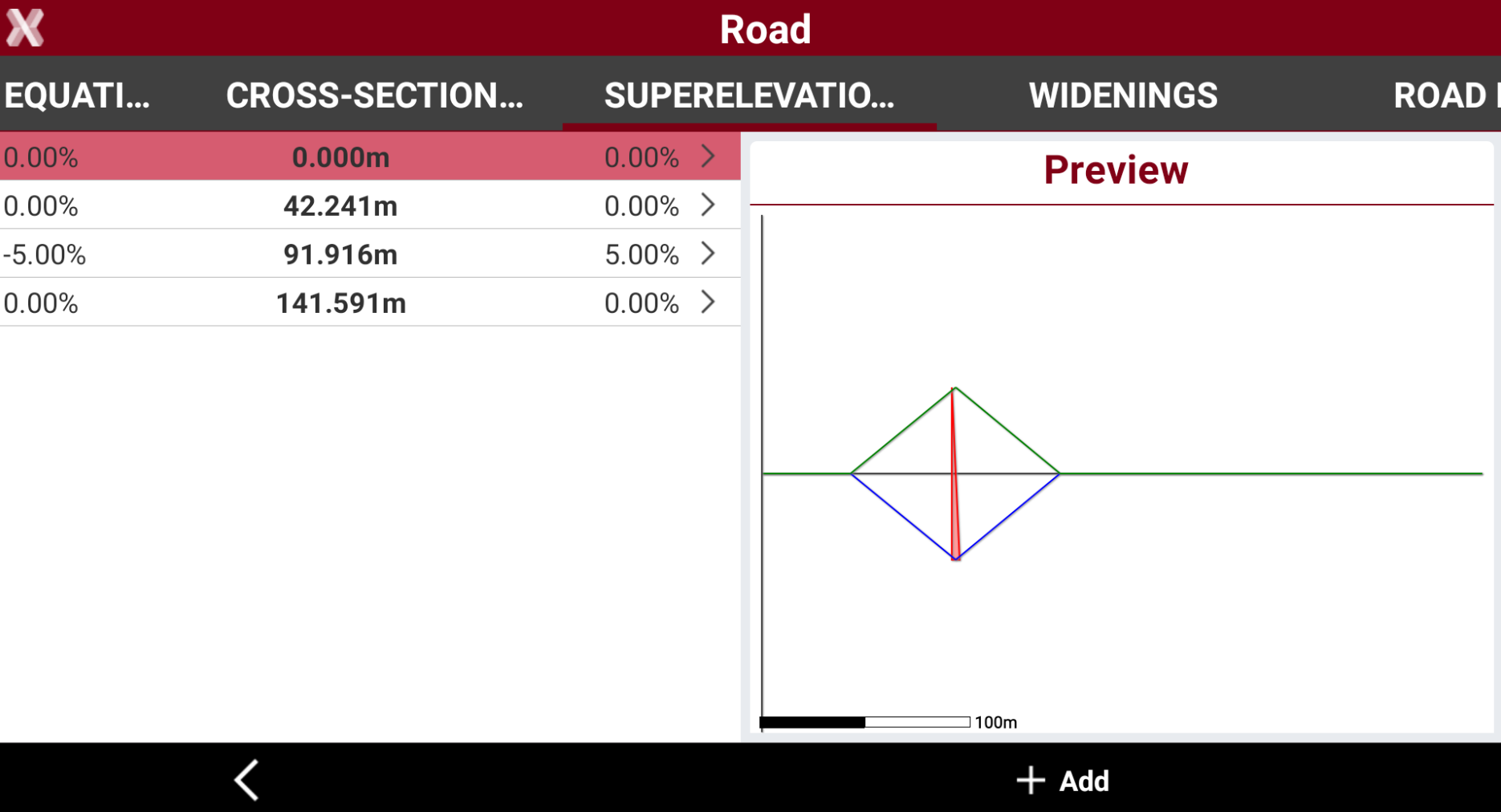
The page allows to specify superelevation values to use along the road axis.
-
This function is useful to add a rotation on the curves and on clothoids when designing a road in the field.
-
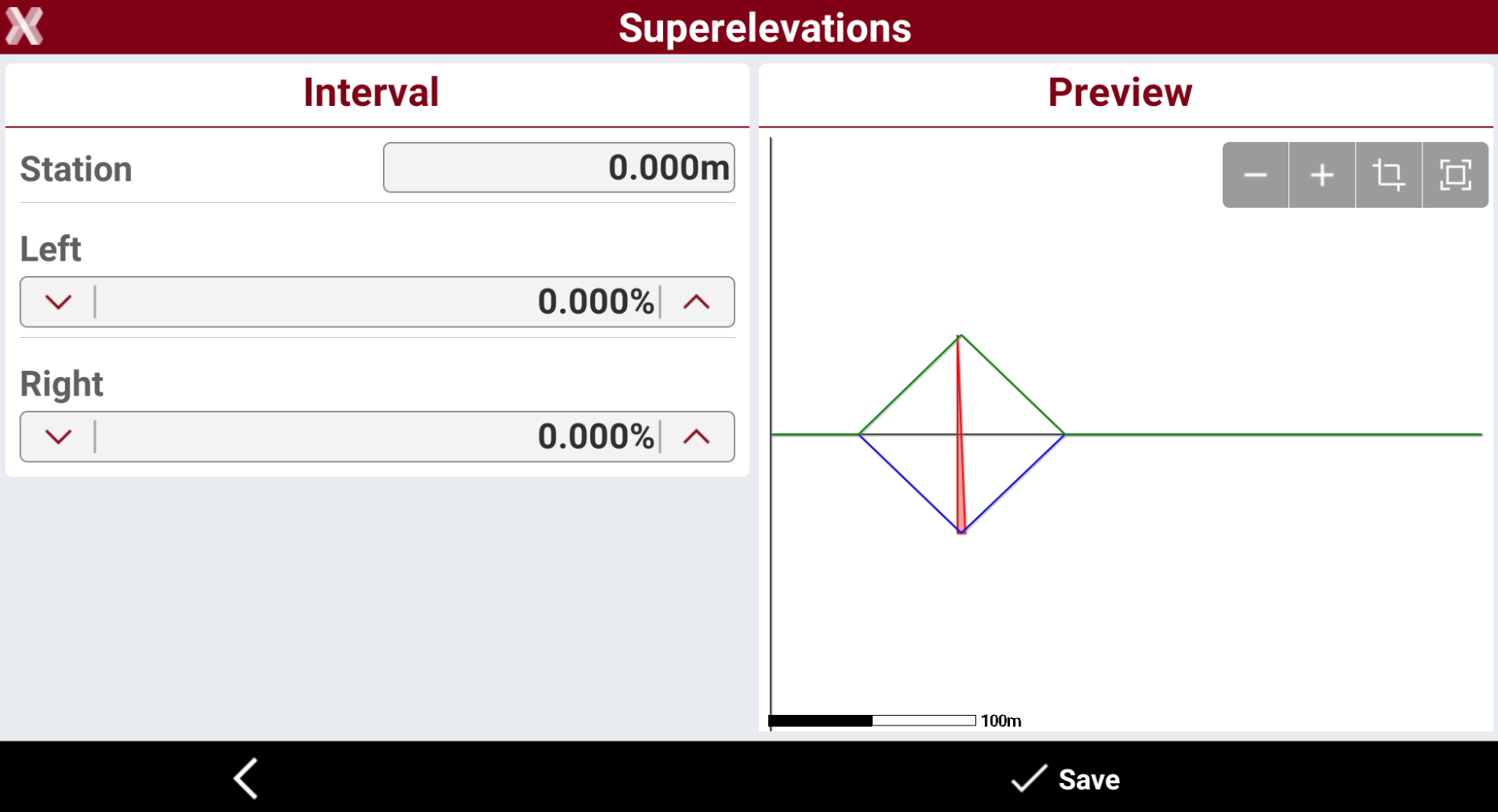
Press Add to add a new superelevation.
-
Station: chainage to which refer the values of superelevation.
-
Left: left superelevation.
-
Right: right superelevation.
-
-
Click Save.
-
The values of superelevation are interpolated and applied to the corresponding elements of the section model.
The calculated values for superelevation are applied only to those elements of the section model that are identified as items to rotate and enlarge.
Refer to Design a road step-by-step for more information on how to use superelevations to design cross sections.
Widenings
-
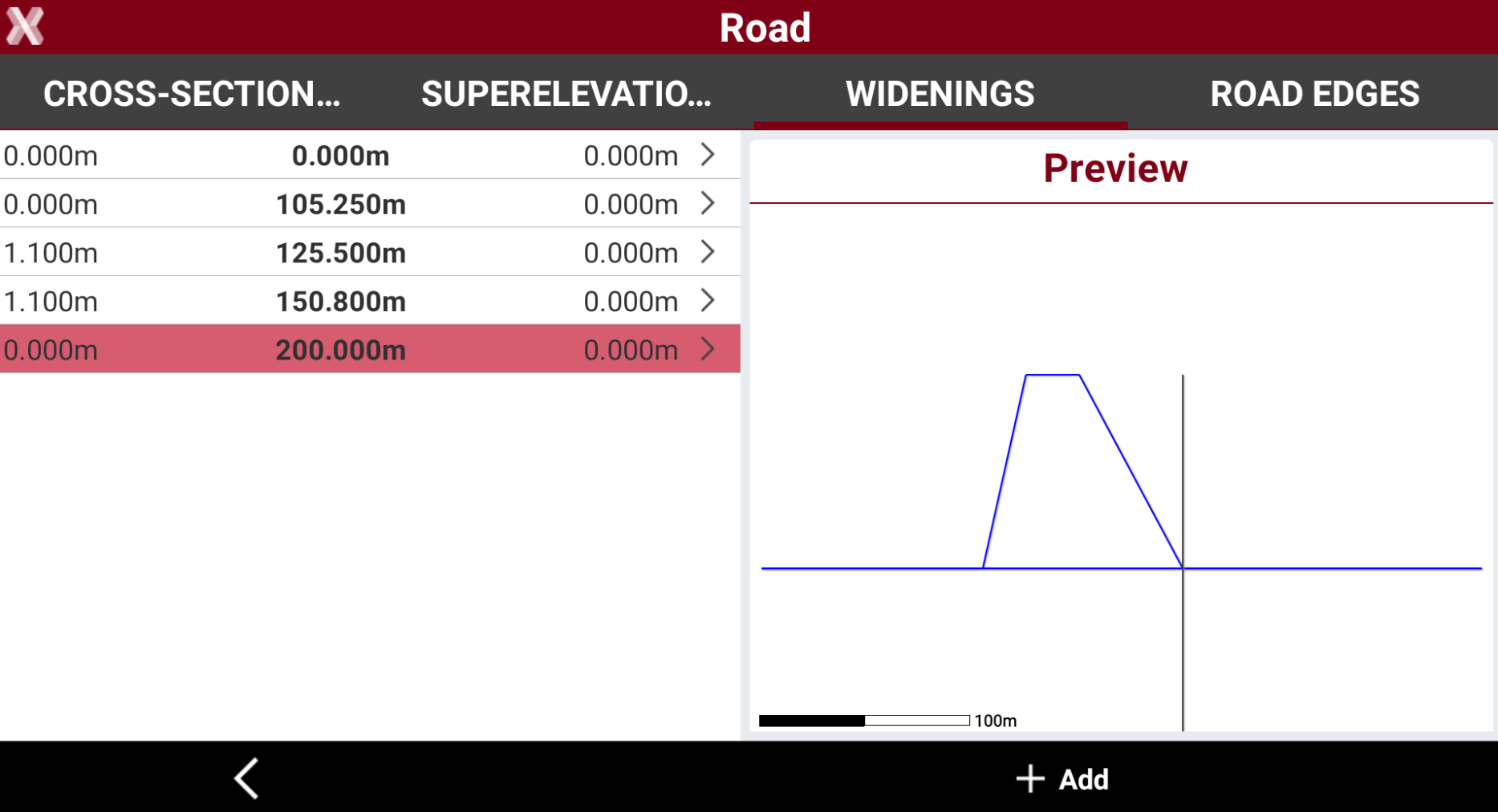
The page allows to specify widening values to use along the road axis.
-
This function is useful to add a widening to road elements when designing a road in the field.
-
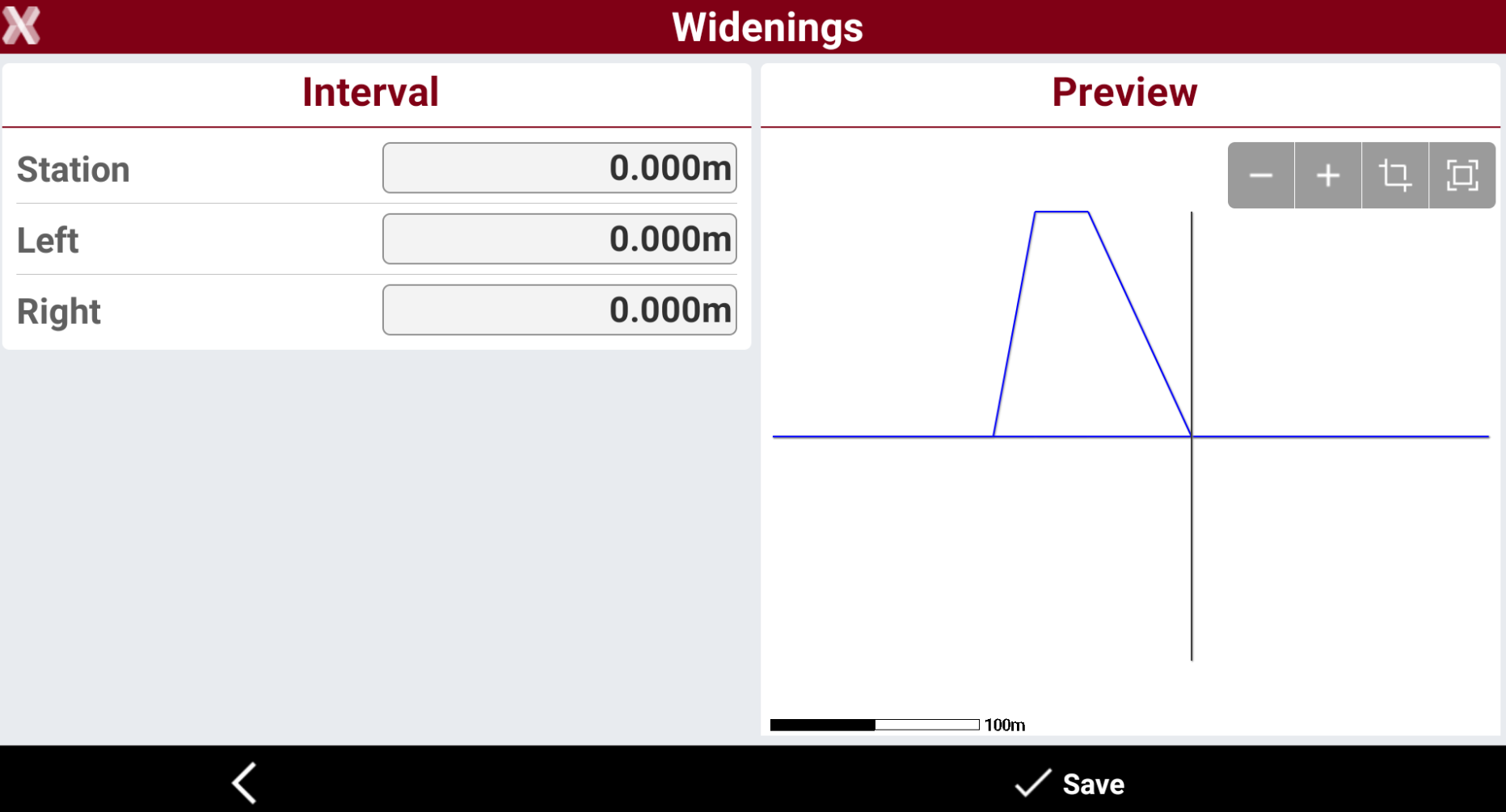
Press Add to add a new widening.
-
Station: chainage to which refer the values of widening.
-
Left: left widening.
-
Right: right widening.
-
-
Press Save.
-
The values of widening are interpolated and applied to the corresponding elements of the section model.
The calculated values for widening are applied only to those elements of the section model that are identified as items to rotate and enlarge.
Refer to Design a road step-by-step for more information on how to use widening to design cross sections.
Road edges page
-
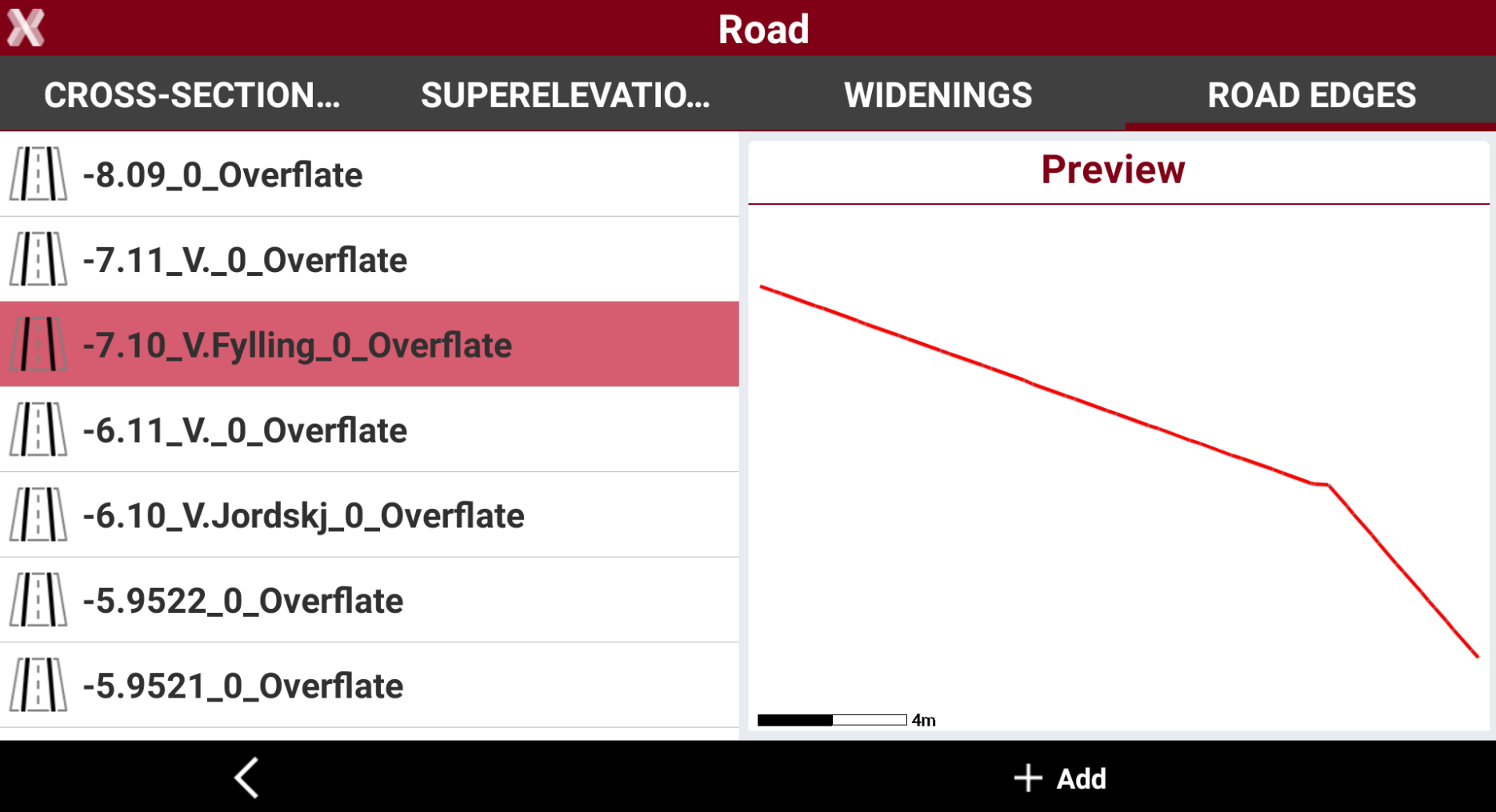
This page lists the road axis assigned as edges to the selected road.
-
The page allows also to assign available road axis as edges to the selected road, for example when a road is imported from a DXF file.
-
Press Add to select available roads in Road Manager as road edges to the selected road.