road
-
The software supports road design data in different formats.
-
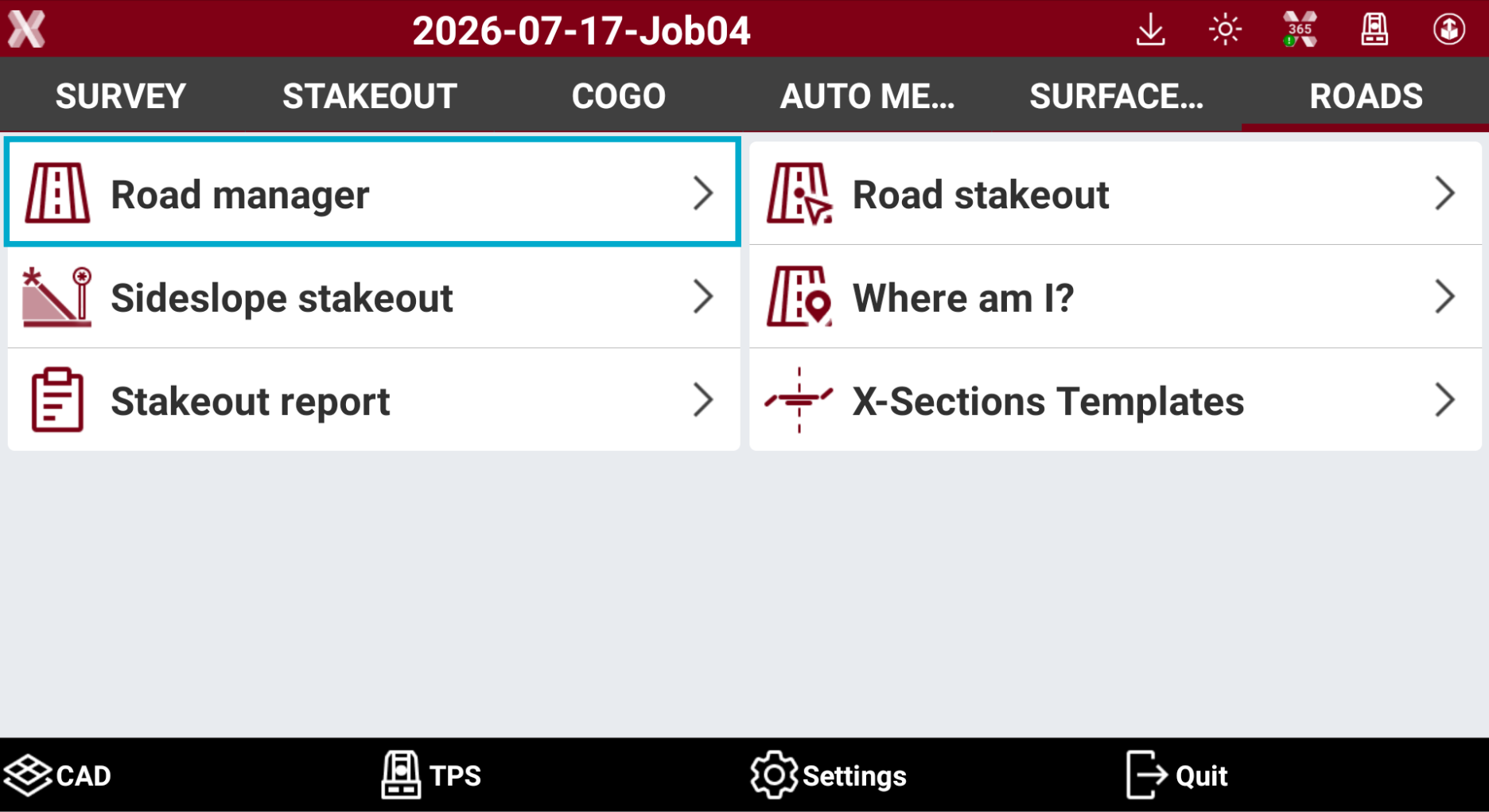
To import road data design open the Roads page.
-
Select Road manager.
-
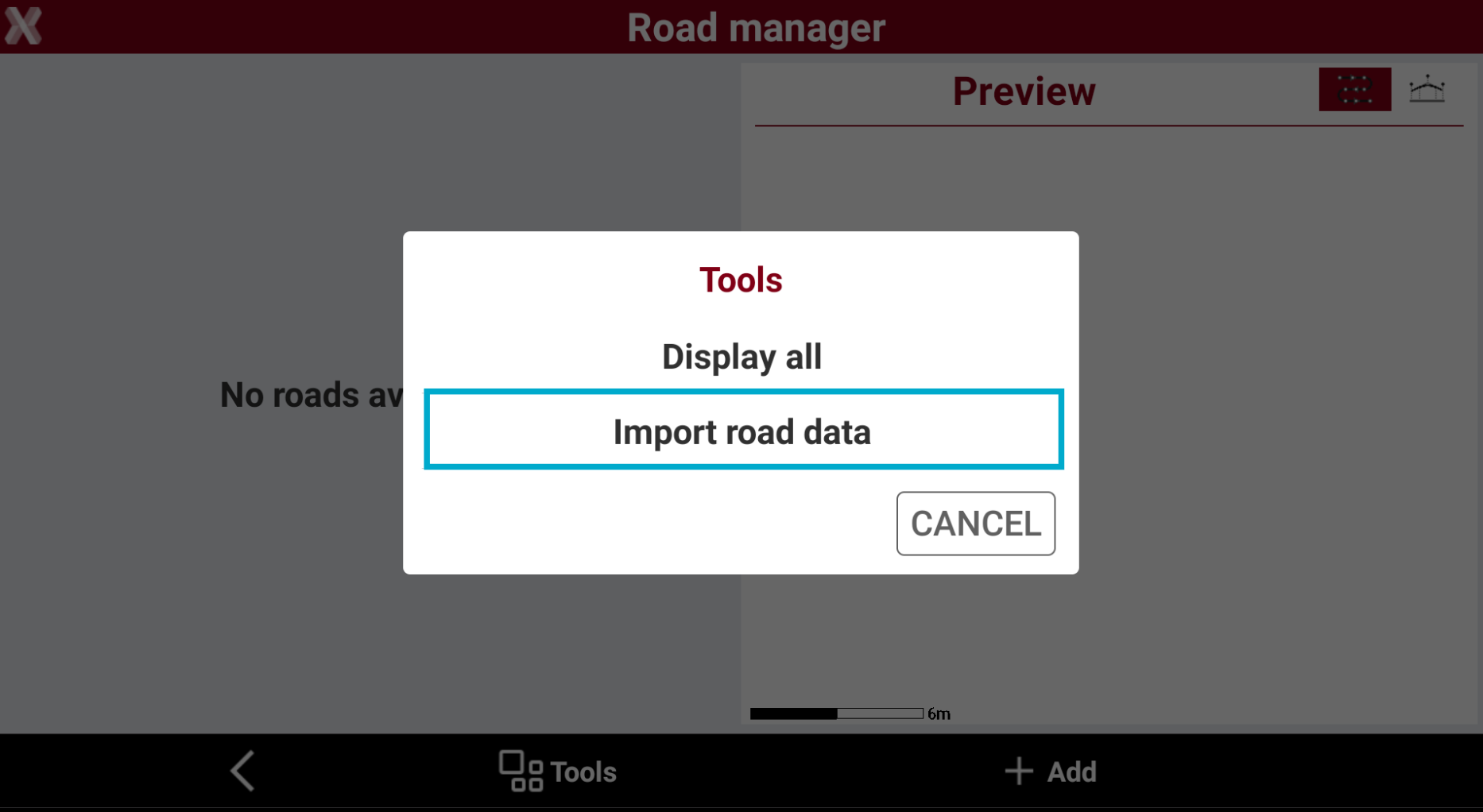
Press Tools and select Import road data.
-
Select the data format from the list.
-
DXF: design data is imported from a DXF file including the road axis as polylines.
-
LandXML: design data is imported from standard format LandXML.
-
Polyline CAD: allows to select the centerline and road edges from polylines available in the current job and directly from CAD.
-
Local formats: design data is imported from local road design data formats.
-
Import road data from LandXML
-
LandXML is the recommended format to use since LandXML is one of the most common file for road design data and support horizontal alignments, vertical alignments and cross sections.
-
Select Land XML to import road design data in LandXML format.
-
Select the file to import.
-
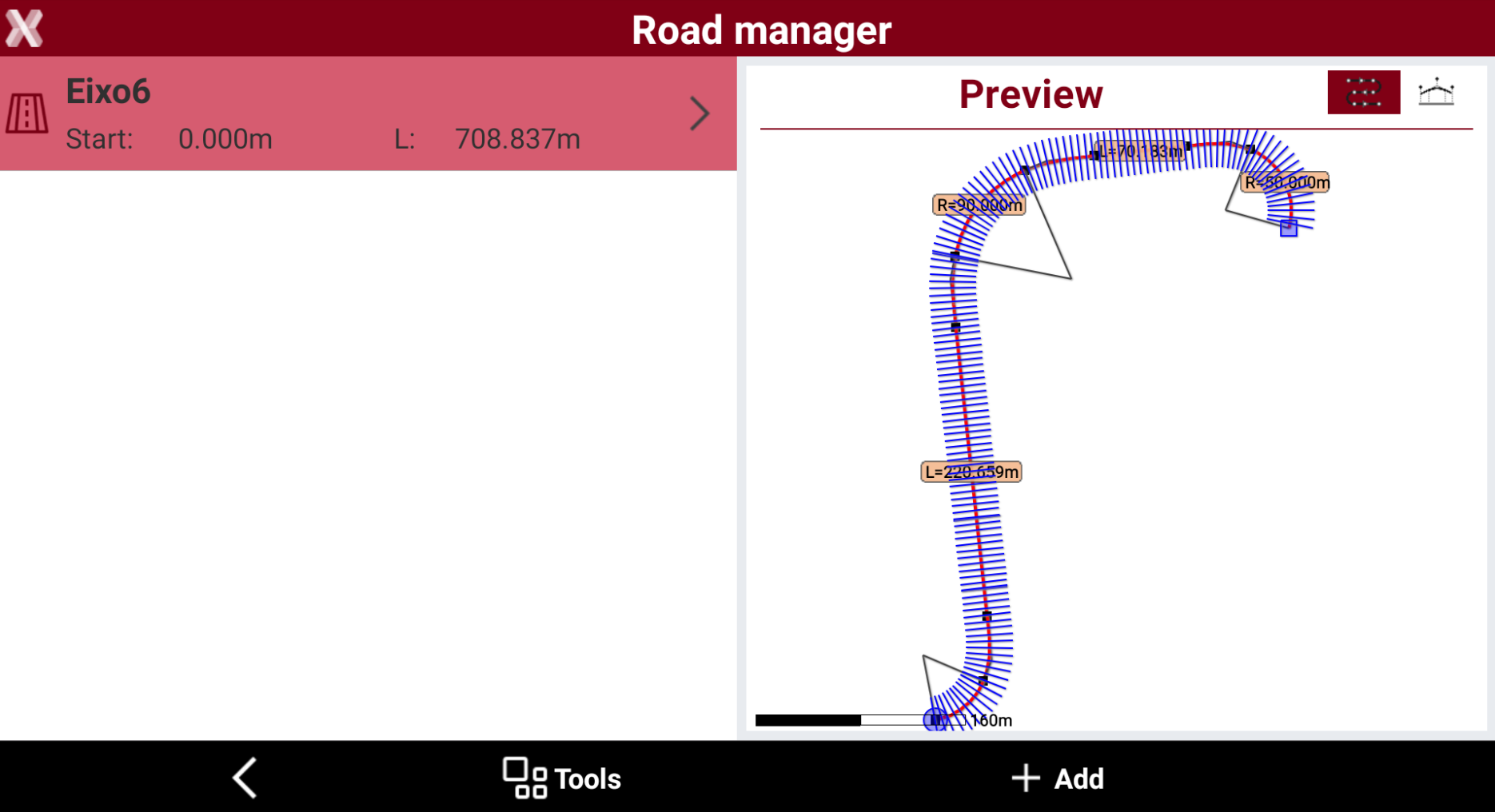
The file includes all road design data: horizontal alignment, vertical alignment and cross sections.
-
The LandXML can include more roads. In this case all imported roads are listed in the road manager.
-
If the LandXML includes the definition of cross sections, they are visible in Road Manager and Cross section page.
-
If the LandXML includes road edges, they are visible in Road Manager and Road edges page. The road edges are automatically assigned to the main axis and used to generate cross sections.
Import road data from DXF
-
Select DXF to import road data from DXF files.
-
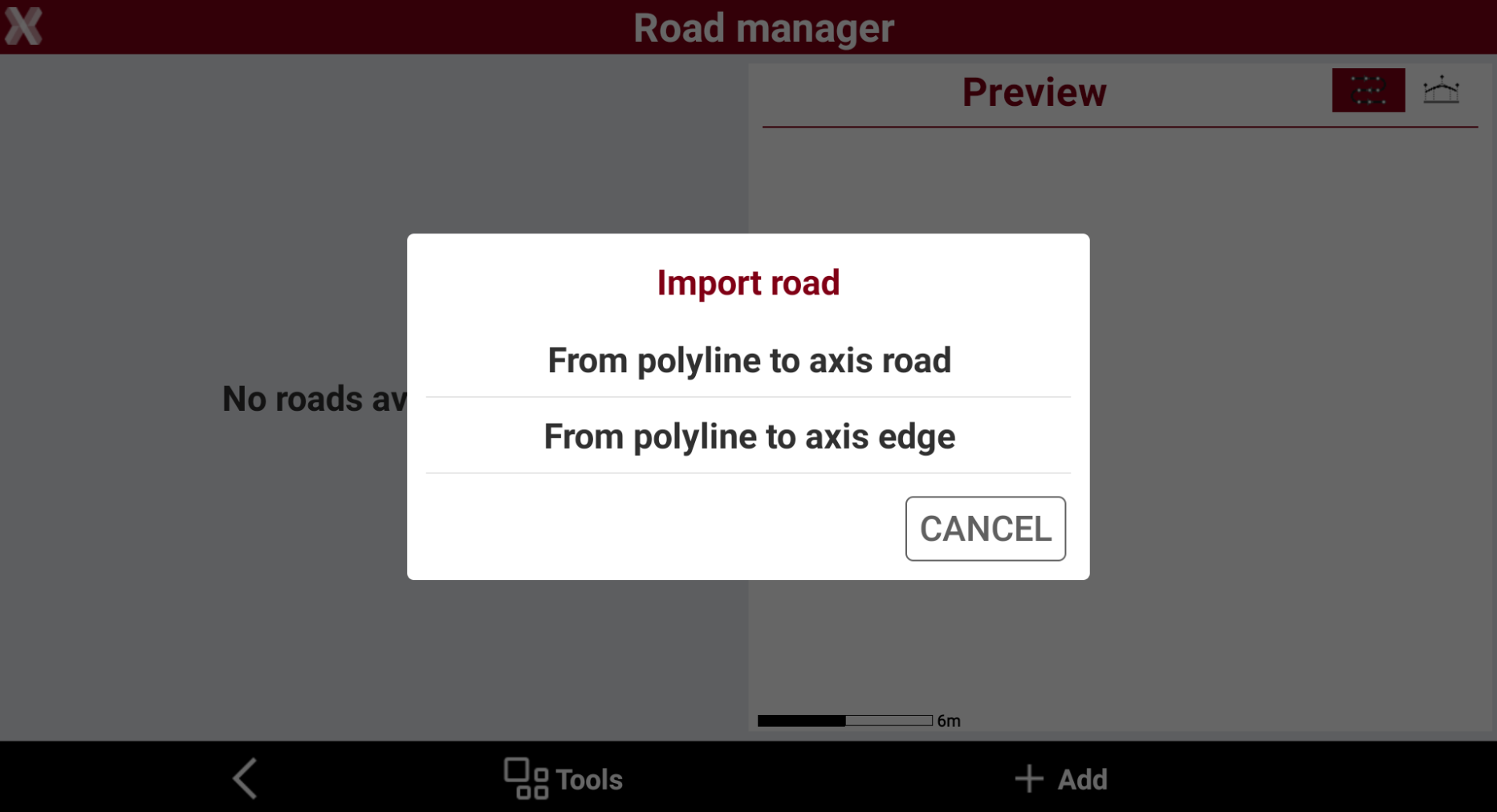
The software requires to select a DXF file which includes polylines as axis road or axis edge
-
From polyline to axis road: imports all axis in the file as road axis.
-
From polyne to axis edge: imports all axis in the file as road edges.
-
Import road data from DXF file step-by-step
-
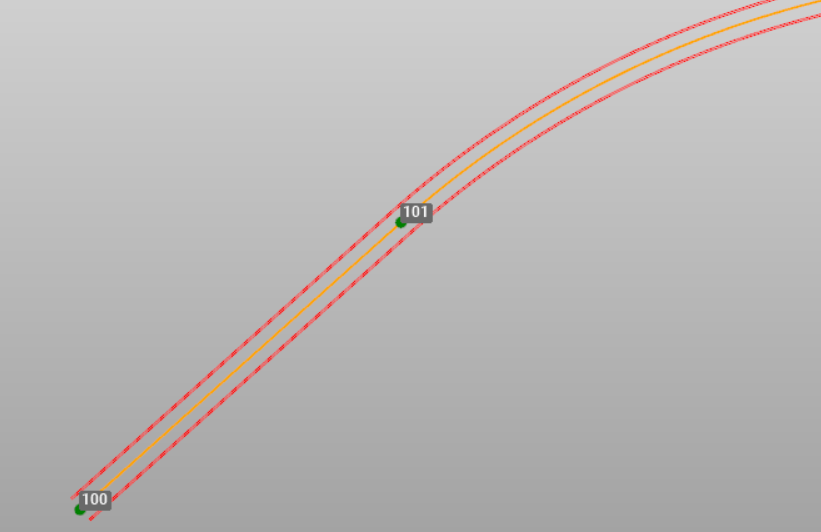
In this example we have a DXF file which includes the main axis and the road edges. This means we import all axis in the file as road axis or road edges using the two import options.
-
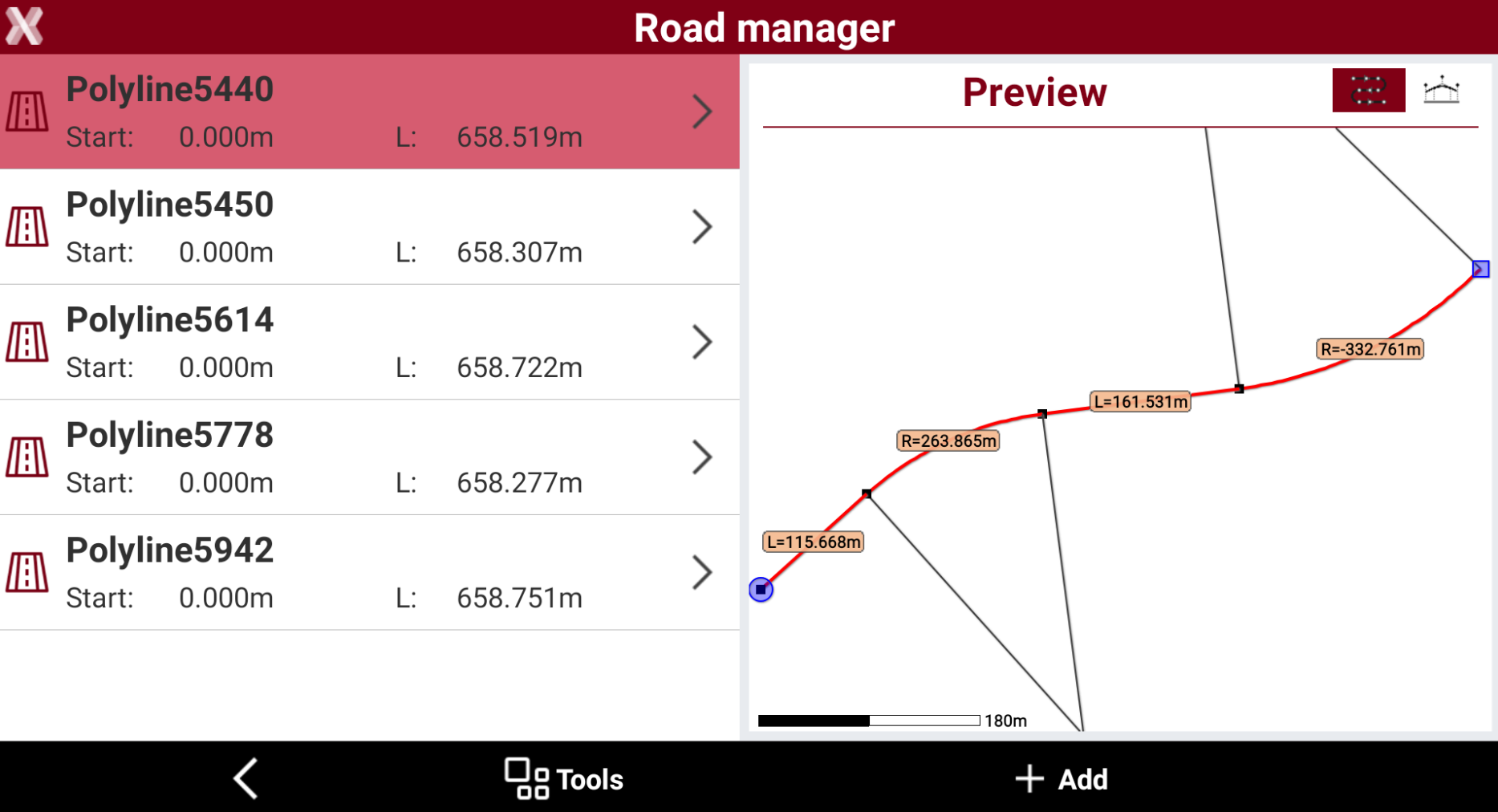
Select From polyline to axis road to import the DXF. All his axis are considered centerlines imported as separate axis.
-
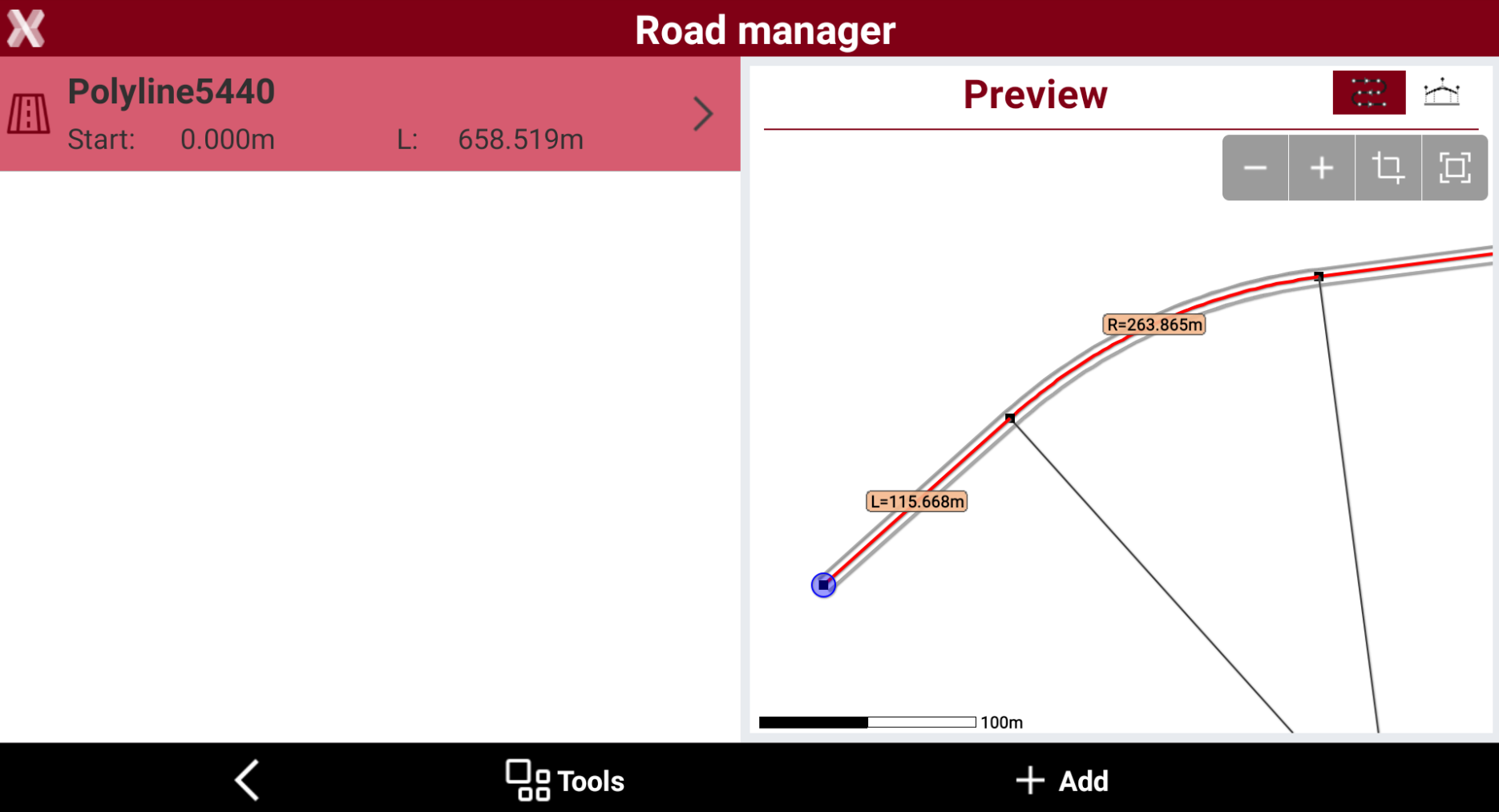
Select the centerline and click Modify to open the Road manager.
-
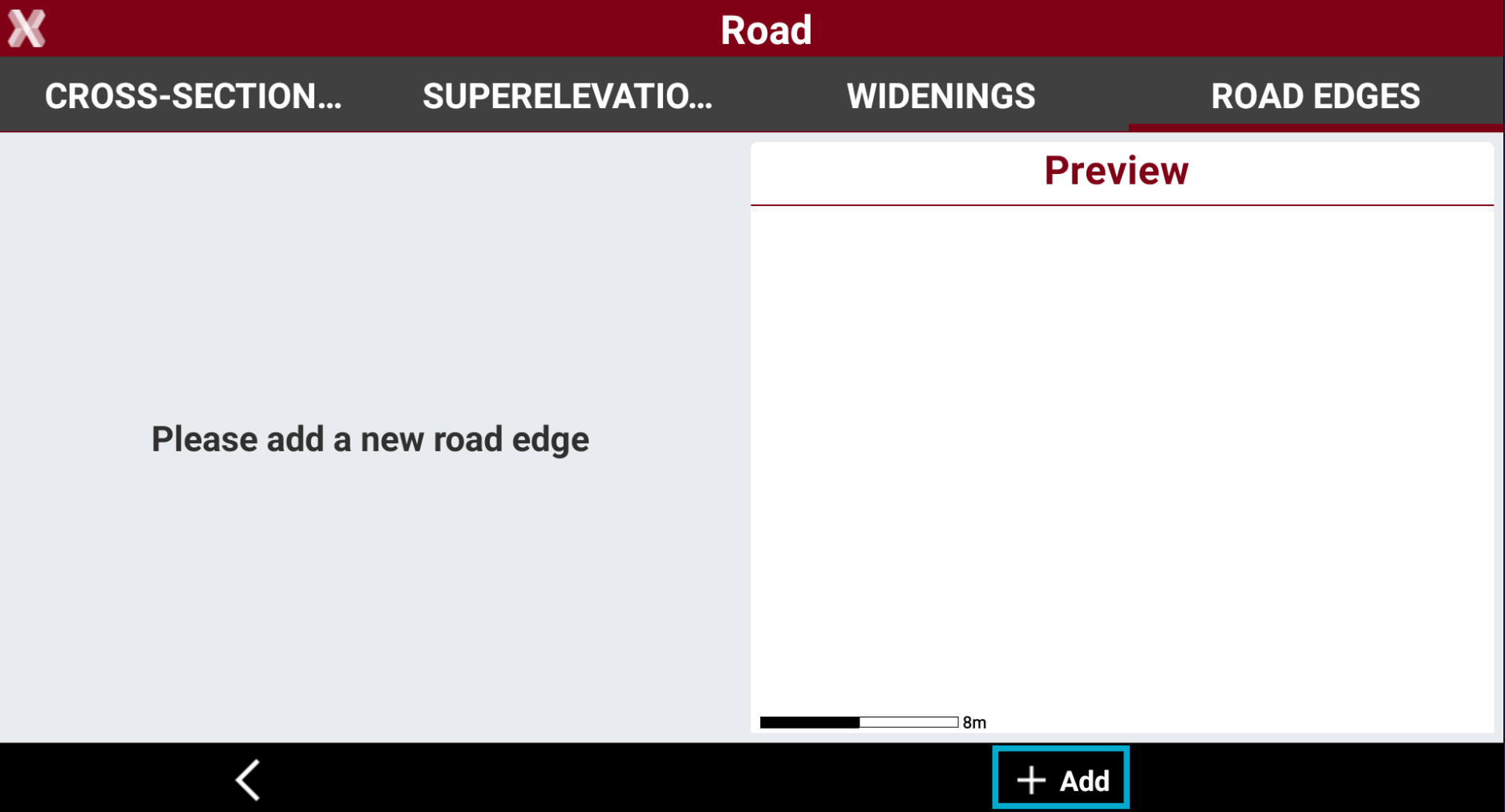
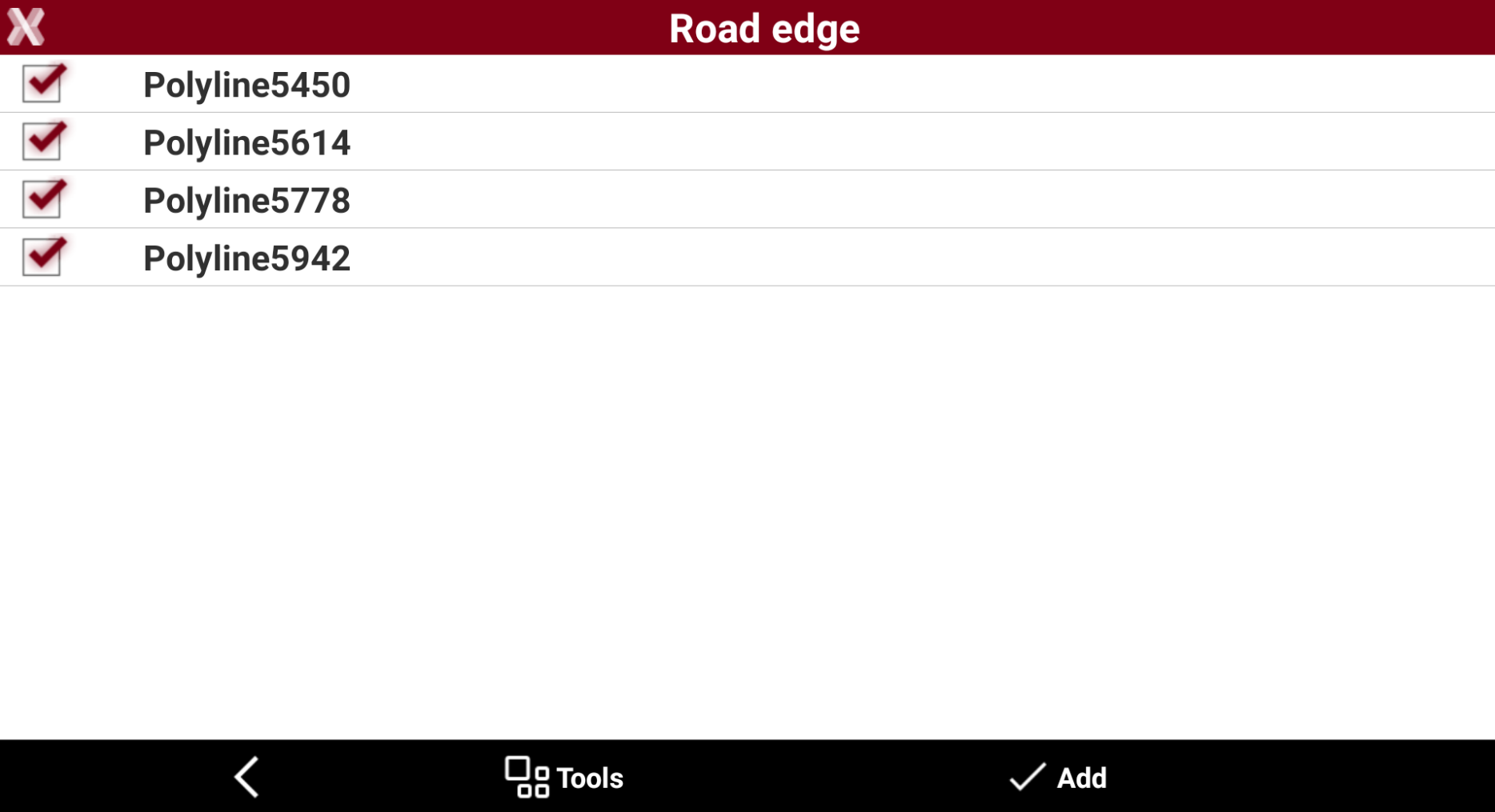
Open the Road edges page and click Add to assign the road edges to the centerline.
-
Select the polylines and click Add.
-
These polylines are now assigned as road edges to the centerline and will be used to automatically generate cross sections.
Import road data as CAD polyline
-
Select Polyline CAD to import road data from existing polyline in the current job. The polylines are directly selected from the software CAD.
-
From polyline to axis road: imports selected axis as road centerline.
-
From polyline to axis edge: imports selected axis as axis edges.
-
-
The software requires to select the polyline to be used as centerline, and the polylines to be used as road edges.
Import road data as CAD polyline step-by-step
-
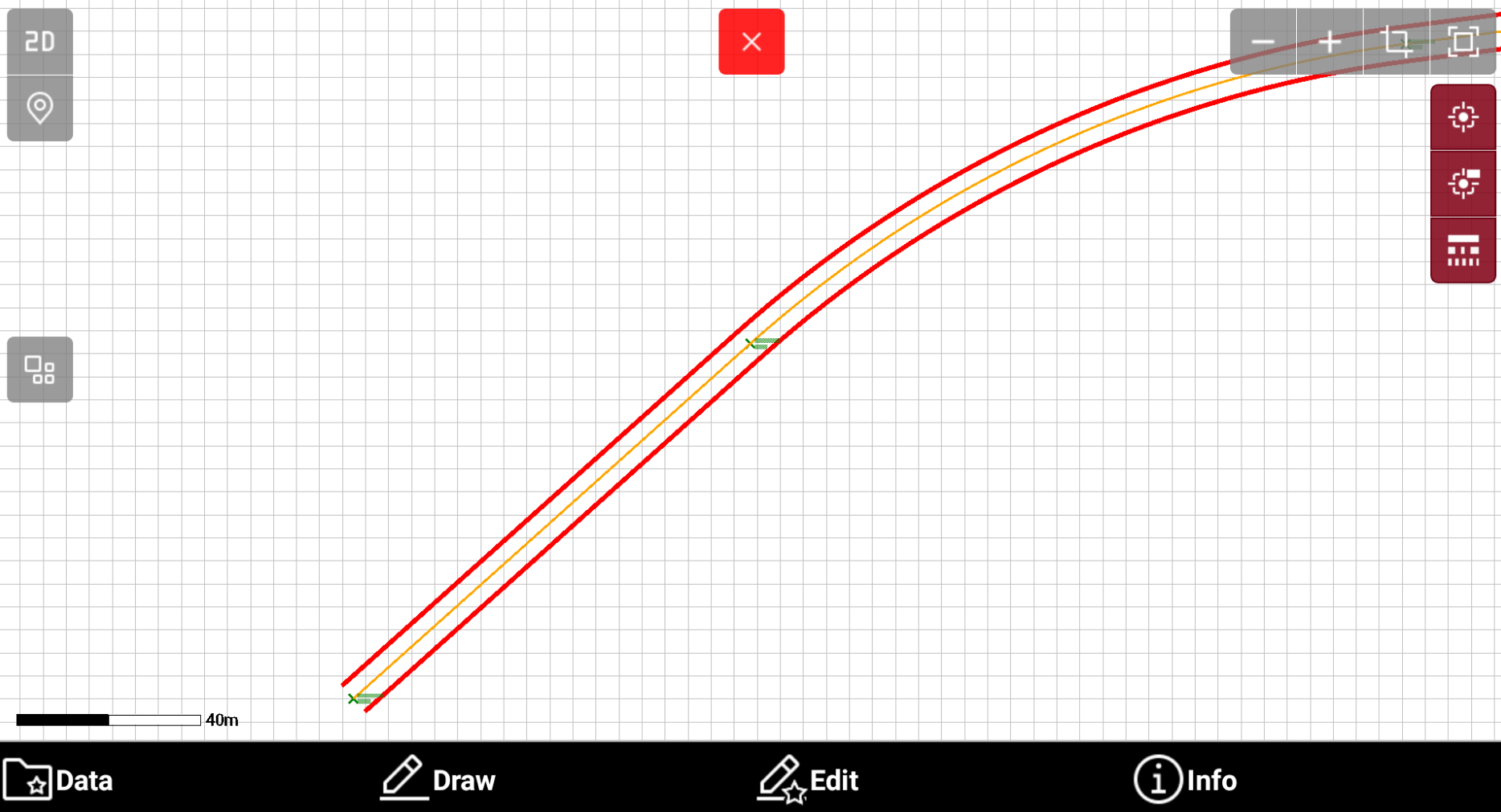
In this example we have a DXF file which includes the main axis and the road edges. This means we import all axis in the file as road axis or road edges using the two import options.
-
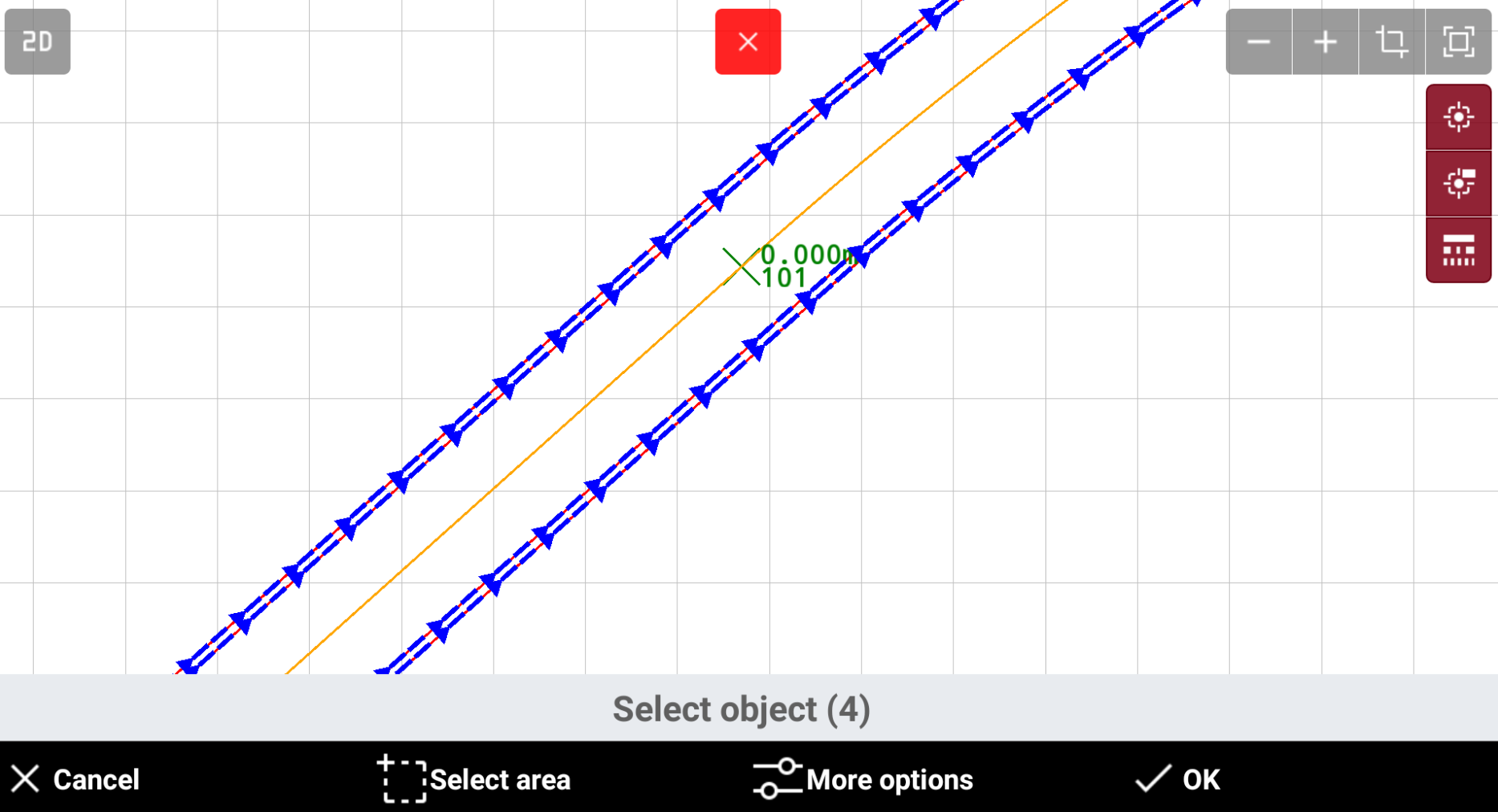
Select From polyline to axis road to select from CAD the centerline.
-
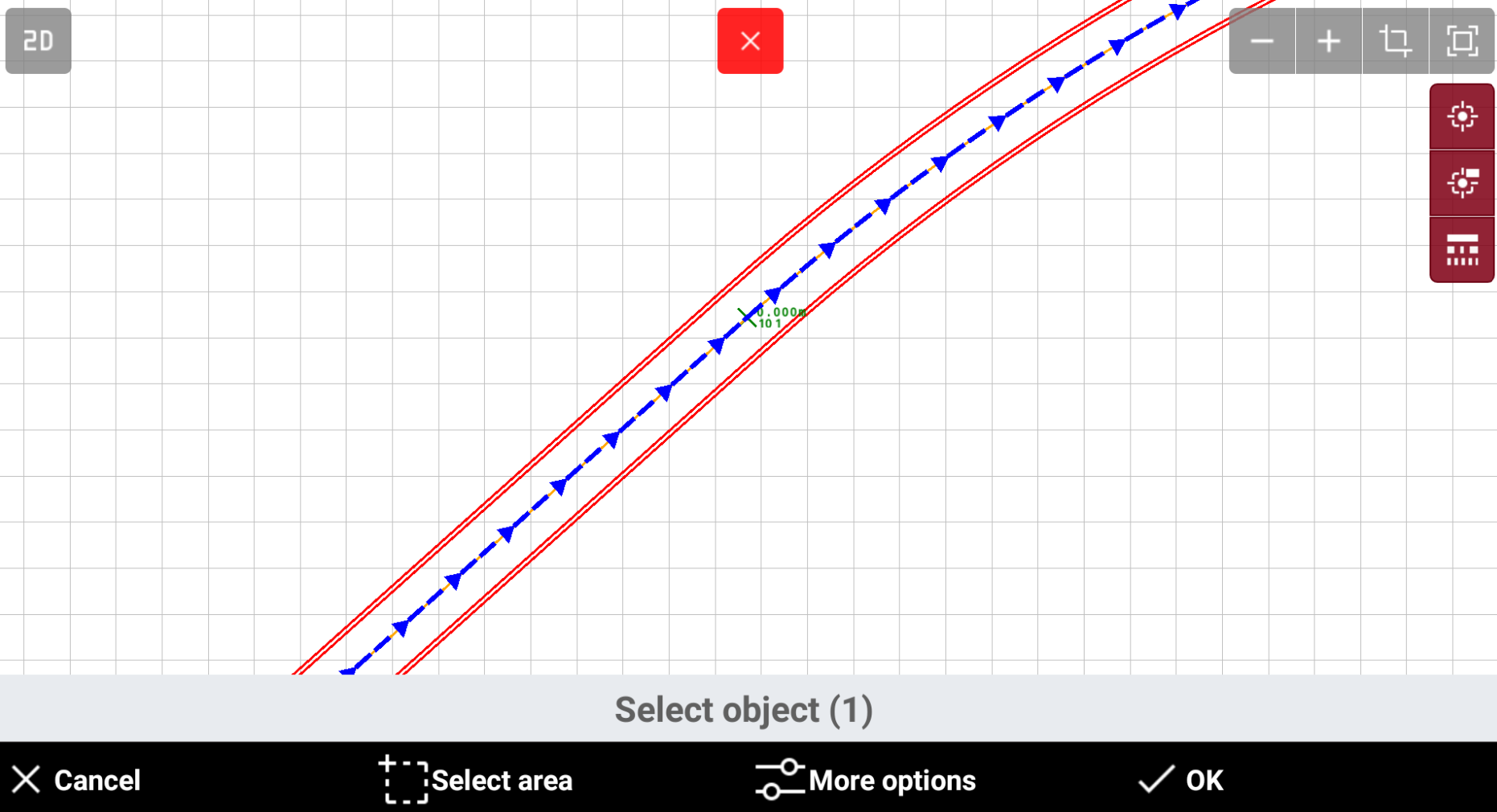
Select the centerline from CAD and click OK.
-
Repeat the operation in case also road edges have to be imported.
-
Select From polyline to axis edge to select from CAD the additional road edges and click OK.
-
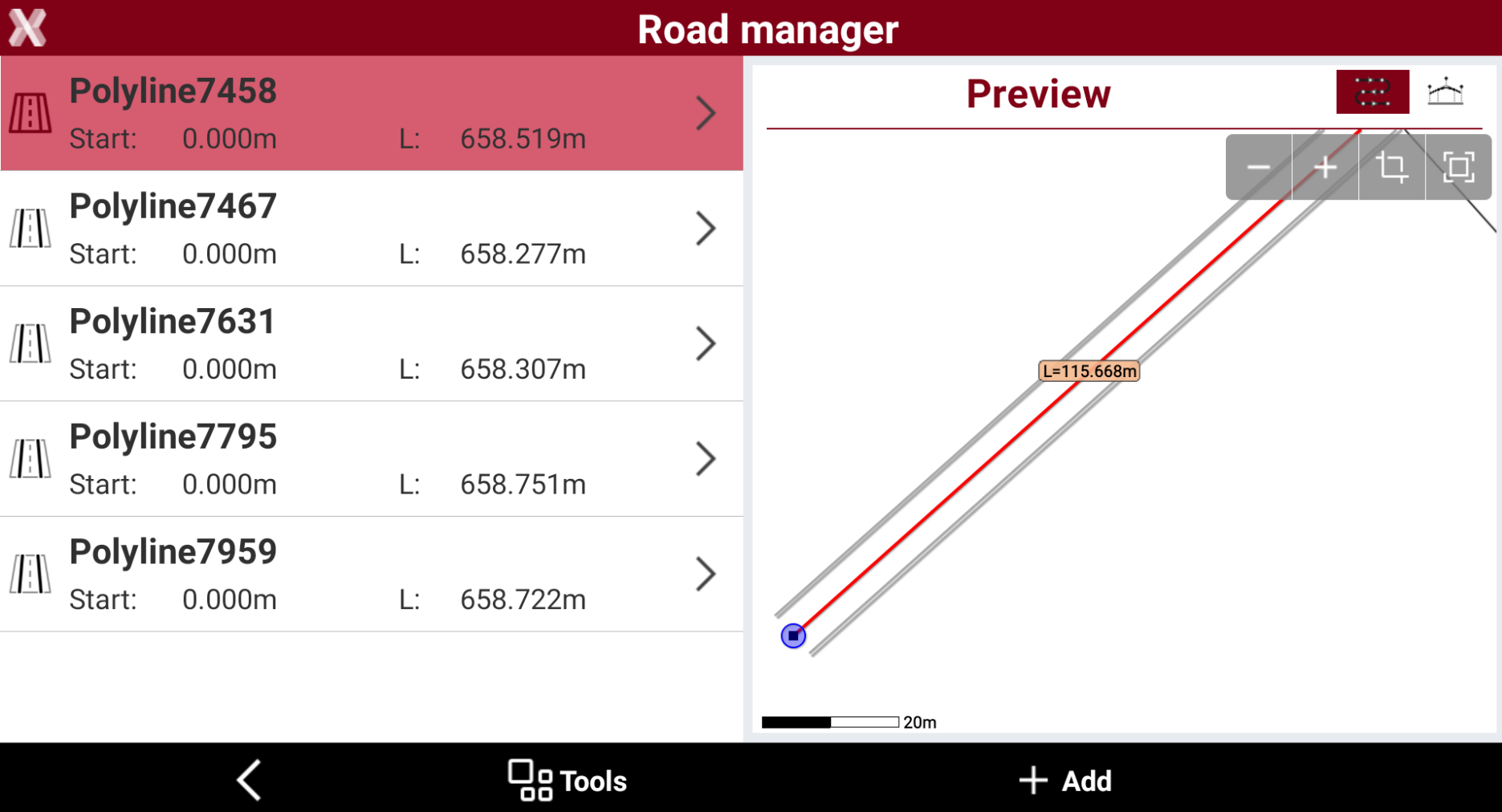
The road edges are assigned to the centerline.
-
They are visible in Road Manager and Road edges page. The road edges are automatically assigned to the main axis and used to generate cross sections.
Import road data from local formats
-
The software supports road local formats.
-
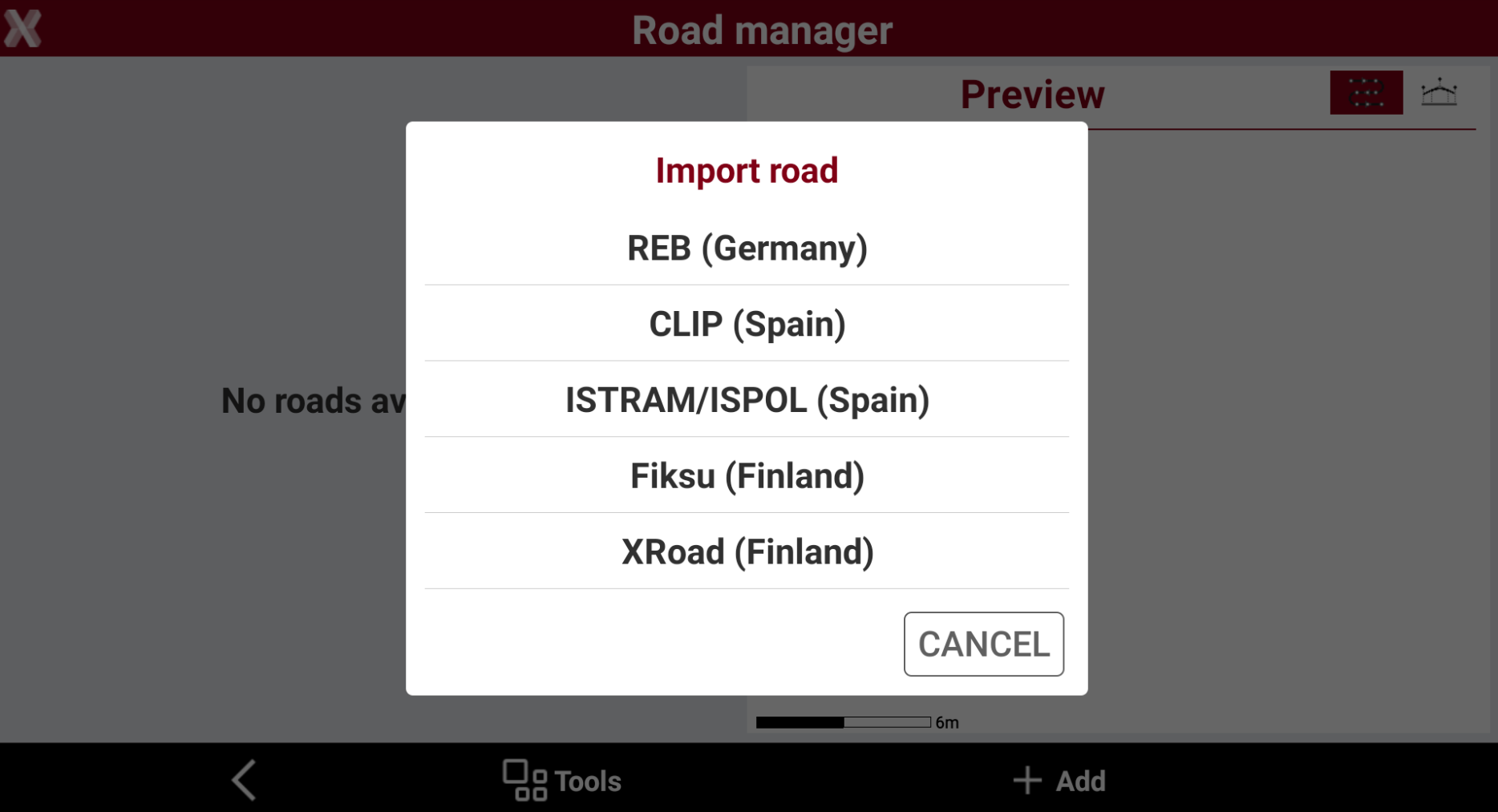
Select From local formats to open the format selection list.
-
The software supports the following local formats:
-
REB (Germany).
-
CLIP (Spain).
-
ISTRAM/ISPOL (Spain).
-
Fiksu (Finland).
-
XRoad (Finland).
-
-
Select the format file.
-
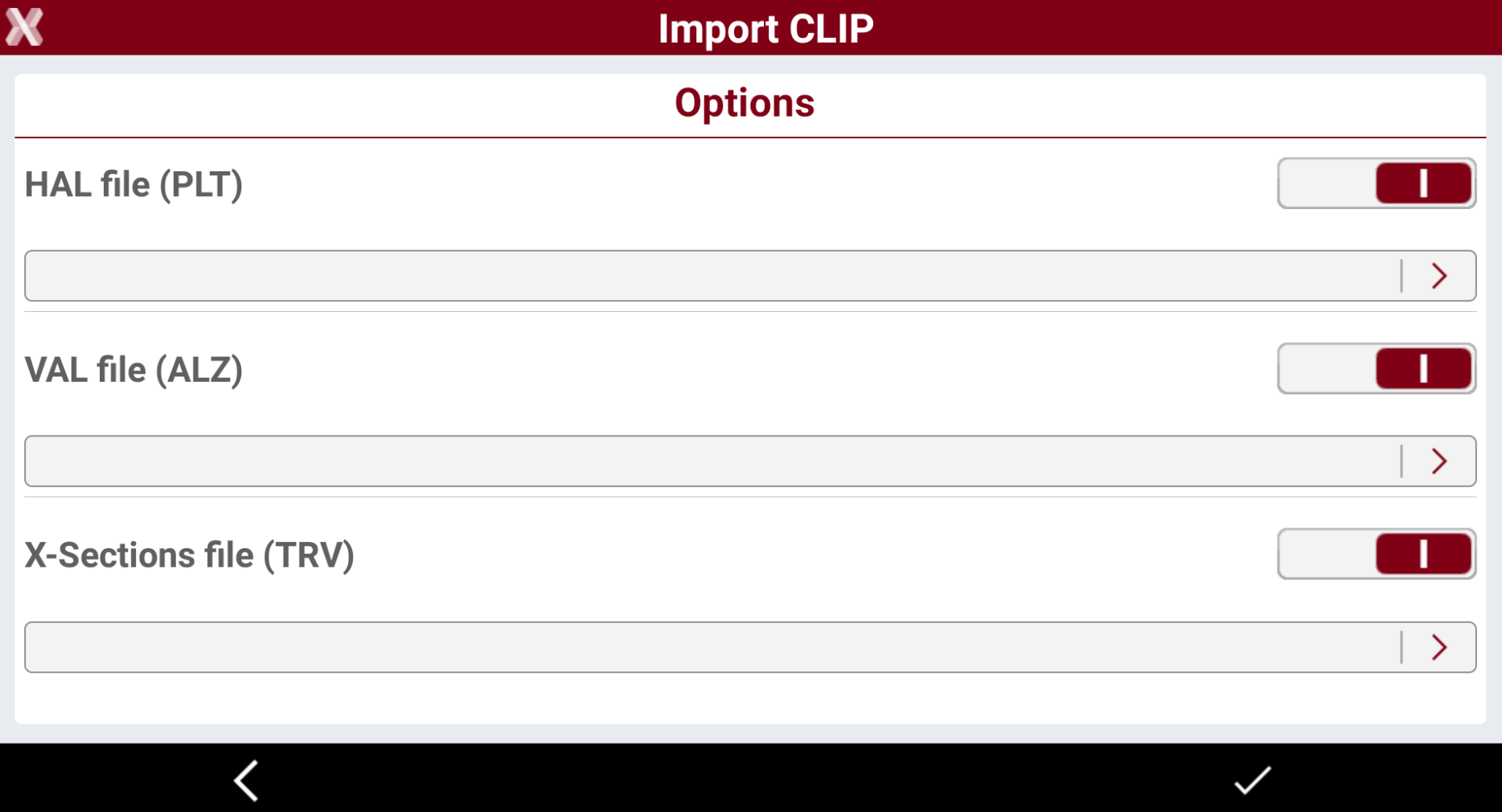
Depending on the selected format the software requires to select multiple files to be used for horizontal alignment, vertical alignment and cross sections.