
-
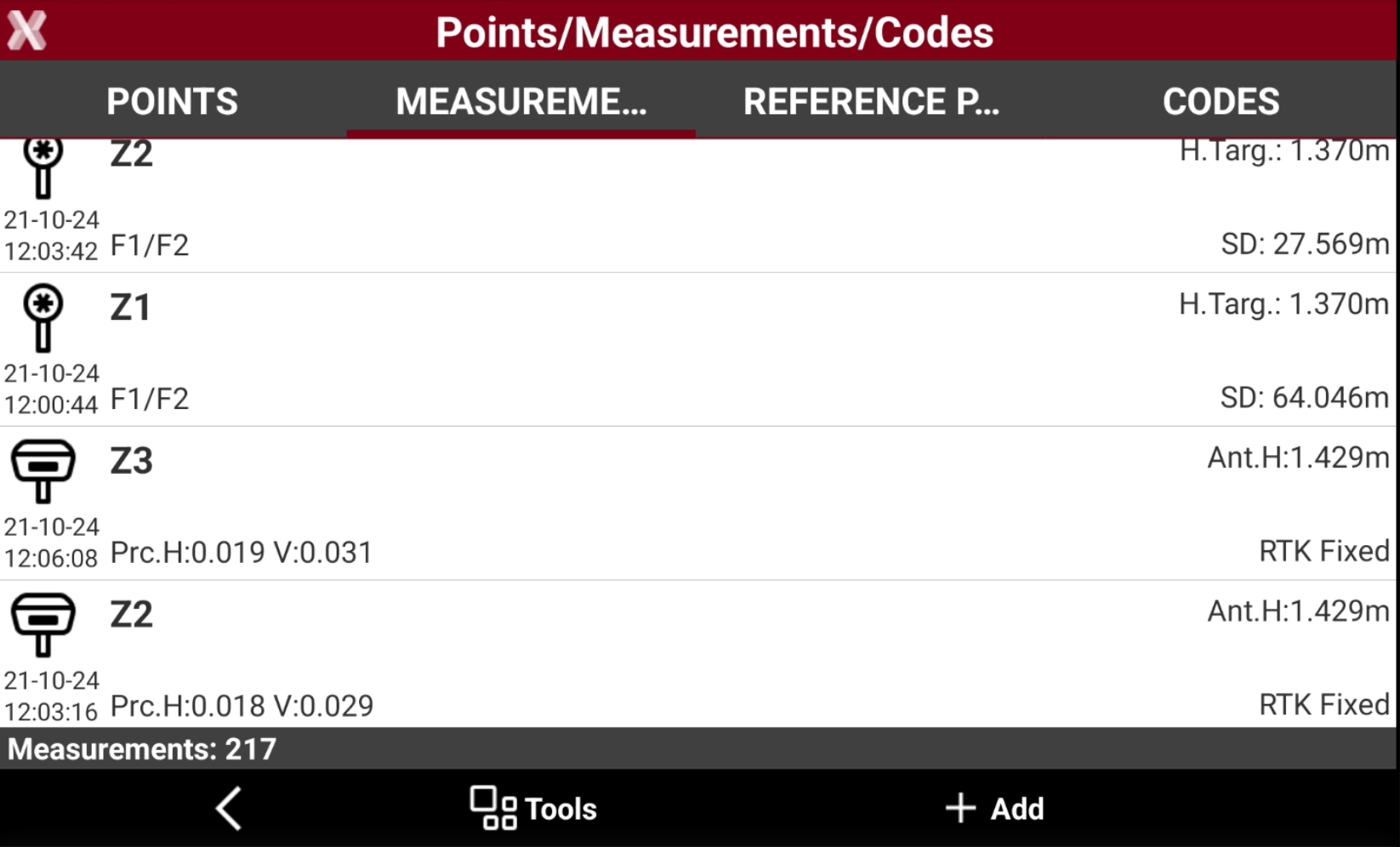
The Measurements list shows the measurements stored in the current job.
-
The icon represents the type of measurement:
-

-

-

-

-

-

-

-

-

-

-

-

-

-
-

-

-
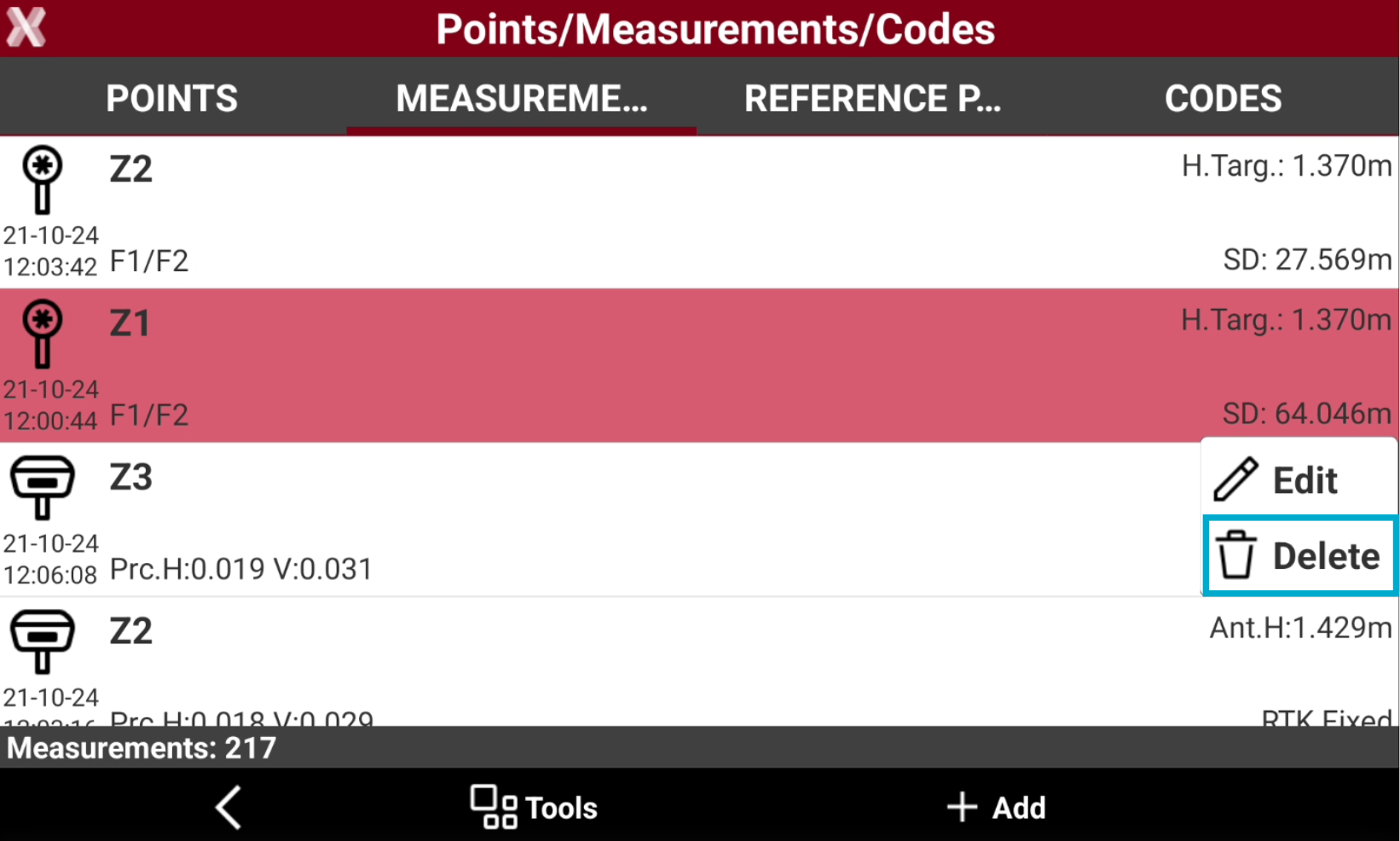
Delete a single measurement
-
From the Measurements list tap on a measurement to open the context menu.
-
Select Delete to delete the measurement.
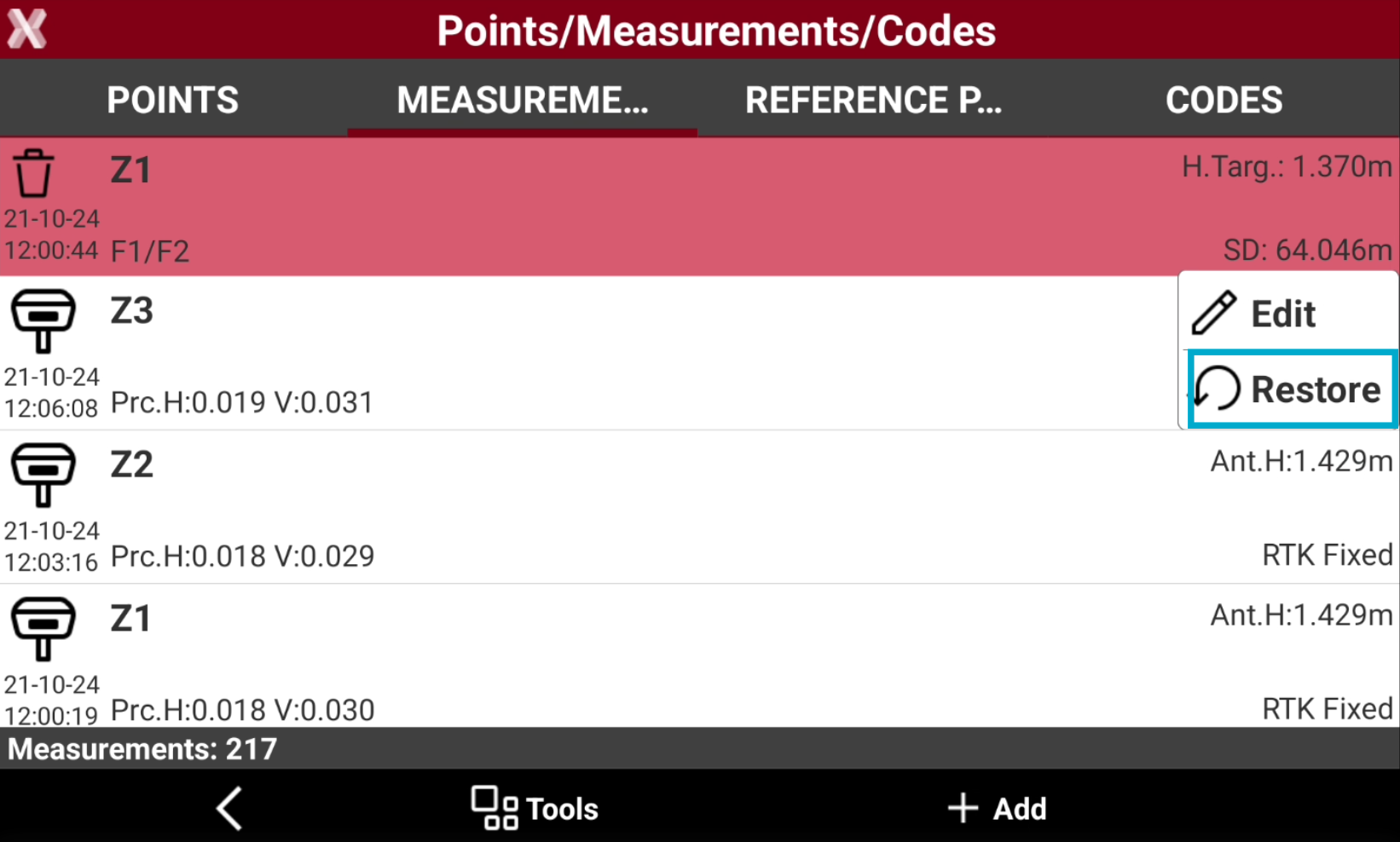
Restore a deleted measurement
-
In the Measurements tab, tap on a measurement in the table that is marked with the delete status icon

-
Select Restore to restore the selected measure.
Delete a group of measurements
-
From the Measurements tab select Tools.
-
Select Delete measurements.
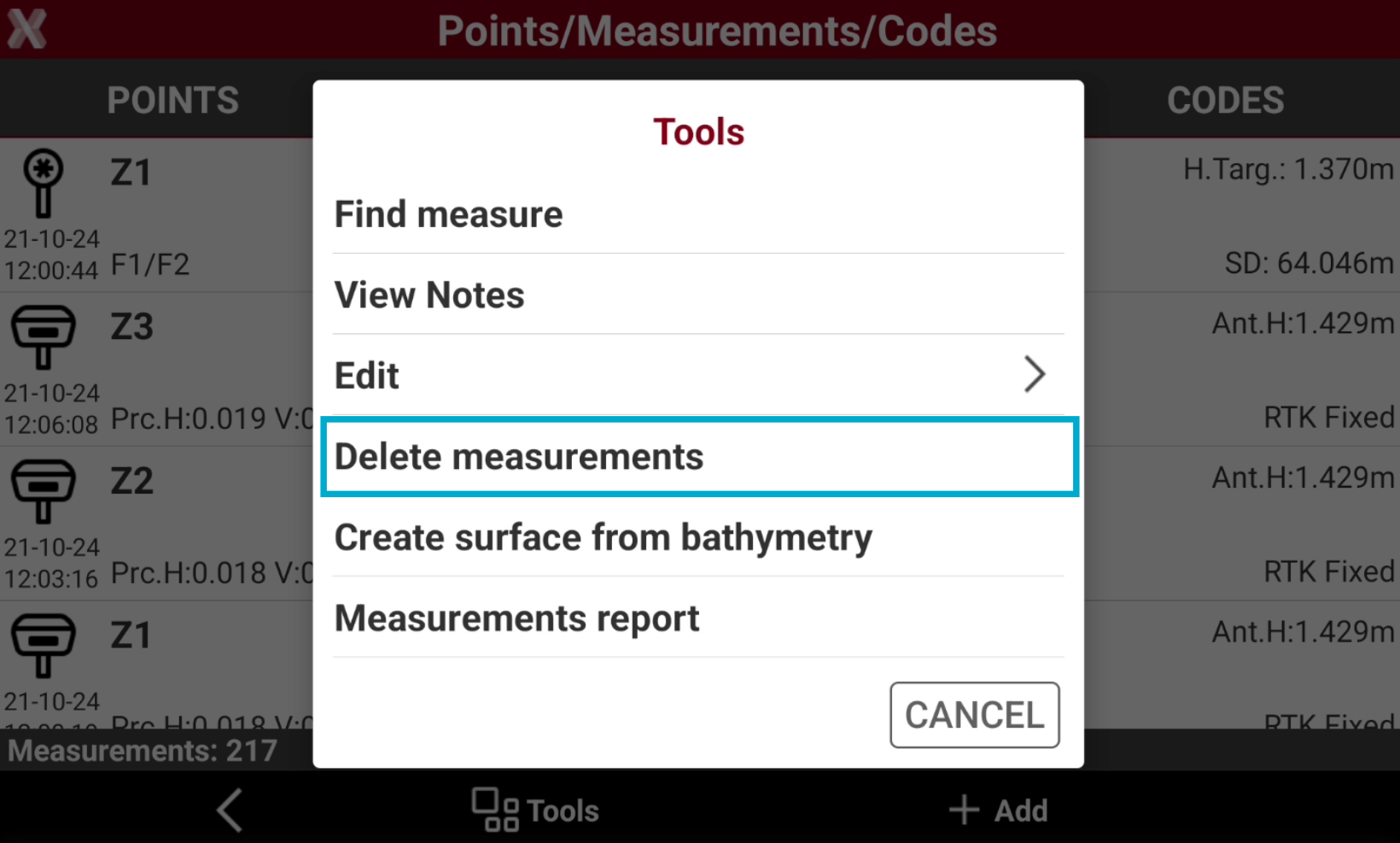
-
Select the measurements on the table. Press Tools to select or deselect all measurements of the list.
-
Select Delete to proceed with deleting of measurements.
Search measurements
-
It is possible to find a specific measurement indicating the corresponding topographic point measured.
-
From the Measurements page select Tools to open the list of available tools and select Find point.
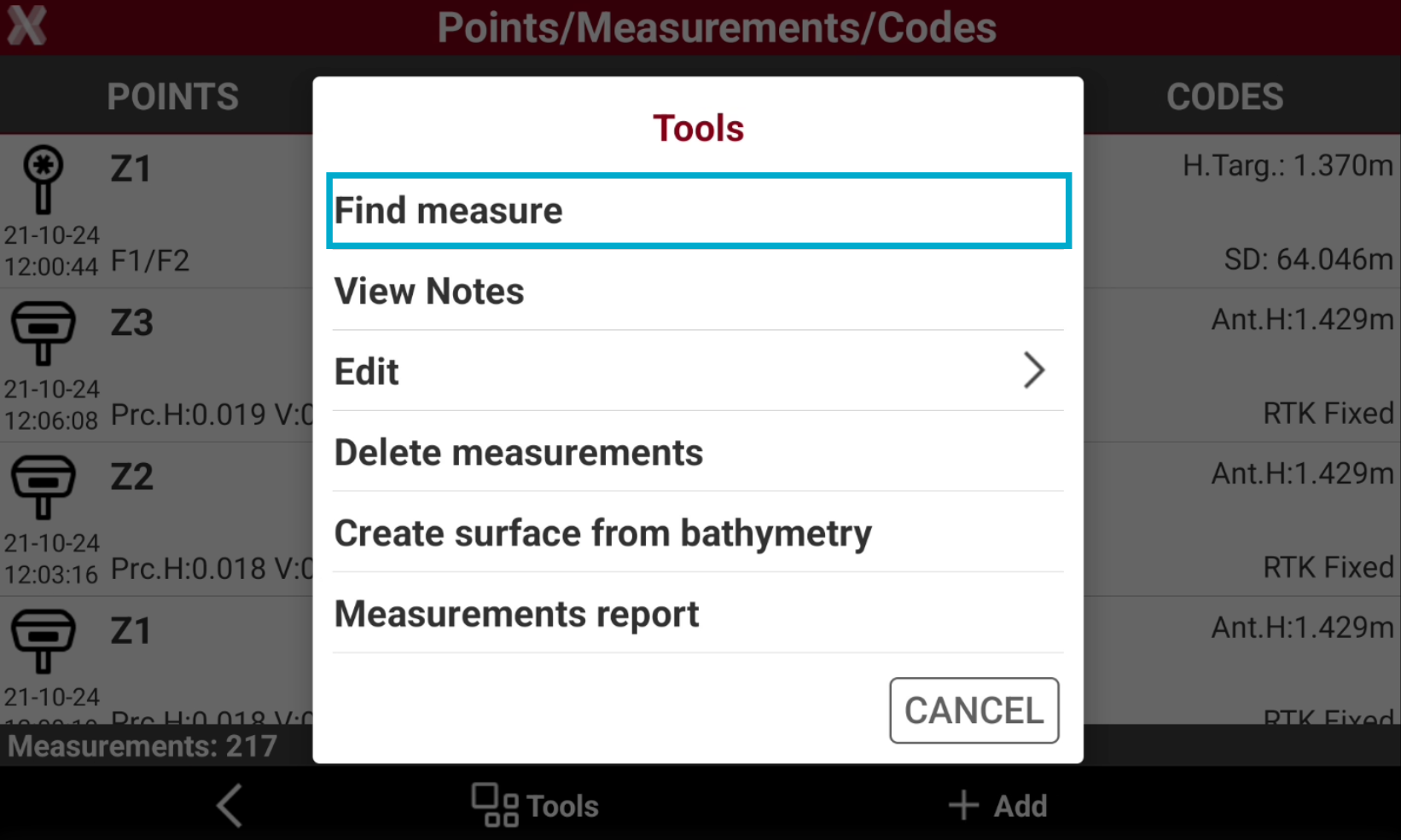
-
Enter the name of the point to search.
-
If a point with a corresponding name is found, it is placed first in the list.
Measurement report
-
The function Measurements report generates a report of stored measurements in different format.
-
From the Measurements page select Tools to open the list of available tools and select Measurements report.
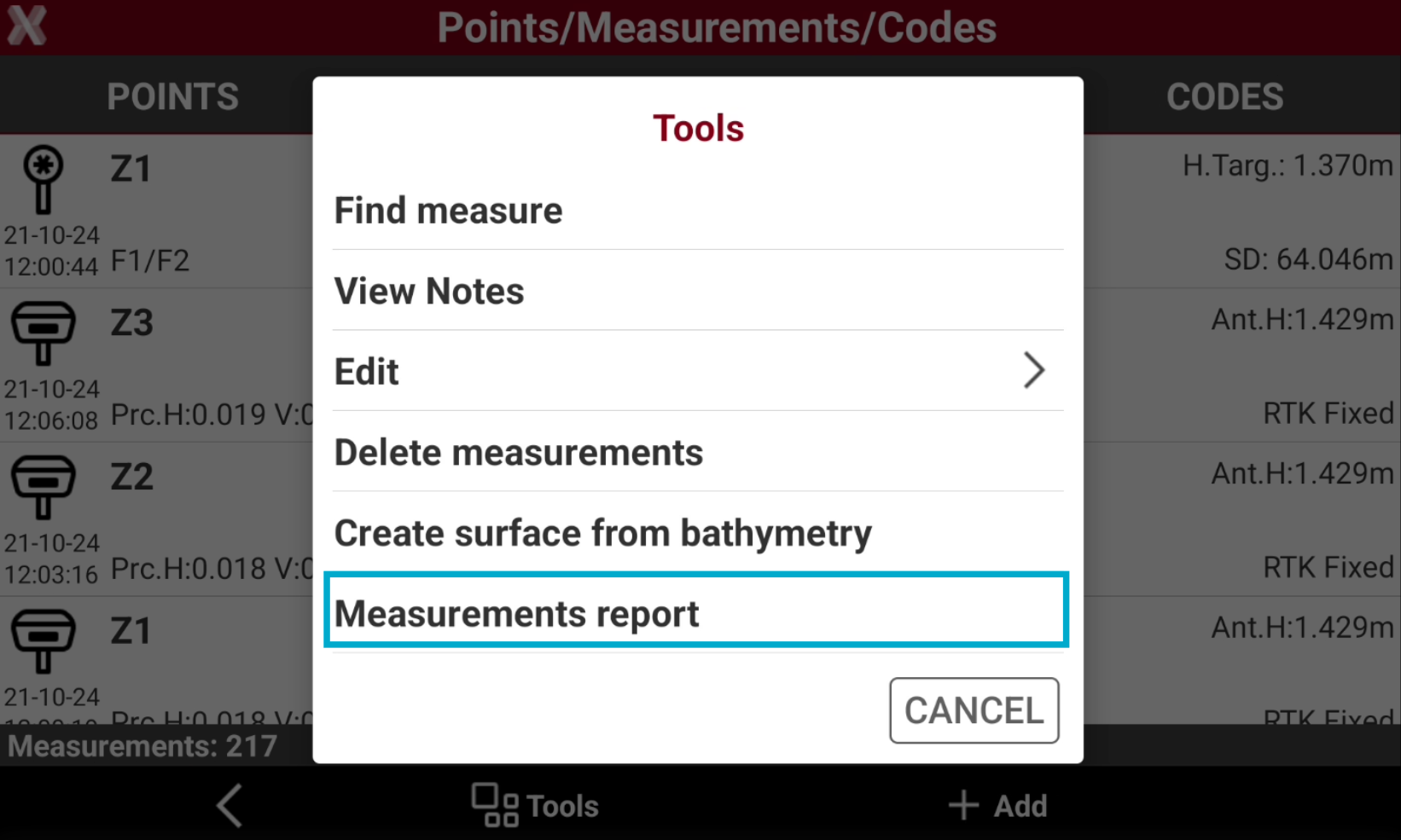
-
Exports the report in the selected format. Available formats are:
-
ASCII format: exports the report as a plain text file, suitable for simple viewing and compatibility with various software.
-
Excel CSV: exports the report as a comma-separated values file, ideal for import into spreadsheet applications.
-
Excel XML: exports the report in Excel XML format, preserving structure and allowing direct opening in Microsoft Excel.
-
PDF document: exports the report as a PDF file, suitable for printing and sharing while preserving layout.
-
HTML format: exports the report as a web page, viewable in any internet browser.
-