
-
To stakeout a point or geometry with a total station open the corresponding function.
-
Follow the indications until the stakeout page is opened.
-
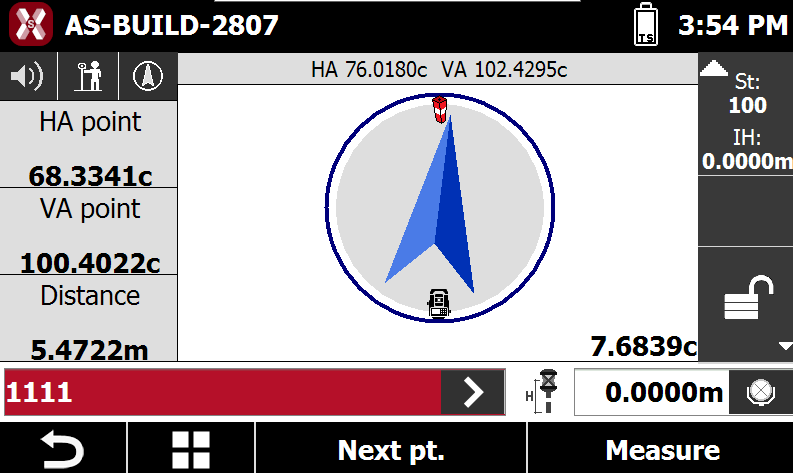
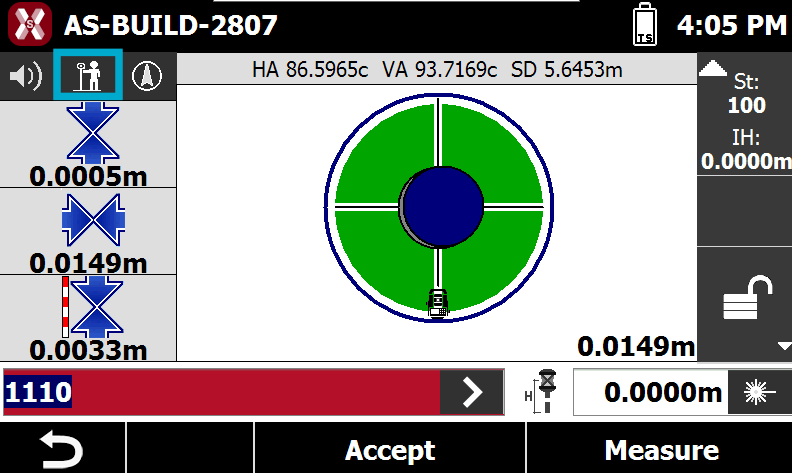
The view shows the current instrument direction and the target direction. Rotate the station toward the stakeout position. In the lower part of the panel it’s reported the distance in meters, and the difference of angle, between the current direction and the stakeout point.
-
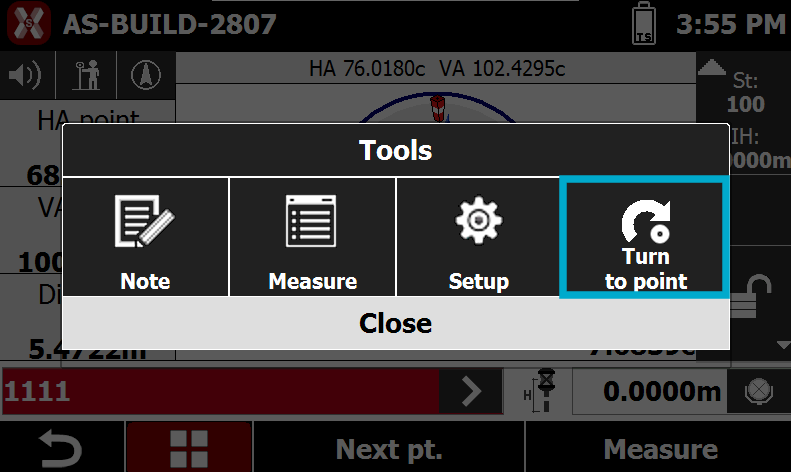
It also possible to press Tools and Turn to point to automatically rotates the TPS in the correct direction.
-
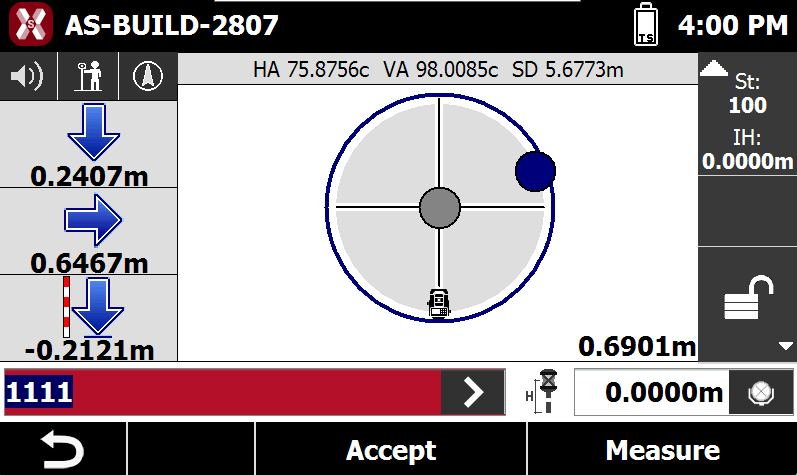
When it’s performed a measure the panel shows the position of the target referring to the station and referring to the stakeout position.
-
In the lower part of the panel it’s reported the distance between the target and the stakeout position.
-
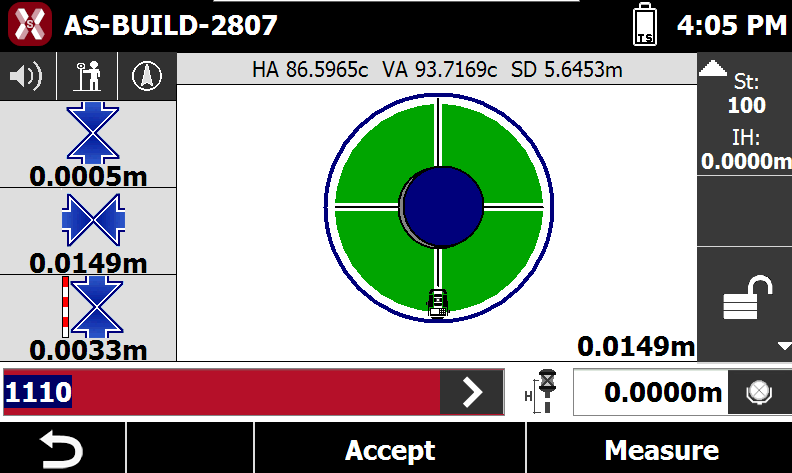
When you are near the position to reach, inside tolerance values, the circle becomes green.
It is possible to press 
Changing EDM mode to Tracking allows continuous measurement of the prism.
Stakeout tolerance
-
A target position is considered reached when the distance between the current position and the stakeout position is less than or equal to the Stakeout Tolerance value.
-
The Stakeout Tolerance is defined in the Stakeout Parameters settings and determines the acceptable accuracy required to complete the stakeout operation.
-
The stakeout parameters can be accessed from any stakeout procedure pressing Tools and Setup, allowing you to review or modify the tolerance value at any time during the operation.
Stakeout reference
-
The information displayed in thepanel can be referenced to different orientations, depending on the selected mode. Press this icon to change the mode.
-
Target Position: directions are provided from the target position. Hold the controller and face the total station.
-
Total Station: directions are provided from the total station. Stand at the total station and look toward the target.
-
North: directions are referenced to the north direction. Hold the controller and face north.
-
-
Selecting the appropriate reference mode allows the stakeout guidance to be displayed according to the most convenient orientation for the operator in the field.
Measuring the point
-
The following operations and functions are available in all stakeout procedures.
-
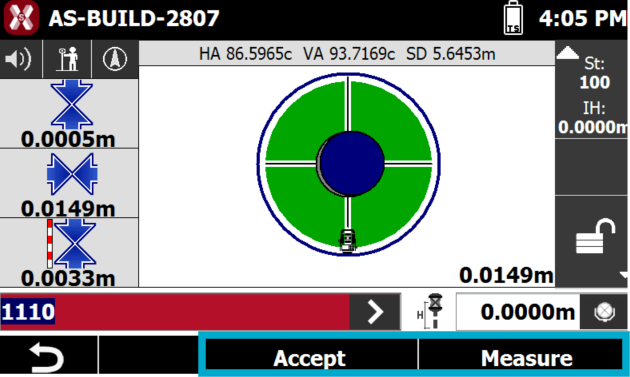
Measure: starts the measurement of the stakeout position. After reaching the target position, perform a measurement to verify the final location.
-
Accept: records the measured position.
-
-
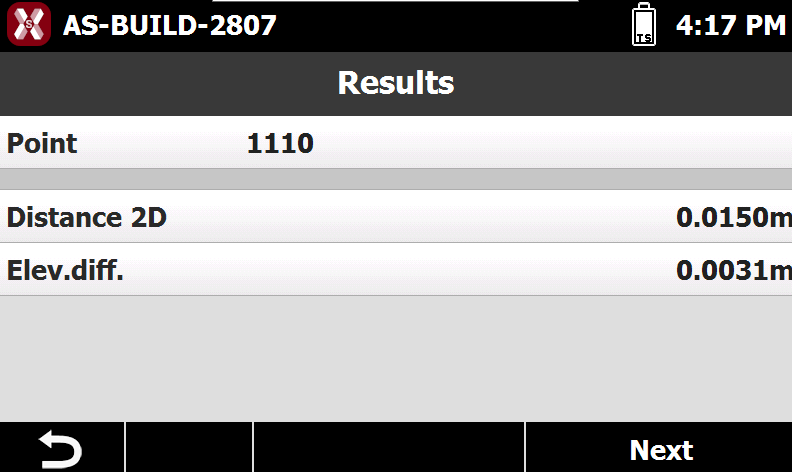
After pressing Accept, the software displays a summary of the stakeout results and related stakeout information. Press Next to complete the recording procedure.
Name page
-
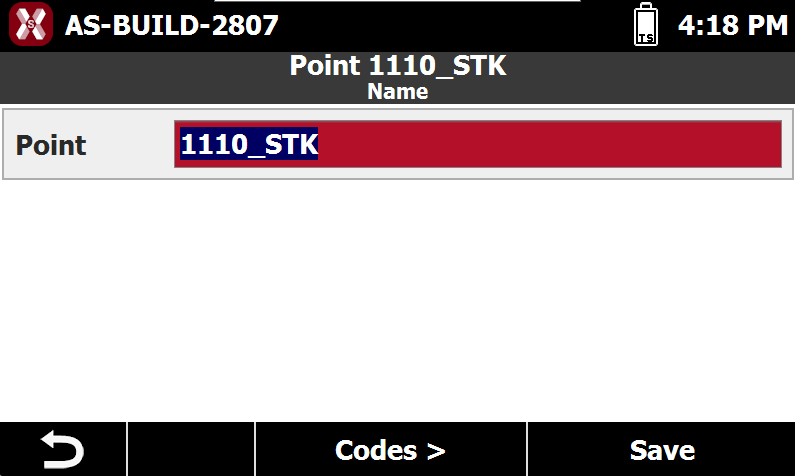
The Name page allows to change point ID of the measured point. By default it includes the suffix STK to the measured point.
-
Point: name of the point.
-
-
Press Codes to open the codes page or Save the record the point.
Codes page
-
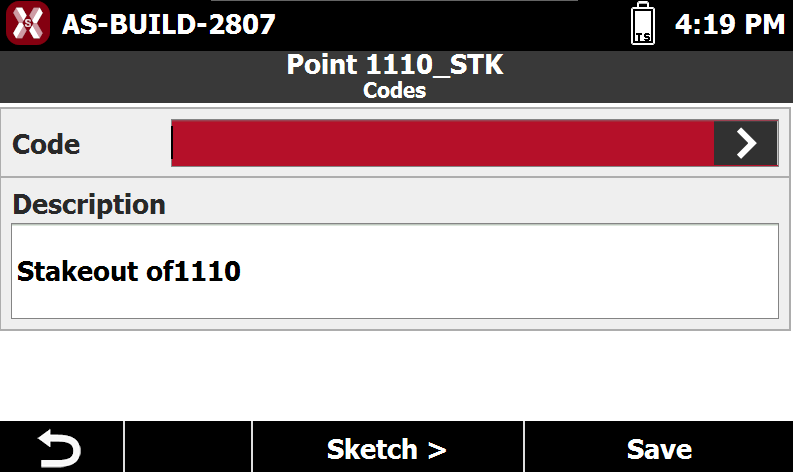
The Codes page allows to enter a survey code and an extended description.
-
-
Code: displays the survey code associated with the point. Use the > button to open the code library and select a code from the list.
-
Description: displays an extended description of the point.
-
-
Press Sketch to open the sketch page or Save the record the point.
Sketch page
-
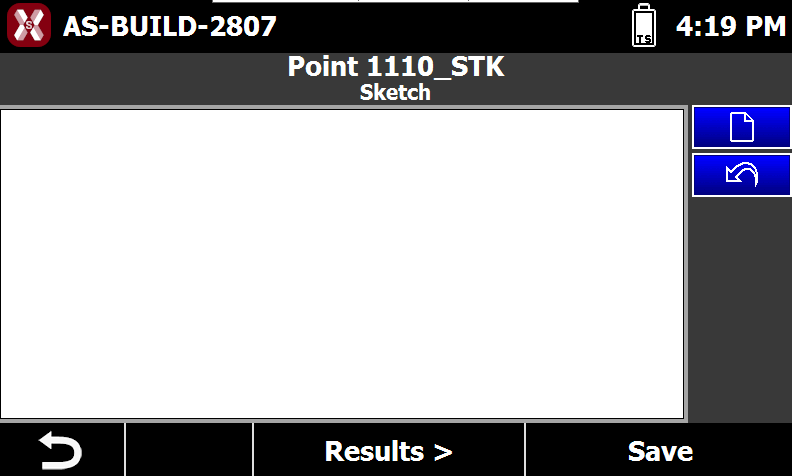
The page Sketch allows to draw a sketch of the point position.
-
Use the pen to draw a sketch.
-

-

-
-
Press Result to review the measurement results or Save the record the point.
-
The stakeout data are saved automatically and can be reviewed or exported from the Stakeout Report window.
-
Once the recording is completed, the software automatically proposes the next point to be staked out, or press Next to select the next point.