
-
This procedure allows to execute stakeout of a position calculated referring to a station distance and to an offset distance on a reference element.
-
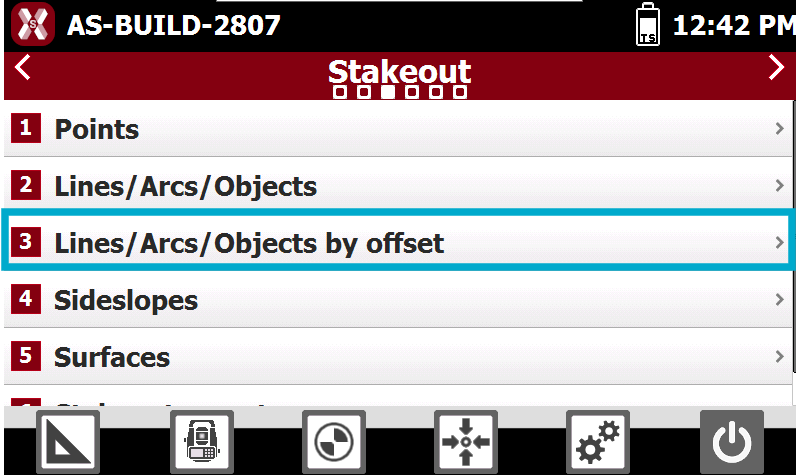
From Stakeout page select Lines/Arcs/Objects by offset.
-
The object to be staked out can be defined using different selection methods.
-
Line (2 Points): creates a line defined by two reference topographic points.
-
Arc (3 Points): creates an arc defined by three reference topographic points.
-
Arc (2 Points + Radius): creates an arc defined by two reference topographic points and a specified radius.
-
Drawing Object: allows you to select an existing drawing element directly from the graphic view, such as a line, polyline, arc, or circle.
-
Select the object to stakeout
Stakeout of line by 2 points
-
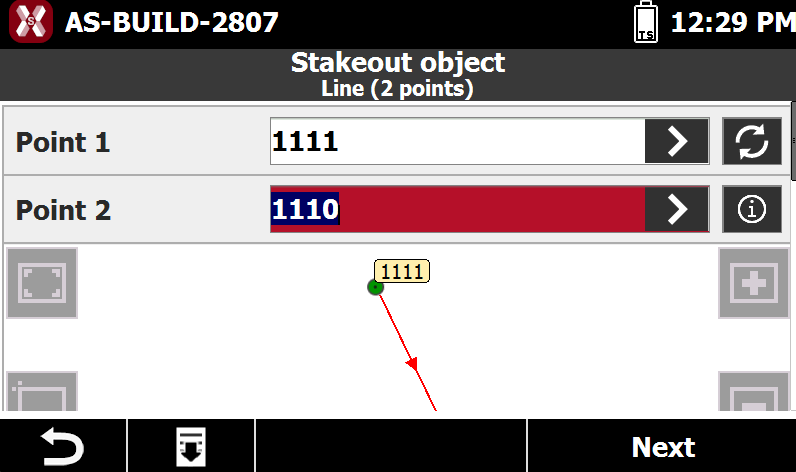
Select Line(2 points).
-
Point 1: first point of the reference line.
-
Point 2: second point of the reference line.
-
-
Press

-
Press

Stakeout of arc by 3 points
-
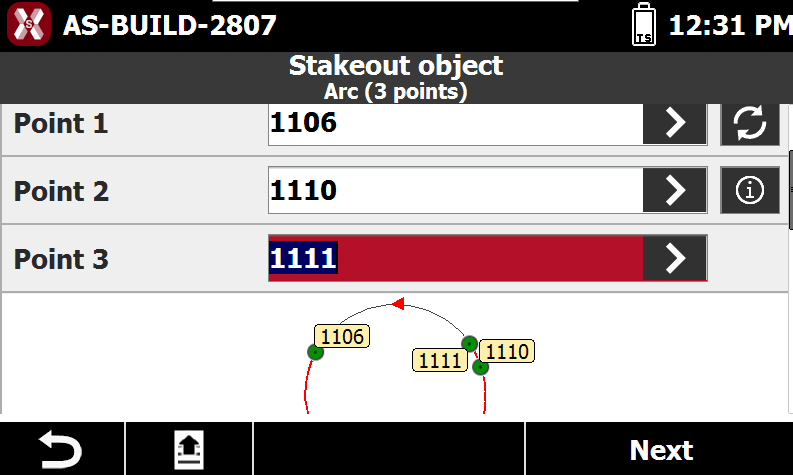
Select Arc (3 points).
-
Point 1: first point defining the reference arc.
-
Point 2: second point defining the reference arc.
-
Point 3: third point defining the reference arc.
-
-
Press
-
Press
Stakeout of arc by 2 points and radius
-
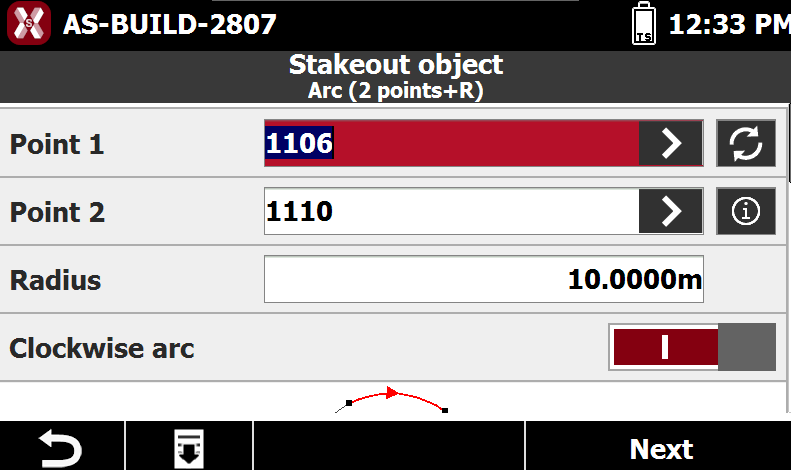
Select Arc (2 points + radius).
-
Point 1: starting point of the reference arc.
-
Point 2: ending point of the reference arc.
-
Radius: radius of the reference arc.
-
Clockwise Arc: specifies the direction of the arc. Enable this option to create the arc in the clockwise direction; otherwise, the arc is created in the opposite direction.
-
-
Press
-
Press
Drawing object
-
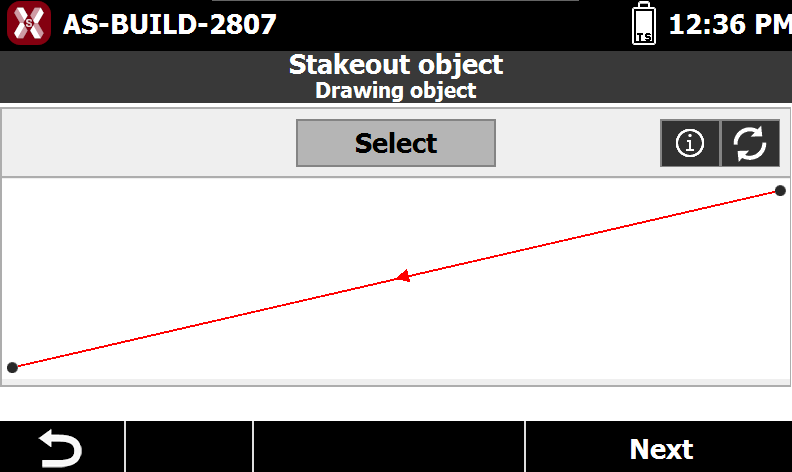
Select Drawing object.
-
Select from graphic window the element to stakeout.
-
Press
-
Press
Offset
-
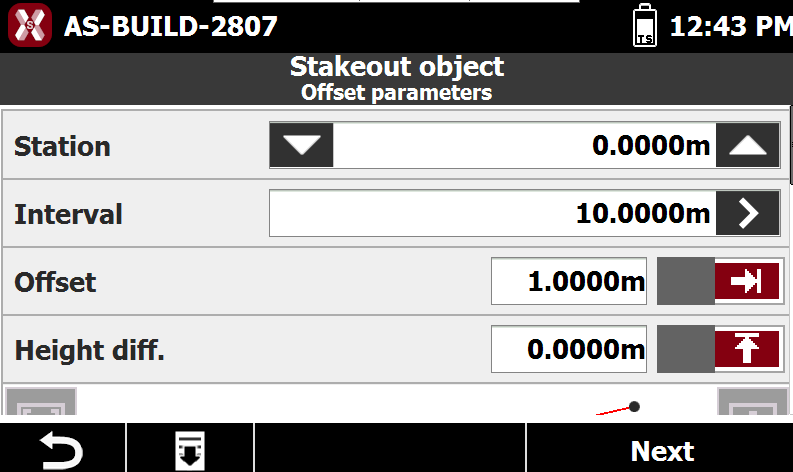
After having defined the element to stake defines the station and offset parameters.
-
Station: distance measured along the reference element to the position to be staked out.
-
Interval: distance along the reference element to be maintained between consecutive stakeout points. The button > on the right allows you to automatically calculate the interval by dividing the length of the reference element into a specified number of equal segments.
-
Offset: lateral distance from the reference element to the stakeout position. Use the adjacent button to specify whether the offset is applied to the right or left side of the reference element.
-
Elevation Difference: vertical offset applied to the calculated stakeout position. The software interpolates the elevation at the specified station along the reference element and then applies the defined elevation difference. An additional slope can also be applied, if required.
-
Stakeout procedure
-
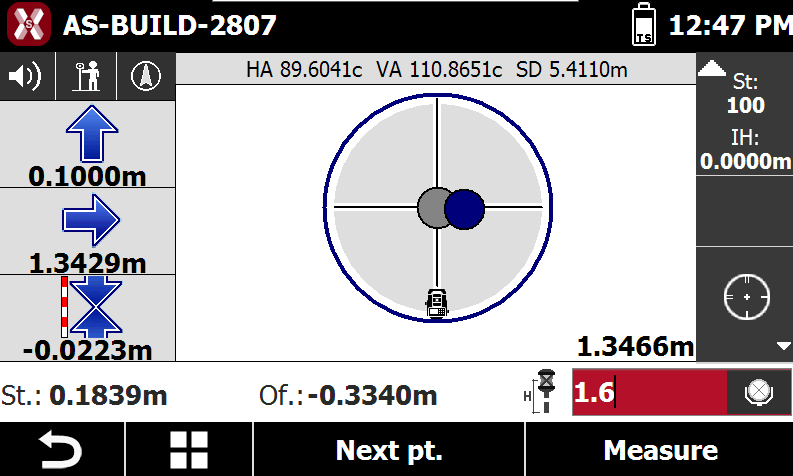
After having defined the offset it appears the main stakeout window.
-
In the lower part is reported the station distance and the current distance referring to the element to stake.
-
Station: the distance measured along the object.
-
Offset: the offset distance measured from the object.
-
-
For the general stakeout procedure refer to Step-by-step stakeout.
-
Press Next pt to open the Offset page and select a new station and offset.