
-
The stakeout of points procedure allows the operator to define, in different modes, the position to reach and to be guided by the software on the position to reach in the fastest way possible.
-
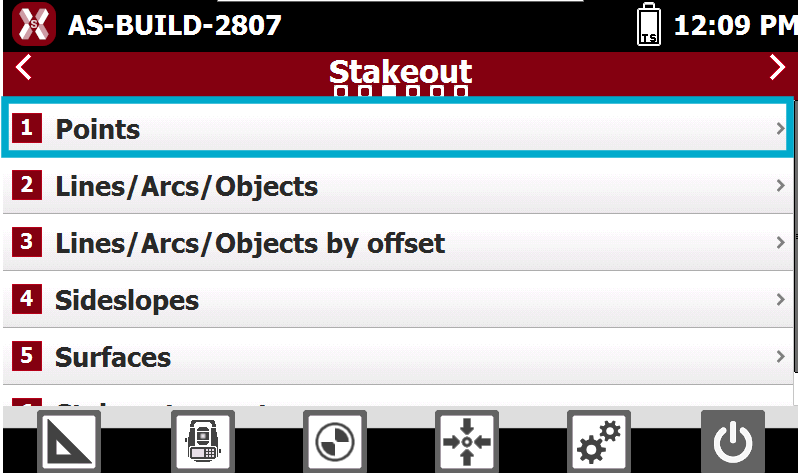
From Stakeout page select Points.
-
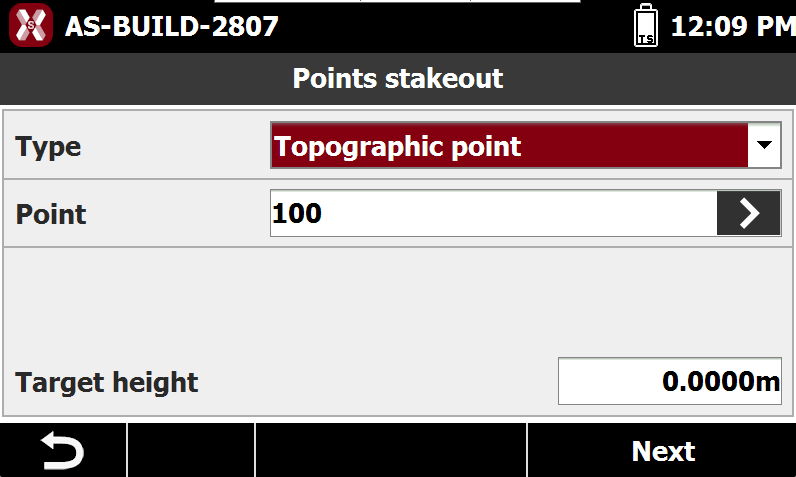
Define which point to stakeout.
-
Point from CAD: select the point to stake out directly from the graphical view. Select Topographic point and then press > and select CAD.
Point from Table: select the point to stake out from the list of available points. Select Topographic point and then press > and select Points or Ref points to select the point from the topographic points list or the reference points list. Otherwise directly enter the point ID to stakeout.
-
Coordinates: manually enter the easting, northing, and elevation coordinates of the position to stake out. Coordinates can also be selected directly from the CAD drawing pressing Select button.
-
List of Points: create a stakeout list containing multiple topographic points.
-
-
Press Next.
Stakeout procedure
-
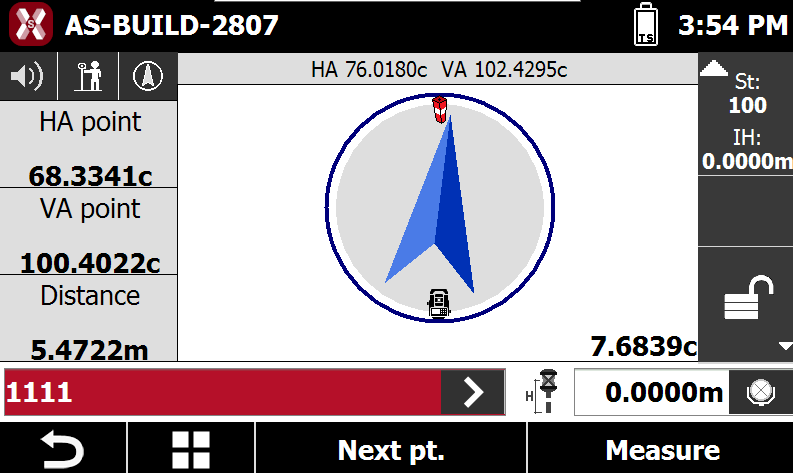
The stakeout page is opened.
-
For the general stakeout procedure refer to Step-by-step stakeout.
Selecting the Next Point to Stake Out
-
The Next point command allows you to choose the next point to be staked out using different selection methods.
-
Next Point: selects the next point in the list according to the current stakeout order.
-
Previous: selects the previous point in the list according to the current stakeout order.
-
Nearest: automatically selects the closest point that has not yet been staked out.
-
From CAD: allows you to manually select the point to stake out directly from the graphic view.
-
From Table: allows you to manually select the point to stake out from the points table.
-
These options provide flexibility in managing the stakeout sequence, allowing you to follow the predefined order or select points manually according to field conditions.
Stakeout a list of points
-
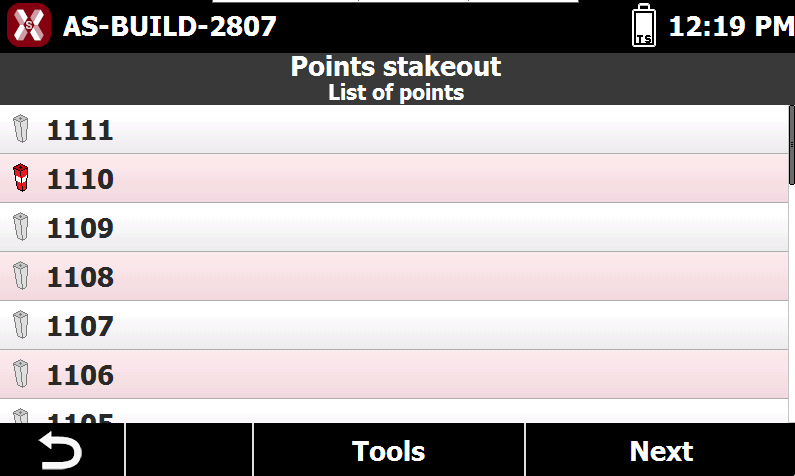
If has been selected List of Points it is possible to define and manage a list of points to stakeout.
-
The following commands are available for creating and managing a stakeout points list. Press Tools to open the commands.
-
Load All Points: loads all topographic points available in the current job into the stakeout list.
-
Load All Reference Points: loads all reference points available in the current job into the stakeout list.
-
Select from Table: allows you to select topographic points from the points table and add them to the list.
-
Select from CAD: allows you to select topographic points directly from the graphic view and add them to the list.
-
Load List from File: imports a previously saved points list from an external file.
-
Save List to File: saves the current points list to an external file for future use.
-
Delete Points List: removes all points from the current stakeout list.
-
-
When a point is selected from the stakeout list, you can:
-
Change its position within the list to modify the stakeout sequence.
-
Remove it from the list.
-
-
An icon displayed next to each point indicates its current stakeout status:
-
-

-

-
-
This visual indication allows you to quickly monitor the progress of the stakeout operation and identify the points that still need to be staked.