
-
This procedure provides information about the current position relative to geometric elements such as lines, arcs, and other design objects.
-
The software calculates and displays the geometric relationships between the current position and the selected reference element.
-
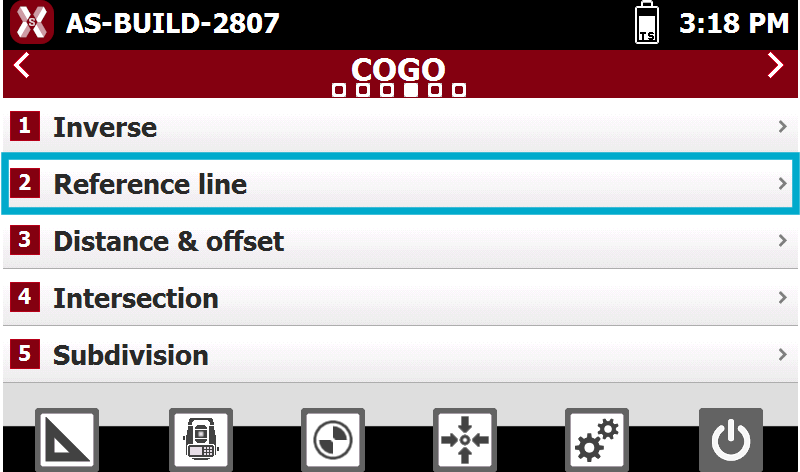
From COGO page select Reference line.
-
The reference object can be defined using different selection methods.
-
Line (2 Points): creates a line defined by two reference topographic points.
-
Arc (3 Points): creates an arc defined by three reference topographic points.
-
Arc (2 Points + Radius): creates an arc defined by two reference topographic points and a specified radius.
-
Drawing Object: allows you to select an existing drawing element directly from the graphic view, such as a line, polyline, arc, or circle.
-
Select the reference object
Reference line by 2 points
-
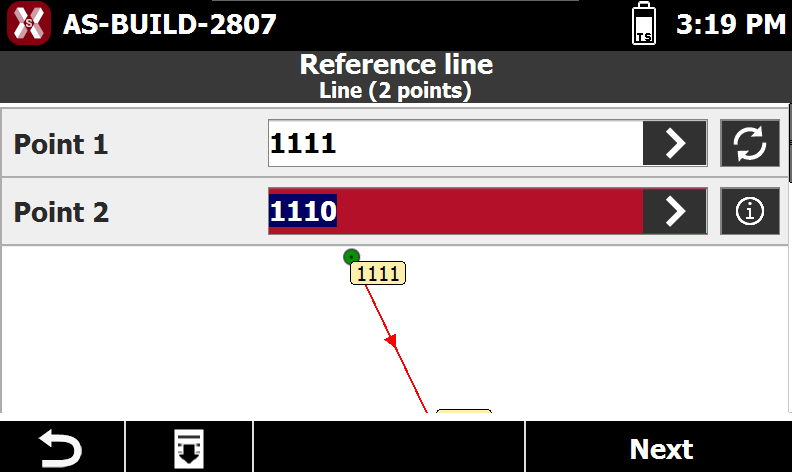
Select Line(2 points).
-
Point 1: first point of the reference line.
-
Point 2: second point of the reference line.
-
-
Press

-
Press

Reference arc by 3 points
-
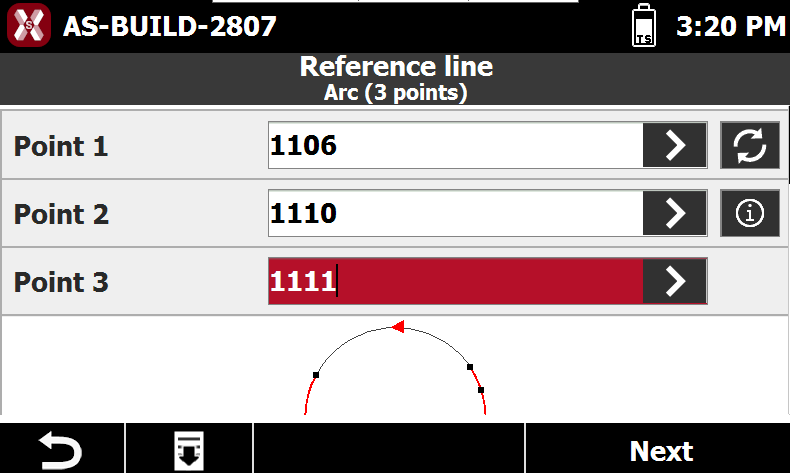
Select Arc (3 points).
-
Point 1: first point defining the reference arc.
-
Point 2: second point defining the reference arc.
-
Point 3: third point defining the reference arc.
-
-
Press
-
Press
Reference arc by 2 points and radius
-
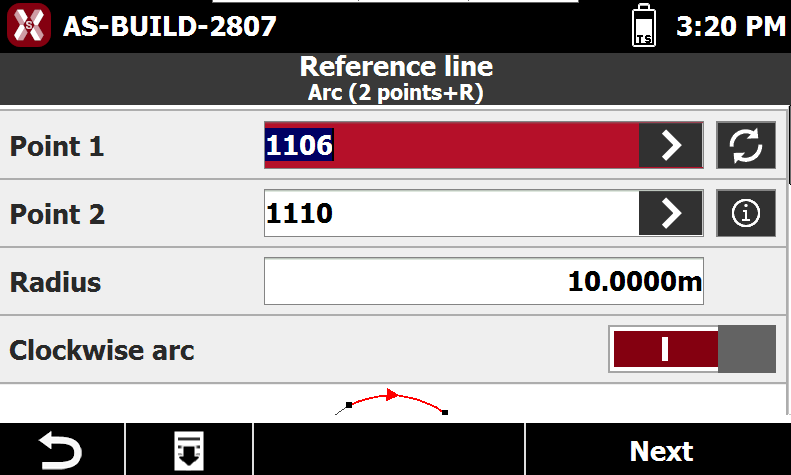
Select Arc (2 points + radius).
-
Point 1: starting point of the reference arc.
-
Point 2: ending point of the reference arc.
-
Radius: radius of the reference arc.
-
Clockwise Arc: specifies the direction of the arc. Enable this option to create the arc in the clockwise direction; otherwise, the arc is created in the opposite direction.
-
-
Press
-
Press
Drawing object
-
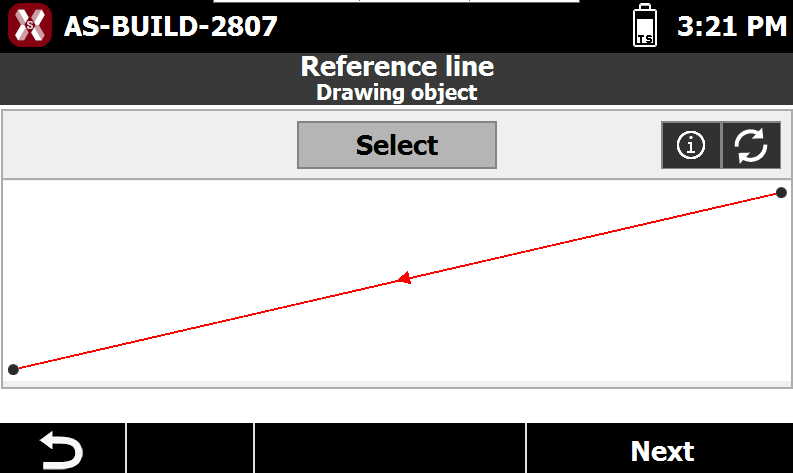
Select Drawing object.
-
Select from graphic window the element to stakeout.
-
Press
-
Press
Stakeout procedure
-
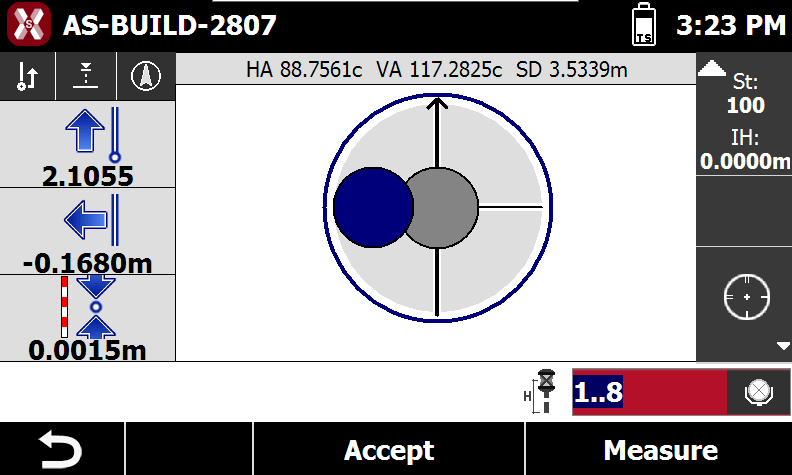
After having defined the offset it appears the main stakeout window.
-
The left panel shows the distances from the measured target to the reference element.
-

-

-

-

-

-

-

-

-
-
Press the elevation icon to change the elevation mode.
-

-

-

-
-
Press Measure to measure the target. Press Accept to save the measurement.