
SURFACES&VOLUME
-
Multiple volume calculations can be performed and stored within the same job.
-
Both the calculated results and their graphical representations are saved, allowing them to be reviewed at any time.
-
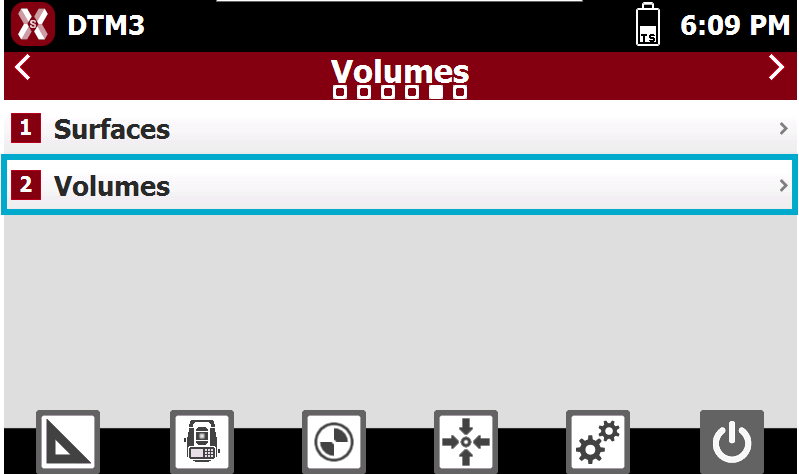
To access the volume calculation page select Volumes from the Volumes page.
-
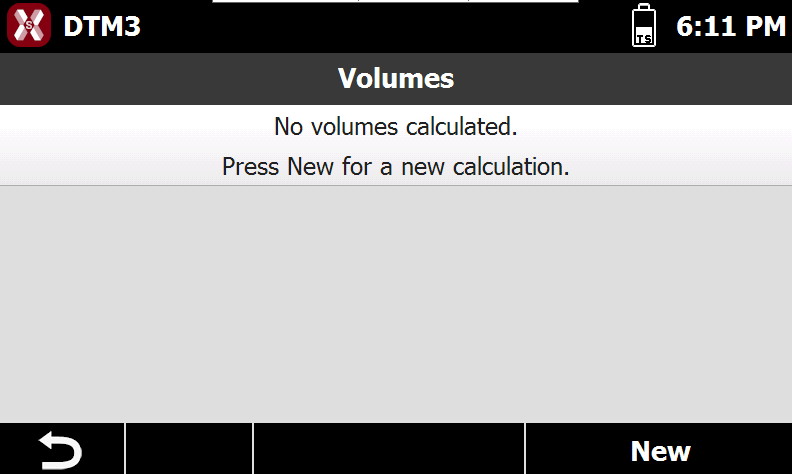
The Volumes table displays all calculated volume computations. For each calculation, the software reports information such as the calculation method used, cut volumes, fill volumes, and other related data.
Perform a new volume calculation
-
To perform a new volume calculation press New.
-
Select the calculation mode.
-
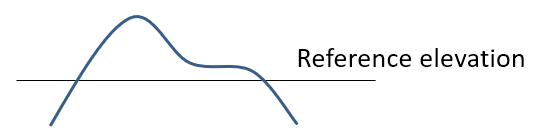
Reference elevation: the volume is calculated between the surface and a reference elevation.
-
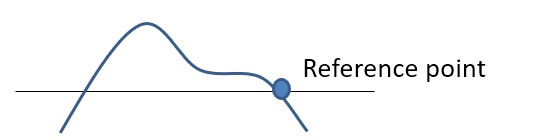
Reference point: the volume is calculated between the surface and the elevation of a reference point.
-
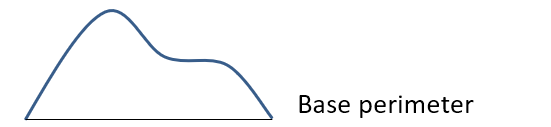
Stockpile/Pit: calculates, in reference to the reference surface, a second surface considering only the points present in the perimeter of the reference surface. Calculated is the volume between the reference surface and a second surface representing the bottom, in case of stockpile, or representing the top, in case of pit.
-
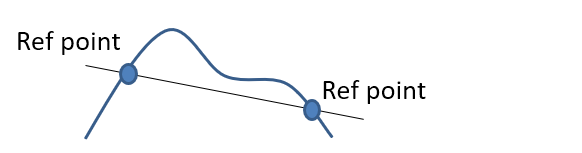
Reference level: the volume is calculated between the surface and a sloped plane by 3 points.
-
-
Press Next.
-
Depending on the calculation mode, enter the requested parameters.
Volume Relative to a Reference Elevation
-
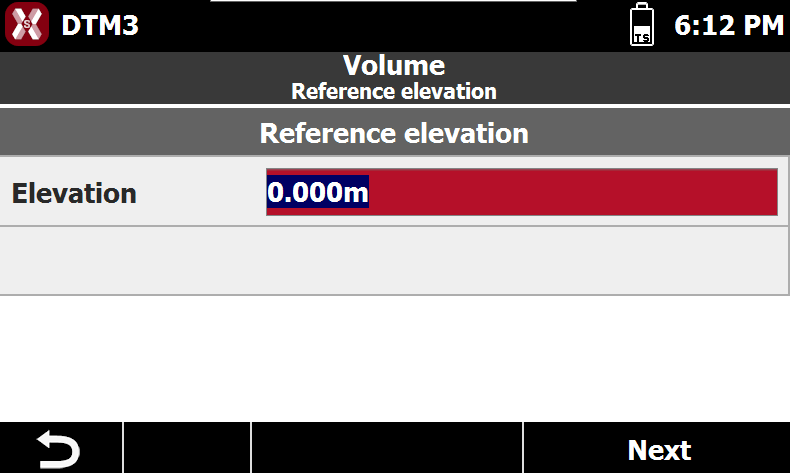
This method calculates the volume between a reference surface and a horizontal plane at a specified elevation.
-
Elevation: elevation of the horizontal plane used as the reference for the volume calculation.
-
Volume Relative to a Reference Point
-
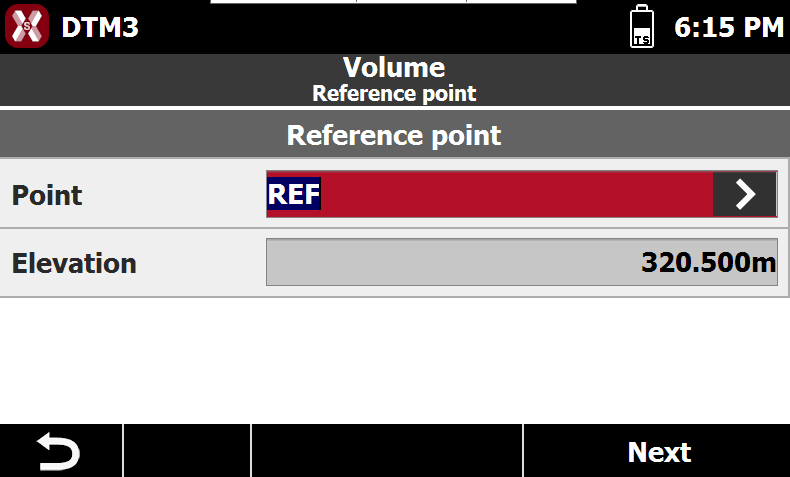
This method calculates the volume between a reference surface and a horizontal plane whose elevation is defined by a selected reference point.
-
Point: point whose elevation is used to define the reference plane for the volume calculation.
-
Stockpile / Pit Volume
-
This method calculates the volume of a stockpile or excavation pit.
-
The software generates a secondary surface based on the perimeter of the reference surface and calculates the volume between the original surface and the generated surface:
-
For a stockpile, the generated surface represents the base of the material.
-
For a pit, the generated surface represents the top reference surface.
-
The resulting volume corresponds to the material contained between the two surfaces.
Volume Relative to a Reference Plane
-
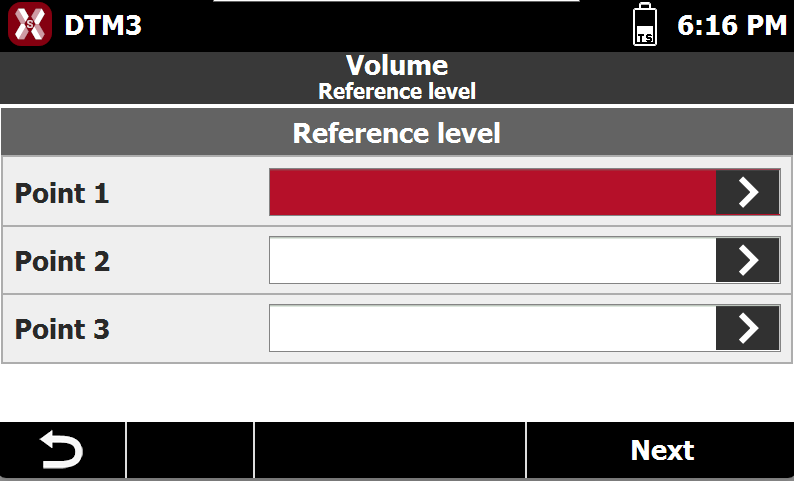
This method calculates the volume between a reference surface and a plane defined by three points.
-
Point 1: first point used to define the reference plane.
-
Point 2: second point used to define the reference plane.
-
Point 3: third point used to define the reference plane.
-
Calculation Parameters
-
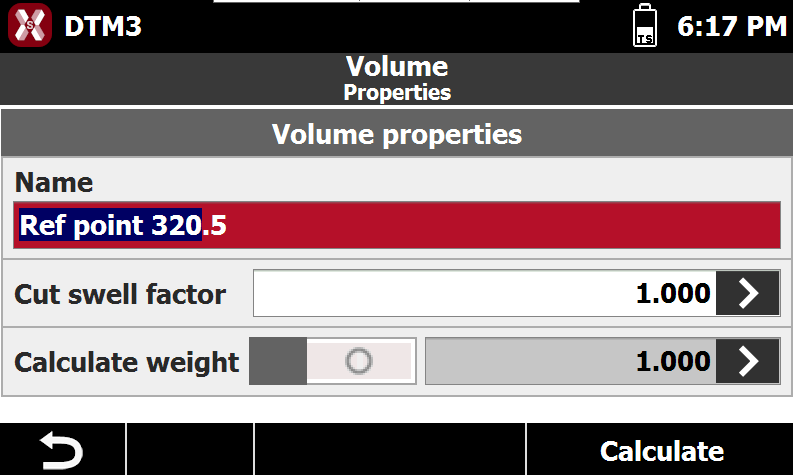
After selecting the calculation method and defining the corresponding parameters, configure the following settings:
-
Name: name assigned to the volume calculation.
-
Cut Swell Factor: expansion factor applied to cut volumes. The value can be entered manually or selected from a predefined list of materials.
-
Calculate Weight: enables calculation of the weight of excavated and filled material based on its unit weight.
-
Weight (t/m³): material unit weight expressed in tonnes per cubic meter. The value can be entered manually or selected from a predefined list of materials.
-
Auto Adjust Cut/Fill: available for calculations based on a reference plane. The software automatically shifts the plane vertically, while maintaining its defined slopes, until cut and fill volumes are balanced.
-
Performing the Calculation
-
Press Calculate to start the volume computation.
-
The software displays the list of available surfaces. Select the reference surface to be used for the calculation.
-
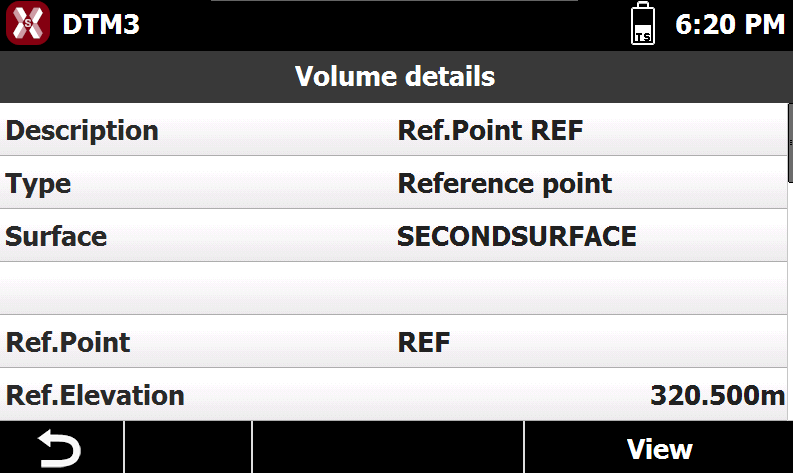
When the calculation is completed, the software reports:
-
Total volume.
-
Cut volume.
-
Fill volume.
-
Cut and fill areas.
-
Additional calculation statistics.
-
-
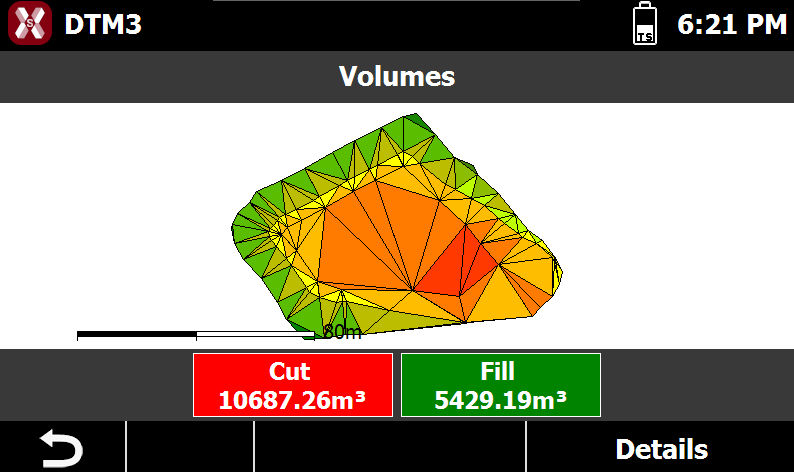
Press View to open the graphical representation of the results.
-
In the graphical view, the color of each triangle is determined by the cut or fill difference:
-
Red: areas with maximum excavation (cut).
-
Yellow: areas with little or no cut/fill difference.
-
Green: areas with maximum fill.
-
-
This color gradient provides an immediate visual representation of material movement across the site.
Viewing Calculation Results
-
To review a previously calculated volume, select the calculation and choose Details.
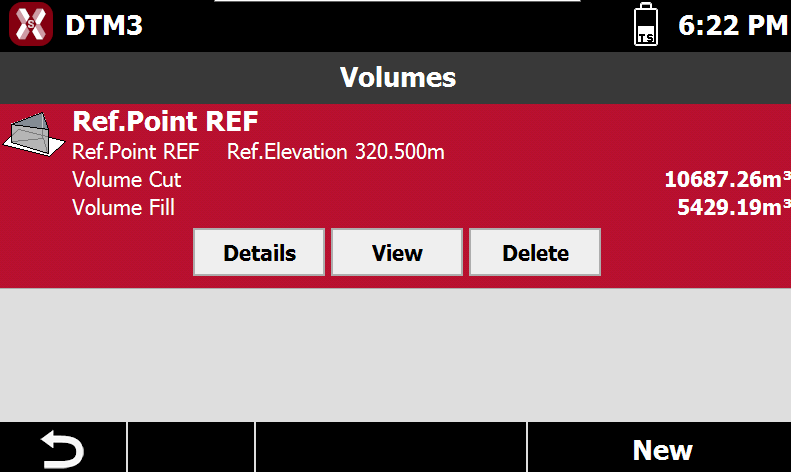
-
To graphically display a calculated volume, select the calculation and choose Details.
Deleting a Volume Calculation
-
To permanently delete a volume calculation, select it from the volumes list and choose Delete.
-
The calculation results and their associated graphical representation are removed from the job.