
SURFACES&VOLUME
-
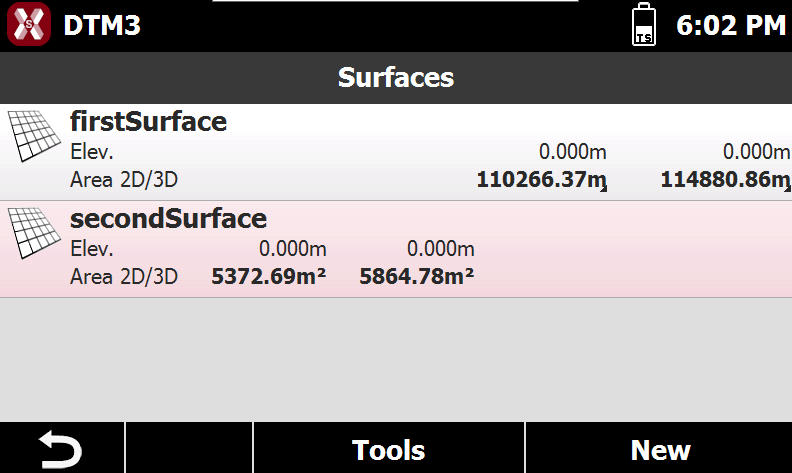
The list of surfaces available in the project is opened selecting Surfaces from the Volumes page.
-
The table reports the list of all the surfaces present in the archive.
-
For every surface are reported the minimum and maximum elevation, the 2D surface and the 3D surface.
Surface editing
-
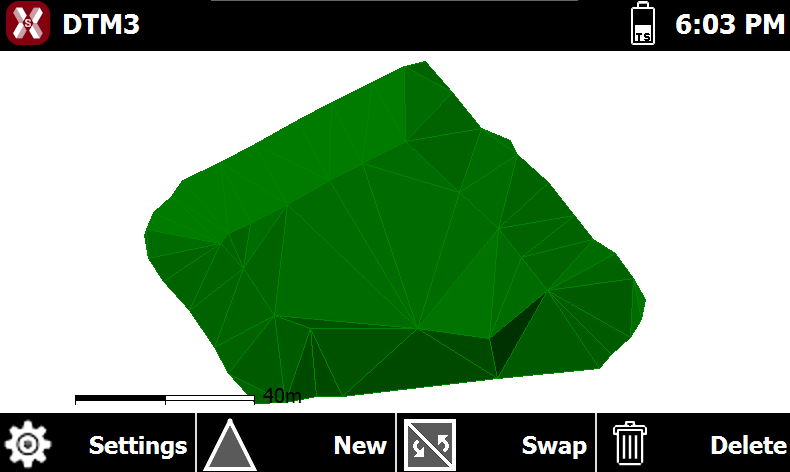
To edit the shape of the triangles composing a surface select the corresponding line in the list of surfaces and press the View button.
-
The commands of the graphic viewer allow to edit the surface.
-
Settings: allows you to modify the surface visualization settings and display parameters. Opens the Surface properties page.
-
New: creates a new triangle. Select the three points that will define the triangle.
-
Swap: changes the common edge between two adjacent triangles, modifying the triangulation and the orientation of the triangle faces in that area.
-
Delete: allows you to select and remove one or more triangles from the surface.
-
Surface properties
-
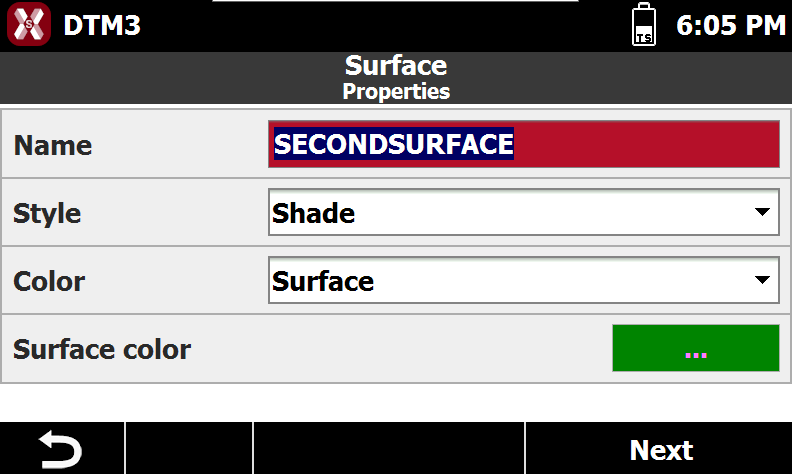
To edit the visualization parameters of a surface select the corresponding line in the list of the surfaces and press the Modify button.
-
Name: name assigned to the surface.
-
Style: display style used to represent the surface. Available options are:
-
Wireframe: displays the edges of the triangles that compose the surface triangulation.
-
Shaded: displays the triangular faces with shading based on the direction of light exposure, providing a more realistic representation of the terrain.
-
-
Color: defines how the surface is colored. Available options are:
-
Original: uses the color of the layer containing the surface triangles.
-
By Elevation: colors the surface according to elevation values. The color scale ranges from green (lower elevations), through yellow, to red (higher elevations).
-
Surface: uses a custom color specified in the Surface Color field.
-
-
Surface Color: custom color used to display the surface when the Surface color option is selected.
-
-
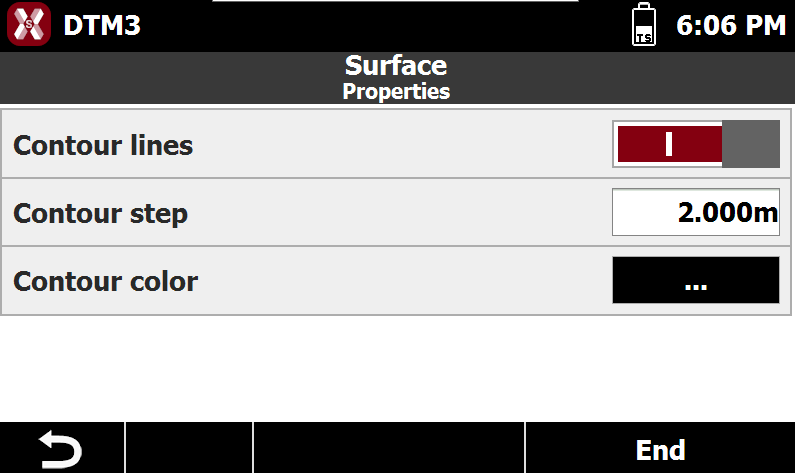
Press Next to create contour lines.
-
Contour Lines: enables the display of contour lines generated from the surface.
-
Contour Step: specifies the elevation interval used to generate the contour lines.
-
Contour Color: defines the color used to display the contour lines.
-
Delete a surface
-
To delete a surface select the corresponding line in the list of the surfaces and press the Delete button.