
SURFACES&VOLUME
-
A surface is the fundamental element required for volume calculations. Multiple surfaces can be created, managed, and stored within the same job, allowing different terrain models and design scenarios to be analyzed.
-
A surface can be generated automatically by the software using the points available in the project and any defined breaklines. Alternatively, surfaces can be created and edited manually, enabling a more accurate representation of the actual terrain and improving the reliability of volume calculations.
Create a surface
-
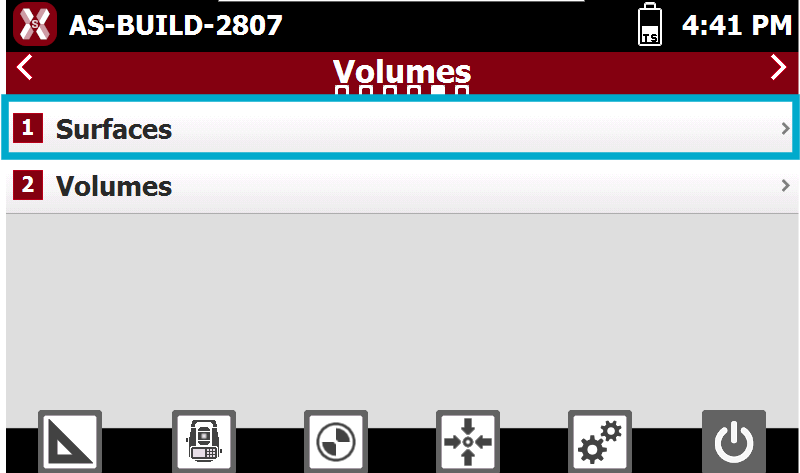
To create a surface using the data available in the job from Volumes page select Surfaces.
-
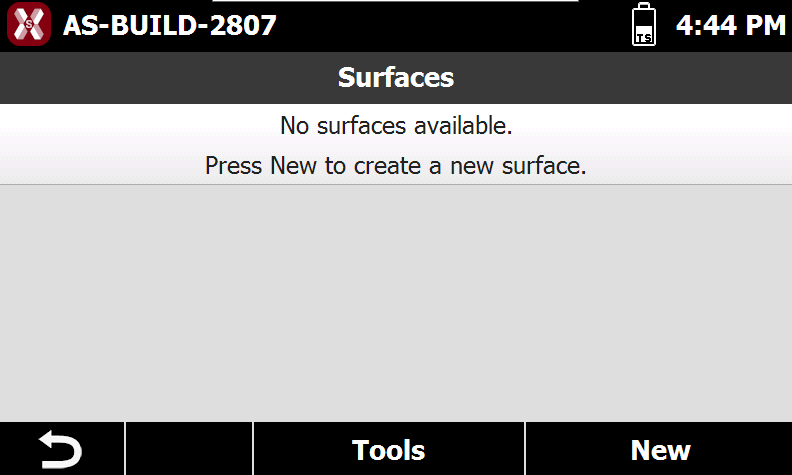
This opens the list of surfaces.
-
Press New to create a new surface.
-
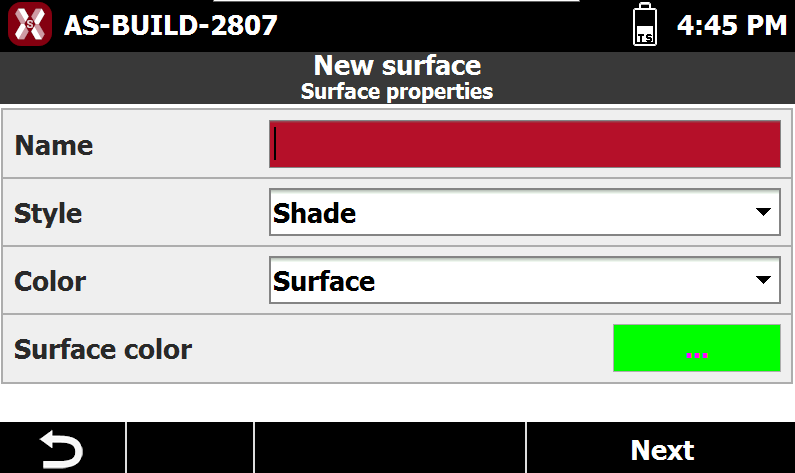
Enter the properties.
-
Name: name assigned to the surface.
-
Style: display style used to represent the surface. Available options are:
-
Wireframe: displays the edges of the triangles that compose the surface triangulation.
-
Shaded: displays the triangular faces with shading based on the direction of light exposure, providing a more realistic representation of the terrain.
-
-
Color: defines how the surface is colored. Available options are:
-
Original: uses the color of the layer containing the surface triangles.
-
By Elevation: colors the surface according to elevation values. The color scale ranges from green (lower elevations), through yellow, to red (higher elevations).
-
Surface: uses a custom color specified in the Surface Color field.
-
-
Surface Color: custom color used to display the surface when the Surface color option is selected.
-
-
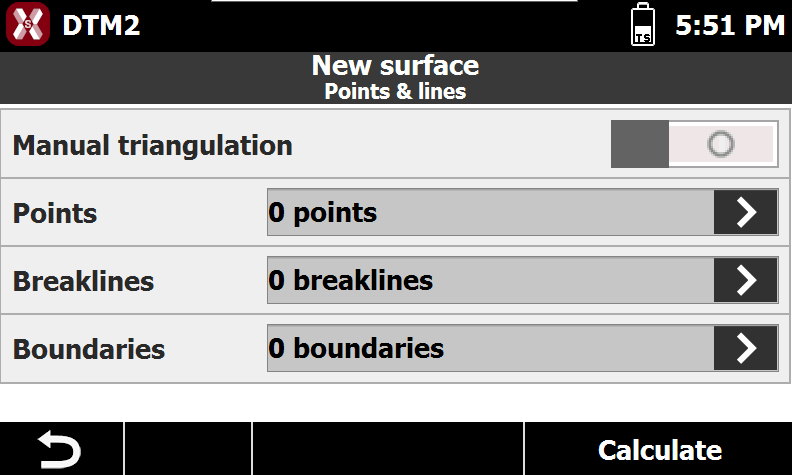
Select points and lines to be used to build the surface.
-
Manual triangulation: the surface is created manually selecting the triangles.
-
Points: when creating a surface automatically, you must specify the points to be used for the triangulation. The selected points are displayed in a list. To remove a point from the selection, select it in the list and press Delete. Press the button next to the Points field to access the point selection options:
-
Load All Points: uses all points available in the current job to generate the surface.
-
Select from Table: allows you to select points from the topographic points table.
-
Select from CAD: allows you to select points directly from the graphic view.
-
-
Breaklines: breaklines can be defined to control the shape of the surface and accurately represent terrain discontinuities such as edges, ditches, or embankments. Breaklines must already exist in the graphic view as polylines. Press the button next to the Breaklines field to access the following options:
-
Select from CAD: selects breaklines from the graphic view.
-
Clear All: removes all previously selected breaklines.
-
-
Boundary: boundary lines can be specified to limit the extent of the surface. Boundaries must already exist in the graphic view as polylines. Press the button next to the Boundaries field to access the following options:
-
Select from CAD: selects boundary lines from the graphic view.
-
Clear All: removes all previously selected boundary lines.
-
-
-
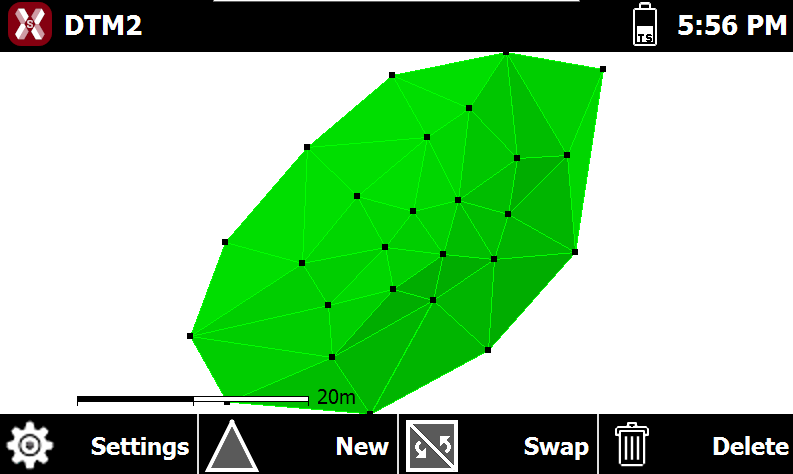
Press Calculate to generate the surface.
-
Once the calculation is complete, the resulting surface is displayed in the dedicated surface viewer.
-
If the Manual Triangulation option is enabled, no automatic surface calculation is performed. Instead, the surface viewer opens and displays the available points, allowing you to manually create and edit the triangulation using the viewer tools. This option provides maximum control over the surface geometry and can be used to refine the terrain model when required.
Import a surface
-
It’s possible to import surfaces from files in DXF or LandXML format.
-
To import a surface from an external file from Volumes page select Surfaces.
-
This opens the list of surfaces.
-
Press Tools to import the surface:
-
Import DXF: imports a surface from DXF format.
-
Import LandXML: imports a surface from LandXML format.
-