
Backsight to known point
-
Backsight to known point setup requests to specify the position of the station and to specify the reference point.
-
The reference point must still be present in the table of the topographic points or of the reference points.
-
From Station setup select Orientation to known point.
-
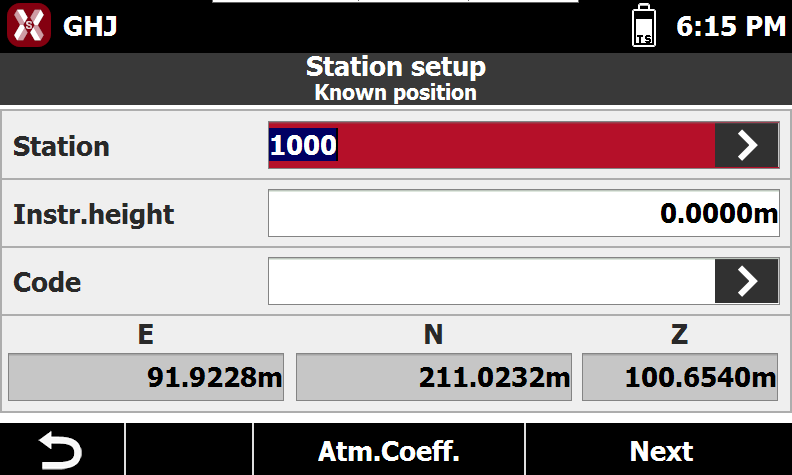
In known position page select the known station position.
-
Station: specifies the name of the station. It is possible to select an existing point.
-
Instrument elevation: specifies the height of the total station above the ground.
-
Code: specifies the code to assign to the station point when creating a new point.
-
E,N,Z: coordinates of the station; if an existing point is selected, it’s not possible to edit the values.
-
-
Press Atm.Coeff. to specify the atmospheric corrections to apply.
-
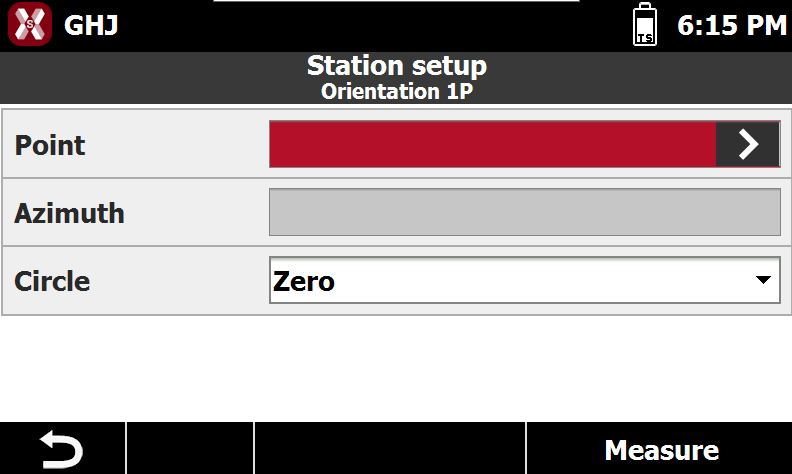
The page Orientation 1P allows instead to select the known point to measure.
-
Point: specifies the reference point to be measured for determining the station orientation.
-
Azimuth: displays the azimuth calculated between the station position and the reference point.
-
Circle: defines how the horizontal angle of the station is set. The available options are:
-
Current value: the current horizontal angle is maintained.
-
Zero: the horizontal angle is set to zero in the direction of the reference point.
-
Azimuth: the horizontal angle is set according to the calculated azimuth.
-
-
-
Press Measure to proceed with measure of reference point.
-
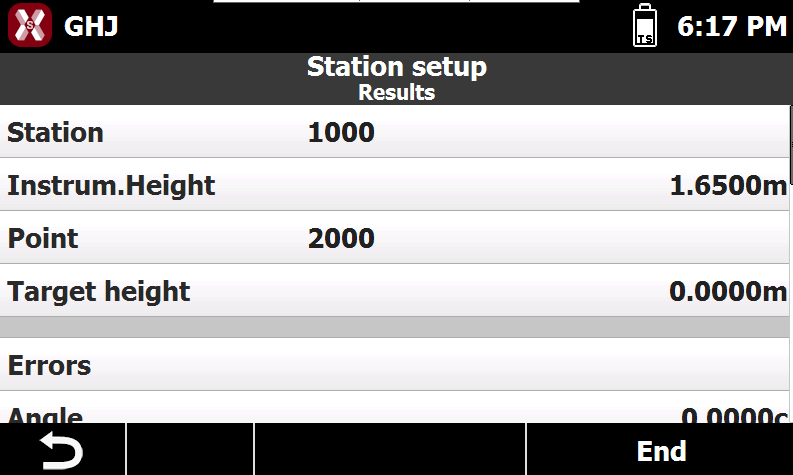
Aim the point of orientation and proceed with the measure. It’s visualized a report with data calculated and with the differences of angle and distance. Press End orientation to confirm set data and complete procedure.
Backsight by azimuth
-
Backsight by azimuth setup requests to specify the position of the station and to specify the reference point for which is not known the position but the azimuth.
-
From Station setup select Orientation by azimuth.
-
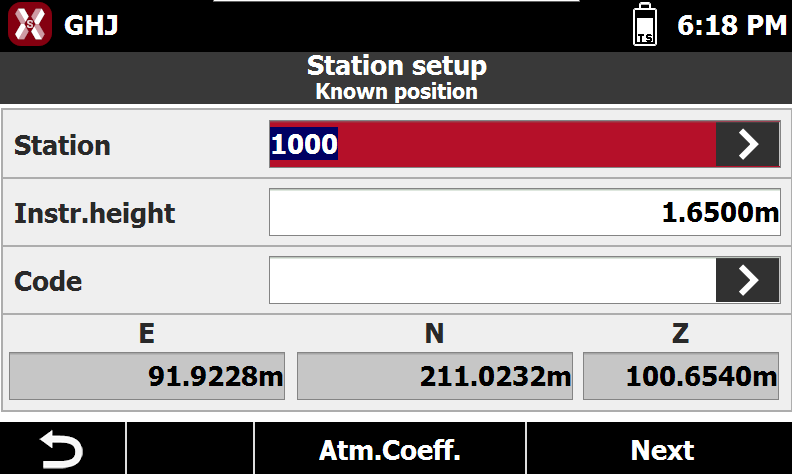
In known position page select the known station position.
-
Station: specifies the name of the station. It is possible to select an existing point.
-
Instrument elevation: specifies the height of the total station above the ground.
-
Code: specifies the code to assign to the station point when creating a new point.
-
E,N,Z: coordinates of the station; if an existing point is selected, it’s not possible to edit the values.
-
-
Press Atm.Coeff. to specify the atmospheric corrections to apply.
-
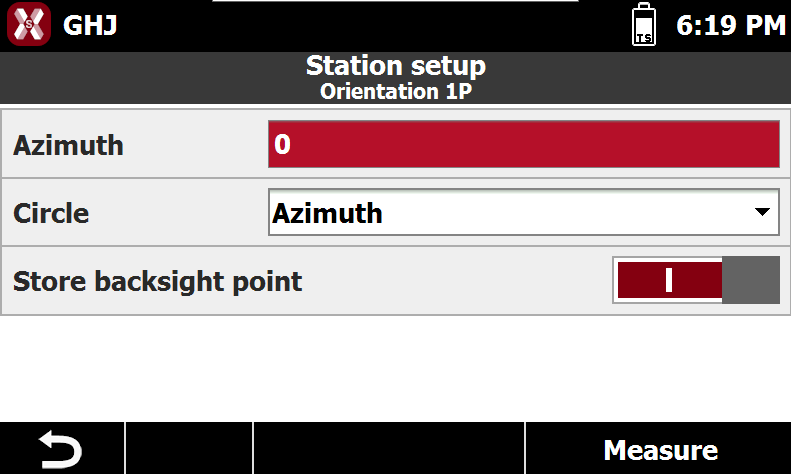
The page Orientation 1P allows instead to enter the known azimuth.
-
Azimuth: the azimuth to the reference point to set.
-
Circle: defines how the horizontal angle of the station is set. The available options are:
-
Current value: the current horizontal angle is maintained.
-
Zero: the horizontal angle is set to zero in the direction of the reference point.
-
Azimuth: the horizontal angle is set according to the calculated azimuth.
-
-
Store backsight point: if enabled, stored the measured backsight point.
-
-
Press Measure to proceed with measure of reference point.
-
Aim the point of orientation and proceed with the measure.
-
Press End orientation to confirm set data and complete procedure.
Free station
-
Free station setup calculates the position of the station basing on measures to at least two points for which is known the position.
-
From Station setup select Free station.
-
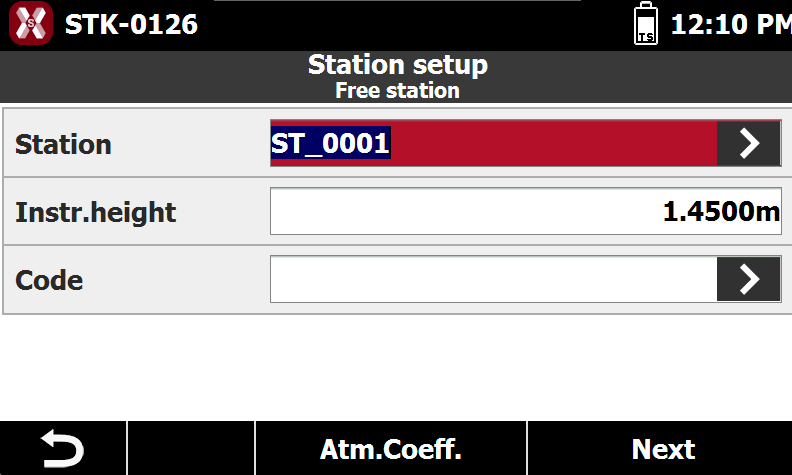
In Free station page enter the station information.
-
Station: specifies the name of the station.
-
Instrument elevation: specifies the height of the total station above the ground.
-
Code: specifies the code to assign to the station point when creating a new point.
-
-
Press Atm.Coeff. to specify the atmospheric corrections to apply.
-
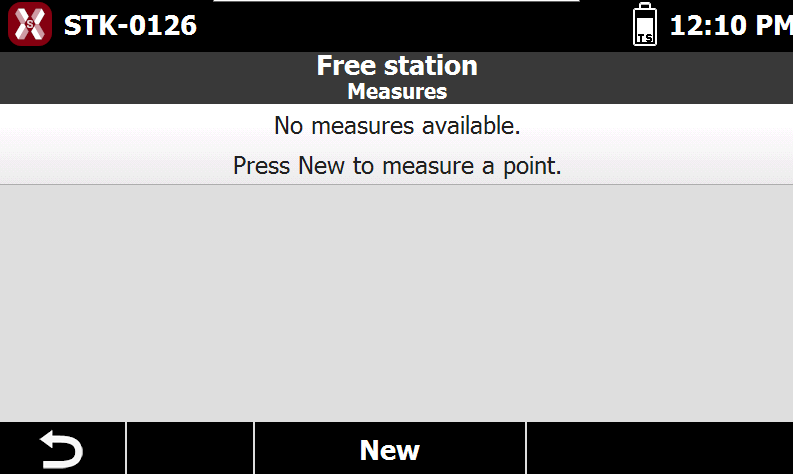
Press Next to proceed with procedure. The procedure asks to specify the first reference point and to perform corresponding measuring; it’s possible to type the name of reference point or to select it from table of points, from table of reference points or from graphic window.
-
Press New to measure a reference point.
-
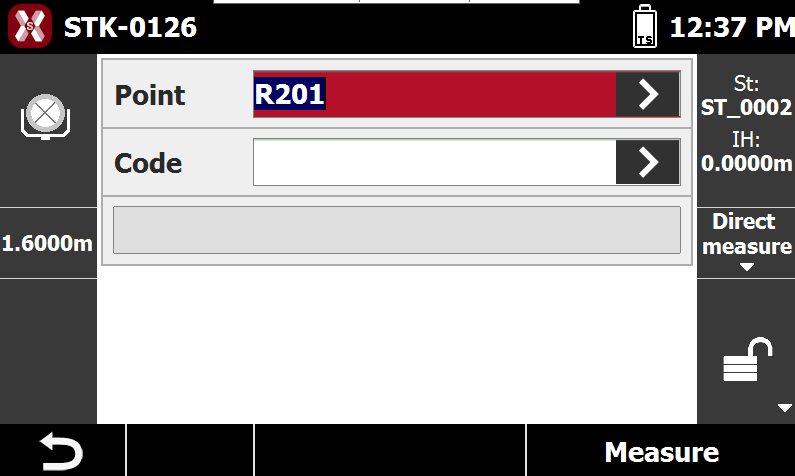
Measure the control point pressing Measure.
-
After the point has been measured, the point is added to the list of measures. Press again New to add new reference points.
From the third control point TPS automatically rotates in the correct direction.
-
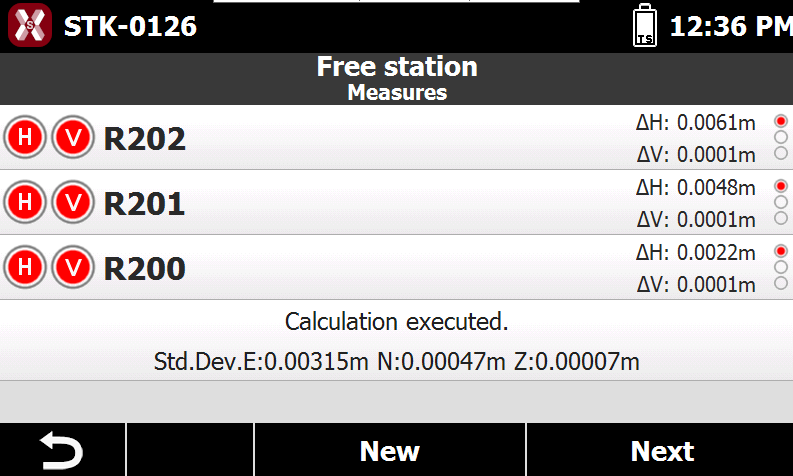
The points measured are reported in a table with deviations calculated in correspondence of every point and the total standard deviation standard on calculation of the position of the station.
-
H: enables or disables the use of horizontal measurements for calculating the station coordinates for a specific reference point.
-
V: enables or disables the use of vertical measurements for calculating the station elevation for a specific reference point.
-
-
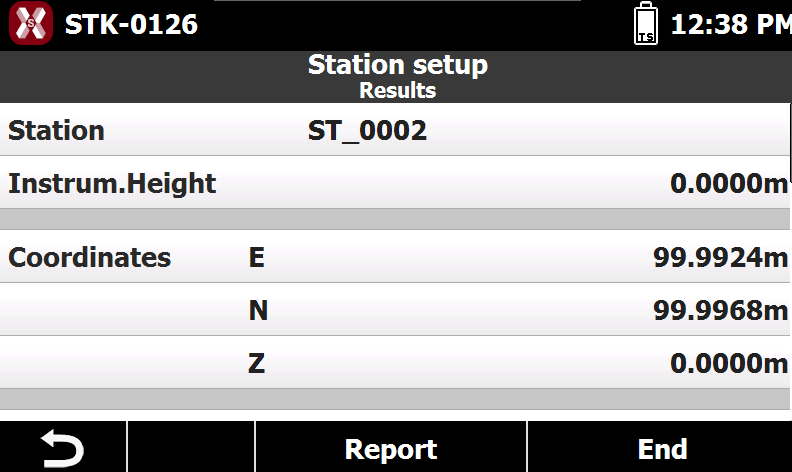
Press Next to complete the calculation and display the result.
-
Press Report to generate a station calculation report in Excel CSV or Excel XML format.
-
Press End to accept the result.
Auto free station
-
Auto free station setup calculates the position of the station basing on measures to at least two reference points for which is known the position.
-
In this setup method the total station automatically rotates and measures all available targets.
This setup method is only available with full robotic total stations.
The targets must be available in the Reference points list.
-
From Station setup select Auto free station.
-
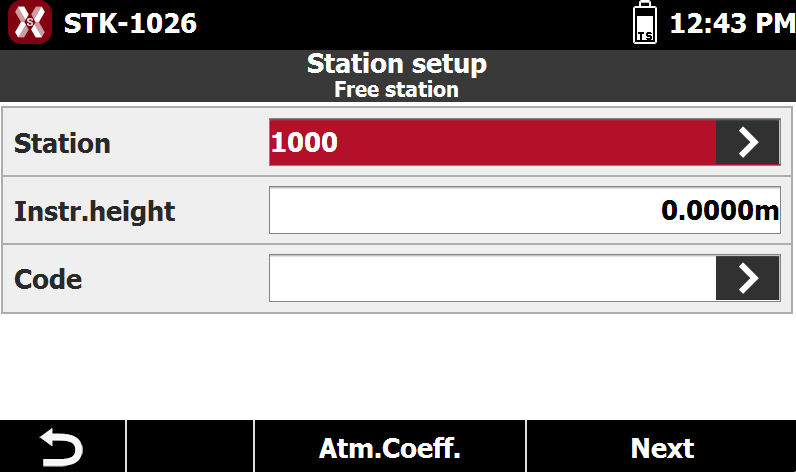
In Free station page enter the station information.
-
Station: specifies the name of the station.
-
Instrument elevation: specifies the height of the total station above the ground.
-
Code: specifies the code to assign to the station point when creating a new point.
-
-
Press Atm.Coeff. to specify the atmospheric corrections to apply.
-
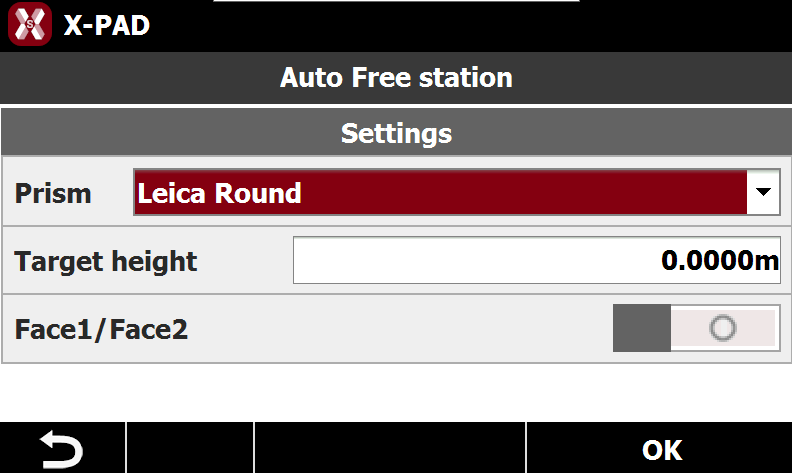
Press Next to proceed with procedure. The Settings page allows to define how the measurements are performed.
-
Prism: the type of prism for the targets to measure.
-
Target height: the height to apply to measured targets.
-
Face1/Face2: enable the measuring of targets in face I and face II.
-
-
Press OK to start the measurements. The instrument automatically rotates and measures all available targets.
-
The software automatically matches the targets measured with the coordinates available in Reference point list.
-
After the point has been measured, the points are reported in a table with deviations calculated in correspondence of every point and the total standard deviation standard on calculation of the position of the station.
-
H: enables or disables the use of horizontal measurements for calculating the station coordinates for a specific reference point.
-
V: enables or disables the use of vertical measurements for calculating the station elevation for a specific reference point.
-
-
Press New to manually add a target. Press Next to complete the calculation and display the result.
-
Press Report to generate a station calculation report in Excel CSV or Excel XML format.
-
Press End to accept the result.
Orientation to multi points
-
Orientation to multi points setup calculates the orientation, of known coordinates, on the basis of measurements at a number of points of orientation for which the position is known.
-
From Station setup select Orientation to multi points.
-
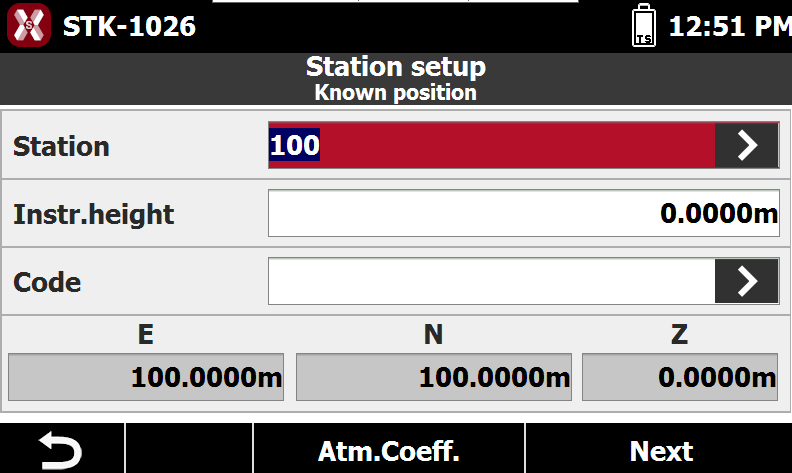
In known position page select the known station position.
-
Station: specifies the name of the station. It is possible to select an existing point.
-
Instrument elevation: specifies the height of the total station above the ground.
-
Code: specifies the code to assign to the station point when creating a new point.
-
E,N,Z: coordinates of the station; if an existing point is selected, it’s not possible to edit the values.
-
-
Press Atm.Coeff. to specify the atmospheric corrections to apply.
-
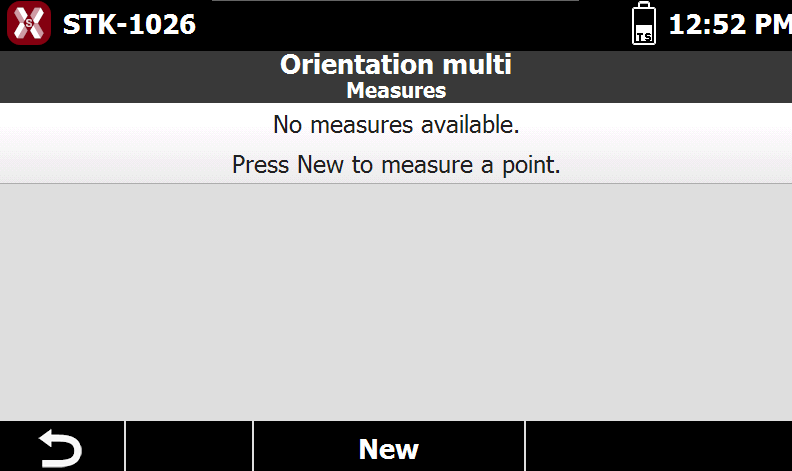
The Measures page shows the measurements to known points.
-
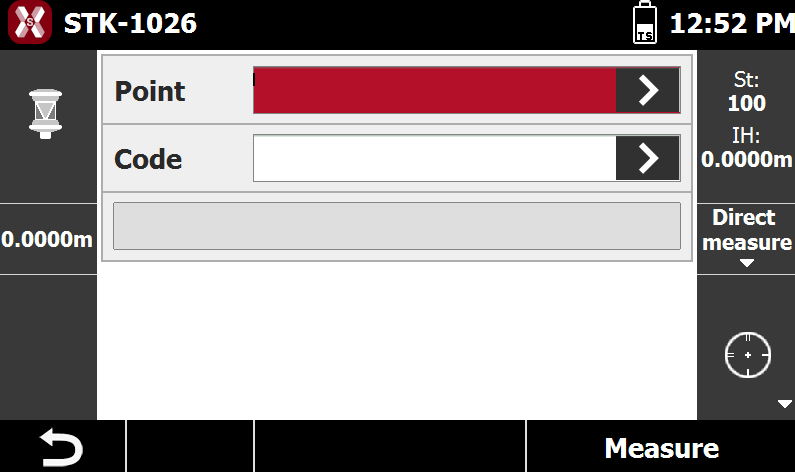
Press New to measure the points of known coordinates.
-
Point: select the point of known coordinate to measure.
-
Code: if available shows the survey code of the selected point.
-
-
Press Measure to measure the known point.
-
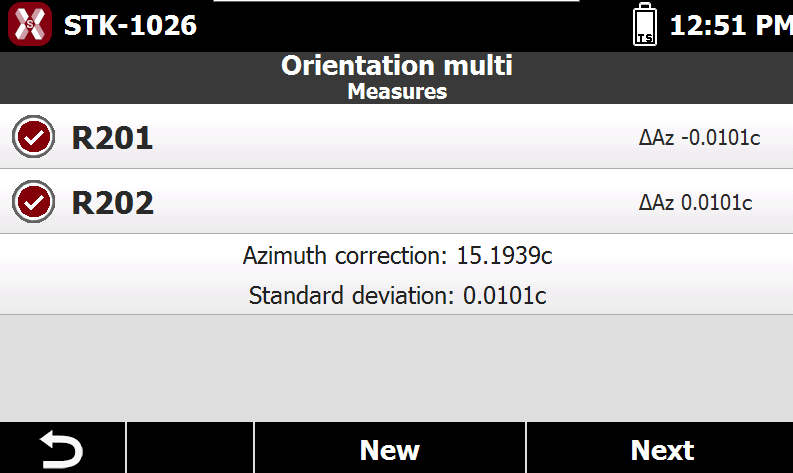
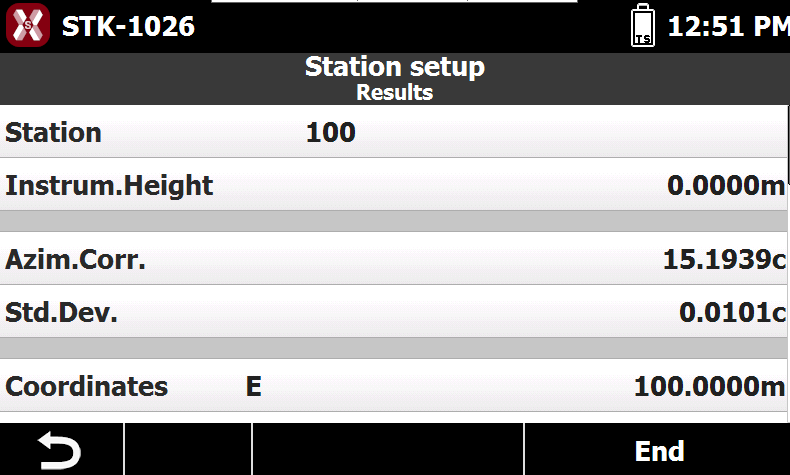
The measured points are reported in a table showing the differences calculated at each point and the total standard deviation on the orientation calculation.
-
Press Next to show the calculation results.
-
Press End to complete the setup.
Reference axis setup
-
Reference axis setup allows to setup the total station along a reference axis defining the origin and the direction.
-
From Station setup select Reference axis.
-
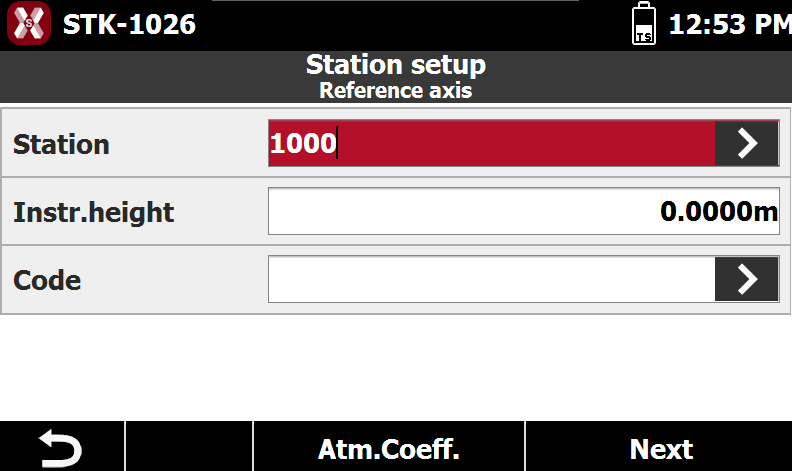
In reference axis page enter the station information.
-
Station: specifies the name of the station.
-
Instrument elevation: specifies the height of the total station above the ground.
-
Code: specifies the code to assign to the station point when creating a new point.
-
E,N,Z: coordinates of the station; if an existing point is selected, it’s not possible to edit the values.
-
-
Press Atm.Coeff. to specify the atmospheric corrections to apply.
-
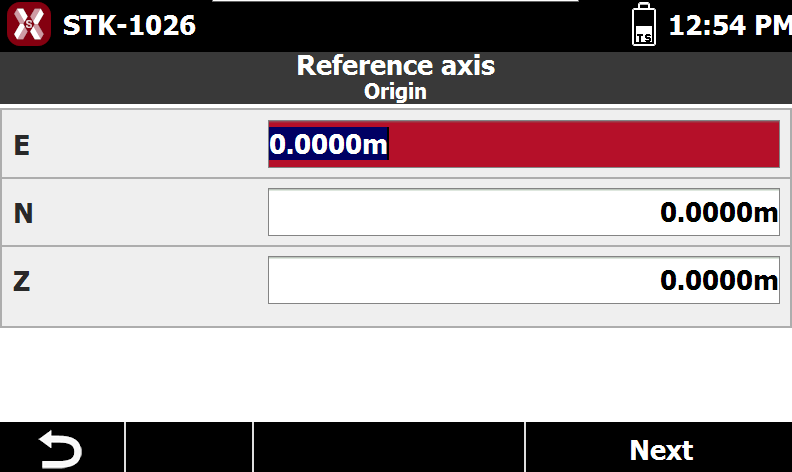
The page Origin allows to enter the coordinate of the origin of the reference axis.
-
ENZ: east, north and elevation of the reference axis origin.
-
-
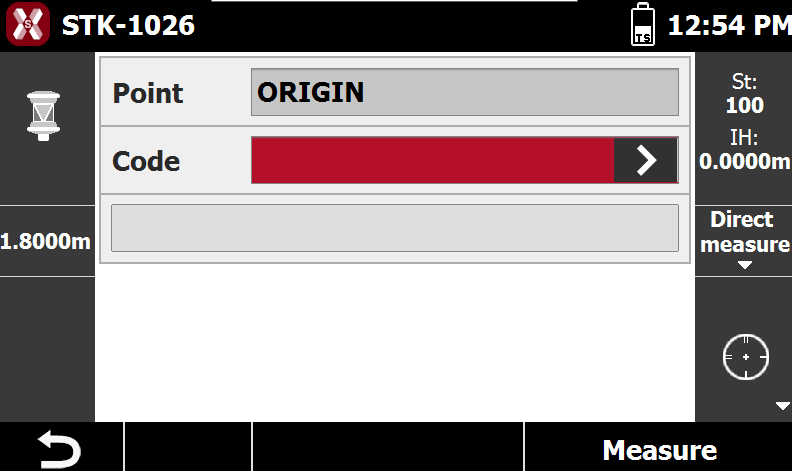
Press Next to measure the origin point.
-
Press Measure to proceed with measuring the origin of the entered reference axis.
-
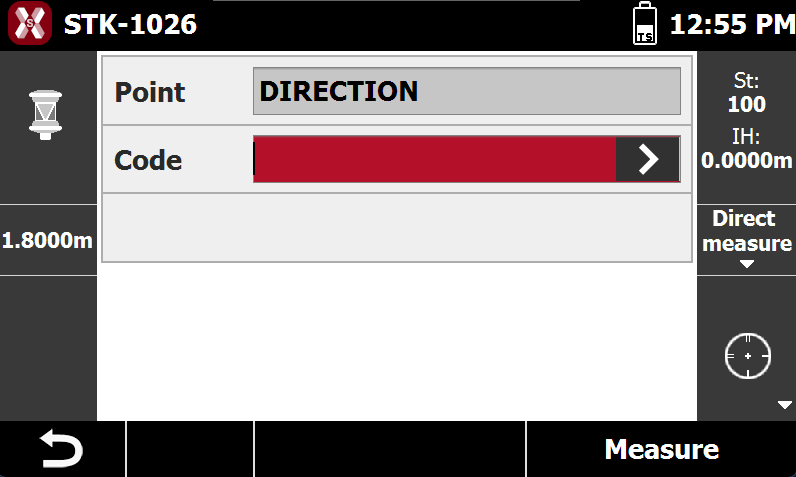
Then press Measure to measure the direction of the reference axis to complete the orientation.
-
Press End to accept the setup.
No orientation
-
No orientation setup allows to establish the total station position with an orientation.
-
From Station setup select No orientation.
-
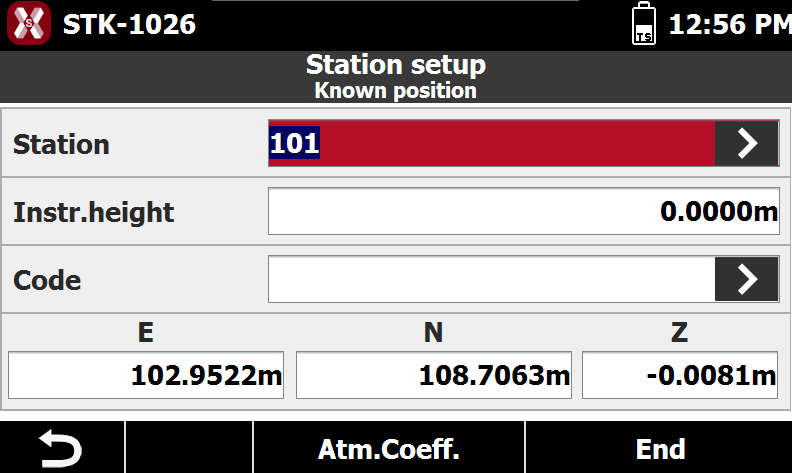
In known position page select the known station position.
-
Station: specifies the name of the station. It is possible to select an existing point.
-
Instrument elevation: specifies the height of the total station above the ground.
-
Code: specifies the code to assign to the station point when creating a new point.
-
E,N,Z: coordinates of the station; if an existing point is selected, it’s not possible to edit the values.
-
-
Press Atm.Coeff. to specify the atmospheric corrections to apply.
-
Press End to complete the setup.
Load internal TPS orientation
-
Some total stations can store the orientation made with other software.
-
With this function the internal orientation of the total station is loaded and set as the current orientation.
-
The orientation consists of the coordinates of the station and the instrumental height; it is assumed that the correction angle is equal to 0.
-
With this function it's possible to share the orientation between different sessions of X-PAD running on the external controller or onboard.
-
From Station setup select Load internal TPS orientation.
-
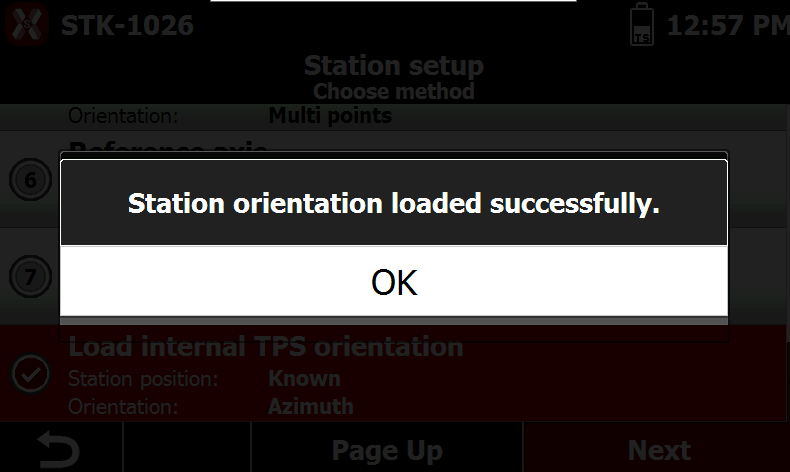
If an orientation is available this message is visualized.
-
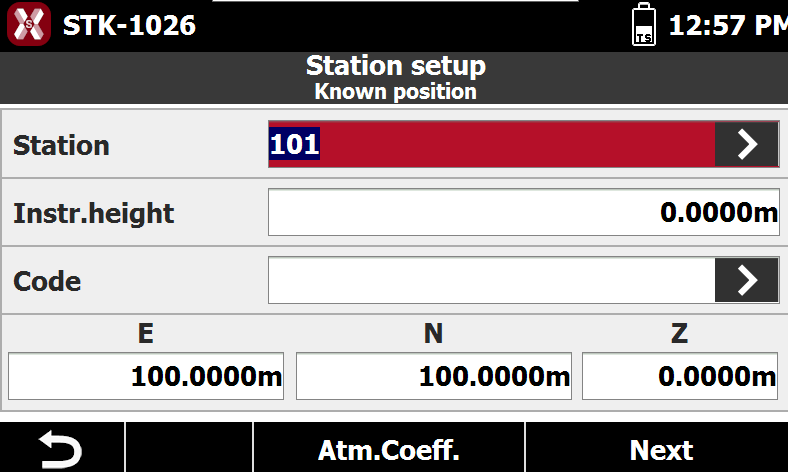
And the internal parameters are loaded.
-
Station: specifies the name of the station.
-
Instrument elevation: the height of the total station above the ground.
-
Code: specifies the code to assign to the station point.
-
E,N,Z: coordinates of the station.
-
-
Press Atm.Coeff. to specify the atmospheric corrections to apply.
-
Press Next to complete the setup.