
-
Virtual keyboard allows to insert alphabetic, numeric and symbols characters.
-
On the total station it’s possible to use also the physic keyboard, not only touch screen, to perform different operations.
Virtual keyboard
-
To access to virtual keyboard from every input field click inside the field itself.
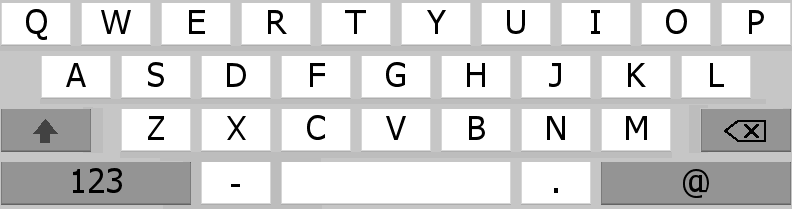
-
Press 123 to open the numberic keyboard.
-
Press @ to open the symbol keyboard.
-
Press ABC to open the alphabetic keyboard.
Instrument keyboard
-
It’s possible to use also the physic keyboard, not only touch screen, to perform different operations.
Main window
-
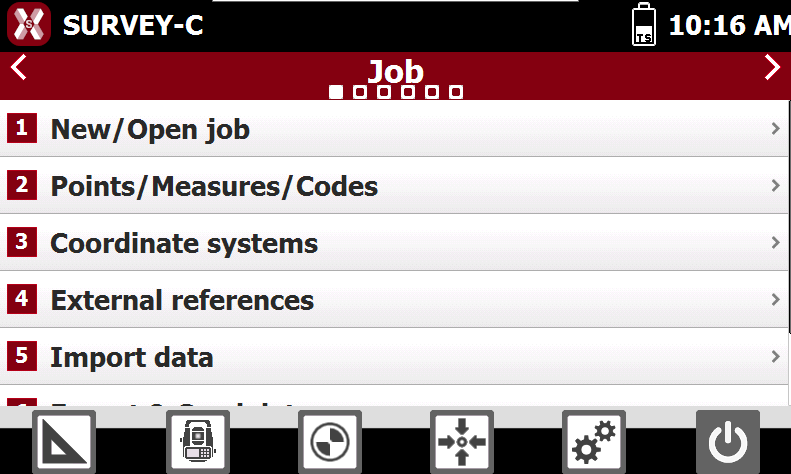
Operations that is possible to perform using instrument keyboard while in software main windows.
-
Numbers 1-9: select the corresponding item of menu.
-
LEFT arrow: pass to previous menu.
-
RIGHT arrow: pass to next menu.
-
UP Arrow: scroll up.
-
DOWN Arrow: scroll down
-
Windows with lists
-
Operations that is possible to perform using instrument keyboard while a list is visible on screen.
-
UP Arrow: scroll up.
-
DOWN Arrow: scroll down
-
Windows with 9 buttons
-
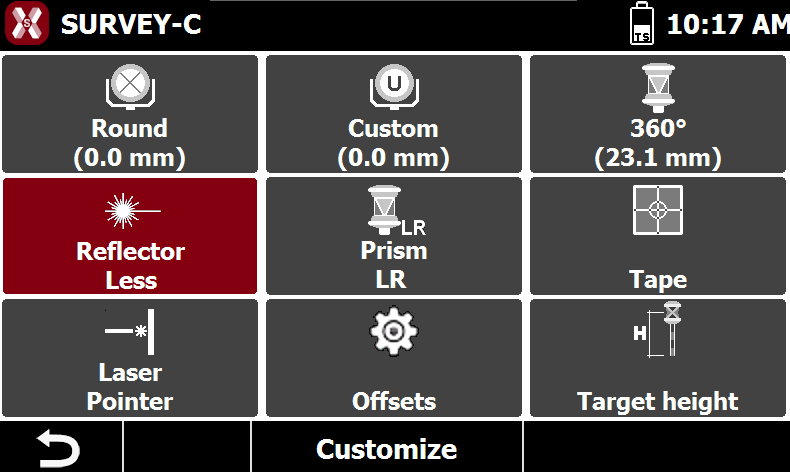
Operations that is possible to perform using instrument keyboard while on page with 9 boxes to select.
-
Numbers 1-9: select corresponding button.
All dialogs
-
Operations that is possible to perform in any dialog window.
-
ESC: closes the window.
-
Survey dialogs
-
Operations that is possible to perform in any survey window.
-
FNC + “.”: keyboard light.
-
OK: start/stop measuring.
-
ENTER: start/stop measuring.
-
STAR BUTTON: switch between prism and reflectorless.
-
FUNC + STAR BUTTON: switch off and on the laser pointer.
-
LEFT RIGHT arrow: switch the content of the panel with the result of the measurement.
-
Stakeout dialogs
-
Operations that is possible to perform in any stakeout window.
-
FNC + “.”: keyboard light.
-
OK: start measuring.
-
STAR BUTTON: switch between prism and reflectorless.
-
FUNC + STAR BUTTON: switch off and on the laser pointer.
-
LEFT RIGHT arrow: switch the content of the panel with the result of the measurement.
-
UP DOWN arrow: change the point to stakeout (only for stakeout points).
-
CAD
-
Operations that is possible to perform in the CAD window.
-
Arrows: moving view.
-
Popup dialogs
-
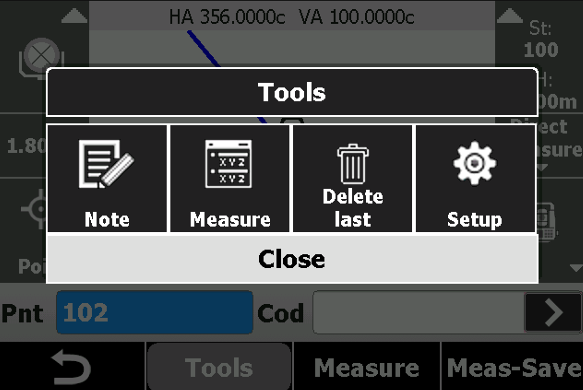
Operations that is possible to perform using instrument keyboard while a popup dialog is visualized.
-
Number 1-8: select corresponding button.
-
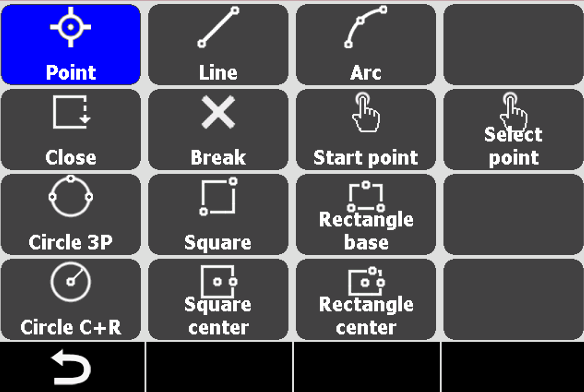
Smart drawing dialog
-
Operations that is possible to perform using instrument keyboard while the Smart drawing toolbox is visualized.
-
Arrow keys: navigate.
-
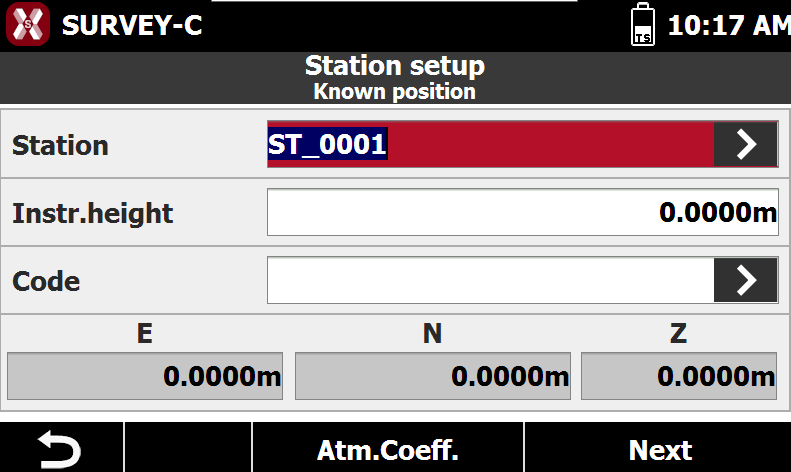
Input fields
-
Operations that is possible to perform using instrument keyboard while on page with input fields.
-
Left arrow: go back and delete.
-
Down Arrow: next input field.
-
Up Arrow: pPrevious input field.
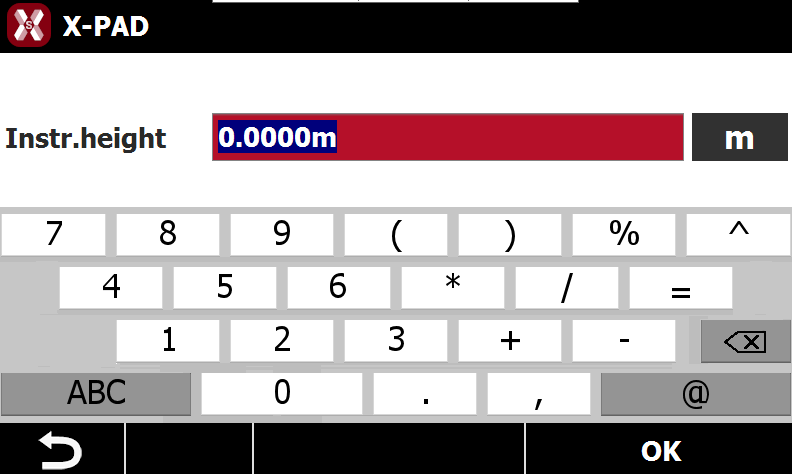
Text input fields
-
Operations that is possible to perform using instrument keyboard while on page with text input fields.
-
Press button until in the preview it appears the desired character.
-
1: 1
-
2: 2 A B C a b c
-
3: 3 D E F d e f
-
4: 4 G H I g h i
-
5: 5 J K L j k l
-
6: 6 M N O m n o
-
7: 7 P Q R S p q r s
-
8: 8 T U V t u v
-
9: 9 W X Y Z w x y z
-
0: 0 * space @
-
“.”: . # _ /
-
“-”: - +