
-
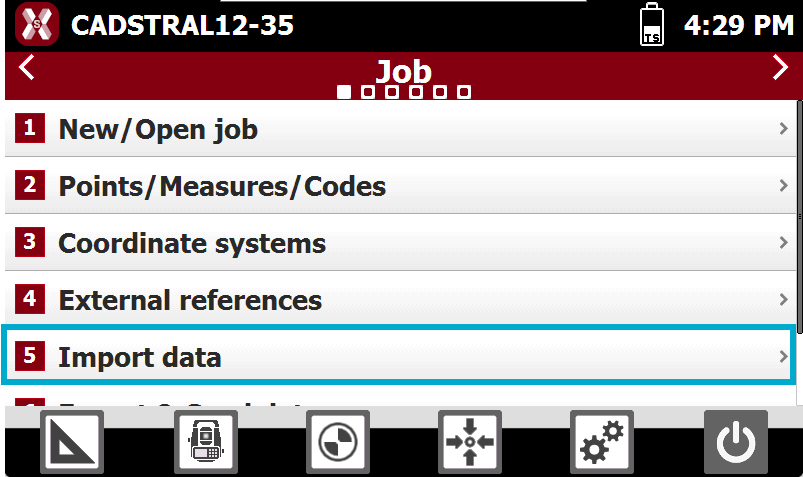
To import a file open the Job page.
-
Select Import data.
-
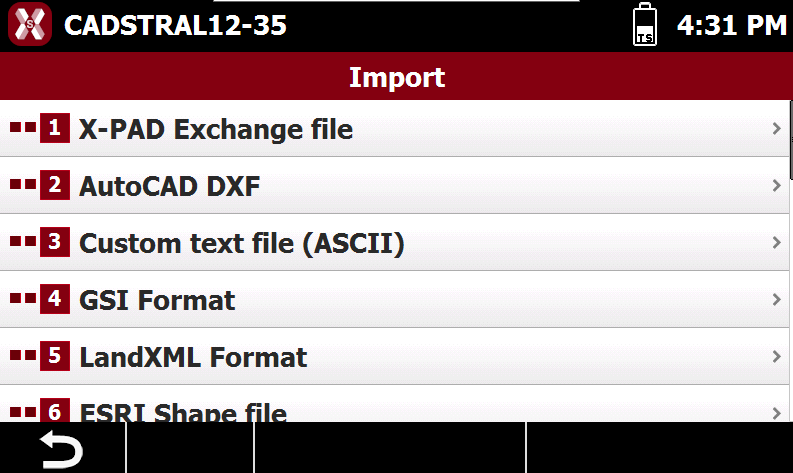
Select the data format to import.
-
X-PAD Exchange file: imports an X-PAD job in the .xpad format. For example a job file exported from Leica X-PAD or Fusion.
-
AutoCAD DXF: imports a DXF file containing drawing information and points.
-
Text file (ASCII): imports a file of points or codes in text format. Import parameters can be saved in a template.
-
GSI format: imports a file from a standard GSI format.
-
LandXML format: imports points, drawings, surfaces and road design data from a standard LandXML file.
-
Trimble DC: imports points and GNSS calibration data from Trimble DC format.
-
ESRI shape file: imports points, polylines and polygons from ESRI shape files format.
-
-
Select the file to import.
-
The data is imported in the current job.
Import an X-PAD Exchange file
This is the recommended format when importing data from Leica X-PAD or Fusion.
-
To load an X-PAD job in .xpad format from Import data select X-PAD Exchange format.
-
Select the file to import.
-
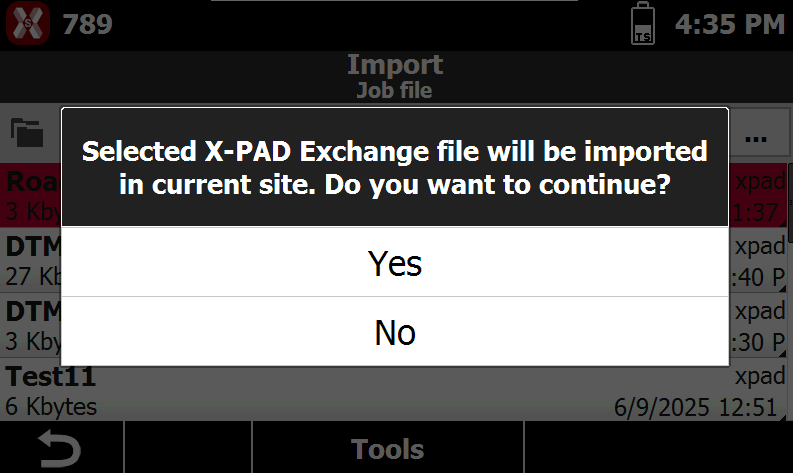
The selected X-PAD job is imported in the current site. The software shows the message.
-
The job is imported in the current site.
Import a DXF drawing
X-PAD can handle large files. However, for optimal performance on the controller, it is recommended to clean the file before importing it, for example by removing unused blocks, layers and layouts.
-
To load a drawing in DXF format from Import data select AutoCAD DXF.
-
Select the file to import.
-
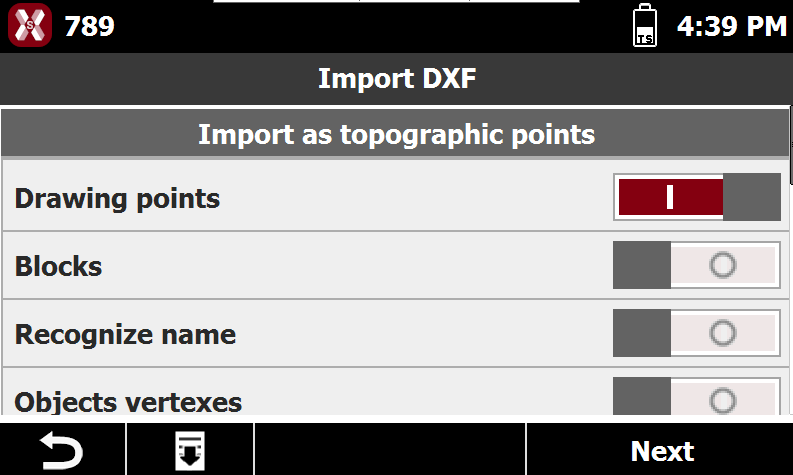
The import options are visualized.
-
Drawing points: activates the import of drawing points (POINT entity) as topographic points. These entities are considered topographic points and included in the Topographic point list.
-
Blocks: activates the import of blocks and block reference (INSERT entity).
-
Recognize name: activates the automatic recognition of the name of the point by searching of a text near the point. For every point to import, the software checks if a text exists near the position of the point. The text found is identified as the name of the point. Activate this option to keep the original point names from the drawings in DXF format.
-
Objects vertices: activates the automatic creation of topographic points on objects vertexes.
-
Start name: name to assign to the first point that is imported.
-
Select layerst: allows to choose the layers for import in a separate window.
-
Import 3D: activates the import of CAD entities including information related to the elevation. If this option is not active, all entities are imported with an elevation of zero.
-
Distance unit: sets the unit for the measurements of the drawing. During the import, the software performs the conversion in the unit of the job.
-
-
Press Import.
-
The drawing is imported in the job.
Import a text file (ASCII)
-
To load a formatted text file from Import data select Text file (ASCII).
-
Select the file to import.
-
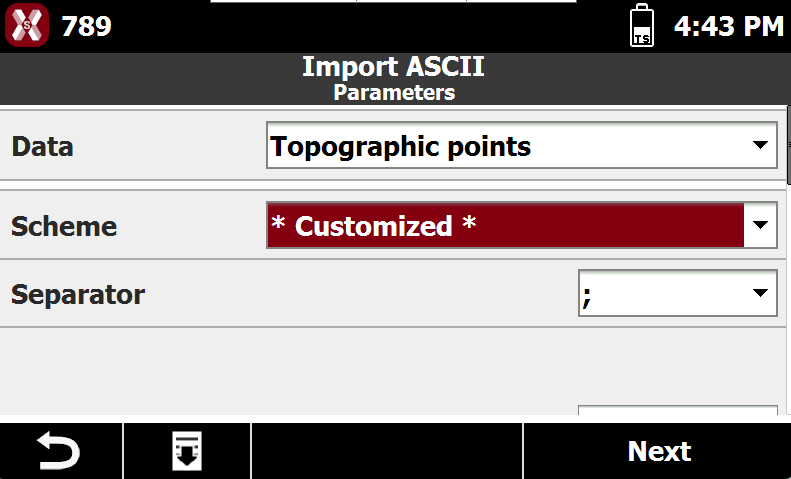
Enter the import parameters.
-
Data: selects what data to import.
-
Topographic points: to import a file with a list of topographic points. The points are imported in the Topographic point list.
-
Reference points: to import a file with a list of reference points. The points are imported in the Reference point list.
-
Codes: to import a file with a list of survey codes. The codes are imported in the Codes list.
-
-
Scheme: the currently available import scheme is suggested. Select a scheme or choose * Customized * to create a scheme.
-
Separator: character separating fields with content.
-
Heading rows: number of rows composing the heading in the file. Heading rows are not imported.
-
Lat.de/Long.de: selects the format of latitude and longitude when imported.
-
-
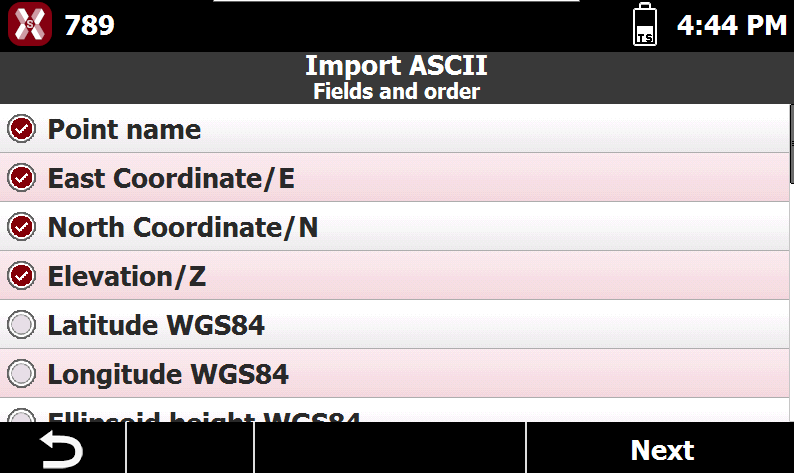
The list of the fields that can be imported is displayed in a table.
-
For * Customized * scheme select the fields to import and change the order using the buttons.
-

-
Move up: moves the field up in the list.
-
Move down: moves the field down in the list.
-
-
Press Next.
-
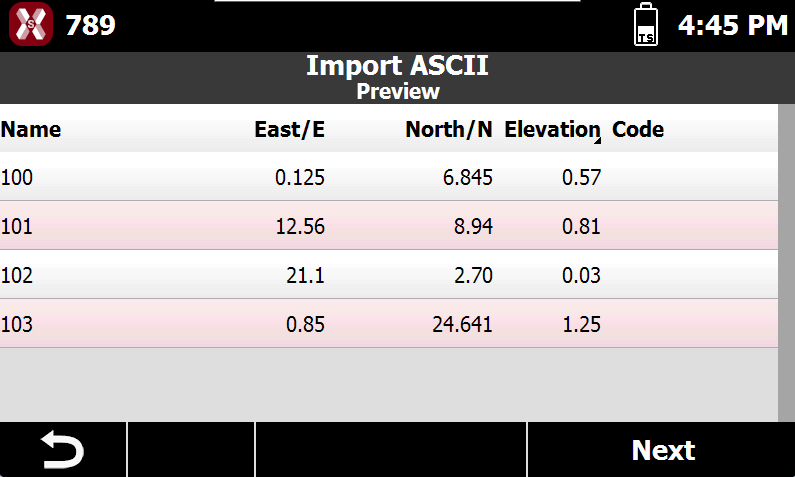
The software shows a preview of the imported data. Verify if the result is correct.
-
Press Next.
-
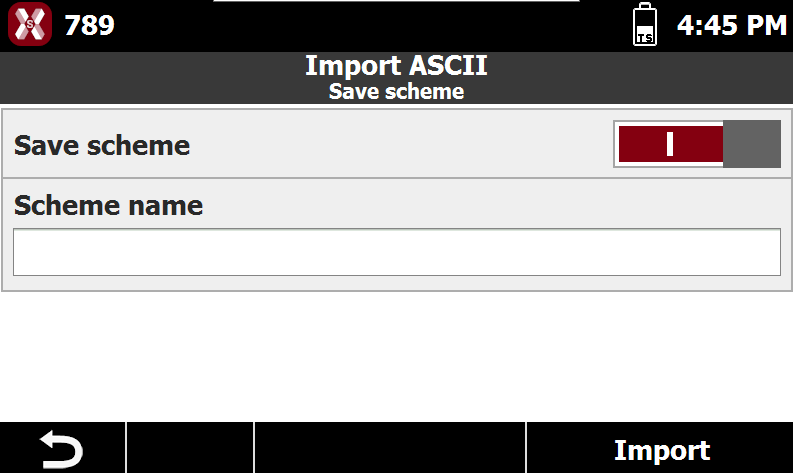
If the scheme was Customized, it is possible to save the scheme.
-
Save scheme: enables the saving of the used scheme.
-
Scheme name: the name of the scheme.
-
-
Press Import.
-
The software shows a report of the importation.
Import a LandXML file
-
The LandXML import allows to import topographic points, drawings, surfaces.
-
To load a file in LandXML format from Import data select LandXML format.
-
Select the file to import.
To import road design data in LandXML format refer to Import road data.
Import a Trimble DC file
-
To load a file in Trimble DC format from Import data select Trimble DC.
-
Select the file to import.
-
The software shows a report of the imported entities.
-
Press Accept.
Import an ESRI shape file
-
-
To load a file in ESRI shape file format from Import data select ESRI shape file.
-
Select the file to import.
-
The software shows a report of the imported entities.
-
Press Accept.
-
Import a GSI file
-
-
To load a file in GSI format from Import data select GSI Format.
-
Select the file to import.
-
The software shows a report of the imported entities.
-
Press Accept.
-