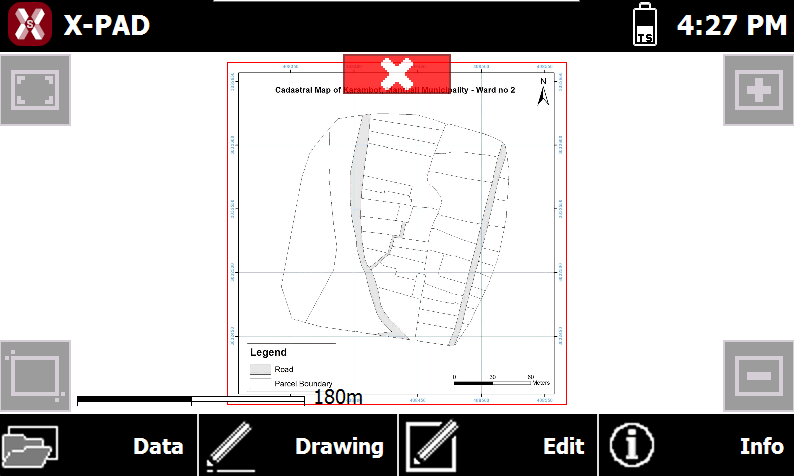
X-PAD allows to load external files as references from different file formats.
Load an X-PAD job
-
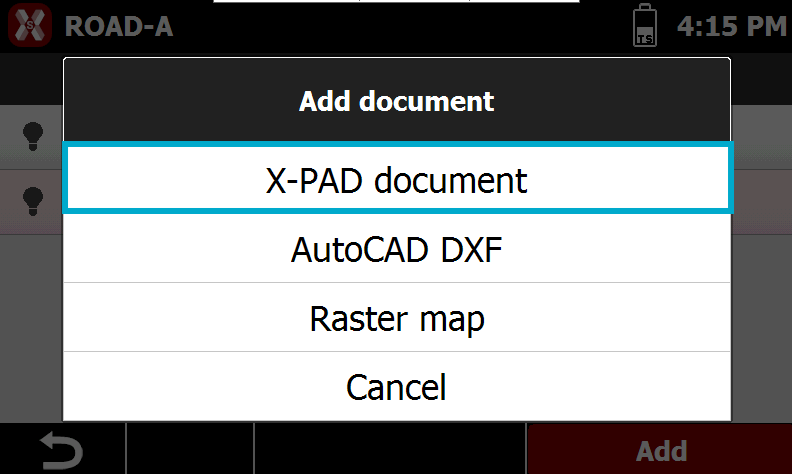
To load another X-PAD job as external reference from the External references page press Add.
-
Select X-PAD document.
-
Select the reference X-PAD job in .gfd4 format from the internal memory or from the cloud.
-
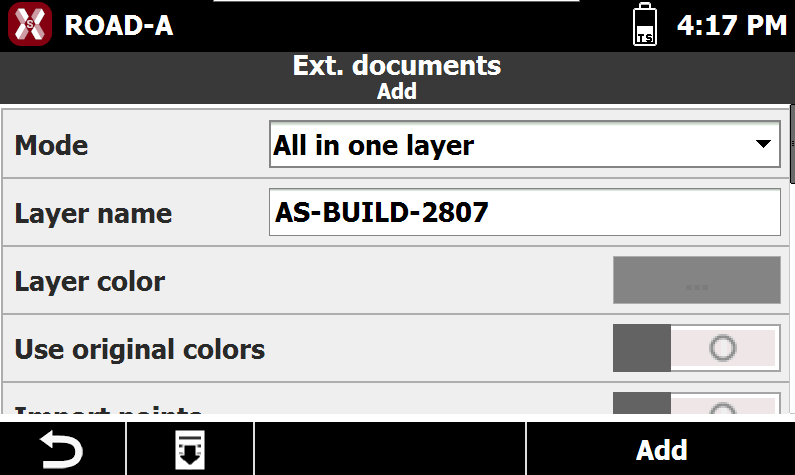
Enter the requested parameters.
-
Mode:
-
Original layers: the data is loaded mantaining the original layer.
-
All in one layer: the data is loaded in one layer.
-
-
If All in one layer is selected these additional options are visible:
-
Layer name: the name of the layer where data is loaded.
-
Layer color: the color of the layer where data is loaded.
-
Use original colors: if enabled, uses the original data color.
-
-
Import points: allows to import topographic points. If enabled allows to define a point ID prefix in Points prefix.
-
-
Press Add.
Load a DXF drawing
-
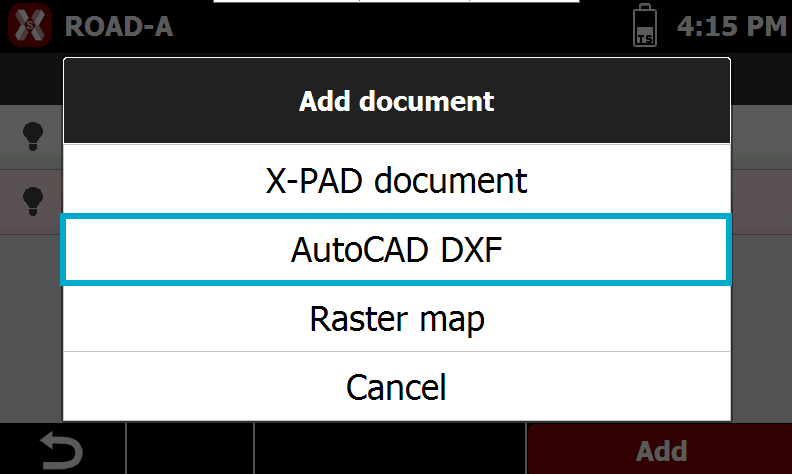
To load a DXF drawing as external reference from External references page press Add.
-
Select AutoCAD DXF.
-
Select the file from the internal memory or from the cloud.
-
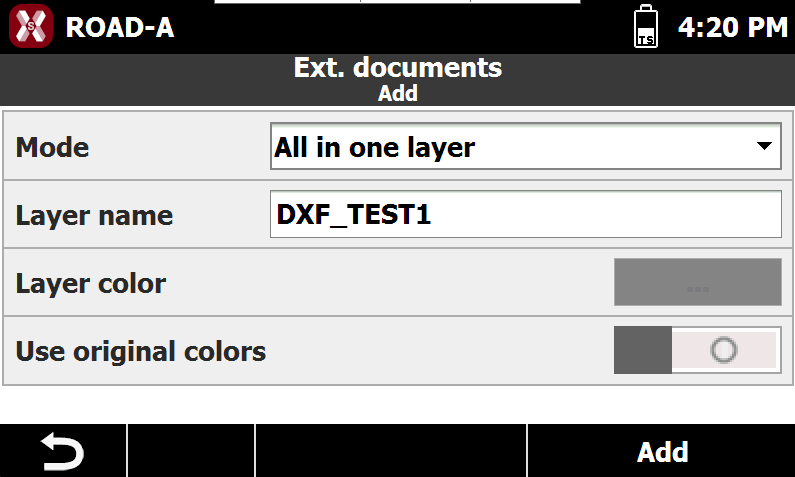
Enter the requested parameters.
-
Mode:
-
All in one layer: the data is loaded in one layer with the name of the external document.
-
-
Layer name: the name of the layer where data is loaded.
-
Layer color: the color of the layer where data is loaded.
-
User original color: if enabled, uses the original data color.
-
-
Press Add to load the file.
Load a raster map
-
Raster maps can be loaded to be used in background.
-
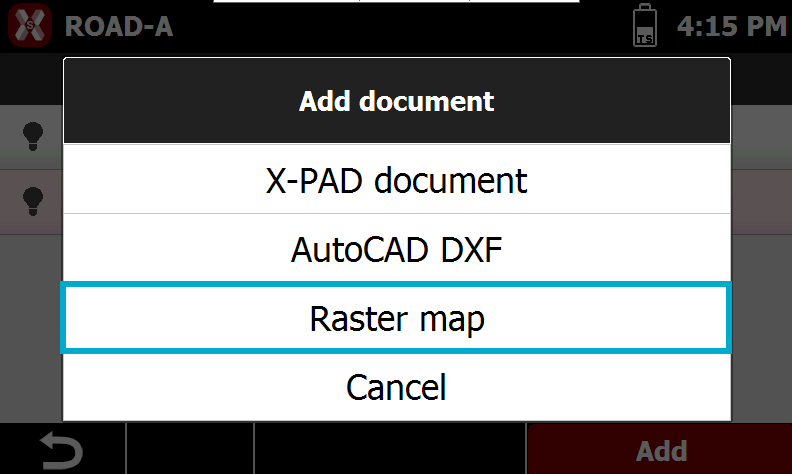
To load a raster map from External references page select Add.
-
Select Raster map.
-
Select the file from the internal memory or from the cloud.
-
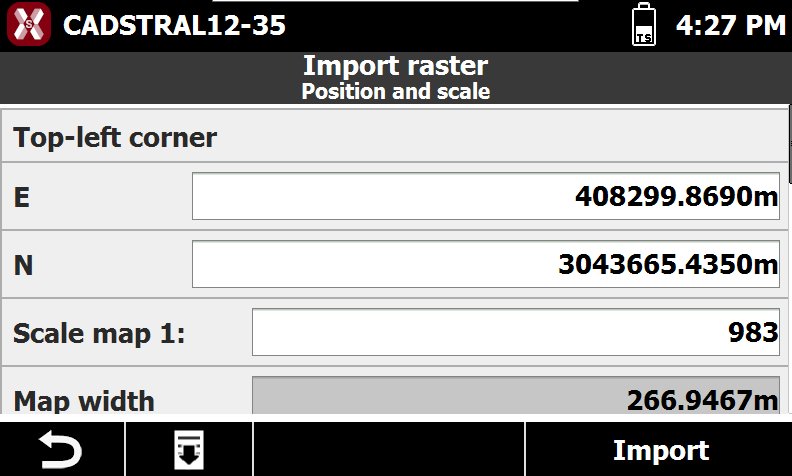
Define position and scale.
-
Top-left corner: coordinates of the top-left corner in which to position the image
-
Scale map 1: scale factor to assign to the map for correct representation.
-
If the file of the image comes with the World file, the positioning parameters allowing to visualize the image in the correct position and dimension are just visualized.
-
Press Import to load the file.
-
The raster image is loaded in background.