
-
The cartographic system can be used both for calculation of the geographic coordinates and for calculation of the scale factor to apply to distances measured with total station.
-
In definition of the cartographic system it’s possible to choose one among predefined systems or to define in complete way your own system with all the parameters.
Select a predefined system
-
The software has a wide list of coordinate systems used in different countries and immediately usable.
-
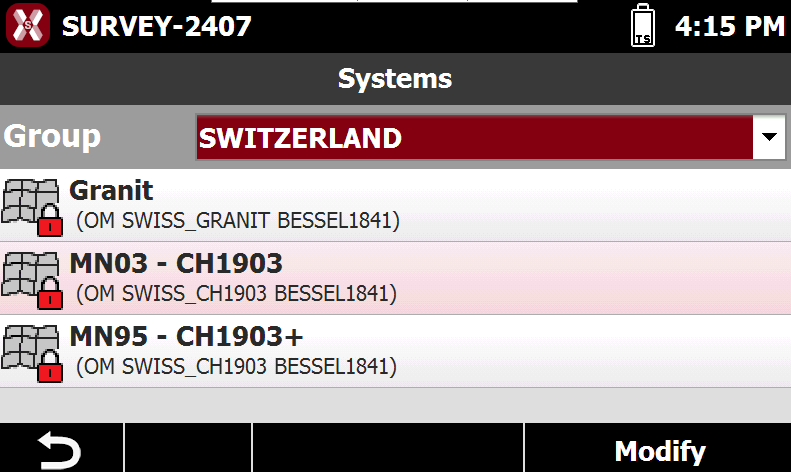
It’s proposed the list of the systems available among which to choose the desired one. The systems are organized by country but it’s also available a ** USER ** in which are saved systems created by the user.
-
To load a predefined system from the Job page select Coordinate systems.
-
Select GPS Localization and select Cartographic system. Press Next and press Yes to select a predefined system.
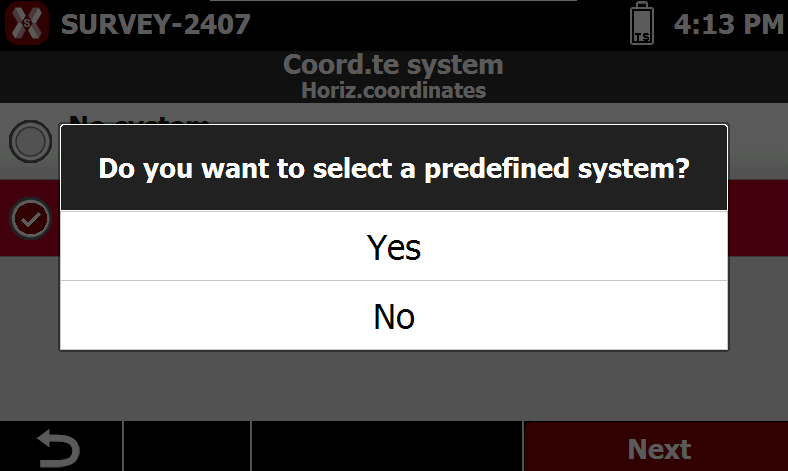
-
Select the country from the Group drop down list and tap on the desired cartographic system.
-
The software shows the parameters of the selected system. Press Next to visualize the parameters and complete the selection.
If a predefined coordinate system is missing please contact the technical support.
Create a new system
-
The software allows to create a new system defining projection, datum and ellipsoid.
-
To create a system from the Job page select Coordinate systems.
-
Select GPS Localization and select Cartographic system. Press Next and press NO when asked to select a predefined system.
-
The software asks to enter the new system parameters.
Projection & Datum
-
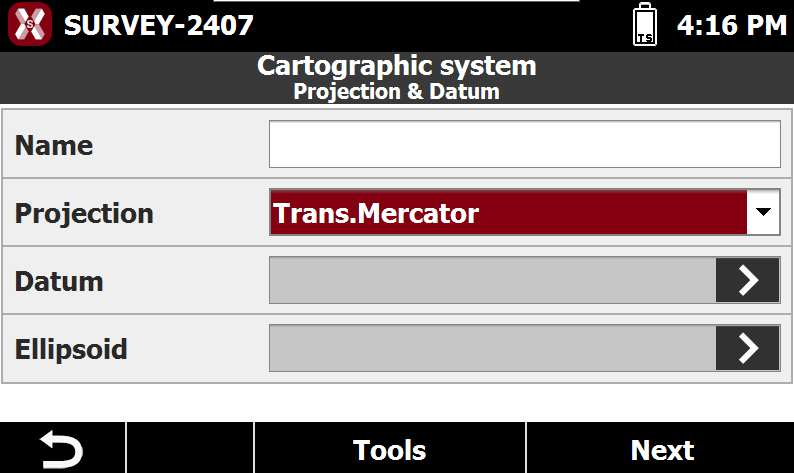
The page allows to enter the main system parameters.
-
Name: name of the new system.
-
Projection: defines the type of cartographic projection to be used.
-
Datum: defines the datum used to transform coordinates from the WGS84 ellipsoid to the ellipsoid of the selected cartographic system.
Tap the field to open the window listing predefined datums and user-defined datums. -
Ellipsoid: defines the ellipsoid of the selected cartographic system. Tap the field to open the window listing predefined ellipsoids and user-defined ones.
-
Parameters
-
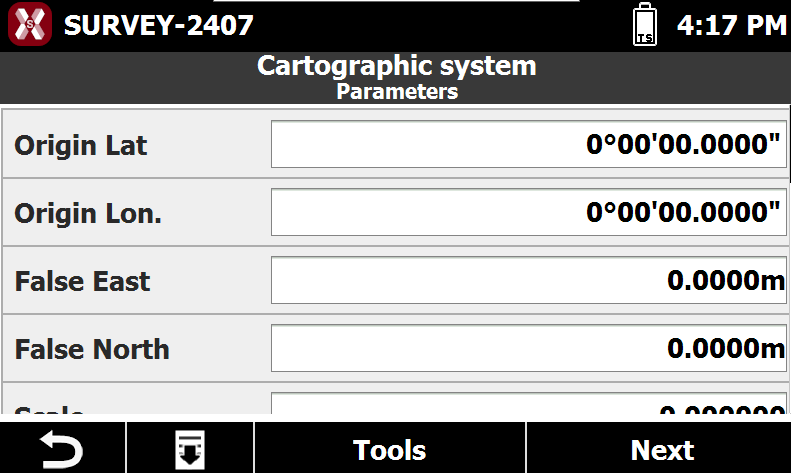
The Parameters page allows to enter the projection parameters, depending on the Projection type selected in the previous page.
Save the current system
-
A cartographic system can be saved in the .pcs X-PAD file to be loaded also from different controllers.
-
To save the current system open the Coordinate system page.
-
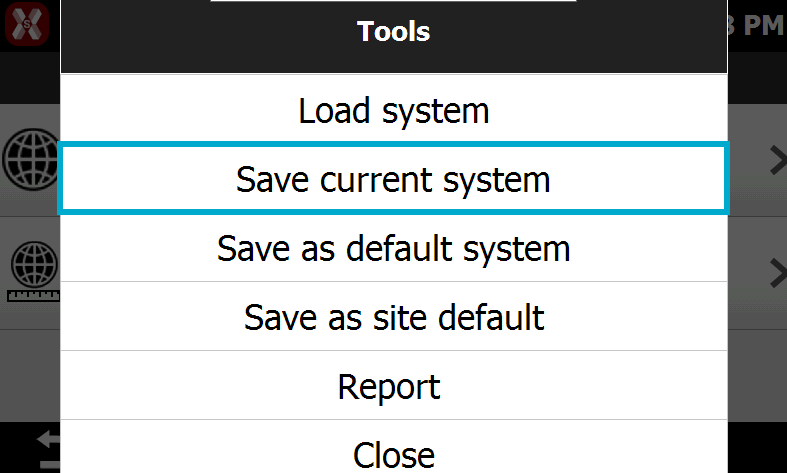
Press Tools and select Save current system.
-
Select the saving folder to save the system in a file with .pcs extension.
Save as default system
-
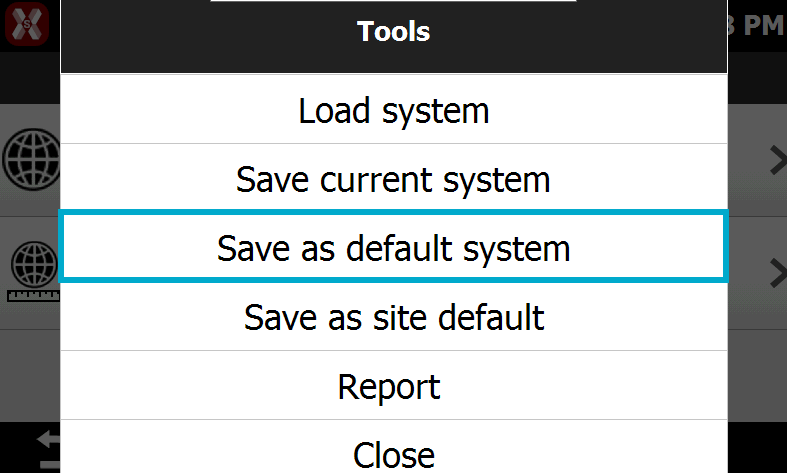
The command Save as default system allows to save the current cartographic system as default for all new jobs.
-
To set the current system as default open the Coordinate system page.
-
Press Tools and select Save as default system.
Save as site default
-
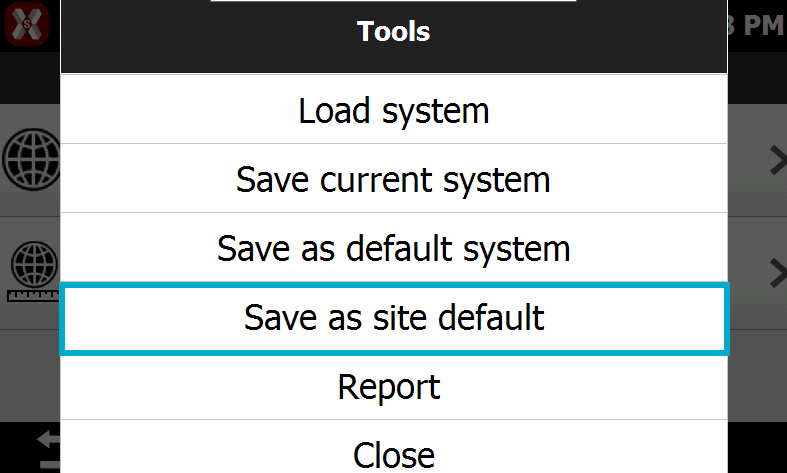
The command Save as site default allows to save the current cartographic system as default for the current job site. All jobs created in the site will have the system as default.
-
To set the current system as default for the site open the Coordinate system page.
-
Press Tools and select Save as site default.
Load system
-
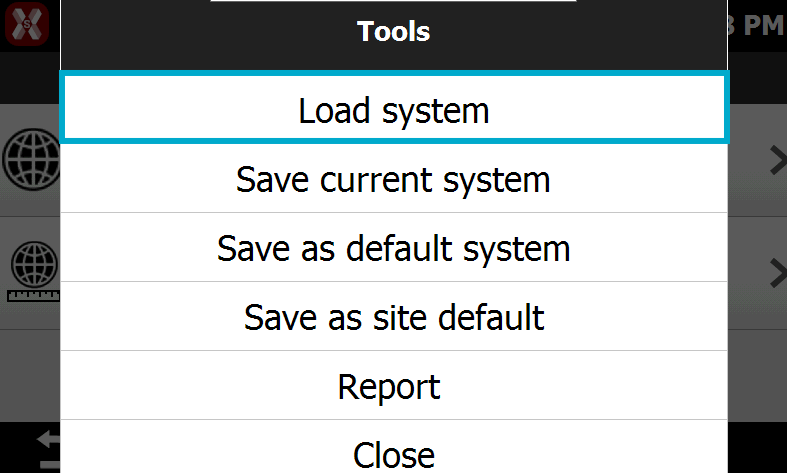
The command Load system allows to load a system from a X-PAD .pcs file.
-
To load a system open the Coordinate system page.
-
Press Tools and select Load system.
-
Select the file from the memory to load it.
Coordinate system report
-
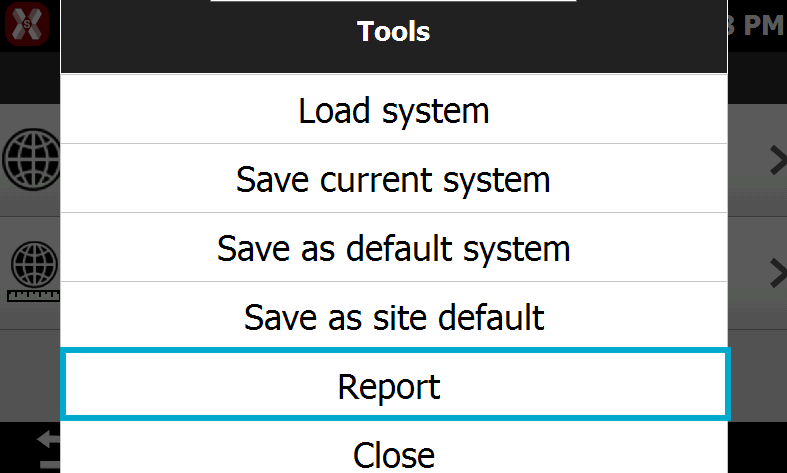
The function allows to export the coordinate system report in different formats.
-
To create the report open the Coordinate system page.
-
Press Tools and select Report.
-
Select the export format:
-
Excel XML: the report is exported in Excel XML format, allowing it to be opened directly in Microsoft Excel while preserving structure and formatting.
-
Excel CSV: the report is exported as a comma-separated values (CSV) file, suitable for import into spreadsheet applications and compatible with a wide range of software.
-
-
Select the saving folder and press Save to save the report.