The information contained in this chapter covers the standard first steps for using the software. For detailed descriptions of all features, advanced workflows, configuration options, and reference information, refer to the complete User Manual. The full manual provides comprehensive documentation for all functions and capabilities available in the software.
-
This page explains the basic steps on how survey points and lines.
-
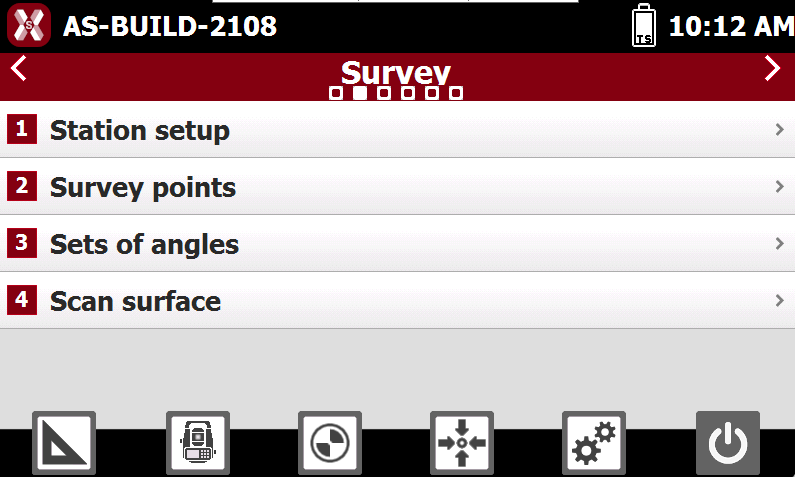
The survey functionalities are listed in the Survey page.
-
The main application to survey points as lines is Survey points. Press Survey points to open the function.
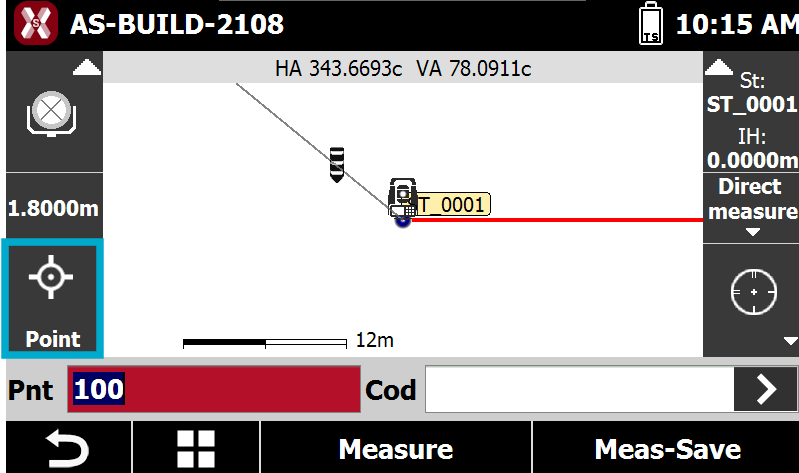
Survey interface
-
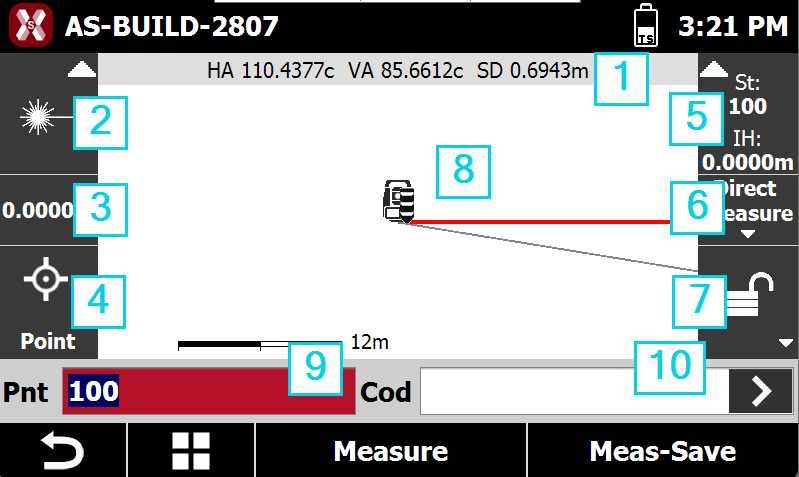
The Survey interface is explained below.
-
Angles: displays the current horizontal and vertical angles of the total station.
-
Current target: displays the type of target currently in use. Tap the panel to open the settings and edit the target type.
-
Target elevation: displays the current elevation associated with the target. Tap the panel to modify the value.
-
Smart Drawing – drawing during survey: displays the current status of the Smart Drawing function. Tap the panel to select the drawing tool or the operation to perform.
-
Current station: displays the name and elevation of the current station. Tap the panel to open the window for changing the station orientation.
-
Measure mode: changes the measure mode.
-
Lock prism status: shows the lock prism status, if the prism is locked, unlocked or instrument is working with automatic aim. Press this box to open the Control panel.
-

-

-

-
-
Graphic area: graphic view with visualization of the survey and the drawing. Tapping twice in the graphic part parte you access to the main CAD window. The red line indicates the total station orientation, the grey line indicates the current total station direction.
-
Point ID: the next point will be measured with this point ID. Tap on the field to change the ID.
-
Survey code: allows to enter a survey code. See Survey code assignment for more information.
Measure points
-
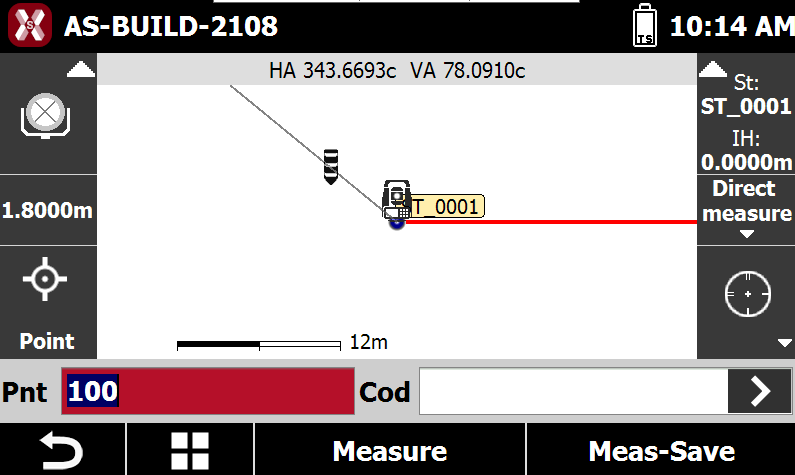
If the compensator is leveled it is possible to measure the target using the current target settings.
-
Verify that pole height and target type are correct.
-
Press Meas-Save to quickly measure and record the result in the job.
-
Press Measure to measure the point and review the result, with the possibility to include additional information and a photo.
-
The point is measured with the ID defined in Pnt field and the survey code defined in Cod.
Drawing during the survey
-
X-PAD has powerful and intuitive tools to draw during the survey, called Smart Drawing Tools.
-
These tools helps to create the final drawing directly in the field.
Combine Smart Drawing tools with Survey codes and layers to have the final drawing on the final layers completed in the field.
A more advanced method to survey lines called Multiple lines is also available.
-
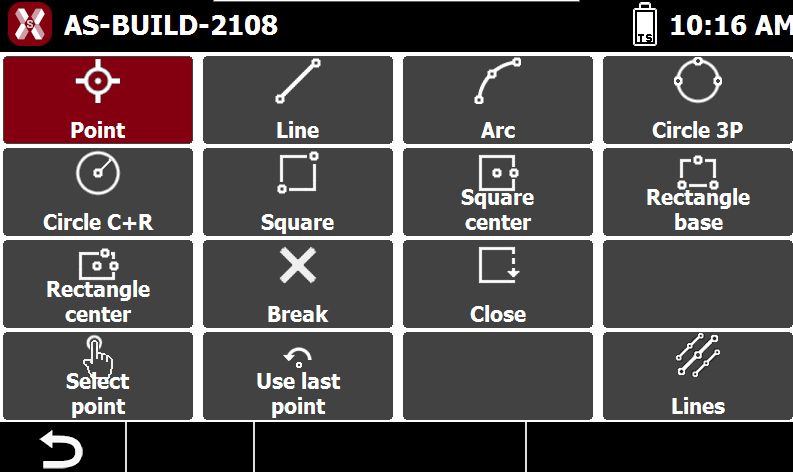
To start to draw press the Smart Drawing Tools button.
-
This opens the list of drawing elements to select.
-
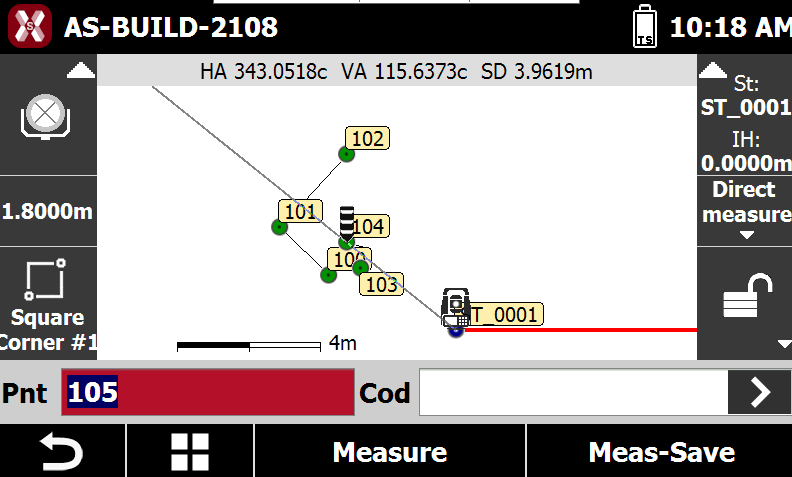
Select the desired drawing element to draw when measuring points.