
The information contained in this chapter covers the standard first steps for using the software. For detailed descriptions of all features, advanced workflows, configuration options, and reference information, refer to the complete User Manual. The full manual provides comprehensive documentation for all functions and capabilities available in the software.
-
To start X-PAD Survey press on X-PAD icon on instrument desktop.

-
After X-PAD Survey is started, the first page allows to verify and adjust the e-level.
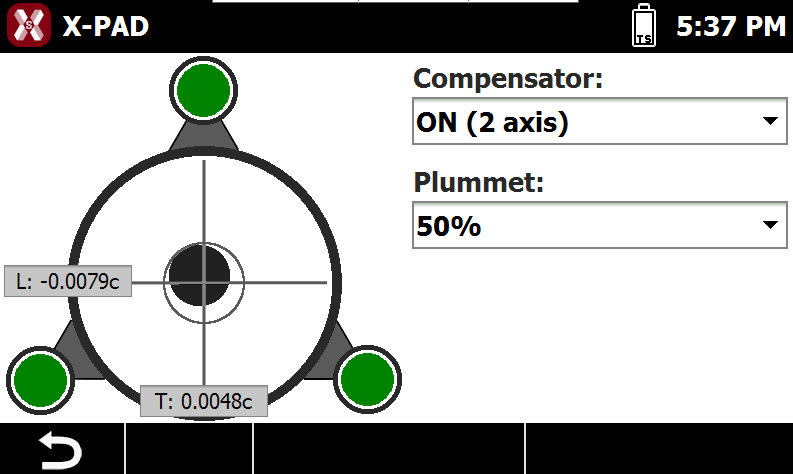
-
Press Back to open the TPS Basic application. The application allows to quickly take measurements without performing a station orientation.
-
See TPS Basic application for more information.
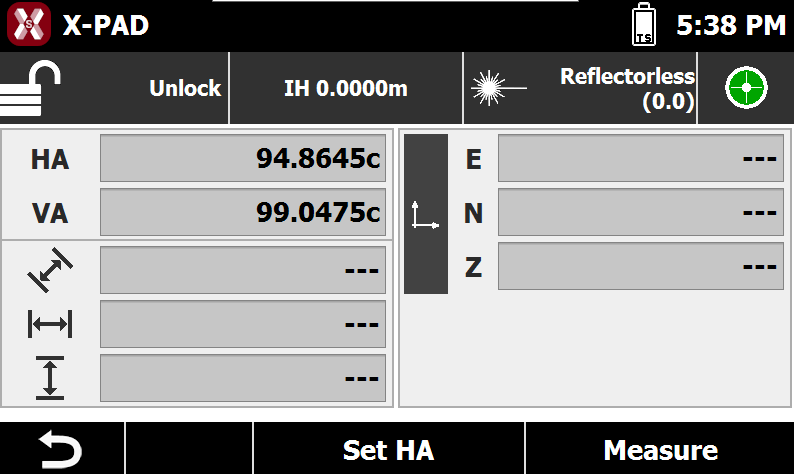
-
Press Back to close the application.
-
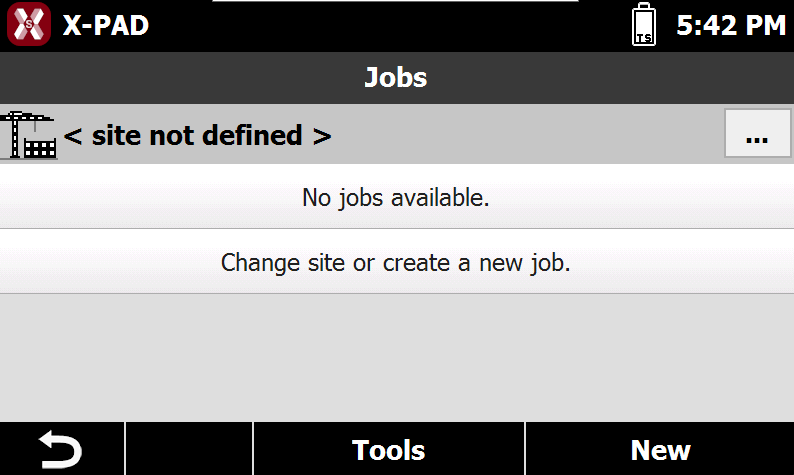
The software opens the last selected site with the list of jobs in the site.
-
If this is the first time the software is started, the jobs are not created in a customized site and there are no jobs.
-
Press

-
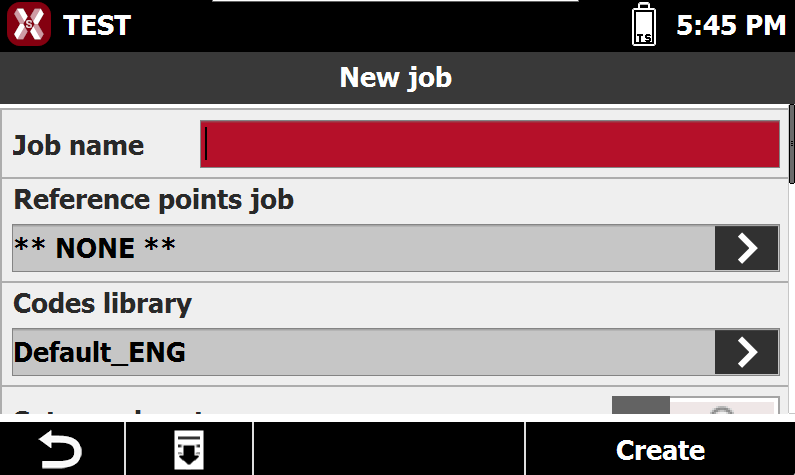
If in the default site, or in the new created site, press New to create a new job.
-
Job name: name of the job to create.
-
Reference points job: you can create a link between the new job and an existing job; when you open the job, the points present in the reference job will be loaded in the new job as reference points and they can be used for all the operation of orientation of the total station.
-
Codes library: a survey codes library to link with the job. The library contains a list of codes, descriptions and symbols that can be used to describe the measured points.
-
Set coordinate system: if enabled, allows to select a coordinate system when the job is created.
-
Note: descriptive notes of the job.
-
-
Press Create to create and open the job.