
The information contained in this chapter covers the standard first steps for using the software. For detailed descriptions of all features, advanced workflows, configuration options, and reference information, refer to the complete User Manual. The full manual provides comprehensive documentation for all functions and capabilities available in the software.
-
This page explains the basic steps on how stakeout using a total station.
-
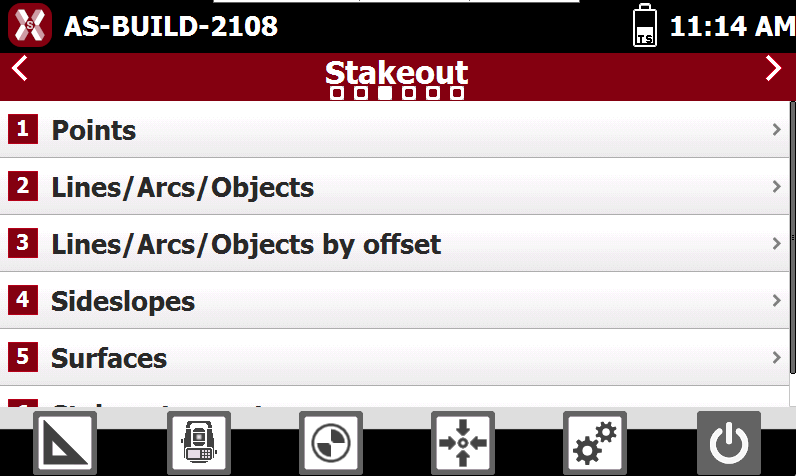
The stakeout functionalities are listed in the Stakeout page. The software offers different stakeout functions, from stakeout single points, to stakeout polylines and complex elements.
-
The stakeout interface is very similar using the different functions, for this example we will use Points.
Stakeout mode
-
To stakeout points and coordinates select Points.
-
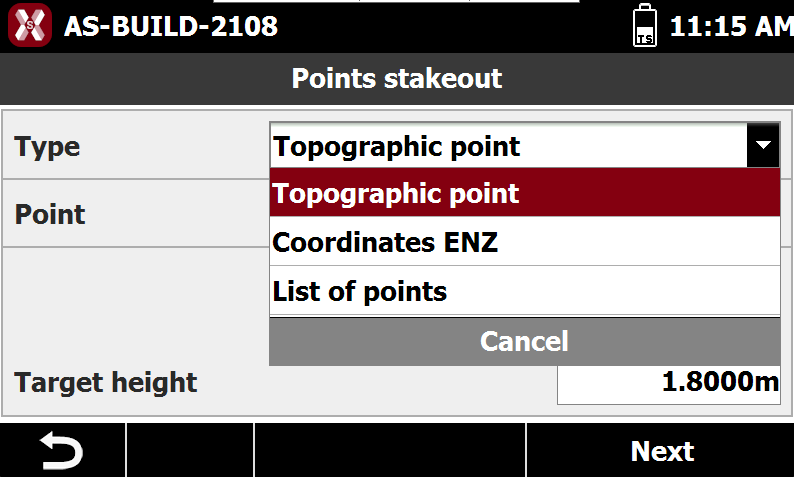
Select the points to stakeout.
-
Topographic point: select a point to stakeout from list of points or from CAD.
-
List of points: creates a list of topographic points to stake. This option allows to create a table with a list of points to stakeout. The points can be loaded from CAD or selected from the point list. The list can be saved and loaded from a file.
-
Coordinates ENZ: manual definition of East, North and elevation to stake.
-
-
After the point to stakeout has been defined, the TPS Point stakeout page is opened.
It is possible to stakeout a point also starting from CAD.
Stakeout interface
-
This unified approach allows operators to work efficiently with different stakeout procedures while using the same navigation and guidance principles to reach the position to be staked out accurately.
-
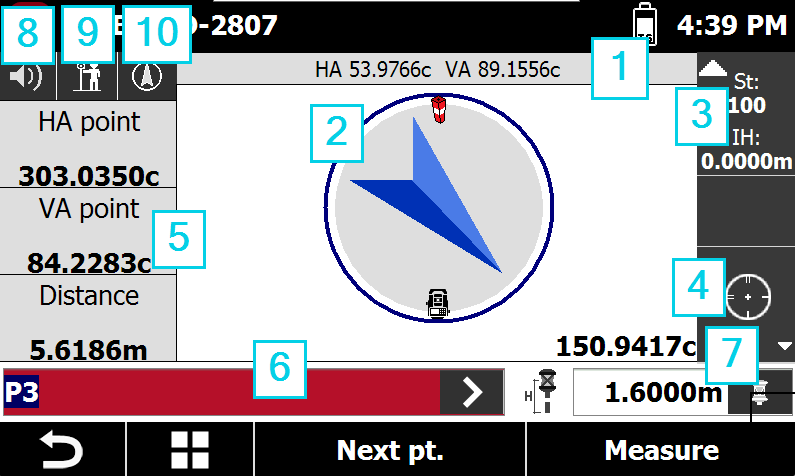
Angles: displays the current horizontal and vertical angles of the total station.
-
Graphic area: graphic view with stakeout indications. Tapping twice in the graphic area changes the visualization mode.
-
Current station: displays the name and elevation of the current station. Tap the panel to open the window for changing the station orientation.
-
Lock prism status: shows the lock prism status, if the prism is locked, unlocked or instrument is working with automatic aim. Press this box to open the Control panel.
-

-

-

-
-
Numeric indications to reach position: indications to reach the point to stakeout.
-
Point ID: the point to stakeout. Press > to change point.
-
Current target and elevation: displays the type of target currently in use and the target height. Tap the panel to open the settings and edit the target type.
-
Audio: enables/disables the audio indications.
-
Reference: changes the stakeout reference.
-

-

-

-
-
View mode: press to change the view mode.
Stakeout procedure
-
-
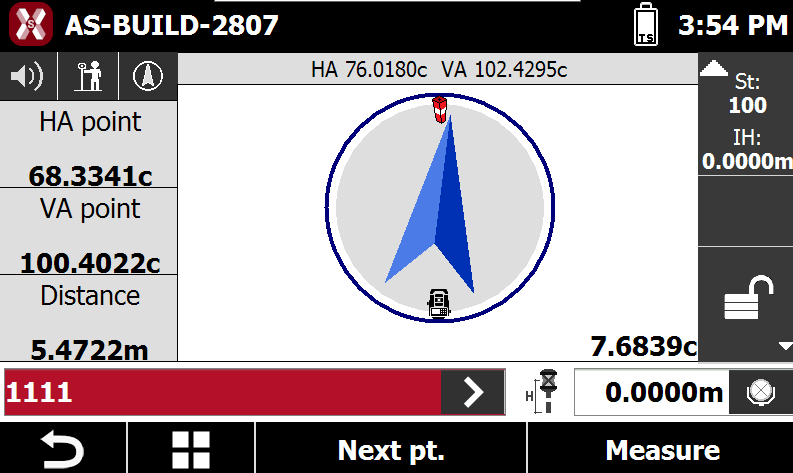
The view shows the current instrument direction and the target direction.
-
-
Rotate the station toward the stakeout position. In the lower part of the panel it’s reported the distance in meters, and the difference of angle, between the current direction and the stakeout point.
-
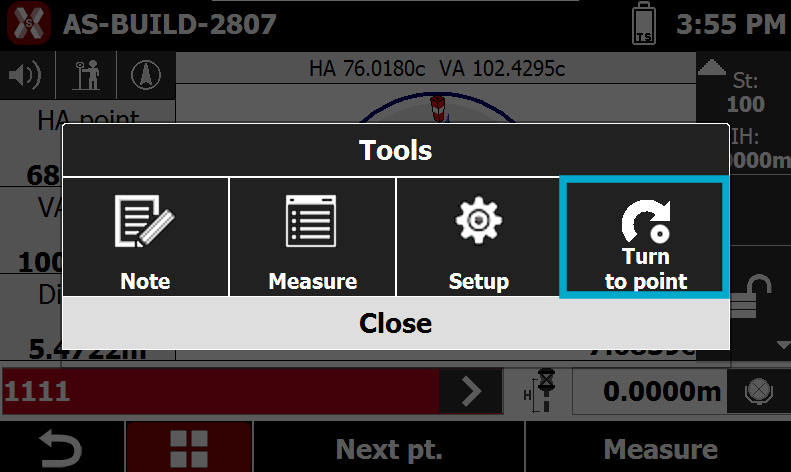
It also possible to press Tools and Turn to point to automatically rotates the TPS in the correct direction.
-
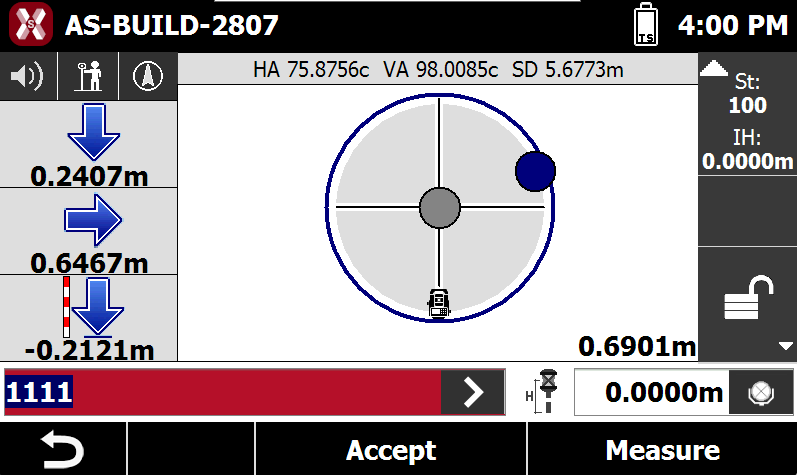
When it’s performed a measure the panel shows the position of the target referring to the station and referring to the stakeout position.
Changing EDM mode to Tracking allows continuous measurement of the prism, providing a continuous position of the target while in tracking mode.
-
In the lower part of the panel it’s reported the distance between the target and the stakeout position.
-
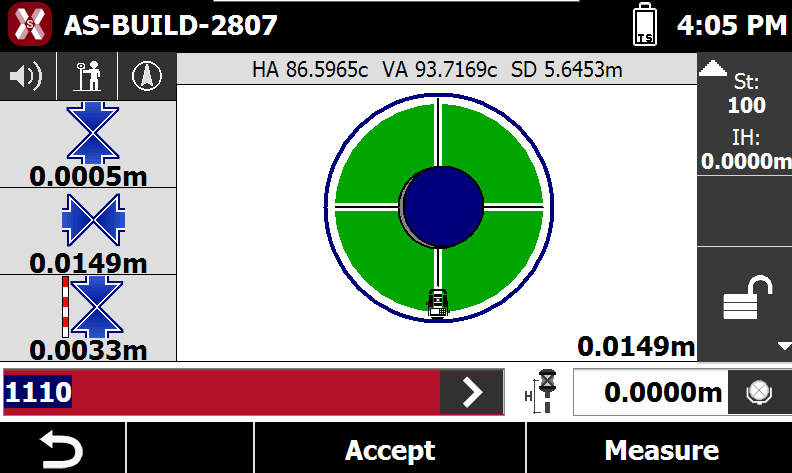
When you are near the position to reach, inside tolerance values, the circle becomes green.
It is possible to press 
-
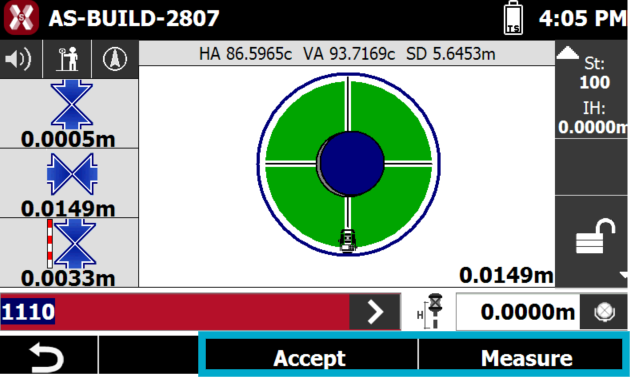
To record the stakeout reading use the commands in the bottom bar.
-
Measure: starts the measurement of the stakeout position. After reaching the target position, perform a measurement to verify the final location.
-
Accept: records the measured position.
-
-
After pressing Accept, the software displays a summary of the stakeout results and related stakeout information. Press Next to complete the recording procedure.