
Create a new point
-
To manually create a new reference point press New.
Name and coordinates
-
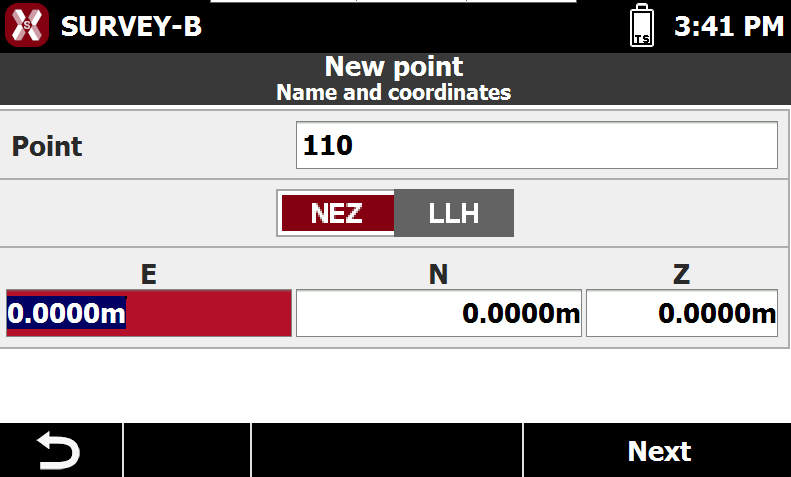
The page Name and coordinates allows to enter the point name and point coordinate.
-
Point: name of the point.
-
Coordinates Format: allows you to choose whether to display plane coordinates or geographic coordinates for the point.
-
NEZ: displays the plane coordinates of the point (Northing, Easting, Elevation).
-
Lat. / Long. / Elevation: displays the geographic coordinates of the point (Latitude, Longitude, Elevation).
-
Code and properties
-
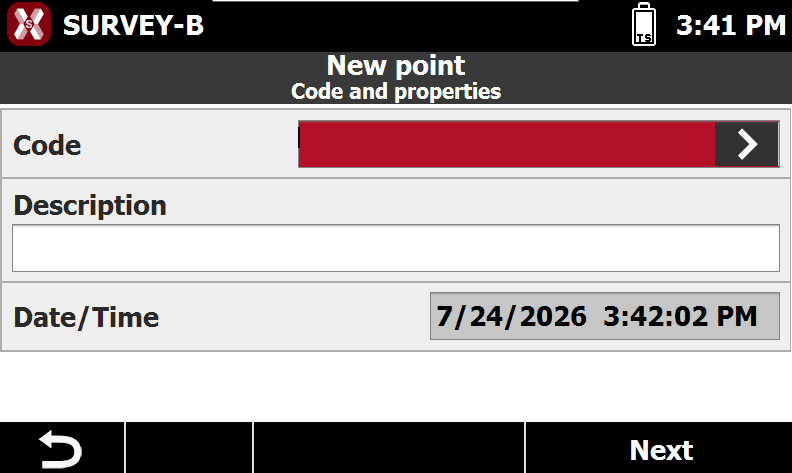
The page Code and properties defines the point code and description.
-
Code: displays the survey code associated with the point. Use the button to open the code library and select a code from the list.
-
Description: displays an extended description of the point.
-
Date: displays the date and time when the point was saved.
-
Sketch
-
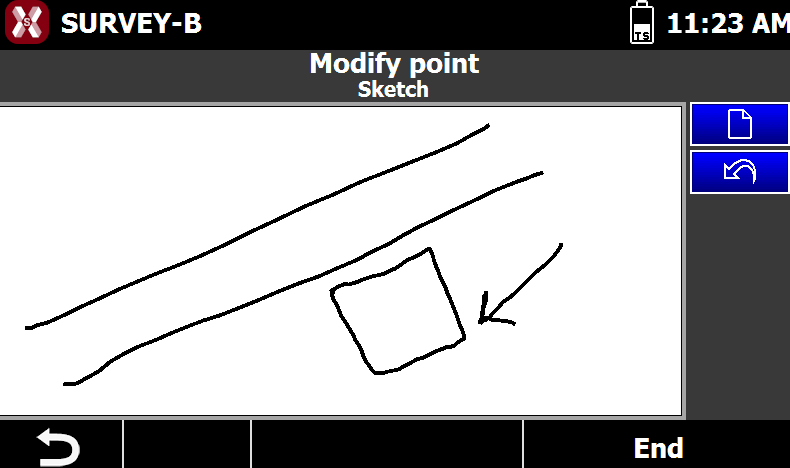
The page Sketch allows to draw a sketch of the reference point position.
-
Use the pen to draw a sketch.
-

-

-
Edit a point
-
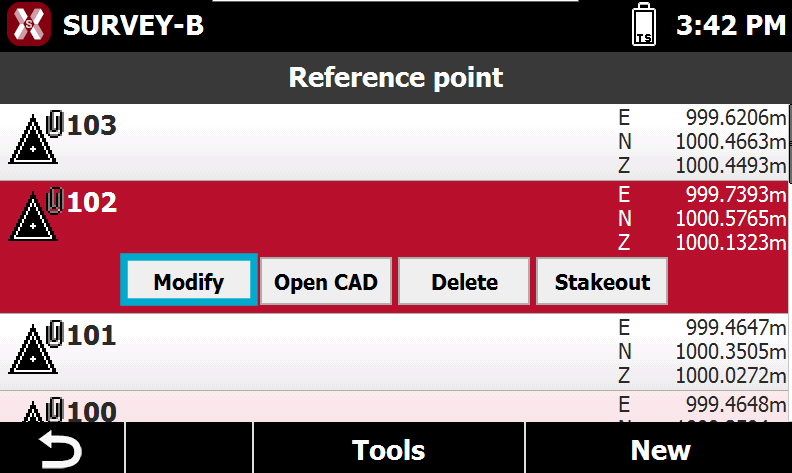
To edit a reference point select a point from the list and press Modify.
Name and coordinates
-
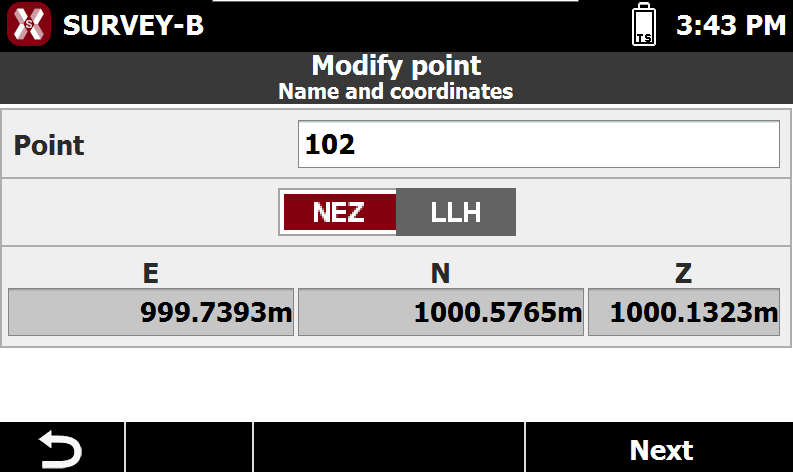
The page Name and coordinates allows to enter the point name and point coordinate.
-
Point: name of the point.
-
Coordinates Format: allows you to choose whether to display plane coordinates or geographic coordinates for the point.
-
NEZ: displays the plane coordinates of the point (Northing, Easting, Elevation).
-
Lat. / Long. / Elevation: displays the geographic coordinates of the point (Latitude, Longitude, Elevation).
-
Code and properties
-
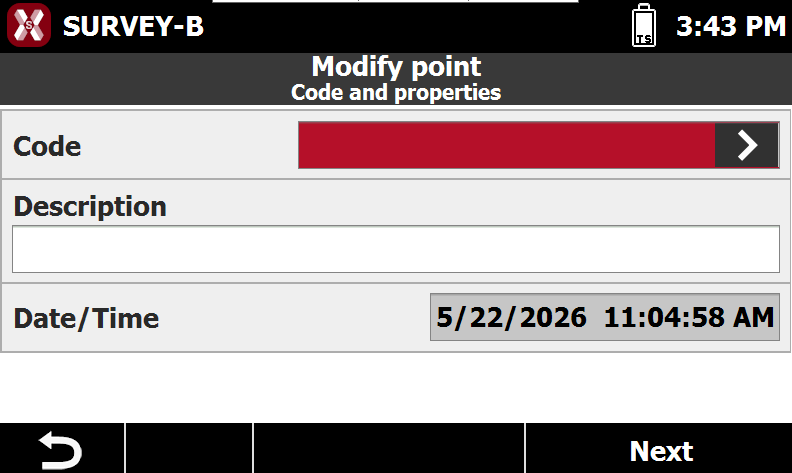
The page Code and properties defines the point code and description.
-
Code: displays the survey code associated with the point. Use the button to open the code library and select a code from the list.
-
Description: displays an extended description of the point.
-
Date: displays the date and time when the point was saved.
-
Sketch
-
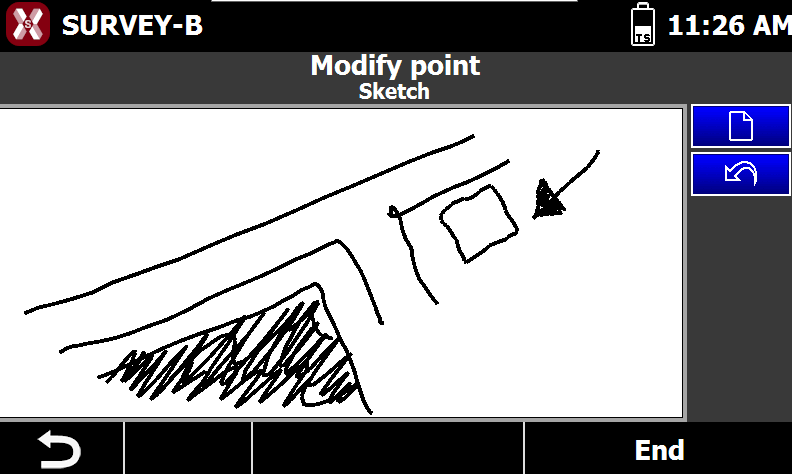
The page Sketch allows to draw a sketch of the point position.
-
Use the pen to draw a sketch.
-
-
-