
-
To export data from the current job open Job page.
-
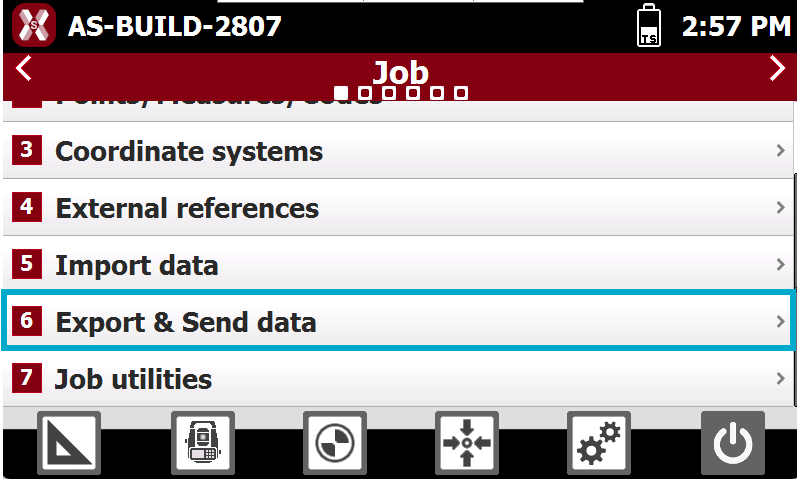
Select Export and send data.
-
Select the format to export the data.
-
Below list shows the list of available export formats.
-
X-PAD Exchange format: exports the data in xpad format. The format ensures better data transfer and collaboration between different X-PAD software.
-
AutoCAD DXF: exports points and drawing in the standard DXF format.
-
Custom text file (ASCII): exports different data in a customized formatted text file.
-
LandXML: exports the data in the standard LandXML format.
-
Google Earth KML: exports the data in Google Earth KML format.
-
GSI Format: exports points and measurements in the GSI format.
-
Leica IDX/IDEX: exports topographic points in Leica IDX/IDEX format.
-
Sokkia SDR format: exports topographic points in the Sokkia SDR format.
-
STAR*NET format: exports the data in DAT format for office software STAR*NET.
-
LSS (DTM): exports the data in 001 format for LSS software. (Only visible if language is English or English UK)
-
Topcon GTS: exports the data in .gts format.
-
Export a X-PAD Exchange format file
-
The X-PAD Exhange format (.xpad) ensures better data transfer and collaboration between office and field software:
-
Leica X-PAD for Android.
-
Leica Fusion.
-
The format consolidates all information stored in the field including images and raw data.
-
To export the data in X-PAD Exhange format select X-PAD Exchange format.
Export a DXF drawing
-
The software allows to export in the standard DXF format, exporting points with labels and drawing.
-
To export the data in DXF select Drawing DXF.
-
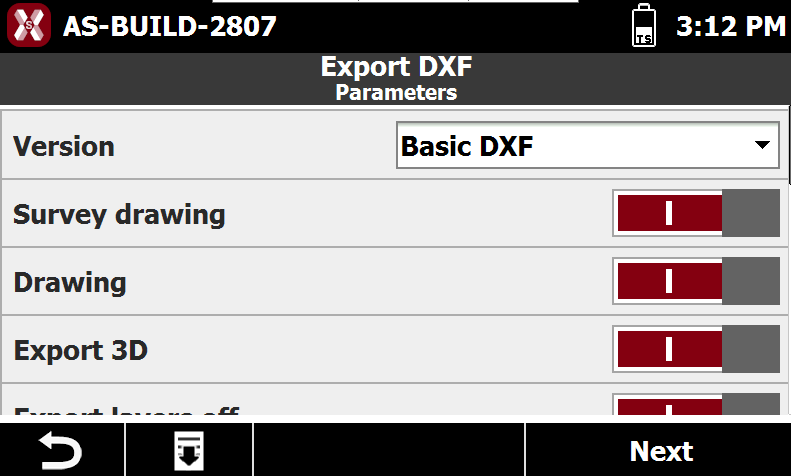
Enter the DXF Export parameters.
-
Version: version of the DXF format to create.
-
Survey drawing: activates the export of all the drawing elements that were created during the measurement operations with Smart drawing.
-
Drawing: activates the export of the drawings in the job. These elements was imported or created in CAD.
-
Export 3D: activates the export of data with elevation.
-
Export layers off: enables the export of data on layer that are turned off in CAD.
-
Export points: enables export of topographic mpoints.
-
Label size: size of the text for the labels of the topographic point.
-
As blocks: enables the export of topographic points with attributes and symbol as block.
-
Export sketches: activates the export of the images associated with the points. The images are linked to the points to be opened as a reference (hyperlink) from CAD software.
-
-
Press Export to export the file.
Export ASCII
-
Export topographic points, reference points, measurements and other data in ASCII customizable format.
-
Export parameters can be saved in a template which can be loaded for other import and export procedures.
-
To export an ASCII file select Custom text file (ASCII).
-
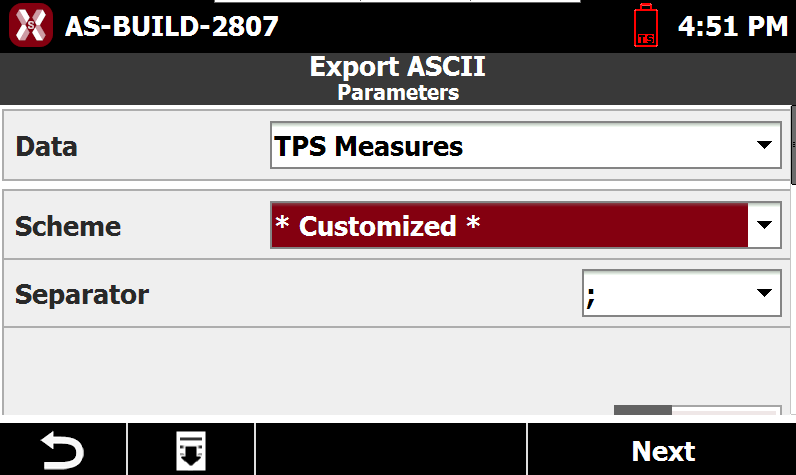
Enter the export parameters.
-
Data: select the data to export.
-
Topographic points: exports the topographic points.
-
Reference points: exports the reference points.
-
TPS Measurements: export the total station measurements.
-
-
Scheme: the currently available export scheme is suggested. Select a scheme or choose * Customized * to create a scheme.
-
Separator: select the character separating fields with content.
-
Heading row: activates the export of a heading row containing the name of the fields.
-
File extension: defined the exported file extension.
-
Angles: the number of decimals for angle values.
-
Coordinates: the number of decimals for coordinate values.
-
Elevation: the number of decimals for elevation values.
-
Distances: the number of decimals for distance values.
-
Lat./Long.: the number of decimals for latitude and longitude values.
-
Lat./Long. format: the format to use when exporting latitude and longitude values.
-
-
Press Next.
-
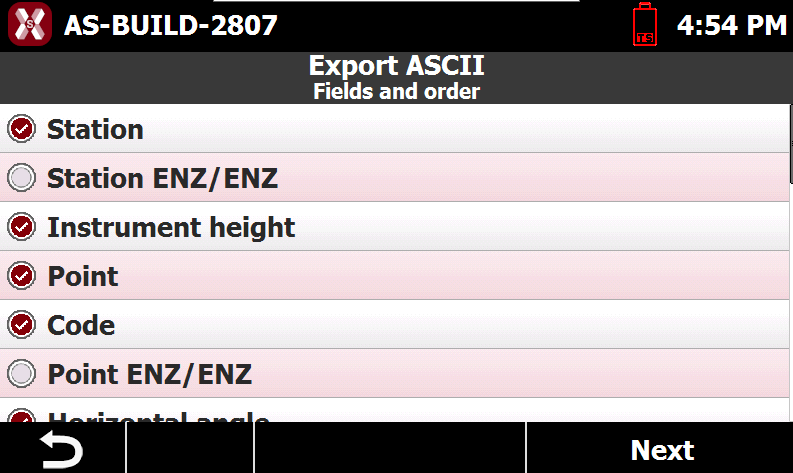
If the Scheme is * Customized * the software allows to select the fields to export and change the fields order.
-

-
Move down: moves the field down in the list.
-
Move up: moves the field up in the list.
-
-
Press Next.
-
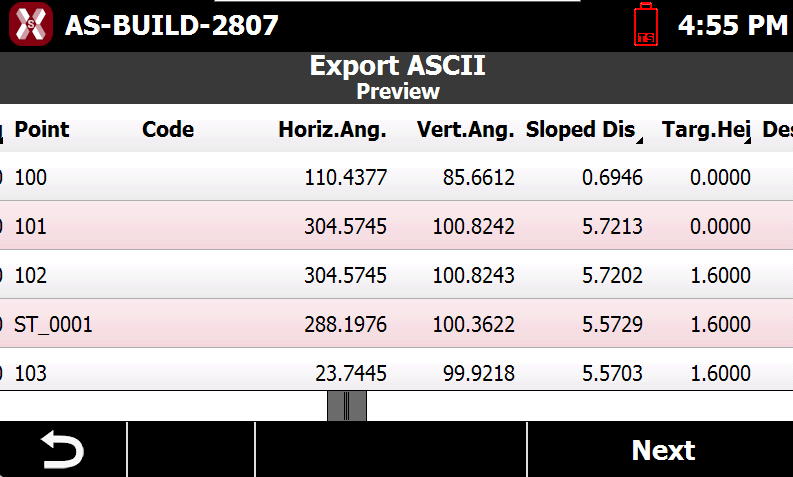
The software shows a preview.
-
Press Next.
-
If the Scheme is * Customized * it is possible to save the scheme.
-
Save scheme: enables the saving of the current export scheme.
-
Scheme name: the name of the scheme to save.
-
-
Press Export to export the data.
Export a Google Earth KML/KMZ file
-
Exports points, lines, measurement lines and surfaces in Google Earth KML format.
-
To export the data select Google Earth KML.
-
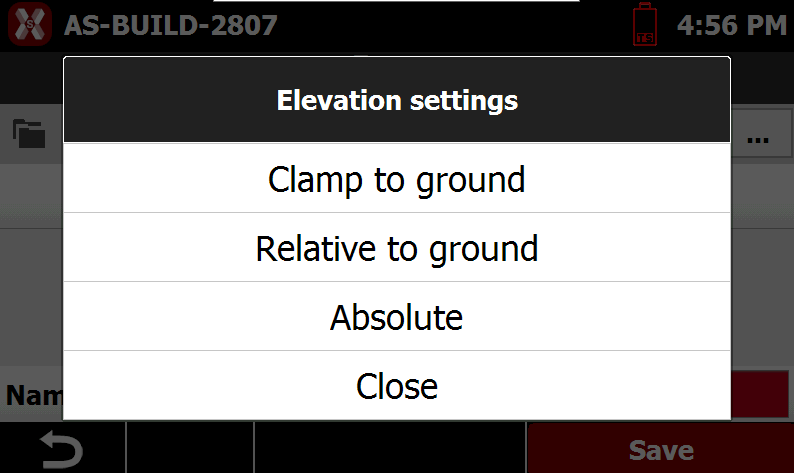
Enter the Export options.
-
Elevation settings: elevations can be defined in three ways:
-
Clamp to ground: elevations are leaned to the 3D model of Google Earth.
-
Relative to ground: elevations are referred to the 3D model of Google Earth.
-
Absolute: elevations are absolute.
-
-
-
Select the elevation setting to export the file.
Export a GSI file
-
Exports topographic points, reference points and TPS measurements in GSI format.
-
To export the data select GSI Format.
-
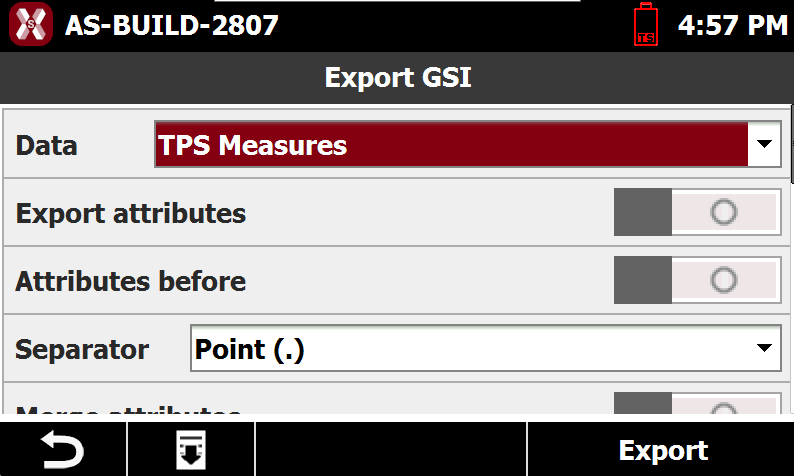
Enter the Export options.
-
Data: select the type of data to export:
-
Topographic points: exports the topographic points.
-
Reference points: exports the reference points.
-
TPS measures: exports the total station measurements.
-
TPS measures Phytagoras: exports the total station measurements using Phytagoras model.
-
TPS measures LSS: exports the total station measurements using LSS model.
-
TPS measures Liscad: exports the total station measurements using Liscad model.
-
TPS measures RGM2000: exports the total station measurements using RGM2000 model.
-
-
Export attributes: activates the export of the point codes as attribute of GSI format
-
Separator: separator used for composed codes. In the code of the point, more than one code can be saved separated by characters such as point, comma, space or other. During export of attributes, the complete code is divided in sub-codes based on separation characters.
-
Merge attributes: activates the export of single codes composing the complete code. A separa
-
-
Press Export to export the file.