
Windows Android
-
GNSS receivers are connected to X-PAD Connect by Bluetooth, WiFi or USB cable.
-
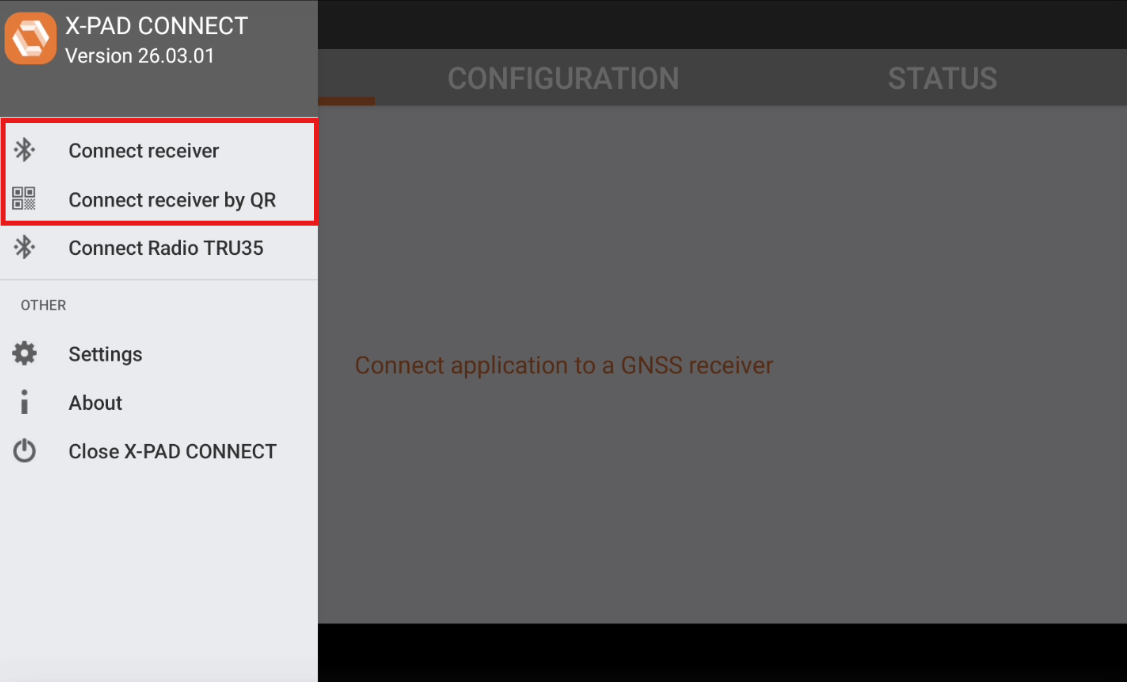
Android To connect an instrument tap on top-right icon

-
Windows To connect an instrument click Connect on the top-bar.
-
Android The instrument can be connected searching and selecting the name of the GNSS receiver or using the controller camera and QR code on the GNSS receiver.
-
Windows The instrument can be connected searching and selecting the name of the GNSS receiver or by USB cable.
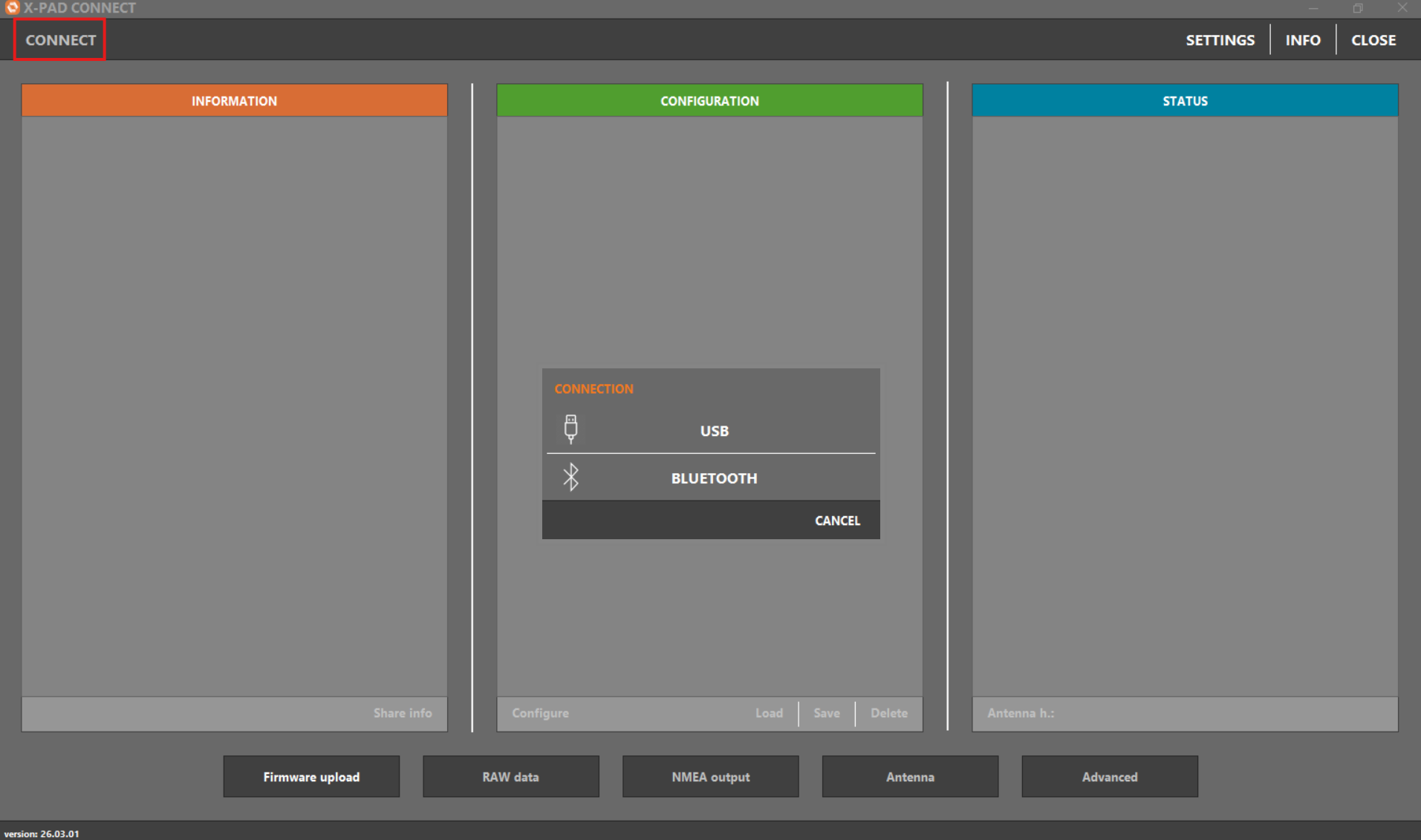
If Autoconnect at start is enabled in Settings, the application automatically connects to latest connected GNSS receiver when application is started.
Bluetooth Manager
-
To search and connect a GNSS receiver using Bluetooth or WiFi select Connect receiver.
-
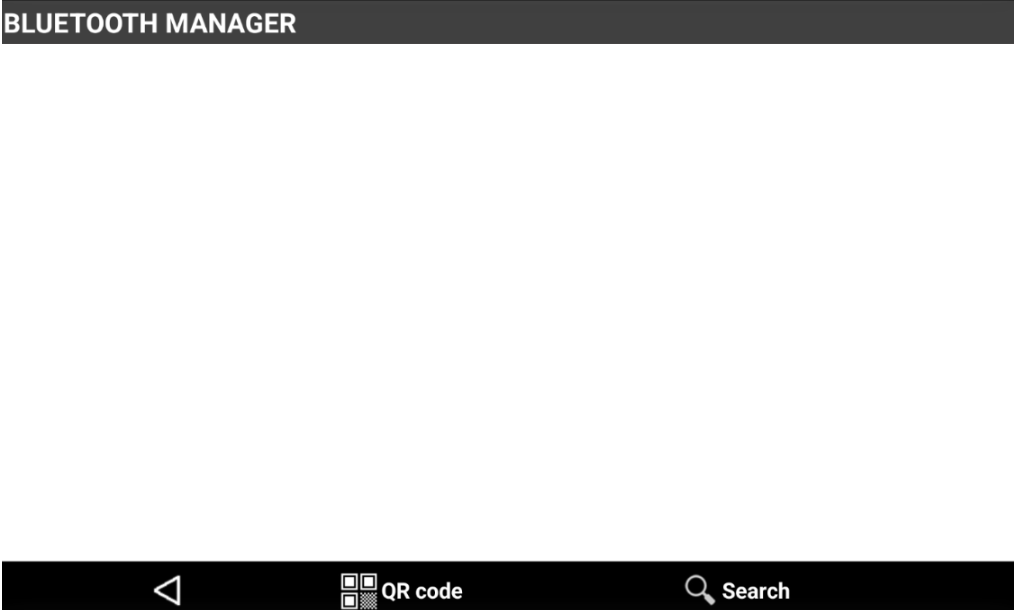
X-PAD opens the Bluetooth Manager.
If no device has been added to the instrument list, X-PAD Connect opens directly on the Search page.
-
The Bluetooth Manager shows the list of paired devices.
-
From the Bluetooth Manager it is possible:
-
Tap on the serial number of one of the paired GNSS receiver to connect the receiver.
-
Android Press QR code to connect the GNSS receiver using QR code and device camera.
-
Click Android Search or Windows Refresh list to perform a new search.
-
Android Tap on > icon to open the context menu. From the context menu it is possible to edit the Bluetooth profile, for example to change the PIN code, or delete the device.
-
Search a device
Android
-
X-PAD Connect search automatically for compatible GNSS receiver based on Bluetooth name.
-
To start the search press Search from the Bluetooth Manager.
If no device has been added to the instrument list, X-PAD Connect opens directly on the Search page.
-
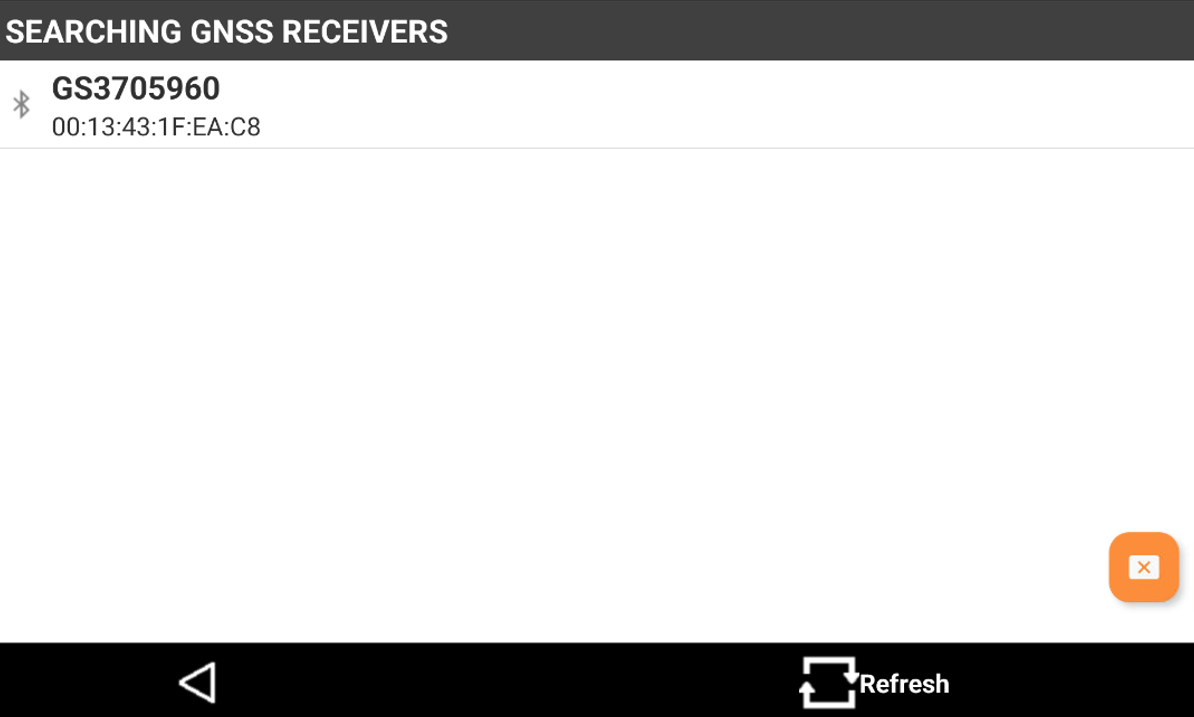
At the end of the search, the available devices are listed.
-
Press Back to return to previous page.
-
Press Refresh to perform a new search.
-
Select the serial number of the GNSS receiver to add it to Bluetooth Manager page.
Connect a device using QR code
Android
Available with some GNSS receiver with QR code printed on a label.
-
To connect or search a device using QR code select QR code from Bluetooth Manager or select Connect receiver by QR from the application menu.
-
The software activates the controller camera.
-
Hold the camera up to the QR code and wait for the code to be automatically scanned,