
-
This chapter provides an introduction to X-PAD Connect, including its main features, user interface, and basic operating principles.
-
It explains how to navigate the software and perform the initial configuration steps required before starting your work.
-
By following the procedures described in this chapter, you will be able to correctly install and configure the software, become familiar with the user interface, and understand the core workflow of X-PAD Connect.
First-time software startup
-
Android To start the application press the X-PAD Connect icon.

-
Windows To start the application click X-PAD Connect icon on desktop or start the application from the Start menu.
-
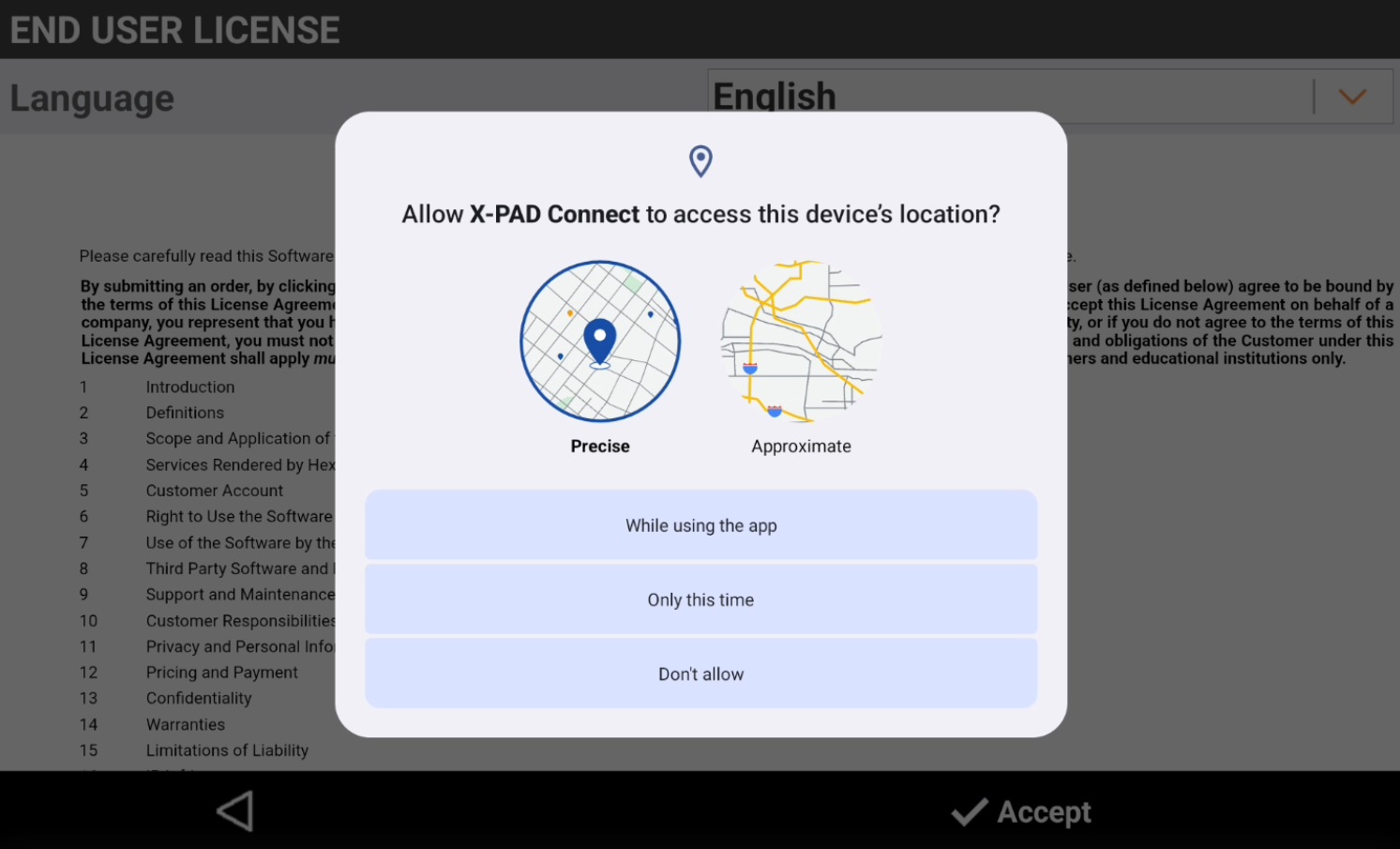
Android The application asks permission to access device’s location and connect to nearby devices. Select to allow the permissions.
-
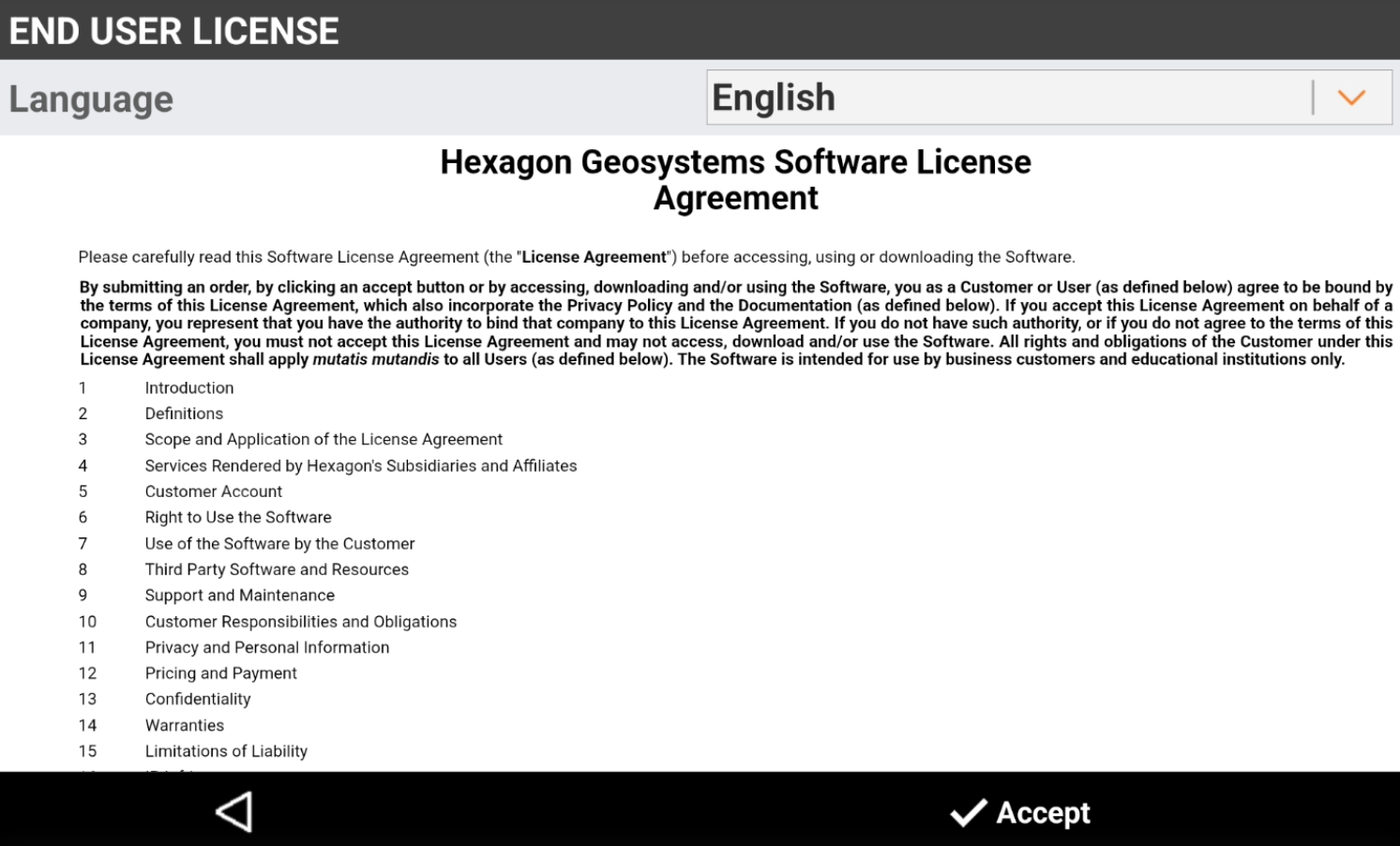
Read and press Accept to Software License Agreement. Press Language drop-down list to change language.
-
Application is now ready to be used.